What are the exact steps to properly clear all the various caches for MSFS?
In Windows, if you use Disk Cleanup, there is an option to delete DirectX Shader Cache - but some advice is that unless you disable DirectX Shader Cache in NVIDIA Control Panel FIRST, you create problems. If so, then you first have to:
Enter NVIDIA Control Panel and set Shader Cache Size from “Driver default” to “Disabled”
reboot
Delete DirectX Shader Cache using Disk Cleanup
reboot
Re-enable NVIDIA Shader Cache Size to “Driver default”
… that’s ok, if you know that you have to do it, and remember to do it. But that is just for one of the various caches.
The Rolling Cache can be cleared in the MSFS Settings, by changing it to zero, and then setting it again.
But are there are other caches too? Is there any official guidance on where MSFS saves various caches, and how to clean them out if you need to (or want to)?
What about WASM caches?
Wouldn’t it makes sense to have an option/scritp in MSFS settings to clear all (or selective) caches, just as a maintenance thing?
I’m not worried about doing it manually for myself - I’m really asking:
What caches exist that should be cleared when troubleshooting? I know there is more than 1: DirectX, Rolling, Wasm, etc. I just don’t know what they all are
I also don’t know the proper way to delete them if I decide to, as part of troubleshooting.
It can be very helpful for beta testing: If you have an issue, and it repeatably goes away by clearing a specific cache, that might help find a cause. (For example)
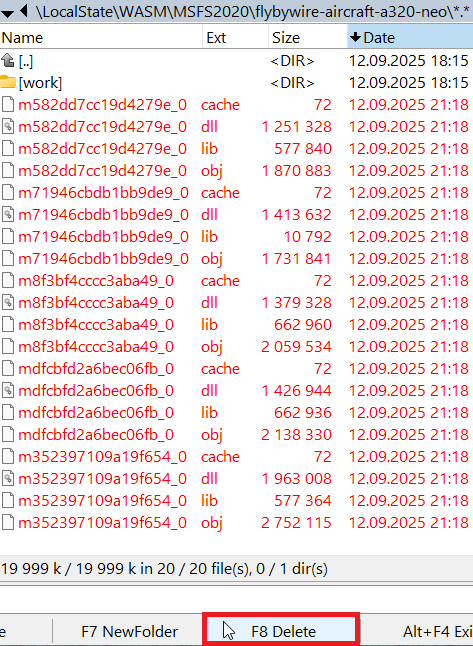
There are many files there and one folder named Work. Leave the Work folder and delete all other files.
We do the same for other aircraft, airports, etc. - leave the Work folder and delete the files inside.
We should also delete files when updating an aircraft, airport, or other add-ons. If we install a new version, delete the existing files but leave the Work folder intact.
OK, but what about the base simulator - I have zero addons installed, and zero downloaded MSFS content (for the purpose of testing a pure, default, vanilla sim). What are the base caches?
I did look at the script posted above, which gives some indications of where various things might be (although, I think it likely that with version updates, some default file locations have a good chance of moving around…)
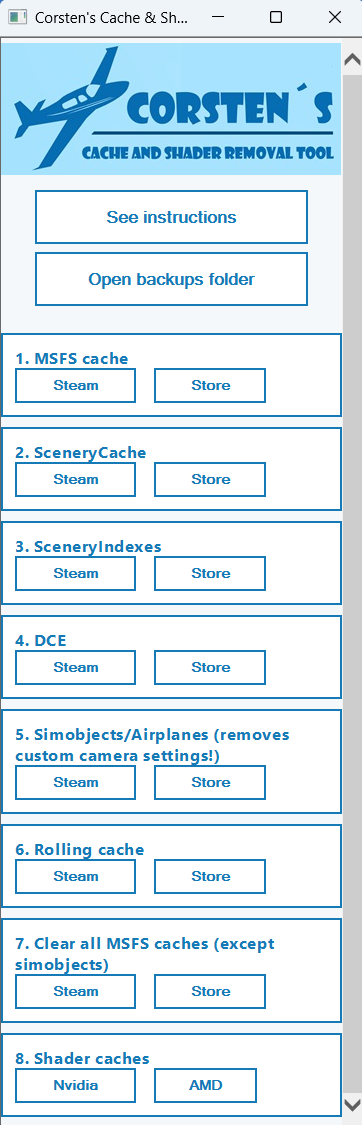
A long time ago, someone created a script based on my suggestions about clearing the cache - which files and folders to delete. I don’t remember if it was Corsten or someone before him. I only recall that he probably had an avatar with a mohawk or some other punk hairstyle. Later, he modified the script – he used some of my tips or advice on topics he asked about or wrote about.
Sorry I mean the caches that a minimum install of MSFS 2024 creates and uses, without any downloaded content or addons: Just the base simulator itself.
I assume they include:
DirectX Cache(s)
WASM Cache
Rolling Cache
But are there other caches that if cleared help to reset MSFS? I’m pretty sure there is a cache or sync file that syncs various settings with Cloud Saved data. The other day I was having a real problem with controller settings getting corrupted, and even when I went through the published command line to delete cloud save - even then it didn’t reset the controller settings like it always has. So somewhere there is yet another cache that was corrupted.
I found somewhere a way to move those folders off my C: drive. (It was getting full and they were large folders). Essentially you copy them and then run a command to create virtual links to them. Things have run far better since moving them.
Windows search ‘Disk Cleanup’. On C: drive, I delete temporary files and DirectX Shader Cache only.
I reboot.
I set my DirectX Shader cache in NVCP to 100GB (you can choose any size you like.)
I’ve deleted the Scenery Indexes before (as TenPatrol suggested) but I don’t normally clear those. Maybe I should after every update? I’ve gotten the sense that it’s better to not delete them unless something is broken.
I’ve never deleted my WASM cache - again, something to do when something is broken (I think…)
Right - so then isn’t there a danger by using a script to delete caches, that the script won’t attempt - or be able - to reach in to the NVIDIA CP to first disable the cache before deleting it, and by missing that important step, might actually cause an issue?
Open Localcache
Delete PC
Delete SceneryIndexes
Delete SimObjects (custom cam settings)
Open LocalState
Delete Cache folder
Delete WASM
Open folder where your MSFS 2024 Packages are located - the one that contains the Community folder.
Delete the StreamedPackages folder.
If you’ve downloaded any content, you can also delete Official2020 and Official2024. Just keep in mind that you’ll need to re-download things like aircraft, airports, and other content afterwards.
EDIT
Important: When it comes to cleaning DXCache and the NVIDIA driver cache, this must be done in Windows Safe Mode.
Not all files can be deleted while a driver is running because those files are in use at that moment. In Windows Safe Mode, drivers - like your graphics card driver - don’t run, so the files can be deleted without any problem.
Whenever this topic comes up, I always wonder what deleting the various caches is supposed to achieve. From what I can tell from the discussion, there’s no evidence at all that this approach works.
I’ve been using MSFS on the same computer since 2020 and have never deleted my caches. I haven’t run into any of the problems that people say are solved by deleting the caches. But it seems like some users who say they delete their caches sometimes or regularly are still having the same problems that deleting the caches is supposed to fix.
I can’t help myself, but given these facts, clearing the caches seems like pure snake oil to me.

 Important: When it comes to cleaning DXCache and the NVIDIA driver cache, this must be done in Windows Safe Mode.