Can’t really say, every system is different. Just saying it’s running great, haven’t actually compared fps directly vs W10 or anything like that.
My sim was a little choppy’r than normal the last couple of days, I may need to clear my cache, but generally speaking 24H2 seems to be running smoothly in 2020. 2024, nope keeps CTD every time…
As mentioned in my earlier post, I upgraded one of my 23H2 OS’s that hosts MSFS 2020 & had no problems.
Subsequently I built out a new partition with a fresh copy of 24H2 that hosts MSFS 2024, and have had no issues with that build either.
Don’t upgrade if you have a G2 VR headset, otherwise it seems like it’s good to go AFAICT.
My spec:
5600X, RTX 3070, 32G Ram
I’ve experienced major stutters in FS2020 since upgrading to 24H2, wasn’t aware that it’s due to Windows update before but after trying different things it’s definitely the 24H2 update causing this. I’m too late to roll back, but by turning off fast start-up, hibernation, and HAGS, I was able to reduce the stutter a bit. I think there are definitely problems with the 24H2 build which requires a fix by Mircrosoft.
Same for me. I had severe stutters after the update. Funnily, this was not shown in the FPS window in dev mode where a smooth performance was shown as before. Luckily I was able to roll back but MS needs to address this issue.
@CSchaff6870 @WilfulFire27398
Have you tried disabling Memory Integrity in Windows settings and then turning off virtualization in your BIOS settings to address the stuttering?
I’m glad I finally found out, I enabled SVM Mode (or VT-X for Intel users) to compile FBW projects which in turn enabled Virtualisation-based security in my system. It is known to cause stutters in games. I disabled SVM and my computer is butter-smooth in games. I’ve yet to try this in MSFS but I think this might be the cause. Back to flying!
You’ve done exactly what I suggested earlier.
Since you have an AMD CPU, you should also disable IOMMU in the BIOS settings.
You’re on the right track, but you’re mixing up the settings and terminology. Virtualization for AMD CPUs is called AMD-V and the BIOS setting that disables virtualization is SVM.
Additionally, on AMD motherboards, you should also disable IOMMU for best results.
For Intel CPUs, virtualization is known as VT-X and the corresponding BIOS settings, for example on MSI motherboards, are Intel Virtualization Tech and Intel VT-D Tech.
You mentioned VBS – that’s essentially the same as the setting I recommended disabling, which is Memory Integrity (HVCI). Additionally, I also suggested turning off virtualization in the BIOS settings.
To clarify:
- If you have an AMD CPU, you should disable SVM and IOMMU in the BIOS.
- If you have an Intel CPU and an MSI motherboard, you should disable Intel Virtualization Tech and Intel VT-D Tech.
So as I’ve mentioned before, if someone suddenly experiences stuttering in MSFS, they should check whether following my recommendations helps resolve the issue. This includes disabling Memory Integrity (VBS/HVCI) in Windows settings and turning off virtualization in the BIOS. These steps can often eliminate stuttering and improve overall performance.
Thanks for your tip, I’ve disabled IOMMU as well. In the latest 24H2 update, even if HVCI is disabled, VBS could still be running and could cause stutter. In my case I had SVM enabled in BIOS which allowed VBS to run. Now with SVM disabled SVM shows to be “not enabled”, so I think it worked. I’m switching to a new 9800X3D soon so these tips will come in handy!
You’re very welcome.
Friendly reminder.
Oh god! It is here!
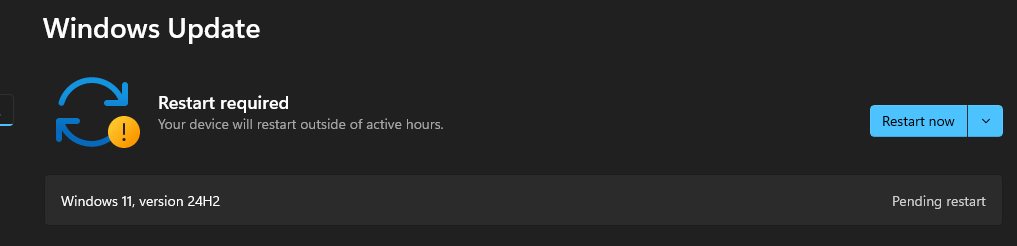
edit: Copilot, MS Edge, MS Teams added. It feels a bit stuttery at chrome/youtube and indie games so far 
edit2: managed to remove these 3 apps. CPU (7800x3D feels better, faster??) No sound stuttering but chrome stuttering still there after 2 restarts. Bitlocker didn’t enabled by itself, yay  Time to relax and test more.
Edit3: Stuttering fixed. Can’t believe it was MSI Afterburner causing this https://www.youtube-nocookie.com/embed/h6642umBeYM Have a great day you all.
 …
…  …
… 
I’m not making fun. These represent my reactions to 24H2… and I just spent a lot of money on a new build + headset because of it 
Should be fine. I’ve been using it for like two weeks now and haven’t been having issues.
There are posts on the forum stating that 24H2 is causing stuttering in MSFS 2024 and/or audio stuttering. Of course, this doesn’t affect all PC configurations, but I thought it was worth mentioning.
Yesterday i checked for updates, my PC downloaded and installed 24H2 - since then i noticed stutters (i had that weeks before also). Then i read, that you can roll back to the previous version (23H2) within 10days.
Did the rollback to 23H2 and paused all updates (for the next weeks, don´t know if i can stop that update forever, don´t think so) - now the stutters are gone.
Would appreciate any hint in how to stop my PC not updating to 24H2,
And to clarify: i am running 2020 only,
Greets,
Markus
Updates
*** I still recommend Security Updates policy. It delays security updates 4 days and feature updates up to 2 years. This ensures stability and reliability.**
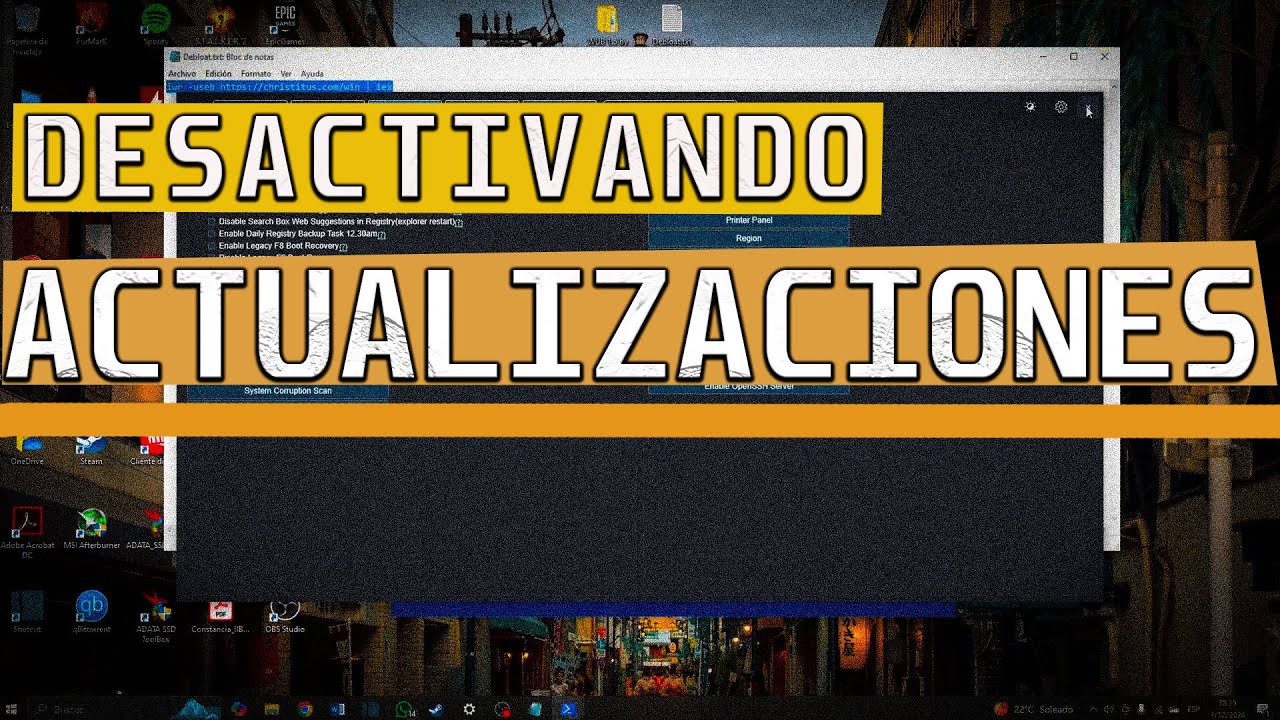
Hello, you can take a look at this. You may be interested. I use the dev mode but the stable one is also available.
Launch Command
Stable Branch (Recommended)
irm “https://christitus.com/win” | iex
Dev Branch
irm “https://christitus.com/windev” | iex
https://christitus.com/winutil-install/
I am on 24H2 and I do not find any apparent problem. The only annoyance (But I have already solved it) is that 24H2 forces you to have the minimum version of the Nvidia 560.xx driver and for my RTX 2080Ti it seems more stable 528.49 so I had to make sure that Windows Update did not update the driver automatically.
Computer Configuration > Administrative Templates > Windows Components > Windows Update
1-Local Group Policy Editor
2-Administrative templates
3-Windows components
4-Windows Update
5-Manage the updates offered from windows update
6-Do not include drivers with Windows updates
Removing this small annoyance… Everything seems to work fine… That is… I have Windows 11 optimized to the maximum for gaming. What has helped me the most is the Christitus tool, which I 100% recommend going through their tweaks.
Try via Local Group Policy Editor
Select the target Feature Update version
Open Group Policy Editor
1 Click “start” type GPO and click Edit Group Policy
2 Nawigate to the location below:
Under Local Computer Policy double click
Computer Configuration → Administrative Templates → Windows Components → Windows Update → Manage updates offered from Windows Update
3 Double click Select the target Feature Update version
4 Please select enabled and enter Windows 11 in the first field.
5 Important: If you have Windows 11 version 22H2,enter 22H2 in the Target version field.
If you have Windows 11 version 23H2, enter 23H2 in the Target version field
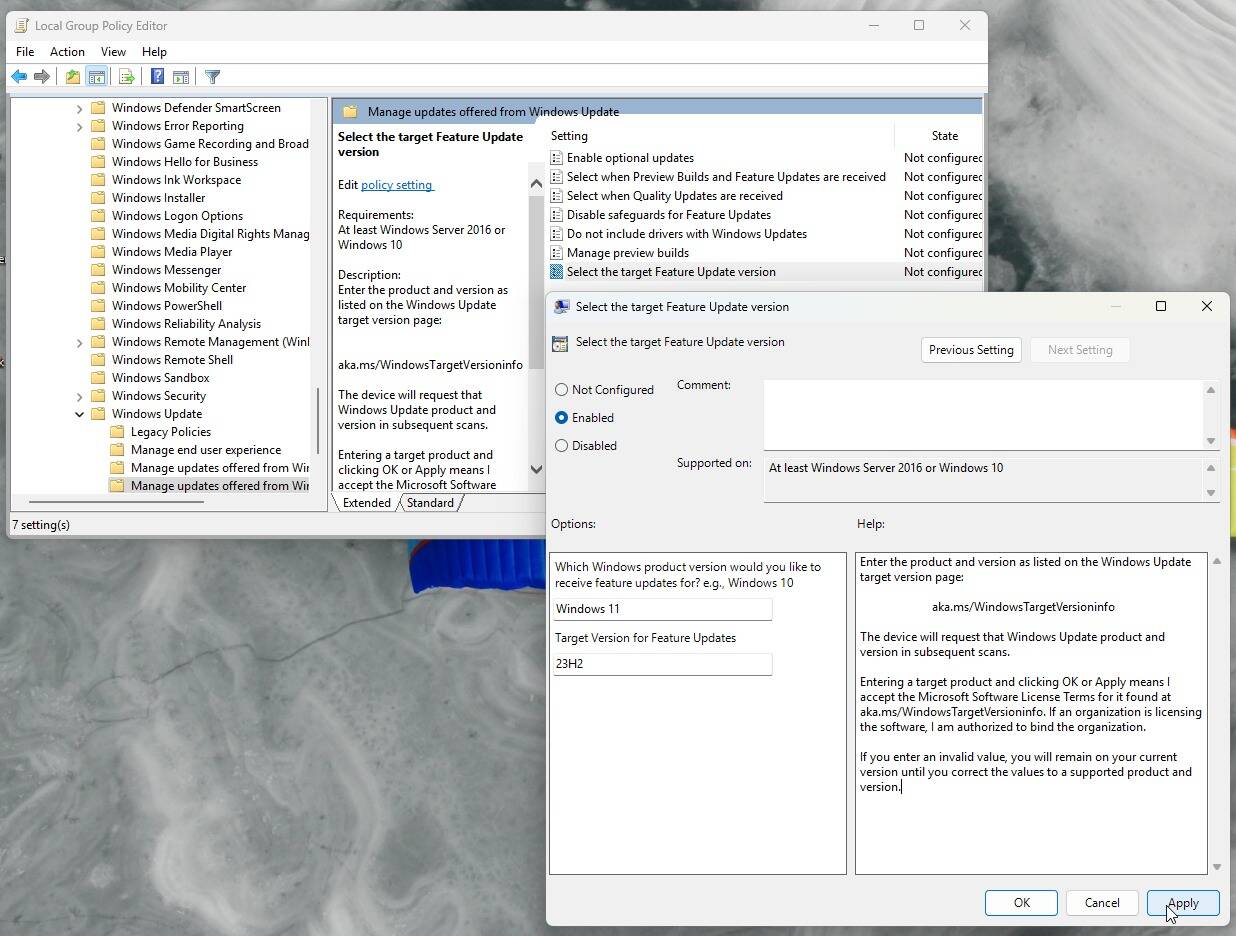
6 Click apply → ok and restart PC.
Hi,
I updated last Sunday to 24H2  , I did not know much about all this trouble, luckily I got a external HDD backup which will kill 4/5 hours today, or more…
I can play MSFS2020, works just the same with an HP AMD7640HS and Nvidia 3050, 6GB(Version 561.19,DX12) Laptop.
But I cannot update the AMD Video driver, or I get penalized with a “white screen” of death.
Two other games I got, which been running very nice before on same machine are looking now so bad, no raytracing anymore, really bad stutter, loss of detail.
And no background processes running(apparently…).
Security is enhanced, that’s fine, but one bad driver and I got the most expensive “light bulb” in house. 