I would venture to guess that very few of us already know this- I certainly was amazed…
Many of us have more than one monitor, on which we run auxilliary programs for our flight sim- ATC programs, weather programs, flight planning etc. etc. But apparently, when you are working on one of those programs on your 2nd monitor, your FPS can drop by as much as 10 FPS! If you move the mouse and click on your main (sim) monitor, the FPS are restored. This sounds so simple and maybe obvious to the tech-savy, but I sure didn’t realize it. I often adjust something on my 2nd monitor and don’t click on the sim monitor for some time. That is worth noting. Here is how I found out-
Even more since technologies like DLSS or FG are only working if the game has the focus. But it is very obvious if the game has not the focus you can switch back.
I mean, yeah, the computer and video card are doing more. Pretty much anything you run’s going to have a performance hit with a second display active unless your system has a ton of extra performance headroom.
I have a modest RTX 4070 (full specs in my profile), and triple monitor. FS2024 on the middle, left side is Navigraph, right side is web browser and SayIntentions. I also sometimes use a small touchscreen monitor for popping-out the TDS Garmin GTN750XI.
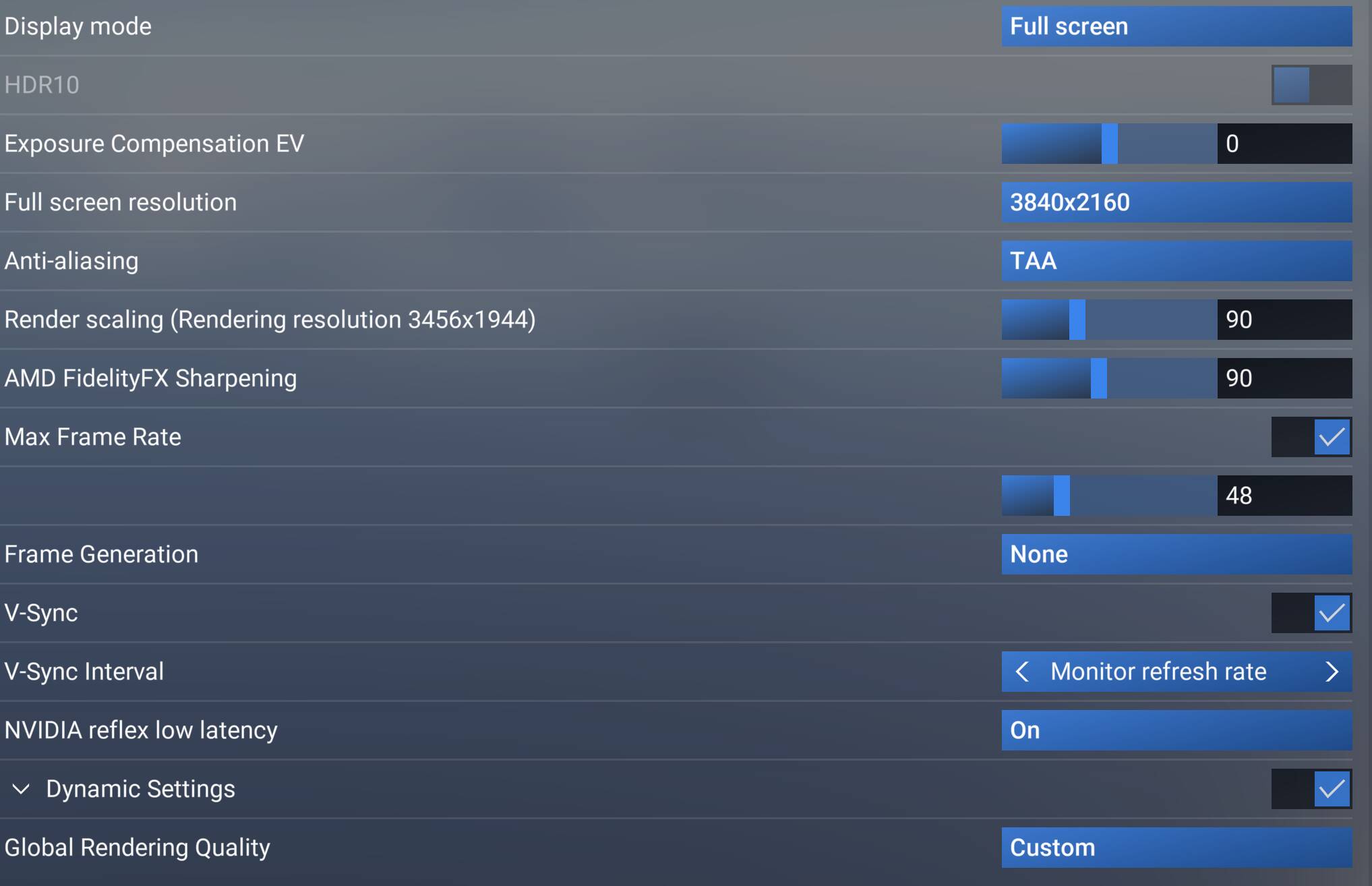
Flying the BKSQ Commander through Alaska, I see zero FPS drop when I activate windows in different screen. It’s locked at a pretty solid 48 FPS.
Here are my Graphics settings, for what they’re worth:
There is no simple formula for this. It would all depend on where the bottleneck is and if you are Main Thread or Graphics queue limited.
For example: Let’s say your MT latency is 8ms and the Graphics Queue is at 10 ms. You also have capped your frame rate to 60 FPS (16ms). You would then have room to spare for both CPU and GPU. If you had a browser opened on a 2nd monitor and streamed a video, you would not notice a drop in FPS as long as the MT and GQ stayed under 16ms.
Now, lets say, your MT latency was already at 16ms. You would already be at your 60 FPS limit. Under that condition, if you opened a browser on the other monitor, your CPU would then become overloaded. The additional processing would force the MT latency up to, lets say, 20 ms. This would drop your frame rate from 60 to 50 FPS.
Bottom line is, it all depends on how much load the system is already under, specifically CPU and GPU, at the time.
I’ve a i7-14700K (20 cores) and an RTX 5060 Ti. Frames are capped at 90 using 2x frame gen. I see the expected FPS drop to half as focus shifts outside the flight sim … but limited to no impact on FPS from doing other tasks on additional monitors (streaming, OBS recording, browsers, etc.). My thought is that since the flight sim isn’t fully optimized for multi-threading 1 or 2 cores handles the main hit from MSFS 2024, … leaving all kinds of additional cpu cores & processing capability to handle other tasks without impacting the sim.
If you use DLSS Frame Generation, it is only active when the MSFS window has focus. When you change focus to another window / application, DLSS FG stops so you’ll only see native frames.
I dont know if possible on regular system but divide cpu cores in half
Most cpu have more than 12 cores so this might work.
Where you assign one half for the sim while the other half are assigned for external programs
If cpu has igp use this for external programs on the second screen and gpu dedicated for msfs running on the first screen
So basically run 2 pc in one
Probably it is MPO/gsync related? I wrote a post about how to check and debug it, how to see overlay numbers and more but couldn’t find the post. His fps overlay also not in good conditions. SpecialK has some good info and solutions i think with his tool. edit: What is Multi-Plane Overlay (MPO) in Windows 11 | NVIDIA edit2: I remembered how to check MPO MaxPlanes. Run Dxdiag as admin > Save all information > in created txt file search for MPO MaxPlanes. (ex. “MPO MaxPlanes: 4”)
Good replies, all. My point wasn’t to say this is Earth shaking or a big problem for most. I get great frame rates and only noticed it after it was brought to my attention. I already knew that the lossless scaling I was using has to be activated by clicking on the main monitor. Point is that many may see poor frame rates and not realize that it’s because they had clicked on another monitor. In any case, I think it is worth noting.
Also, I don’t think the term clickbait is really applicable or a good response to my post.
It is great you shared that. With Nvidia 570.40 they changed things about multimonitors and MPO. Those were undocumented changes . Who knows maybe they changed it again. Every info is welcome for community <3 I fixed my crazy stutters and fps drops with this trick SpecialK found out. Have a great day <3 Edit: And i keep seeing videos about stuttering on forums and they all looks like because of this but not game. I was able to get crazy low latency results and smoothness also those days.
which clearly suggests that the video shows an actual fix for an FPS issue.
The thing is, there is no fix there. That’s simply how it works. So if there is no actual fix, calling it “The easiest MSFS 2024 FPS fix” makes it clickbait because it suggests that the author of the video has found a fix for an issue when he hasn’t.
I also have two monitors and I don’t get any FPS drop in MSFS when I move to the second monitor. @GimbalAxis already explained why that is.