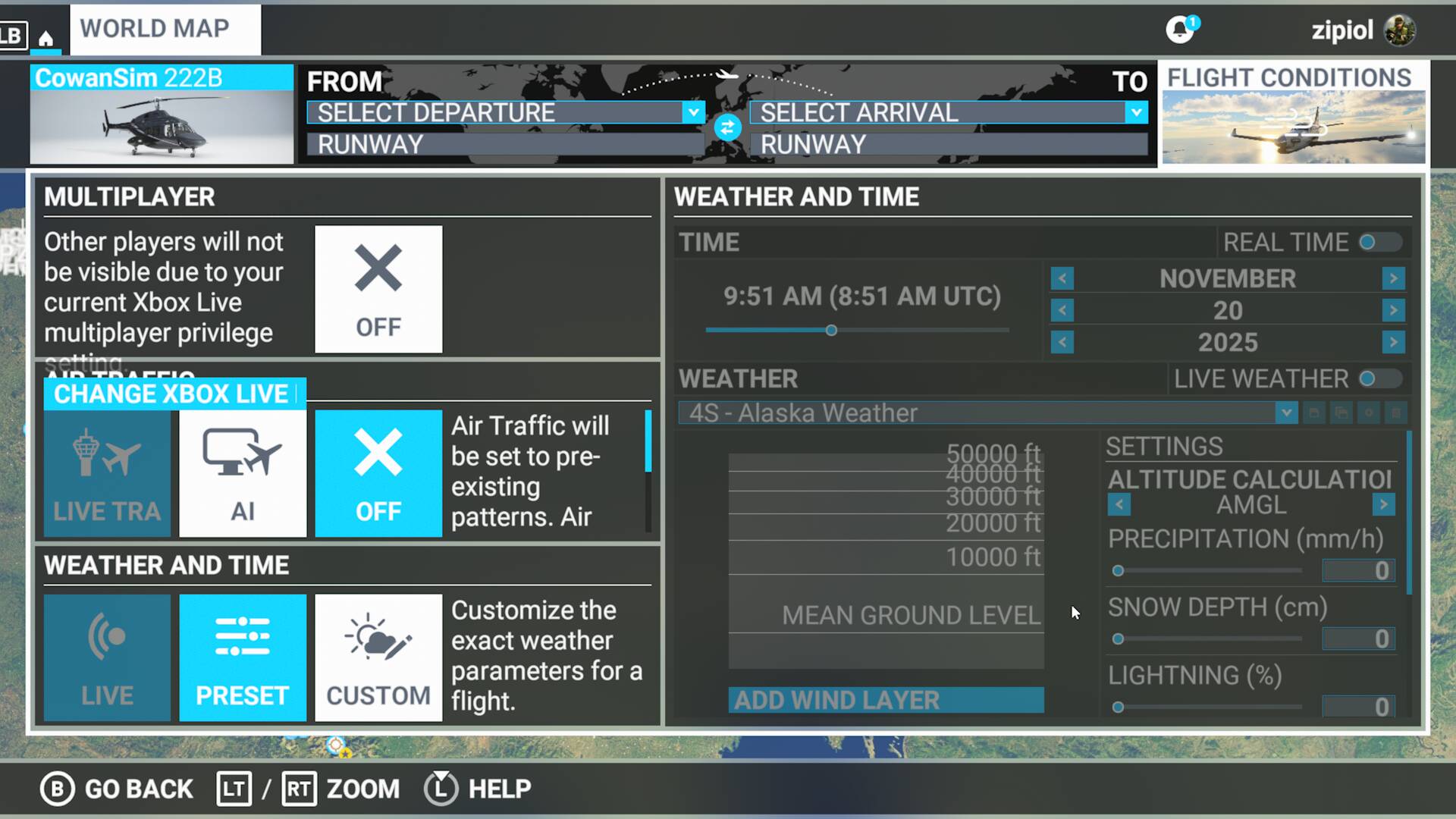
One thing I have noticed is that Multiplayer is permanently greyed out in my Flight Options Screen regardless of my Data settings. It makes no difference if multiplayer is on or off in the General Settings page.
Thank you. As I was saying in my other post, you need to set “Multiplayer” to “ON” in the General Options/Data and then in the Flight Conditions manually set Multiplayer to “Off” or “All Players”.
I’ve fixed it. I signed into my XBox live account and changed a few of the online safety and privacy settings. Some of the defaults must have been changed as this was all ok before SU11.
If I remember correctly, I signed into XBox Live via the webpage, clicked on my Icon, went to ‘Xbox Profile’ and then to Privacy Settings - and in my Privacy and Online Settings I changed everything in Windows devices Online Saftey to ‘Allow’. For Privacy it is all Friends only.
When weather screen pops up, click the top RIGHT one under multiplayer OFF (GROUP ONLY)
Your last line of all 3 weather options will un-grey themselves and magically appear and all WILL be clickable!!
Some may have been trying to explain this but didn’t explain the steps to achieve the result. THIS WORKS!!!
under multiplayer off i have AI traffic off. is that what you’re referring to? because doesn’t work. none of the solutions here work for me…everything greyed out no matter what setting I change…
It will delete almost everything, and is a 'last ditch" effort.
I don’t think it will touch anything stored on your device though.
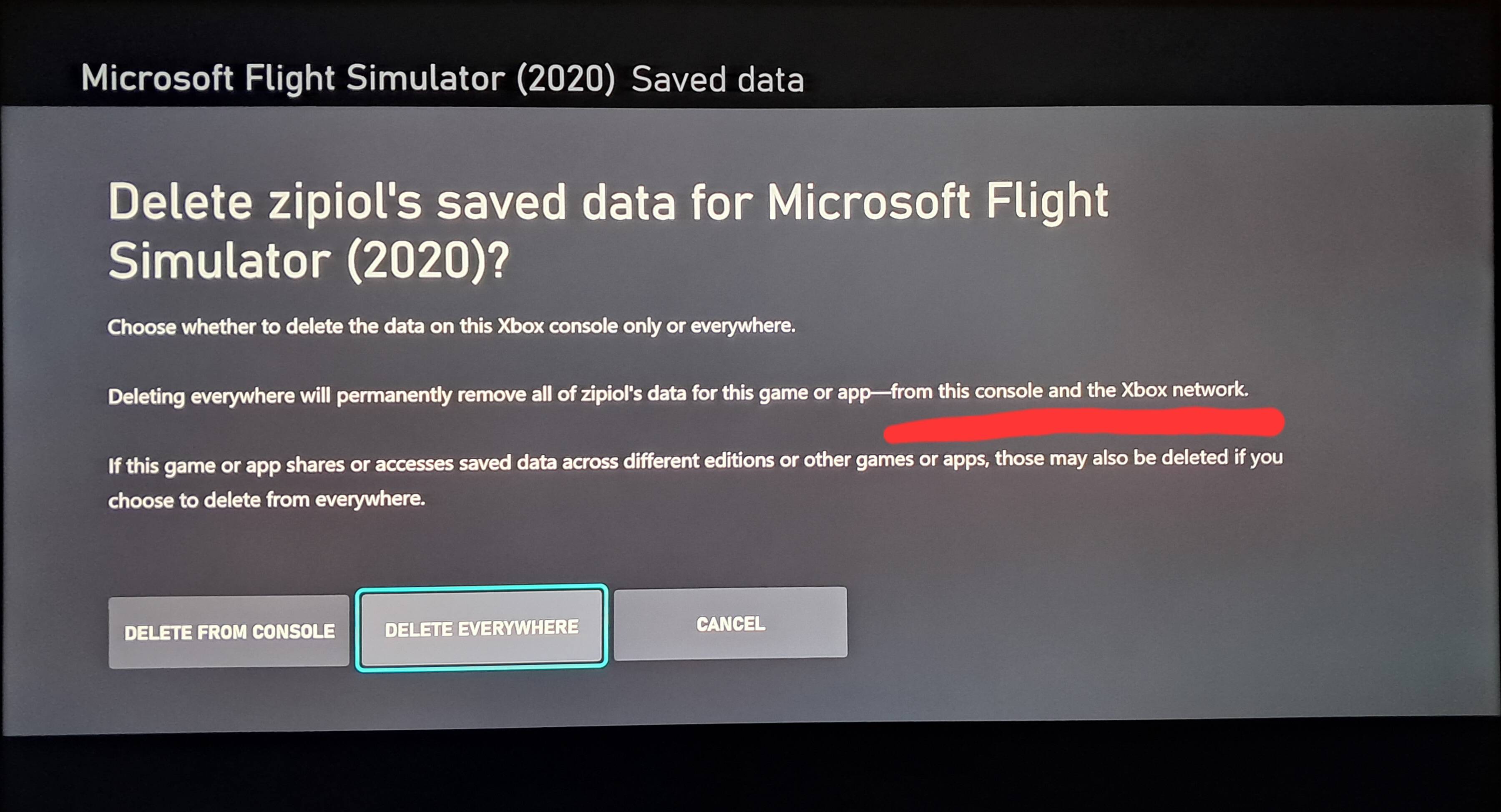
Warning: Deleting the cloud save will wipe your logbook permanently as well as custom control profiles and all settings. You will not lose the achievements already unlocked on this profile but progression towards achievements and the logbook information cannot be recovered.
Close Microsoft Flight Simulator
In the Cortana search box, type “CMD” then select Open to open a Command Prompt
In the window that appears, copy-paste the following command
Highlight the game, press the Menu button on your controller, and then select Manage game.
In the menu on the left of the screen, scroll down to Saved Data, then highlight the saved data for your gamertag on the right and press the A button on your controller.
You’ll be prompted to confirm the deletion of this game save data
 Thank you using the Bug section, using templates provided will greatly help the team reproducing the issue and ease the process of fixing it.
 For anyone who wants to contribute on this issue, Click on the button below to use this template: