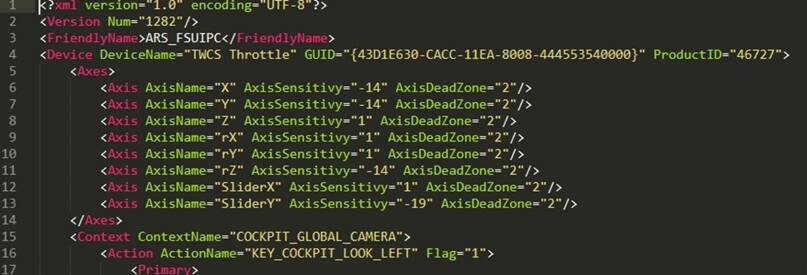
To addition to @Opus7773889 guide. Now for STEAM users.
• Go to your Steam client and select Microsoft Flight Simulator from the list of games.
• Right click and select “Properties …”
• In the “Updates” tab, find the item “Steam Cloud”, uncheck “Enable synchronization with Steam Cloud …” and click “Close”.
• Open the folder where you installed the Steam client (default path is C:\Program Files (x86)\Steam).
• Go to the path: userdata \ YourSteamID \ 1250410 \ remote
• The folder will contain files such as inputprofile_XXXXXXXXX.
• Delete them all
• Run the simulator
Unfortunately … It will not work once you create new profiles “for yourself”, as soon as you create a new profile, then the next time you start the game, it will fly to… the desktop)))
UPD: I don’t know why but after you start MSFS Steam switch ON “Cloud” again and files again appears and you have to delete 'em again.