I’m wondering if you might be experiencing a bug “Display driver stopped responding and has recovered”.
To do this, perform a clean installation of the NVIDIA driver - I’ve explained how to do it in the spoiler.
Just click to expand it for step-by-step instructions.
How to perform a clean installation of NVIDIA drivers
First things first: a proper clean installation of a GPU driver does not delete your games, apps, or wipe your C drive. It simply removes old driver files, registry leftovers and related components so the new driver installs on a clean base.
Download NVIDIA driver and the DDU - Display Driver Uninstaller software.
NVIDIA driver 595.97
GeForce Game Ready Driver 595.97 | Windows 11 | NVIDIA
DDU
Display Driver Uninstaller (DDU) V18.1.5.2 Released. - Wagnardsoft Forum
NVIDIA driver removal is best done in Windows Safe Mode - I’ve been saying this for a long time and I’m not changing that opinion. The only exception is when Safe Mode doesn’t work properly on someone’s system.
So before proceeding with any further steps, make sure that Windows Safe Mode is working correctly.
Also, there’s no real need to disconnect from the internet or disable your internet connection during driver uninstall or installation. What actually matters is Windows behavior - just set it so it doesn’t automatically install devices or pull drivers on its own. That alone is enough to prevent conflicts during the process, without having to unplug anything or go offline.
If you’re not an advanced user, don’t feel confident digging deep into Windows settings or simply don’t want to bother, there are easier alternatives.
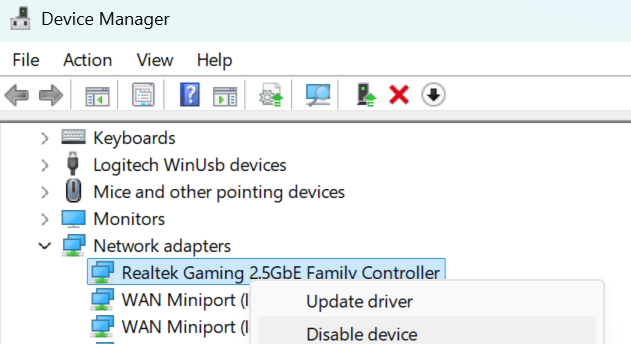
You can just unplug the Ethernet cable, turn off WIFI or disable your network adapter directly in Device Manager.
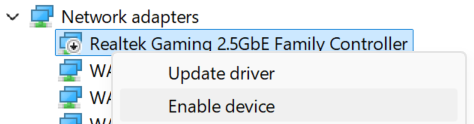
In that case, if your PC case is pushed against the wall or placed under a desk, disabling the network adapter is usually the quickest option. Just right-click the network card in Device Manager and disable it.
Right-click “Start” icon and select Device Manager.
Expand Network adapters
Then right-click your network adapter and select Disable device.
Disabling the network adapter in Device Manager is the most convenient and fastest method.
You can also, after launching DDU in normal Windows mode, go into the DDU settings and enable “Prevent downloads of drivers from Windows Update when Windows searches for a driver for a device”
While still in the settings, also enable “Enable Safe Mode dialog”
// Also, as I mentioned above, make sure to check that Safe Mode is actually working on your system before proceeding.

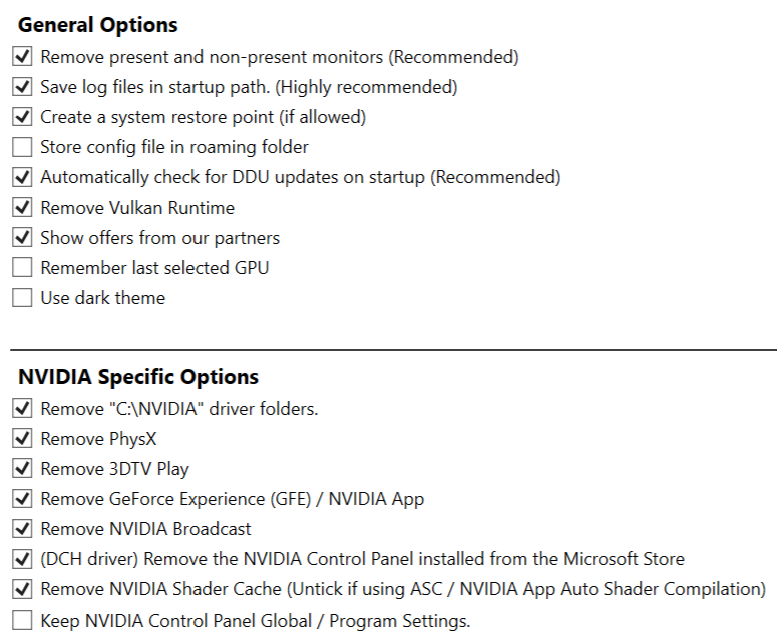
Under General Options and Specific Options, you can select the same settings that I have enabled here
Be careful with “Remove present and non-present monitors” - this setting removes monitors and their drivers. After a restart, they will still work, but Windows will not have proper drivers installed for them, so you may need to reinstall the monitor drivers.
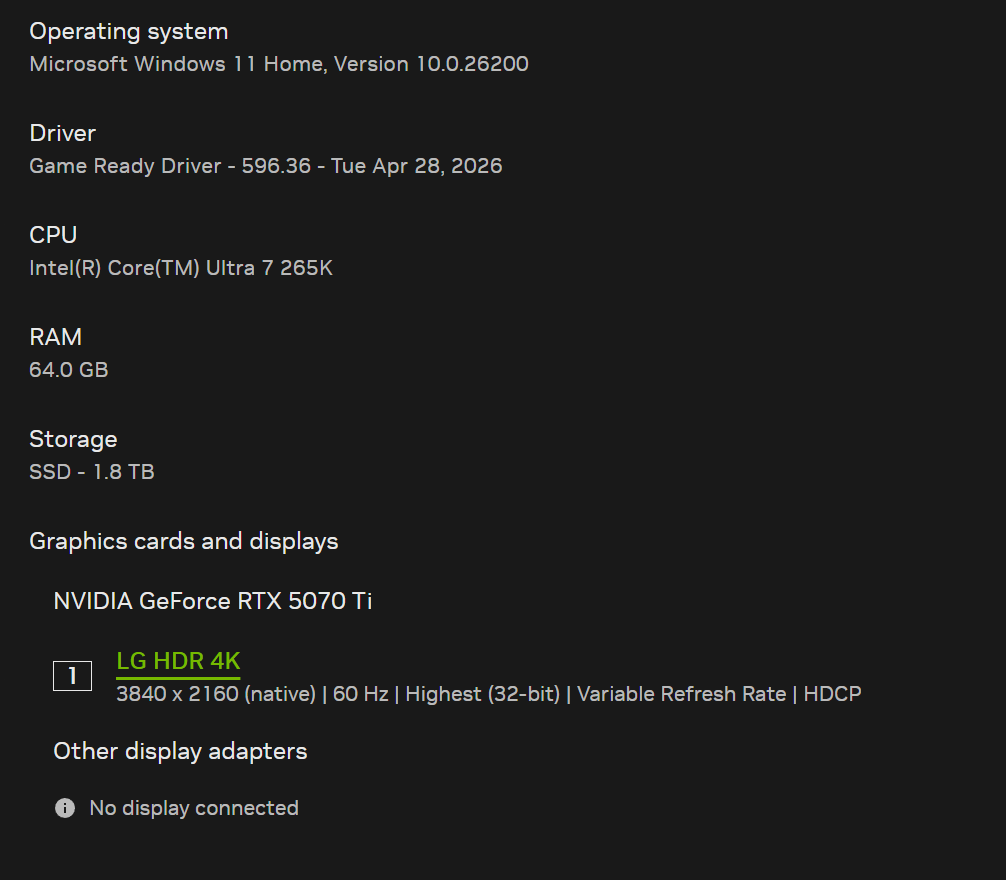
Also note that after removing monitors and restarting the PC, Windows may change the refresh rate settings. Go to Windows Settings > System > Display > Advanced display. Check if “Choose a refresh rate” is set to the maximum Hz of your monitor - if not, change it to the max or set it to your preferred value (for example 120Hz instead of 240Hz).
I once forgot about this and Windows set my monitor to 60Hz instead of 165Hz. As a result, I had stuttering in MSFS 2020/2024 and couldn’t figure out why. It turned out the cause was exactly the refresh rate.
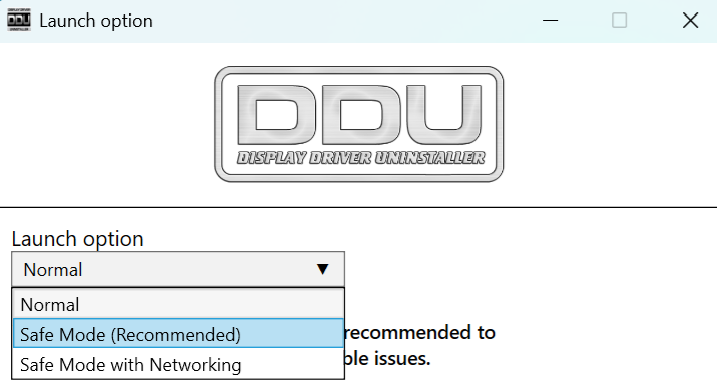
So now you already have DDU configured and know a bit more - it’s time to prepare for reinstalling the driver. Before switching to Safe Mode, download the NVIDIA driver you want to install. After downloading it, you can launch DDU and under “Launch option” click Normal and select "Safe mode (recommended).
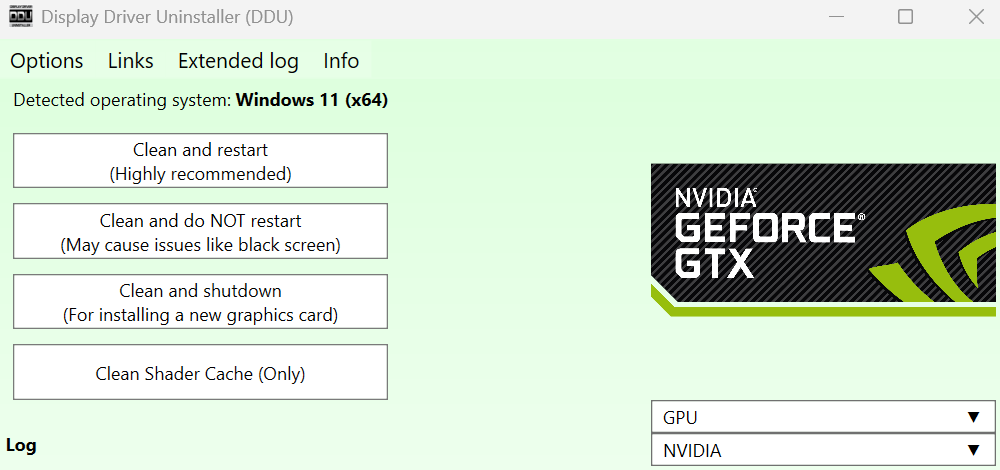
After the system switches to Safe Mode and DDU is launched, select the GPU you want to uninstall, in this case NVIDIA.
Then click “Clean and restart”.
After the restart, you can install NVIDIA driver. I recommend installing the minimal version, meaning only the driver and PhysX - this way you can make sure everything works properly without NVIDIA app.
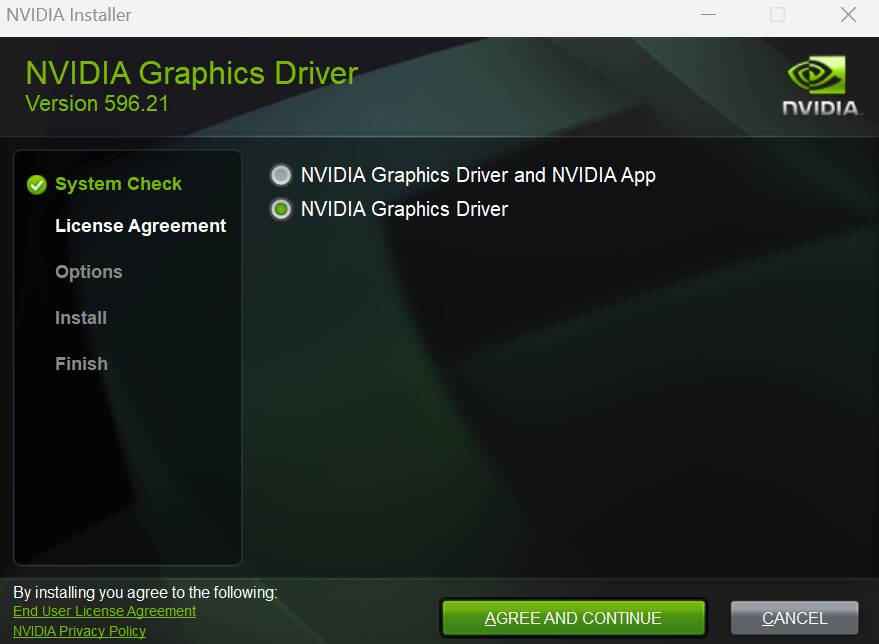
So run the previously downloaded installer, select “NVIDIA Graphics Driver”, then click “Agree and Continue”.
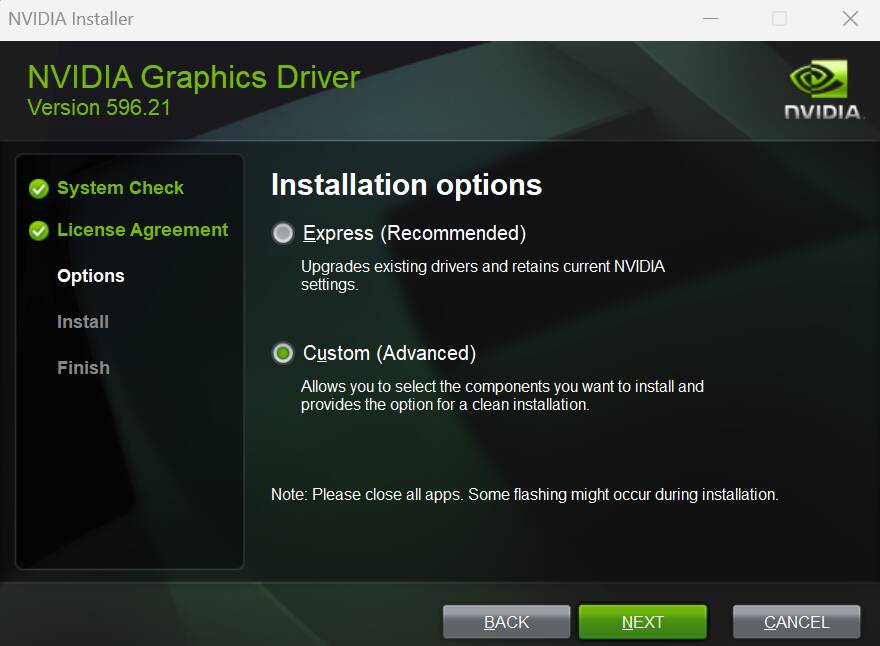
On the next screen of the installer, select “Custom (Advanced)” and click “Next”.
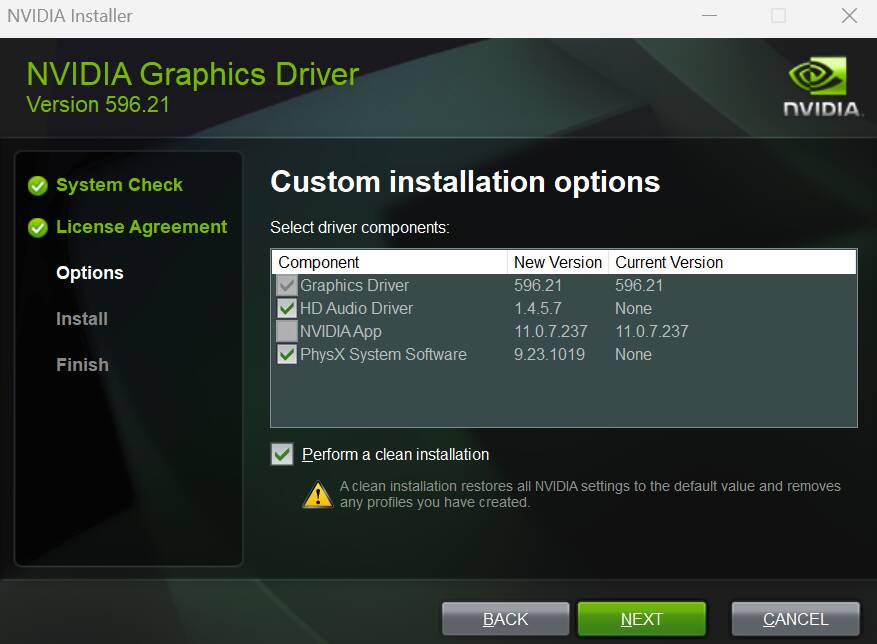
On the next screen of the installer, uncheck “HD Audio Driver” and make sure “PhysX” and “Perform a clean installation” are selected, then click “Next”.
After NVIDIA driver installation, restart PC. After reboot, I remind you to install the monitor drivers if needed and check the monitor refresh rate (Hz) in Windows settings, as mentioned above.
If you have checked in DDU

and want Windows to install other drivers again, launch DDU in normal mode and under “select device type” click
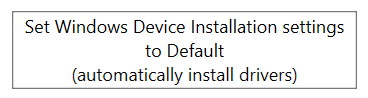
Now you can enable your network adapter in Device Manager. Open Device Manager, right-click the network adapter you disabled, and select “Enable device”.
Restart PC.
Now you can open the NVIDIA Control Panel and set a profile for MSFS according to your preference. The only important thing is not to change settings in the global profile unless you really need to.
After setting up the MSFS profile, check how the game performs. If everything is fine and you need the NVIDIA app instead of the NVIDIA Control Panel, you can download and install it.