Fps nothing, go into Nvidia control panel and see if your GPU is selected for both windows and MSFS if that’s been set up
I uploaded this short video to my YouTube channel
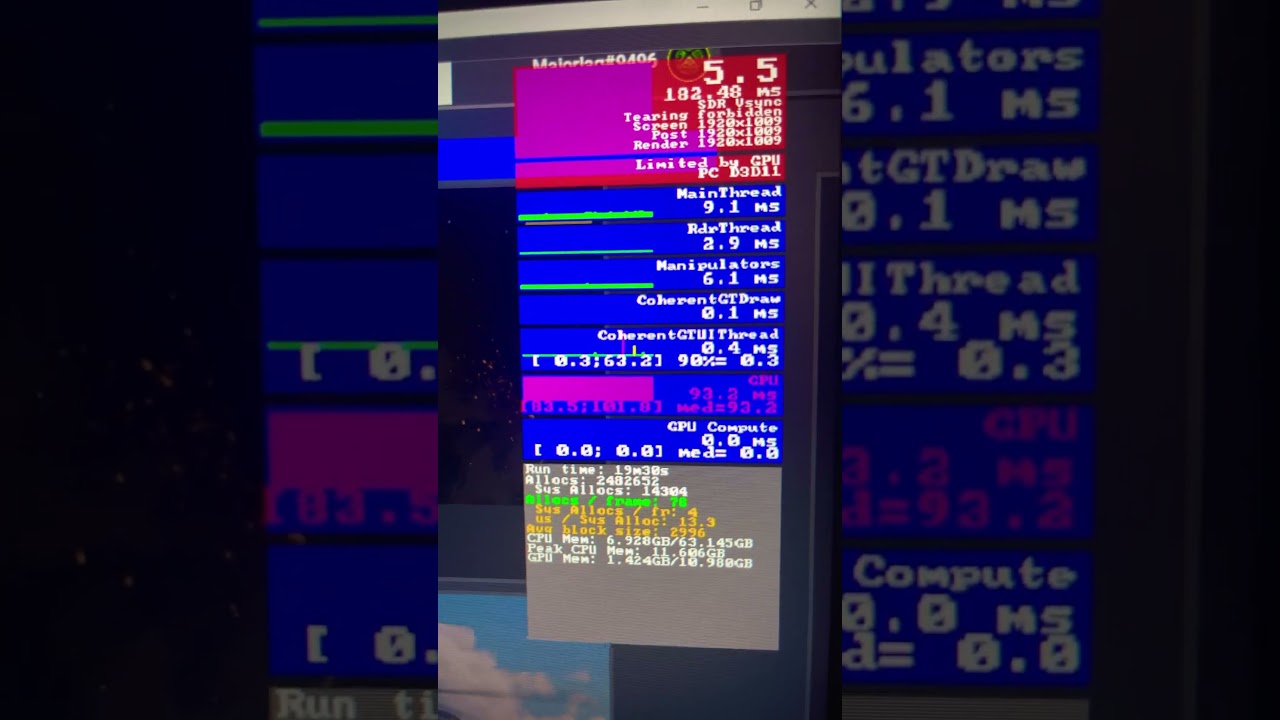
I have come off it until morning. I have a headache the size of South Africa just now
If the sim was using the CPU integrated GPU, maybe the FPS would be that low, not with an Nvidia 4070.
Sorry for the dumb question, but are you sure the proper GPU is in use?
That I don’t know - but will investigate in the morning
PS what do you mean by ‘proper’
You have two GPUs in your system.
One is an integral part of the Ryzen CPU, it’s called an iGPU, it is okay to use for certain tasks, not for a graphics intensive game like MSFS.
Two is the Nvidia GPU, or discrete GPU, that is the “proper” GPU to use for MSFS.
One way to ensure that the proper GPU is in use at all times, is to turn off the iGPU in the BIOS, another is to ensure that the Nvidia GPU is selected in the OS or Games settings.
3 Likes
To add to @kido007dz post, do you have your graphics cable plugged into your NVIDIA GPU? and not into the motherboard video outputs? What you are seeing isnt the nvidia GPU performing the tasks. Also make sure you have the latest nvidia drivers installed.
2 Likes
Don’t think Ryzens have internal graphics, at least my 5800X doesn’t.
You don’t.
You go to the Content Manager and download all your Marketplace purchases there.
They will live in a directory called “OneStore”.
Content you acquire outside the Marketplace will reside in the Community Folder.
Looking at the specs for a 4070 on the nVidia site, they show 12GB VRAM.
Dev mode in your video is indicating 10.98GB VRAM. I believe the max “VRAM” one can allocate for the iGPU on the 7900X3D is 4GB, so it looks like you are using the 4070.
EDIT:
Looking at BIOS for my MoBo, it would appear I can select 8GB and 16GB for the iGPU, so depending on your MoBo and BIOS options it’s possible to go higher than 4GB. However, 4, 8, 16 doesn’t make 10.98…)
Also, what is up with the unusual resolution of 1920x1009?
My AMD Ryzen 7800X3D and the 7900X3D have an iGPU, which can be disabled via BIOS.
1 Like
Yes, yours does not, but Zen4/AM5 chips do come with integrated GPU.
There are also AM4 chips with iGPUs, their names end with a G, for instance 5300G, 5600G, 5700G.
2 Likes
Probably the first thing to check, but definitely a GPU related issue after watching the video and a common oops when hooking up a new system. When buying a prebuilt, they often put caution stickers over the mobo video outputs directing you to the GPU outputs. Not so when building your own or having someone do it for you.
3 Likes
Does that mean if I want to ‘delete’ content I no longer want I can do it from the “one store”
So I have read about ‘adding linker’ and it appears to be the choice of some simmers. Does that mean I would not require this as most content is bought from market place having been an Xbox user?
Yes/No.
You can delete(uninstall) Marketplace content via the Content Manager, as you did on Xbox.
You can, optionally, locate the package(s) in the OneStore directory and delete them there.
I don’t use add-on linker. I’ve taken the time to custom color code all the add-on content I have by category.
I can easily identify what isn’t base/WU/CU content by the color coding and I move the add-ons in/out of the Community and OneStore folder manually, as need be.
1 Like
Yep your’e right. Mind you if I remember rightly my B550m mobo has a basic driver that gets me into bios even without a gpu attached. Maybe one day I’ll test this properly but right now I don’t want to upset any settings or timings. MSFS has never run better.
1 Like
You never need to have addon linker, everything works without. It takes a little bit of effort to set up but it makes the control of what addons you are running easier than anything else by a large margin. With a couple of button clicks I can select airliners with GSX etc or I can select GA for VFR with suitable packages. I can select scenery by regions or countries as I’ve organised them.
And when it comes to upgrading with a click I can disable all addons and run a vanilla sim.
Plus an oft-overlooked feature, is that you can use the Map to bulk-enable (or disable) any mods for an area you want.
So you’d have 1 fairly empty Profile saved that just has your main utilities and any global stuff (planes, Mamu things etc).
-
Then go here: Tools > Addons Map
* -
Then Right-Click in the map area and Polygon selection (draw shape to select addons).
-
Then click to create nodes and double-click to finalise it. Then right-click one of the blue dots it leaves and Enable Selected Addons (or Disable).

Don’t save the profile. Then for next session just LOAD the base profile again and repeat those steps for where you want to fly next.
1 Like
The last time I checked the map it didn’t work very well. Does it work for encrypted marketplace addons (which most of mine are)?
Not sure, would have to check. But I think as long as your items are catalogued in AOL, then it should see them and their co-ordinates (which is what it uses to make the dots). For sure when I use the “Scan to find duplicate ICAO codes” feature it does include MS Store bought stuff so I think that part is not encrypted at least.
The quick search box is great. Sometimes I think about buying an airport, then check the quick search and find I already have it, or Asobo made it, or similar.
Yeah, right… I have NEVER bought the same thing twice 


1 Like