More dumb questions.
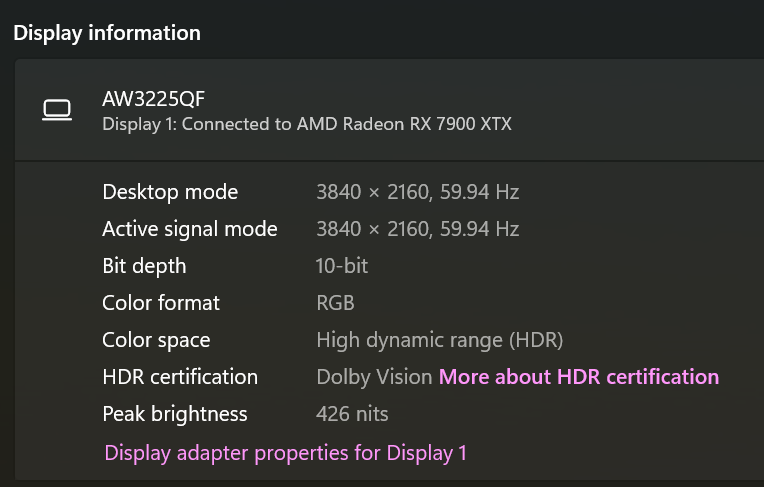
This peak brightness rating is not all that much higher than my Asus display.
I’m confused.
I believe you are set to true black somewhere in your monitor settings. Leave it there if you enjoy flying at night!
From the rtings website:
HDR Brightness
| Parameter | Value |
|---|---|
| Real Scene | 420 cd/m² |
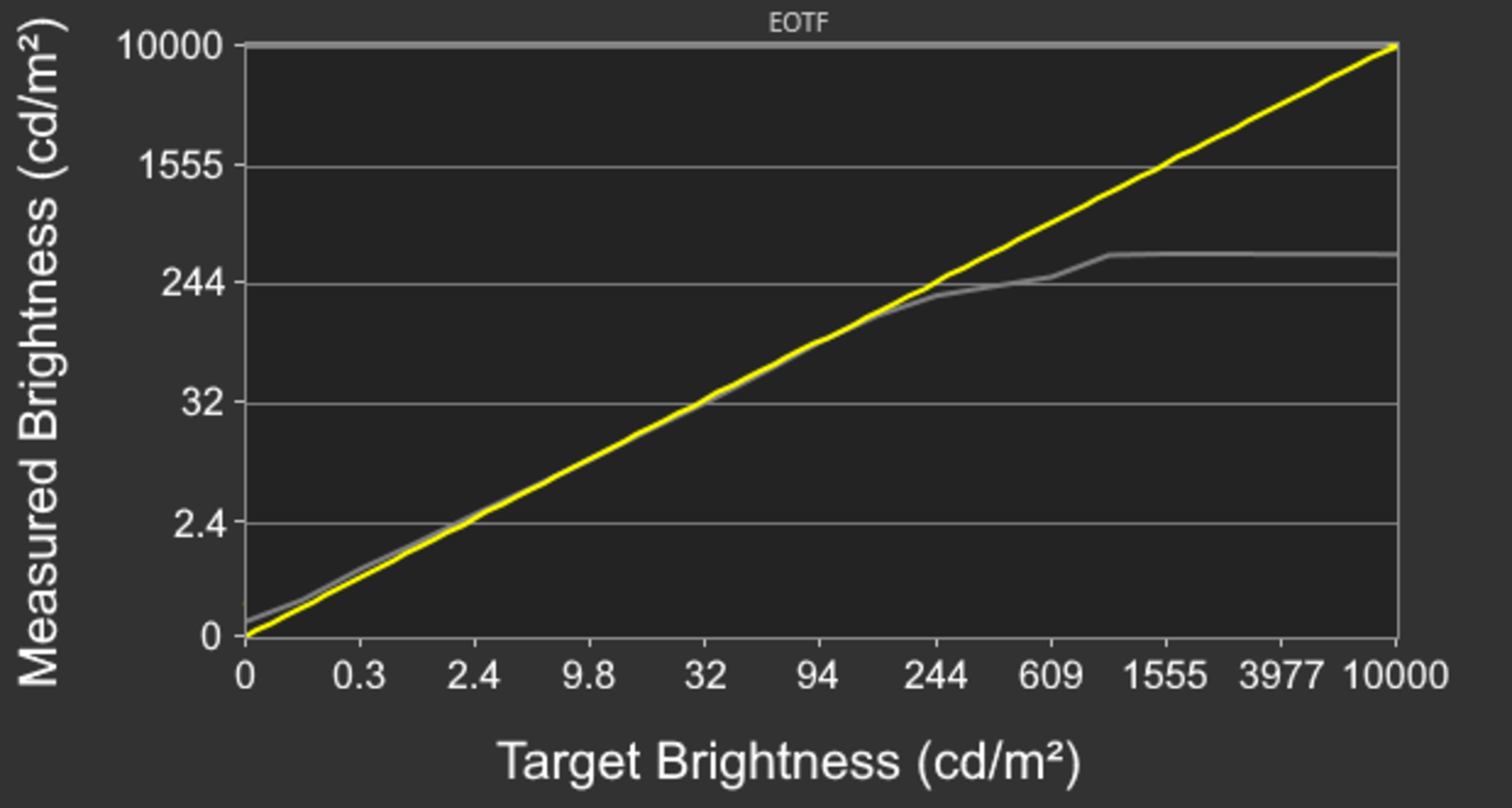
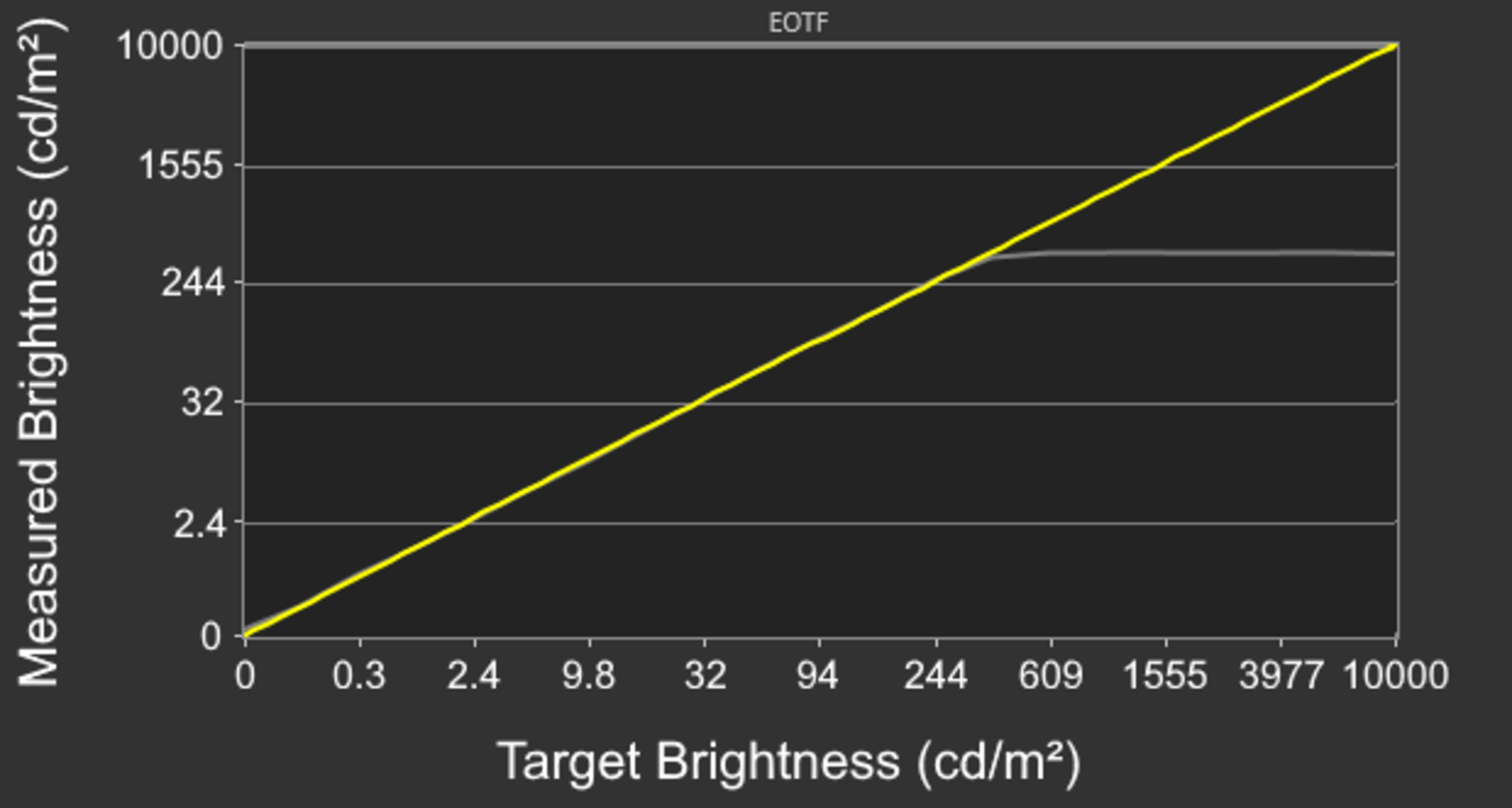
The Dell AW3225QF has decent HDR peak brightness. It gets brightest with small highlights, meaning they really pop against the rest of the image for a vivid HDR experience. However, highlights quickly get dimmer the larger they are. The EOTF follows the target well for most dark and mid-tone scenes until there’s a slow roll-off at the peak brightness, meaning it doesn’t let highlights get the brightest they can.
…
These results are in the ‘HDR Peak 1000’ Smart HDR mode with the Brightness locked to 75 and Console Mode off. Enabling Console Mode causes the EOTF to have a sharper roll-off, as you can see here.
…
The ‘HDR Peak 1000’ mode is brighter than ‘Custom Color HDR,’ which has a Real Scene brightness of 356 cd/m², and highlights don’t get brighter than 450 cd/m². However, the EOTF has a sharper roll-off later in ‘Custom Color HDR,’ meaning it doesn’t perform any tone mapping before your source does, as you can see here.
…
The monitor supports Dolby Vision, and you need to make sure you have the monitor updated to firmware M2B103 or newer for the best performance. As of this firmware update, which was released in Feb. 2024, you can turn Dolby Vision on or off as needed. Before the update, it automatically stayed on, even in Windows HDR, leading to washed-out colors and some issues. Lastly, updating it to this firmware allows Dolby Vision to work with a Blu-ray, as it didn’t before.
What is somewhat fascinating is that, although that value of 426 is somewhere around 126 higher than my Asus display, I no longer have the blown out horizons. I can clearly see clouds and whites over a blue background here in near CAVOK skies.
I don’t really care what the numbers are, I’m just finally happy to have the image quality I was hoping for.
I still don’t understand all the specifics of this HDR business. It’s just too unclear.
Let me know how you like your first night flight! Even better if you do it with the room lighting off.
I will definitely let you know! it’s currently 14:00 here, so it will be awhile.
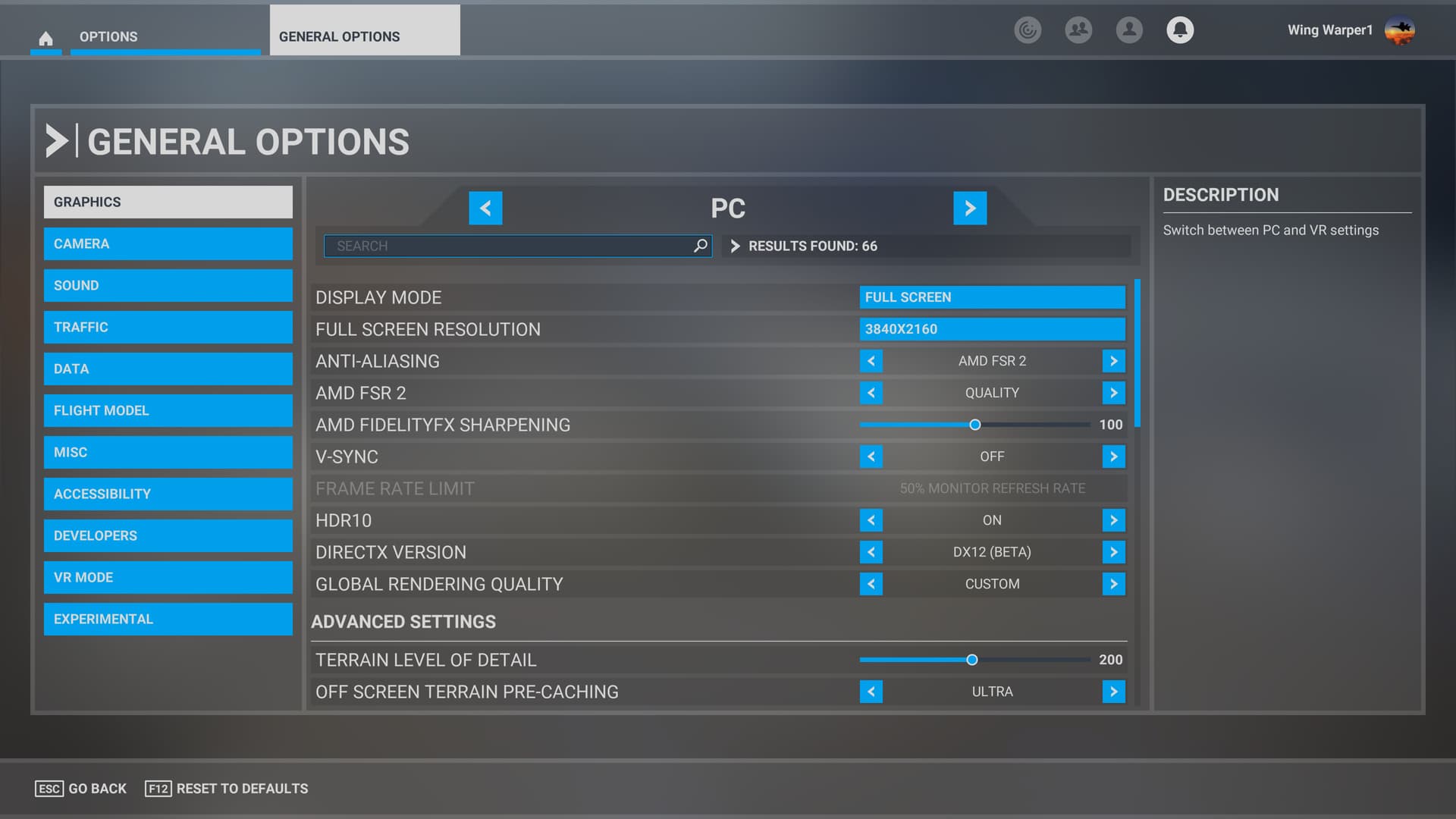
While I have you, it looks like the refresh rate defaulted to 59.94. I have had the sim setup for VSync on @ 100%, which is what I had been using with the previous 60Hz display.
Is there a reason for me to alter the refresh rate to a higher value? I’m still pretty unclear about the VRR thing, especially since I’m not using Frame Generation, although I suppose that is an option now. I know you mentioned I don’t need VRR, but do I need the higher refresh rate, regardless?
The colors are nearly hyperreal.
The reason why there is a 59.94hz option underneath 60hz in Windows Display Settings is related to the way NTSC (National Television System Committee) video works. NTSC video, which was developed in the United States in the 1950s, uses a color encoding system that is based on a 60hz refresh rate.
But due to some technical limitations, the actual refresh rate was a bit lower than 60hz, at around 59.94hz. This was important to make sure that the color information was sent correctly over the old analog signal.
Nowadays, we’ve got digital displays, but the 59.94hz option is still there in case you need to play any old NTSC-based video content. It helps to make sure that the colors and timing all match up perfectly.
I’d set your display in Windows to 60.
Right, I understood all that from my days in video production.
It wasn’t the 59.94 that I was curious about, but more the do I need to be at 120Hz or 240Hz? Do I need to bother?
Gotcha. I have a 160Hz monitor, and I set my monitor refresh at 90Hz, to match the framerate limit I’ve set in Riva. There’s really no need to refresh faster than your max framerate.
Set Windows up for 240Hz. Everything you know about multiples for 60Hz will still apply. What video card are you running?
I recommend to up your refresh rate in Windows to 240Hz! Visual smoothness goes hand in hand with higher refresh rates.
I recommend that you go into Adrenalin->Gaming->Display and turn on AMD Freesync or Adaptive Sync (one of them will be an option).
I recommend that you turn on AMD fluid motion frames (frame gen) along with Radeon anti-lag. VRR as per above is recommended by AMD to be turned on with their frame gen.
This is pretty much how I have my 7900xtx set up to use my max refresh rate of 120Hz. Since you have 240Hz refresh this will allow up to 120 real fps to be doubled up to 240 with no dropping of frames!! Should be nirvana. 


Edit: Turn off vsync in the sim.
Edit2: My Adrenalin settings. Global rendering quality is set to ULTRA (but I take clouds down a notch)
So far, I am just loving this.
I have no idea if it is the latest beta build (it released just as I was getting my new display set up), it’s the display or both, but this whole thing just kicks *** and I’ve not even begun to mess with any of the upper-end improvements this display offers.
I can’t get over how good everything looks.
This really reminds me of when I went from Xbox to PC. I looked at what I was going to spend on building a high-end PC and I thought, “No way I’m going to get X dollars more enjoyment out of the sim.”
I had the same thought about the price of this display vs. what I had before.
I was wrong on both counts! So nice to be wrong!
Setting your monitor refresh to 240Hz will do two things:
Consider your GPU writing a frame of 4K video (8,294,400 pixels.)
Now multiply that by 60 per second.
Now quadruple that.
There’s no reason for it. Can you see the difference between 60Hz and 120Hz? Maybe. Can you see the difference between 120Hz and 240Hz? Only with fast motion source material generating > 120 FPS.
Ok got carried away - googled it and up to 144Hz is recommended for the 7900xtx in 4k so 144/120Hz might be the sweet spot. But then again if you have a Lambo then you’ll probably want to put the petal to the metal  .
.
And yes I can definitely tell the difference between 60Hz and 120Hz.
The monitor is a slave fed by the GPU your logic is way off on this one.
If you turn on vsync in the sim it’s my experience that the sim will drive the monitor to reach whatever you have the monitors refresh rate set to (factored in with the frame rate limit set in the sim). If you turn off vsync in the sim, then it is different and the gpu reigns.
@WingWarper1 I run an NVIDIA GPU and limit frames and set vsync within the CP. Can you do the same with the AMD drivers?
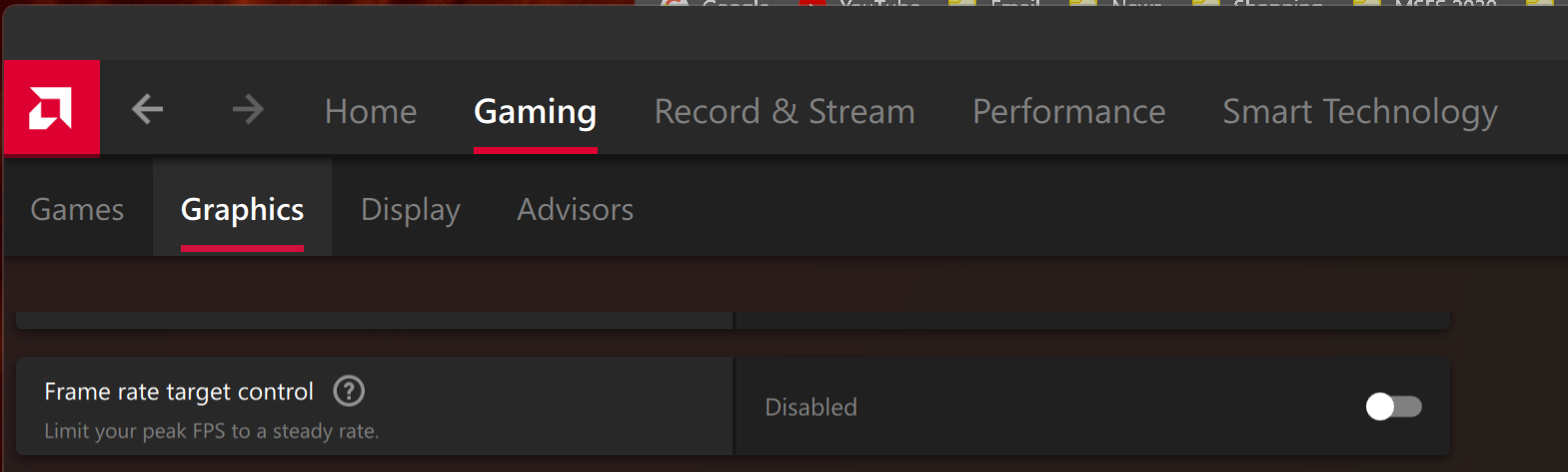
The vsync parameter in the sim coupled with the frame rate limit parameter of 33%, 50% & 100% works perfectly and I have used it in the past with several AMD gpu’s. The Adrenalin driver has an option of limiting the frame rate but I have never used it.
What I have found with my gpu and recommended settings above, I don’t need to set a frame rate limit. The sim will really dictate the fps achievable based upon my cpu (7900x3d) and the 7900xtx along with my Samsung Qled TV plays nicely to support that fps level. With no frame gen in 4k HDR10 I can get 65fps over Manhattan and up to ~140fps at altitude over simple terrain in a Cessna 152.
With frame gen on along with freesync, I therefore can get up to ~280fps with no extra work from the gpu other than inserting those extra frames. But of course frames over 120fps are dropped on the floor due to the 120Hz refresh limit on my TV.
I’m assuming @NixonRedgrave has about the same cpu/gpu and should be able to achieve similar results. However, if he sets his monitor to 240Hz then most of those frames over 120fps that are dropped by my monitor should add more smoothness on his.
Edit: linked a quick video here (with dashboard at the top) to demonstrate my results with an F-18 at speed.
Okay, I’m messing about with the settings you suggested.
These are my choices for AMD Freesync:
It doesn’t seem that I have FMF working. An AMD window popped-up when the sim was loading and it displayed a few items with icons next to them. It didn’t stay on screen long enough for me to review all that it said, but I noted a yellow dot with an “!” next to FMF. There were green dots on a few of the other items.
I would assume that AMD’s Game Overlay’s FPS counter would incorporate the ability to display the true FPS when FMF is active. It currently is matching up with the Xbox Game Bar FPS counter at ~80 FPS.
Even at this frame rate, when I turn my head via Tobii I can see micro jitters. It really isn’t quite smooth like it is when I have this thing capped at 60 via the in-sim VSync. The jitters aren’t horrible, but I can definitely notice them.
Thoughts on any of this?
You need to utilize vsync to match the Tobii scan rate, else you will have issues.
I use TrackIR which has a scan ran of 120Hz and I limit my frames to 118FPS with vsync enabled to keep it all synced up.