The Vsync frame limit is bugged so it restricts the frame rate to half of what the limit setting in the menu is. I’d suggest setting it to 60Hz for a 30Hz display, 120Hz for a 60Hz display, or just turning it off.
Bring your render scaling back to 100%. Your pc is not powerful enough to run this title at 8k
I found the Issue and is on the Microsoft Simulator… Thanks for your help
1 Like
Cheers for the info.
I will eventually end up with a frame rate of 36 FPS.
Not least because it is a function of 144 Hz [as in 144 / 72 / 36]. This is historically how it was done to stop micro stutters in previous sims [MSFSX and P3d].
Of course, as the bugs are all worked out and a consensus emerges, that may well change.
Clear skies.
Thanks again for your advice. Here’s a screen capture banking around the Statue of Liberty back towards Manhattan. I’ve resaved it as a high-quality JPEG as the screen capture as a .PNG file in Windows Snip & Sketch would be 5 Mb at 2560x1440 res. I turned on DEV mode to show FPS. In spite of the red, as an ignorant newbie the flying is quite smooth enough for me (maybe with a somewhat wandering analog controller somewhat digitized with a Rockfire game port, I wouldn’t appreciate a truly smooth flight, anyway!).
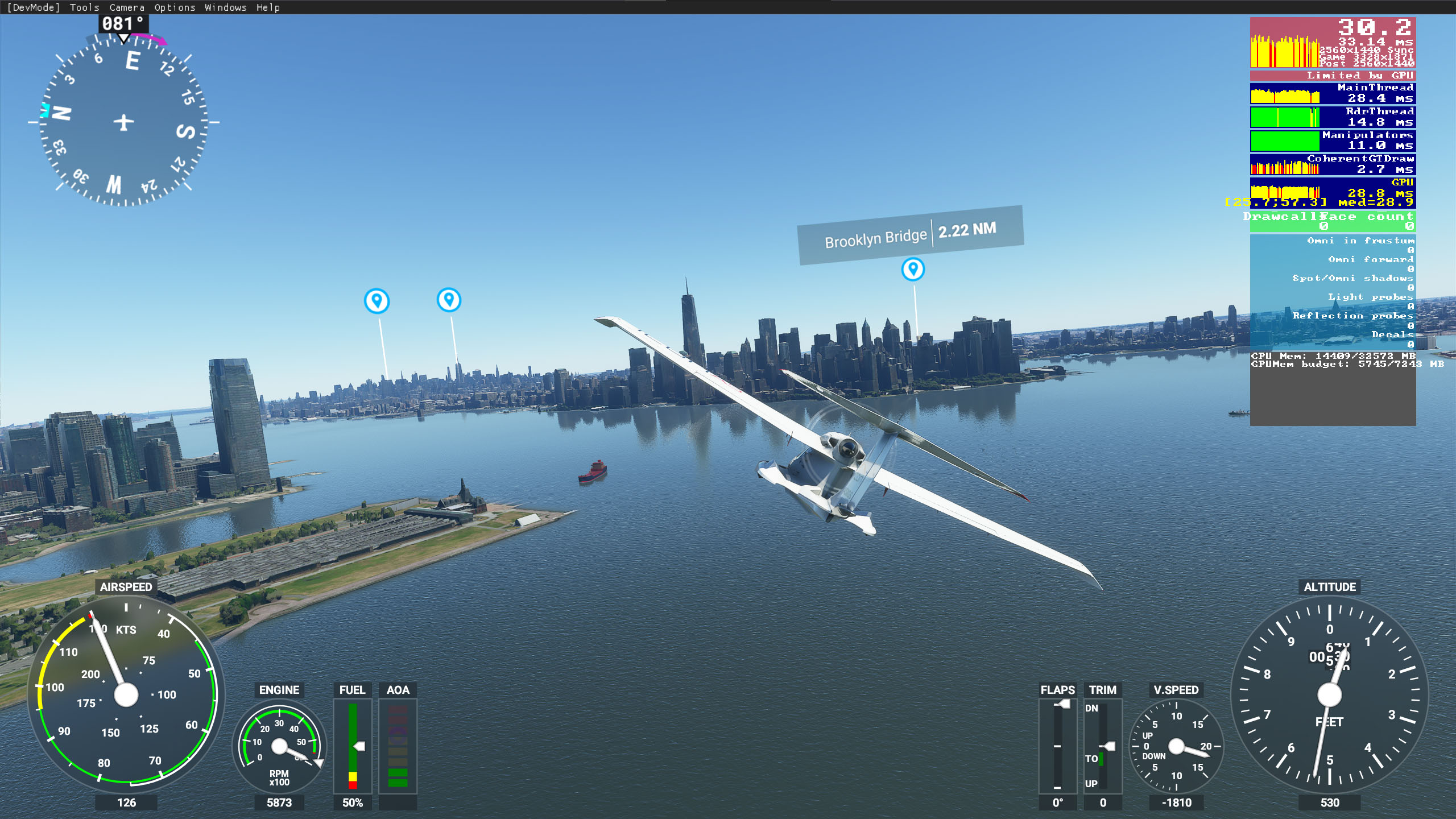
My in-sim graphics settings are pretty much those exactly recommended by Spazzy Optimal settings for Flight Simulator - Nvidia - #73 by Spazzy except that I noticed that I have also turned off Use Generic Plane Models whereas he leaves that on.
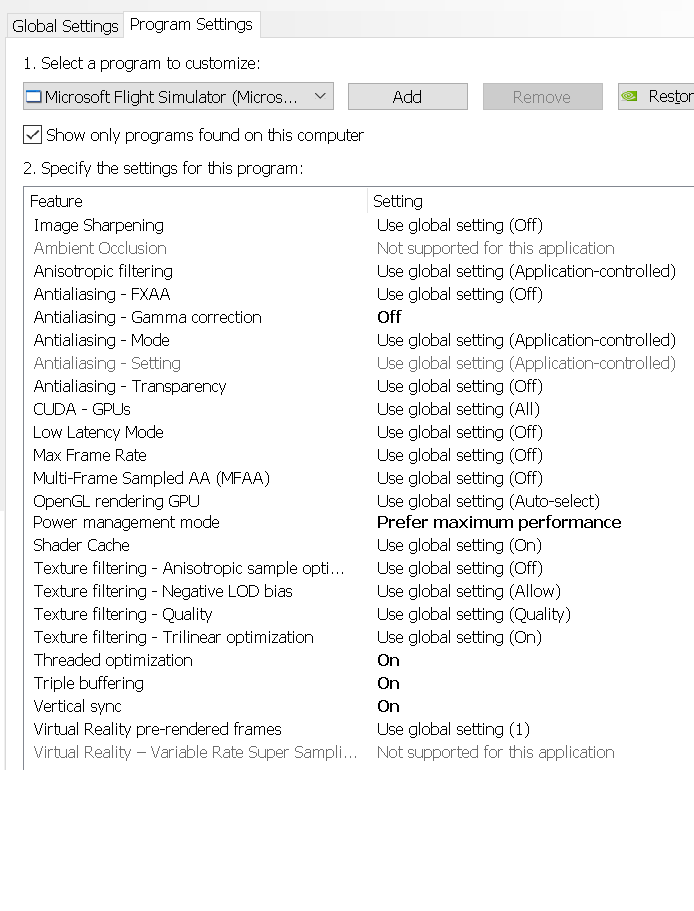
My Nvidia settings seem to be a mix of his OP post Nvidia settings in the thread I reference just above and those in the actual post I reference with the link. Here are mine. I tried to undo any in Nvidia card GeForce Experience tuning settings by going back to the GeForce Experience tuning and clicking the REVERT button before doing the above FPS screen capture. The GeForce Experience applet notified me that my Nvidia settings haven’t been optimized at all, so hopefully, for comparisons sake, I’m back to where I was before I tried tuning specifically through the Nvidia applet as you recommended in a post above .
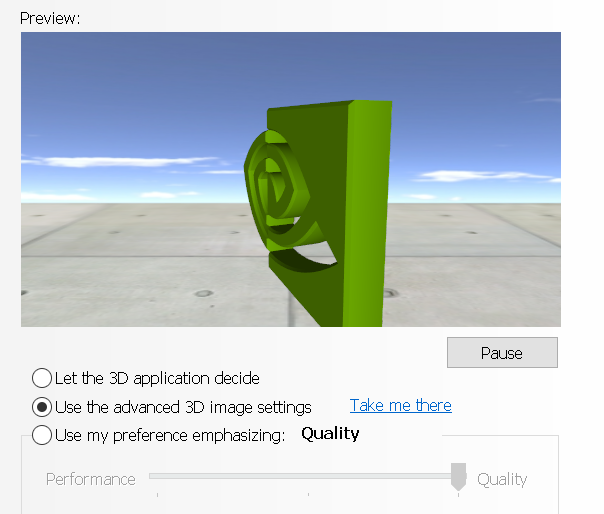
I am using the following Nvidia 3D graphics global choice. Perhaps I should be using “Let the 3D application decide.”???
Using the Statue of Liberty or some other easy to find landmark as a spawning point in the air for performance comparisons is a good idea. Too bad there is not an easy way to set altitude, heading, air speed, etc., to make comparisons even more equal. I’ve noticed that the default External Camera (and Quick View) settings vary from plane model to plane model. And I’ve read that there is no way to save (and reuse) custom camera views. Too bad. That would also help make comparisons more similar.
I will get to work over the next day or two trying the settings that you suggest and see what they can do for me. Thanks very much again for taking the time to help guide a hapless newbie!
This is redoing my graphics settings to yours and changing nothing else relative to my previous post. With the V-sync and Frame Rate Limits off, I am getting a higher fps but also more warnings than before about being Limited by Main Thread. Your settings enhance object detail quite a bit compared to those I was using from Spazzy. I think the effect is a matter or preference but it does tend to look a bit like an overly sharpened picture. But the higher frame rate is nice. (Again I resaved a very sharp 5 Mb .PNG file as only a high quality .JPG to avoid a huge file upload.
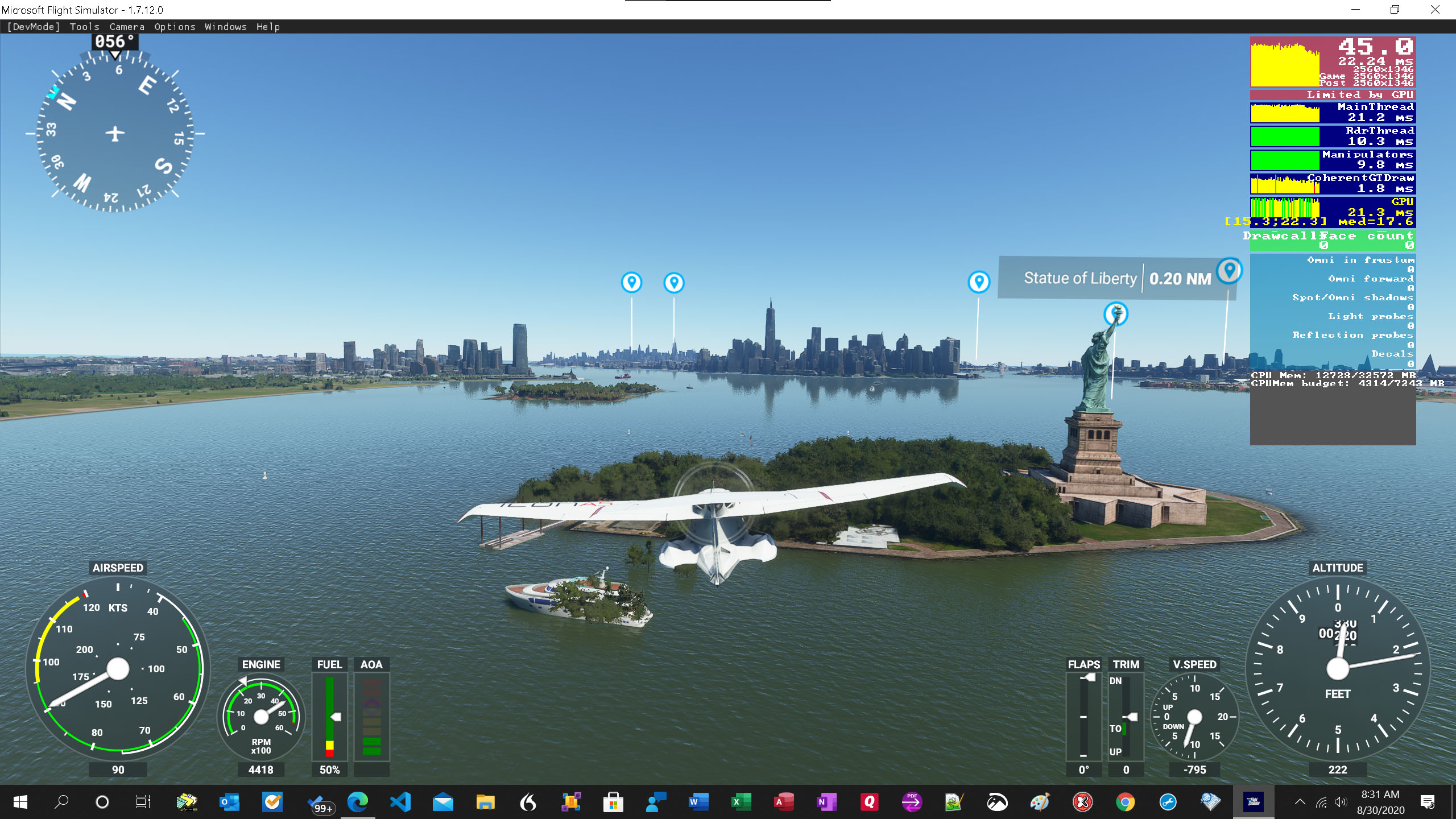
(Love the trees coming out of the boat and the water in the medium foreground in front and a bit to the left of Liberty Island! - you have the trees coming out of the water in the same spot in your screen capture, too!)
I am getting warned by the site AI that I’m corresponding with you too much and I should PM you instead not to hog the thread but hopefully the comparative information being exchanged can help everyone a bit to decide what to do. Thanks again! Your advice definitely made a BIG difference in FPS. I shall play around some more and hopefully learn more, too!
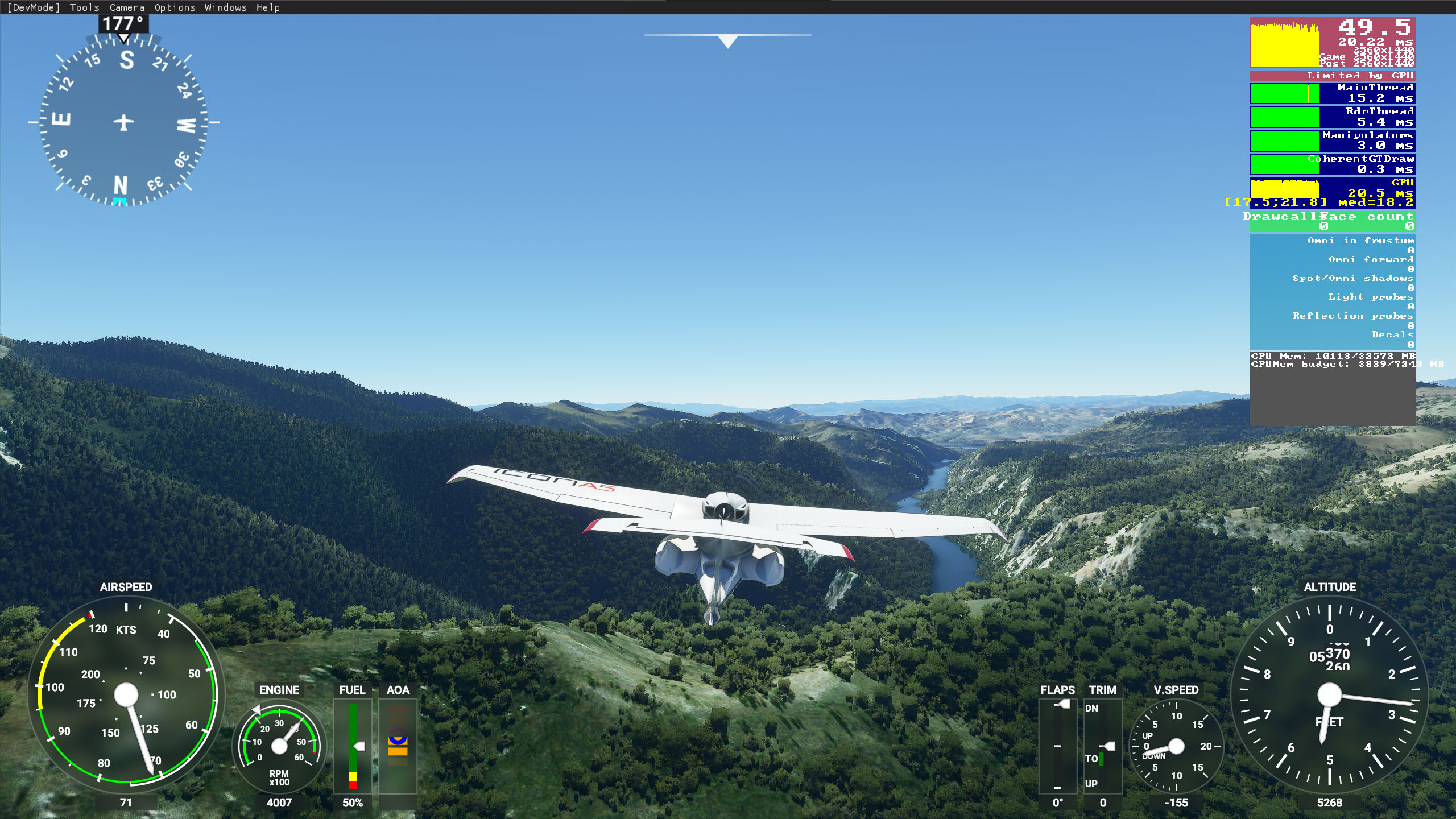
Edit_Update: In vicinity of Mann Gulch (scene of infamous 1949 forest fire), along the upper Missouri River near Helena, Montana. 46°52’44.1"N 111°54’47.6"W. Here I really like the increased foliage detail and sharpening! (again a resave hi qual .JPG):
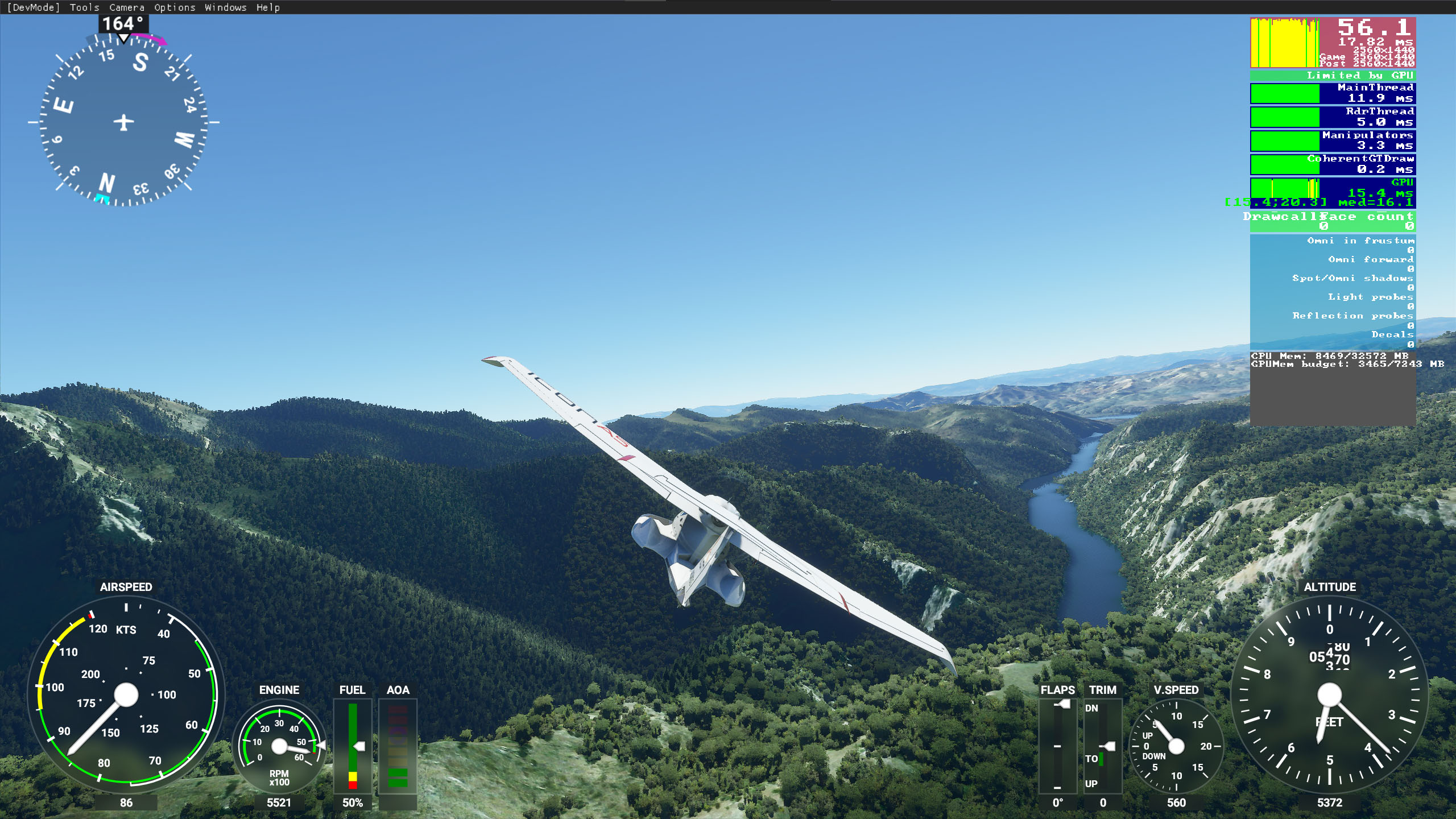
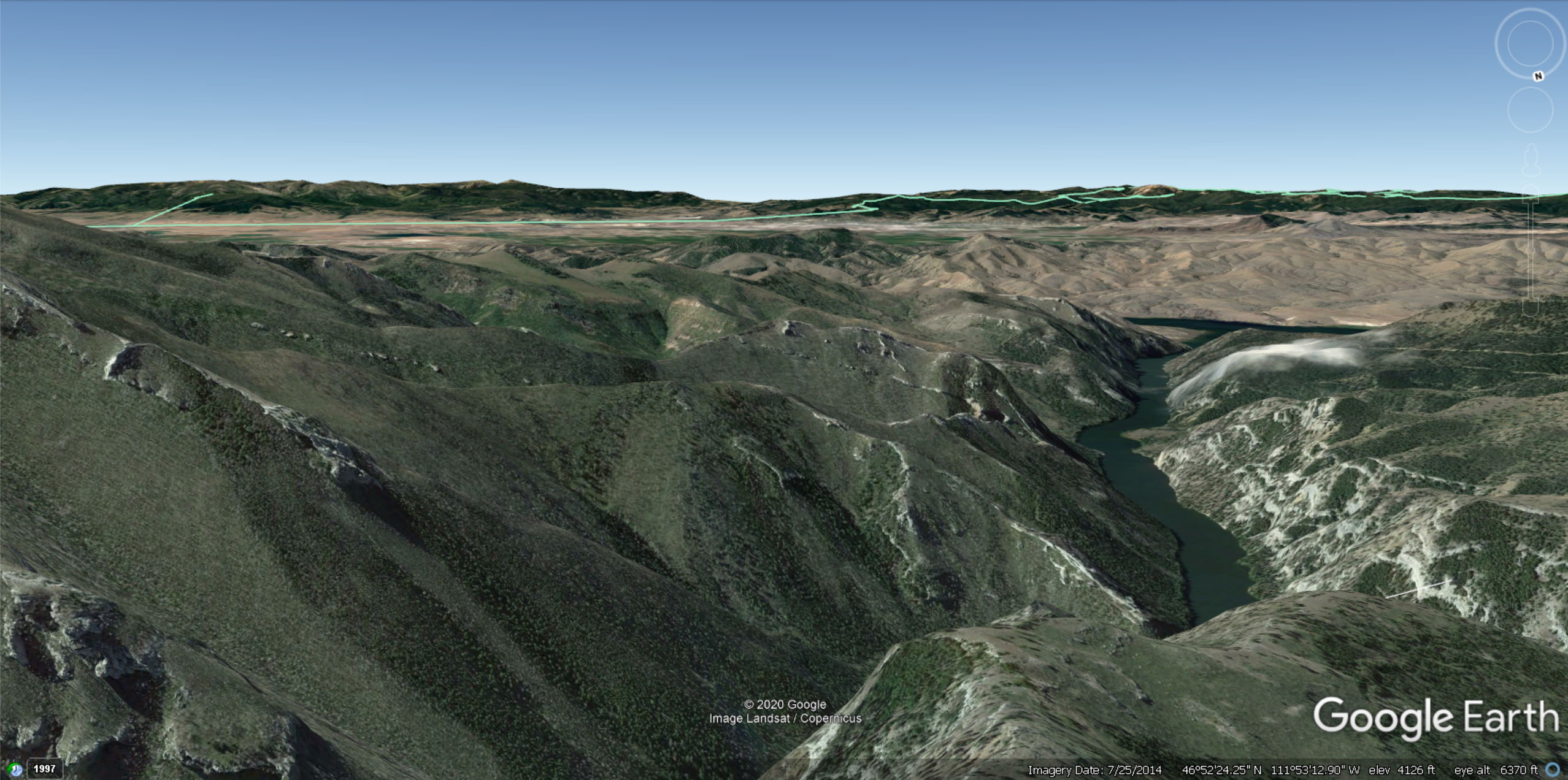
Here’s approximately the same view captured from Google Earth Pro (GPS coordinates in lower right). Google Earth deliberates flattens grass and trees to show the earth mesh more clearly. Still, seems like FS 2020 overdones forestation in its AI repopulation of the landscape.
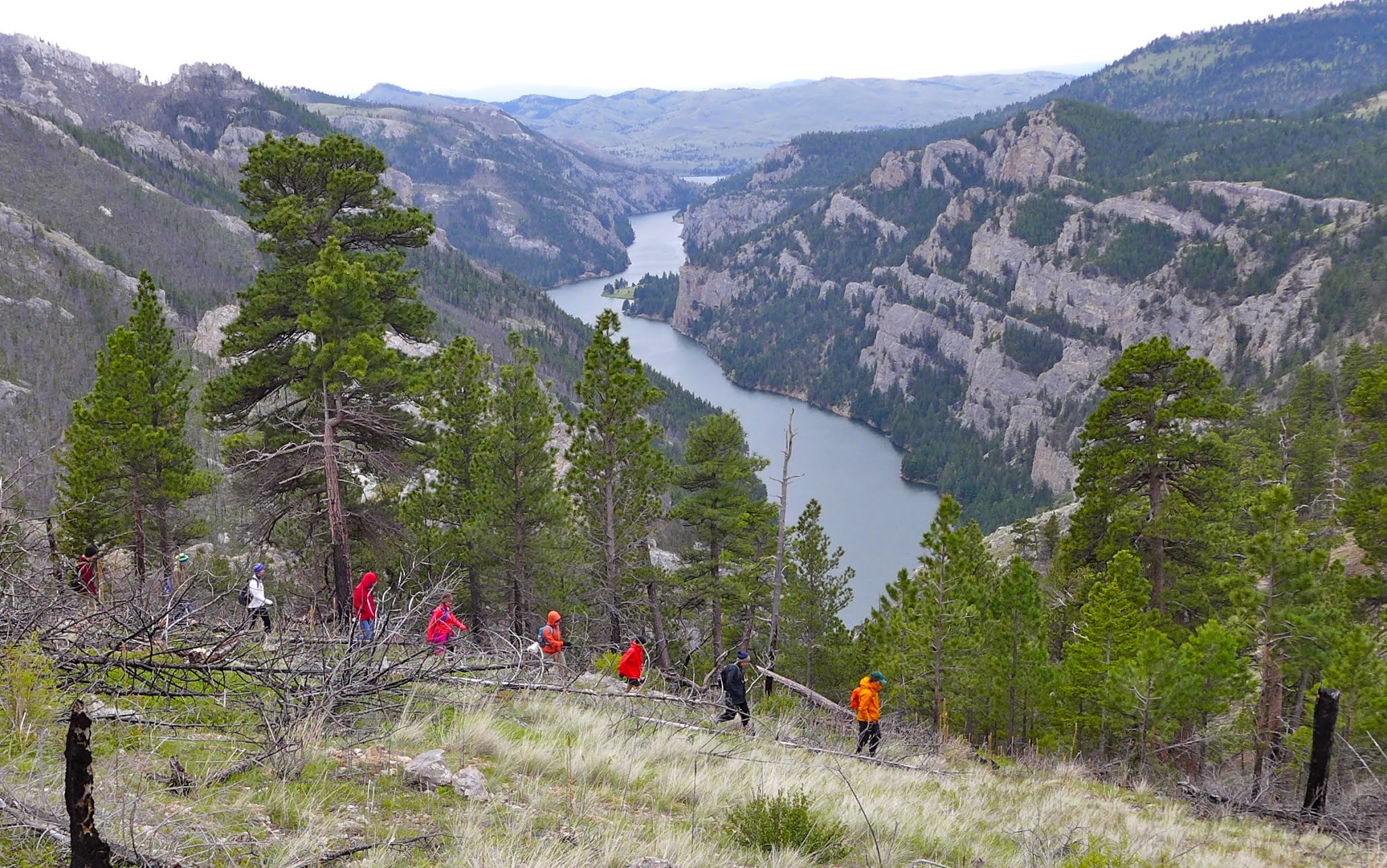
For comparison, here is a real life photo by Rod Benson from Google Earth Pro of roughly the same vantage. It’s clear that FS 2020 has FAR TOO MANY TREES and they look like DECIDUOUS TREES rather than coniferous PINE trees.

1 Like
I am glad you are now enjoying the flight sim.
As to the pause very simple during your flight hit the PAUSE key.
Enjoy
1 Like
Here is switching to default ULTRA in the sim graphics settings without changing any other settings. V-Sync is still off in the sim, though, so that might be the critical setting for me. FPS drops, in approximately the same scene, from 56.1 to 49.5 but the overall picture looks a bit better. FOR ANYONE UPLOADING PHOTOS TO FORUM LOOK AT PHOTO #1 BELOW COMPARED TO PHOTO #2 - both same source photo, different treatments in process of upload.
Photo #2 looks great and I think I’ll go with these settings from now on. Difference between photos explained at end.
#1 below. Original 6 Mb .PNG downsized by server to 1 Mb
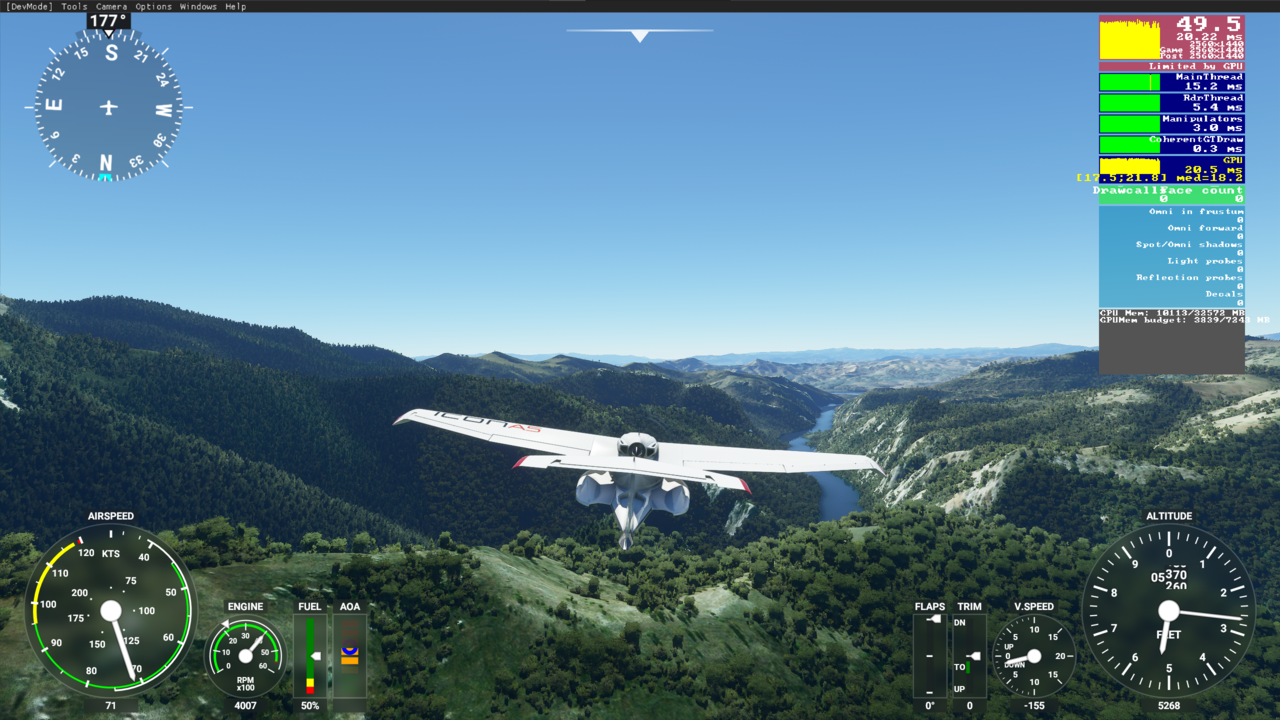
#2 below. Same 6 Mb .PNG converted to 601 KB High Quality .JPG by Photoshop Elements BEFORE Upload. Seems significantly sharper viewed on website than photo #1 from same source photo.
I’ve bound PAUSE on to my keyboard “p” key. So an interesting question, when PAUSE ON is set and one uses the Esc key to go to GENERAL OPTIONS, if one just comes back to the paused state after changing graphics settings, does the current FPS dialog from DEV mode mean anything or do you have to run some frames in the Active State to adequately assess the NEW graphics settings? If one could just run through graphics settings from the PAUSE ON state and the FPS counter indirectly reflected the changed settings for your PC hardware, that would make tuning graphics settings a WHOLE LOT EASIER…
Edit_Update: It would be nice if I could overclock my RAM a bit but when I got into the UEFI settings since that’s especially where I seem to come up a bit short, there is no XMP profile and under ADVANCED it says OVERCLOCKING DISABLED. And on the Dell Community Forum, it says that if you try to do a run-around with the Intel XTU utility, there are no changeable RAM settings to be found. Don’t think it’s worth it to get faster RAM/overclockable RAM.
Edit_Update02: Photo #1, original 6 Mb .PNG screen capture, server made into 1 Mb. Photo #2, same .PNG made into a 601 KB .JPG by Photoshop Elements before uploading.
Now turn off your Developer Mode and you will get another 3-5 FPS.
1 Like
I’m on an AMD processor, but I updated my chipset drivers over the weekend and got a pretty solid performance gain.
Hi there. I have the same specs as you besides the cpu. I have the i9-10900k. I have everything on high settings with some on medium. V-sync off. My sim still manages to stutter in LAX. What tweaks did you perform to get higher frames? Please help.
Since everyone seem to be flying over New York I thought I would give it a try and see what happens. So I took off from JFK and flew around a bit.
Here are my computer specs:
Ryzen 3900x, 64gb of ram @3200, EVGA 2070 super ftw3 ultra with a 1tb nvme drive. I use a 55" LG C9 Oled tv for my monitor with the desktop set to 4K.
Leaving from JFK in a 747 I got about 35 fps in the cockpit and 45 external. Once in the air flying around that area I was in the 50 fps range in external view and 35 to 40 in the cockpit.
I did the same flight with a C172 G1000 and frame rates were 45 to 50 on take off and between 50 and 60’s in the air. Both flights were 2000 to 2500 ft above the ground. I will admit there were certain areas were if you looked in just the right direction that fps would drop into the high 20 or low 30’s. Especially directly over JFK. However this did not impact my performance in any way. It didn’t stutter or freeze nor did I get a slide show effect while turning. The fps simply dropped some and then recovered a moment or two later.
I fly at LAX now and then, and that is where I did my testing to set everything up. I get 63 fps on the runway and between 50 and 65 fps in the air in the 172. I honestly don’t fly the airliners much because I am not that good with them and as most of us have noticed they are harder to render. So I don’t mess with them much. In rural areas like southern MI and northern OH, which is where I live and do most of my flying my fps rarely drops below 60 fps and will reach into the 70’s. Again, this is with the smaller GA planes.
I couldn’t tell you what my settings are as far as mid/high/ultra since they were all tweaked one by one and tested. I would say somewhere between mid and high if you averaged it out. That being said it looks just as good as it did when I set it to ultra. A lot of the settings have very little impact on how things actually look from the air. I have also scowered the internet and youtube for optimizations for the game and windows and applied some of them. I tested almost all of them, they range from making a difference, to doing nothing to actually making it run worse lol. Specifically I see a lot of people saying to turn Game Mode off in windows settings. On my comptuer I will lose 10 fps just by doing that. It runs much better if I turn that on.
Another trick I found just playing with it is turning your render scaling down a few notches. I started at 4K 100 percent render scaling. I played with it and found out that at 80 percent I gain another 10 fps and it doesn’t look any different at all. It’s still running it at 3072 instead of 3840. If you go much lower it starts to look a bit fuzzy and you don’t gain much more in performance.
It amazes me at how many people are complaining about their FPS yet they are running the thing in ultra with everything turned on, or higher in some cases. And refuse to turn things down. I have no idea why you would turn your render scaling above 100 percent. Especially if you were worried about performance lol. There is a very good guide to what most of those settings do and how they effect stuff right here on this very forum. Some of that stuff has no effect at all. And some of it has very little effect on how it looks yet impacts the performance a fair amount.
I did test whether streaming the satalite data effected performance and it didn’t. I tried it online, then offline using rolling cache and then offline with cache off so it used the default scenery. Online and offline with the rolling cache were exactly the same. No different in how it ran or looked. No rolling cache was about the same, actually I lost some fps ? . And it doesn’t look nearly as good, but honestly not that bad. Maybe a tad better than Xplane out of the box. I didn’t test live traffic and all that because I simply don’t use it. I was trying to see if manual cache would help me any, and from what I can see it won’t.
I would note some people are way to concerned with their FPS. This isn’t a normal game. If you get everything set up the way you want it and it looks how you want it and you are getting 30-40 fps with the occasional dip into the 20’s and it still runs smooth I would run with it. Especially if you have traffic, live weather and all that on. Now if it turns into a hot mess of a slide show while doing turns or whatever then sure you need to tweak some things.
3 Likes
Do you have more FPS with the last patch ?
Some crash for now..
Yeah reckon they simply turned down the draw distance, if Increase the distance in the *.ini file the go’s goes back to normal, water doesnt look as good now either
i remeber when i started to play fs 2020 and the game recommended me high preset 4k with a 1070 and a 2600X and it runned very good but now im stuck at 20fps at that preset even on latest drivers and windows 2004
I don’t think presets work 100% well when detecting hardware. Dropping your rendering scale may help you out or dropping settings to medium.I run a 2060super and I barely get 25-30fps on high end preset on 4k and that’s with a Cessna.1440p I am able to wax some settings to ultra.4K is too much for the 1070.
i had huge doubts but after i installed it a fist time at the end of august it runned absolutly perfectly without any stutters after the game loaded all data and now i have 20 to 25 fps
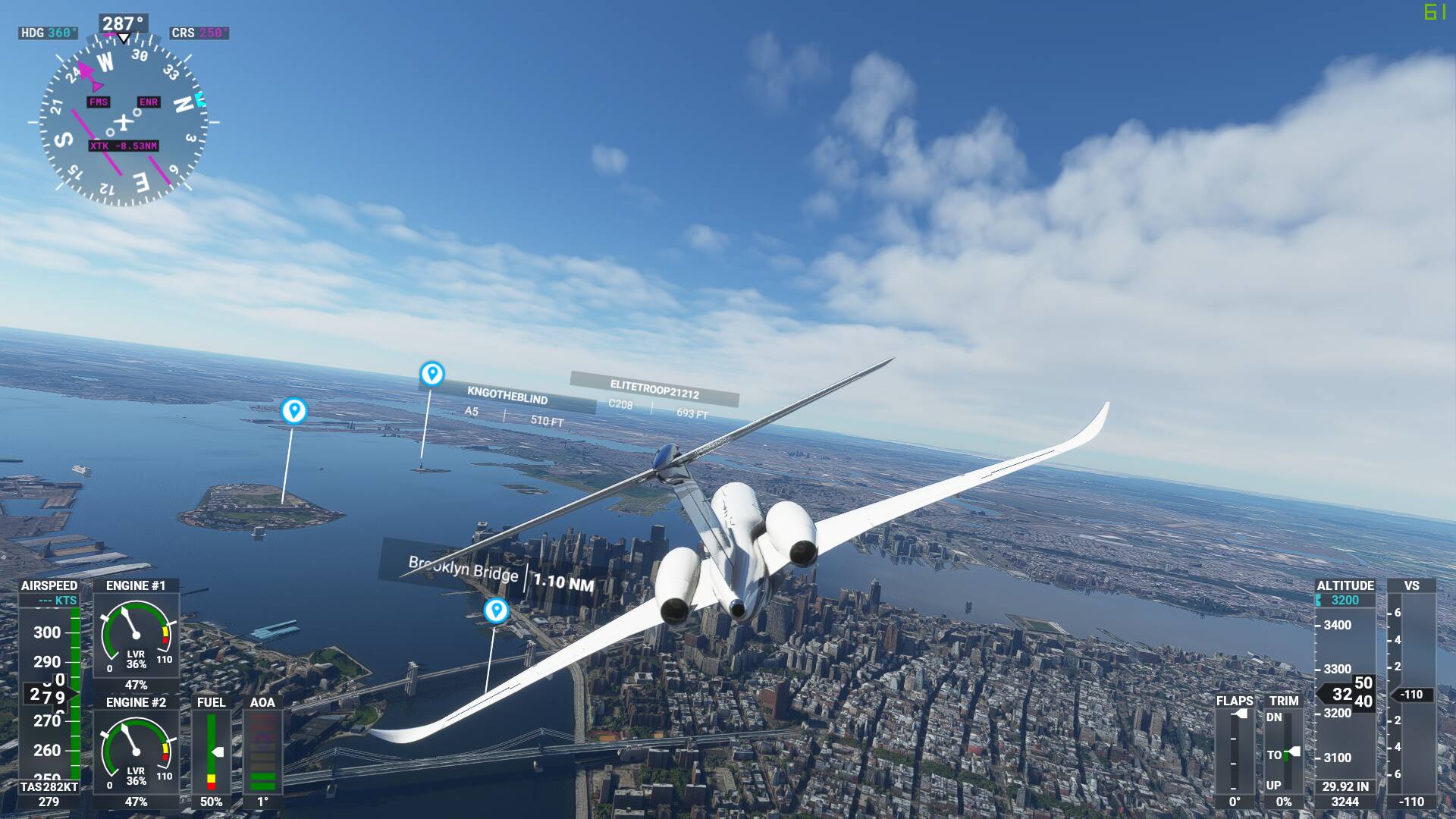
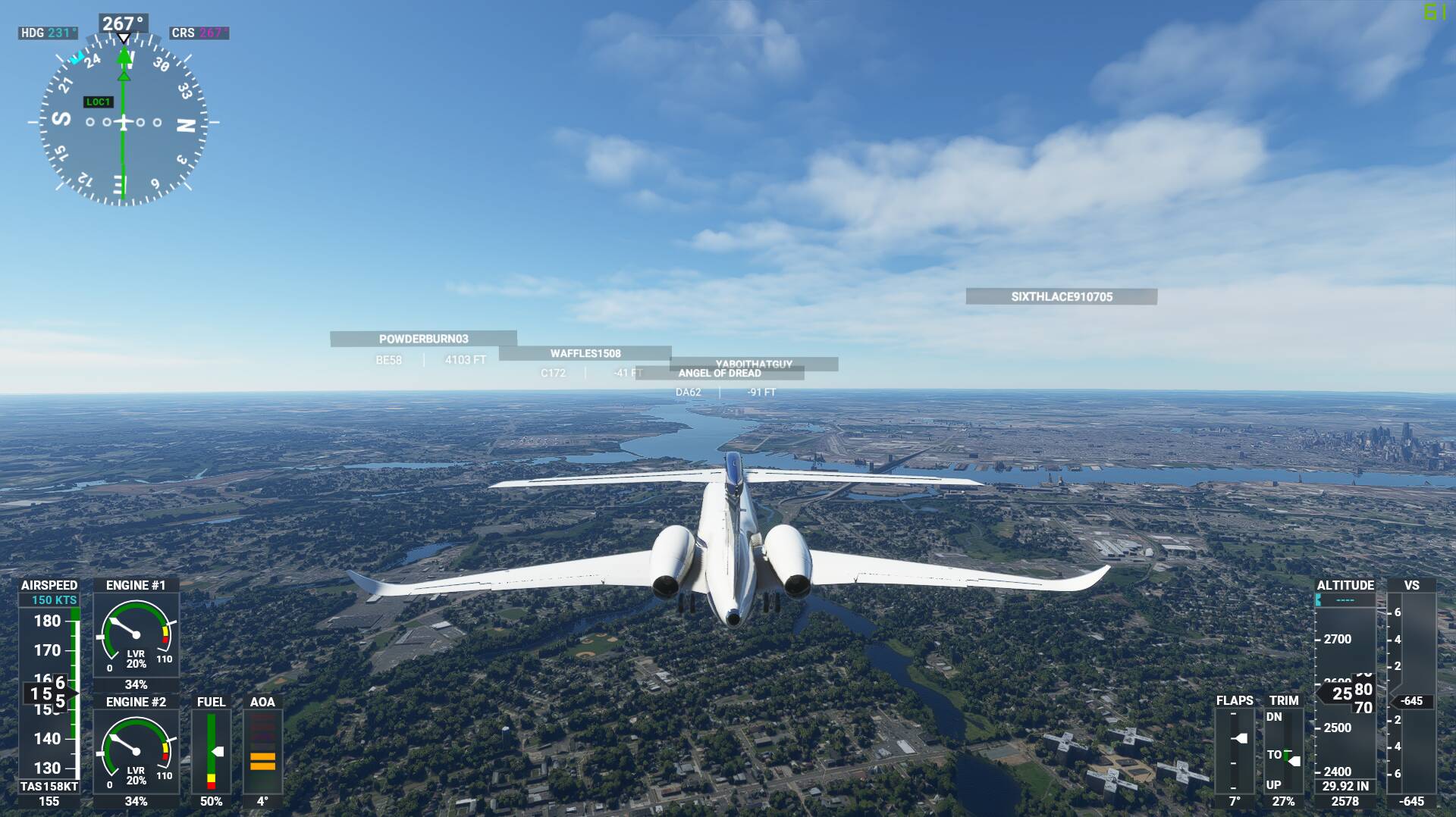
Getting 60+ frames just about everywhere. Using High setting at 1080 and 1200 on two monitors. Notice Framerate on top right.
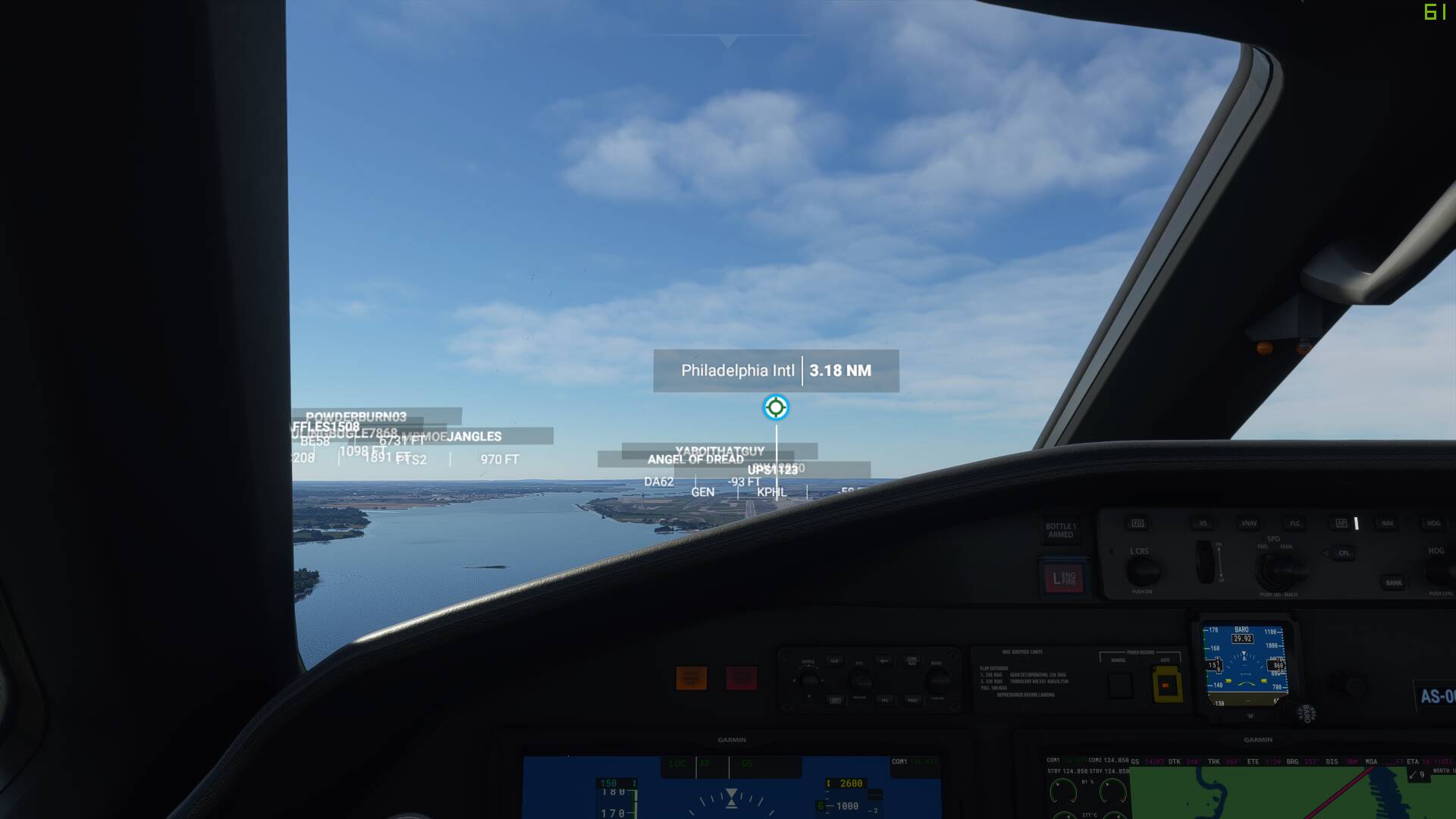
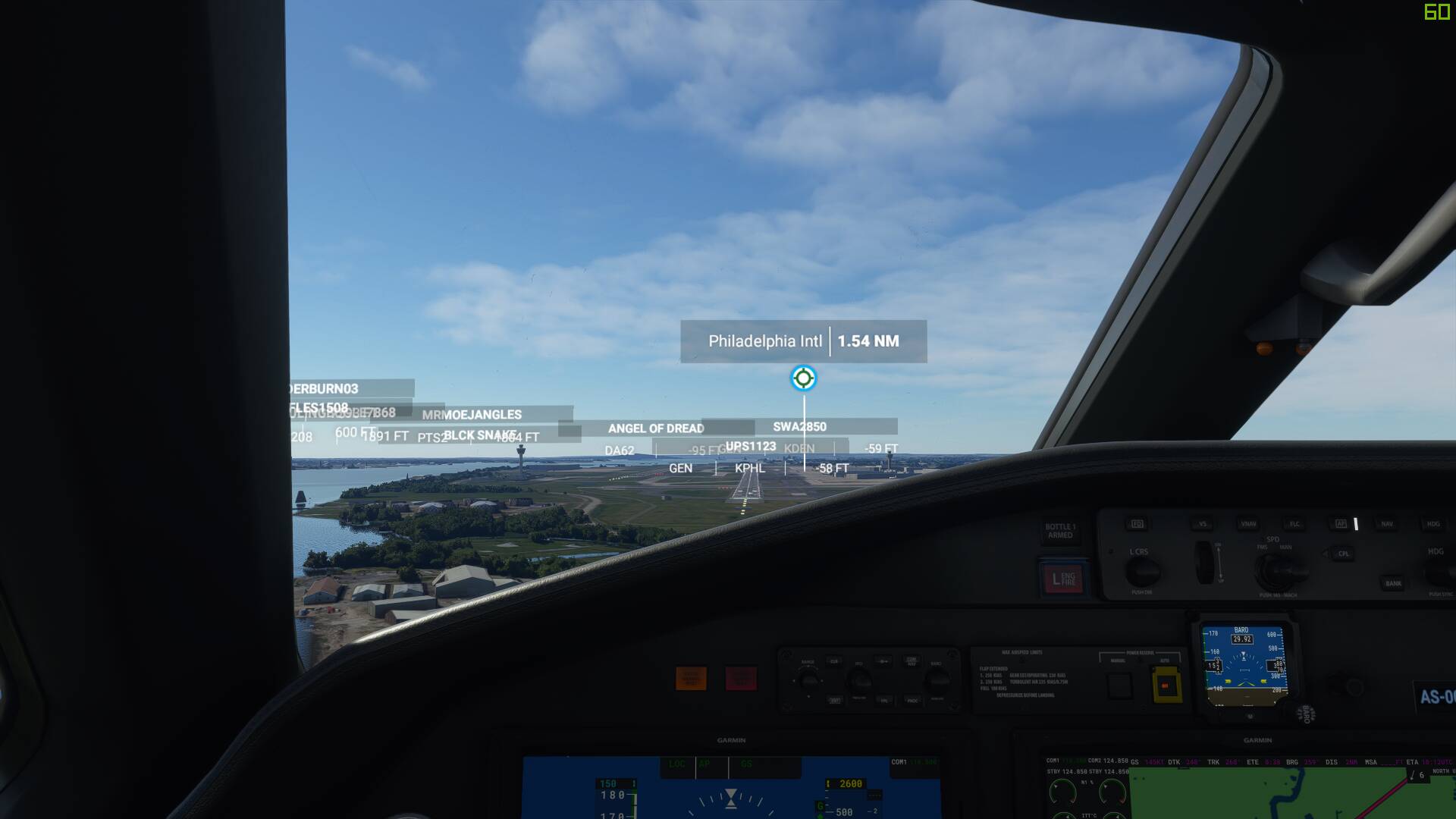
Second photo ILS into KPHL R27R. Notice 16 FPS on top right.
Congrats! You are necromancer of the month 
3 Likes