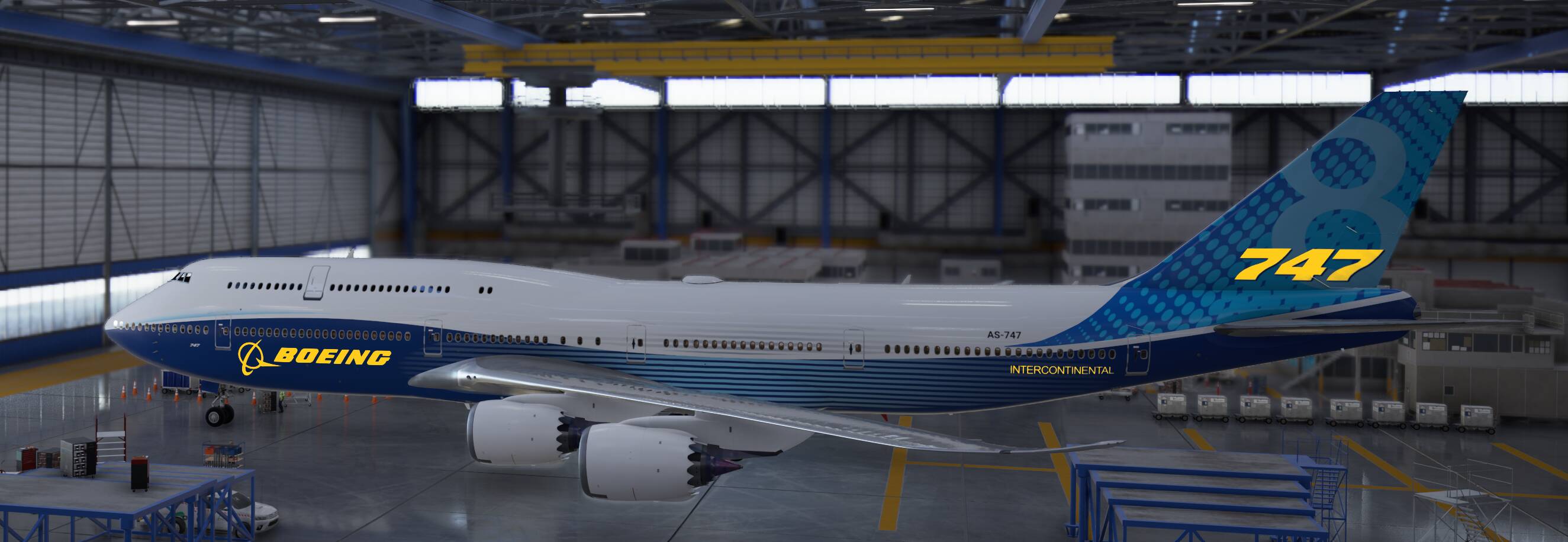
But how do they do it on the default 747 texture, then? As far as I know the default texture isn’t mirrored. So if the issue is the texturing on the model level, shouldn’t the default 747 be mirrored as well? And if the default 747 isn’t mirrored, then why can’t we use whatever the texture file it was using and change it to whichever texture we want?
Everything you see here in yellow is a distinct area that was mapped separately on both sides of the plane. So the only place one could apply something unique on both sides is within a rectangle that fits around these text areas. All of the other blue stuff (the stripes, gradients and halftone pattern ■■■■ on the tail) is mirrored onto the other side of the fuselage.
1 Like
aaaahhhhhh… that’s very sneaky…
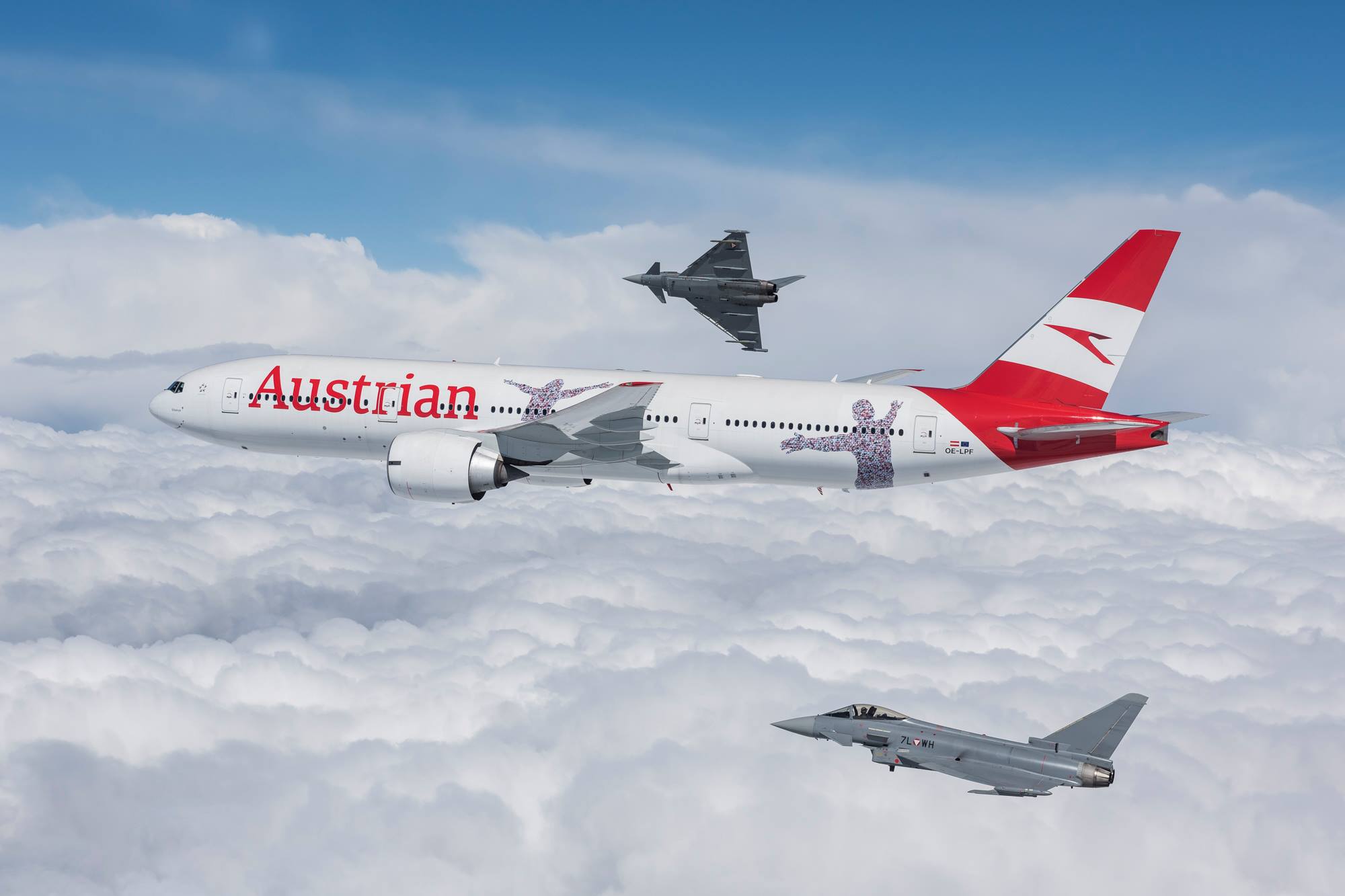

Does anyone know why some planes have my liveries and others have the ugly yellow green default looking liveries?
Updated Edit
I found these are loaded from the official aircraft.cfg file. They are called AirTraffic, AirTraffic01, AirTraffic02. You can modify this file and change isAirTraffic from 1 to 0 (isAirTraffic = 0
Now I only get my pretty liveries
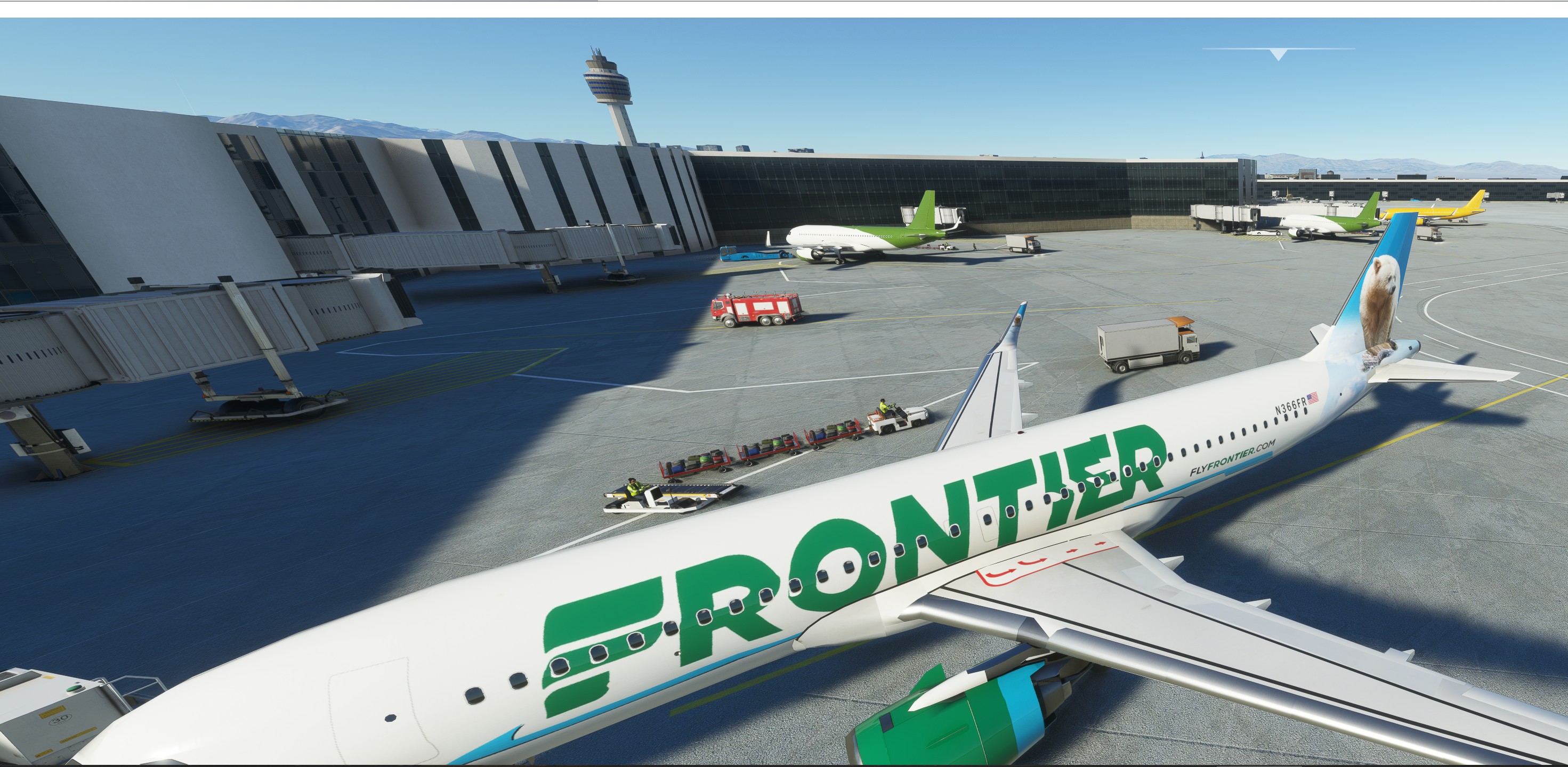
Updated Edit
I found these are loaded from the official aircraft.cfg file. They are called AirTraffic, AirTraffic01, AirTraffic02. You can modify this file and change isAirTraffic from 1 to 0 (isAirTraffic = 0
Now I only get my pretty liveries
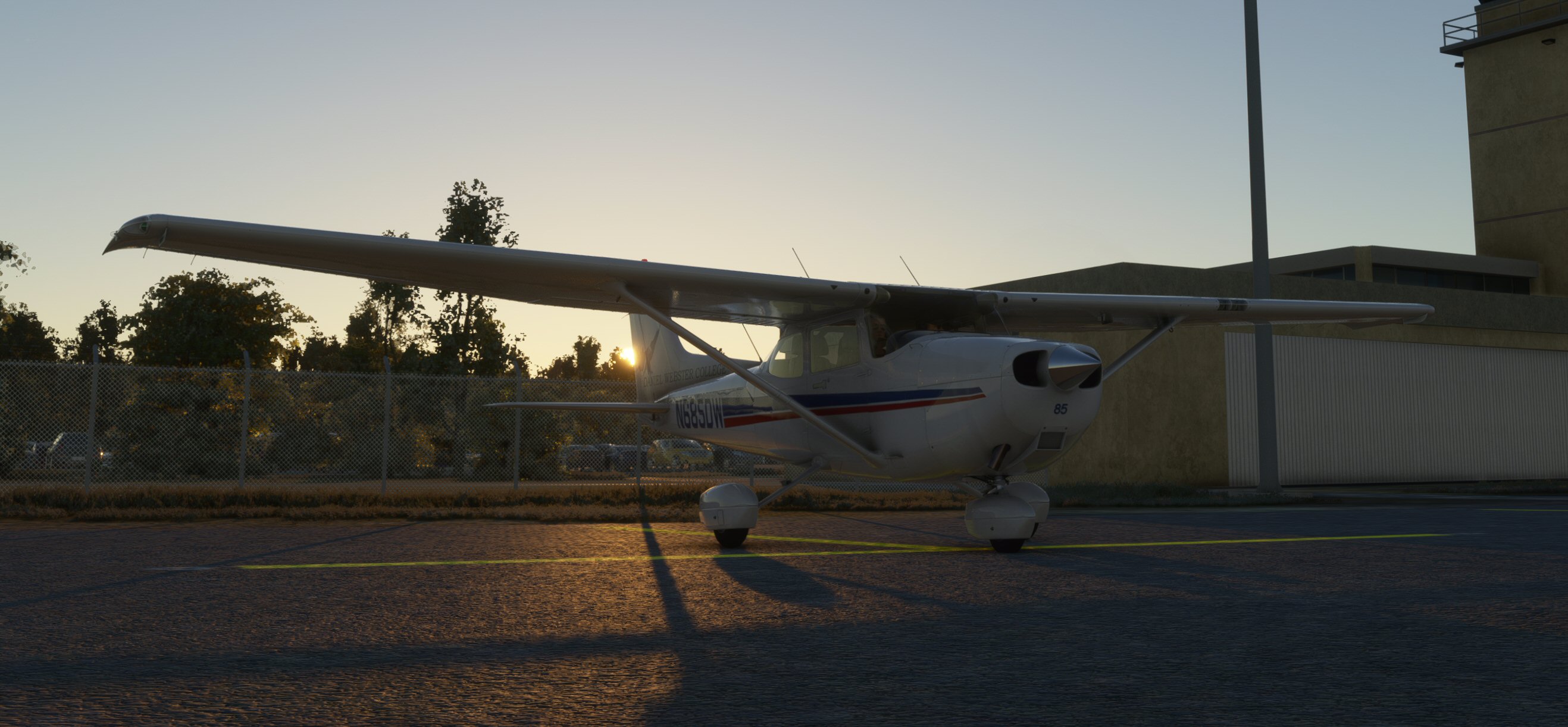
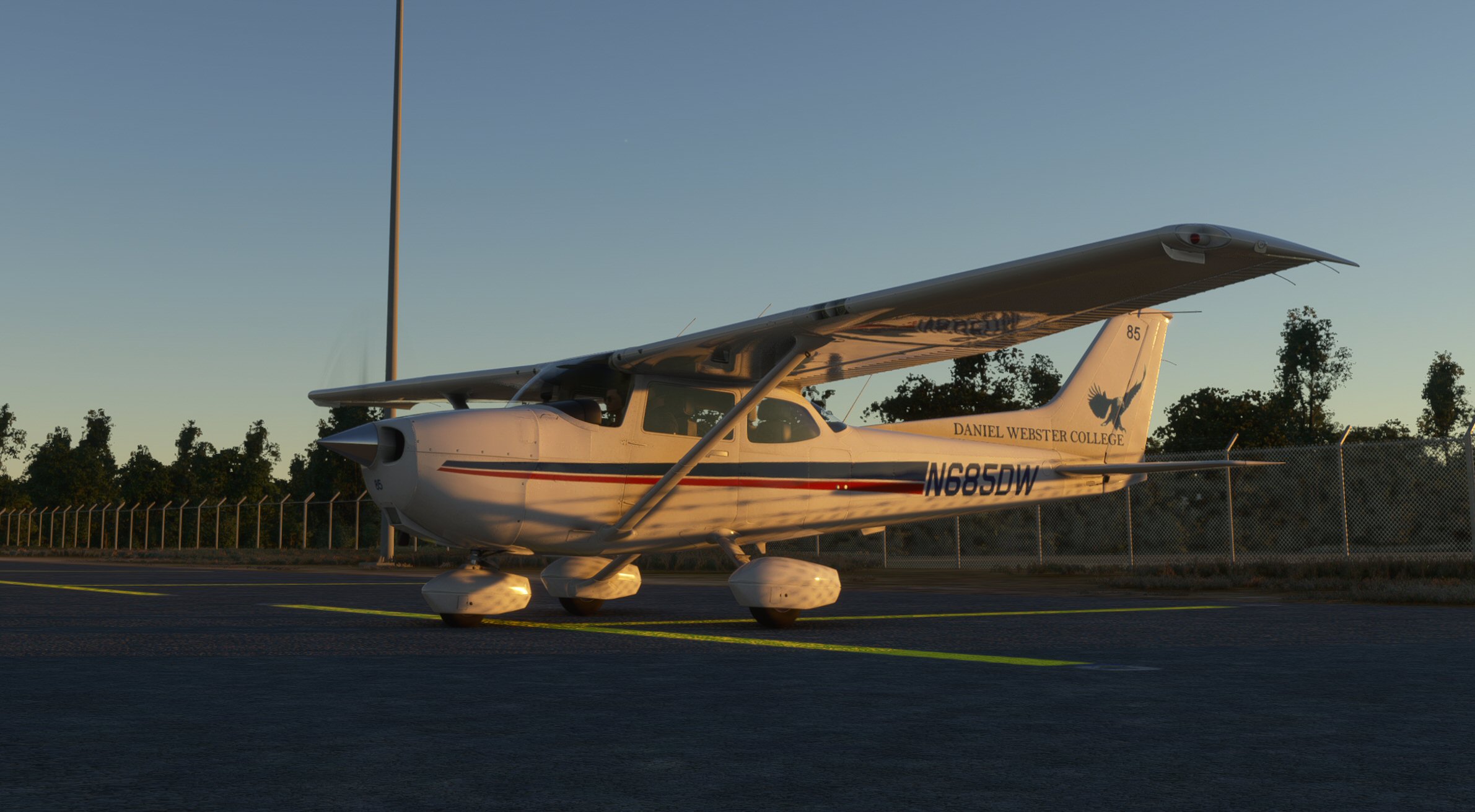
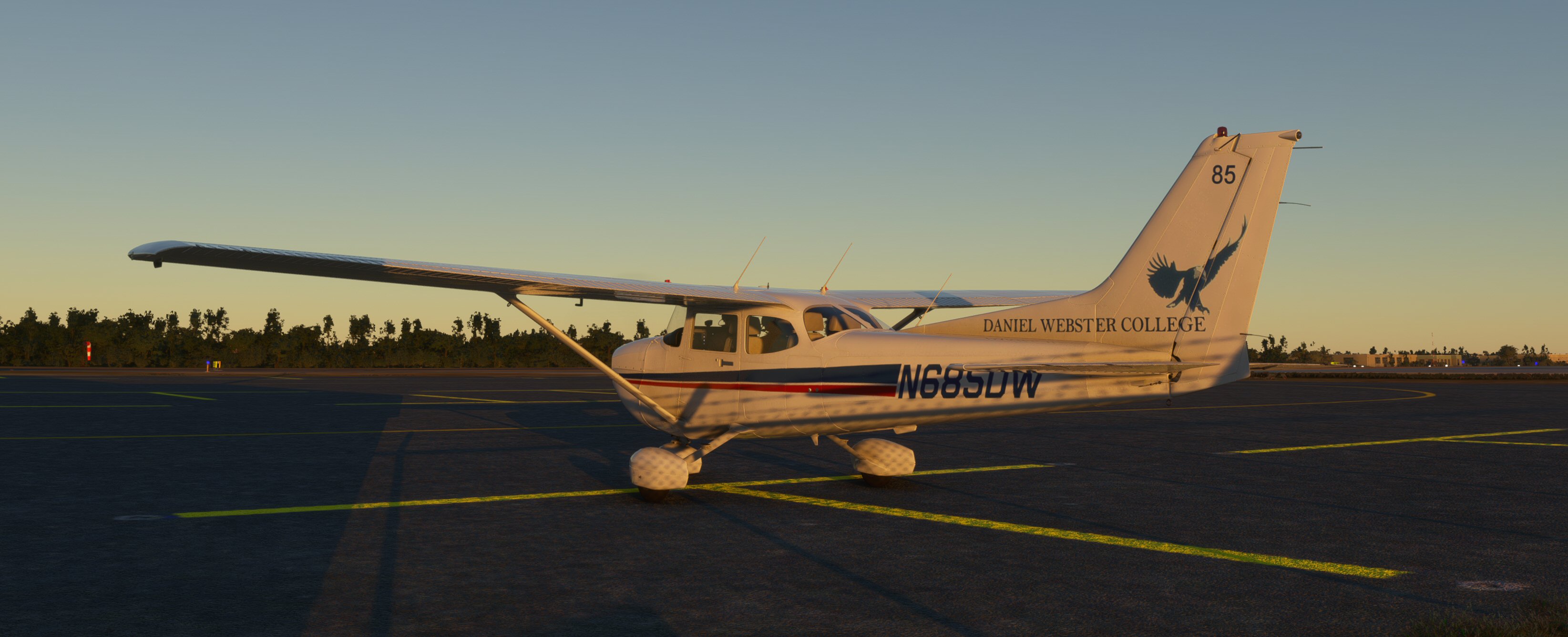
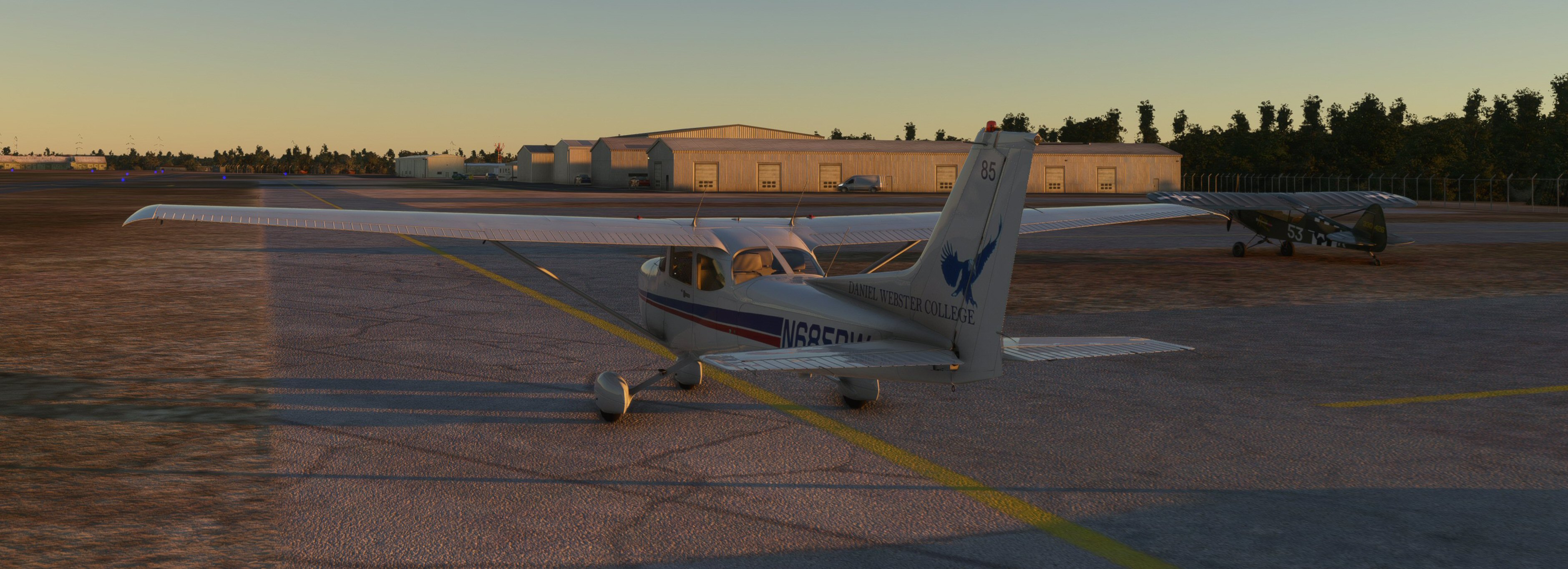
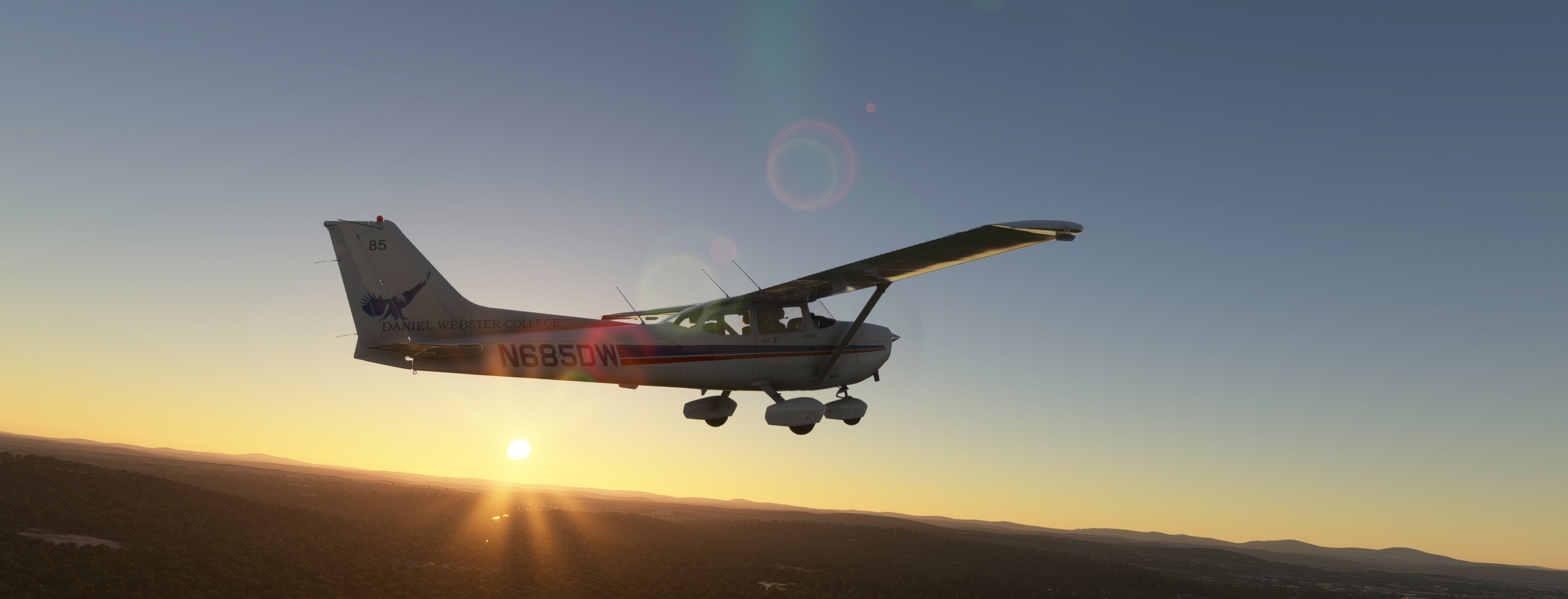
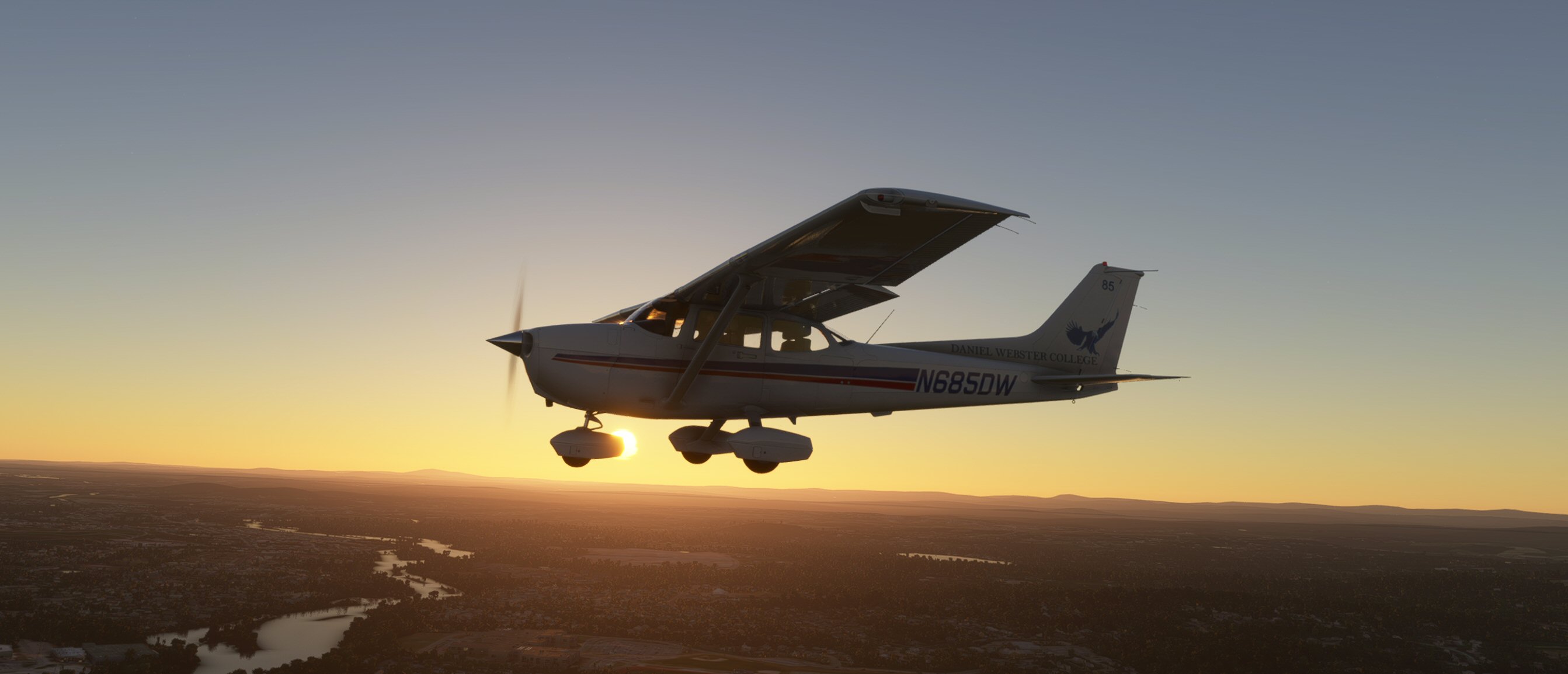
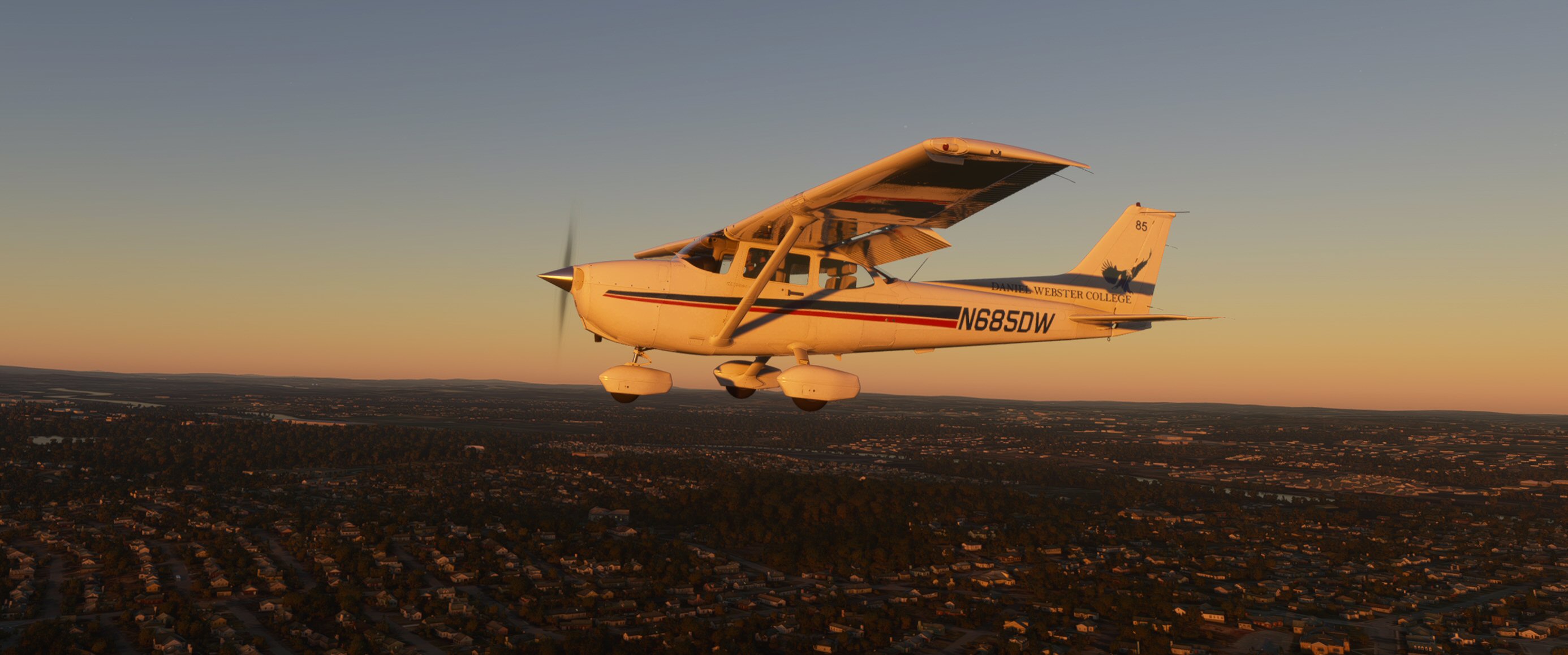
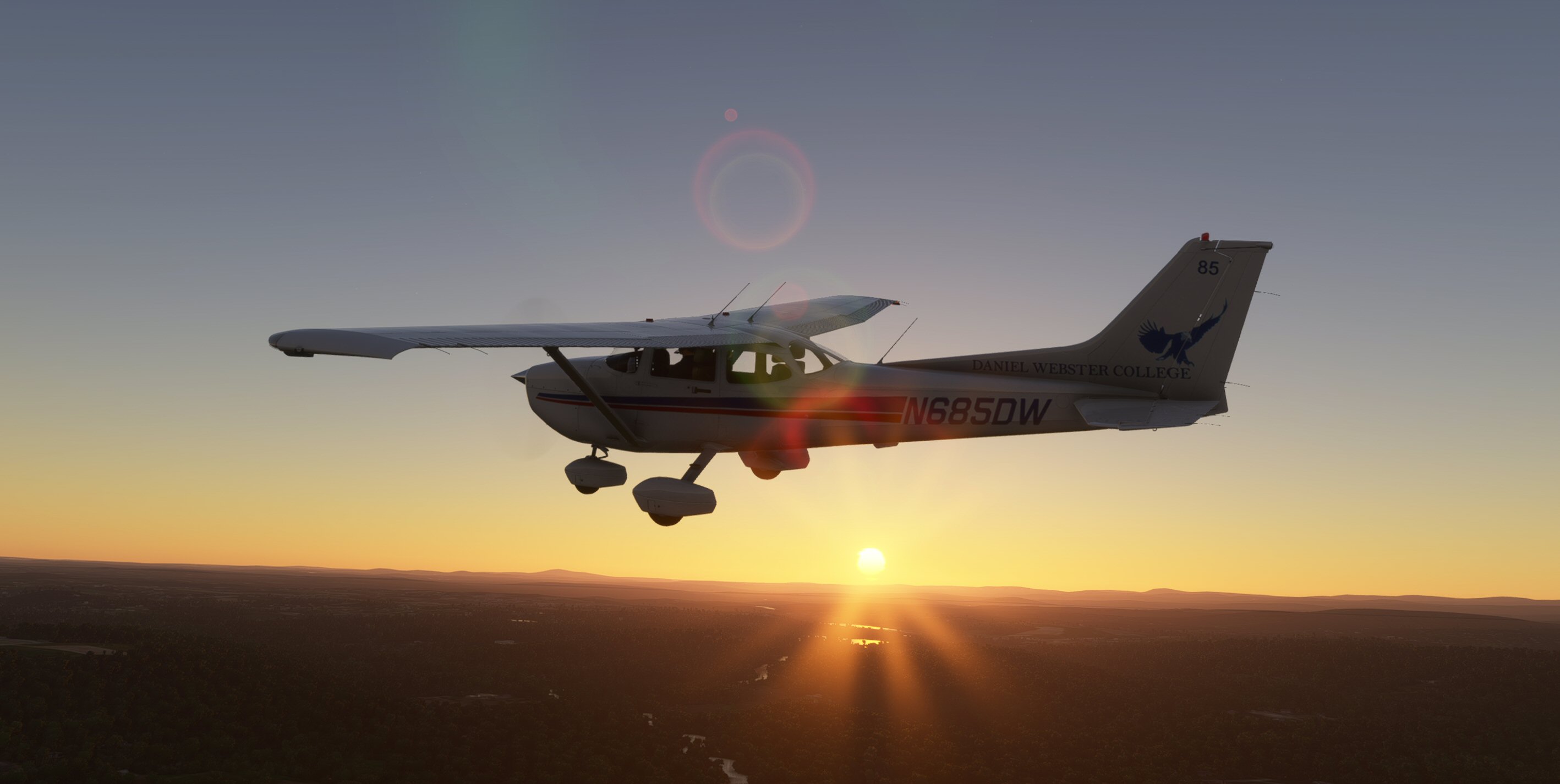
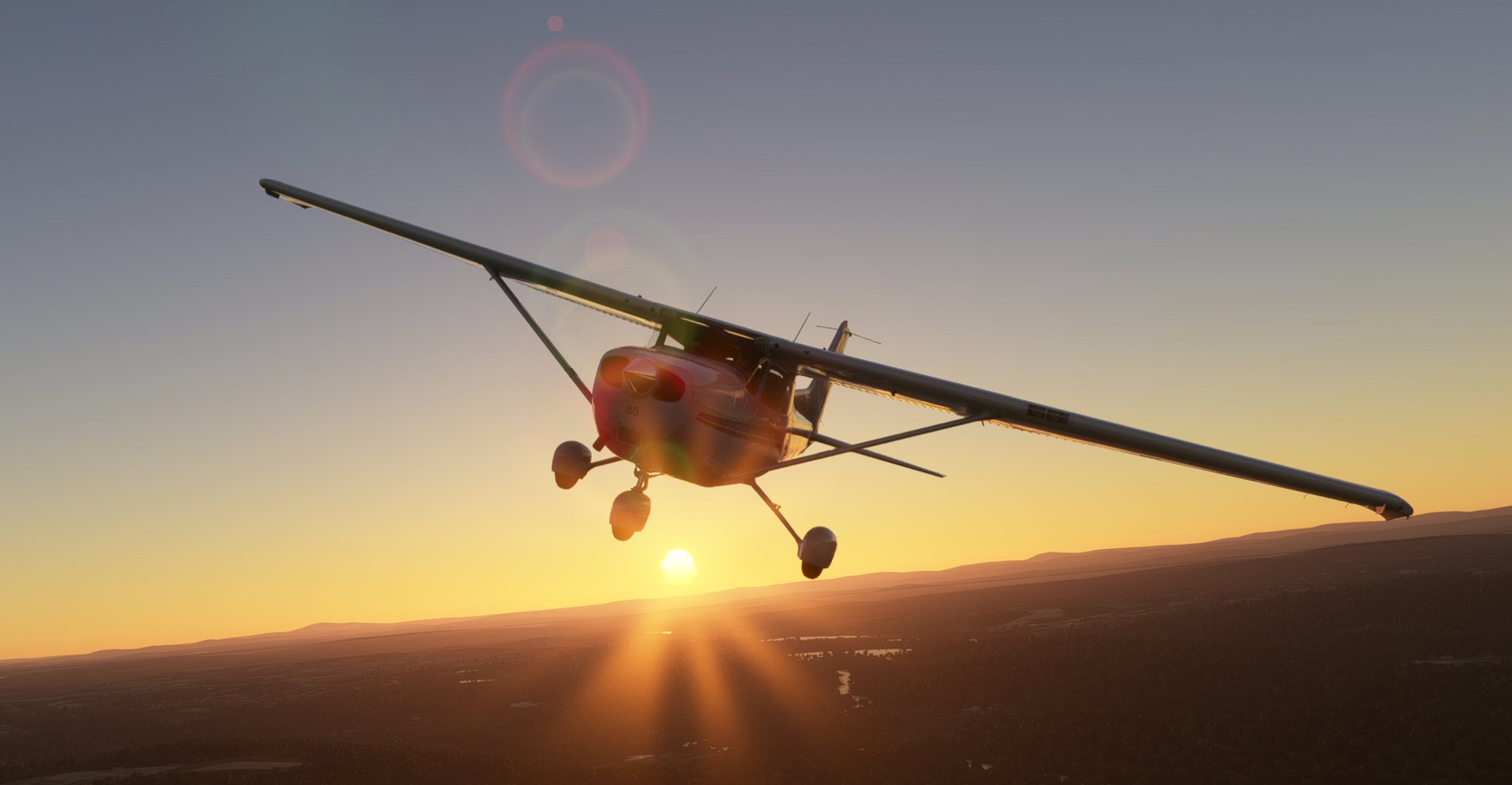
I just finished up Daniel Webster College, a now defunct training school that was based in Nashua, NH, N671DW - N689DW. I’m figuring out how to package it up now. Will eventually have all 19 C172’s they flew. I’d like to adapt it to the Classic as well (I haven’t done a Premium livery yet). In the future I’d like to do their CAP-10’s, Mooney, and Seminole they flew, too.
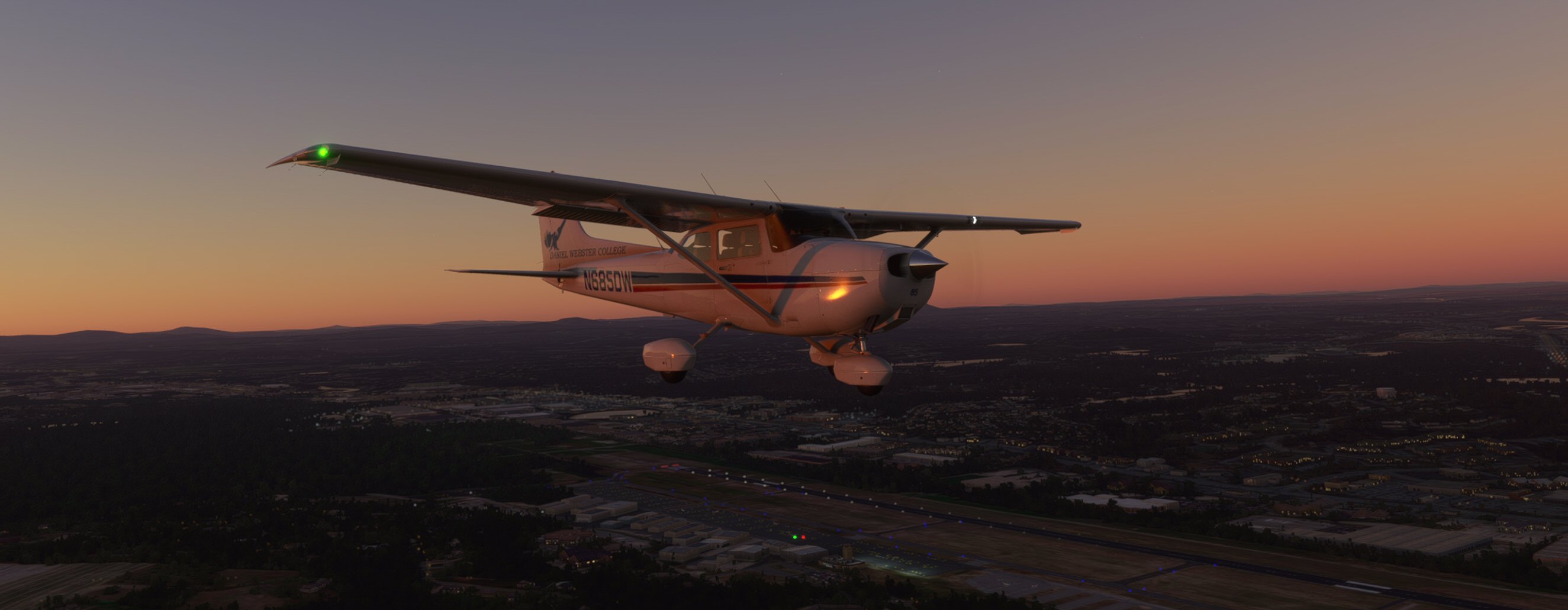
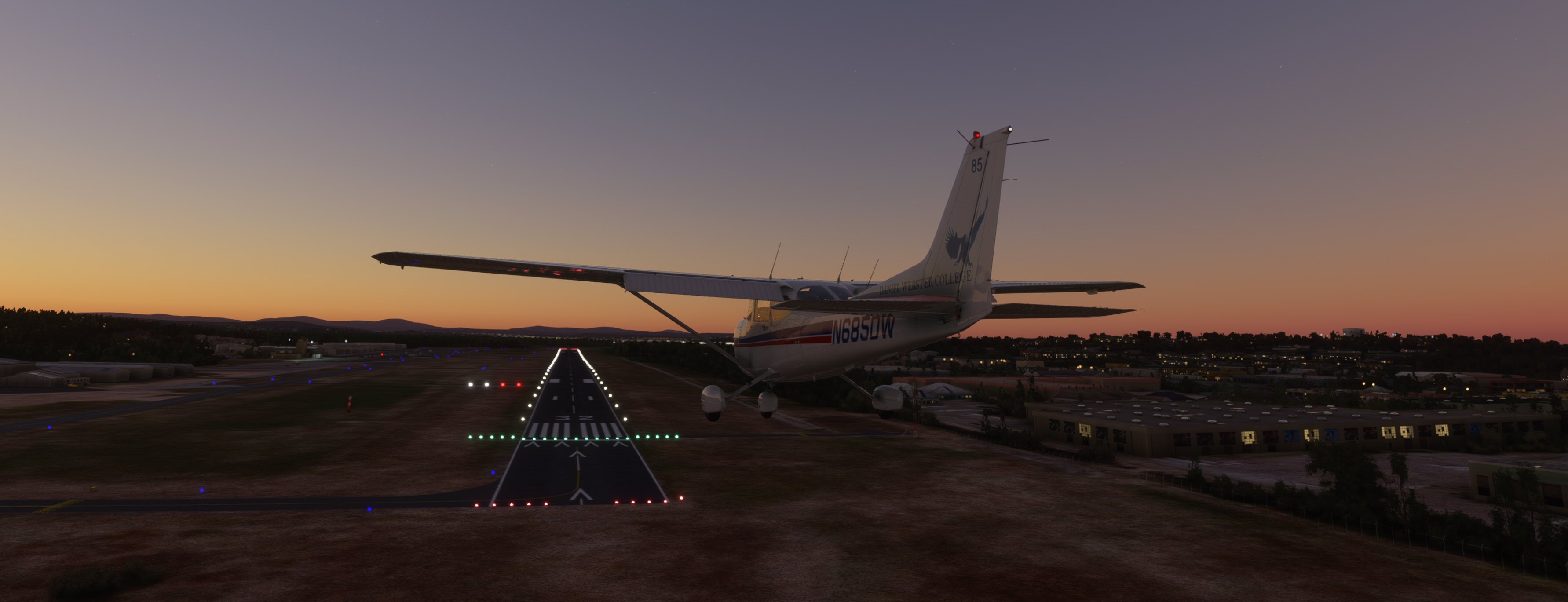
1 Like
I am a total noob and just wonder first Where do you get blank models to start off with or am i totally off the mark? Thanks, guys
The texture DDS files (A320NEO_TEXTURETYPE_ALBD.PNG.DDS) are located in the default installation folder (somewhereonyourPC\Asobo-aircraft-a320-neo\SimObjects\AirPlanes\Asobo_A320_NEO\TEXTURE). Opening them in Photoshop or another image editing app will allow you to edit them. They must be saved back in DDS format however and this requires a plugin depending on which editor you use.
Making edits this way doesn’t really work that well as the mapping is not pixel perfect. Getting lines and logos painted onto the fuselage for example, works much better by painting directly onto the 3D model in something like Blender or 3DS and then exporting the textures from there.
1 Like
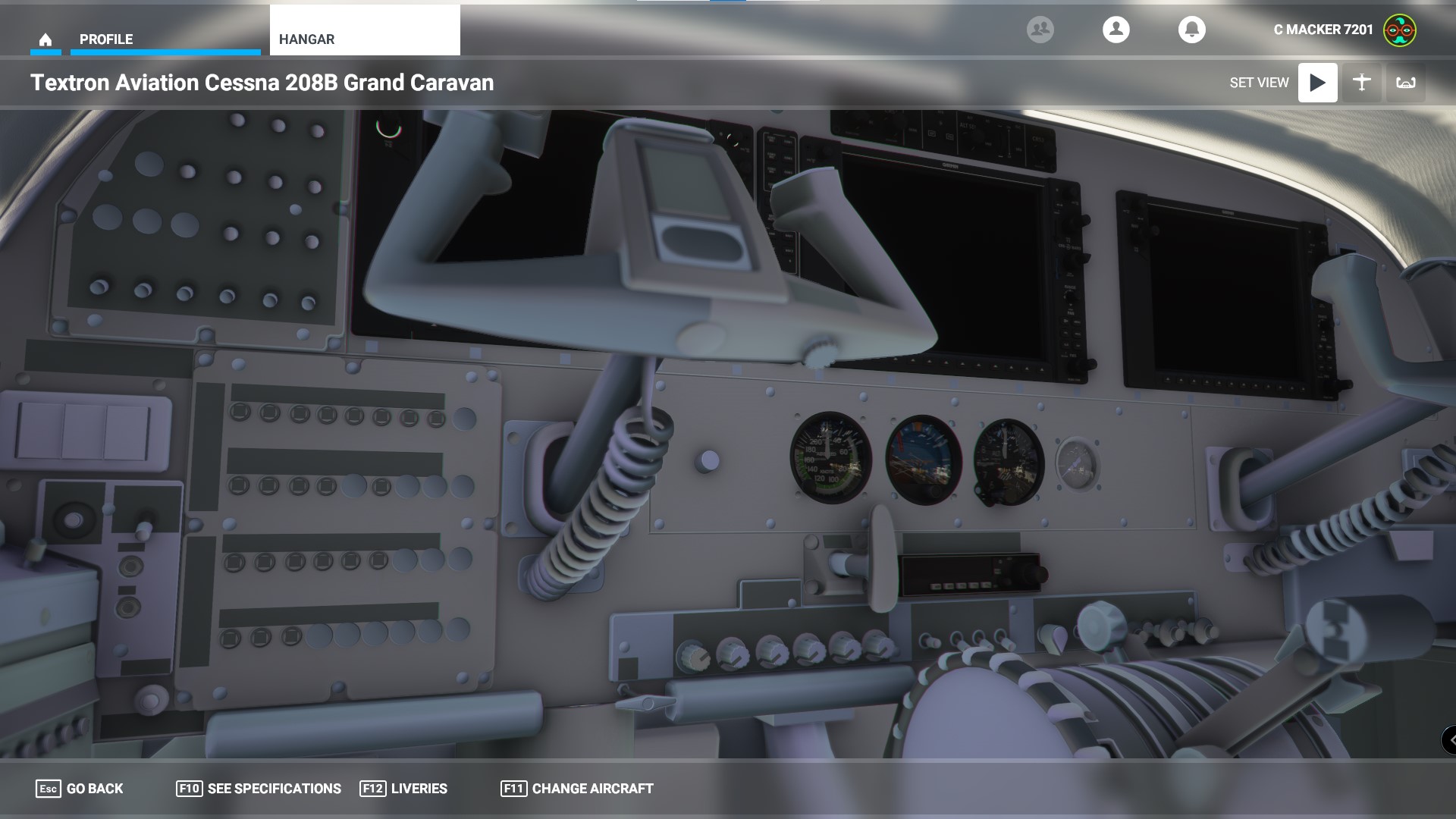
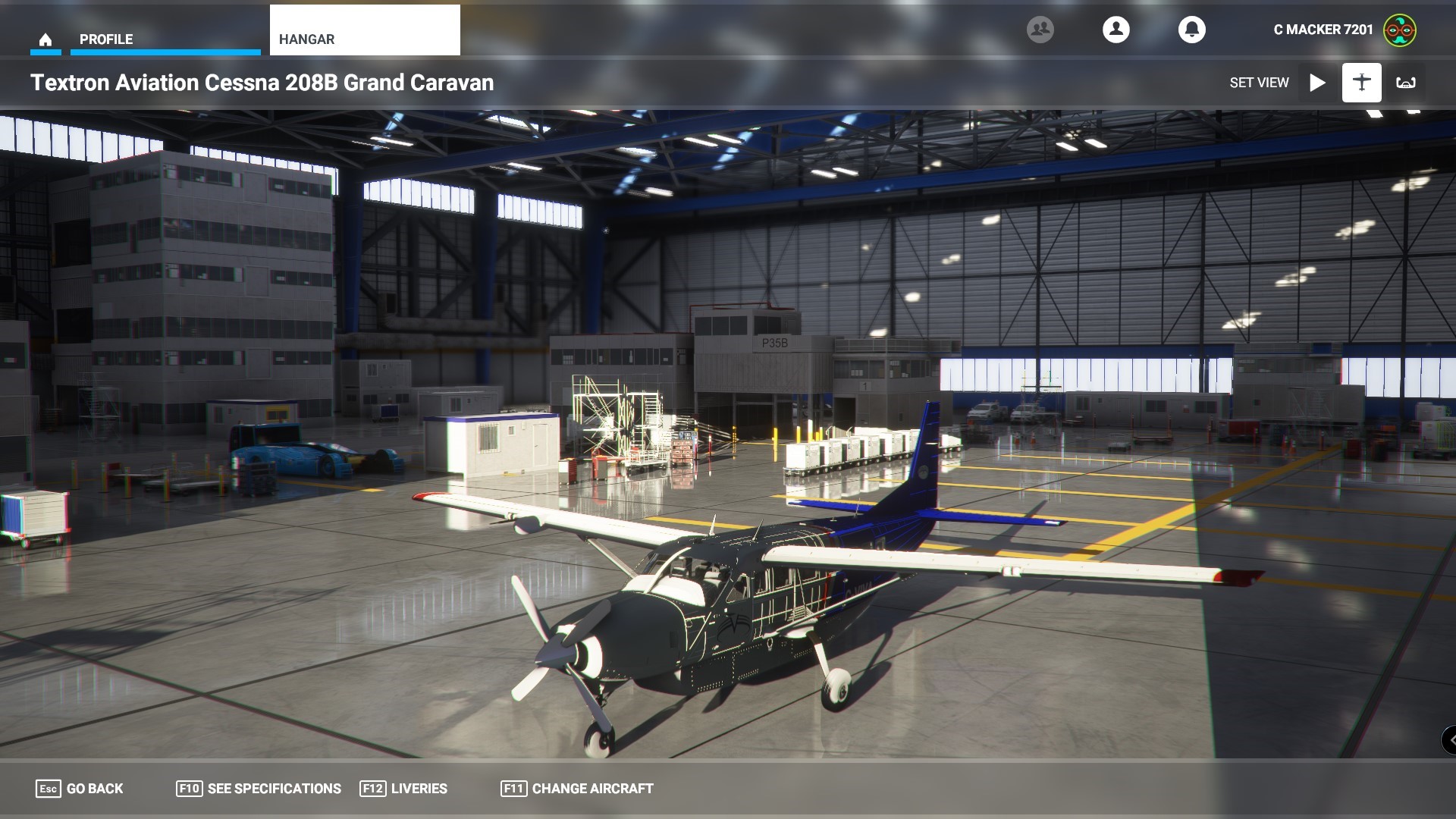
I can get this far in Blender but I just can’t figure out how to get it into MSFS. Unfortunately I have failed to find a tutorial or guide that deals with the rudder paint.
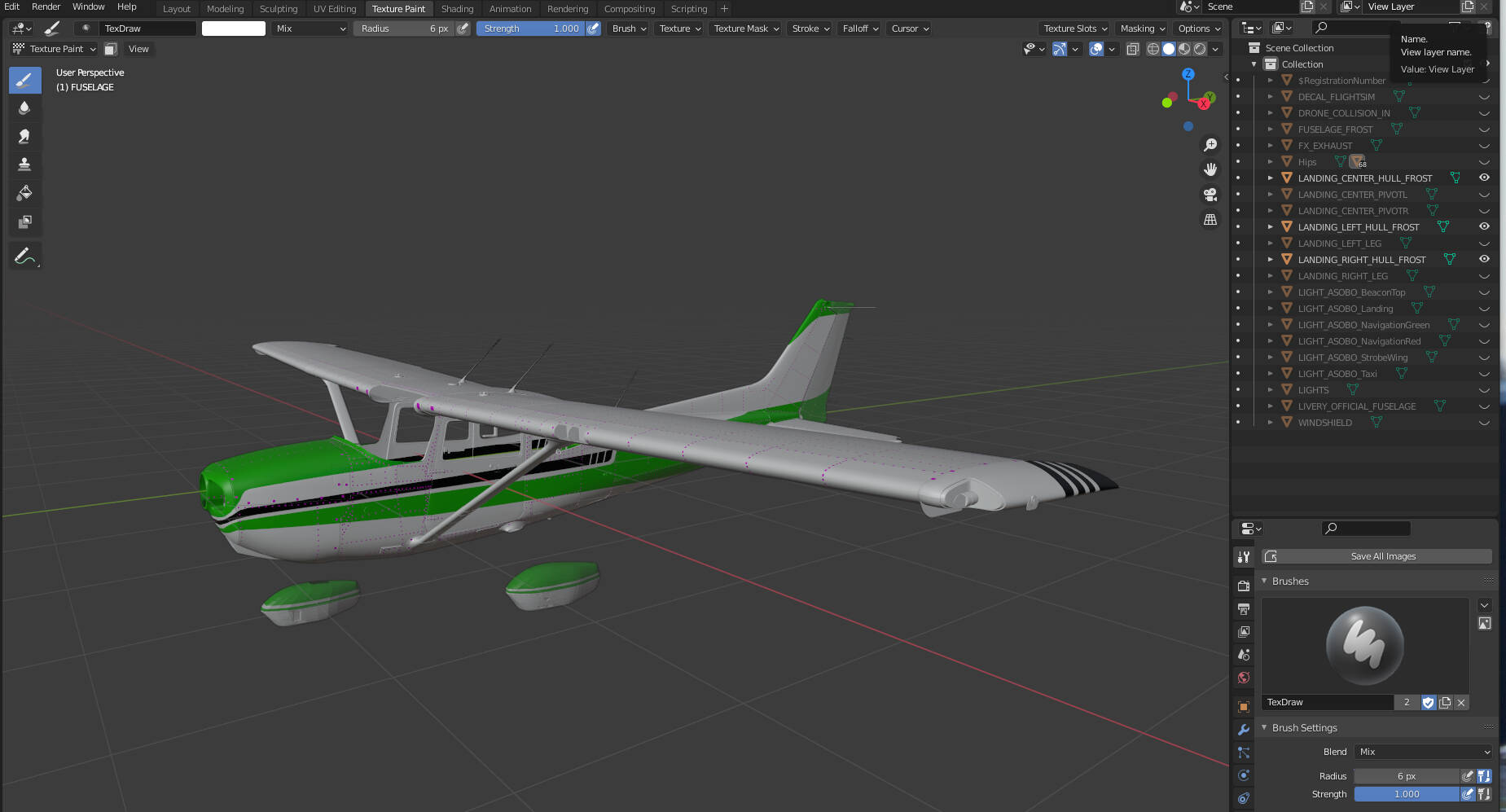
You need to export the UV mapped image and then composite that onto the appropriate DDS file. I think there are some youtube tutorials that will help with that.
Hard to say without specifics but did you flatten the image before exporting? What are you editing with?
Thank you! My biggest issue is where is the DDS file for the rudder? I can get the fuselage and wings into the game but the rudder stumps me.
I am using Blender and Gimp. I can flatten the image but I don’t know where the rudder image goes.
I’ve never messed with any GA liveries but I would download another paint job for that plane and then see which files are included. Should help narrow it down. Blender could clue you in as well—the name of the texture linked to the object in the scene panel (top right of your screenshot) might be the same or similar to the name of the texture’s dds file.
Thank you. I will tinker with it some more.
Make sure in your texture folder you have a texture.cfg with a fallback to the default caravan texture folder.
Should look something like this:
[fltsim]

fallback.1=..\..\..\..\texture\AS1000
fallback.2=..\..\..\..\texture\Gauges
fallback.3=..\..\..\..\texture\AS700
fallback.4=..\..\..\..\texture
fallback.5=..\..\..\..\texture\AS140
fallback.6=..\..\..\..\texture\Extinguisher
fallback.7=..\..\..\..\texture\Lights
fallback.8=..\..\..\..\texture\Glass
fallback.9=..\..\..\..\texture\DetailMap
fallback.10=..\..\Asobo_208B_GRAND_CARAVAN_EX\TEXTURE
Hello,
i need to insert a static a320 in my new freeware scenery.
i try to import the a320 model from msfs in blender but the mesh is very bad…
Someone can help me and send by email ( sdr.cell @ gmail . com ) a blender model, so i can insert inside the new airport?
The answer is in the COMP files. They are channels. The blue channel determines if the texture is metal or not metal. Painted metal is “not metal” as it has been painted. The blue channel would be 255 255 255 for metal and 0 0 0 for not metal.