“Never underestimate the bandwidth of a station wagon full of tapes hurtling down the highway.” - Andrew S. Tanenbaum
Seriously though, this is how we transfer backups of server tapes/drives at the server center… in addition to replicating it across the country.
I will make your sentence more accurate :
“Manual cache only kicks in if you have shut off Data related services in MFS - i.e., Internet Connectivity = OFF and the area you cached is part of the photogrammetry regions so less than 0.1% of the world”
Also if you switch off data, you will loose live weather, which consumes nearly nothing in bandwidth
Total nonsense.
Is this confirmed by Asobo, or a community discovery for now (which is usually pretty good indication)?
Let’s be civil. Can you elaborate?
I posted the question about it on the Q&A but not enough up vote,
We just need more people test in different place
K. Thank you for the clarification. I’ve only used it in one region so far based on feedback about the sluggishness. If i get data points, I’ll chime in.
Copy, will be waiting for your feedback
Do you have a link to a better thread to discuss that instead of here?
You could go to the one i created yesterday
https://forums.flightsimulator.com/t/what-is-wrong-with-manual-cache/290024
I think you have no copyright for your manual Cache, so you can’t sale it. When you bought this Software you didn’t buy the right to copy and sale it (or parts of it)
Not at all true.
My internet is flaky during the day due to my house being full of peops who are all using several internet devices. Since the latest patch and actually being able to use manual cache for the first time, it is INCREDIBLE the detail difference and I have not shut off any services whatsoever and still have good enough internet. I enjoy making videos and look forward to sharing my hobby with coworkers once I get my HP Reverb G2. Having rolling cache now set for nearly all of Southwest Florida it is a dream!
I actually though the rock looking buildings for my area had to be due to Bing maps but the detail is fantastic and no need to hear from Asobo to confirm because it was stated months ago that the manual cache was meant for those with slower internet and many other things. Never was anything remotely close to what you’re saying was mentioned and the facts are clear for anyone else to see for themselves.
I still will get occasional building popping and was hoping to get rid of any signs of that but looks like that’s just an LOD thing. I can upload a video I shot last night to show some friends, but due to a few fun four letter words and jokes meant for my fellow construction gents, I’d probably get banned 
I tested Manhattan several times before building the 3GB cache. Try starting in the air at the POI. Vegas looks better at low level with cache but data off. WDW same deal.
All I can say is the difference with manual cache for me is night and day. I would never turn off my data and can’t understand why on earth they would ever expect that. Especially when it was never said. My data is on and my manual cache works flawlessly. I have a feeling you’re possibly seeing a placebo effect. It was said in the alpha/beta forums that “If you have manually cached an area that msfs would use it”. This was in one of Squirrel’s youtube videos. Having to do something like shut off data would be something said many times, not just a hunch. To disable live weather to then use a manual cache? I can assure you it works 100% with data on.
I will add that after the first update I deleted my manual cache manually and then recreated it just in case the new code to create the cache was different and not wanting corrupt cache to be a possibility. This time I didn’t and it rebuilt the cache based on the cache area I selected. Initially I had a 500gb cache and now I use a more modest 100gb
Not a placebo, I have the screenshots.
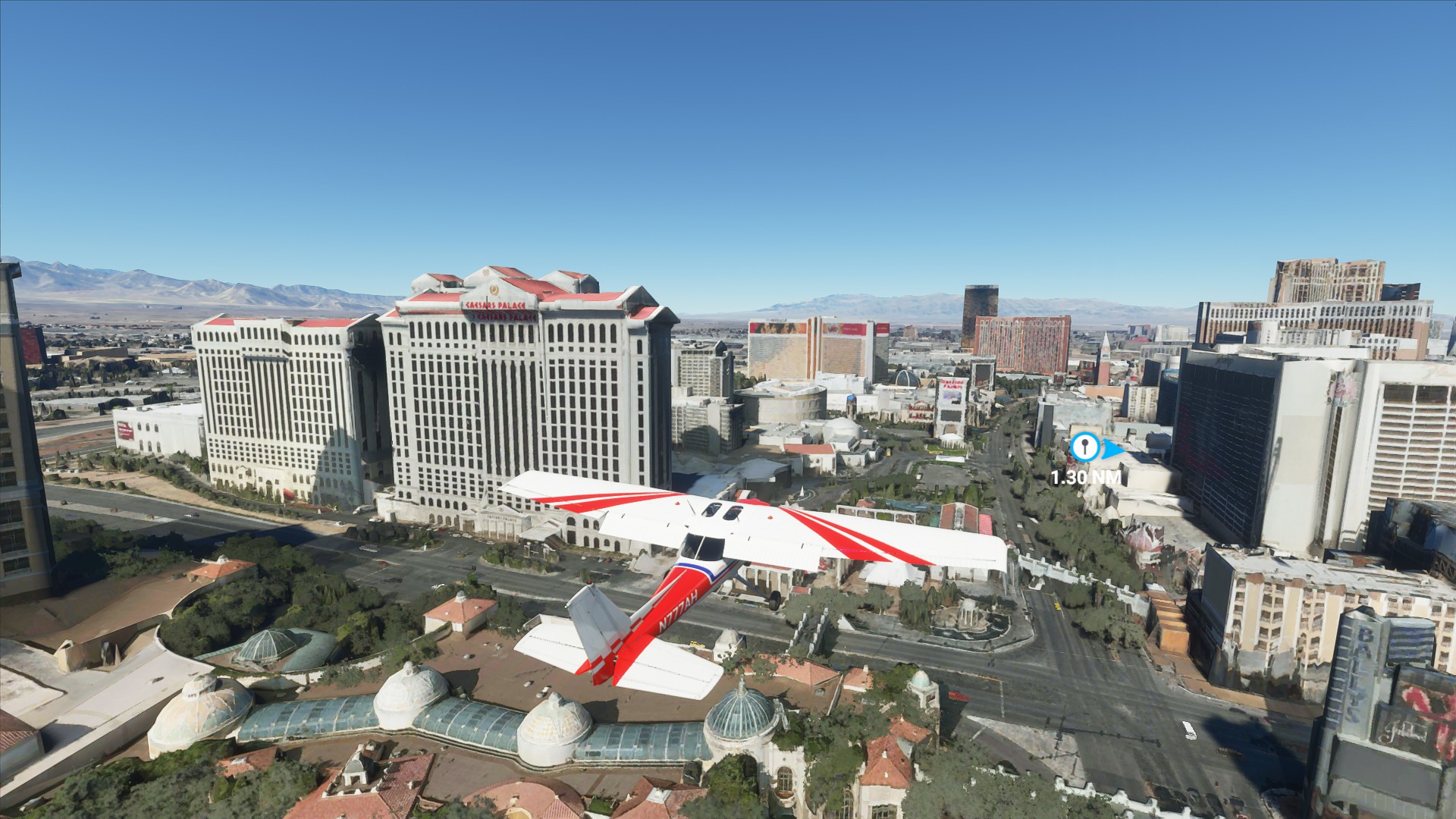
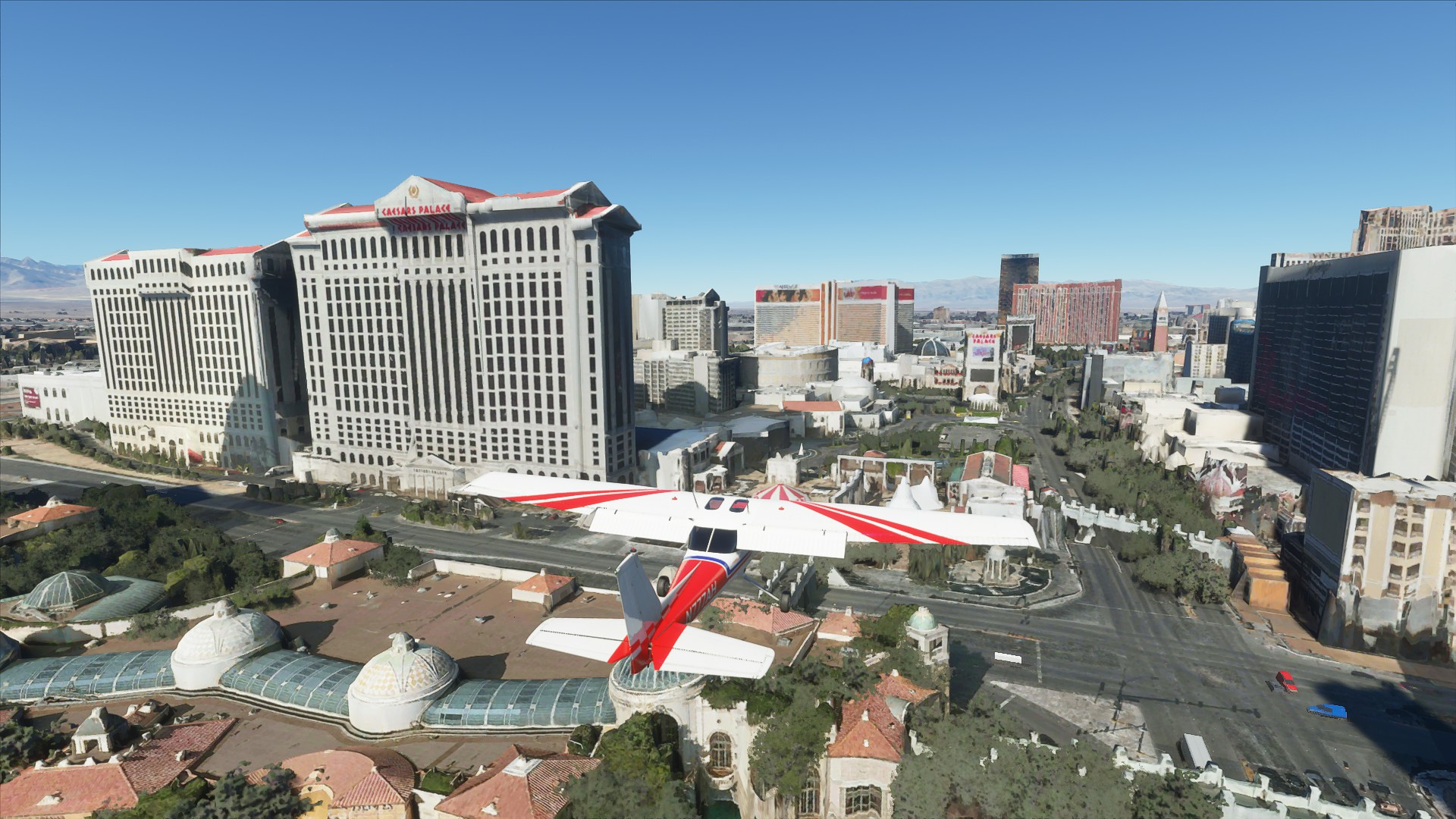
Edit - have a look at the domes on the walkway lower left - even one level magnification down will show it - no sharpening, no enhancements, straight Steam F12 screenshots. The domes from the cache have better texturing and clearer definition.
Vegas is a 3GB cache, for the section I’m in, I’m smack dab in the middle of the cache zone, surrounded by nothing but HQ data.
There is a small graphical penalty for streaming. As I mentioned in other threads, the texturing and structure hold up a little better in local caching, but I didn’t gain anything in terms of draw distance and FPS.
Online - Bing Maps and Photogrammetery ON
Offline using 3GB manual cache of downtown Vegas High Quality
That is interesting for sure, but again, you have your reasons and screenshots and I have my reasons and videos. I know for sure mine is working from last night’s flights alone. Not an intended test but a good one that reiterates to me anyway that it’s working fine, for me.
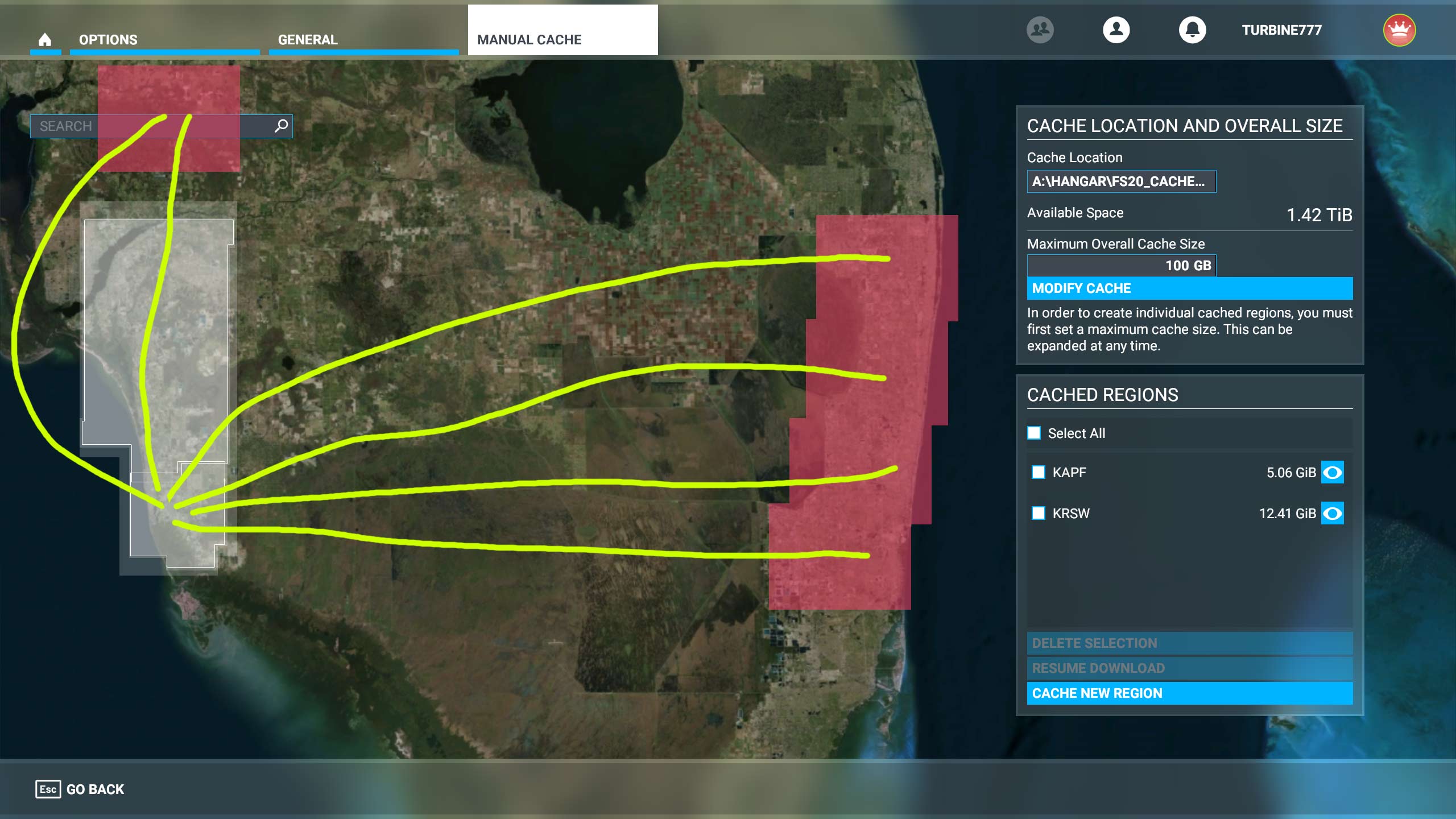
The screenshot shows my current two areas cached (KAPF & KRSW). As anyone knows that does manual cache, even though they’ve “improved” things, it still becomes very slow after selecting a lot of area so that forces one to only do so much before downloading and simming. My cached area is all High Quality. It’s in white. Last night I did several flights to and from my area of KAPF. The flights are marked in yellow and the red areas just to indicate non-cache areas that all showed the same signs of my pathetic bandwidth. Each flight that I started in my cached area looked superb until I was out of it and each flight that began outside of it was mediocre until I finally got back to my cached areas.
The obvious visual difference is not the only difference I see between cached and non cached areas. Most noticeable when I fly from a cached area into a non-cached area to where I go from super smooth to mini shutters with many buildings looking awful, blurred areas that pop little by little into something eventually, etc. When no one is watching on-demand and I’m alone in the house, my internet streaming experience in MSFS is great, but even then it’s still a very noticeable difference when in my cached areas.
We’re both seeing results from our own tests. You’re saying something that no one ever mentioned in the plethora of reviews and videos out there. Also what you’re saying makes no sense that they would ever expect someone to do to turn on manual cache. If anything what you’re seeing is just proof that it works but no one needs to disable anything or turn on anything to activate cache. To better understand cache and how it works I would recommend to read this in it’s entirety:
Manual Cache
What Are Manual Cache Regions
MSFS has implemented a useful manual scenery caching capability that enables users to predownload custom scenery regions to their hard drives. Once these cached areas are stored locally, scenery data will no longer be streamed when flying over these regions. This provides a noticeable performance improvement since MSFS no longer needs to share CPU/GPU resources to stream data while flying over your custom regions. This capability is very flexible and offers nearly infinite solutions for every user.
How to Create a Manual Cache Region
Navigate to Options / General / Data and scroll to the bottom of the window. There are several sections in this window: “ Data Connection ”, “ Current Data Consumption ”, Data Bandwidth Usage Limit ”, and “ Rolling Cache Settings ”. We will focus on the “ Rolling Cache Settings ” section.
Manual Cache - Data Settings
First, a comment about Rolling Cache. If you have Rolling Cache enabled, MSFS will cache the data you are flying over and store that scenery content in your rolling cache up to the data limit you have set in “Rolling Cache Limit (GIB)”. This is happening continuously as you fly and employs a first in, first-out logic once the cache is full. This rolling cache functions until such time as you enter a region you have manually cached. When you fly over a manually cached region, MSFS know this and interrupts streaming until you are outside that area. This is where the performance improvement is achieved since the CPU/GPU are no longer processing the streaming data pipeline.
To setup a manual cache, go to Option / General / Data, scroll down to Manual Cache, and select View. The Manual Cache interface open and looks like this:
Manual Cache - Worlds Map
In the window on the right-hand side there is a Maximum Overall Cache Size data field where you enter the size you want your Manual Cache to occupy within the overall Rolling Cache folder. If you’d like, you can change the path here to have a unique location for your Manual Cache. I have created a Manual Cache size equal to the Rolling Cache, 100GB. Once you enter the size, click the Modify Cache button to setup the cache on your hard disk.
In the screenshot above you will see some Cached Regions I have already created. Each region shows the custom name you’ve given it as well as the hard disk space it occupies.
To create a Manual Cache region for an area you plan to fly around frequently, or to be part of a flight plan route, press the Cache New Region button and the window changes to show some new windows on the right-hand side. In my example, I am going to create a custom cache for south Florida with detailed emphasis around Miami International Airport.
Manual Cache - Create Regions
Note the three small windows on the right-hand side, “Painting Tool”, “Cache Quality”, and a small window where you name the custom region and complete its creation.
The Painting Tools window has four movement and selection settings for using your mouse to move and zoom on the map as well as to draw the actual custom region you desire for your manual cache. The Cache Quality window shows you the quality of data you are assigning to the custom region you are creating.
Manual Cache - Painting Tools
Manual Cache - Cache Quality
Next, using the mouse scroll wheel, zoom in to the map and use the left mouse button to pan the map to the location you want. Since I am going to create Manual Cache regions in south Florida, I have scrolled and zoomed to that region.
Manual Cache - South Florida
Note that you can’t create a region until you have zoomed in to a point where you first see a grid on the map. Once the grid appears, you’ll see a thin blue border around the “Low” Cache Quality box. This indicates that a region you create at this level will be low quality cache data. This is best for areas where you’re likely to be flying at higher altitudes.
To highlight the area for the low data cache, click and hold the right-hand mouse button then drag a blue box over your target area. If you want to start the selection over, simply hit the Reset button on the lower right-hand side. Enter the name you want for the region in the small box on the lower right-hand side, then press the “Finish & Download” button. A small dialogue pops up showing the data being downloaded as the manual cache region is created. Note that the length of time needed to create the region is impacted by your bandwidth. You will see this new region listed in the window on the right-hand side with your other regions.
Manual Cache - Low Region Selected
Since I want a medium level manual cache region for the Miami Beach area, I need to scroll down closer to the map until I see the Cache Quality indicator change to Medium. You’ll note the grid squares are smaller. Then, using the same technique as above, you draw a blue box over your target area, add a custom name, then click the “Finish & Download” button. Higher quality cache data takes longer to download, so this region will take longer to create than the low-quality region.
Manual Cache - Med Region Selected
And lastly, we will create a high detail region over Miami International Airport (KMIA). Using the mouse wheel, zoom in over KMIA until you see the Cache Quality indicator change to High. Using the steps you’ve already learned, select an area over KMIA, enter your name for this region, then hit the Finish & Download button.
Once completed, scroll out on the map till you see all three newly created manual cache regions highlighted with white boxes. You can also see them listed on the right-hand side. You are essentially done with creating your new manual cache regions.
Manual Cache - Regions Created
Resizing or Deleting the Manual Cache
If, after you’ve set up the Manual Cache you decide you’d rather have one of a different size, or you want to delete it altogether, the following steps will help.
Note: Once you have established a Manual Cache you cannot modify its size within the interface. The originally created Manual Cache file size is fixed. The only way to establish a different size Manual Cache is to delete the current one and then create a new cache file.
In order to delete the entire Manual Cache you first need to delete all the manually cached regions you created. Open MSFS, go to the Manual Cache interface and delete all your custom regions.
Once they are eliminated, close MSFS and navigate to “C:\Users\Name\AppData\Local\Packages\Microsoft.FlightSimulator_8wekyb3d8bbwe\LocalCache”. Once in this folder you will see a MANUALCACHE.CCC file that was created when you originally set up the manual cache. Simply delete this file.
Note: If you also use the rolling cache, you will see the ROLLINGCACHE.CCC file in this same location. Just leave it be.
Now, when you restart MSFS and return to the Manual Cache interface you will see the Cache Size is now 0 GB. You can now set up a new manual cache if you’d like. If you do, a new MANUALCACHE.CCC file will be created in the folder location indicated above.
How to Move the Manual Cache File
To move the MANUALCACHE.CCC file, go to the default directory shown in the Manual Cache interface and copy the MANUALCACHE.CCC file. Paste the copied version to your new location, then remember the new path.
Open MSFS and go back to the Manual Cache interface, click on the manual cache location path and a file dialogue will open asking you to point to the new folder where you moved the MANUALCACHE.CCC file. Once you select the new folder, you will see your cached regions appear below in the interface from the file in its new location.
You can now safely go back to the former default folder and delete the first MANUALCACHR.CCC file with no issue to reclaim the disk space.
Some Final Thoughts
If you want to quickly find an airport to manually cache, just type the 4-letter ICAO code in the search box and hit Enter. The map will scroll to the location then you can zoom in on the airport.
And, if you want to delete a manual cache region you already created, select the small check box next to the name, the click the Delete Selection button that appears below.
We will continue updating this guide as we learn more about this feature, but in the meantime, enjoy making manual cache regions so you’ll have better, smoother performance in the areas you frequently fly
The more important part is this and from my tests and just random flights to where I’m cached one minute and then not shows me this obvious boost in performance when in cached areas.
What Are Manual Cache Regions
MSFS has implemented a useful manual scenery caching capability that enables users to predownload custom scenery regions to their hard drives. Once these cached areas are stored locally, scenery data will no longer be streamed when flying over these regions. This provides a noticeable performance improvement since MSFS no longer needs to share CPU/GPU resources to stream data while flying over your custom regions. This capability is very flexible and offers nearly infinite solutions for every user.
I’ve created a couple of high quality cache regions in Florida, Orlando and Miami. When I loaded into Orlando right in the middle of the high quality cache region I was getting d/l rates of over 60mbps so it had to still be downloading and streaming the protogrammetry data even though I had it cached. A couple others have said it makes no difference unless you turn off data.
Not sure what to tell you other than we don’t have any type of official documentation from Asobo or MS so no one’s sure. I can say that mine works as I described. I can’t see how downloads would ever stop in how you described because they shouldn’t stop unless you managed to cache a large enough area that you were far enough inside the LOD radius to where it stopped streaming. In other words, it’s not going to wait until you’re 1 inch from non-cahced area to then start streaming what you don’t have. 100% night and day difference to me and easy to check for each person. Simply cache one city say South, one North and then leave the area in the middle un-cached. Shut off data (internet) and do a flight.
I know that initially I thought my manual cache wasn’t working (pre-patch). It hung and didn’t do anything, or appeared not to. After the 1st patch I deleted the cache manually and tried again. Didn’t get much further, same issues of thinking it was frozen. Last patch came and I didn’t delete it (could have and wouldn’t have been an issue) and it rebuilt it and then asked if I wanted to “resume” the download. Never had I seen “resume download”. I did, and for the 1st time I didn’t have to force MSFS closed and it worked.
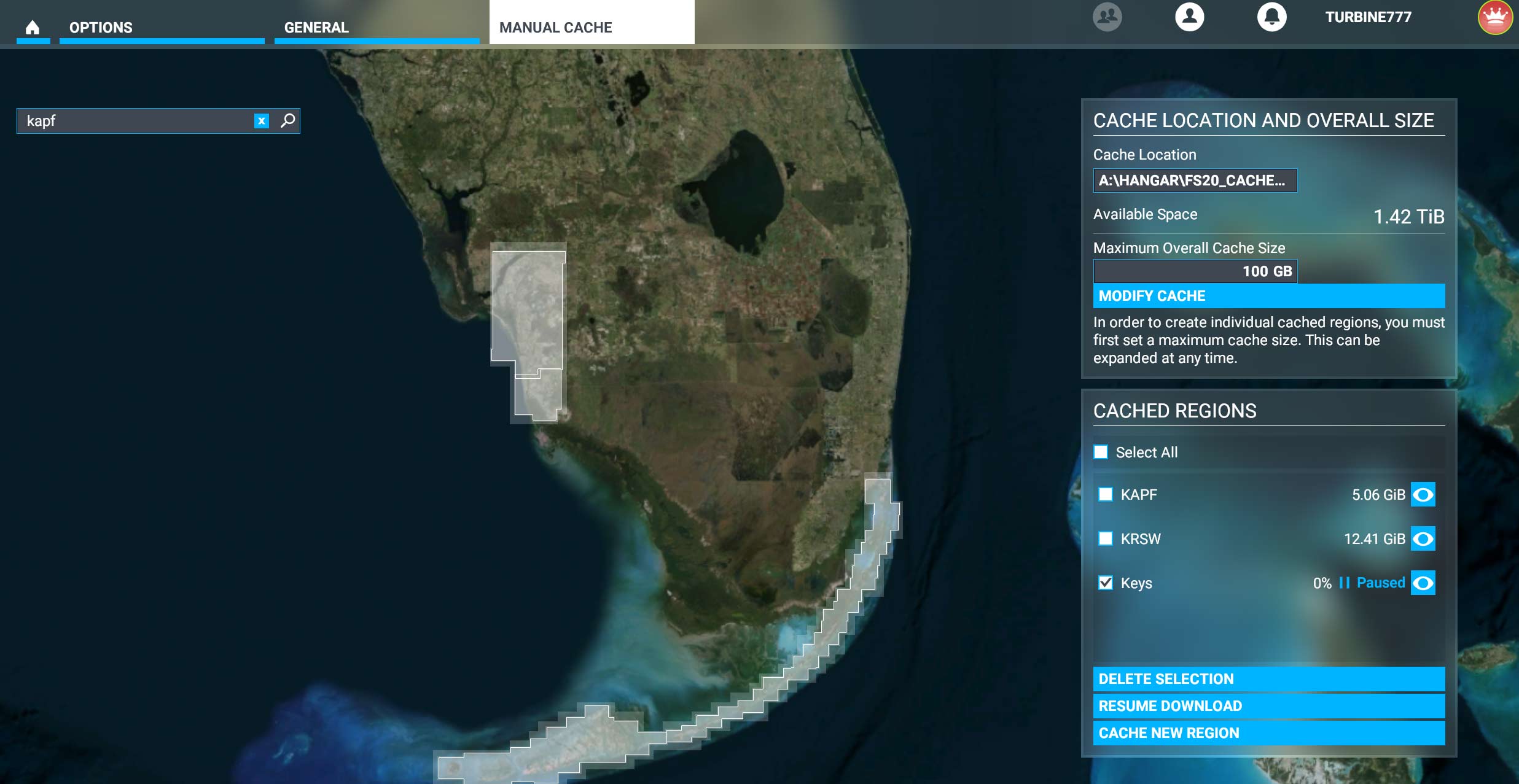
My system specs are great but the cache is still crazy slow when I cache a large area. Took me over an hour just in choosing to “View” the cache to then add a new region. I spent all night selecting the entire Florida Keys and then went to sleep with it still showing 0% downloaded. 6 hours later it’s at 25% but got home just now to a message saying lost internet so had to reboot. When I do now and since it’s soooo large now I will most likely wait until I go to bed tonight before even clicking view cache since it will take a LONG time before I can then choose to resume the download. Highly doubt most people are waiting through all that nonsense.
Anyway, until they release legit information all we can do is our own testing. My manual cache works as stated. If yours does not, then I certainly believe you but people can’t say mine isn’t working as described because it is exactly as described.
Yea I have no idea I have no reason to doubt you. I wasn’t close enough to non-cached regions for the sim to be trying to load them in. Wish they would release some kind of info on how manual cache is supposed to work and how to get it to work properly for those who aren’t.