You’re welcome.
Please clarify. Once the packages folder has been copied to a new drive and the config file path edited to point to the new location is it not possible to delete the original packages folder??
Also what happens when the sim is updated?
You copy the packages folder into the new location on the new drive, update the config file with the new path and then you can delete the original copy. When you load into the sim it reads the config file and will read the new location you gave it.
Now, for updates there are three things to remember:
- Windows Store updates and Package updates are separated.
- Windows Store updates will be on your Windows drive normally - this is the smaller download.
- When the sim starts it will search for package updates and if there are some it will ask you to confirm where to install it. If your config file was edited right you will see it pointing to your new drive.
I hope that helps.
1 Like
Thank you for explaining this process. I now have a much better understanding.
1 Like
It’s not so important for Windows but if not the whole sim then at least the C&O folders (Packages when asked on install) should be on your fastest drive which is also where your rolling and manual caches should be installed (barring a Temp file on a ramdisk). If you have too much content then store elsewhere and just bring over what you need for your flight, a package manager should help
Hello !
I tried this, but it only moved the launcher, not the 190 GB of files coming with them.
I just love how Microsoft manages files…
So yes I realized over time that this manipulation is not good… For me the whole Sim is moved to another disk (except the launcher on C: )
But the problem not access to folders (blocked files) and Windows creates a VERY long path to the new destination which is problematic for installing third-party content. (look at my post of May 24) 
So I advise you (because I think you will have to reinstall) Follow the MSFSRonS method it works May 17th message
And yes long live the installation method I love 

1 Like
Yes,
did it 1 hour ago and works fine.
Windows 10 pro version 21H1
“Move” to a New SSD.
This worked for me! Thank you!
I went to apps section of settings, used the menu to move my install to another drive…and now it won’t launch, and on the microsoft app store it tells me I can install it.
Is there an additional step that I missed? It’s taking up 200 gigs on the new drive, but windows doesn’t think it’s there.
Tried using the MOVE option within the Setting /Apps program and keep getting this message after a couple minutes… Any advice ??
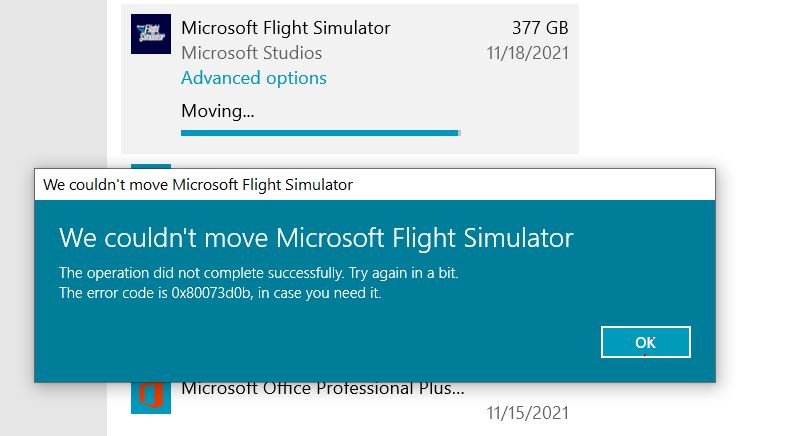
The sim itself needs to be on your system drive, you can only move the package files. It might be possible with a fresh install but if my memory serves me right it isn’t.
Hi,
I have moved the sim this way:
All packages were on D:\FS2020, this directory I copied to the new M.2-SSD to G:\FS2020. Thereafter I deleted the simulator.
When reinstalling the sim (initially it is only about 1GB) the installation manager wanted to install all packages somewhere on the C-Drive, but you can select where to install. I pointed to the new directory on D:, the installer recognized that all needed files are already there and that was it.
the complete process took me about 15 minutes or so 
@SMOKEY4331 How do I open the UserCfg.opt file and navigate to “the bottom of the file”?
If I click “Properties” there’s seemingly no way to change the path there.
Any help would be great.
Open the “UserCfg.opt” file in your windows Notepad program being sure All Files is selected in the bottom right. Then just scroll down to the bottom…That’s it
1 Like
I think you meant the G: drive. Right?
You can check UserCfg.opt to see where the files are installed.
Either D:\FS2020 or G:\FS2020.
Whichever one is not indicated, you should delete that directory.
It is just using disk space for no reason.
Hi Ron,
thanks for reading my post carefully, you are right, the new installation was on the G-Drive.
I did not check the config.opt because the sim was starting and working fine, even after deleting all files on the previous used D-drive. The problem with the lower FPS that numerous users have (including me) ist not caused by the installation (I assume)
Regards, Wolfgang
1 Like
Finally got my Microsoft App Move program to work and was able to move the “Extra’s” over to my new 2TB SSD drive. After changing the UserCfg file to point to the new drive everything seemed to be working until the 1st startup where the program showed I needed updates, even after insuring the path name at the bottom pointed toward my new drive now I’m sitting here watching 82 GiB’s being installed..?? 1st , is this common or did I mess up somewhere ? 2nd, what files can I actually deleted off my C: drive now that files have been moved over with the exception of the FS Boot Files?
Not really an SSD will speed just about everything else up but not your gpu output, unless perhaps freezes are caused by big scenery loading into memory.
Don’t know why you had new data downloaded.
Don’t know what the “extra’s” means.
With the Move Command, you don’t change the UserCfg.opt file, the Move program does that.
What the FS2020 Program App moved was your Community and Official folders to your new drive.
It also installs a new WpSystem directory on your new drive for the FS2020 files.
Removing any files could be tricky with the file system trickery that i don’t understand.
Basically pointing to a directory location that redirects to the physical location or something like that.
I moved mine from C: to D:\FS2020.
I only deleted the Community and Official folders on C: afterwards.