Does anyone else get the feeling that Microsobo are sitting there reading this thread and waiting until us users have pretty much diagnosed exactly what the problem is being caused by, so they don’t have to do any work on it until they already know what needs doing? Or am I being excessively cynical?
Back in 2021, MSFS 2020 had a bug that wiped out all of your custom settings every time you launched the game, forcing you to re-enter them each time, which was extremely frustrating. We tracked the issue down to the Gaming Services.
I wrote up a workaround for the buggy Gaming Services so that MSFS settings wouldn’t reset. It turned out not to be Asobo’s fault - Microsoft released an updated version of Gaming Services just two days later to permanently fix the problem.
I can easily draft the workaround now, provided we can be absolutely certain that Gaming Services version 28.100.8001.0 is the root cause.
So, dear flightsimmers - if MSFS isn’t fully closing for you either, please reply with the version of Gaming Services you have installed.
Gaming Services version 28.100.8001.0 no normal shutdown for several weeks.
Same here it doesn’t shut down completely for me either on the same version of gaming services version on windows 10
My Gaming Services version is 28.100.8001.0
Windows 10 Pro
Version 2009
OS Build 19045.5796
Thanks for the responses. I also experienced the issue where MSFS 2020 wouldn’t close properly with Gaming Services version 28.100.8001.0. We need a few more confirmations from others and then I’ll share a workaround.
Win11 24H2 28.100.8001.0 for me
To quickly kill MSFS when hanging on in the taskbar, you can also make a .bat file on your desktop or whenever it’s more confortable for you, with this code, and just run it - quicker than opening task manager to kill the process
@echo off
"Killing MSFS..."
taskkill /f /IM FlightSimulator.exe
Win 11 Home 24H2 Gaming Services version 28.100.8001.0
Win11 Pro 24H2 28.100.8001.0 MSFS2020 DOES NOT close every time
Older version 27.99.7001.0 MSFS2020 DOES close every time
A method to manually install 27.99.7001.0 NOT using any app will be needed when xbox stops installing this older version automatically.
Maybe by then gaming services gets patched, but it could be months before that happens.
As many times as this bug has been reported by different people I wonder how many of those are on 28.100.8001.0?
My Gaming Services version is 28.100.8001.0
windows 10pro
2009
build 19045.5796
hangs on exit
tried uninstalling 2008 then starting Xbox app allowed the updates and it reinstalled 2008, not the older working 2007 as tested by Gradius2049
we really need a way to install the 2007 ver of gaming services
Thanks for the feedback guys.
FYI to flightsimmers who joined the PC Gaming Preview - if you’re enrolled in it, rolling back Gaming Services to an older version is more complicated and requires a different approach than the one shown in the workaround below.
So if you are in the PC Gaming Preview, please send me a private message.
Before we move on to the workaround, please make sure to disable the Xbox app from starting automatically with Windows.
Click to expand the spoiler to find out how
In windows search bar type Startup apps
Click on Startup apps
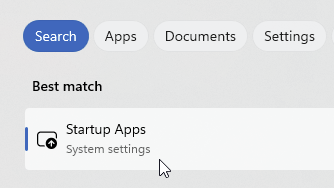
scroll down to Xbox and toggle the switch to Off

Restart PC
I could wait for more posts suggesting that Gaming Services version 28.100.8001.0 is the root cause, but there’s no harm in me sharing the workaround right now.
Of course, we’re not 100% certain that Gaming Services is the only culprit.
So let’s start by disabling automatic app updates via Group Policy and CMD. We could turn them off in the Microsoft Store app but we’ll do it through Group Policy and CMD -exactly as I recommended back in 2021.
Click to expand the spoiler to find out how
In windows search bar type command prompt
Right-click Command Prompt and select run as administrator
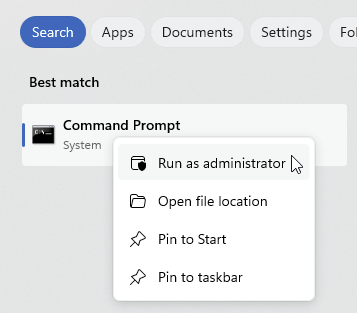
Copy and paste the following command into the Command Prompt by simply right-clicking inside the window:
reg add HKLM\SOFTWARE\Policies\Microsoft\WindowsStore /v AutoDownload /t REG_DWORD /d 2 /fpress Enter

Next, we’ll also block automatic app updates via Group Policy.
In windows search bar type gpedit.msc
Right-click gpedit.msc and select run as administrator
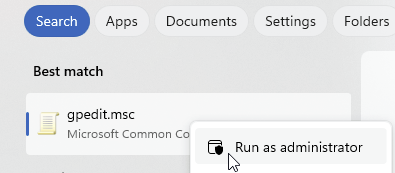
In the left pane of the Group Policy Editor, expand the following nodes in order:
Computer Configuration > Administrative Templates > Windows Components
Then scroll to the bottom of the Windows Components list and click Store
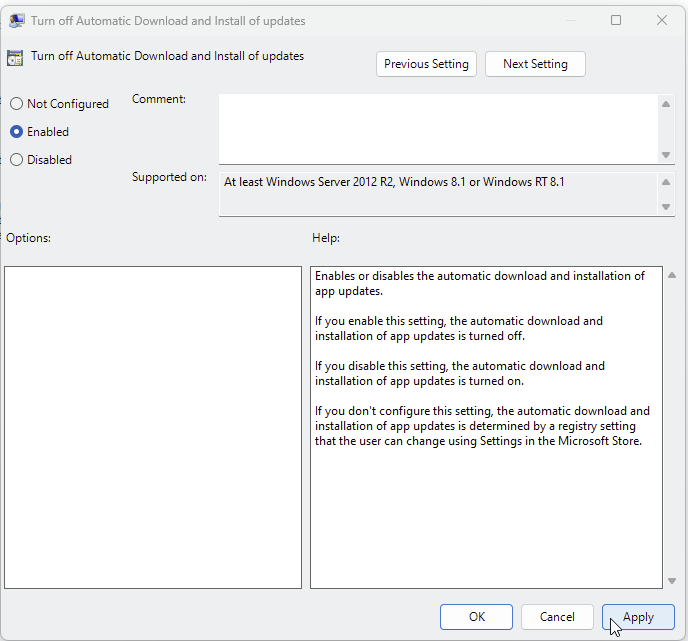
In the right pane of the Group Policy Editor, double-click Turn off Automatic Download and Install of updates
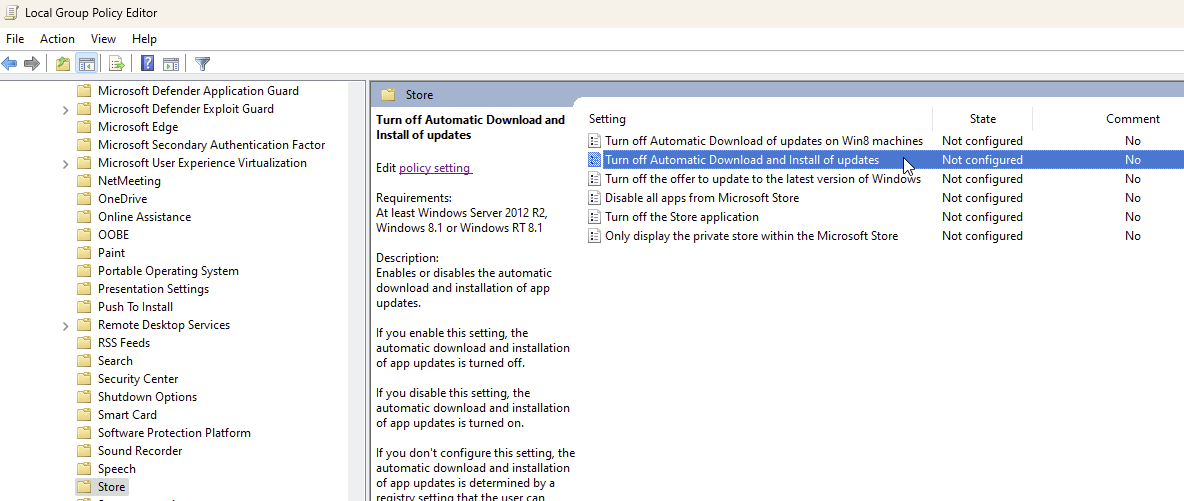
Select Enabled, then click Apply and OK.
In the Command Prompt window, type:
gpupdate /force
and then press Enter.
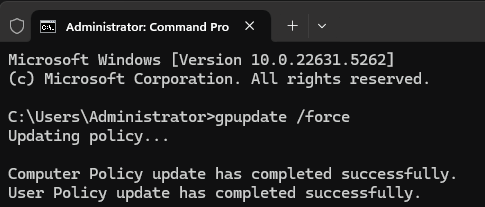
After you see the “Computer Policy update has completed successfully”
and "User Policy update has completed successfully” message, please restart your PC to ensure the new settings take effect.
Once your PC has restarted, it’s time to restore the older version of Gaming Services:
Click to expand the spoiler to find out how
One key tip is to ensure the Xbox app itself isn’t running - even in the background.
If you’re 100% certain the Xbox app isn’t running, you can continue with the next steps.
Open Windows Settings then click Apps > Installed Apps
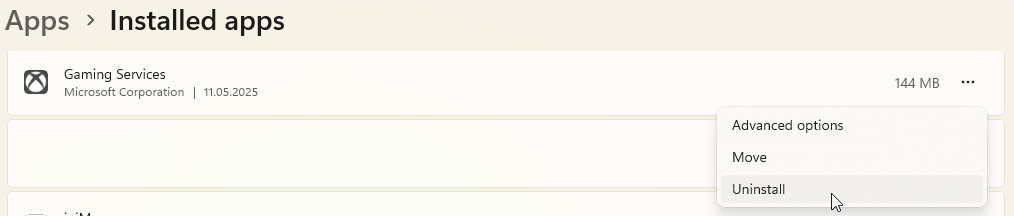
Scroll down the list of apps until you see Gaming Services, then click three dots next to it.
Then click Uninstall and confirm to remove Gaming Services.
Another important tip: now launch the Xbox app and wait until the update progress bar reaches 100%
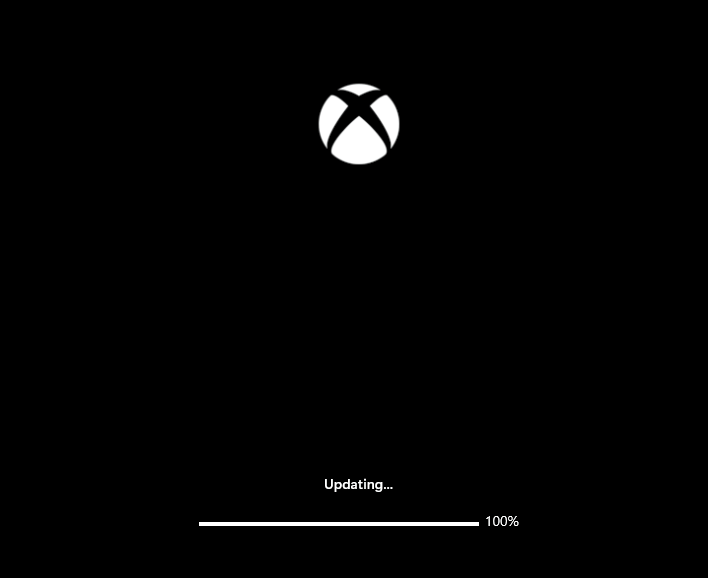
and the full Xbox interface loads completely.
By launching the Xbox app we’ve triggered the installation of Gaming Services in the older version - it should now be version 27.99.7001.0
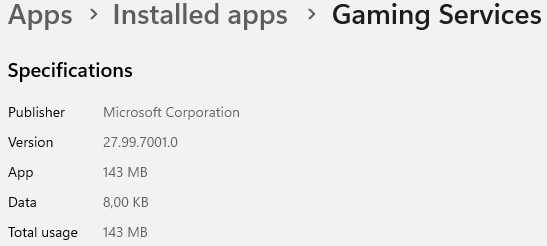
But that’s not all - we also need to block the startup of four Windows services. Don’t worry, everything we disable now can be fully restored later without any issues, so there’s no need to stress about it.
In windows search bar type command prompt
Right-click Command Prompt and select run as administrator
Copy and paste the following command into the Command Prompt by simply right-clicking inside the window:
sc config CscService start= disabled
press Enter
Copy/paste
sc config DPS start= disabled
press Enter
Copy/paste
sc config WSearch start= disabled
press Enter
Copy/paste
sc config wuauserv start= disabled
press Enter
Restart PC
After completing these steps, it’s important that you don’t update any apps through the Microsoft Store. You can update them later, but only if a new, fixed version of Gaming Services becomes available.
This is the version I have, with Windows 10.
I’ve followed the steps as required but the launching of the Xbox app updates and reinstalls the latest version and not 27.99.7001.0
what am i doing wrong
Im on win10pro
Could you please check which version of the Xbox app you currently have installed?
Xbox app version 2505.1000.40.0

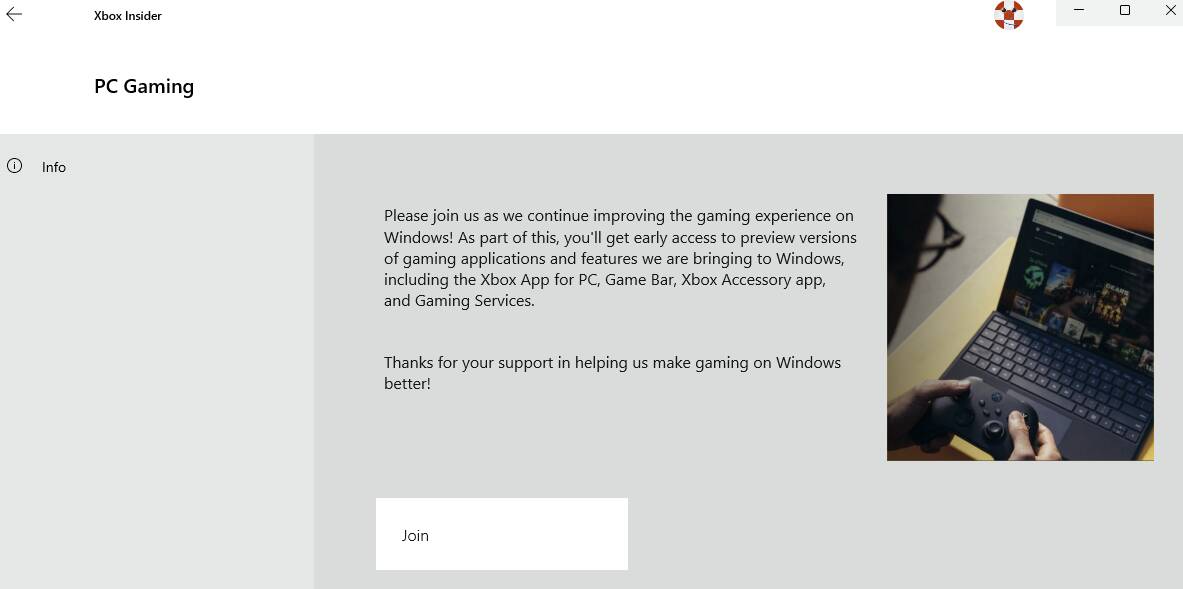
Hi, it says I’m Joined
Should i take the option to manage and leave preview?
If you’re currently enrolled in the PC Gaming preview, please click Manage (if I remember correctly) and then choose the option to Leave the preview.
Please be patient - once you’ve confirmed that you’ve left the preview, restart PC and send me a private message.