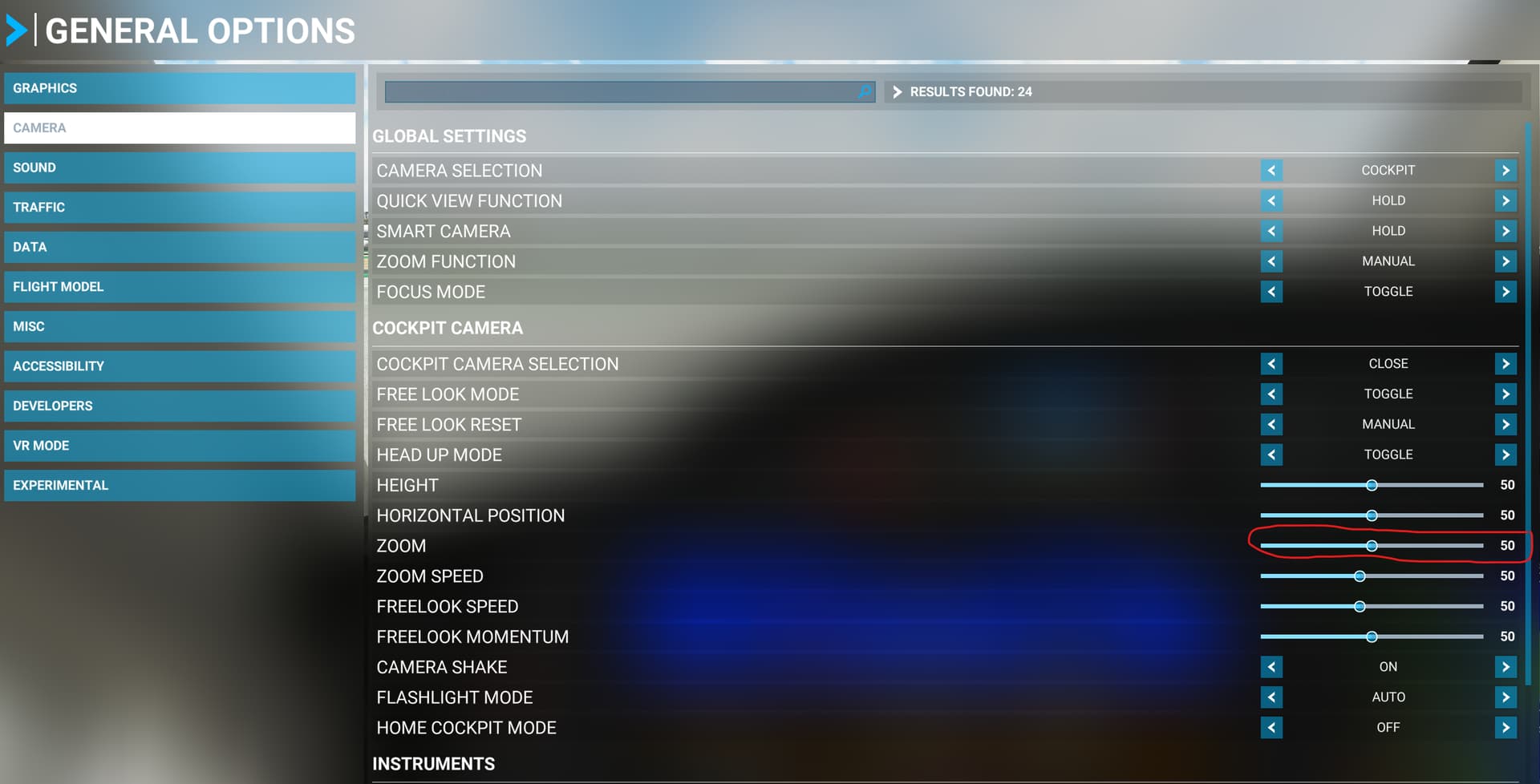
For the official flightsim.to release (v4.0.1.2), this version only works with zoom level 50 and if you’re able to pop out panels with the official POPM version with zoom level other than 50, then it just happens to work based on how the circles are defined. With the latest beta version of POPM, it attempts to fix the custom camera save and load bug in MSFS by adjusting zoom level correctly. This maybe the reason you see the camera view brought forward before starting your pop out, which causes POPM to miss the correct location.
As for you’re also not able to place circles outside of POPM app window, this baffles me and I am trying to reproduce this issue. But for FireHawkAdven, his case is no POPM versions work and for you v4.0.1.2 works but latest beta does not work.
Please report back since this will help me greatly to get latest POPM beta to work in all cases.
I use a zoom level of 80 and have had no issues. I also didn’t setup popm until I had the zoom set.
Not sure if that made a difference, but it works just fine.
Thanks for the quick response. I did recall reading earlier about the zoom level and made sure it was at 50 when I was using the beta. I still have it at 50 for the release version.
I did not have any trouble with the circles in either version.
Hi PaintedOrchid2, thanks for your feedback. With latest v4.0.2 beta 7, once you’ve custom camera view saved (default: Ctrl-Alt-0) to be used by POPM for the panels you want to be included (can be done manually before hand or during panel identification in POPM), you can adjust zoom level freely in game from that point on and POPM should still work correctly.
So with the latest beta, the only issue you’re seeing is POPM zooms forward right before the step of popping out each panel which causes the circles to no longer inside the boundary of the panels?
I see that view movement as well when using POPM. All I have to do is press the number 8 button that has my saved 3D panel view and then pop out the panels.
Installed the latest beta 7. Created a new profile for the TBM with the 3 panels in a view where I could see all three. Pressed “Start Pop Out”. The view zooms in, then zooms back to where I set it, all three failed the first time.
Tried again, this time the first one fails and I got the next two successfully popped out.
Tried a third time, this time the first two popped out successfully, the third one failed.
Tried fourth and fifth time, all three failed.
The circles are in the correct positions before and during pop out.
Thanks for the info. This means the camera angle is not the culprit. Whewww! I’m guessing Right-Alt click emulation to pop out panel is root cause of issue on TBM since you’re not able to consistently pop out all 3 panels.
In latest POPM beta version, I’ve to create a MSFS bug workaround just for CJ4 and Longitude because these 2 aircraft (maybe more) requires Right-Alt “double” click to pop out panel. And the double click may not work with TBM. It’s a chicken an egg problem now since different aircraft have different need to pop out panels. Back to drawing board and see if I can isolate the issue and figure out a workable solution for a keyboard/mouse pop out sequence that will work for all aircraft. Or wait for CJ4/Longitude to be fixed in final SU13 but I won’t count on it since a lot of users are flying these 2 aircraft.
Thanks for your time on this Stanley, it does seem to be random for me now. This morning the earlier beta would not work at all. I can always revert to the released version for now. I’ll leave the beta for a few days in case you would like further testing.
I believe it has to be a timing issue which is causing pop out failure. In MSFS, manually pop out a panel involves 3 steps.
The game window must be focus when clicking on it.
To pop out a panel, user needs to press and hold the Right-Alt key, the mouse cursor will then change to a magnifying glass icon.
User will then left click (or double left click for CJ4) on the panel to complete the pop out process. After that, release Right-Alt key.
So step 3 cannot be performed simultaneously or very close to step 2 since MSFS needs time to recognize the Right-Alt keystroke, execute its function before allowing left click to happen.
Please download latest POPM v4.0.2 beta-8 if you would like to try out a potential fix. I’ve changed the process to execute step 1 twice (just to be sure that MSFS is in focus), and added a delay between step 2 and 3 and hopefully it fixes the issue.
Sorry for your inconvenience and all your help since I’m unable to reproduce your issue on my pc and I believe timing issue is most likely the culprit.
Installed Beta 8, still getting same results as beta 7 until I discovered…
When I click on “Start Pop Out” and watch, I get each of the 3 circles with just a mouse pointer on the lower right of the circle. The pop outs fail here.
When I click on “Start Pop Out” and I move the mouse pointer just slightly to the middle of the circle, it changes to the magnifying glass icon and the pop out for each succeeds immediately.
It looks like the position of the mouse pointer needs to be in the center of the circle if that is possible during pop out.
The latest working version that I am using is the last v4.0.2 before the introduction of the coloured circles, but I recently tried the Beta 5 version. I could only get it to pop out panels if I pressed the Right-Alt key each time the circles appeared.
I will try Beta 9 when I get some free time and let you know how it goes.
I have followed all the steps described in How to Install and I cannot get pop up any panel.
Additionally, I have to say that doing it manually doesn’t work for me either (Right Alt + click the left button of the mouse)
Any light, please?
Check that the key-bind hasn’t been changed. If it hasn’t, and you don’t get the magnifying class cursor when you hover over a panel and hold down right-alt, then you have a sim problem.
That said, which displays in which aircraft are you trying to pop out?
I think there can be issues with non-US keyboards and default language settings.
I use an English-UK keyboard and I have had similar problems. When I use key capture software it recognises Right Alt (marked Alt Gr on my keyboard) as Left Ctrl + Right Alt.
Only when I switch keyboard layout in Windows settings to English-US does it register as simply Right Alt
I had to add Left Ctrl + Right Ctrl as a secondary key mapping in MSFS to get things to work (while leaving the primary mapping in MSFS as Right Alt)