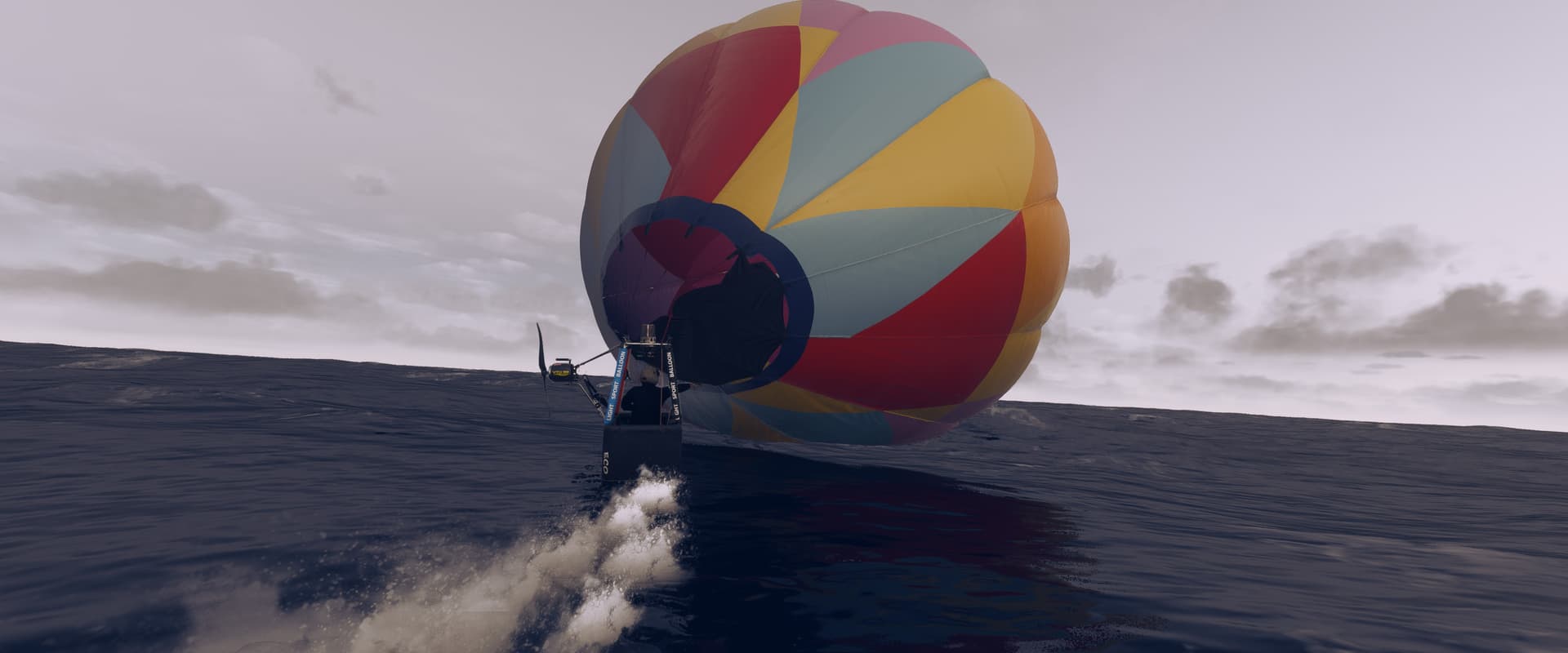
Please use this thread to provide general feedback and impressions about this aircraft in Microsoft Flight Simulator 2024. For all bug reports, please create a new topic (or upvote an existing topic) in the Bug Reporting Hub > Aircraft & Systems section of the forums. Please use the full bug report template when creating a new bug report.
On a scale of 1-10 (with 10 being best), how do you rate the Flight Model and Aircraft Systems?
1
2
3
4
5
6
7
8
9
10
0voters
On a scale of 1-10 (with 10 being best), how do you rate the Interior and Exterior Graphics?
1
2
3
4
5
6
7
8
9
10
0voters
On a scale of 1-10 (with 10 being best), how do you rate the Audio and Aircraft Sounds?
1
2
3
4
5
6
7
8
9
10
0voters
On a scale of 1-10 (with 10 being best), how do you rate your Overall Enjoyment of this aircraft?
When in free flight, when setting a custom location as departure, and starting the balloon on the ground “cold and dark”, the balloon somehow drags the basket across the ground. Triggering a “you crashed” that happens over and over.
I tried using the Start Tethered option but I cant find the function or hot key in the options you use to untether it.
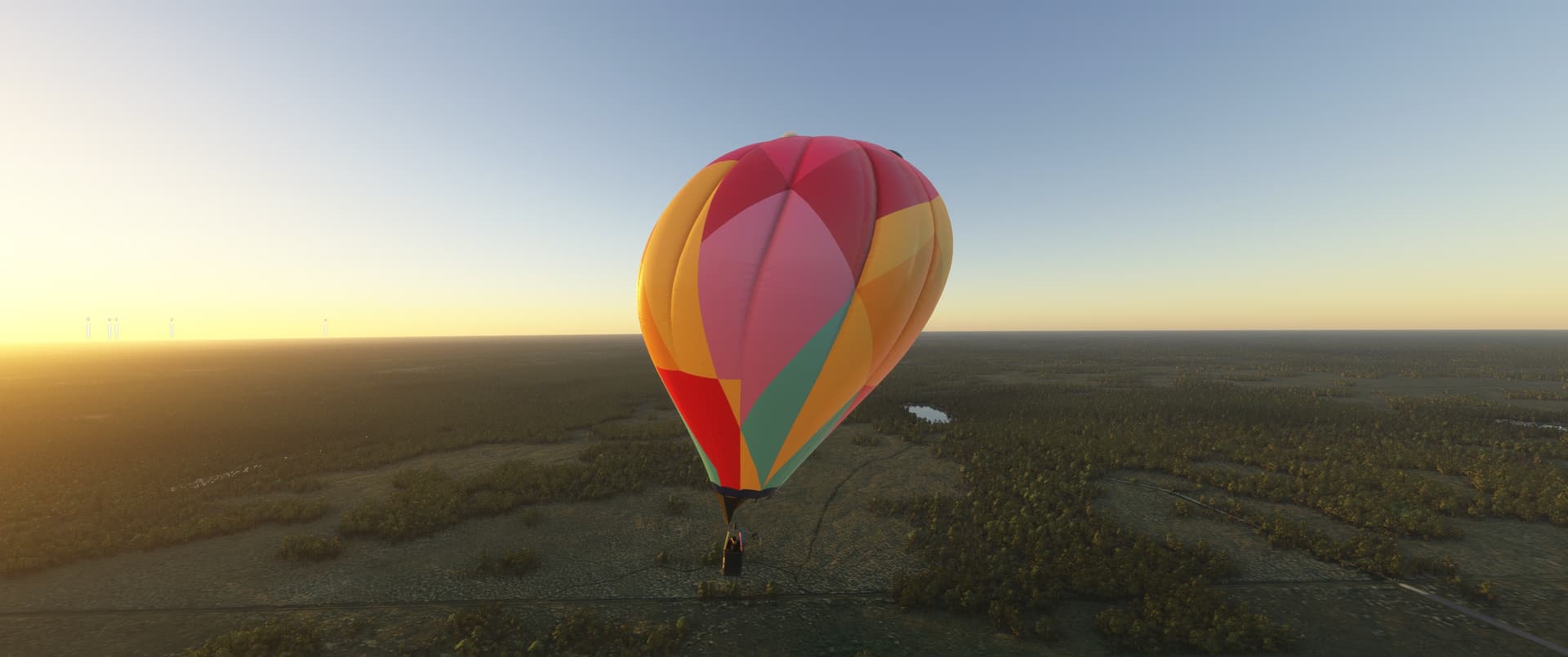
EDIT: using the fan causes the entire balloon to distort and “sweep” back which looks ridiculous. And when you use the burner to climb the balloon gets a stretched look. I don’t think it looks quite right. I get the sense that in the physics the balloon is “attached” to the basket and the basket is dragging the balloon around with it instead of the other way around which I feel would be more realistic.
It also tends to lean or tilt over and stay locked that way.
I observed the same crashing problem you did. The physics behavior sounds pretty accurate to me, though. The balloon’s mass is concentrated toward the basket, and its drag is concentrated in the envelope. It makes sense to me that the basket would effectively “drag” the balloon around, especially given the motor is mounted down there.
I don’t really have the expertise to say whether the level of envelope sheer we see under power is realistic, but intuitively it looks pretty reasonable to me.
Is there a binding for the “propeller direction” on the FlyDoo? I’ve tried a few different bindings that look like they would be a match (“propeller axis” was the most obvious), but I haven’t found anything yet.
I found that “Engine Direction” is what you want to look for. The bindings for it are under Power Management > Not Categorized, where all the other essential hot air balloon bindings seem to be. There’s an engine direction increase, decrease and set (axis) binding. The first two work as you’d expect. The axis is unusual, in that - unlike a yoke where the center of the axis is considered 0 and it going positive or negative based on moving right or left - it instead starts at 0 as the right side of the axis. That means that if your controller is sending the X axis as 0 - usually the center - then it’s going to push the propeller handle toward the left. If you move the stick to +50% (left in this case), then the propeller is centered and trusting forward. And if you push it all the way left, it moves all the way to the right as you’d expect. Currently, I can’t find any way to change this curve without altering things in my controller software. You can invert it so that pushing right moves the handle right, but it will still return to the leftmost point when you let go.
Another binding you’ll want for this is the Push Throttle Decrease, Increase and Set, in the same area. This sets the speed of the propeller and I ended up inverting it for binding to my throttle.
As for vertical thrust vector settings, I haven’t found these to do anything on the Flydoo, except that when the Vertical Thrust Vector axis is set, then the handle moves all the way to the right whenever the stick returns to the center position, but otherwise does not affect it.
I did find that the HORIZONTAL thrust vector increase and decrease worked the same way that engine direction does (but is labeled analog instead of digital). Unfortunately, the horizontal thrust vector axis does the same thing the vertical axis one does.
BTW, to the devs, are there other liveries available in the store? Every time I click “purchase more liveries”, the store just loads and loads for a very long time until I just hit escape and go back to what I was doing before.
Some control updates for the FlyDoo in SU2.
Most of the controls needed have been moved to a FlyDoo section in the main control list all the way at the bottom. For the propeller, expand the Engine section and bind Engine Direction Set (steering axis) and Push Throttle Set (throttle). The engine direction still acts weird, but I found an input curve that allows the neutral position of my flight stick to keep the balloon flying straight. Set the following as an input curve for Engine Direction Set:
Sensitivity +: 1
Sensitivity -: 1
Neutral: 0
Dead zone: 0
Extremity Dead Zone: -0.82.
The propeller will be very sensitive, but you’ll be able to steer left and right this way.
Make sure to also set Main Blast Valve Set/Toggle and Whisper Valve Set/Toggle in this section. Set Burner Valve under Tools > Burners also works if you prefer.
Under Tools > Vents, set Balloon Vent to control descending.
I’m using the throttle axis (Slider X) on my Logitech Extreme 3D pro to map to Engine Direction Set - works well for me.
My current mappings (still a work-in-progress) for those interested:
I’m getting CTD every time I try to fly with the FlyDoo. Exception code: 0xc0000005. This happens at all of the places I have tried to fly at and with and without addons.
Would you please tell me how to deploy the propeller, I used AI to help me but nothing suggested works. The propeller is lock in down position so I can’t use it.