MSFS2024 : Moving the Community Folder

Start by uninstalling MSFS 2024. After uninstalling, restart PC so the system registry updates properly. Once restarted, install MSFS 2024 exactly according to my instructions.

FYI, MSFS 2020/2024 launcher should be installed on the C drive, because moving it to another drive can lead to permission issues.


There’s really only one proper way to install MSFS 2024 (and 2020): the launcher should be installed on the C drive, while folders like Community, Official, etc., should be placed on another drive - for example, the D drive.

So in the Xbox app, you install MSFS 2024 on the C drive in folder named XboxGames and don’t change anything or select any other drive or folder during and after installation.

If you want to have the ‘Community’ folder on the D drive, create a folder named ‘MSFS 2024’ on the D drive.

After installing MSFS 2024, launch it once, change only the graphics settings, save the changes, and then close MSFS 2024.
Do not download or install anything else inside the game

After you close MSFS, go to

C:\Users\username\AppData\Local\Packages\Microsoft.Limitless_8wekyb3d8bbwe\LocalCache

Open the file UserCfg.opt and edit the last line so it looks like this:

InstalledPackagesPath "D:\MSFS 2024"

Save the changes in the file and launch MSFS.

From now on, the large game files and addons will be installed on the D drive in the ‘MSFS 2024’ folder.
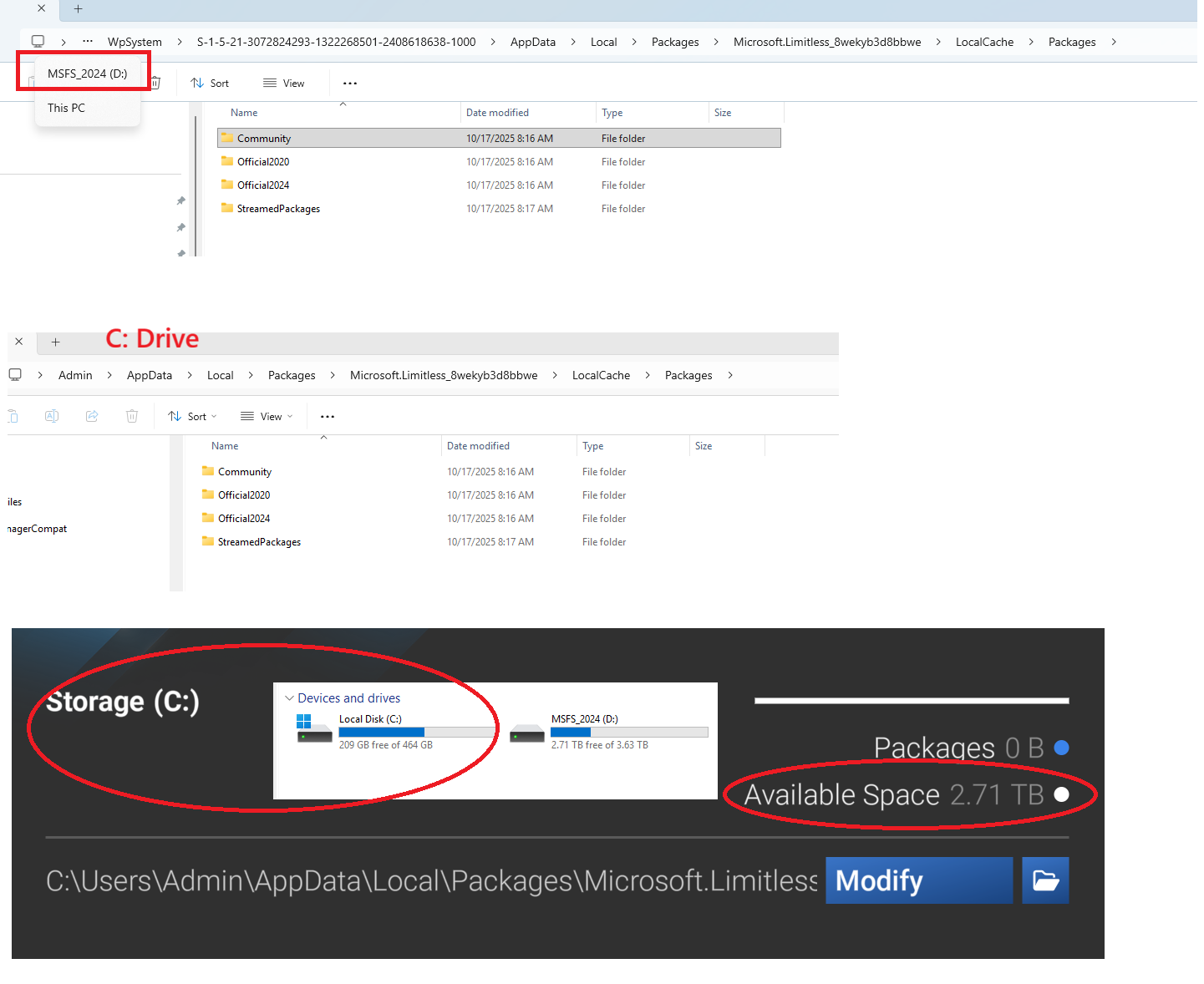
I need to revisit this topic. I recently uninstalled both FS2020 and FS2024.
I also formatted my D: drive and created a folder D:\MSFS_2024

I then did the following:

  1. Launched Xbox App and selected ‘Install’
  2. When it asked me where I wanted the sim installed, I selected the default location.
  3. Clicked ‘Yes’ when asked whether I wanted to create a desktop shortcut. I now have a shortcut that points to ‘The Internet.’ What??

Everything is on C:
Not what I want. So I uninstalled, then:

  1. Launched Xbox App and selected ‘Install’
  2. When it asked me where I wanted the sim installed, I selected D:MSFS_2024
  3. Clicked ‘Yes’ when asked whether I wanted to create a desktop shortcut. It’s a shortcut that points to ‘The Internet.’ What??

Now there are sim files on D: but Packages is still on C:

My first and most important question is: Why in the name of all that is proper programming does the Xbox App allow me to install to the D: drive if it’s not really installing to the D: drive?

My Packages folders are on C: (I want them on D:) and I see flightsimulator2024.exe in three different places:

c:\users...appdata\local\microsoft\windowsapps
c:\users...appdata\local\microsoft\windowsapps\microsoft.limitless_8wekyb3d8bbwe
d:\msfs_2024\microsoft flight simulator\content

I launched the sim, went to ‘My Library’ and modified the packages location.

I chose: d:\msfs_2024
I got: d:\msfs_2024\TmpMirror.

This is madness.

There’s only one thing the installer needs to do: Install the sim where I want it (Launcher on C: and Packages on D:) There was no option given to install the smaller ‘Launcher’ files on C: and the bigger Packages folders on D:

It makes no sense.

I guess I’ll uninstall it (again) and tell it to install to the C: drive.
Hopefully I’ll be able to move ‘Packages’ to my much larger D: drive.

Save your Community folder if desired.

Uninstall.

  1. Go to MS Store
    Install to D:

or

  1. Go to Xbox app
    Install to D:\msfs_2024

In either case, your Packages will be on D:

D:\WpSystem\S-1-5-21-2997017442-1106904157-1831008082-1001\AppData\Local\Packages\Microsoft.Limitless_8wekyb3d8bbwe\LocalCache\Packages

That is all you need to do.

I uninstalled, deleted the D:\MSFS_2024 and recreated it, and installed to that folder using the Xbox App.

Where is are the Community and Official folders (which contain all the big files I want kept on my D: drive) located?

Well, they are in two places. And ‘My Library’ shows the path to the C: drive, but misreports the size of the drive.

Should I point ‘Packages’ location to the D:\WpSystem...\Community folder?
Will all the big files then reside there, and NOT take up space on C: ?

Or should I leave it pointing to the existing path on C: and hope voodoo takes care care of it?

Do nothing.

The C: drive folders are Symbolic Links.
They point to the actual physical location of the folder wherever the are located.

Do not look at My Library for the Community folder.
It is screwed up.

The blue arrow on the folder icon on C: indicates the folder is a Symbolic Link.

The folders do not physically reside on the C: drive.
They are on:
D:\WpSystem\S-1-5-21-2997017442-1106904157-1831008082-1001\AppData\Local\Packages\Microsoft.Limitless_8wekyb3d8bbwe\LocalCache\Packages

The Xbox app puts the FS2024 app in your D:\MSFS_2024.

Hi so I just got back into MSFS 24 and successfully moved the folder but every time I go back into the library it says “restart the game to confirm the changes” even though I already have, and I can’t redo the move again because it’s stuck on the “restart to apply” message.

I’m on steam btw

There has been a noticeable amount of confusion in the main Microsoft Flight Simulator forums regarding how Community folders actually work across MSFS 2020 and MSFS 2024.

The behavior is not documented in detail anywhere official, and users are often left to infer how the system operates. This has led to conflicting statements, misunderstandings about folder precedence, problems caused by redirected installations, and issues with third-party installers placing add-ons in unexpected locations.

Since the SDK community is the best place for technical clarification, I’ve put together a detailed analysis outlining how the Community, Community2024, redirected folders, and virtual merge behavior function in MSFS 2020 and MSFS 2024. The document also highlights several challenges that arise in dual-sim installations and offers recommendations for third-party tool authors.

The goal is simply to verify whether this analysis is accurate and, if so, to suggest that the information might be worth incorporating into SDK documentation to reduce future confusion.

The PDF and discussions are on the SDK Forum:

MSFS Community Folder Architecture — Technical Analysis
https://devsupport.flightsimulator.com/t/how-community-folders-actually-work-across-msfs-2020-and-msfs-2024/17140

Feedback, corrections, and additions from the community are welcome.

UPDATE: The SDK Team has now indicated that they will look into adding additional documentation and guidelines in the SDK, with respect to the use of the Community folders.

Thank goodness someone is helping. Many, many of us are not computer boffins. Thanks

One of the common issues with the community folder, is when Multiple Community folders ( in Multiple package folders) are created, when Installs of addons are done incorrectly. or MSFS is installed multiple times, to different standard & non-standard folders.

While this can be sorted out quite easily, if you are aware of the issue, and understand what may/has gone wrong, AND know how to correct it, for many, that is outside their comfort zone.

”Technically” it is quite easy to make a “Community Folder Content Integrity” unity, that could check a PC for its Packet folder, detect any extra package folders, and also check the content of those package’s Community & Community2024 folders, to ensure that correct 2020 and 2024 content was installed in the correct appropriate folders … all automatically, with a comprehensive systems report.

While many can do this checking manually, having a simple, powerful reporting unity to do this would certainly be a great tool for the community … and a fun and easy one for any competent programmer to create, even if it was simply done with PowerShell.

So, anyone willing to take up that “Christmas Challenge” ??

I found that the transfer seems to get stuck at 99% due to the volume of data needing to be moved, what worked for me is to keep the folder structure but to remove the content with in the folders in the folder structure, once complete go back into the sim and perform the move (before starting the transfer make sure to delete the tempmirror from past attempts). Once the transfer is complete just restart the sim and you should be golden.

You can place your add-ons on any drive or multiple drives and use add-on linker instead. This is the best solution.

https://flightsim.to/file/1572/msfs-addons-linker

Are you saying to exit the sim, delete the contents of each folder in the Packages/TmpMirror/ folder (ie Community, Community2024, Official2020, Official2024, StreamedPackages) and then restart the sim, carry out the transfer again and it should work? I have only attempted this once and there is only one TmpMirror folder. So should I leave that there?

Nevermind that last message. I was getting stuck on the 99% mark as well, and what worked for me was comparing the files in the old packages folder with the files in the new packages folder. Whichever ones didn’t get transferred, I moved out of the old packages folder to a temp folder. Then ran the transfer in the sim again and it worked. After restarting the sim as requested, I closed it again and moved the files from the temp folder to the new packages folder. For me they were a few neofly files and GSX “symbolic” folders.