Hi all, with my new build after installing msi afternburner I can’t see temperatures and other monitornig infos in msfs2024. Aferburner as well as riva tuner are updatest to latest version (4.6.6 ad 7.3.7) and in the latter is activated the option show on screen display. Any clues?
Hi @SireAragorn80 ,
Thank you for this report. We’ve moved your topic into the User Support Hub.
The Bug Reporting Hub is for posting suspected or confirmed bugs that other users are able to reproduce without duplicating an existing bug report. Using the template or providing all the relevant information about your bug and sim setup is required in order to provide valuable information, feedback, and replication steps to our test team.
If you are not sure if your issue is a bug or need further input from the community, please use the User Support Hub category. If the community can replicate your issue, first search the Bug category to see if there’s an existing topic. If it already exists, contribute to that report. Duplicate bug reports will be closed.
If you believe it is a new report and no duplicate exists, then create a new bug topic using the provided topic template.
All issues caused by or involving third-party addons/mods should be reported to the third-party developer. Assure that no addons/mods are used when reporting issues in Bug Reports.
I see the same, after RTSS update to the latest version the overlay doesn’t work anymore. I am not sure if this is msfs2024 or RTSS issue though. I am on SU4 beta
not beta for me, i’ve got 1.5.27 version and exactly the same issue. don’t know if related to afterburner, msfs or riva tuner
This forum is for Microsoft Flight Simulator, not for RTSS or the MSI Afterburner app.
If you’re having issues with MSI Afterburner, you should post your question on the official MSI forums or Reddit instead.
MSI AB doesn’t show up in either MSFS2024 SU3 or SU4 beta, but it used to show up before.
It is displayed at startup and disappears when the world map is displayed.
This applies to both DLSS and TAA.
It does show up in MSFS2020.
It’s very inconvenient.
same for me
Yes, but the problem is NOT MSI or Rivatuner, which continue to work on other apps while crashing on MSFS: so it is correct to post here, since the criticality is related to the flight simulator.
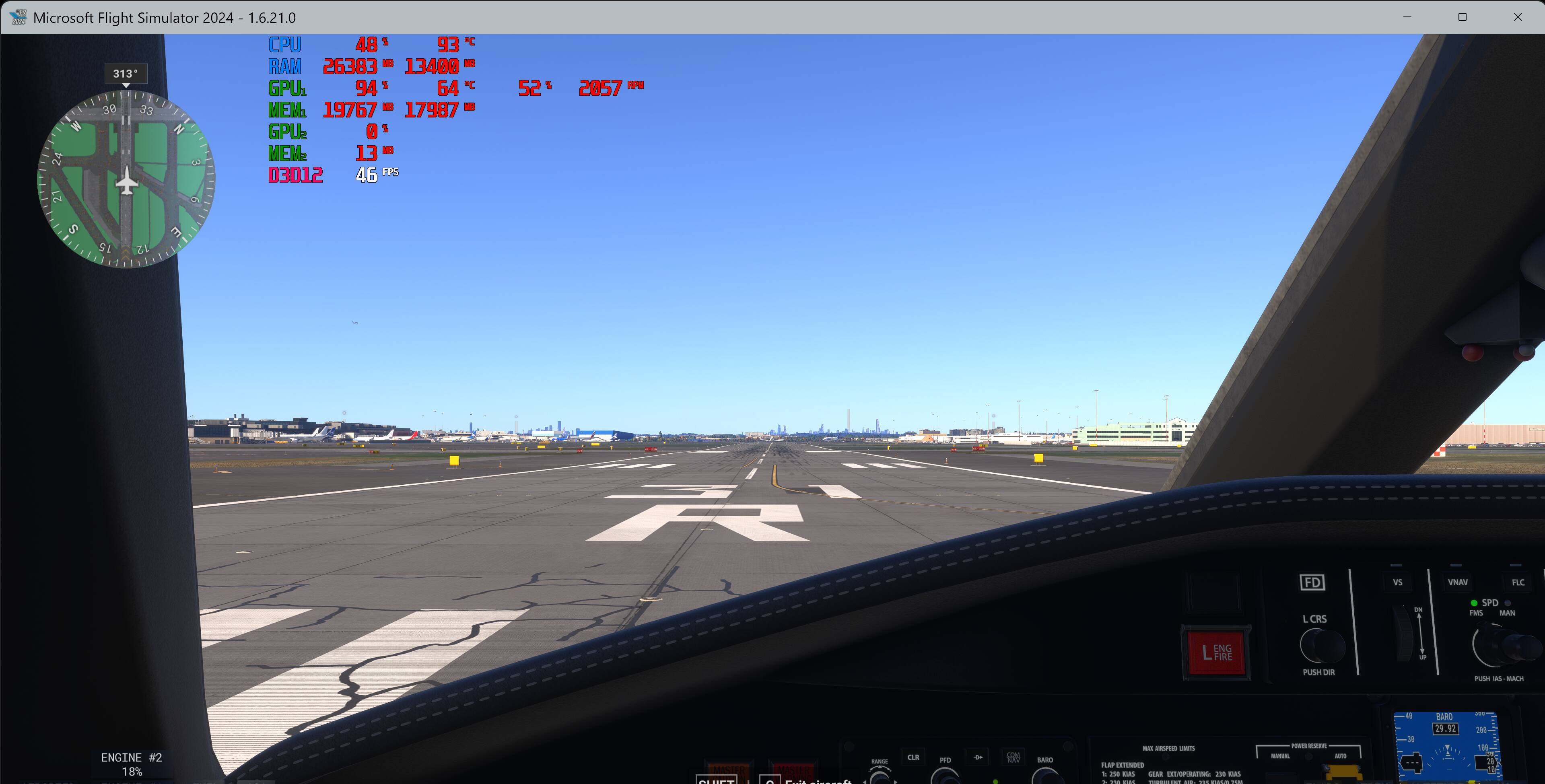
If the issue with MSI Afterburner in MSFS is related to data display (the on-screen overlay), then, as I mentioned before, you should report it on the official MSI forum or directly to the MSI developers. I’m not saying this for no reason - overlay works fine on other hardware setups.
EDIT
I’ve got a bit of time, so I decided to install MSI Afterburner and RTSS to check if I’d have any issues with the overlay in MSFS.
Works fine - the overlay is visible on the game screen.
MSI Afterburner v 4.6.6
RTSS v1.3.1
MSFS 2024 beta SU4 1.6.21
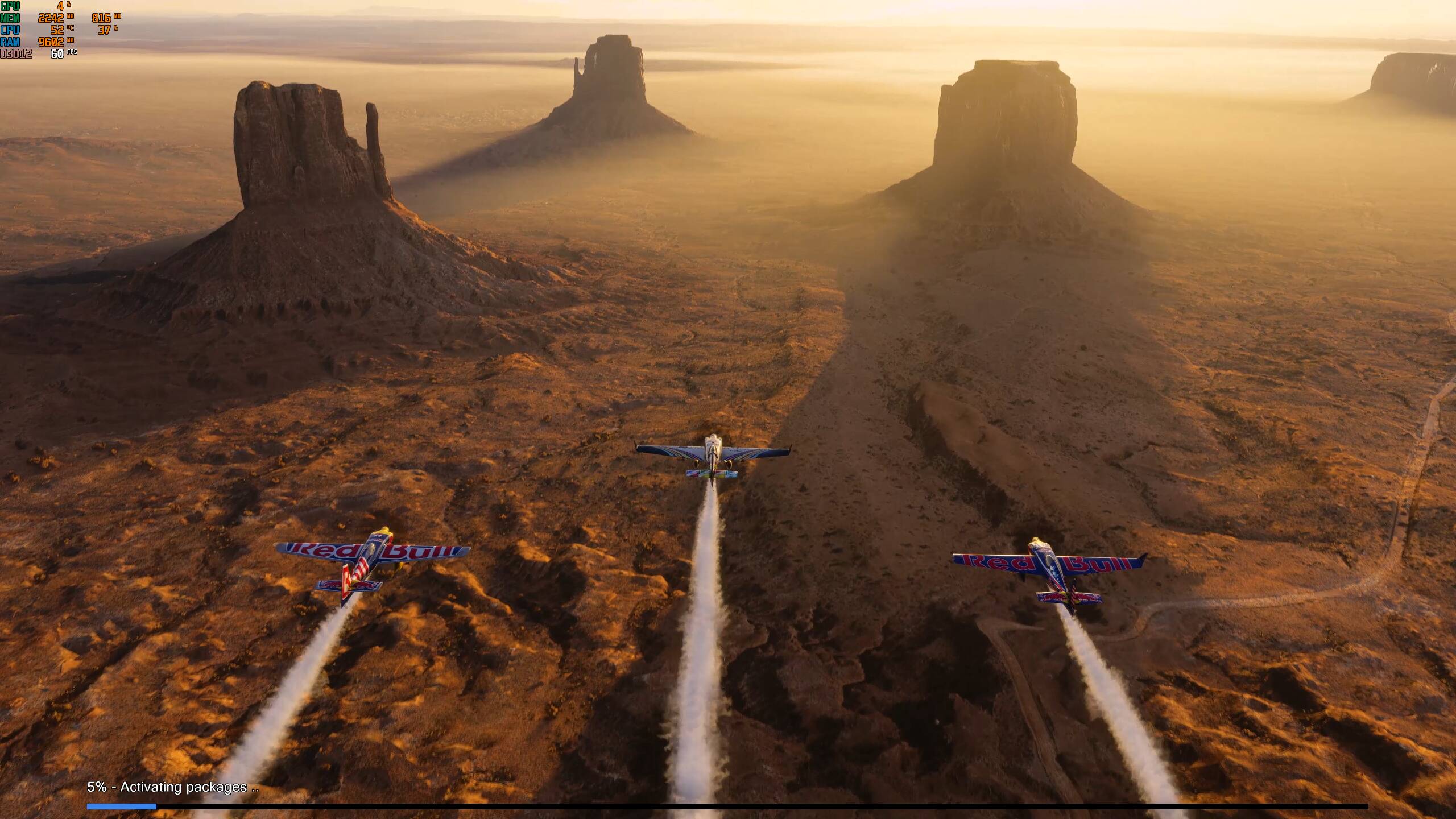
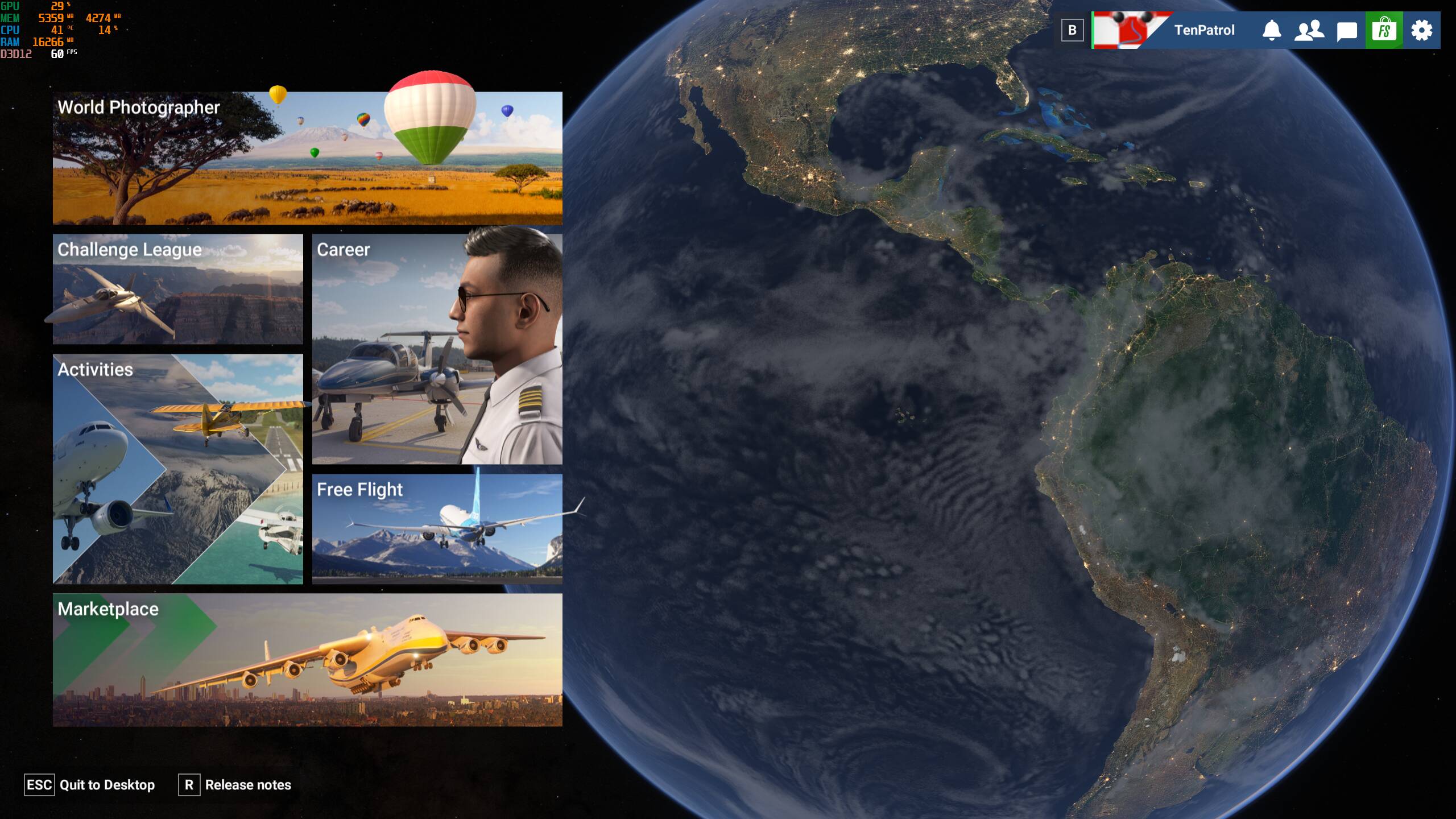

MSFS 2020
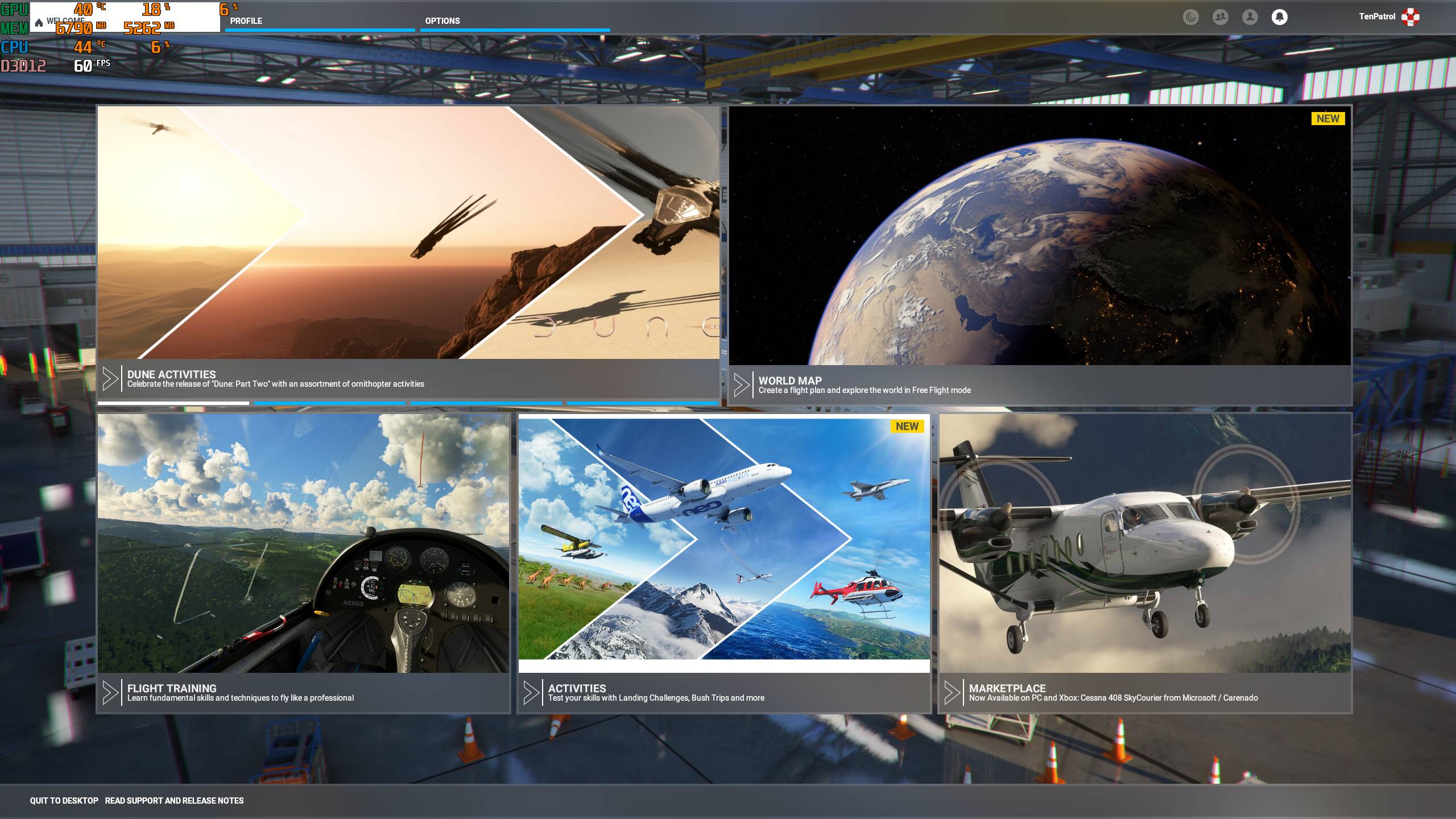
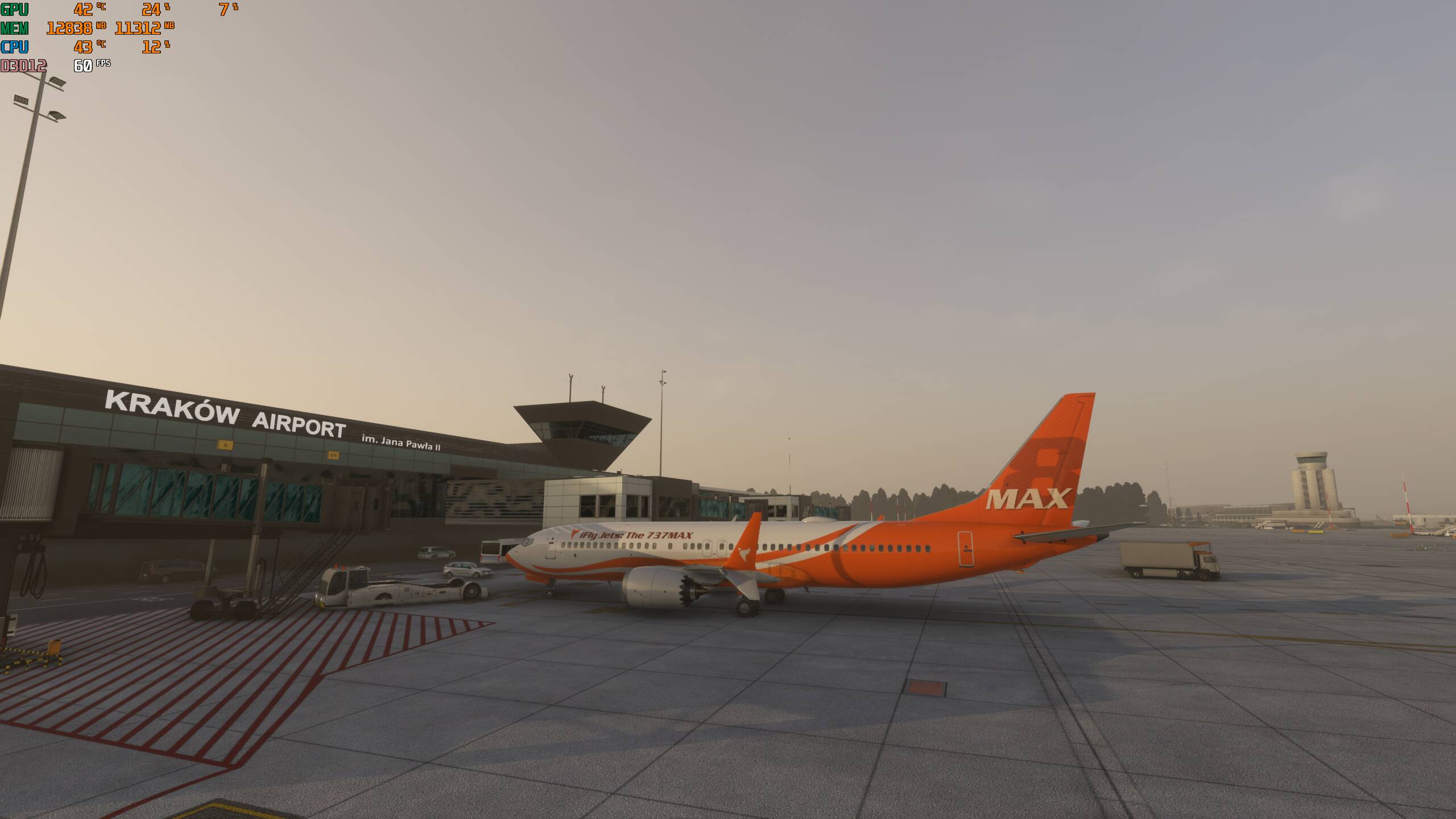
I don’t use software like MSI Afterburner on a daily basis - I’ll uninstall it after this test.
I also have the same issue regarding MSI afterburner. It shows during initial videos but then disappears just prior to the Start selection.
UPDATE:
I performed a clean uninstallation of MSI using Revo uninstaller and re-installed MSI and that resolved the issue. Counters are now back
Thx, I’l try out your solution. Read somewhere the issue could be related to AMD 9800X3D CPUs
Interesting, that is the CPU I have. I had thought it might be related to Windows 25H2 but fortunately the re-install worked so hopefully you will have the same success.
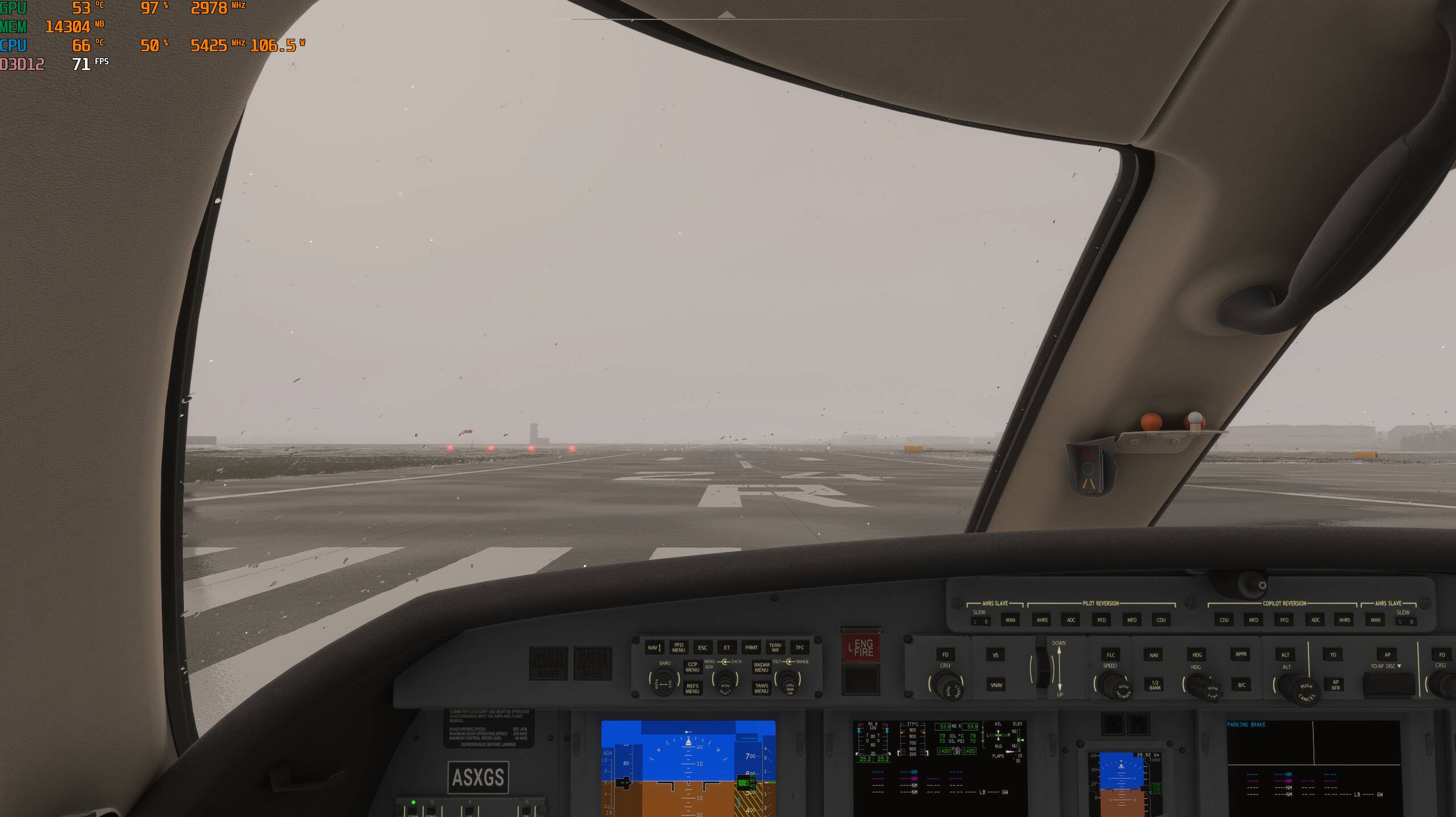
Lousy weather here in Montreal. There is a foot of snow on the ground but not well depicted in the SIM. They still have work to do on the weather but that’s for another discussion. 
Hmm…I might have to take that last one back. After waiting a bit the depiction of snow on the ground is getting better.

no luck for me. unistalled and reinstalled afterburner and riva tuner. same cpu 9800.
Disappointing. My MSI version is 4.6.6 and RivaTuner 7.3.7 if that helps.
btw.. When I use Revo un-installer I use the advanced method and also remove all associated reg entries and files and folders for both MSI and RT.
That’s chat gpt answer, not tested yet:
 Why MSI Afterburner / RivaTuner OSD Doesn’t Show Up in MSFS 2024 (AMD 9800X3D or similar)
If the MSI Afterburner / RivaTuner Statistics Server (RTSS) overlay (FPS, frametime, temps, etc.) isn’t visible in Microsoft Flight Simulator 2024, even though it works fine in other games, the cause is not your CPU — it’s how MSFS 2024’s new graphics engine and sandbox model work.
 Technical causes
 MSFS 2024 is a sandboxed UWP app (Xbox / Microsoft Store version)
The version distributed through the Xbox App and Microsoft Store runs as a UWP (Universal Windows Platform) app.
UWP restricts third-party DLL injection for security reasons.
RTSS relies on injecting its overlay DLL (RTSSHooks64.dll) into the game process — but UWP blocks that.
 Result: the game runs normally, but the OSD never appears.
 DirectX 12 + HAGS (Hardware-Accelerated GPU Scheduling)
When using DirectX 12 and HAGS in Windows, the RTSS overlay often fails to render.
This is a confirmed compatibility issue between RTSS and the DX12 compositor layer used by MSFS 2024.
Switching to DX11 or disabling HAGS can make the overlay reappear.
 Overlay & anti-tamper restrictions
MSFS 2024 now includes a lightweight anti-tamper / integrity layer, similar to Easy Anti-Cheat, which blocks many overlays such as:
-
RTSS
-
Discord overlay
-
NVIDIA GeForce Experience OSD
Only trusted overlays like the Xbox Game Bar and NVIDIA Performance Overlay are allowed.
 Verified workarounds
 Option 1: Use the Steam version
The Steam release of MSFS 2024 is not sandboxed, so RTSS overlays work normally.
 This is the cleanest solution if you want full telemetry.
Option 2: Disable HAGS and switch to DX11
-
In Windows:
Settings → System → Display → Graphics → Default graphics settings → Disable “Hardware-accelerated GPU scheduling.”
Reboot. -
In MSFS 2024:
Options → Graphics → Graphics engine → DirectX 11.
Restart the sim.
The OSD should now display correctly.
Option 3: Run Afterburner and RTSS as Administrator
Sometimes MSFS runs in an elevated context while RTSS does not, preventing the hook from attaching.
Set both MSIAfterburner.exe and RTSS.exe to “Run as administrator.”
Option 4: Use NVIDIA FrameView or HWiNFO + RTSS
-
FrameView uses an official NVIDIA hook recognized by MSFS 2024.
-
HWiNFO + RTSS can work if you create a custom DX12 OSD profile:
in RTSS → Add → MicrosoftFlightSimulator.exe → Application Detection Level = Low.
It displays on my Xbox/MS Store version of FS2024.
Anyone having a problem with RivaTuner not displaying stats on the screen? Tried everything and no joy. Also it does not allow the FS2024 exe to be opened for customisation because of lack of admin rights.
Strange. My setup:
RTX 3090 Ti
Driver only (No NV App)
FS2024 (MS-Store)
Xbox Gamebar disabled
HAGS OFF
RTSS overlay ON
MSI Afterbuner overlay ON
Both start with Windows minimized to the system tray.
Overlay works fine.
My local user account is an Admin account,
I don’t see anything in either setup referring to ‘Run as Administrator.’
HAGS OFF fixed it for me. I now wonder what will I be missing by having HAGS set to OFF.