There is a new beta of SteamVR v1.16.1:
This includes a new per-app setting that allows overriding the automatic throttling behavior to lock the application to a specified fixed framerate. Most importantly, this allows you to go beyond the automatic limit which stops at 1/3rd rate. I find I needed to drop down to 1/6th framerate @ 120Hz (i.e. running at 20 fps) in order to make a steady framerate due to being cpu bound.
If you previously disabled Motion Smoothing, you may want to give it another go with this build. It works much better once you’ve stabilized your framerate, and the previous limit of three frames of extrapolation has bee extended to six frames to cover this new range of fixed throttling. Running the sim at 20 fps motion smoothed to 120Hz works amazingly well. Of course the prop is still a problem, but there are mods to remove those.
To access the new throttling setting, click on Per-Application Video Settings in the Video section of SteamVR’s settings (accessible via the desktop or in-headset via the dashboard).
At the bottom you’ll see a new Throttling Behavior checkbox, toggle it to Fixed, then you’ll get a slider that allows you to select the framerate to lock the application to (note: these values are integer divisors of your headset’s current frequency).
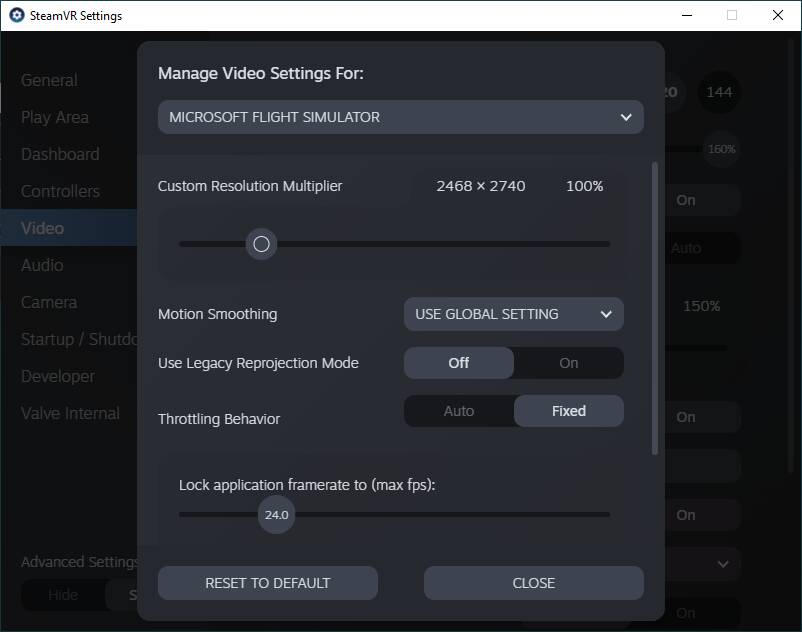
I find it useful to bring up SteamVR’s Advanced Frame Timing graph (under the Developer sub-menu on the desktop widget) when adjusting this to find the right value.
You will notice that as you move the slider, the cyan line in the CPU section jumps to the new throttling setting (reported in extra frames rather than fps). You’ll need to have the app running while making changes in order to see this.
This is what you are ultimately shooting for:
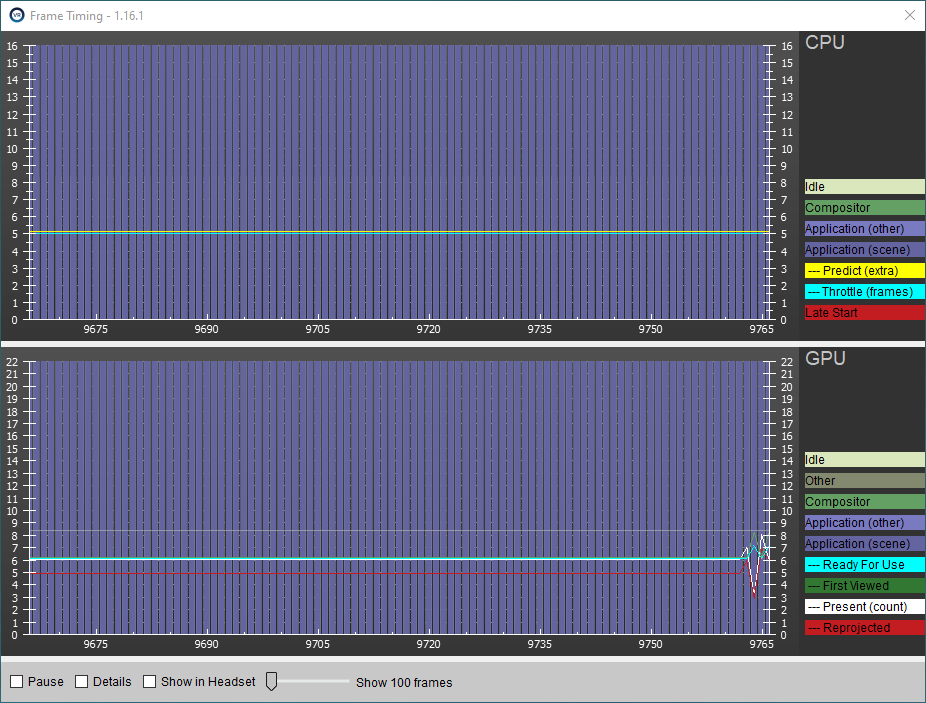
Note: The blip at the end is due to taking a screenshot. Also, if the FS2020 window doesn’t have focus, the performance is all over the chart, so after you make your change, be sure to click back on the Flight Simulator window and give it a few seconds to settle.
For reference, here’s what the Auto settings looked like for me to begin with:
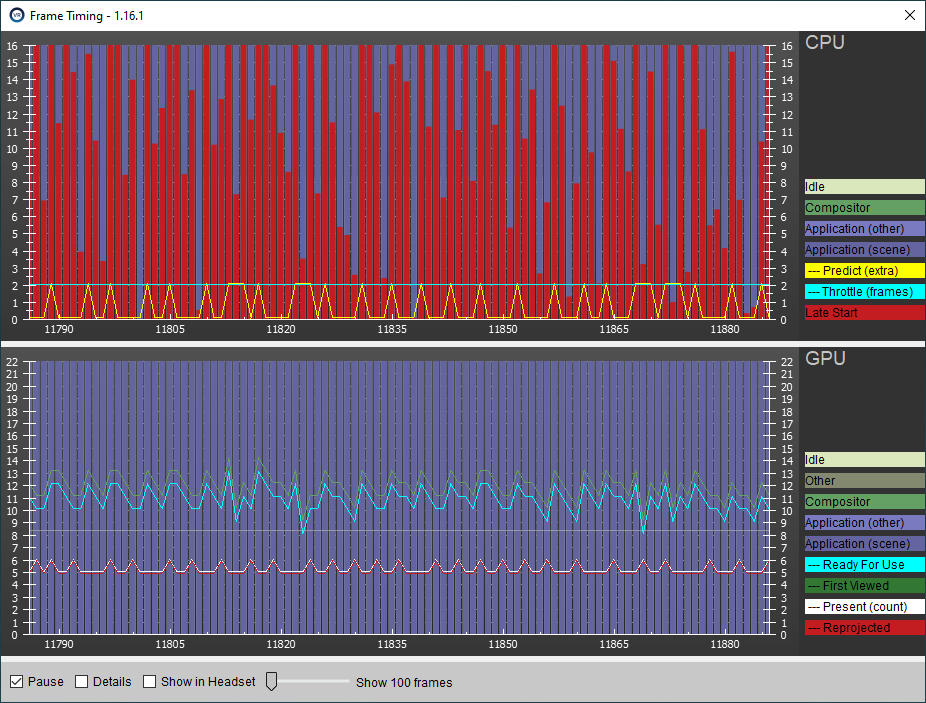
The main thing to note here is all the red in the top CPU section. You can see that SteamVR was trying to throttle the app at 1/3rd framerate (2 extra frames), but the red bars indicate that it was still falling behind.
On the bottom GPU section, looking at the white line, we see most frames were being shown five times, occasionally jumping to six. In-headset this winds up being pretty jittery.
Here, I’ve switched to Fixed throttling and dropped the sim framerate to 24 fps:
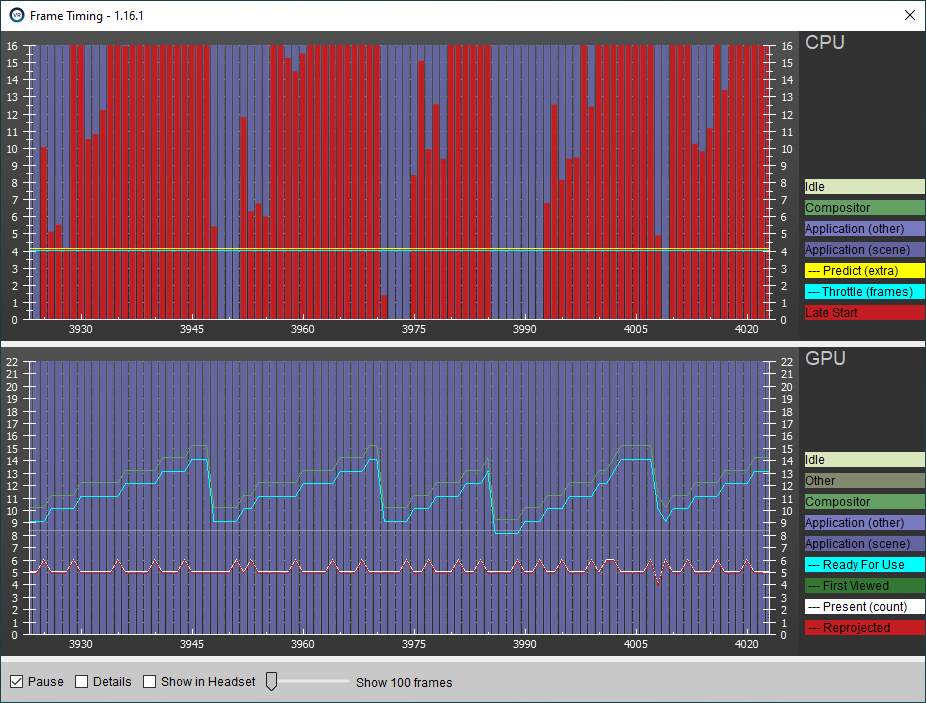
Now, we’re getting close. The Throttle and Predict lines are nice and straight, but we’ve still got a lot of red bars. Looking at the bottom GPU section, we still see that most frames are being shown five times, jumping to six. The cyan “Ready For Use” line (which corresponds to how long the frame took to render) now has this odd stairstep pattern which appears to correspond to the stretches of red bars above. This is the app getting further than further behind each frame until it finally wraps back around and starts over.
One more click down to 20 fps and finally things look good (this is the same image as above):
No more red bars, and all the lines are nice and straight. You may notice that the white line is now a steady six. This is “worse” than before. We were doing mostly five bouncing the six, but the problem was that the app simply couldn’t keep that up at a steady rate, so dropping down to six is actually better because it creates a smoother experience.
Once you are at this point, you can then play with upping your gpu settings, since we are now giving the application more time to finish each frame.