Yes, without geforce experience and nvidia audio driver.
DX11 and TAA.
Yes, without geforce experience and nvidia audio driver.
DX11 and TAA.
Today I will revert to the very same driver. You have helped me with your previous posts, even if you do not know it 
I play still msfs2020, in Dx11 mode (find it smoother for me), with i7 14700K, rtx4090, TAA mode, and PMDG B737-800.
Based on your guidance, I uninstalled nvidia app, erased the .dll file, did a clean install of the latest driver, and saved myself from CTDs.
In the last days I experience again CTDs, during various stages of flight.
I suspect either SPACEDESK issue in combination with the new drivers or just the driver itself.
I will revert to 566.14 and see if I am stable again.
Cheers,
Dimitris
Glad to get your instructions thx.
One more question about this. I am using RTX4090 GPU with 566.36 driver for now. Can I use this method to have dlss4 preset K?
I can’t guarantee it, because these instructions were developed for NVIDIA driver 572.16, not 566.36. On top of that, there’s now a newer NVIDIA driver and an updated Nvidia Profile Inspector with some changed option names. I’d recommend checking the latest forum threads for step-by-step guidance using those current versions.
Thanks. Can u give me a updated thread about the steps to check?
Please post your question in the thread linked below.
https://forums.flightsimulator.com/t/new-dlss-4-v310-1-is-amazing-in-vr/700364/656
If you want to stay with a driver version older than 572,xx and benefit from DLSS4 you have to either manually or with a dedicated app, such as DLSS Swapper, overwrite each game’s own dlss file with the newer dlss4 one.
I second that wholeheartedly! How many times have I gone through ‘this is running really well!, I’ll just make one more tiny tweak……bugger!!’
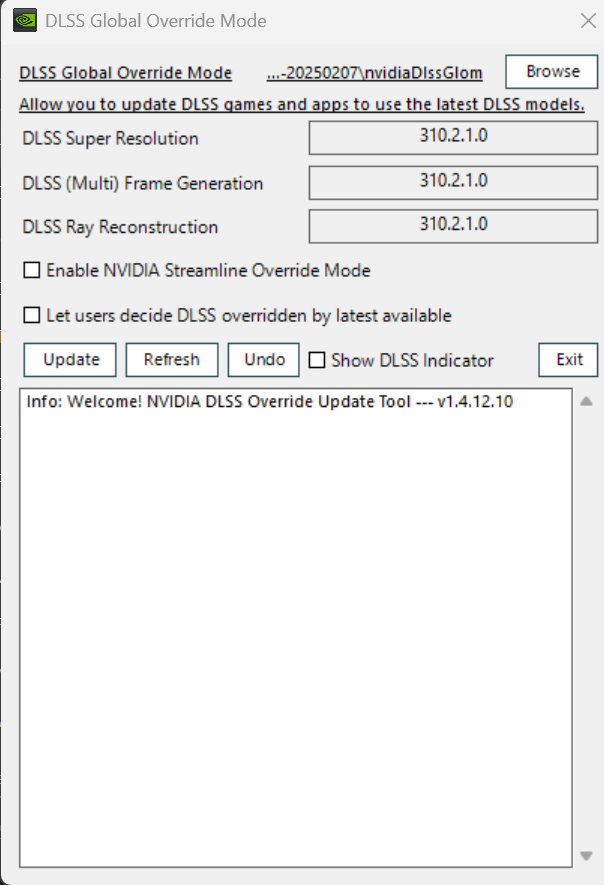
If you guys wanna stay on older drivers like 566.36 and wanna use latest all DLSS FG Reflex and more related .dll files on driver level with all games, you can use this tiny awesome tool.
Tool Release NVIDIA DLSS Global Override Mode · SimonMacer/AnWave · GitHub
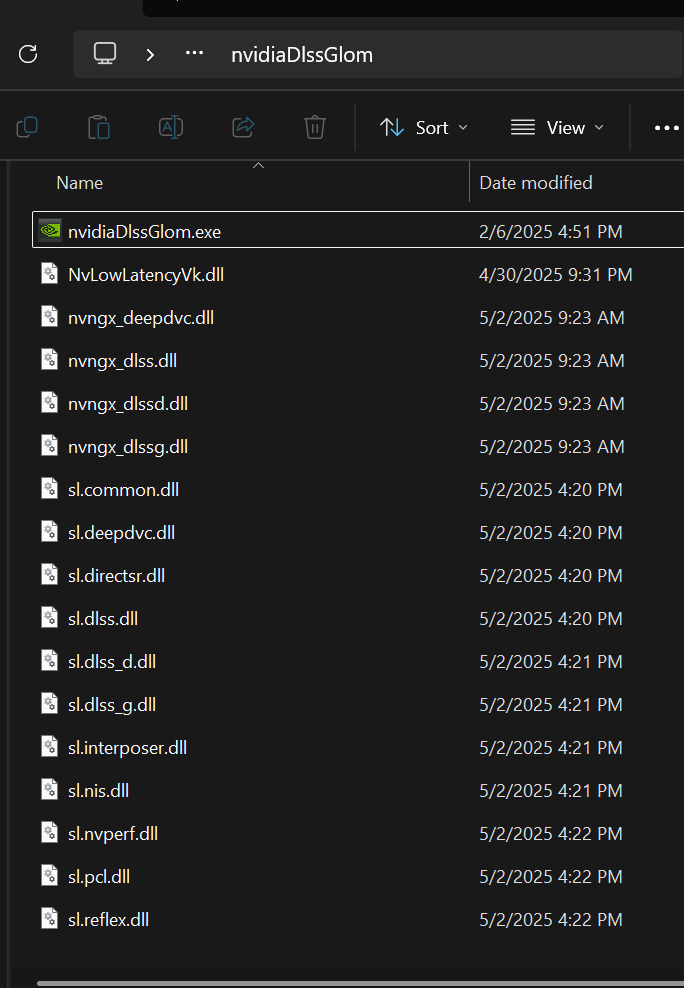
You need to download latest dll files from these links and put 3 .dll files to where nvidiaDlssGlom.exe is located (tool)
NVIDIA DLSS DLL 310.2.1 Download | TechPowerUp
NVIDIA DLSS 3 Frame Generation DLL 310.2.1 Download | TechPowerUp
NVIDIA DLSS 3.5 Ray Reconstruction DLL 310.2.1 Download | TechPowerUp
You can also use below dlls if you want for all latest dlls
Nvidia streamline files GitHub - NVIDIA-RTX/Streamline: Streamline Integration Framework
For streamline .dlls you need to download latest streamline-sdk-v2.7.32.zip file. Inside that file you will see a “Bin” folder. Copy paste all .dll files in Bin/x64/ folder to where nvidiaDlssGlom.exe is.
All you need to do is to launch the tool and APPLY. You can choose streamlines also and undo any time. It will globally inject all new dlls into driver level. You dont have to copy any dll files into game folders anymore.
Only downside is you have to use another program to choose DLSS presets, like K J etc with nvidia inspector or other tools. Min driver requirement is 566.36 i think, not sure.
Had the exact same issue with my 5060 Ti (MSI) all of a sudden. Using Windows 11 Version 24H2 (KB5062553) together with Nvidia Drivers 576.88
Deleting the .dll files pointed out in the eventlog* did the trick for me as well.
*hit Start button → and start typing “event” → select Event Viewer → Expand Windows Logs → click on Application and wait a moment. It might look like nothing is happening. Once the application log opens up you should find an error like “Faulty Module: 1b0_e658703.dll_unloaded […]” , head out to C:\ProgramData\NVIDIA\NGX in File Explorer. Up right search for the dll file mentioned. Select all and delete them.
Workaround complete.
I found a much safer way to fix the problem. As we’ve noted together, the issue stems from the NVIDIA App and the cached optimization that the app does.
After updating graphics drivers, this issue seems to have popped up for me on 7/22/25. I tried reinstalling/uninstalling the game, packages and drivers.
I found a solution HERE . I prefer using this solution vs deleting files from my system that might still get used.
Follow these steps:
If MSFS2020 starts up, come back and re-optimize the game from here. I believe the app will recompile an optimized DLL that will be used by the game from here on out. It is possible that a driver update sometimes prevents the cached, optimized 190_E658703.dll from working properly…
Going through these steps should refresh the 190_E658703.dll version that will be used by the game.
I actually found an even simpler solution - no need to switch from DX11 to DX12 or do anything complicated.
The permanent fix is here:
https://forums.flightsimulator.com/t/nvidia-geforce-game-ready-driver-580-88-discussion-thread/731811/3?u=tenpatrol