Think gonna go slow on installing this one… getting some bad vibes.
I do this DDU in safe mode pretty well every time I update my rtx5090 nvidia driver. I like that this also clears the nvidia and windows dx cache. This also clears my ShowDLSSIndicator reg key so I need to redo this afterwards. I also delete and redo msfs2020/2024 rolling cache (currently use 32Gb).
I only fly in VR, mainly with my QPro using a Link cable at 750mbps max dynamic bitrate. I also sometimes use my Q3 with Air Link. Both are working very well with 596.21 with v310.6.0 dlss overrides and Preset M, using dlss/performance. I also add 1.20x pixel density setting with the Oculus Debug Tool (ODT) and this further improves cockpit clarity. I also set my ASW mode to forced 45fps with asw disabled (actually 1/2 your headset refresh rate, so 40fps for me since I use 80Hz refresh rate).
I don’t use the swapper app or nvidia app. I just use nvidia control panel to set a few global and game profiles. Then I use the nvidia profile inspector to enable global dlss overrides (v310.6.0) with recommended presets. I can force dlss Presets with msfs2020/2024 profiles. I have tried a number of dlss quality/performance and presets K /M combos and found that dlss/performance with preset M works best, for me in VR.
Overall, everything is smooth and stable in VR with latest non-beta msfs2020/2024. Best I’ve seen so far. My PC specs are; 9800x3d/rtx5090/64Gb 6000ram. I hope others are enjoying this latest Nvidia update. Cheers.
Thank you for your comprehensive analysis!
Since the last Meta Link update, I’ve been unable to keep it connected. For now I’m using Virtual Desktop.
I’m not having any problems with the latest v2.1.1034 non-PTC latest updates with my QPro/Q3 running Link/Air Link. I also got an update on the meta-link pc app a couple days ago, v85.0.0.239.552. I have heard a number of problems reported with PTC v2.3. Always good to avoid PTC imho. Hopefully it gets fixed before it goes final, lol!
If you’re not on PTC, I suggest you download the meta-link app from the meta support website and run a Repair.
Also, if you’ve been using Virtual Desktop (VD) you may need to reinstall the Oculus audio driver since VD often disables and deletes this. You can download Oculus drivers by going to your program files/oculus/support/drivers and run the driver app. You need to restart your PC afterwards. You may actually want to try this first, before running a Repair.
Also, with Link, it’s a good idea to run the meta -link device usb speed test to make sure you’re getting around 2.3Gbps or better. You usually need to run this 2-3 times to get a stable result. If you cann’t acheive this, maybe try a different usb3 port. Also make sure to check all your windows device manager usb connections. Right click/properties, and if there is a power tab, make sure to disable power savings. Otherwise, this can cause disconnects.
In any case, VD is always a good option, and I still use it as a backup. I can get almost as good results with it as I can with Link. Cheers.
FYI for anyone who experiences significant issues with NVIDIA drivers (of any version) I’ve learned you can submit logs and crash dumps directly to them by following the instructions linked below. It’s a bit of work, but I assume they would have a system (probably automated) for ingesting and finding causes of issues in aggregate, and then hopefully including fixes in future versions.
NVIDIA Collecting logs for display issues:
Also …
Friendly reminder.
Thanks … that’s a Google Doc? NVIDIA uses Google Docs to collect feedback? Are we sure that’s an official NVIDIA doc?
Yes mate, 100% 
Hello GimbalAxis. Can you please advise us regarding the use of DDU. After debloating the latest Driver and using DDU in Safe Mode + disconnected Internet we have an issue with the Clean Install option.
Although the Clean Install option is activated in both NV Clean and DDU this is not taking effect and all the installed Apps including FS 2020 and 24 are still there.
This has never happened previously. Any thoughts ?
Sorry I’m not clear on what you mean “FS 2020 and 24 are still there” …?
DDU just uninstalls the NVIDIA (or AMD) graphics drivers, not MSFS itself…
PS I’m no expert on DDU, I’ve only used it twice! Although I’m probably going to use it this week to test some old drivers to report to NVIDIA about a multiple monitor issue with the new driver.
I think there are people in the thread who know a lot more about DDU…
always use DDU in safe mode. always. period.
If we’re talking about DDU and a “clean install” of NVIDIA drivers, I’ve already written about this so many times that honestly I wasn’t sure I felt like repeating it again. But I made myself a coffee and decided… alright, let’s do it 
First things first: a proper clean installation of a GPU driver does not delete your games, apps, or wipe your C drive. It simply removes old driver files, registry leftovers and related components so the new driver installs on a clean base. That’s it. So the fact that things like MSFS 2020/2024 are still there is completely normal - nothing is wrong.
As for NVCleanInstall software - honestly, it’s not necessary. People overcomplicate this stuff. Between Windows itself, installed apps, Google, browsers and everything else, you’re already being tracked in a dozen different ways. Whether NVIDIA or AMD collects a bit more telemetry really doesn’t make any meaningful difference in the big picture.
So don’t overthink it and don’t waste time chasing “perfectly clean” setups with extra tools. Use DDU properly if you want a fresh driver install, install the driver normally and move on.
BUT
If you’re not entirely sure how to use NVCleanInstall, there are already pre-stripped driver packages made with it - you can find those over on Guru3D forums.
There’s also NVSlimmer software, but I won’t go into that here since this is about NVIDIA drivers.
Let’s move to the clean NVIDIA driver installation.
NVIDIA driver removal is best done in Windows Safe Mode - I’ve been saying this for a long time and I’m not changing that opinion. The only exception is when Safe Mode doesn’t work properly on someone’s system.
So before proceeding with any further steps, make sure that Windows Safe Mode is working correctly.
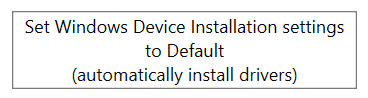
Also, there’s no real need to disconnect from the internet or disable your internet connection during driver uninstall or installation. What actually matters is Windows behavior - just set it so it doesn’t automatically install devices or pull drivers on its own. That alone is enough to prevent conflicts during the process, without having to unplug anything or go offline.
If you’re not an advanced user, don’t feel confident digging deep into Windows settings or simply don’t want to bother, there are easier alternatives.
You can just unplug the Ethernet cable, turn off WIFI or disable your network adapter directly in Device Manager.
In that case, if your PC case is pushed against the wall or placed under a desk, disabling the network adapter is usually the quickest option. Just right-click the network card in Device Manager and disable it.
Right-click “Start” icon and select Device Manager.
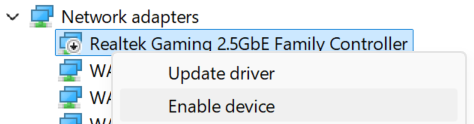
Expand Network adapters
Then right-click your network adapter and select Disable device.
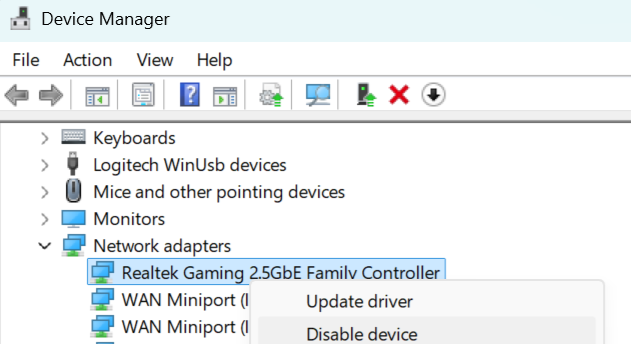
Disabling the network adapter in Device Manager is the most convenient and fastest method.
You can also, after launching DDU in normal Windows mode, go into the DDU settings and enable “Prevent downloads of drivers from Windows Update when Windows searches for a driver for a device”
While still in the settings, also enable “Enable Safe Mode dialog”
// Also, as I mentioned above, make sure to check that Safe Mode is actually working on your system before proceeding.

Under General Options and Specific Options, you can select the same settings that I have enabled here
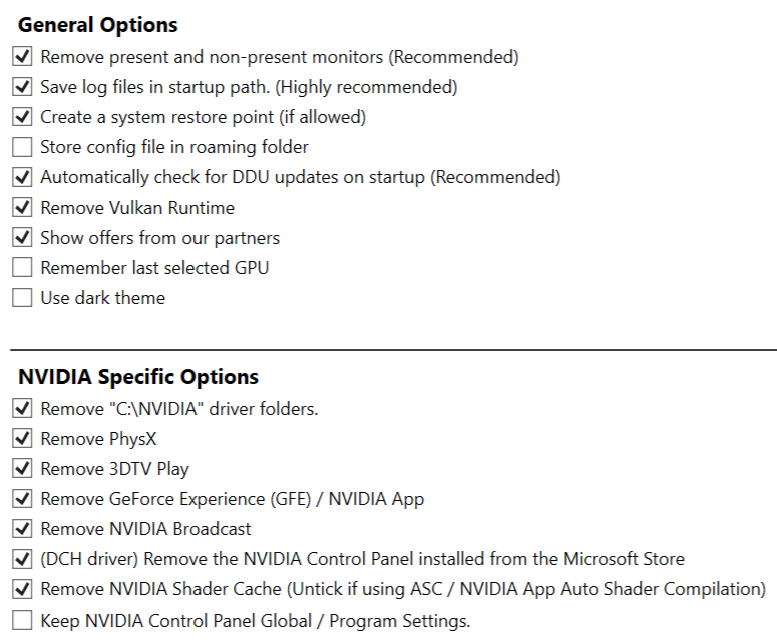
Be careful with “Remove present and non-present monitors” - this setting removes monitors and their drivers. After a restart, they will still work, but Windows will not have proper drivers installed for them, so you may need to reinstall the monitor drivers.
Also note that after removing monitors and restarting the PC, Windows may change the refresh rate settings. Go to Windows Settings > System > Display > Advanced display. Check if “Choose a refresh rate” is set to the maximum Hz of your monitor - if not, change it to the max or set it to your preferred value (for example 120Hz instead of 240Hz).
I once forgot about this and Windows set my monitor to 60Hz instead of 165Hz. As a result, I had stuttering in MSFS 2020/2024 and couldn’t figure out why. It turned out the cause was exactly the refresh rate.
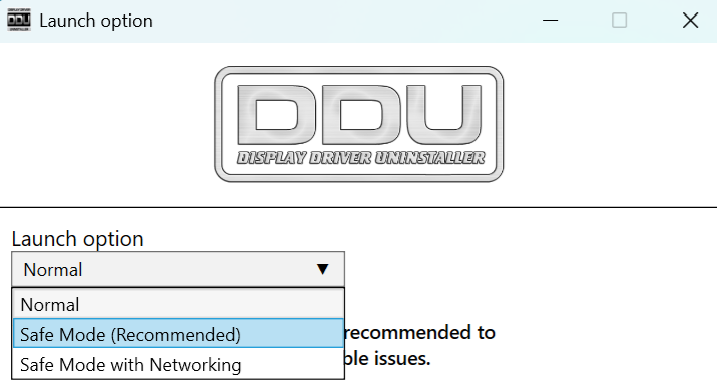
So now you already have DDU configured and know a bit more - it’s time to prepare for reinstalling the driver. Before switching to Safe Mode, download the NVIDIA driver you want to install. After downloading it, you can launch DDU and under “Launch option” click Normal and select "Safe mode (recommended).
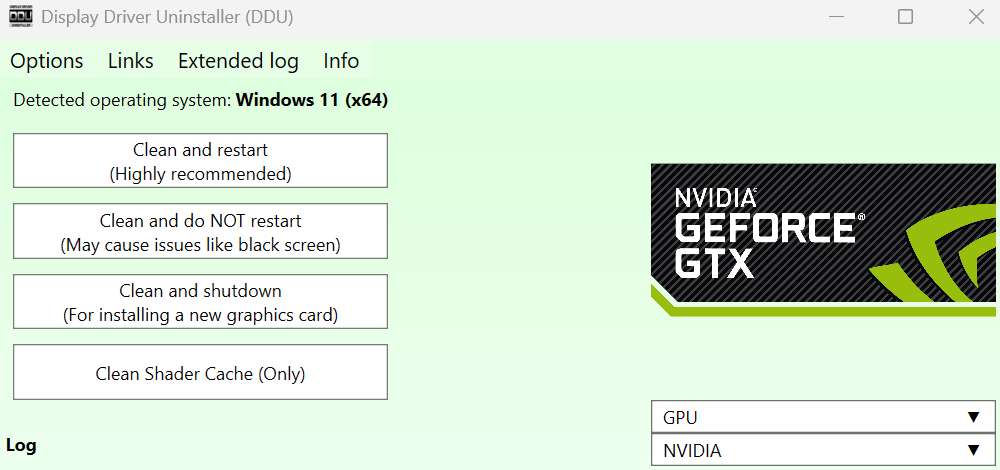
After the system switches to Safe Mode and DDU is launched, select the GPU you want to uninstall, in this case NVIDIA.
Then click “Clean and restart”.
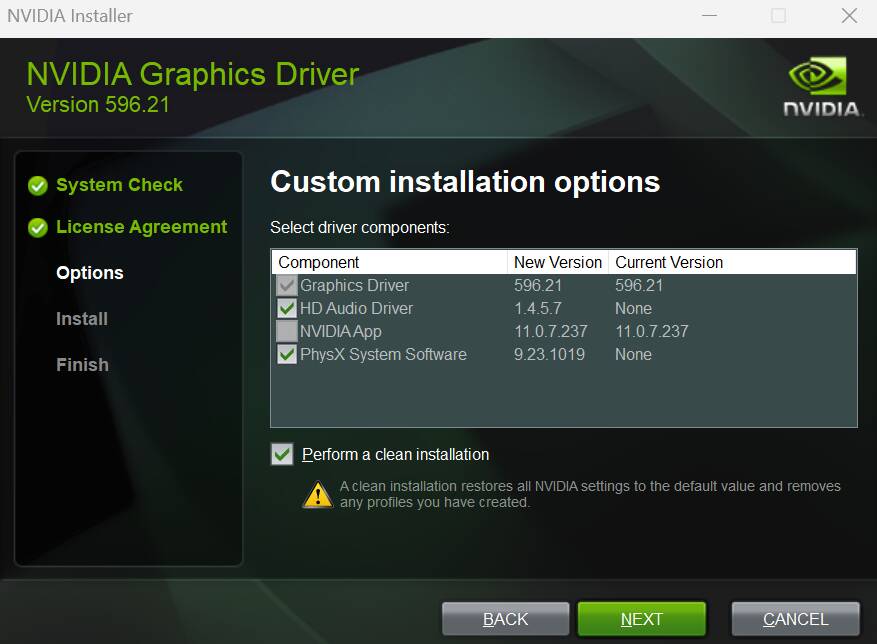
After the restart, you can install NVIDIA driver. I recommend installing the minimal version, meaning only the driver and PhysX - this way you can make sure everything works properly without NVIDIA app.
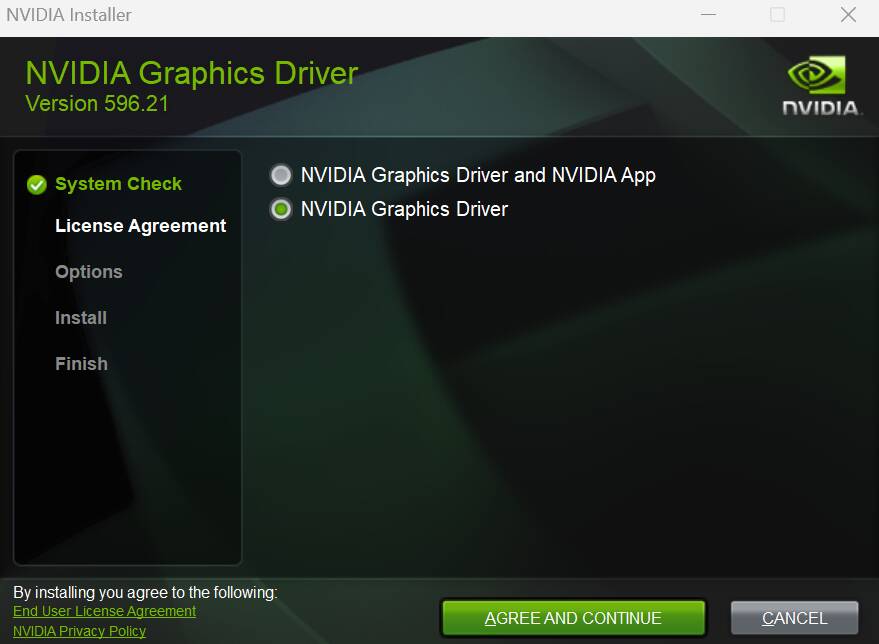
So run the previously downloaded installer, select “NVIDIA Graphics Driver”, then click “Agree and Continue”.
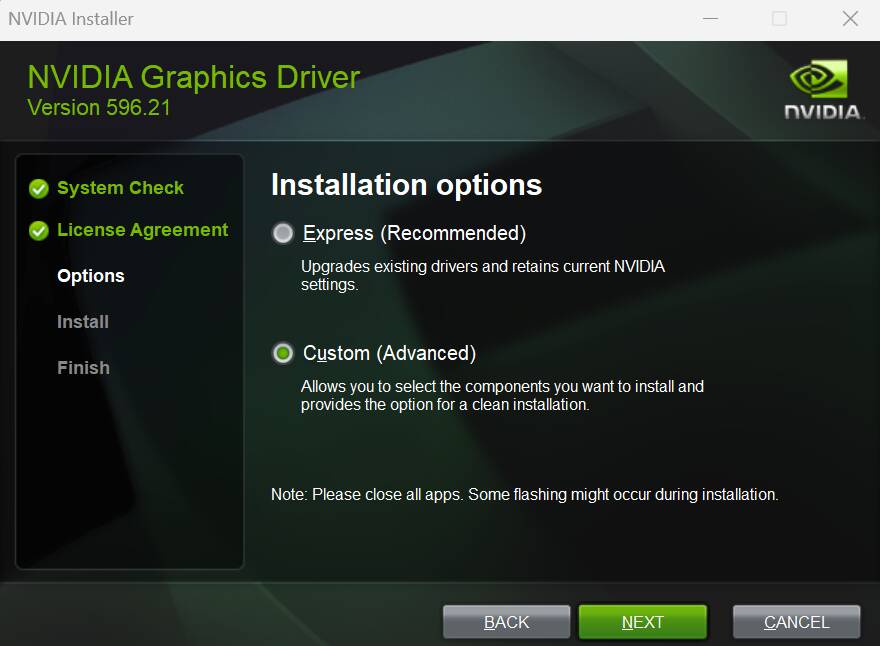
On the next screen of the installer, select “Custom (Advanced)” and click “Next”.
On the next screen of the installer, uncheck “HD Audio Driver” and make sure “PhysX” and “Perform a clean installation” are selected, then click “Next”.
After NVIDIA driver installation, restart PC. After reboot, I remind you to install the monitor drivers if needed and check the monitor refresh rate (Hz) in Windows settings, as mentioned above.
If you have checked in DDU

and want Windows to install other drivers again, launch DDU in normal mode and under “select device type” click
Now you can enable your network adapter in Device Manager. Open Device Manager, right-click the network adapter you disabled, and select “Enable device”.
Restart PC.
Now you can open the NVIDIA Control Panel and set a profile for MSFS according to your preference. The only important thing is not to change settings in the global profile unless you really need to.
After setting up the MSFS profile, check how the game performs. If everything is fine and you need the NVIDIA app instead of the NVIDIA Control Panel, you can download and install it.
https://www.nvidia.com/en-eu/software/nvidia-app/
Fly safe.
9800x3d / 5090 / 64GB / Pimax Light.
This driver screwed me up big time. I lost about 5% performance across the board, intoduced stutters, and screwed up my DLSS swapper. Now swapper says it has no dlss file for 2024. Even though i have it downloaded. Had to use profile inspector, and it didnt seem to be the same image quality i had with the previous driver. So reverted back.
Now even though i reverted back, swapper still says no dll file. I have no idea why.
In the thread linked below, I already explained what might be causing the issue.
https://forums.flightsimulator.com/t/dlss-main-thread-latest-version-310-6-0-feedback-and-tips-discussion/761814/89?u=tenpatrol
Sorry for the misunderstanding on our part.
When we say ‘still there’, we refer to the entry in Nvidea Control Panel and not the installed App itself. DDU formerly reset the Panel and all Apps parameters needed to be entered afresh. This is not happening even though it’s specified in NV Clean and DDU itself. We have followed the correct methods to uninstall the Driver but the Clean Install feature is s not working. We’ll give it another go this evening and let you know the result. Thanks for taking the time to reply to our Post.
@WristyLawyer204
How to reinstall NVIDIA driver 
https://forums.flightsimulator.com/t/nvidia-geforce-game-ready-driver-596-21-discussion/763020/33
Very nice explanation of how to use DDU in safe mode to fully uninstall previous GPU drivers. Another big bonus using DDU is that it also clears your shader cache (gpu and Windows DX, but not your msfs2020/2024 rolling cache, which I delete and redo later). It also clears the GPU registry, so if you’ve manually added a ShowDLSSIndicator key to show your DLSS version, you’ll need to redo this (google how to show DLSS Indicator). Only takes me ~20 seconds to redo this.
I don’t install or use the Nvidia app, or the Swapper app because I like to do things manually (old school). After installing the new GPU driver, I use Nvidia control panel (I avoid checking the DDU option box to delete this) and set Global 3d settings to all defaults, except Power = prefer max performance, and Texture Quality = High Performance (buys me a few extra fps, without any noticeable effect on clarity). You can then adjust 3d Game profiles if you want to, but I don’t find this necessary anymore (I used to force AF to x16 for msfs2020/2024 and set the in-game AF = Off). I also go to the Physx tab and select my GPU as it’s default.
I then use the latest Nvidia Profile Inspector (currently 3.0.1.12 from Github) and set Global settings to enable DLSS overrides and to Recommended Presets (remember to save any NPI, or NCP changes). If you want to force a certain Preset for msfs2020/2024 you can call up its NPI profile and edit them. Using the recommended presets, for msfs2020/2024 gives me the latest dlss v310.6.0 (without any need to download this btw) and with dlss/performance, preset M, and with dlss/quality/balanced, preset K. I’ve tried a lot of different dlss/preset combo’s and I’ve found that dlss/performance, with preset M works best, for me anyway.
Lots of different ways to skin the same cat, but this all works best for me. Cheers.
Aside. I mainly only fly msfs2020/2024 (both non-beta) in VR with my Quest Pro using a Link cable at 750mbps max dynamic bitrate, 1.20x pixel density (further improves cockpit clarity), and forced 45fps with asw disabled (forced 45fps is actually = 1/2 your refresh rate, so 40fps since I use 80Hz refresh rate). PC specs, 9800x3d/rtx5090/64Gb 6000 ram.
I installed this driver and it causes DLSS Framegen to not work if I swap to the newst DLSS file in DLSS swapper. Using the default seems to work, but as soon as I swap it, Framegen stops working