Well I loaded it and did a long Aussi Group flight with no problem in VR and 2D. So far go good. I am really pushing the graphic settings and looked fine in my 5080. TLOD=400 clouds and trees ULTRA.
BTW No system crashes now for several weeks after disabling all the ASUS OCing. Not worth it for a few % of performance.
Some people fixed this by restoring default settings in the NVIDIA Control Panel - both in the Global tab and in the MSFS profile specifically.
It also helps to reset settings in the NVIDIA app, again focusing on the MSFS profile and anything related to DLSS and Frame Generation - especially anything set to “override”.
I already mentioned my experience in the BIOS thread
Yeah, hard to believe but I can run at that level and like it. I was on one of the Aussi trips today over some jungle atolls and the trees were amazing up close with this add on.
I believe I put up some screen shots are the higher levels of TLOD, which are less pixelated, but you have to have an eye for this… I do astrophotography and am very sensitive to such issues. Good place to test is at startup looking at runway texture.
I have gone back to 581.57. Not sure if this solves it for me completely, but I have one scenario in MSFS202, departing from custom Aerosoft EBAW, and that CTD’s with 596.21.
After installing 581.57, I have successfully completed that scenario now once. While the previous two times it just CTD’d on 596.21.
I also saw that phenomenon where the GPU was running at max all the time, I didn’t think nothing of it, but now I figure it might be related.
For testing purposes, I installed the NVIDIA App to check DLSS Override with model M. I set DLSS Override to “Quality” and selected model M, without changing any other settings - meaning I did NOT use the NVIDIA App to optimize MSFS 2024.
To my surprise, all in-game settings in MSFS 2024 were switched to Ultra. Important detail: it showed as “Custom” so at first I didn’t even notice anything was different, because the preset was displayed as “Custom” not “Ultra”.
I only realized something was off when I suddenly saw AI aircraft at the airport - I had that completely disabled for testing before. After installing the NVIDIA App, it was set to Ultra.
So, double-check your settings after installing or using the NVIDIA App, even if you didn’t explicitly apply optimization.
Every time the Nvidia App gets control and automatically sets display settings to its default setting, I go to the app and move the slider for 2024 one notch down and then the jitters, hesitations, and skips go away and I have an enjoyable experience.
I have developed the habit of just installing the driver and only on rare occasions of important upgrades, do the app too. I have not noticed the settings problem if updating both from within the app.
Still no problems with the latest version of the driver.
I also noticed changes to the in game settings with Nvidia app. I have a very high end computer with a 5090 and CPU running at 4.9 all core and have never had to roll back a driver since I got my 5090. This driver has been a complete disaster. I have tried the new dynamic setting and I have no problem with performance of the driver trying multiple combinations of settings such as DLSS, DLAA, TAA and as well with and without frame generation. The driver runs MSFS 2024 smoothly but no matter the settings I choose the aliasing has gone crazy. From the opening start scene to all in game airports and locations, its like an explosion of sparkling grass, trees all throughout the scenery. I have been experimenting since the driver release and It is the worst I have seen with my 5090. No matter the settings the whole sim experience is terrible including monitor flicker as well as other graphical anomalies. I just rolled back to driver 595.97 and the graphics are as crisp as ever with no aliasing. I tried all the usual combinations and everything works great with 595.97. I typically don’t even need frame gen for a smooth experience but I have never seen such a literal explosion of sparkling and shimmer since MSFS 2024 was released. Just wondering if anyone else experienced anything like this. It finally looks great with the old driver after getting very frustrated with the new release 596.21
Still stable with 581.57. I know this topic isn’t about that version, but this is just a follow up. Tried overclocking with the NVidia app and that just made my card unstable. I have an Inno 3D, and mine seems to be not overclockable whatsoever. Big deal, it’s fast enough.
Also noticed that if you let the NVidia app do anything with the settings, it will transfer ALL its settings onto the game, mostly setting stuff to Ultra. Even starting full-screen etc… Quite annoying.
My best settings for my machine I found is letting Nvidia Optimize 2024 then moving the slider down one notch. This then stops the occasional jitter and hesitations that mess up my times on Challenges mode.
I updated to 596.21 when it came out and had monitor connnection issues (only 1 or 2 of 3 screens would be recognize by Windows after the driver was installed). So I reverted to 595.97 and all was well, and I reported the issue to NVIDIA.
They asked me to try again and to capture a log when the connection issue happens, so I decided to clean install Windows to ensure nothing but NVIDIA drivers would be present when it crashed… I got ready to capture and then installed 596.21 expecting the worst and … no problem this time. Odd. Yet to do a full flight on this driver, so we’ll see.
…this is why I’ve never installed the Nvidia app. Unfortunately, it takes control of too many things, and given my personality, I’m not happy with it. I want to be the one to decide what to do, not have the app do it for me. I’ve always used the classic Control Panel, and for more specific settings (where the Nvidia app would be useful), I use Inspector.
Could anybody confirm these values.
RTX 4090
Pimax Crystal Super : Quality 1.
Frame rate locked @45 fps ( although it’s really more a limiter than lock in my opinion )
DLSS : Performance
Only pre-caching and terrain vector data on Ultra, rest mostly High and Medium
Terrain and Object LOD both 140. FPS Avg : 30
GPU load : 99% constant
At quality 0.85 the avg FPS is 40. So I guess, the numbers are normal. It’s just a very heavy pixel load.
Are shaders being recompiled after every new version or every new graphics driver update? I notice this happens as a discreet step in a lot of other games I’ve played. If some of this work is happening in the background in msfs, could this account for performance swinging around quite a bit for individual users?
This post was useful to the SU5 discussion where you made it, but alas has been moved here. The answer to your question (which goes beyond this individual driver) is yes. You generally should clear your shader caches when you get a sim version update or move into or out of the/a beta. I did a video on this recently on my channel.
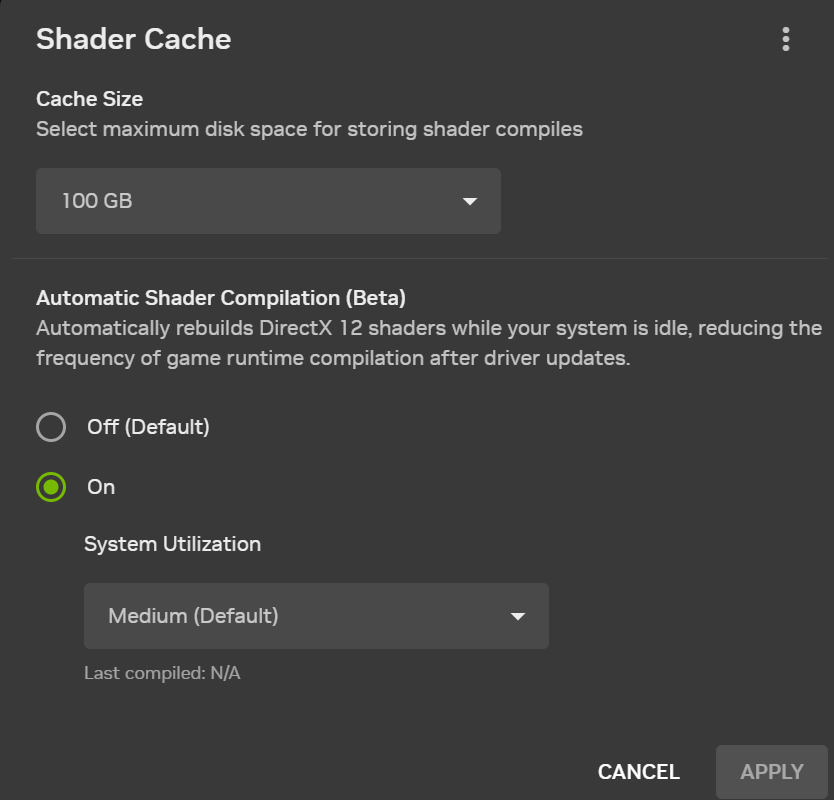
I believe the new version of the NVIDIA app introduces “Auto Shader Comilation” (near the bottom of that page) which dynamically rebuilds DirectX 12 shaders in the background while idle, to mitigate any need to clear it yourself. (Driver 595.97 or later)
It does, I mentioned this in my video, but I’m not sure it would recompile based on a game update, though in now reading that again it seems it would. In any event I will delete them completely for sim updates but use the auto compilation for driver updates.
No issues so far in 596.21 and I too have activated the Auto Shader feature, so far so good. The new NVIDIA app is a boon for folks who want to keep things simple while taking advantage of cutting edge beta features. That said, I select my own settings while taking the app’s recommendations with a grain of salt.
Yes - if you’re using the NVIDIA app and have Automatic Shader Compilation enabled (it’s currently an beta feature), shaders can be recompiled automatically after driver updates.
There are a couple of important exceptions though:
First, after installing a game for the first time, you need to launch it at least once. That initial run is required so shaders can be generated and later updated automatically when you update your drivers.
Second and this is something I always recommend - you should manually clear your shader cache after every game update and every driver update.
After a game update, clearing shaders reduces the chances of CTDs and stuttering.
After a driver update, it’s also safer to rebuild shaders from scratch rather than risk instability or performance issues.
And one more thing: if you haven’t updated your drivers in a long time, it’s a good idea to clear shaders manually anyway. Cache files can get corrupted over time, which can seriously hurt game performance.
The easiest way to do it is with DDU - just run it, select your GPU and click Clean Shader Cache (only).
Completely agree on the former, but as to the latter, what would be the purpose of the automatic shader recompilation if you would basically just clear shaders in all cases?