Updated to 616.92 via Nvidia App. Works fine for me. PC i7-9700K, 4070S, 4k. I fly GA, Cessna 208B Caravan at the moment. 90-100 FPS. Stable. A few more FPS than 616.86
With this driver I have noticed CPU thread limits encountered more often and GPU Main thread limits almost non-existent. Does this imply the driver is loading more onto the CPU and less for the GPU?
I do, but don’t get why my comment was merged with another topic.
This topic is to discuss the current driver…I’m having issues with the current driver, which happens to throw up the same error as the other topic.
Feels like it’s being buried?
OK so it has been over 24hrs since I restored my PCs boot disk.
I had logged on, I had installed 616.56. All the details are the same using 616.92.
I have had no OTA, whether it specifically mentions MSFS2024 or not.
I have uninstalled/reinstalled Gaming Services, Xbox App and MSFS2024. I have even done a full Windows repair using both online method and the MediaCreationTool.
MSFS2024 still refuses to load on a 616 driver.
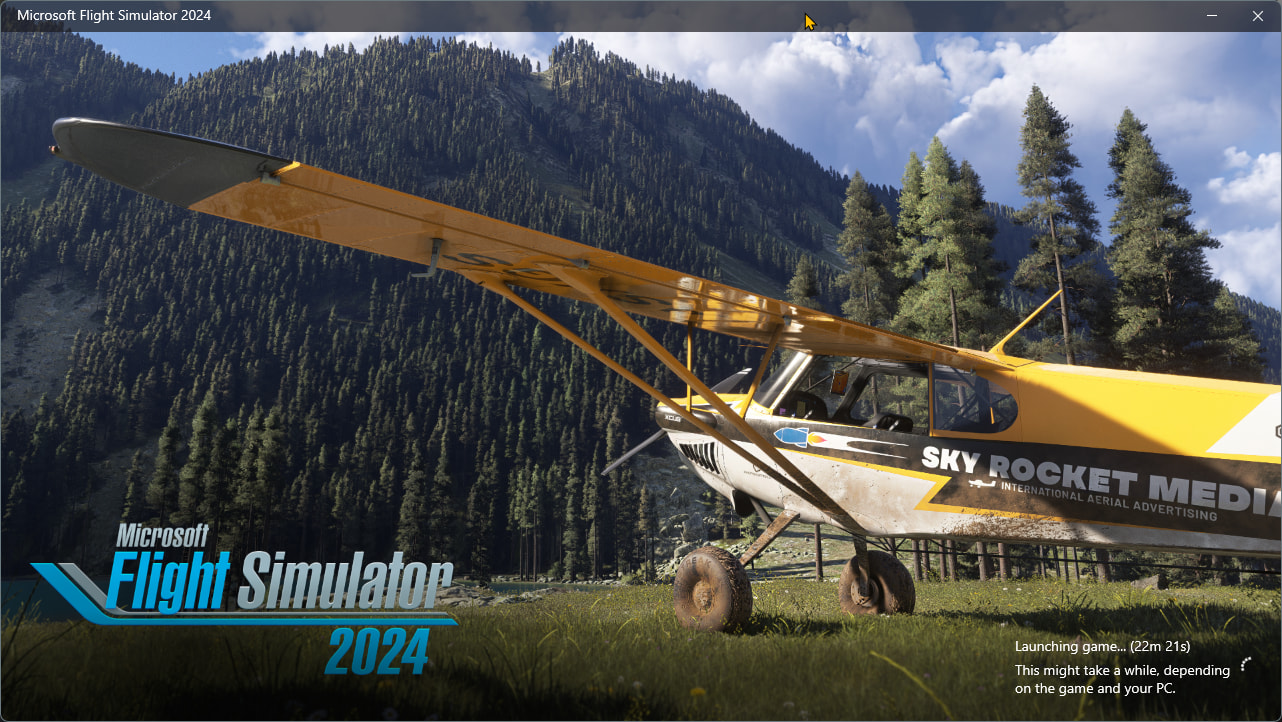
So it checks for updates, syncs and then hangs. Normally launches in 15-25 secs.
When i fall the driver a requestor comes up on boot that shows that it has messed with the registry.
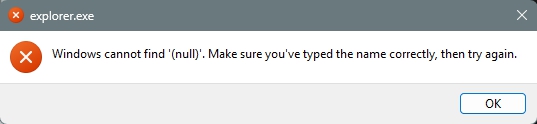
Yes a wipe has been done with DDU, no I have not moded 2024 in any way, other than things in the Community folder.
So has anybody got any ideas?
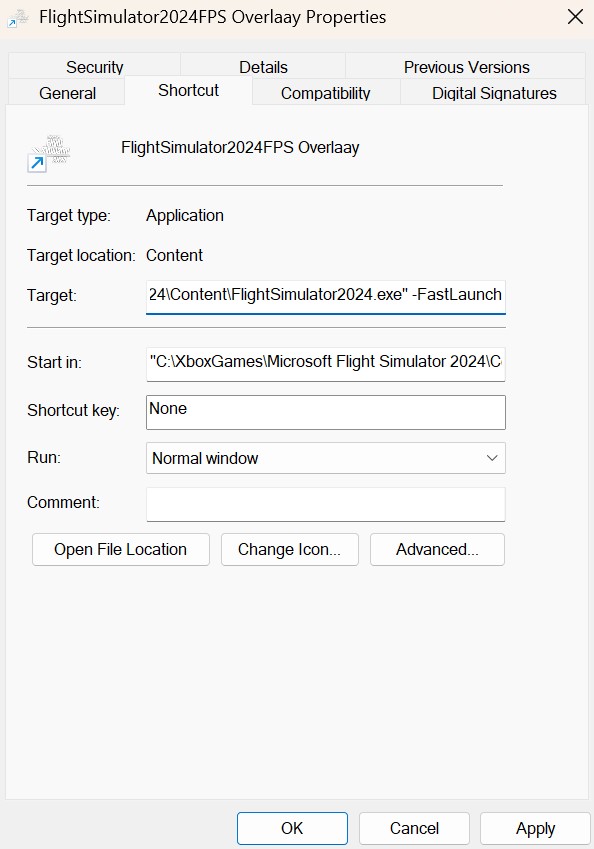
That doesn’t seem to be the original intro video, did you replace it? Perhaps that is causing your issues.
Wake me up when they bring back nvidia filters for 2024  .
.
Agreed. I run the stats always at the top and my CPU is noticeably being used more. You are not alone in noticing this.
Really? That is the one that I have always had.
Not sure, but I have never seen that image in the video. Perhaps my sim loads before getting to that part.
That is only the initial small window that is only open for about 30 secs at most. Then the main full screen window opens and you get the video.
I leaned some time ago that when you can’t find a fault or a fix then as soon as you post about it or try to explain the issue to somebody else then the problem is spotted.
It worked again. The problem is solved. I am now running on 616.92 and MSFS loads fine.
So in the spirit of knowledge sharing hopefully it will help somebody else - this is what i found.
I think it comes down to if you have more than one monitor.
OK on my many attempts to upgrade using DDU I noticed that Windows would boot after the upgrade onto the wrong screen and various other proggies were on the opposite screen that they should be.
So I wondered if it was something to do with the monitor setup.
I checked Windows and the monitors were set correctly, but in the NCP they were the opposite way around, still with the left one marked as the primary.
To cut a longer story short, I switched cables around from my monitors to the GPU so that Windows and the NCP were identical in setup. Still no joy, so then I tried to update the driver after using DDU and removing the Nvidia App and the NCP.
So the monitors were set as 1-2. Rebooted, tried the game again and it worked!
Amazing. So I thought that I would set the Nvidia App and the NCP back as they were, I had taken pics of the settings before.
Problem was that the NCP would install but the Nvidia App wouldn’t, through the MS Store. I downloaded the App straight from Nvidia and tried that, it wouldn’t start?!
So I tried reinstalling the driver and the App, this time, rather than just the driver. That worked. After I rebooted everything came up great, double-checked the monitors and found in Windows and the NCP they were 2-1 again with 2 being the primary!?
Now at this point I could have spent more time trying to get them to 1-2 but I decided that discretion was the better part of valour today and left it all working.
Interesting side note the problem that I detailed months ago about not being about to set my display in MSFS to the DL scaling factors is also fixed!
So in essence, until I am proved wrong, it seems that the issue is caused if you have multiple monitors and they are not aligned the same in Windows and the NCP.
The fix is two-fold. Ensure that the two display setups are identical, with your primary monitor being the one you want the game to load on.
Then you need to do a DDU clean of your current driver ALSO removing the Nvidia App and the NCP and settings.
The install of the 616 driver should then be fine, but ensure that you install the Nvidia App along with the driver.
Now the fact that my original monitor setup had worked for years seems to suggest that some coding has been changed in the 616 branch that specifically checks something to do with the monitor setups and doesn’t like it when it finds something it doesn’t expect.
Apologies for the long post but I feel that if it helps even one person then I needed to explain everything.
@TenPatrol Apologies but I didn’t need your suggestion as I had already started typing before your post went up. I am sure that it will help somebody, somewhere.
I wouldn’t recommend mixing settings between the NVIDIA app and NVIDIA Control Panel. It’s better to choose one or the other and keep your settings there, to avoid potential conflicts or unexpected behavior in the future.
For example, I used to use only the NVIDIA Control Panel together with NVIDIA Profile Inspector and I didn’t even have the NVIDIA app installed. However, NVIDIA later added some interesting settings to the NVIDIA app, so I eventually stopped using NPI/NCP and moved my GPU and game settings to the NVIDIA app instead.
This may help.. or may not… but it could be worth your time.
How to Scan & Repair Windows 11 for OS Errors (DISM → SFC → CHKDSK)
Windows 11 has built-in tools to fix corrupted system files and disk errors. Run them in this order for best results — each step preps the next.
1. Repair the Windows image (DISM)
Open Command Prompt as admin (Win + S → type cmd → Run as administrator), then run:
DISM /Online /Cleanup-Image /RestoreHealth
This can take several minutes — let it finish.
2. Scan system files (SFC)
In the same window, run:
sfc /scannow
Wait for it to hit 100% and show results. Restart if prompted.
3. Check the disk (CHKDSK)
chkdsk C: /f /r
(Swap C: for your drive letter if needed.) It’ll ask to schedule the scan on next restart — type Y and reboot.
Why this order? SFC repairs files using a local cache — if that cache is damaged, SFC can fail. DISM fixes the cache first so SFC has clean files to pull from. CHKDSK is separate (it checks the physical disk, not Windows files) so it’s fine to run last.
Optional extras:
- Settings > System > Troubleshoot > Other troubleshooters
- Search “Windows Memory Diagnostic” in Start to test RAM
Note: /r in the CHKDSK command does a full bad-sector scan and can take a while on large/older drives. Drop it (chkdsk C: /f) if you just want a quicker file-system check.
I would tend to agree with you. I fully expect that the settings that are duplicated will already be carried over. The DLSS settings are of course the main ones that will be different in the app.
Thanks for that, but I had already tried those commands before I went down the route of repairing windows. As you say part of the first step bag of tricks.
Great to hear you have managed resolved the issue in your set-up 
Unfortunately for me the problem remains as I only use one monitor and a VR Headset which doesn’t manifest as a second monitor.
Sorry to hear that what I went through is seemingly of no use for you.
Can you confirm that you have used DDU to get rid completely of driver settings plus the Nvidia App and Nvidia Control Panel?
I am not saying that it is definitely a fix-all, but for me in my numerous attempts the only time that I cleared out the two apps as well that it worked.
Could be be completely coincidental but if you haven’t tried then I would encourage you to try it. Take screenshots of the various settings first. I know that it is easier for somebody that only has one game to do rather than if you have 50. But it might be worth it.
Running fine on my ASUS 5080 for 24h.
Finally got around to doing testing and a review of this driver.