@shameelx1249 Yes, rivatuner can set fps locks down to 3 decimal places. You just click in the lock field and type what fps you want including decimal point.
I just found out that when I put in the framerate, I had to use the “period” for the decimal point as the number pad decimal point wouldn’t work for me.
This might be a dumb question - if my advanced FPS overlay has 24000 for app CPU and 36000 for app GPU, that would imply I’m GPU bound right?
I’m experimenting with the toolkit but there is something I don’t understand, in the FSR/NIS section you can reduce the render or whatever it is called, I’ve got this set to FSR 95%, however I also have the overide resolution set to quite a high figure, 5000+x??? something like that, I can get the exact figures later. Is this the most efficient way or am I best simply reducing the overide figures down a bit and leaving the FSR at 100%.
I use FSR as opposed to the CAS sharpener as it seems to work better.
Does anyone use XRNeckSafer? I ask because I can’t get XRNeckSafer and this toolkit to work together. When I switch to VR I get a gray screen in my Reverb G2. The sim is running. I can hear it but the screen is gray.
If I disable one of these (they both have OpenXR API layers) then it works. But together it doesn’t work. Does anyone have a workaround so I can use both together?
Note that there’s an issue ticket on the XRNeckSafer site detailing the issue. It states that the 2 tools worked together up until version 1.2.2 of OpenXR Toolkit but after that we get the gray screen.
I quit using XRNS after G2 issues in DCS (where I also use OXRTK). If I recall correctly, the image was inverted. Does appear to be a conflict.
I’m confused by something basic.
When setting the image quality of MSFS, does it make sense for us VR Shimmer to set the items on the “pc” side?
It seems that the option of whether to choose DX12 can only be selected on the “PC” side, and there are various other items.
Where do you turn motion reprojection on and off?
I don’t see that setting in TOOLKIT.
However, I’m using turbo mode, so I’m guessing that even if motion reprojection is turned on, it will be ignored.
Hey, would it be possible to have the version that work for the pimax crystal with eye tracking ? thanks a lot
The public version 1.3.2 works with Pimax Crystal without any changes. That’s the magic of OpenXR.
What you need is to grab latest PimaxXR 0.4.0 which enables eye tracking.
NOTE: You will need a version of Pimax Client that has eye tracking enabled. AFAIK Pimax hasn’t released that publicly yet, so unless you are an official Pimax beta testers, this will be your blocking factor.
Late to the OpenXR Toolkit game, and I’m partially blind now (and totally confused) from reading three thousand, seven hundred-something posts.
I have a 13900k, a 4090 and Valve Index. My questions are these:
IS Toolkit going to benefit me? (Only care about VR)
Would anyone [with the Index] care to share their settings?
I dont have an Index but the sharpening options alone were a gamechanger for me in VR on Reverb G2 - doubly so when combined with supersampling.
Besides performance the Toolkit will give you:
- sunglasses
- ability of color/brightness corrections
- FPS counter
And much more. Read the toolkit manual, it’s brilliant.
I have an OG Vive Pro1 with Index controllers. Basically it is very similar as an Index in that it is a native SteamVR headset, and also the same res. I also have pretty well the same PC specs (i913900 water cooled, rtx4090, 32Gb 5200ram, z790 mb, 1000w psu).
BTW, only the Index, OG Vive and OG Vive Pro are Native SteamVR headsets. The rest like newer Vive’s, WMR, and Oculus all require their own bridging software to run SteamVR.
I’ve muck around with numerous settings, including using OpenXR Toolkit and come to the conclusion that the KISS principle works best, for me anyway. Also, avoid over-monitoring FPS. The best thing is not to worry about it, just observe the results you actually see.
So, these are the settings I’ve found work best with my VP1 and I think you’ll also get very good results with your Index;
SteamVR set global visuals manually (not auto) to 100% and disable advanced super sample filtering. With MSFS per app settings set the visuals to 350% (I’m not kidding, lol!).
With nvidia control panel global 3D settings set (and forget) everything to defaults except power = prefer max perfomance and change Quality filtering from default Quality to High Performance. That’s it, nothing else really matters with PCVR imho. Some believe adding AF 16x here and then disabling it in msfs works best but after trying it both ways I don’t see any difference.
Windows 10/11; disable hardware graphics acceleration (HAGS) and turn Game Mode off.
With MSFS VR settings; mainly defaults (incl dx11) except I use DLSS/Balanced or Performance (your choice), motion reproduction off (native SteamVR already does this very well but you can try it to see if it helps or not). Then set overall graphics to Ultra , save, and then adjust a few things down a bit like clouds to high, trees/grass to low, and AF to 16x. Then save again. Anything else is kinda up to you but I don’t notice a lot of difference performance wise. Up to you to fine-tune these (and further things like traffic, which I set pretty low (10%) to your liking imho.
Anyway, these are the settings that overall work best for me with my VP1 and I think they should also work well with your Index. Try them out and see how you go.
The main secret I found was applying a very high 350% Visuals on the msfs per app settings together with DLSS (balanced or performance) produced better/clearer/smoother results than I could get using multiple combinations of TAA and OpenXR toolkit resolutions. I also did not notice any significant performance improvements with Fixed Foveated Rendering and didn’t like the resulting blurry edges.
Good luck with all that mate and cheers.
The gift that keeps on giving (quest 2 enhancements)
I have seen demonstrable improvements with v55 of the quest 2 firmware. Dialling in my toolkit,oculus,NVIDIA settings having the best experience in 3 years of VR on a 10700k, 3070.
There is a new sharpen setting in quest debug called quality (meta quest super resolution MQSR). Has anyone played with this yet and does the toolkit need to allow for this capability?
Here is the article: New Meta Quest Super Resolution provides sharper graphics
I’m trying to understand if this can natively be leveraged by toolkit or msfs or does it need toolkit or msfs to enable the following:
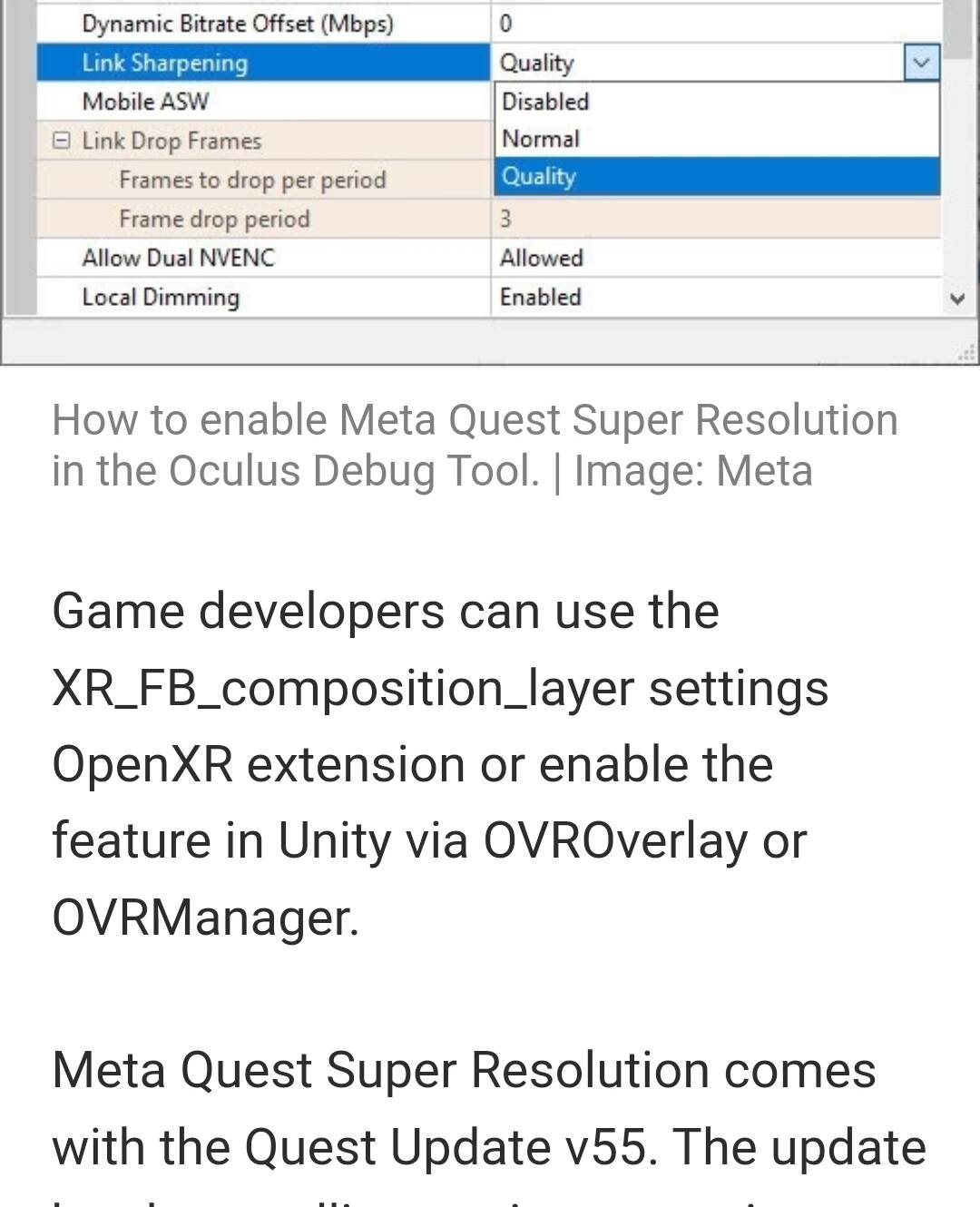
I did have a quick test this morning on quality. I did not see a dramatic difference and possibly a degradation of quality was perceived. Hoping this can give us oculus users just that little bit more performance out of this headset 
Just when you thought the quest 2 has hit it’s limit, it delivers one more suprise.
I received my Pimax Crystal yesterday and am having weird problems using the Toolkit with PimaxXR. Despite having a 5800x3D and a 4090, with resolution override lowered to 3500 x 4142 and reasonable settings in MSFS, the game is unplayable in VR. YouTubers using the same settings seem to have no issues at all. The headtracking goes crazy, so I get this massive jitter when I move my head, not quite rubber banding, but jumping in large increments, instead of being smooth. My framerate though is fine, 70FPS or more over photogrammetry Melbourne. Even when I go back to the menus the headtracking still jitters, but it didn’t when I first entered the game.
The twin image mirror on my monitor while in VR does not show this problem though, moving the headset works smoothly on the monitor.
If I then use SteamVR with the same resolution all is fine, though of course without all the other benefits of the Toolkit.
This has been doing my head in all morning. HAGS on with or without Turbo mode.
Any suggestions much appreciated.
Edit: I’m stumped, as I tried running the sim in PimaxXR but with the Toolkit disabled and it worked fine. Closed the sim, re-enabled the toolkit and it was working fine. With DLSS quality I was getting 70fps, no motion reprojection and it was as smooth as butter, even with TAA I was getting 50-55FPS and still smooth and sharp as a tack. In fact there’s no need for motion reprojection, as I just don’t notice any judder moving my head. The Crystal visuals are simply stunning compared to the G2 or the Pico 4.
I did disable HAGS, but unsure if that was it. Turbo mode also worked fine.
Yes HAGS was your issue based on the symptoms you described.
It’s an issue of Pimax Client.
Thanks, I think you are right, as I have now had many more flights using PimaxXR and the Toolkit with no issues at all. I even bumped up the resolution to, I think 3700 by whatever, still with great framerates and the visuals were just astounding. With local dimming panels, the worse the weather, the better it looks. 
Glad it’s working now! Crazy that you are getting such good visuals with the “low” res of 3700Xxxx. In the G2 I need to up sample to 4500Xxxx or more to get a really crisp image. What res were you running on the G2?
On the G2 I was using 4,400 by whatever. Because the pixel density is higher on the Crystal and with 35PPD lenses, it seems you don’t need to raise resolution to as high as framerates allow to get good sharpness. Plus on the Pimax software you can fine tune the IPD for each eye horizontally and vertically for proper stereoscopy and to correct for any diplopia (if I cover one eye and then the other my right eye moves objects to the right and about the same amount up, this is a common problem as people age). Being able to correct these things gives you much better 3D effect that matches what the brain expects, plus eliminates eyestrain. The sweet spot on the Crystal is now in the proper place and everything looks really good with excellent framerates.