Thank you. Do you recommend disabling SVM and IOMMU, also known as Core Isolation? I saw that it can affect the security of the system. How is the performance without that?
You can disable virtualization if it’s not needed. On AMD platforms, this means SVM and IOMMU. Disabling SVM and IOMMU can improve overall PC performance, but one Windows feature will no longer be available: Core Isolation – Memory Integrity.
EDIT
The Ryzen 7 9850X3D does not really need to be overclocked because it is already a very powerful gaming CPU. I’m saying this from my own experience, as I have this CPU myself. In your case, the bottleneck may be your GPU. However, if you play at Full HD or 2K, it should be fine.
In addition to what @TenPatrol said, in very general terms:
-
Undervolt is a simple technique that creates a bit of thermal headroom for the automatic boost clock. Most 9800X3D CPUs can easily handle -10 to -15 or more, but it’s easy to go too far and actually lose a bit of performance if any of the cores don’t have the voltage they need when boosting. So it’s worth comparing performance of -15 to -10.
-
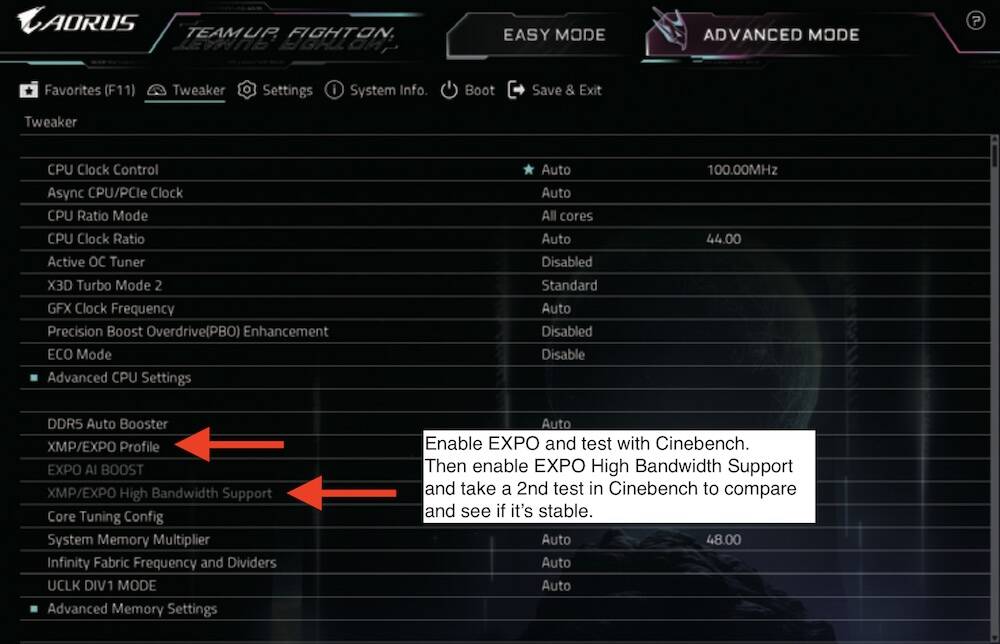
The single most effective thing to improve MSFS performance is memory tuning, because MSFS moves so much data around in RAM. Having EXPO enabled is the first step, but I would also suggest trying the EXPO High Bandwidth Support shown in the BIOS guide for your board.
-
I’m not sure what the choices are for High Bandwidth Support, but on my MSI X870E board, it’s called High Efficiency Mode with 4 presets, which basically tighten memory subtimings, and give me a 10 to 20% increase in performance in MSFS, no joke.
-
It’s worth researching the latest stable version of BIOS for your board (not beta or test versions…) because these often include improvement to memory timings.
-
It’s also worth installing the latest AMD Chipset Driver for X870E - be sure to download, disconnect from the internet before you run it, run as Admin, reboot.
I tried a few of the tricks with turning off core isolation, etc, and found no benefit on my pc. But I do turn off all of the following Windows ‘features’:
- Disable Fast Startup (Control Panel > Power > Choose what power buttons do > Change settings currently unavailable > Uncheck Fast Startup (it only shows if Hibernation is enabled… so if Hibernation is disabled, then Fast Start is off.
- Disable Hibernation: CMD as Admin >
powercfg.exe /hibernate off
Then in Settings, this is what I turn off
- System >
- … Notifications > Additional Settings > Suggestions, Tips OFF
- … Power > Sleep = Never
- … Power (I leave mine set at the default, Balanced)
- … Nearby Sharing = OFF
- … Clipboard history = OFF
- Apps >
- … Startup Apps > OneDrive, Teams = OFF
- … Resume = OFF … not sure many people notice this one
- Privacy & Security >
- … Recommendations & offers = OFF
- … Inking & Typing = OFF
- … Diagnostics > Optional = OFF
- … Search > everything = OFF
- Microsoft Edge…
- … Privacy > Help Improve, and ‘Allow Microsoft’ … OFF
- … Copilot > OFF
- … Start > Automatically open Edge when you sign in to Windows > OFF
- … System & Performance >
- … System > Startup Boost > OFF
- … System > Continue running in background > OFF
- … Performance > Preload > OFF
- Windows Update > Advanced > Delivery Optimization > Downloads from other devices > Off
I’m playing 2K, and there are no problems while gaming. Thank you for your advice.
Quick question: I’m in balance mode, but I’ve already changed a few settings, like the PCI power state and SSD state.
Sorry I’m not sure what those settings do, I leave those at default on my system.
But in re-reading your specs, you say you have 3 drives installed - I would want to make sure the GPU and the primary drive both have full PCIe bandwith, and the extra drives are installed in slots that don’t split the PCIe lanes for the GPU.
I think this is your board… a video showing the slots and lanes.
Also for anyone following the thread, AMD released a new Chipset Driver for X870E today:
Hello, and thank you for the video.
The game is located on the M.2A slot.
The GPU is installed in the PCIe X16 slot.
I have a 1TB SSD in the M.2D slot and another 1TB SSD in the M.2C slot.
The M.2B slot is currently unused.
I believe my current configuration could be optimized.
Thank you for informing me about the chipset drivers.
So according to the Gigabyte X870E Aorus Elite X3D Ice manual (distinct from the Elite Wifi7 version…), I think you have the 3 drives installed correctly to avoid lane splitting - the M2A, C, and D slots are independent, only the B slot would split lanes with A.
There’s no point in overclocking your CPU or GPU in that case. If everything is running well at 2K, I’d just leave it as it is.
In addition to what Gimball mentioned, I would disable the iGPU in the BIOS. You already have an RTX 5070 Ti, so you don’t need the integrated graphics.
BIOS > Settings > IO ports
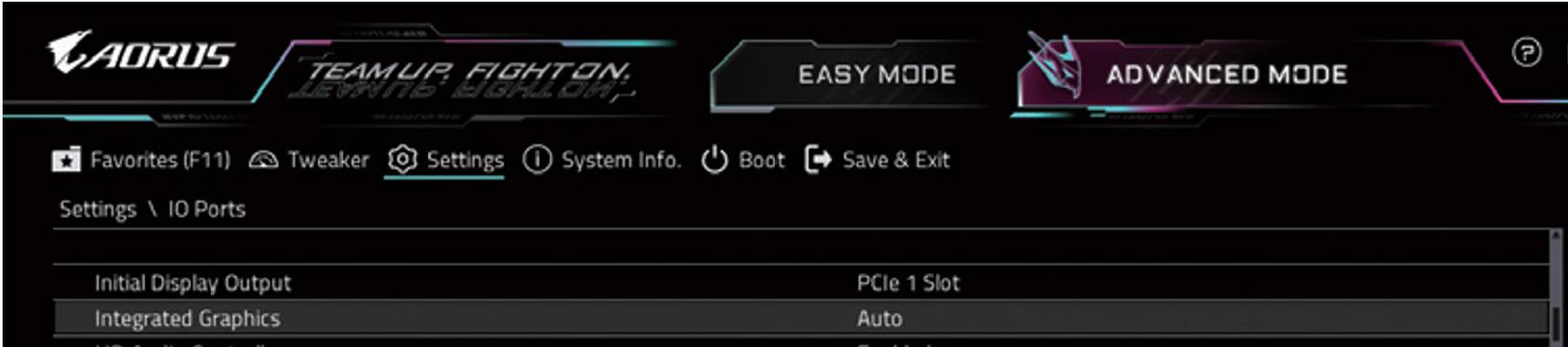
Change Integrated Graphics from Auto to Disabled
Save and Exit
I would also switch the Windows power plan to Ultimate Performance. Since you’re a gamer, your PC should be running at maximum performance.
1 How to enable the ultimate performance powerplan.
2 Select ultimate performace powerplan and click change plan settings > change advanced power settings
3 Expand - PCI Express > Link State Power Management: set Settings OFF
Apply > OK.
Restart PC.
-
Go to Windows Settings > System > Display > Advanced display.
Next to “Choose a refresh rate” set it to the highest Hz your monitor supports. -
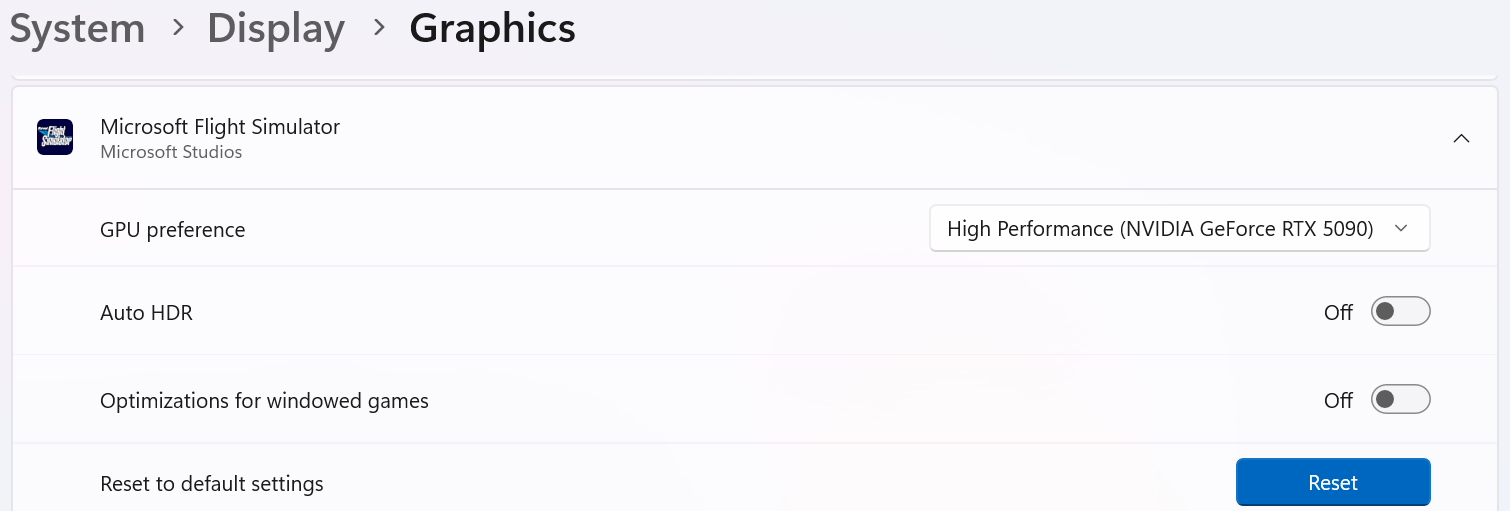
Go to Windows Settings > System > Display > Graphics. Click “Add Microsoft Store app” then select Microsoft Flight Simulator from the list. Click on Microsoft Flight Simulator to open it and expand the options, then set GPU preference to High performance (NVIDIA RTX 5070TI).
EDIT
@CayeLopez339
Download and install GPU-Z.
TechPowerUp GPU-Z v2.70.0 Download | TechPowerUp
After installation launch it and click the question mark icon next to Bus Interface.

In the new window, click “Start Render Test”.
The value after @ x16 should change, for example, from 2.0 to 5.0.

It is important that it shows x16 and not, for example, x8.
How does it look on your side?
Thank you both, @TenPatrol and @GimbalAxis, for helping me achieve the best performance for my rig. I will double-check whether my PCIe 5.0 x16 is splitting the line, as it seems to be indicated in the video. The results of my tests will be coming shortly. Additionally, I will be disabling the integrated GPU in the BIOS.
I just completed the test, and it confirms that I have PCIe x16 4.0. I changed the setting in the BIOS to PCIe x16 GEN 4 because the riser cable in my PC is a HYTE 60 GEN 4 cable. It seems that my x16 is functioning properly at GEN 4.0.
What do you think about keeping on optimization for windowed games? I saw that you have that option off?
I think your motherboard is capable of PCIe 5, and your drive placement is not interferring - so it’s too bad if the riser cable is forcing your GPU down to PCIe 4…
You would have to look at the performance in MSFS to know if that is causing a bottleneck (it may or may not, depending…).
I don’t think that is causing a problem, but I was looking to connect my GPU directly to the motherboard, but I can’t because of my case. Yes, my motherboard is capable of Gen 5, but because of my riser cable, I have to keep it in Gen 4.
Hyte makes a Gen 5 riser cable now - but you still need to know if GPU is a bottleneck, the FPS overlay in MSFS would help you figure that out. I think most peopel are Limited by CPU, but the only way to know on your system is by testing.
Being limited by the GPU is similar to the main thread problem caused by the CPU. I believe this issue is related to the poor optimization of MSFS 2024.
Yes, I know, what I’m trying to help with is, if your MSFS is GPU limited … specifically speed limited, not VRAM limited - then the 1 unusual thing about your set up is using PCIe 4 speed on your GPU, and there is a PCIe 5 riser card available that might be worth it - IF there is an issue.. That might (or might not) be a bottleneck.
Don’t limit your GPU because of the riser cable. I’d recommend setting the PCIe slot back to Gen 5 and replacing the riser with a better one that’s designed for PCIe 5.0 and the latest GPUs. That way, you won’t be holding your graphics card back.
This feature is mainly intended for DX10/DX11 games, while MSFS 2024 uses DX12, so it can be turned off.
The best solution would be to get a larger PC case. It would not only allow you to connect the GPU directly to the motherboard, but it could also improve airflow and help reduce the temperatures of the whole system.
I’m planning to get a new case to accommodate my GPU, and I want to make sure it supports Gen5 PCIe. I’d like to know your thoughts on using Resizable BAR (REBAR) – should I keep it on or off? I watched a video that suggested it can improve the smoothness of the simulation, but I also recall hearing that REBAR caused some issues, particularly during long-haul flights. What are your opinions on this?
Every combination of hardware is unique, so you have to test on vs off on your particular combination. I leave most things at defaults: ReBar on, HAGS on.