Please add recommended specs to the offical FAQ for mutli-monitor use of MSFS.
The official MSFS 2024 FAQ page currently lists recommended PC system specs for 3 scenarios - based on 1 screen:
- Minimum
- Recommended
- Ideal
Although not shown in the published specifications, in the Technical Q&A chapter starting at the 19 minute mark of the MSFSOfficial September 2024 Developer Stream, Seb and Martial explain that the memory and other PC specs are based on using MSFS on only 1 screen, as follows:
| Specification | Minimum | Recommended | Ideal |
|---|---|---|---|
| VRAM | 4 GB | 8 GB | 12 GB |
| RAM | 16 GB | 32 GB | 64 GB |
| Screens | 1 | 1 | 1 |
| Resolution | 1080 | 2K | 4K |
| FPS | 30 FPS | 30 FPS | 30 FPS |
In the video Seb and Martial appeared quite confident of these specs, but there was no mention of specifications for multi-monitor setups. Many dedicated simmers use triple screens to get the most out of MSFS (and out of other simulator titles). Obviously rendering 3 screens requires more resources, however, we are left to guess what resources are needed without any official guidance, and risk misallocating money and effort.
Please consider publishing some guidance on the use of triple screens for MSFS 2024.
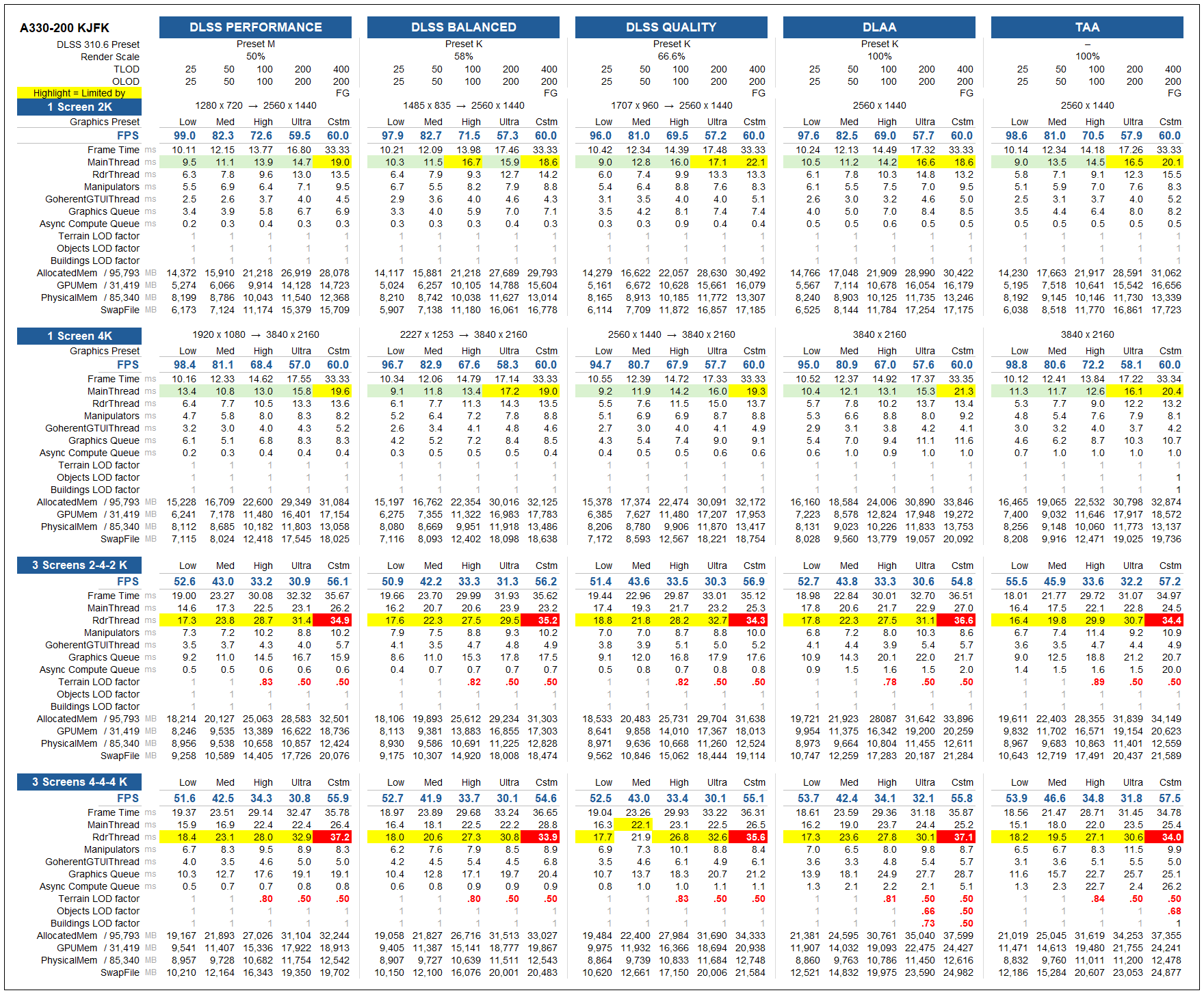
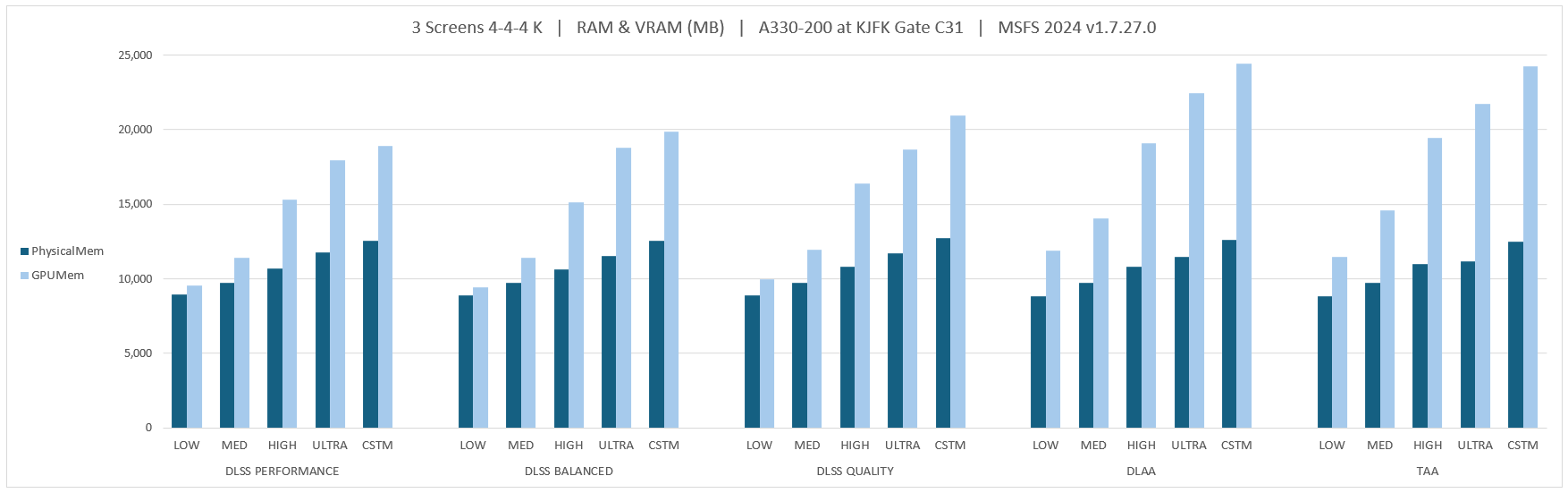
I did my own informal test to show what MSFS SU5 v1.7.27.0 currently uses on my PC (9800X3D, RTX 5090, triple 4K TVs). I think that MS / Asobo may have put in an artificial cap on memory allocation, which means even if you have extra RAM or VRAM to drive multiple monitors, those resources are not being used. I could be wrong, but that’s why we need official specs.
Test Method
I wanted to see the differences in performance between the combinations of:
- 5x Graphics presets: Low, Medium, High, Ultra, and a Custom setting
- (Custom = High + Max Frames 30 + Frame Gen x2 and TLOD 400)
- 5x Anti-aliasing Modes: DLSS Performance, Balanced, Quality, DLAA, and TAA
- 4x Screen combinations: 2K, 4K, and 3 screens as 2-4-2, and 4-4-4K
That’s 100 combinations!
Disclaimer - I tried to be consistent, but even the act of taking a screenshot affects the numbers (they dip slightly when you do the screen capture) so the results are very informal - but the pattern holds up if tests are repeated.
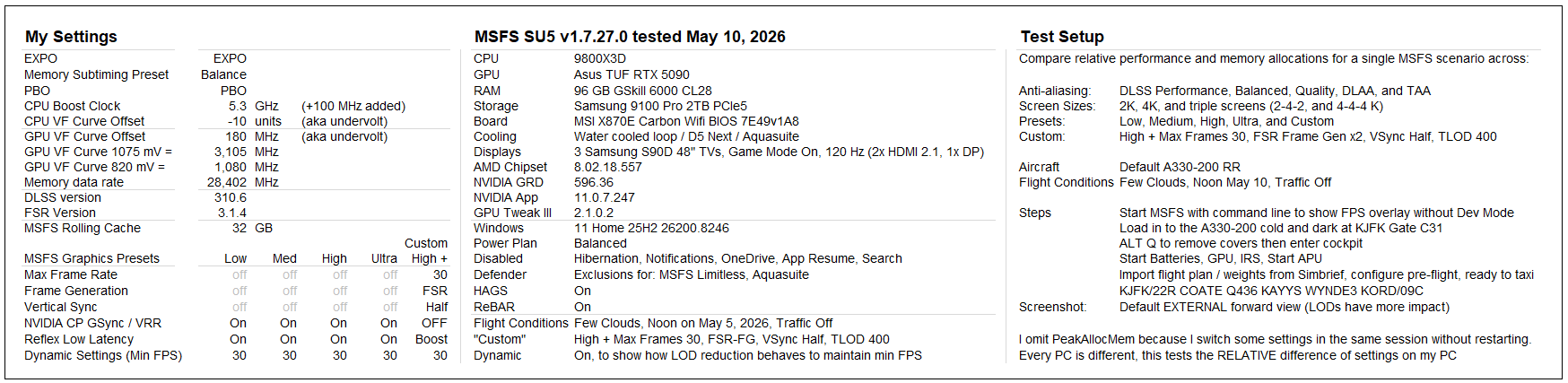
Every PC is different, but I believe the general difference between settings will be similar - or follow a similar pattern - on other PCs (up until you hit a bottle neck). For that reason, I didn’t use “defaults” for my BIOS, but left it in the tuned state I use - again because it is the differences between settings I want to measure.
In order to test, I needed to have a scenario that was easy to repeat, but also included proximity to a large city with photogrammetry and lots of objects to stress LODs. Here’s what I came up with:
- Launch MSFS with the command line to display the FPS overlay (without Dev Mode)
- Default A330-200
- Flight Conditions: Few Clouds, noon on May 10, 2026, No traffic
- Load in to KJFK Gate C31
- Start the batteries, IRS, APU
- Import a flight plan and weights, and do a basic preflight, so systems are active
- I selected the external view because the LODs have a greater impact on FPS
- Take a screen shot from the default external view to record data
Results!
- I tested 100 combinations of the same A330 sitting at Gate C31 at KJFK, and can provide screen shots of each one if needed.
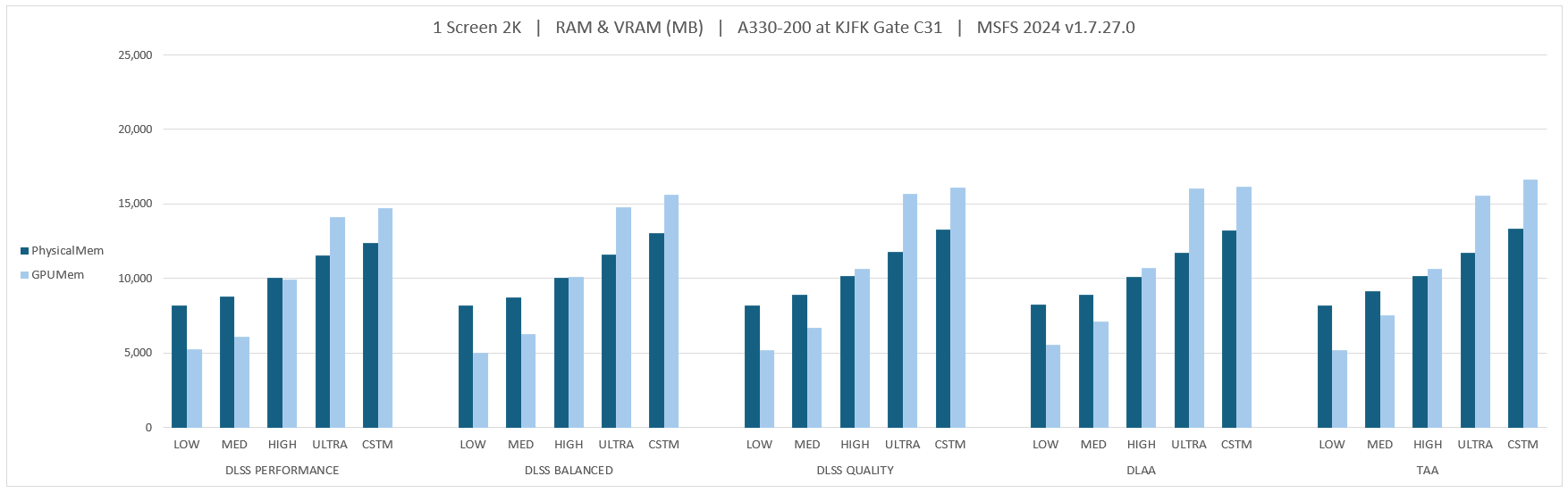
- Note how RAM never exceeds 12 GB (of 96 available)
- Note how VRAM never exceeds 24 GB (of 32 available)
- With triple screens Dynamic reduces LODs, I think because MSFS is not taking advantage of available RAM and VRAM, but this is why we need official guidance.
- The colour of the highlight is the colour that the MSFS FPS overlay shows for whichever item it is “Limited By”