FS2EFB bridges Microsoft Flight Simulator (MSFS) to tablet/phone EFB apps (SkyDemon, ForeFlight, XCSoar, etc.). It has two components you configure together:
-
MSFS Toolbar Panel — runs inside MSFS, reads SimVars, sends data to your device. Supports PC and Xbox, PS5 - waiting for MP access for 3rd party devs.
If you want to test this add-on before purchase - rent options are not available for tool add-ons sadly, but you can rent L-13 Blanik aircraft for $0.99. It has same script built-in into the tablet, with same functions available but only for single aircraft. -
Mobile Bridge App — receives that data and forwards it to your EFB app. Available both for Android and iOS (iPhone, iPad) devices
Part 1: MSFS Toolbar Panel
Opening the Panel
The panel is a custom MSFS2024 in-game toolbar panel. Open it via the MSFS toolbar during flight (or in the main menu). It loads as a Web Component inside the MSFS Coherent GT browser engine.
For FS24, FS2EFB script provided as EFB app. While all the functionality provided as-is (same script used for both), EFB app has significant advantage – it can work at background so no need to keep toolbar panel opened. The UI colors adjusted to fit newer palette scheme, but all the interactive elements position is the same.
Panel Layout (direct connection mode)
The panel has three main zones:
[ Connection Mode Buttons ]
[ IP Address Display        ]
[ SYNC IP / SHOW QR Button  ][ Help ]
[ Virtual Keyboard          ]
[ QR Codes (Android / iOS)  ]
[ START / STOP Button       ]
[ Log Area                  ]
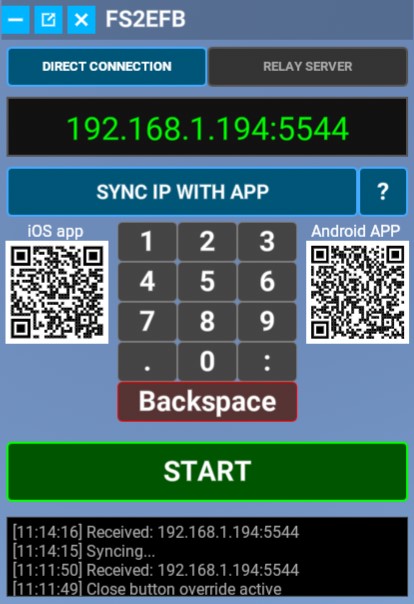
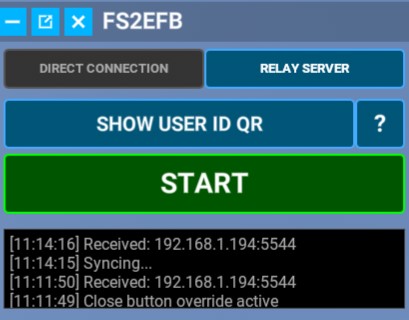
Panel Layout (relay server mode)
As connection happens through dedicated server, IP field is no longer required. Instead, unique ID used to connect your smartphone/tablet app with MSFS toolbar or EFB app.
[ Connection Mode Buttons ]
[ SHOW USER ID QR  ][ Help ]
[ START / STOP Button       ]
[ Log Area                  ]
YouTube: Connect your favorite EFB with FS24 in Cloud Gaming mode - FS2EFB tutorial
Connection Mode
Two buttons at the top switch between connection methods:
| Button | Mode | When to use |
|---|---|---|
| DIRECT CONNECTION | Sends data directly to a local IP:port | Same WiFi network, hotspot, or USB tether |
| RELAY SERVER | Routes data via dedicated relay server | When direct network access isn’t possible |
The active mode is highlighted. Switching modes changes which controls are visible.
IP Address Entry (Direct Mode)
The large green display shows the current target address (e.g. 192.168.1.5:5544).
Below it is a virtual numeric keyboard for entering the address directly in-sim:
-
Keys
0–9,.,:— enter digits and separators -
Red backspace key — delete last character
-
Format must be
IP:PORT(e.g.192.168.1.50:5544)
The address is saved automatically to browser storage and restored on next launch. You only need keyboard if SYNC feature does not work correctly for some reason.
In RELAY mode, the keyboard is hidden (no IP needed).
SYNC IP WITH APP Button
In Direct mode, this button attempts to discover the Android/iOS app’s IP automatically.
-
Launch FS2EFB app on your smartphone or tablet
-
Click SYNC IP button
-
“Syncing…” appears in the log
-
On success: IP field updates and button turns blue
-
On failure: button turns red, log shows
Sync Failed: Network ErrororSync Failed: Timeout. In this case, check the mobile IP on your device screen, type it using keyboard into IP field of the toolbar.
In Relay mode, this button changes to SHOW USER ID QR, which displays a QR code popup containing the session UID. Scan this from the mobile app to pair them.
START / STOP Button
The large button at the bottom of the controls section starts and stops data transmission:
| State | Appearance | Action |
|---|---|---|
| START | Green border, black background | Click to begin sending SimVar data |
| STOP | Red background, red border | Click to end transmission |
When active, the panel reads SimVars every frame via requestAnimationFrame and sends HTTP GET requests to the bridge app at the configured frequency.
Log Area
The dark scrollable area below the buttons shows real-time status messages, each with a timestamp:
| Message | Meaning |
|---|---|
Ready |
Panel loaded, awaiting action |
Starting send to 192.168.1.5:5544 |
Transmission started |
Stopped. |
Transmission ended |
Syncing... |
IP sync in progress |
Received: 192.168.1.5 |
Sync succeeded |
Sync Failed: Network Error |
Cannot reach device |
Error: Invalid Format. Use IP:PORT |
Malformed address entered |
[N] traffic planes received |
Traffic data count |
Flight plan received: [N] waypoints |
Mobile app sent a flight plan |
Teleporting to [WP] at [alt] ft |
Position set in-sim |
Weather preset applied successfully |
Weather updated |
Click the log area to copy its contents to the clipboard.
Help / Tutorial
The ? button (top-right of the panel) launches an 8-step interactive tutorial:
| Step | Topic |
|---|---|
| 0 | Welcome |
| 1 | Platform selection (Android / iOS) |
| 2 | Connection method overview |
| 3 | Local connection (WiFi client) |
| 4 | Hotspot connection |
| 5 | Relay server explanation |
| 6 | QR code scanning and UID |
| 7 | Starting data transfer |
| 8 | Completion |
The tutorial can be dismissed at any step. It only auto-launches on first use.
QR Codes
Two QR codes link to the Android and iOS app download pages.
Android: https://play.google.com/store/apps/details?id=com.touchingcloud.msfs2nmea
iOS: https://apps.apple.com/app/fs2efb/id6759614296
Screen Capture Overlay (Remote Touch, Android app only)
When Screen Cast is enabled in the Android app, the panel displays a live screenshot of the Android device. If Remote Touch also enabled, Tapping or dragging on this image sends touch events back to the phone via the HTTP response, allowing you to control the Android device from within MSFS.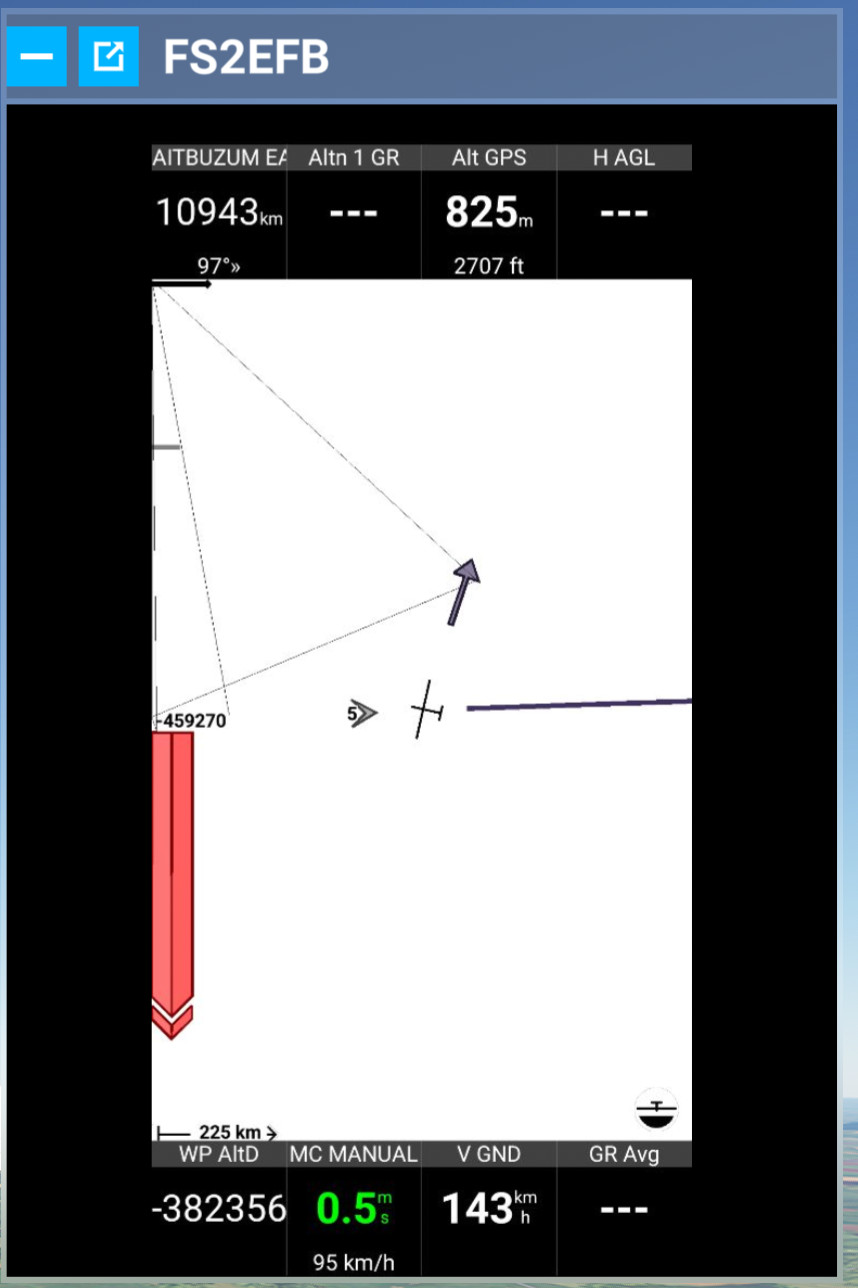
Flight Plan Import
When the mobile app sends a flight plan, a popup appears in the panel:
-
“Flight plan received: N waypoints”
-
Click LOAD to inject waypoints into the MSFS active flight plan
-
If Load & Teleport , the sim teleports to the first waypoint; aircraft attitude is preserved for ~10 seconds while terrain loads
Panel Settings (Stored)
These are saved in MSFS browser storage between sessions:
| Setting | Description | Default |
|---|---|---|
NMEA_IP |
Target IP:PORT | (last entered) |
FS2EFB_MODE |
DIRECT or RELAY | DIRECT |
FS2EFB_UID |
Relay session UID | (from QR scan) |
FS2EFB_TUTORIAL_DONE |
Suppresses first-run tutorial | false |
Runtime parameters (frequency, traffic range, etc.) are synchronized from the mobile app via the HTTP response JSON — the panel does not configure these independently.
Part 2: Mobile Bridge App
Screen Layout
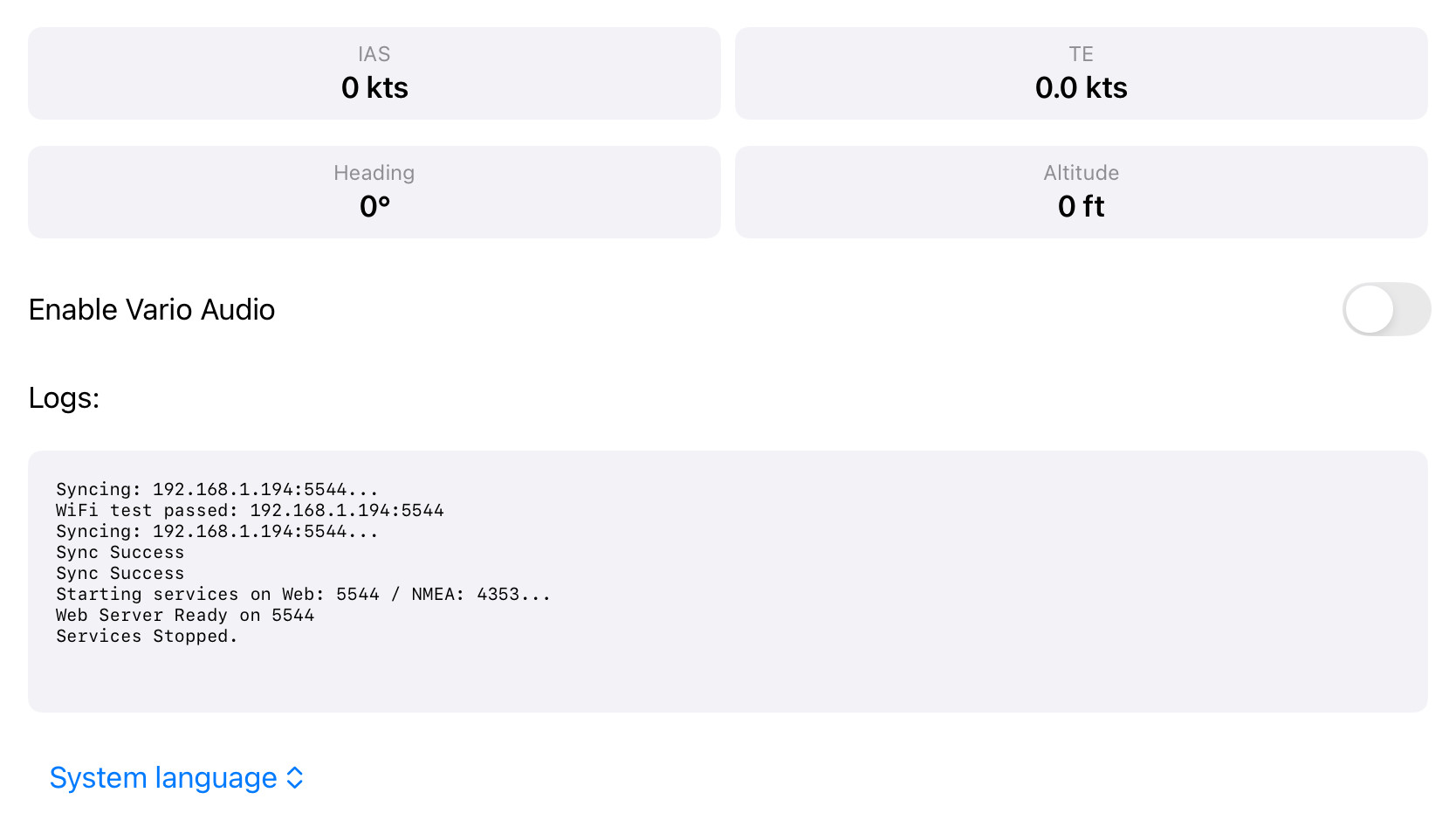
[ Preset Selector ]  [ Help ] [ Defaults ] [ Close ]
─────────────────────────────────────────────────────
[ WiFi Client ] [ Hotspot ] [ Remote ] [ Relay ]    ← Device Mode
─────────────────────────────────────────────────────
[ TCP Client ] [ TCP Server ] [ UDP Client ] [ UDP Server ]  ← Transport
─────────────────────────────────────────────────────
  FS Port:    [5544      ]
  NMEA IP:    [192.168.x.x]   (editable in client modes)
  NMEA Port:  [49002     ]
─────────────────────────────────────────────────────
[ SYNC IP ]  [ GET USER ID ]  [ START / STOP ]
─────────────────────────────────────────────────────
[ GPS Spoof ] [ Screen Cast ] [ Remote Touch ] (Android only)
─────────────────────────────────────────────────────
  NMEA Sentences:  ☐ GPGGA  ☐ GPRMC  ☐ LXWP0  ☑ XGPS  ☑ XATT ☐ RPOS
  Traffic:         ☐ XTRAFFIC_GND  ☑ XTRAFFIC_AIR
                   ☐ GDL90_GND     ☐ GDL90_AIR
                   ☐ PFLAA_GND     ☐ PFLAA_AIR
  Data Frequency:  ████░░ 5 Hz
  Traffic Range:   ████████░░ 250 NM
  Traffic Freq:    ███░░ 4 Hz
─────────────────────────────────────────────────────
  IAS: 245 kt   TE: +200 fpm   HDG: 270°   ALT: 32000 ft
─────────────────────────────────────────────────────
[VARIO] (iOS only)
─────────────────────────────────────────────────────
[ Log area — scrollable, tap to copy ]
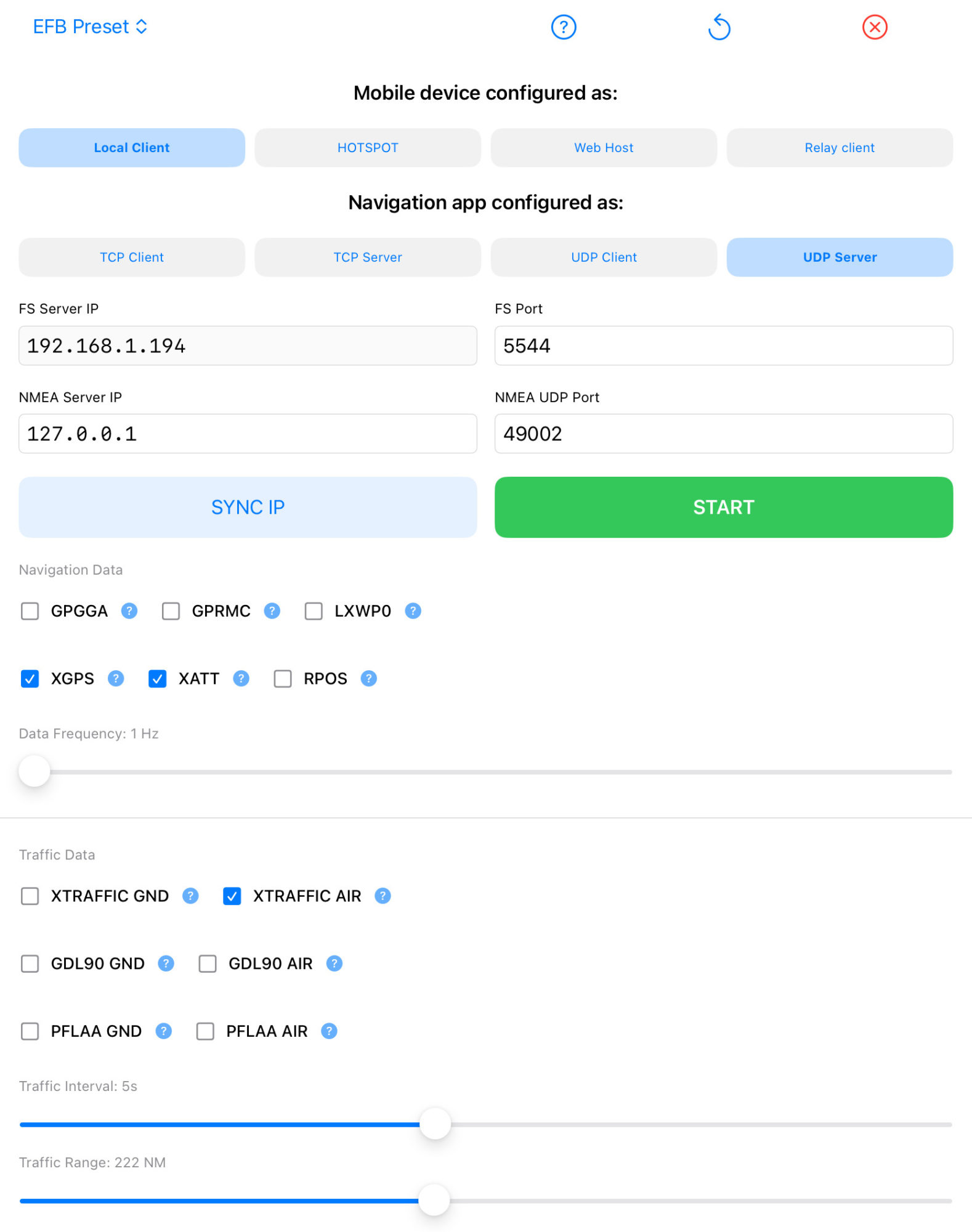
Presets
The preset dropdown at the top loads a predefined configuration suitable for common EFB apps. When a preset is selected:
-
Only compatible device modes and transport modes are enabled (others are grayed out at 5% opacity)
-
NMEA sentence checkboxes are set to the preset’s recommended combination
-
Manual overrides remain possible (“CUSTOM” label appears)
Top Bar
| Control | Function |
|---|---|
| Preset Spinner | Loads a preset configuration (mode + transport + sentences), only usable options are unlocked. “CUSTOM” = manual settings, all the options available |
| Help | Opens preset documentation in browser |
| Restore Defaults | Resets all settings to factory defaults (confirmation required) |
| Close | Exits the app |
Device Mode (Row 1)
Selects how the phone is connected to the MSFS PC/console. Only one mode is active at a time (highlighted blue).
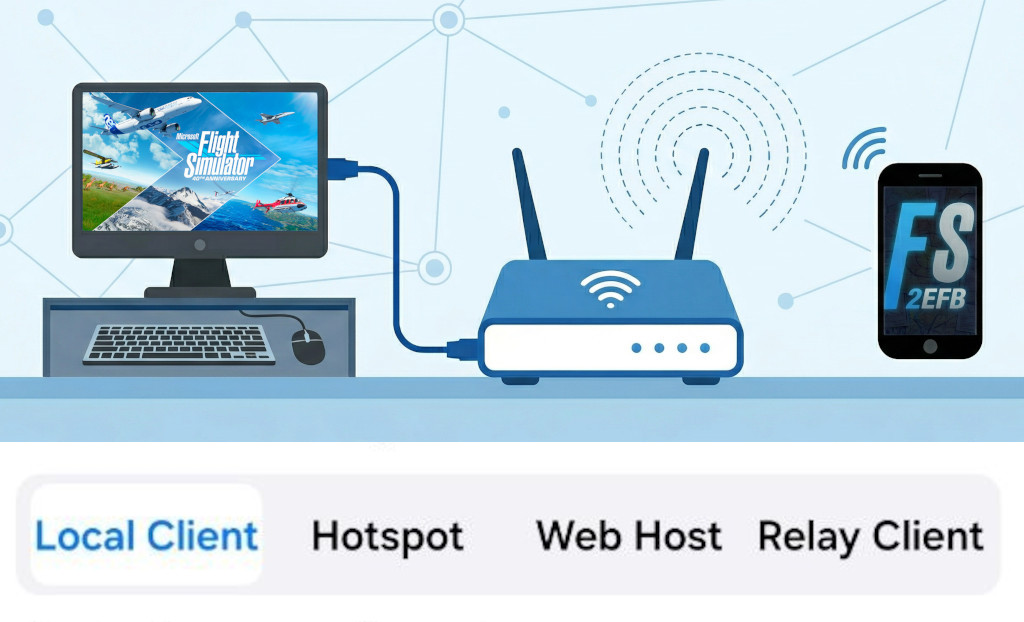
WiFi Client
Phone and MSFS PC/console are on the same WiFi network.
-
App shows the phone’s local IP
-
Use SYNC IP to auto-discover the PC/console’s IP
-
Most common setup for home users
Hotspot
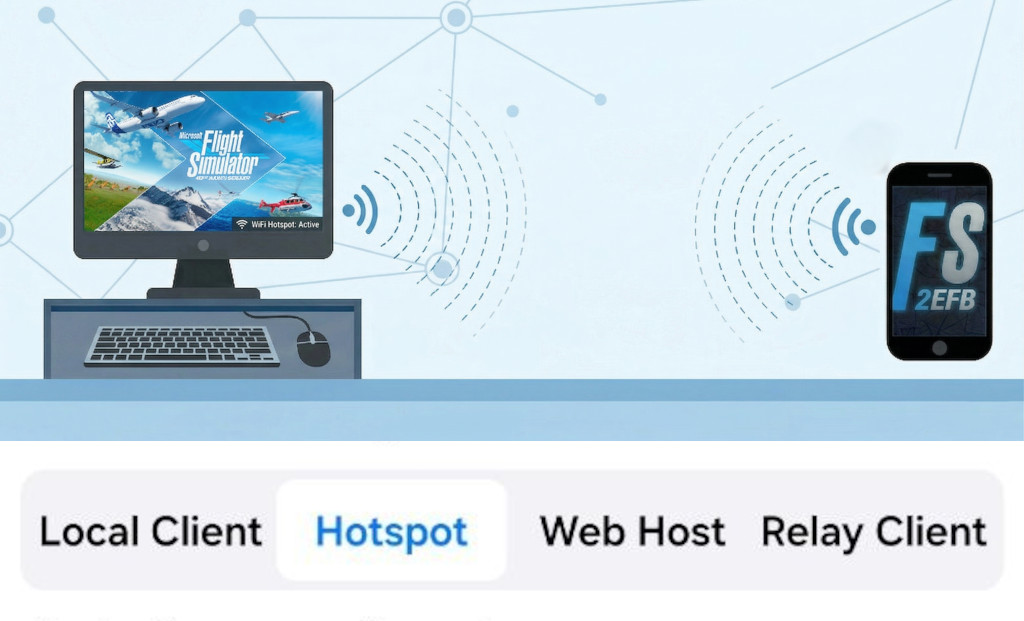
Phone creates a WiFi hotspot and the MSFS PC/console connects to it.
-
App auto-detects the hotspot gateway IP
-
No sync needed — the PC/console’s IP is known
-
UPnP is disabled in this mode
Remote
Uses UPnP port mapping to expose the phone through a router.
-
App fetches the external IP via STUN
-
Shows a 5-step UPnP setup dialog with pass/fail/warning per step
-
Requires the router to support UPnP, or manual port forwarding
Relay
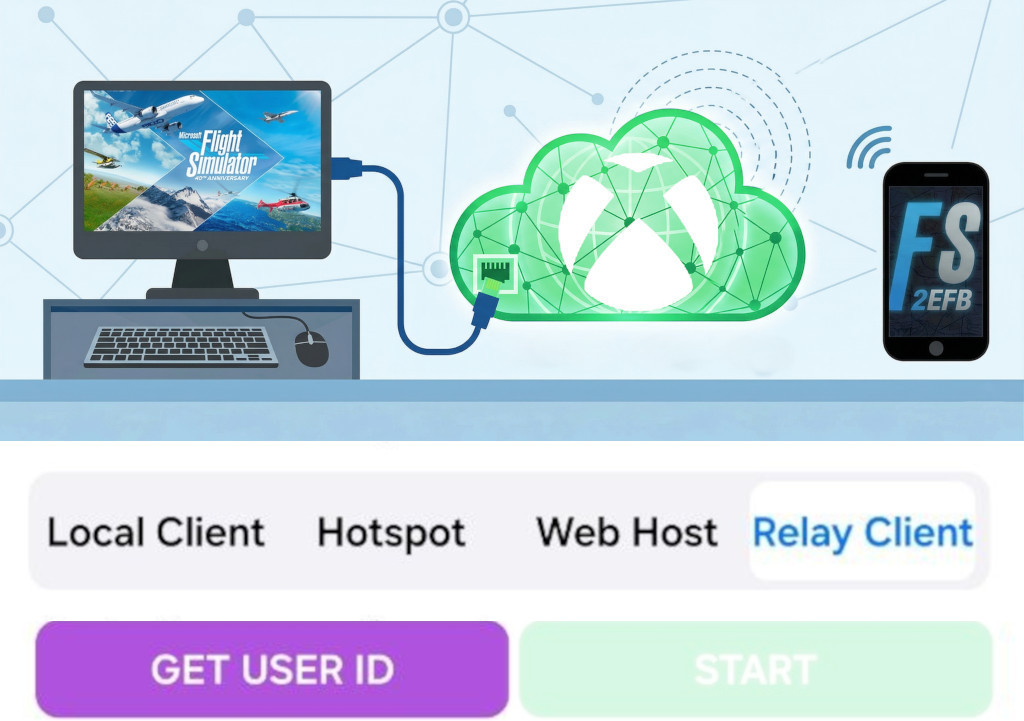
Uses the relay server — no local network needed.
-
Requires a UID obtained by scanning the QR code shown in the MSFS panel
-
The GET USER ID button appears (replaces SYNC IP)
-
UID is stored and reused on subsequent launches
-
START is disabled until a valid UID is present
-
Screen share is not available in this mode, data frequency is locked to 1hz (once per second)
Transport Protocol (Row 2)
Selects how NMEA data is delivered to the EFB app. All modes are from the EFB app’s perspective:
| Mode | Who connects/sends | NMEA IP field |
|---|---|---|
| TCP Client | EFB connects to phone (phone is TCP server) | Disabled — shows phone’s IP |
| TCP Server | Phone connects to EFB (EFB is TCP server) | Editable — enter EFB app’s IP |
| UDP Client | Phone sends UDP packets to EFB | Editable — enter EFB app’s IP |
| UDP Server | EFB sends UDP packets to phone | Disabled — shows phone’s IP |
GDL90 always uses a dedicated UDP socket on port 4000, regardless of transport mode.
Network Fields
| Field | Label | Default | Notes |
|---|---|---|---|
| FS Port | “FS Port” | 5544 | Port the web server listens on for MSFS data |
| NMEA IP | “NMEA Server IP” | 127.0.0.1 | Target IP (EFB app). Editable only in client modes |
| NMEA Port | “NMEA Server Port” | 49002 | Output port for NMEA sentences |
Changing NMEA IP or port while the service is running automatically stops the service.
SYNC IP / GET USER ID Button
-
WiFi/Hotspot/Remote modes — shows SYNC IP: sends an HTTP request to the MSFS panel to retrieve its detected IP, then updates the NMEA IP field
-
Relay mode — shows GET USER ID: opens the QR scanner; scan the QR code shown in the MSFS panel to extract and store the UID
START / STOP Button
Starts or stops the data transfer service.
| State | Appearance | Notes |
|---|---|---|
| START | Green | Service is not running |
| STOP | Red | Service is running |
When running, the service:
-
Hosts a web server on the configured FS Port to receive MSFS HTTP data
-
Parses incoming telemetry
-
Sends enabled NMEA sentences to the EFB app via the configured transport
-
Sends GDL90 heartbeats every 1 second (if enabled)
-
Auto-stops after 5 minutes with no data received
Feature Buttons (Android only)
GPS Spoof
Enables a mock GPS location provider, making the phone report the aircraft’s position as if it were a real GPS fix. Useful for apps that read device location.
-
Requires
ACCESS_FINE_LOCATIONpermission -
On Android 12+, also requires enabling Mock Location in Developer Options
-
The app guides you through the Settings screens if permissions are missing
Screen Cast
Captures the phone screen and sends frames back to the MSFS panel for display in the cockpit.
-
Requires granting screen capture permission (native Android dialog)
-
Used together with Remote Touch for two-way interaction
Remote Touch
Enables the TouchAccessibilityService, which receives touch coordinates from the MSFS panel and replays them as real tap/drag gestures on the phone screen.
-
Requires enabling
TouchAccessibilityServicein Settings → Accessibility -
The app links directly to the Accessibility settings page
-
Works together with Screen Cast for full remote control of the phone from within MSFS
NMEA Sentence Selection
Checkboxes control which data sentences are sent to the EFB app. Changes take effect immediately (service re-reads configuration).
Ownship Sentences (enabled by default)
| Sentence | Data |
|---|---|
| GPGGA | GPS fix, latitude/longitude, altitude MSL, fix quality |
| GPRMC | Position, speed over ground, track, date/time |
| LXWP0 | IAS (km/h), baro altitude, variometer, heading, wind |
| XGPS | ForeFlight/SkyDemon: lon, lat, alt (m), track, ground speed |
| XATT | ForeFlight/SkyDemon: heading, pitch, roll |
Traffic Sentences (disabled by default)
| Sentence | Data |
|---|---|
| XTRAFFIC_GND | Custom MSFS format — ground traffic |
| XTRAFFIC_AIR | Custom MSFS format — airborne traffic |
| GDL90_GND | ADS-B binary GDL90 — ground traffic (UDP port 4000) |
| GDL90_AIR | ADS-B binary GDL90 — air traffic (UDP port 4000) |
| PFLAA_GND | FLARM format — ground traffic (relative N/E/V offsets) |
| PFLAA_AIR | FLARM format — air traffic |
XGPS and XATT have no
$prefix and no NMEA checksum — they are raw proprietary strings expected by ForeFlight and SkyDemon and many others.
Frequency and Range Sliders
| Slider | Label | Default | Range | Effect |
|---|---|---|---|---|
| Data Frequency | “Data Frequency: X Hz” | 5 Hz | 1–20 Hz | How often ownship data is sent |
| Traffic Range | “Traffic Range: X NM” | 250 NM | adjustable | Maximum distance of tracked traffic |
| Traffic Frequency | “Traffic Frequency: X Hz” | 4 Hz | 0.5–10 Hz | How often traffic is polled |
Traffic sliders only appear when at least one traffic sentence is enabled. The MSFS panel reads these values from the HTTP response and adjusts its own send rate accordingly.
Live Telemetry Display
Four read-only data cells update every ~100 ms while the service is running:
| Cell | Data | Unit |
|---|---|---|
| IAS | Indicated airspeed | kt |
| TE | Total energy / vertical speed | fpm |
| HDG | Magnetic heading | ° |
| ALT | Altitude | ft |
Log Area
Scrollable, timestamped log of all service events. Tap to copy the full log to clipboard. Key messages:
| Message | Meaning |
|---|---|
Requesting Service Start... |
START tapped |
Requesting Service Stop... |
STOP tapped |
Syncing: 192.168.1.x... |
SYNC IP in progress |
WiFi test failed |
Not connected to WiFi |
UPnP port mapped |
Remote mode setup succeeded |
Mock Location permission denied |
GPS Spoof requires permission |
Screen Cast permission denied |
Screen Cast requires permission |
Persistent Settings
All settings survive app restarts via SharedPreferences (MSFS_BRIDGE_PREFS):
-
Network config (ports, IP, mode, transport)
-
All NMEA checkbox states
-
Frequency and range slider values
-
Relay UID
-
Selected preset
Part 3: Typical Setup Workflows
Workflow A — Same WiFi Network (Most Common)
-
Mobile app: Select WiFi Client mode
-
Mobile app: Select EFB app from the presets list
-
Mobile app: Tap START — log shows service started
-
MSFS panel: Select DIRECT CONNECTION
-
MSFS panel: Tap SYNC IP WITH APP — IP field updates automatically
-
MSFS panel: Tap START — log shows “Starting send to X.X.X.X:5544”
-
Configure your EFB app following instructions available by pressing (?) icon near presets
-
EFB should now receive position and attitude data
-
Mobile app: Enable desired NMEA sentences; adjust frequency
Workflow B — Phone Hotspot
-
Enable hotspot on your phone
-
Connect MSFS hardware to the phone WiFi hotspot
-
Mobile app: Select Hotspot mode — IP is detected automatically
-
Continue from step 7 of Workflow A
Workflow C — Relay Server (No Local Network)
-
Mobile app: Select Relay mode
-
MSFS panel: Select RELAY SERVER → click SHOW USER ID QR → tap START
-
Mobile app: tap GET USER ID → scan QR from MSFS screen → tap START
-
Data routes via the relay server; no IP configuration needed
-
Continue from step 7 of Workflow A
Workflow D — Enabling Traffic
-
In the mobile app, check one or more traffic sentence boxes (e.g. PFLAA_AIR for XCSoar, GDL90_AIR for ForeFlight)
-
Set Traffic Range and Traffic Frequency sliders
-
Ensure your EFB app is configured to receive the matching traffic format on the correct port (49002 for NMEA, 4000 for GDL90)
-
Both apps must be running (service and MSFS panel both started)
Part 4: Ports Reference
| Port | Direction | Purpose |
|---|---|---|
| 5544 | MSFS → phone | Web server — receives telemetry HTTP GET requests |
| 49002 | Phone → EFB | NMEA output (TCP or UDP, configurable) |
| 4000 | Phone → EFB | GDL90 binary output (always UDP, fixed) |

