RTX 5090 arriving tomorrow - any advice from owners?

I just bought a Gigabyte RTX 5090 Gaming OC, which I should be picking up from the store tomorrow and I’m looking for advice from owners.

What should I know about the RTX 5090? Have you noticed anything that isn’t really mentioned online? Is undervolting necessary, or would you recommend limiting the power? I’ll be running 4K and 2K monitors, with a Ryzen 7 9850X3D, 64GB RAM, all on an MSI X870E Carbon WIFi motherboard and PSU MSI MEG Ai1300P.

ps.
No need to tell me I’m crazy for buying this GPU - I already know :smiley:

Me, proud owner of a potato-rig, jealous on 1 … 2 …. :joy:

Enjoy it!!! :innocent:

Did you have to sell a kidney? :grin:

I don’t own one but my advise is get a second job to pay off that credit card bill.

I see another set of new benchmarking tests coming our way. :slight_smile: (That will leave the rest of us in his dust!)

Congrats

I have a Zotac 5090 Solid with my 9950x3d and 64 gigs of DDR5-6000 CL30 ram.

I run mine stock. No need to OC. I power a Samsung G9 49" monitor and 2 24" monitors for air manager instruments. Works just fine stock.

I use a MSI 1250 PSU

@Israel6593 @HG34AV @Azphilosopher @RogueNaught1
I appreciate your comments :rofl:
For those curious, I didn’t sell any kidneys - my wife knows about the purchase. We had a little chat, but she’s fine. She knows I’m crazy, so she just has to deal with it :rofl: I’ll get some of the money back anyway by selling the RTX 4090.

Thanks for your reply. Did you connect GPU using 12VHPWR cable or via the 3×8-pin adapter? Also, if it’s not a secret, which exact PSU model are you using?

Congratulations - Try everything at stock, runs great. If you then want to save a bit of power, Modest 150 MHz shift in “active range” of VF curve yields 10-15% power savings (aka undervolt, I will post a screenshot when I get home). In my case active range is 820 to 1010 mV or so, top frquency just under 3000 MHz). If desired you can also boost its Memory Clock (data rate) for a bit extra. Enjoy!

PS I think turning up MSFS Terrain Pre-caching loads VRAM, so I’ve turned mine down to High from Ultra, with 3 screens, leaves more room for rendering.

5090 running well here, it`s an ASUS ROG Galaxy OC. You will notice a good deal of performance increase versus 4090 particularly in terms of smoothness. I would not adjust anything apart from Power to max performance and Texture Quality to performance in the driver settings. As for the price…no further comment but it`s a lot nowadays even for top enthusiast as myself and presume many here, the least to say in my humble opinion. :slight_smile:

@GimbalAxis Thanks for your input and for any future screenshots - I really appreciate it. I’m thinking about trying undervolting since I’ll be limiting FPS, and with capped FPS it should be possible to lower the voltage a bit.

Thanks for your comment. Glad to hear that, I should notice the difference - I have to admit RTX 4090 is proving a bit too weak for 4K gaming. If my main monitor were 2K, I wouldn’t have bought the 5090, but since it’s 4K, it really changes everything.

That’s interesting. Why do you choose performance instead of quality or high quality?


@GimbalAxis @Mihaita Could you share the exact PSU models you’re using?

Congrats on the purchase! Also running the Gigabyte Gaming OC 5090. Messed around with a 900mv under volt when it was on my 14900KF, but since putting it on my 9800X3D I have left it as stock.

Card runs great and I look forward to your impressions!

System is 9800X3D / X870E Tomahawk / 64GB 6000 CL30 / Gigabyte 5090 / HX1500i

I purchased my 5090 FE last September. I am using a Corsair HX1500i PS. I paired it with a Type 5 Gen 5 12+4pin PCIe Gen 5 12V-2x6 600W cable. My CPU is a 9800X3D running on an Aorus X870E.

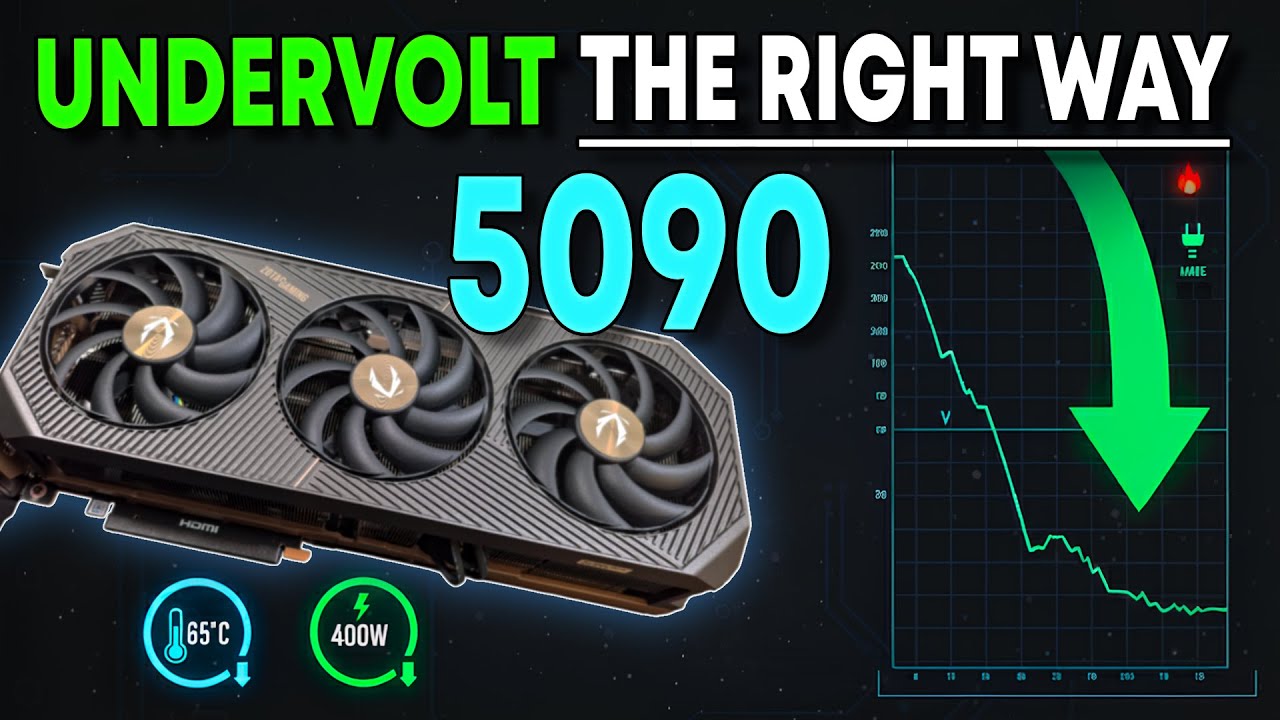
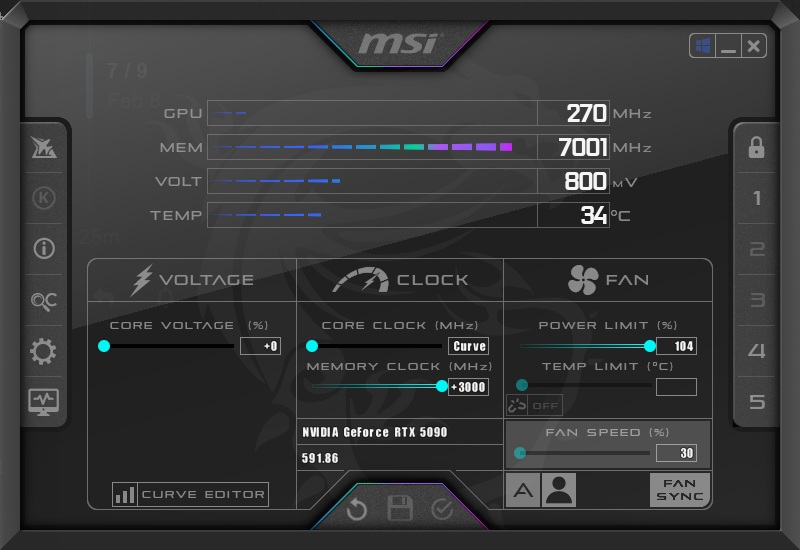
I undervoted and overcocked with MSI Afterburner. There is a right way and a wrong way of doing this. Most videos say to drag the curve up and then flatten it. If done this way, your idle speed will be higher than it needs to be (1000 MHz vs 300 MHz) . In order to do it in the right way, you first need to modify the MSIAfterburner.cfg file.

This video shows the proper way to undervolt.

Here is my current undervolt/overclock.

Very important….I had to change my PSU as I have had CTD`s numerous times with my Corsair 1000W. Anything below 1200W will not do it…in general, depending of what else you have running in your rig. I went to 1600W, a Dark power Pro from BeQuiet. That sorted out any power related crashes.
I have not seen any bad textures with the driver set to Performance or even High Performance texture Quality. So I would recommend you go for that setting as every frame matters, particularly in VR.

Up to you if you take any risk but I will certainly not fiddle with voltages to OC in any way up or down. The card is great as it is and will do a lovely job. The monitor 2D performance is stellar but for me as I fly only in VR with my Varjo Aero I could always do with a few more fps.

  • AsRock PG-1600G PSU (ATX 3.1)
  • came with dedicated 12VHPWR cable, which I used for the GPU
  • I also connected the motherboard’s supplemental PCIe_PWR to the PSU
  • MSI X870E Carbon Wifi (latest 1A8 bios)
  • 9800X3D
  • Asus TUF RTX 5090
  • GSkill Z5 6000 CL28 EXPO Ram
  • Samsung 9100 Pro M.2

The steps to undervolt the GPU are simple, but require a bit of context:

1. At Stock settings, run MSFS with HWInfo open

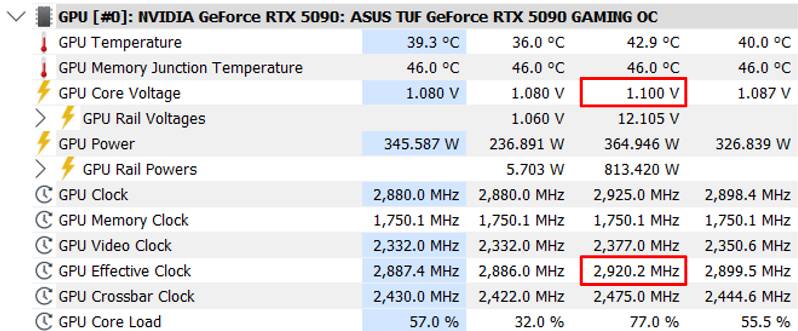
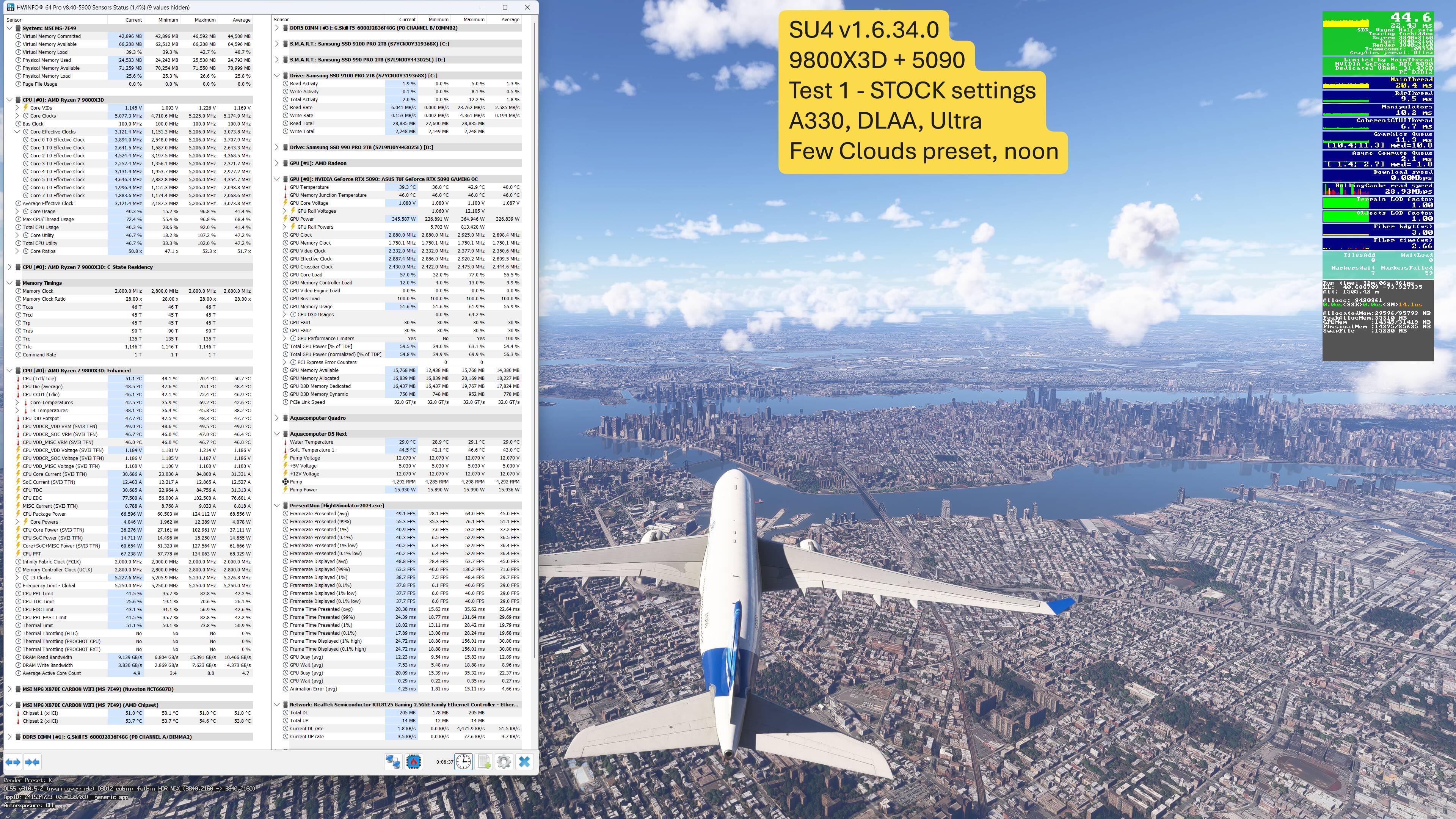
With MSFS under full swing, jot down the GPU Max Voltage, and Max Effective Clock values. Then do the same for any benchmark software you want. For me the max values were roughly 1.1 V, and 2950 MHz, sometimes as high as 3000 MHz. This is the speed your card runs at under full load:

2. Shift the GPU's VF curve

Since my card is Asus, I use Asus GPU Tweak III (but I think MSI Afterburner is similar).

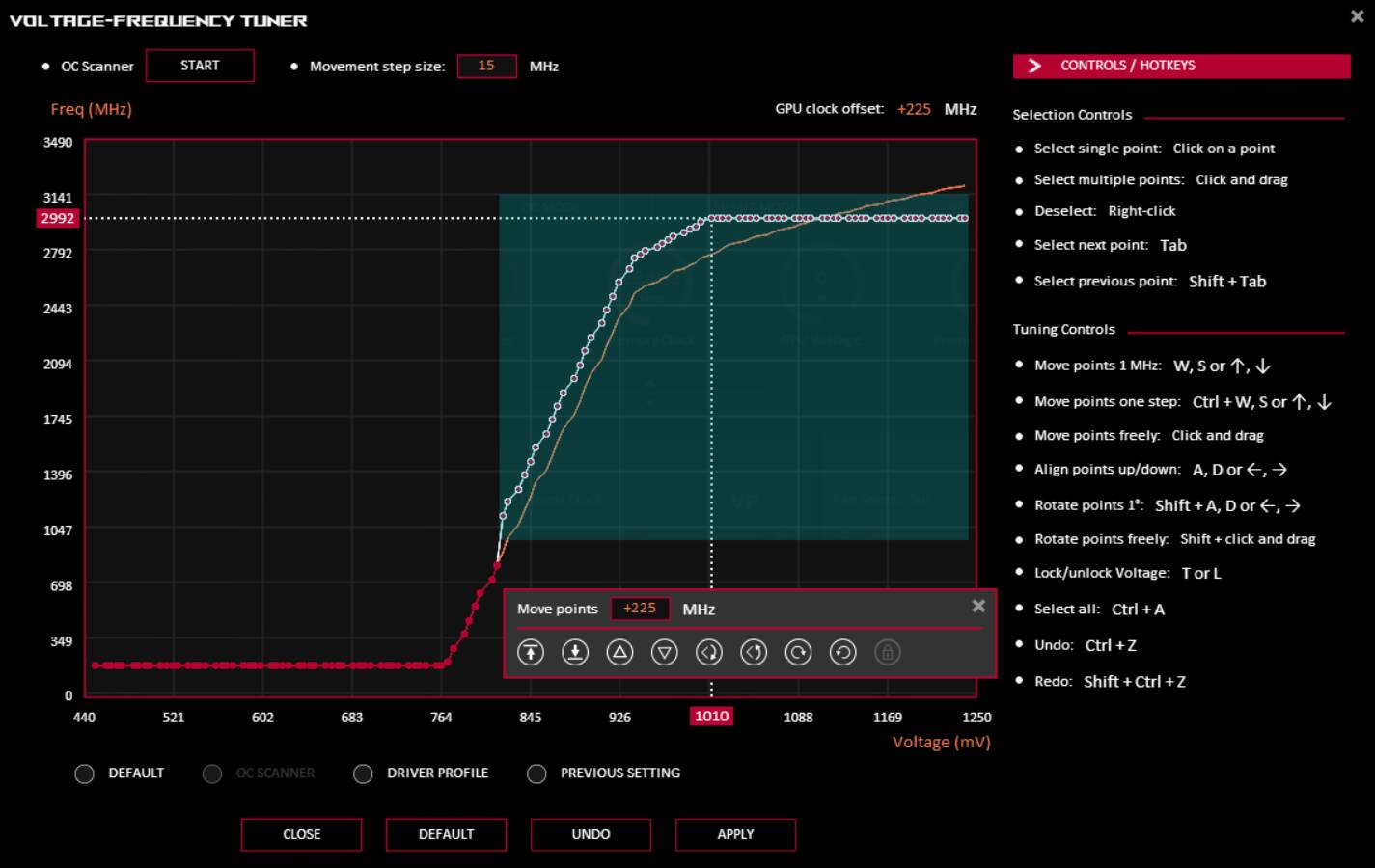
First pick the point on GPU VF curve for your Max voltage, Minus 5 or 10%. Example, with my Max 1.1V or 1100 mV, I would cap at 1000mV, a 10% reduction. I pick the point on the curve at 1000mV and flatten everything to the right, down to the same frequency. In my case the selectable point was at 1010 mV but that’s fine, I might even adjust to 1020 to have a bit more power available…

(online videos show capping at 900 mV but that’s just maximizing undervolt, and you would loose performance in MSFS - the goal is just shaving off just that top edge of heat and power draw, but not too much. You don’t want to starve the GPU of voltage when it needs to boost for spikes MSFS)

Then you select the “Active VF range” - which is basically everything from 820 mV to the right. You shift that line up by about 150 or 200 MHz, ideally so your 1V is just above the Max MHz from step 1. In my case, I moved the curve up 225 MHz, so 1V = 2992 MHz. This means for each frequency, you’ve reduced voltage by about 10%.

Save, and test. The reason for not shifting the whole curve is that you don’t want the idle frequencies higher, that creates new issues with no benefit.

3. Memory Clock (data rate)

In both GPU Tweak and MSI Afterburner, there is the ability to increase the Memory Speed, which I think is better described as “data rate”.

The numbers can be a bit confusing, you may see 7000, 14000, or 28000, all basically indicating data rates of the DDR7 (double data rate) memory. I ran GPU Tweak’s built in OC Scanner, which finds the safe / recommended value, which for me was to add 400 to the default of 28002, resulting in 28402 MHz. I believe this is the same as adding 200 to 14000, or 100 to 7000 … but this is where MSI Afterburner and GPU Tweak settings may not be 1 to 1 equivalents, so I’m not sure what works in MSI Afterburner). I found MSFS didn’t like anything more than what I added, but is stable at 28402.

4. Enhance Overclocking Range OFF

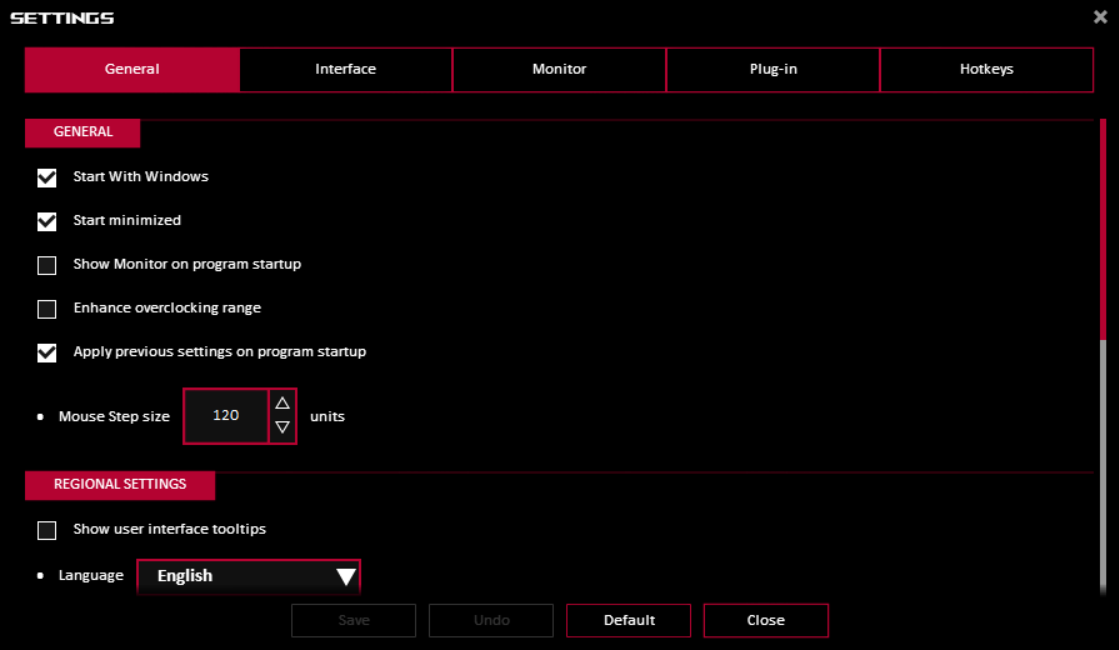
A lot of people recommend increasing voltage sliders, or in GPU Tweak there is an option to “Enhance Overclocking Range”. As soon as I tried that, MSFS was unstable. I don’t think there is any need or benefit, and I’m not really sure what it does, so I keep it at stock.

Results...

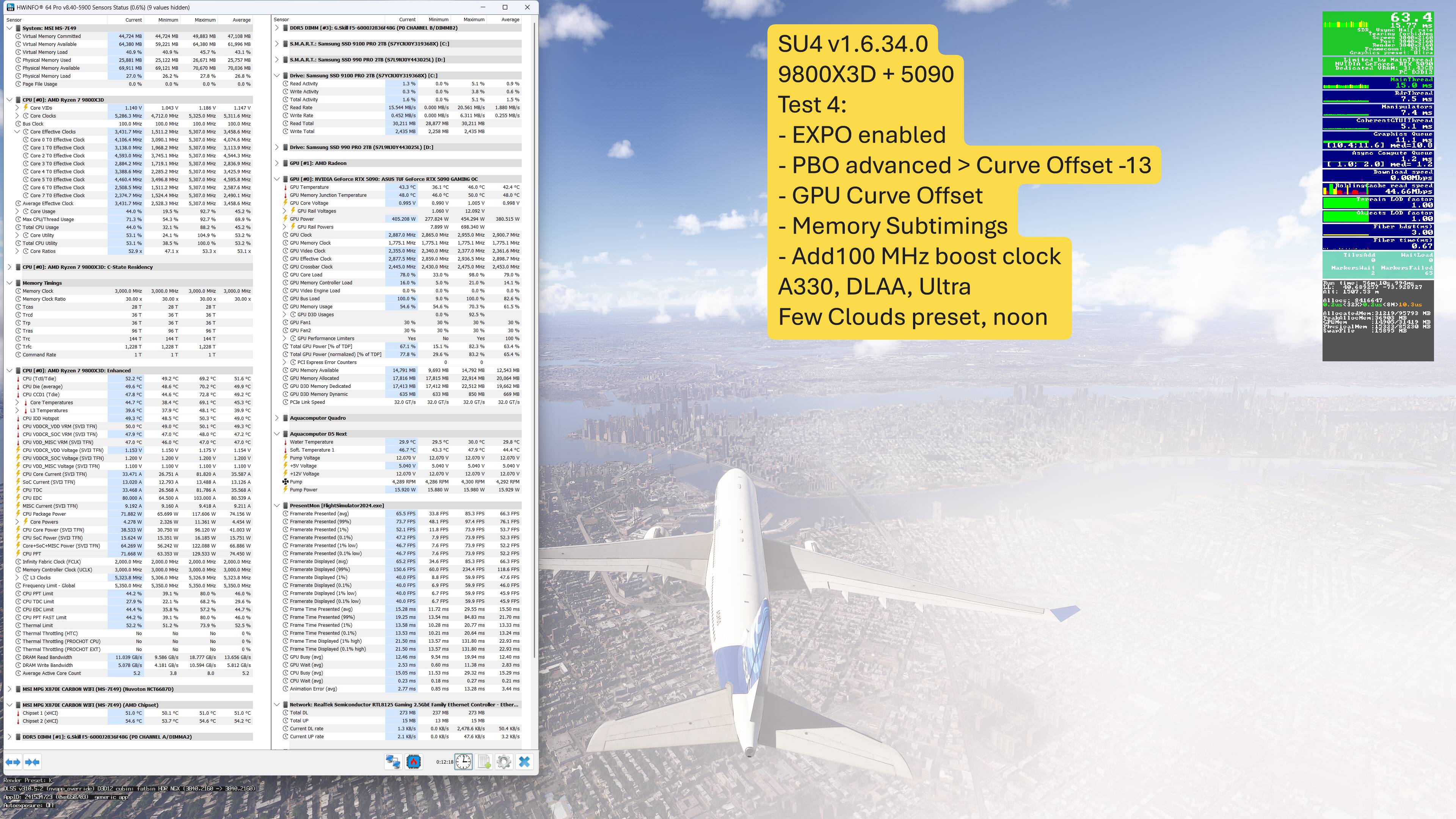
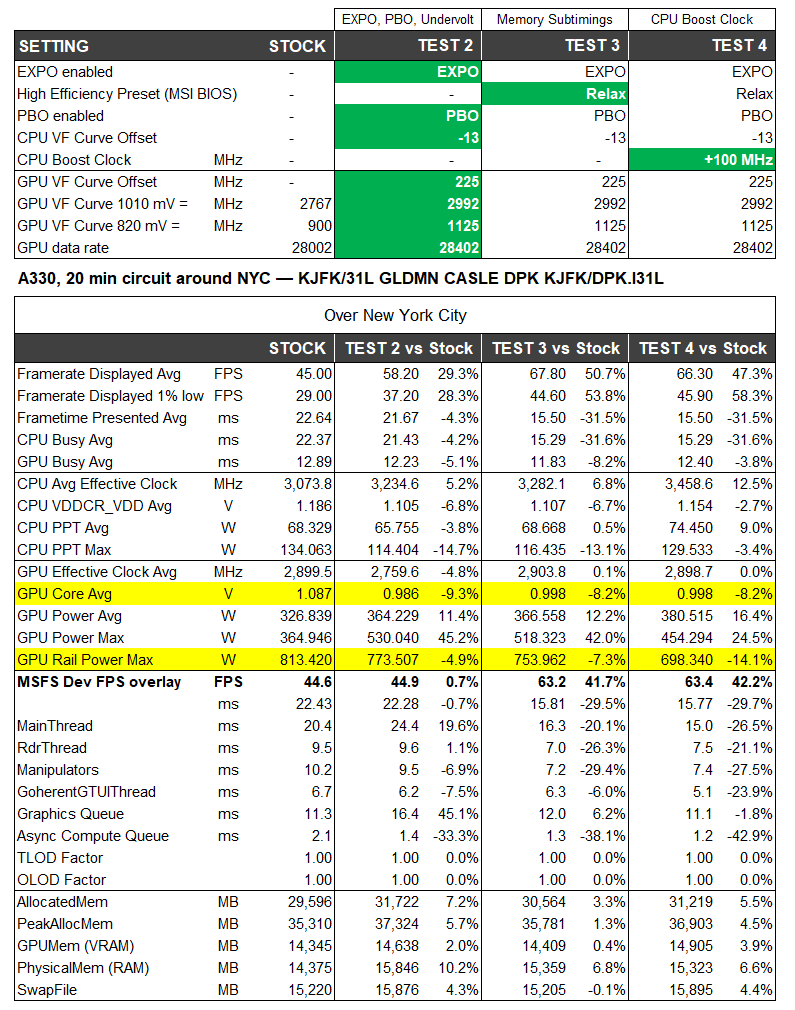
Here are 2 screenshots from MSFS, at stock, and after tuning, in the A330 over NYC, on a single screen, 4K, DLAA with Ultra settings, “Few Clouds” preset (because clouds have a big impact, I included them). The resulting voltage is about 10% lower, and the “Max Rail” power is also lower (this is the spikes). The improved frametimes etc are mostly about motherboard RAM, the GPU undervolting is really about power saving and room for boost spikes. Note: even with the 1V cap, it will actually go a bit higher when it wants, it must have a “PBO-like” NVIDIA algo that understands basically what you want, but it knows its safe to go a bit further when it wants.

It seems the normal power draw is quite reasonable, so an increase from 364W to 454W isn’t my concern - the benefit (for me) comes from the Max Rail power no longer spiking to 800+ Watts.

The tests were with 1 screen, no max frames or frame gen. In practice I’m flying with 3 screens. Although TAA still looks better to me in the cockpit, DLAA looks way better on scenery details like light poles, thin trees, etc, so I’m using that for now. The 2 side screens are at 2K as I am keeping my TLOD higher. That’s my current compromise.

Sounds like a good marriage. When you can accept each others craziness.:grin:

Hey, what else is money for? Can’t take your sim with you to the grave.

Congrats!!

As most people online preach, I would definitely recommend at least a mild undervolt, even if simply to help protect those sketchy connectors. I managed to get a small performance increase too, but I mainly do it for “safety” reasons and less heat. The power saving is an added bonus.

Haven’t touched it in a while but I think I’m running 0.915mv at about 2800mhz or so, would need to check. This is on an Aorus Master. I believe it rarely pulls more than 400-450w tops during flight (VR).

I hope you enjoy your new 5090! I upgraded from a 4090 to a ROG Astral 5090 a while back. When I had my 4090 I was still bottlenecked by 4K in majority of scenarios but when I upgraded it felt like night and day. My advice (which I am sure you already understand) is to aim the make the gpu the bottleneck in msfs24. That is easier than what it sounds for a 5090. In my case I have a 5k2k LG 45 inch monitor hooked up to my 5090 and my optimal is 1: DLSDSR at 1.78. 2) TAA + render scale 135/140. 3). MFG x3 or x4. The result is simply outstanding clarity. Give it a shot one time won’t you :wink:

Thanks for all the comments and help, I really appreciate it. Yesterday I forgot to mention something that surprised me. First, I forgot to increase my daily spending limit - my purchase didn’t go through because of that.

I increased the limit and tried again, but then an unknown error popped up. I was starting to think I wouldn’t be able to complete the purchase from the store I chose … and then suddenly my phone rang. It was my bank. A friendly lady confirmed my details and asked if I was 100% sure I wanted to spend that much money. I told her yes, that I was fully of sound mind and completely sober. She laughed and this time the purchase went through :smiley:


Thanks a lot for this. I’ll definitely take a look.

Thanks a lot for taking the time to give such a detailed guide. Really appreciate it.

Thanks a lot, it’s great to hear another perspective that undervolting the RTX 5090 is a good idea. Really appreciate you sharing your experience.

Thanks, really appreciate you pointing out that upgrading from a 4090 to a 5090 makes sense for 4K gaming.

My advice: upgrade your rig with water cooling, connect the pump to your home‘s water supply and you‘ll be able to take a free hot shower after each flight :joy:

Jokes aside: make sure your PSU can deliver 1.200W (or more), so things run smoothly. On the other hand, if your PSU could handle the 4090, it should be ok with the new card. I made exactly this change half a year ago and did not notice any increase in power consumption - as a matter of fact, with FS2020 running my 5090 is actually using less power than the 4090 (both Asus TUF Gaming OC cards).

Enjoy your new card!

My current PSU is an MSI MEG Ai1300P ATX 3.0 / PCIe 5.0.

Since I’ve already unplugged the GPU power cable several times, I’m a bit concerned that the pins in the cable might be worn out.

5090 will most likely come with a 12V-2x6 to 4xPCIe 8-pin adapter and I’m wondering whether I should use my older, existing cable or the adapter instead.

I also have a brand-new MSI GPU power cable with yellow tips that make it easy to check whether the cable is fully seated on both the PSU and GPU side, and it is compatible with the 12V-2x6 GPU connector. I’m considering temporarily replacing the old cable with this new one until the new MSI power supplies arrive.
These new PSUs ATX 3.1 / PCIE 5.1 will feature GPU Safeguard+

GPU SAFEGUARD+
PROACTIVE AND INSTANT PROTECTION
An advanced protection technology for graphics card. It monitors dual 12V‑2x6 connector power currents and provides instant, real-time alerts, acting as a 24/7 guard to shield your valuable GPU from unexpected threats.

https://www.msi.com/blog/introducing-gpu-safeguard-advanced-gpu-protection-on-msi-next-gen-power-supplies

https://www.msi.com/Power-Supply/MPG-Ai1300TS-PCIE5

What would you do in my place?