Just out of curiosity, does it measure the theshhold in Amps or temps? Seems to me if you had a weak connection on one of the pins, even though the amps would look OK, the pin could be overheating.
hmm???
I found this during my search…
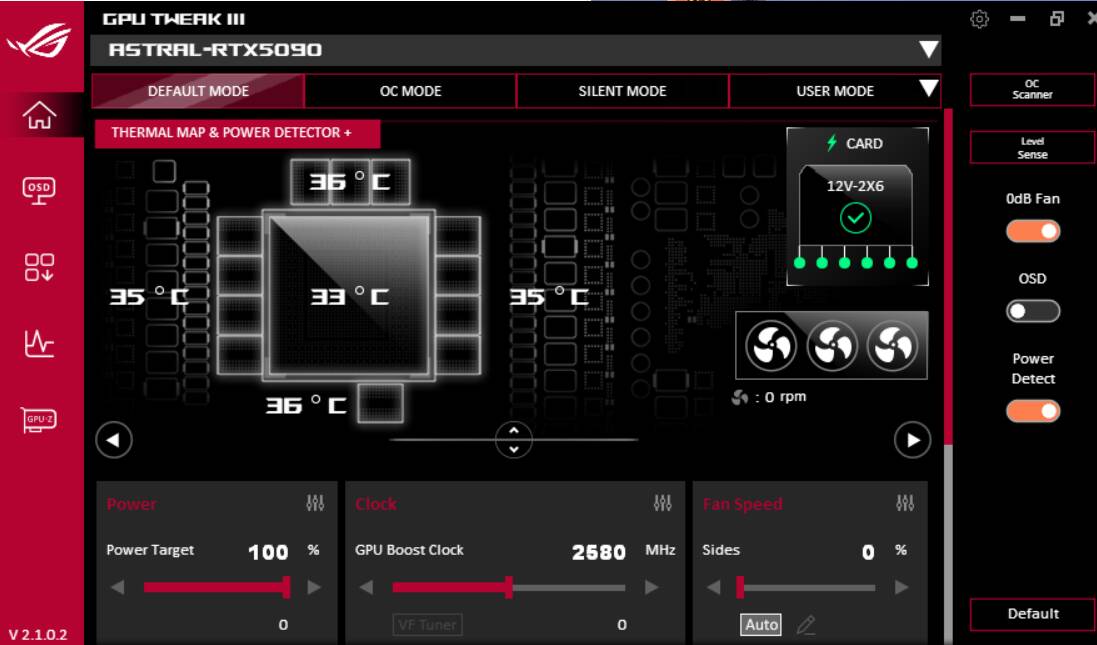
“GPU Tweak III’s Power Detector+ does not directly measure the temperature (heat) of the pins on the 12VHPWR/12V-2x6 connector. Instead, it detects potential overheating issues by monitoring the amperage (current) flowing through each pin in real-time.”
It would seem to me, when looking at potential power issues, heat would be the first thing to look at. You could have pin that may appear fine based on amperage, or even a bit low, but could be overheating because of a weak connection. To me that would be more problematic then simply looking at current.
The GPUs heat sensors would probably not pick up on an overheating contact. Chances are you would start smelling it first.
This is why I just rely on the thermistor in the cable that came with my PSU. The thermistor is wrapped at the 12V-2x6 connector at the GPU, with wires running back to the PSU - so if the PSU detects temps above (whatever the limit is, 105 C I think…) the PSU cuts power to the card.
I also use GPU Tweak to modestly undervolt the card to save some power, and it seems to work well. For anyone using GPU Tweak III, here is my experience:
- Be careful of MSI Afterburner videos, because the settings are not 1-to-1 with GPU Tweak.
- Run the “OC Scanner” (takes about 10 - 20 min, I think) just to get the tested “Memory Clock” value … it’s really “Data Rate” but regardless, it will get you a tested value you can use.
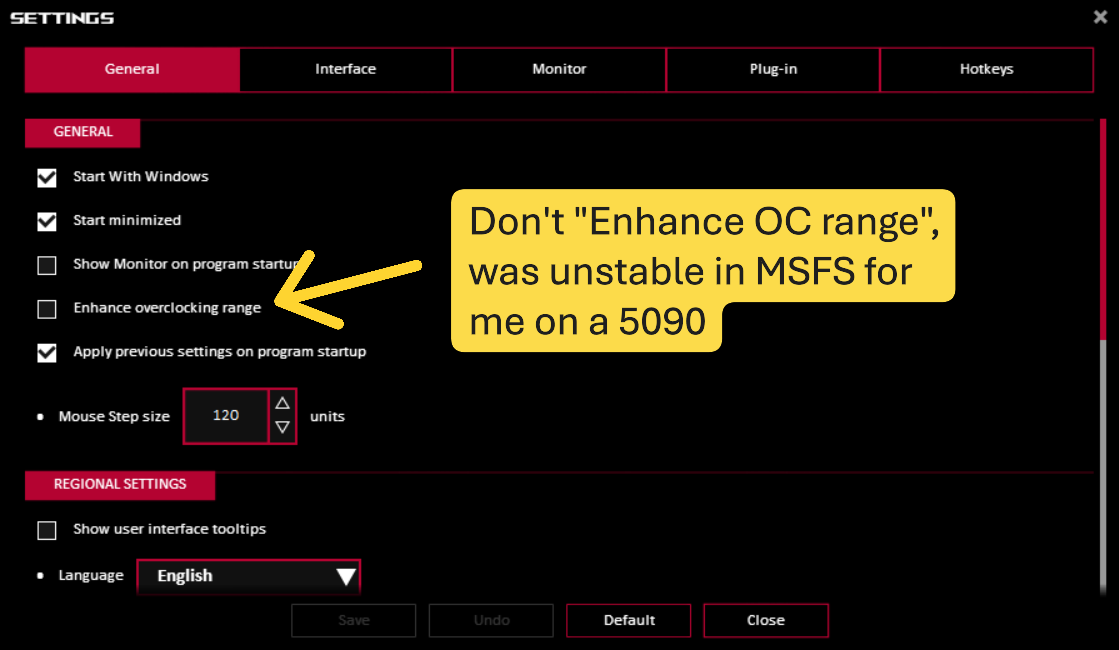
- Don’t enable “Enhance Overclocking Range” in the settings - I found this was stable in benchmarks, but very unstable in MSFS, and I didn’t see any beneficial results with it.
Here are my settings, starting at defaults:
- Select User Mode
- Set “Memory Clock” to the value from OC Scanner - in my case, I added 400 (changing from 28002 to 28402 (I tested adding more but got diminishing returns and instability)
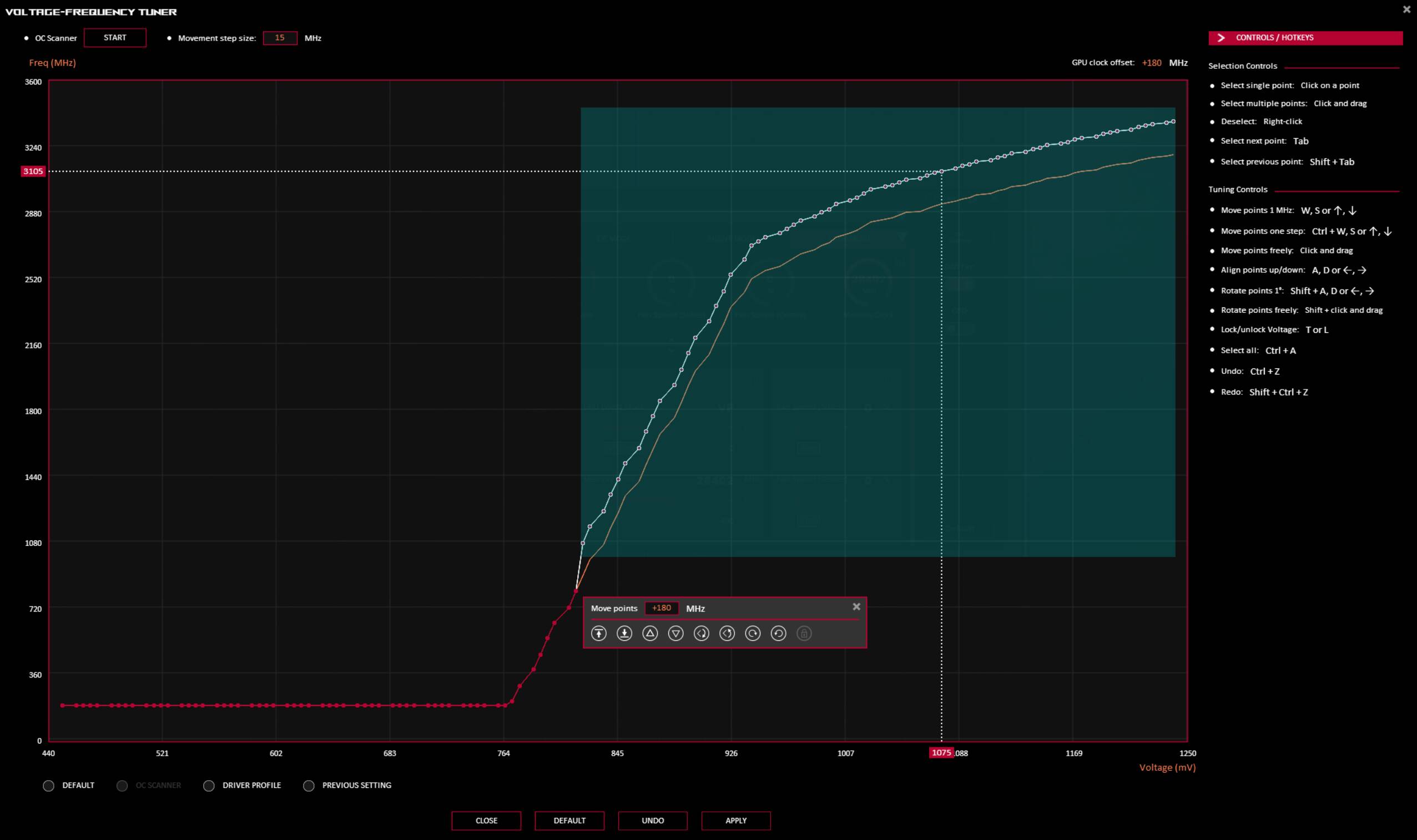
- Click on VF Tuner and make the window larger
- Select the curve from 820 mV up (so you don’t increase the idle part of the curve)
- Raise by roughly 180 MHz
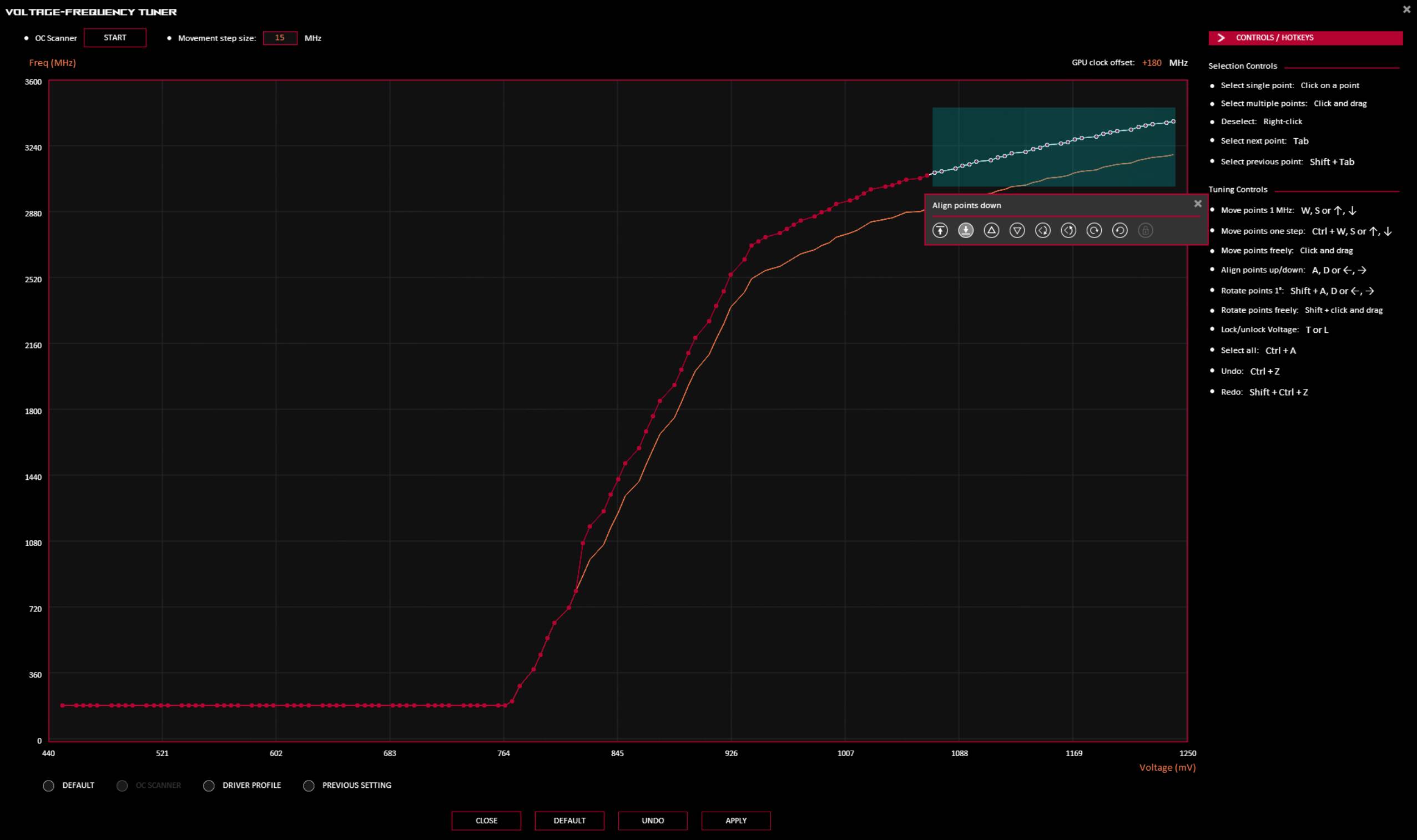
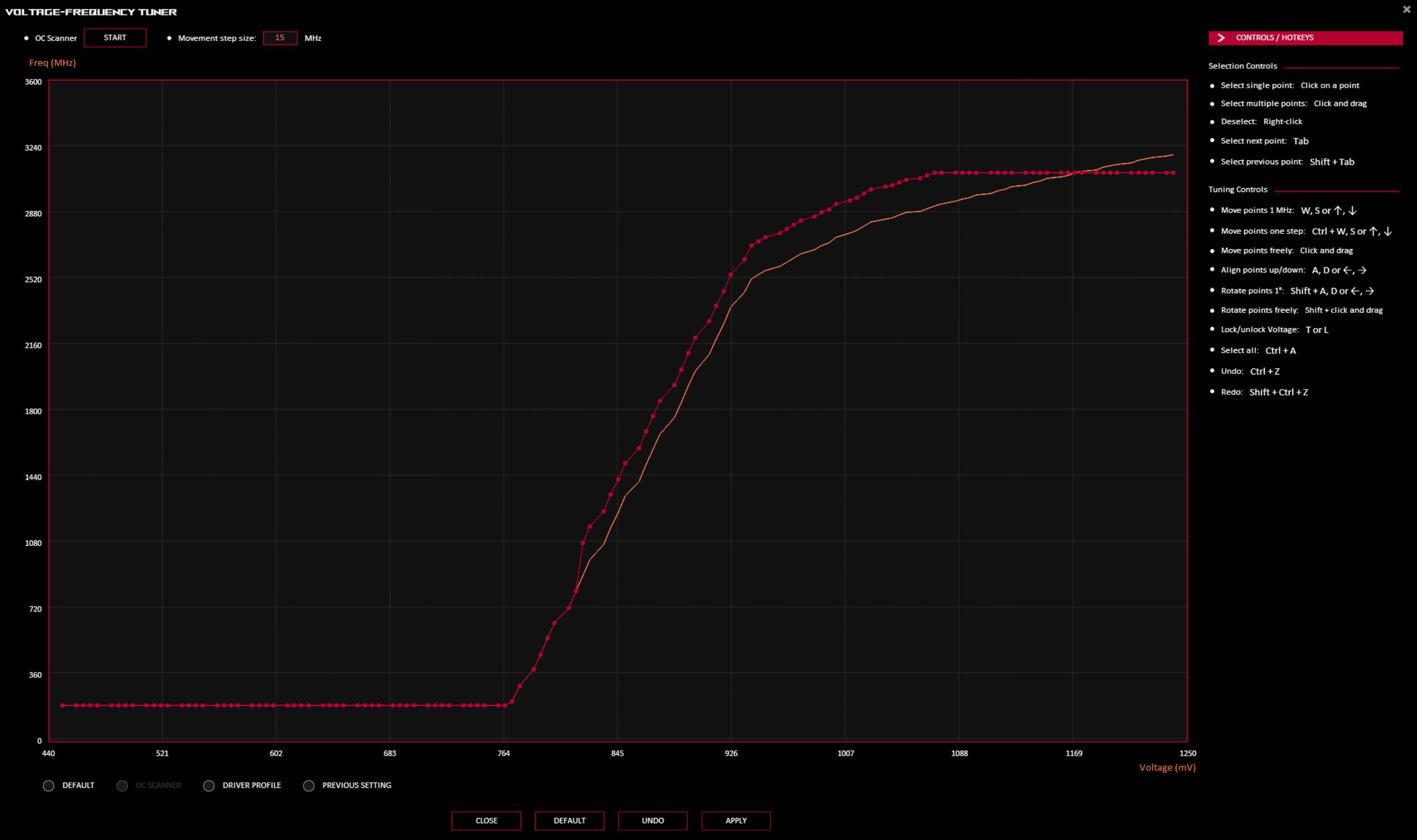
- Pick a peak MHz value, eg 2950, or 3000, and flatten everything beyond that (I have water cooling so I let the card boost to 3100, and stays within power limits and temps are fine)
- Save and test. I found that modest adjustment saves about 10-20% power, and the GPU seems to boost to it’s own desired frequency when it has the headroom, the “limit” in the VF curve seems more like a guideline than a strick limit, if HWInfo is showing correct values.

Where does the high temperature that melts the GPU power connector come from? It can’t just come out of nowhere, right?
Heat comes from a connection point that is too small (thus higher resistance) for the current, if:
- The cable connector doesn’t contact enough of the specific pin
- The cable connector internals are too thin or cheap
- Heat will occur at the points of most resistance
- … or the card draws more than it should from any pins (which seems less likely to me…)
I believe that the main issue, or risk, is really about the cables and the internals of the connectors, wherever it is too “narrow” resistance causes heat.
I believe you have the same PSU as I do (Asrock PG-1600G) which came with dedicated 12V 2x6 cables with a thermistor and the PSU has extra pins for the thermistor. Hardware Busters pushed for this simple solution when they were testing after the cable melting became news. (That’s Aris, I think his name is, and he runs Cybenetics who develop the PSU certification ratings).
Here he is testing this very PSU and cable: yt video
He made his own software and cable to manage it yt video
Yes I have this exact GPU. I also have GPU tweak 3 setup and it definitely brings me extra comfort being able to monitor the pin statuses and also the orientation of my GPU (sag prevention called level sense). That wasn’t the reason I bought this GPU though. The build quality is simply outstanding. That translates to the thermals, performance and the general experience. Its definitely a 5090 on steroids.
That said, I was lucky in buying this before the prices went up massively.
Let me know if you have any specific questions and I’ll try to help.
Yep, I’ve got the same PSU.
There are already new PSUs from MSI with GPU Safeguard+ and I’m wondering if that might be a better solution.
Introducing GPU Safeguard+: Advanced GPU Protection on MSI Next-Gen Power Supplies
MSI Power Supply The Next Era of GPU Safeguard+
https://hwbusters.com/psus/msi-mpg-ai1600ts-pcie5-atx-v3-1-psu-review/11/
Also, I’ve seen the MSI MPG Ai1300TS going for a bit over 400€ in Europe.
Thanks, I’d really appreciate an honest answer.
Did you end up with a GPU that’s free of coil whine, or do you notice any high-pitched noise from the coils under load?
I’m asking because I’m considering replacing my GPU (Gigabyte RTX 5090 Gaming OC) with the ASUS Astral version. The reason is that my current card uses something like a gel instead of thermal pads, and I’m not comfortable with that. Recently on YT I saw a teardown of a similar card where the gel wasn’t applied evenly and had started to spread over time, getting onto the PCB and nearby components.
That really doesn’t sit well with me, especially since I plan to keep the RTX 5090 for a longer period. I want the best possible build quality and protection. Money isn’t really a concern for me when it comes to hardware reliability and safety, so I don’t mind paying extra for ASUS. So I’m seriously thinking about switching GPUs.
Agreed, but only monitoring the amps, high or low, will not tell you if you have a power connector that is overheating. It could simply be a fault within the PSU. Seems to me, with those high power requirements on a 5090, or any GPU, you want to ensure proper contacts that won’t fry the connector. The best way to do that is to monitor the heat at those contacts. It’s no different then plugging a toaster or an iron into a wall socket. Poor contact and you’ll fry you socket.
The reasons I purchased the ROG Astral 5090 OC is for similar reasons actually. I wanted to go for the best build quality money could buy, and the astral absolutely delivers on that. I do appreciate that many might not have the finances and may seem a little reckless on my part. I have had many GPUs over the years, including PNY and Inno3d in the past. The reason I share that is to illustrate the point that I definitely know the difference in quality of build on a GPU. In terms of coil whine, I reckon I am lucky with my unit as I don’t have even a smidge of coil whine. I would say that this is a bit of a lottery though, as many top end GPUs still have it, so its not like you can pay extra to assure you dont get it. My old 4090 rog astral had a little coil whine but nowhere close to previous cards I have had. FYI I also have the performance BIOs enabled (it has a dual boot bios switch) so I definitely would notice any off putting noses when the fans are under full load.
Thanks @GimbalAxis @RogueNaught1 @FoundHaddock891 I really appreciate it.
After thinking it through, I’m probably going to switch GPUs and go for the ASUS Astral. Combined with my current PSU, it would feel like a double layer of protection: a temperature sensor on the GPU power cable near the connector, which is monitored by the PSU, plus current (amperage) monitoring on the GPU power pins handled via software.
What do you think about this kind of setup?
Now that I like.
Sounds like an ideal setup. Just a thought to share to add to the contingency. I don’t bother overclocking (or even underclocking) my Astral. I just keep it as default, as it is more than sufficiently powered for anything I have thrown at it so far. Just little point in increase stress on unit + voltage etc pursuing negligible gains with overclocking GPUs of this capability. My advice is just to leave it at stock…and enjoy 
It actually sounds like we’re on the same page when it comes to high-end GPUs. I’m also not a fan of overclocking GPUs like the RTX 4090 or RTX 5090. They’re already so capable out of the box that pushing them further just doesn’t feel necessary.
One more thing I wanted to ask specifically about the ASUS Astral - that additional fourth fan.
What’s your experience with noise under load? I’m mainly interested in how it behaves during heavy gaming or sustained rendering loads, not idle or light use. Does it noticeably ramp up compared to more traditional triple-fan designs, or is it still well-controlled overall?
And just as a side note, I’ll end up limiting FPS anyway. 2000 FPS won’t make me a IRL pilot and for MSFS a smooth 60 FPS is more than enough for me.
I’m in the middle of setting up test scenarios for when SU5 drops, and I can run through and post the results including GPU power draw while driving 1, and 3 screens. (C172 at KTEB, and A330 at KJFK)
I do tweak CPU / GPU at bit - because MSFS struggles to drive 3 screens, and I ultimately wanted very high graphics with surround views.
From previous tests I can say that MSFS at Ultra with one 4K screen has the GPU running between 450 to 530 Watts with room to spare (over NYC). Surprisingly the C172 draws more than the A330, maybe because I was closer to the ground (2000 vs 5000 ft).
A modest undervolt allows it to boost frequency (instead of cutting power) while staying under that 600 W max. The undervolt does seem to keep the Max Rail voltage in HWInfo (which I think are the momentary excursions) down by about 10-20%. At stock that hits 800 W, but I’ve got it down around 650-700 and totally fine. And temps are completely fine.
With 1 screen you can pretty much run max settings in most scenarios with CPU and GPU both running happily. With 3 screens I hit hard limits - MSFS won’t use more than 36 GB of RAM, and if I try to run 4K on all 3 screens it will saturate VRAM on the 5090 and just doesn’t run very well, so I run 2K - 4K - 2K with Frame Gen.
I noticed that even with just two displays (4K + 2K, with 4K as the main one) there can still be a slight performance hit, even on an RTX 5090. In that case, DLSS Quality model M is basically a must and Frame Generation is also worth enabling if it doesn’t bother you.
Changing the topic a bit - here’s something that could actually be useful for anyone whose PSU doesn’t monitor temperature at the end of the GPU power cable.
Motherboards already have temperature sensors, so you can use a cable with a thermistor sensor at the end and place the sensor right next to the GPU power connector. The other end connects to the motherboard header.
Then, using HWiNFO, you can set up a rule so that if the sensor detects, for example, around 80-90C, it will either trigger an on-screen alarm or initiate a Windows shutdown.
I’ll have numerical test results in a few days, but basically there is some limit I’m hitting that prevents 4K on all 3 screens from performing well, even if you reduce Graphics and use DLSS lower render scales (Quality, Balance, Performance).
To be fair, I tried Low Settings and DLSS Ultra Performance, and if you hadn’t seen anything else, it would still be fun, but just a bit too … 90s, lack of depth and detail.
I’ll be testing the range as soon as the FSR Frame Gen is restored in SU5. But I think at triple 4K the number of pixels and computations is hitting “RdrThread” limits, which probably means VRAM.
I’ve found that by going 2K - 4K - 2K I can stick with DLAA (the most demanding at native resolution, but also the best looking for external scenery, and very close to TAA in cockpits with latest DLSS versions. At night I used to switch to TAA to avoid the ghosting and artifacts of DLAA / DLSS, but I think that is also improved, I’ll be testing that as well.
I tried 4K window with DLSS 2K render scale (Quality), vs 2K window rendered at full 2K, and for me the latter retains scenery details (usually thin objects, light poles, wires, trees, etc) that are lost with the scaling.
I have 48" TVs and sit fairly close, so that’s part of the reason I seek the higher resolutions. If I had 32 inch screens, I probably wouldn’t notice the downscaling of DLSS. The larger screen demands higher res to be crisp.
I’ve tried 4K - 4K - 4K with TAA at render scales of 90, 85, etc, but I really like crisp text in the cockpit, so I keep going back to TAA 100, or DLAA. I don’t mind the side views being lower res, as long as they aren’t stuttering.
Guys, are you using GPU Tweak III by any chance?
I actually just got an email saying my ASUS ROG Astral RTX 5090 OC has already been shipped to the store I chose for pickup, so I should have it pretty soon - that’s why I’m asking about GPU Tweak III.
I’m planning to use it mainly just for monitoring the GPU power connector pins, not really for overclocking. Is there anything I should watch out for with that software?
Yes, don’t enable “Enhance Overclocking Range” - this made mine unstable.
Otherwise, I find it useful and non harmful. As mentioned, I use the following:
- User Mode
- Add 400 to “Memory Clock” (from 28002 to 28402) This value came from running the “OC Scanner” which is the built in test, which tests the range of frequencies and offers a conservative value to increase the generic data rate. It adjusts the VF curve slightly which you can also safely accept - I did mine manually…
- I use VF Tunrer to shift the VF curve (from 820 mV and up) up by about 180 MHz (equivalent to a modest undervolt).
- Settings are only applied when it is running (default is to let it run at startup, minimized)
Bookmark to keep tabs on latest version here