I love flying from and landing at, airports that I have downloaded from flightsim.to or airports included as part of a world update but, every time I start a new flight, I can’t remember which airports I have downloaded and can’t remember which airports have been crafted as part of the 12 world updates.
Anybody know of a quick and easy, possibly map based system for seeing which airports across the globe that I have uploaded, which ones have been generated during the 12 world updates and which ones are just MSFS generic fields.
I usually plan my flights in little navmap and only fly GA.
I am aware of the flightsim.to scenery map, which is a great resource but I still cant look at that map and know which ones I have downloaded .
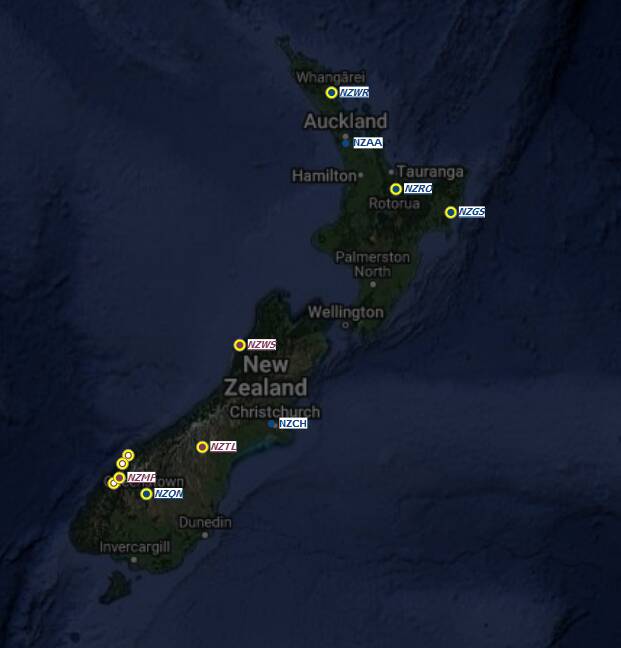
But IIRC Little Navmap now (since some recent update) marks „custom-made airports“ with a yellow circle. That doesn‘t let you distinguish 3rd-party airports from the „world update airports“, as all of them are „custom made“. But at least you can easily hold them apart from all other „generic airports“.
You probably already knew this (and hence your question), but it might help others still.
Well I just looked closely at Little navmap and would you believe it? It has literally been staring me in the face every day and I simply had no idea. All the airports I have added to the community folder are circled in yellow and persist even when you zoom out.
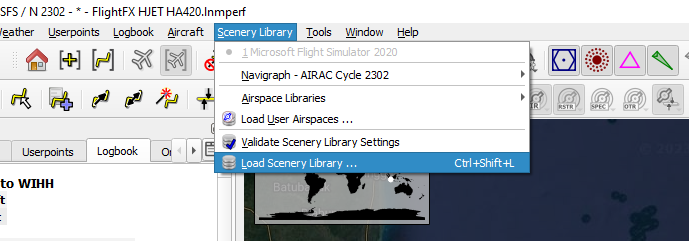
In order to update to include recently downloaded airfields, you must go to the Scenery library menu and download scenery library.
Thank you so much for this. I can’t believe i hadn’t noticed this.
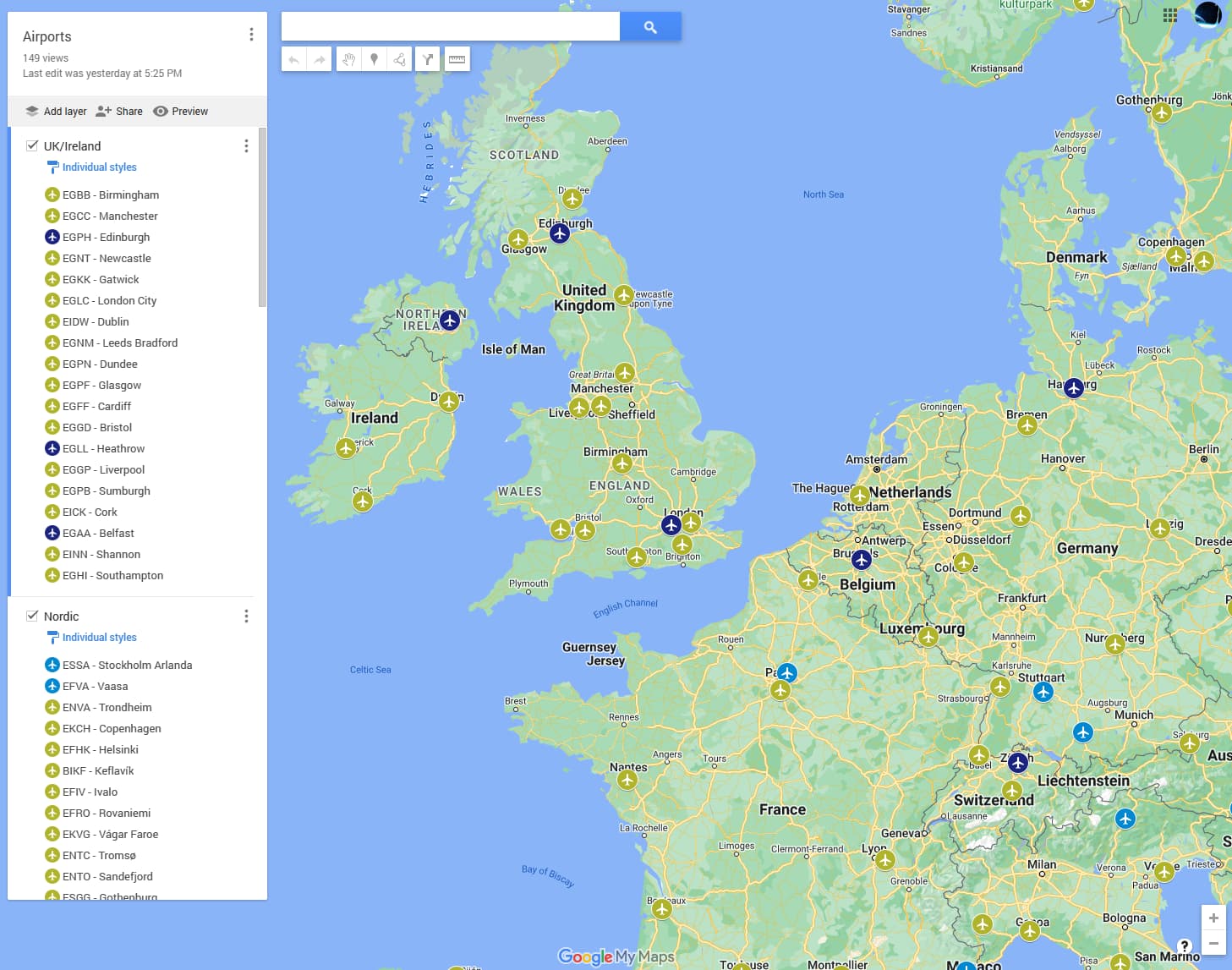
I prefer using Google Maps. You can create a custom map. When I buy an airport, I add it to the map. I added the hand crafted airports in a different colour. I use the ruler icon to see the distance and get an idea of how long the flight is going to take.
Hi @Cliffyboy1962, we ask that people not use General Discussion for advice, support, or recommendation questions. I have moved your thread to Utilities.
I do the same: I save each new airport I bought / downloaded in Google maps (created a MSFS airports list). This helps a great deal in flight planning, because one quick look at the map gives me an instant idea which custom airport is within reach for my next flight.
Additionally, I keep an Excel list with columns for:
Continent
Country
Airport name
ICAO Code
Bought where?
Developer
Purchase date
Price
Remarks
I admit this might look like overkill, but it only takes a minute per purchase. The benefit is that I see immediately what I own, how much I spent, if it makes sense to re-purchase an airport from a different developer, etc.
And for those who are into pivots, you can keep analyzing till kingdom come…