Something to note…
I have both Honeycomb A & B. I have them positioned very close together (about 1 cm at the closest point which is toward the bottom since they both taper outward slightly from the top of the units to the bottom). I realized only later that if the yoke is pushed well forward (nose down) and turned right, it can come into contact with the gear lever. So you’ll want to plan ~ 4 - 5 cm minimum spacing to avoid this.
Happy building 
Oh yeah, it’s gonna be a fairly close to scale cockpit, so there will be plenty of distance between them!
Hooked up another monitor but did not make it work.
Ok, but what part did not work? When you select Render New Window do you see the new window adjustment sliders come up? If the new window comes up, then you have to play with the three adjustments.
Please note that there is no individual window zoom control (like X-plane). I hope it will be added later.
The sliders are coarse adjustments. For finer adjustments I have a mouse with a center scroll wheel, this allows me to hold down a Right mouse click and move the scroll wheel for fine adjust, very handy.
I am not sure of this but I suppose its possible that if your monitor #2 is hooked up to your computers integrated graphics instead of your dedicated video graphics card it might not work.
2 videos that might help
A great description of how MSFS multiple monitor works: Russ Barlow - but unfortunately he doesn’t actually show the steps in MSFS to set up the windows…
So, instruction on how to actually make the settings: SimHangar
Russ Barlow Surround vs Mutiview
SimHangar Multimonitor setup
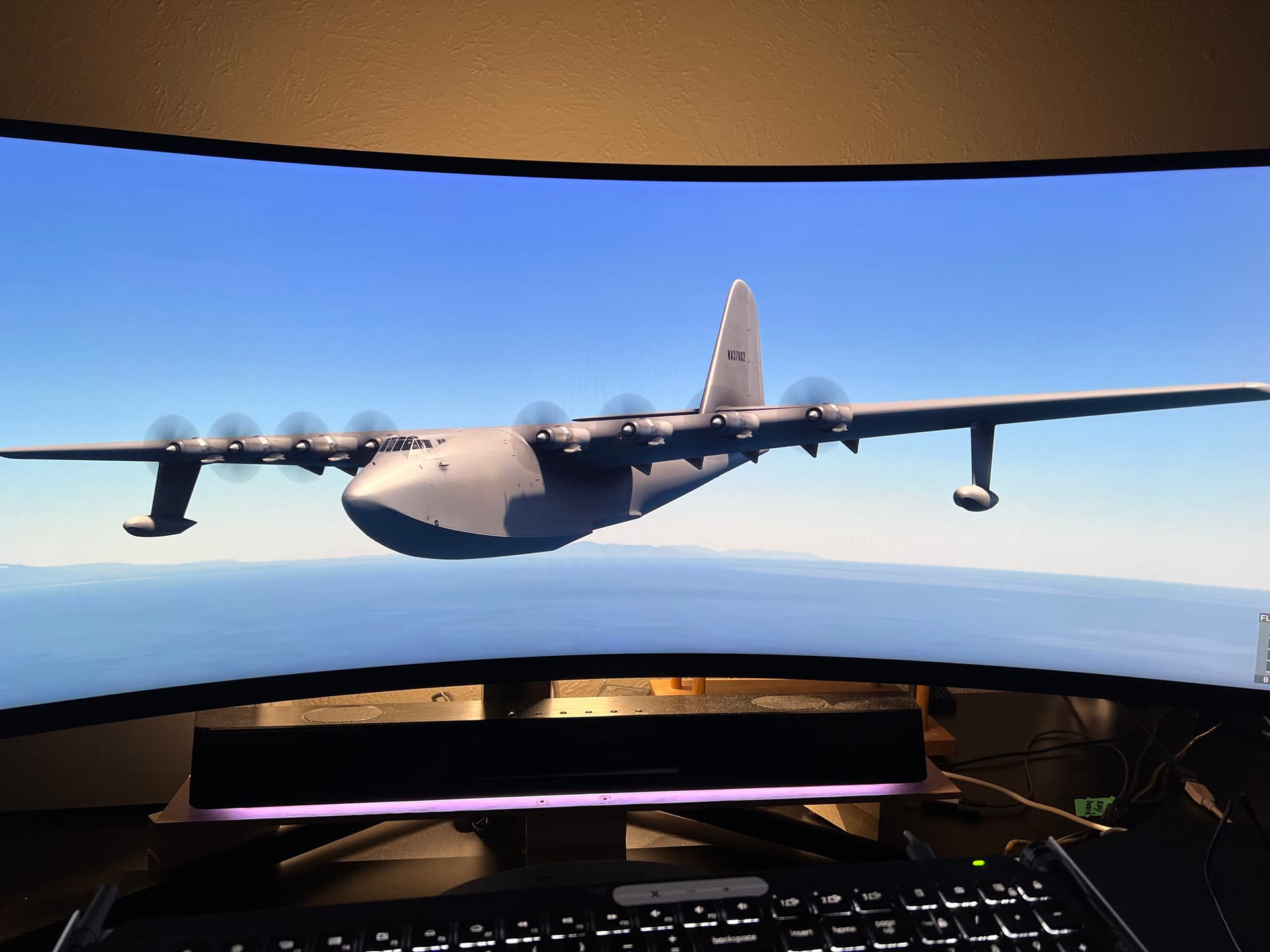
I was leaning that direction and chose G9 Odyssey
I wish it were taller. 5120x1440 RTX3090oc24
iPhone 13 max camera