-
System
9950x3d, RTX5090, 64gb ram, 2tb nvme, 4k 240hz oled.
-
Issue
I’ve been tweaking now for 6 weeks and am yet to complete a full flight. My main issue is stutters on takeoff and landing. All my tests have been same location at inibuilds Gatwick on runway 26L clear skies at 1200. In terms of dynamic settings I have a mixture of high and ultra with Terrain LOD at 200 and object LOD at 150-200. No ai traffic on or parked aircraft.
-
What I’ve tried
I have found capping frames in sim at around 50 with x2 fg is the most stable whilst keeping my refresh rate at 120hz. I’ve watched countless videos of people with similar set ups saying cap your frames at 40 and x3 frame gen to get the monitor refresh rate of 120 but the latency that comes with that is appalling and still get the stutters.
-
Am I dreaming?
do I just need to face reality and accept that I’m never going to elevate the stutters on takeoff and landing and that a high main thread is just part of the process and nothing can be done? Can anyone suggest anything? I’m loosing the drive to get this sorted, please send help lol!
-
Thank you!!
Hi @Taipan1991 and welcome to the forum !,
Thank you for this report. We’ve moved your topic into the User Support Hub.
The Bug Reporting Hub is for posting suspected or confirmed bugs that other users are able to reproduce without duplicating an existing bug report. Using the template or providing all the relevant information about your bug and sim setup is required in order to provide valuable information, feedback, and replication steps to our test team.
If you are not sure if your issue is a bug or need further input from the community, please use the User Support Hub category. If the community can replicate your issue, first search the Bug category to see if there’s an existing topic. If it already exists, contribute to that report. Duplicate bug reports will be closed.
If you believe it is a new report and no duplicate exists, then create a new bug topic using the provided topic template.
All issues caused by or involving third-party addons/mods should be reported to the third-party developer. Assure that no addons/mods are used when reporting issues in Bug Reports.
Without seeing all the settings it’s hard to say specifically, but I can suggest a few things. I have 9800X3D and 5090, and mostly stutter free - although we are in beta testing of Sim Update 5.1 and there are scattered reports of various types of stutters being worked on, I think.
These are just suggestions to test…
First remove everything from Community Folder just to get a baseline.
Next, set the MSFS Graphics Preset to “High” just to test.
Are your settings:
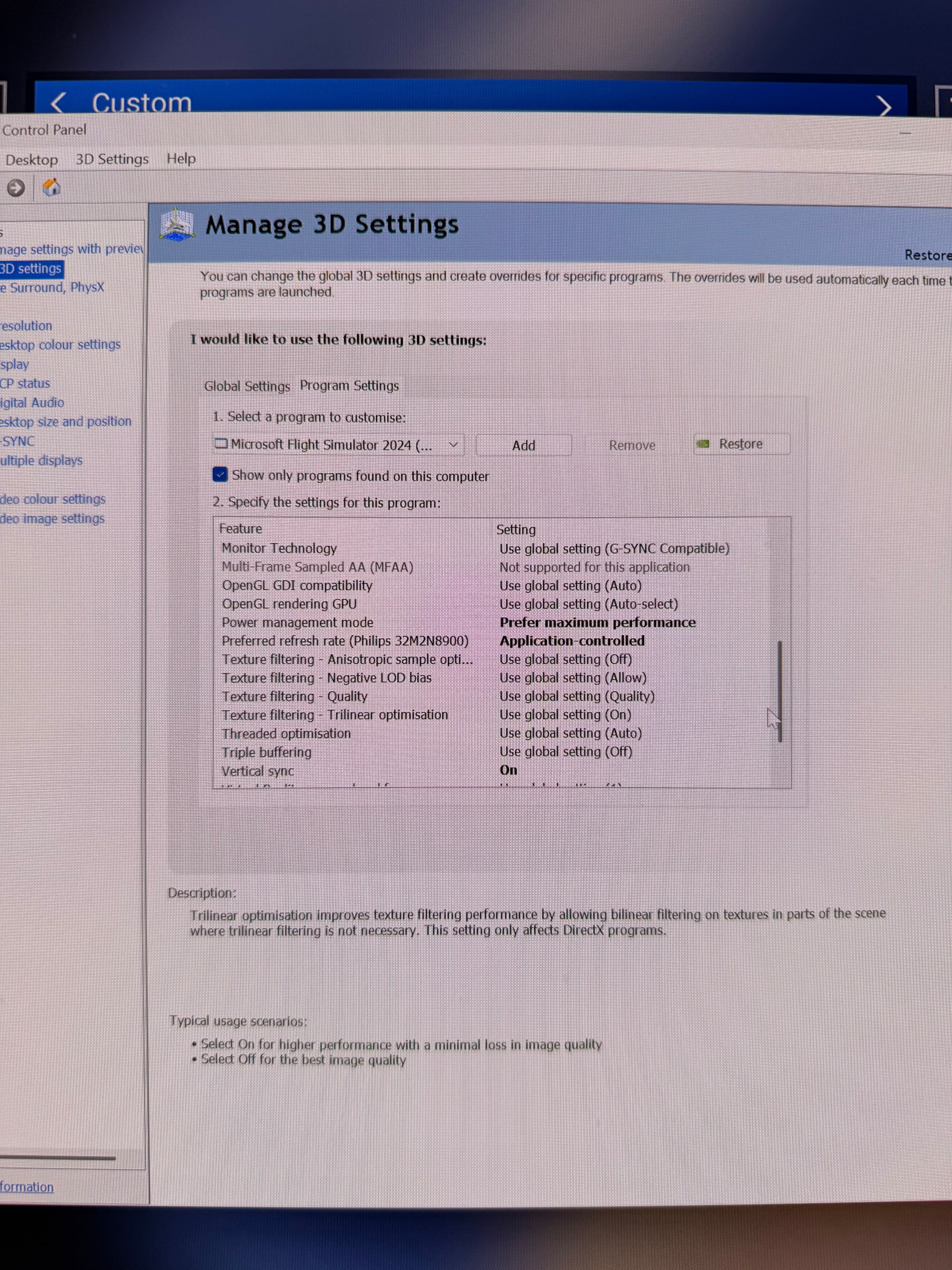
- NVCP > GSync > set to On / Compatible?
- NVCP > Monitor Technology > GSync Compatible
- NVCP > Vertical Sync > Use 3D app setting
- Windows > Dispaly > Advanced > set to 120?
- Windows > Display > Graphics > Advanced > VRR on?
In MSFS try:
- Anti-aliasing = TAA or DLAA
- Max Frames = 30
- VSync = On, Half Monitor Refresh (targeting 60)
- Frame Gen = DLSS x2 (targeting 60)
- Dynamic = On, 25
Also, just to try, in Graphics, set to High, then change temporaily:
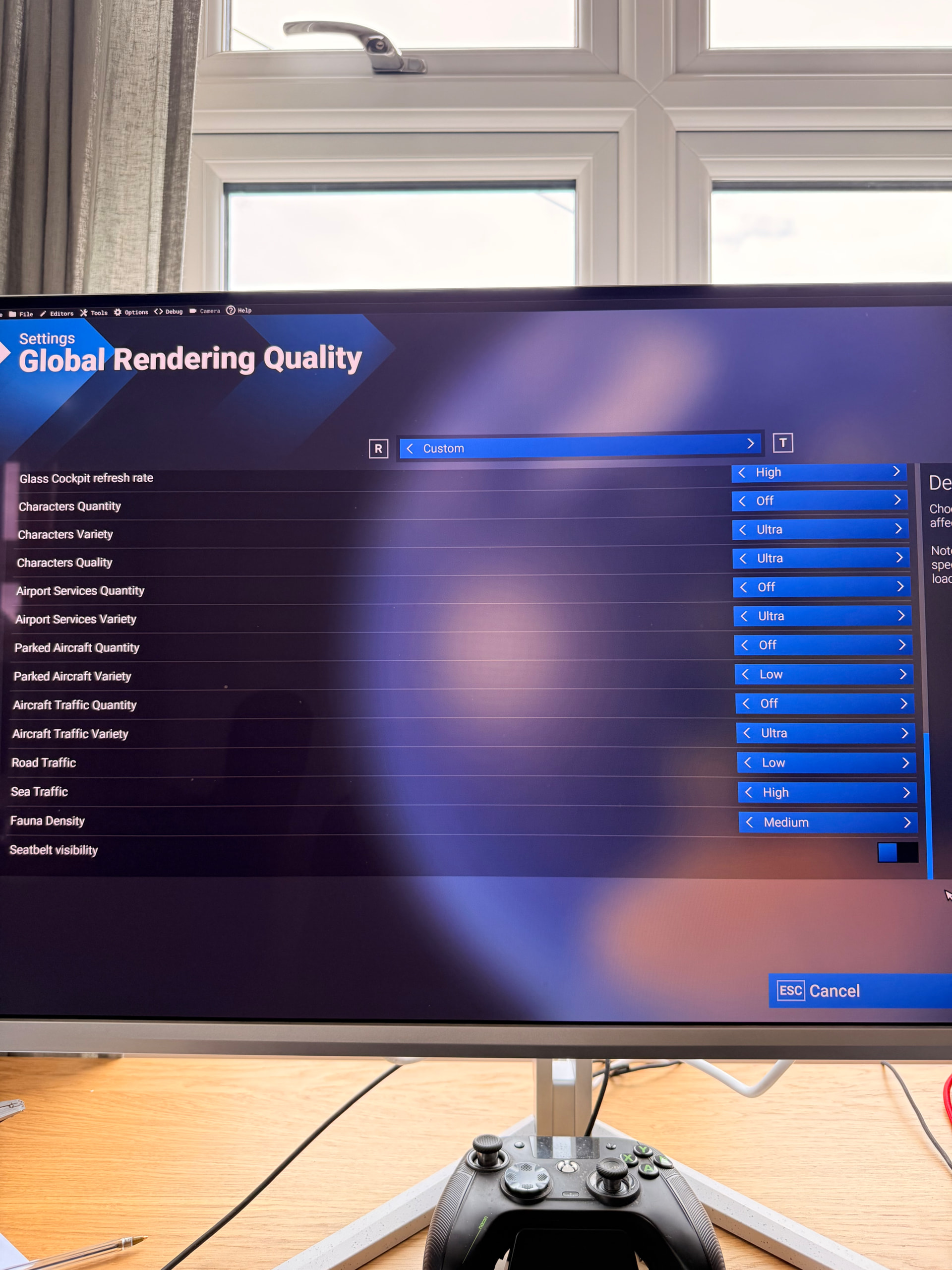
- Parked Aircraft Quantity > Off
- Aircraft Traffic Quantity > Off
- note you have to reboot MSFS
Do a test flight with a default aircraft, and let’s see how it goes?
Finally, I’ve done some basic tuning of my PC which really makes a difference:
- BIOS
- … EXPO is enabled
- … PBO enabled, with a negative Curve Offset of roughly -12
- Windows
- … Hibernation disabled
- … OneDrive, App Resume, Search, disabled
- … Defender, added exception for the MSFS Limitless folder
- DLSS Swapper to swap in the latest DLSS and FSR
Aaaand another Finally… Have you installed the latest AMD Chipset (from AMD) and are you using Process Lasso (which I wouldn’t, I think that was popular before AMD optimized their chipset driver).
You shouldn’t have stutters on that hardware. You have a strong CPU and a top-tier GPU, so why are you using Frame Generation? It would also be helpful to see screenshots of your MSFS settings and NVIDIA driver settings.
In this PC I would drop FG, go up to 60 FPS on the cap and run some tests at a different airport. While perhaps not causal, choice of DLC matters, so why not try someplace else? And welcome aboard!
It’s absolutely not normal to experience stutters on hardware like yours (and you’re not the first user reporting stutters on the 5090). This 100% means the sim in its current state has serious bugs, I think all we can do is wait and hope - it will either eventually be fixed, or it won’t.
As others already sayed: you should not have stutters. I have a 9800x3d, 96GB 6000MT/s RAM and a factory overclocked 5090 and everything is silky smooth. I have to admit, that i am also in SU 5.1 beta and therefore my expirince can be different (usually the betas are not so smooth due to additional telemetry though)
I have the same issue with my set up 9850 X3D and 5090 64GB and am experiencing stutters not all the time but sometimes which I never had with SU4. Is everyone on the latest driver does that have any impact at all ?
I am definitly not on latest GPU driver, so I think it does not matter since i have a smooth expirence.
For my setup, this is also true over heavy PG terrain (on the weekend I did a flight arounf Melbourne without any issues, this was under SU 5.1 beta)
Edit: i don’t know the exact driver version number, but it is newer than 577.00 as @TenPatrol mentioned below, but it is still several month old, i think ealrl 2026. I’ll have a look for exact driver version i am using when I am home from work…
I’ve noticed that recently a lot of users are running into performance issues. I’ve also seen that many of them are on the latest NVIDIA drivers.
I’m not saying this is caused by the driver - I don’t want to jump to conclusions. Personally, I rolled back to an older version, specifically 577.00, because the newest ones just don’t feel quite right to me; something seems off.
Of course, I’m not claiming the driver is the problem, but it might be worth testing MSFS on that older 577.00 version just to see if it makes any difference.
Download NVIDIA driver 577.00
https://www.nvidia.com/en-us/drivers/details/250995/
It’s important to perform a clean driver installation so that any leftover files from the newer driver don’t affect the older version.
Below, I’ve described how to do a clean installation of the driver. Keep in mind that you are not downloading the latest version - you should download version 577.00, which I linked above.
How to perform a clean installation of NVIDIA drivers
How to perform a clean installation of NVIDIA drivers.
First things first: a proper clean installation of a GPU driver does not delete your games, apps, or wipe your C drive. It simply removes old driver files, registry leftovers and related components so the new driver installs on a clean base.
First, download the latest NVIDIA driver and the DDU - Display Driver Uninstaller software.
Latest NVIDIA drivers
GeForce Game Ready Driver 596.36 | Windows 11 | NVIDIA
DDU
Display Driver Uninstaller (DDU) V18.1.5.2 Released. - Wagnardsoft Forum
NVIDIA driver removal is best done in Windows Safe Mode - I’ve been saying this for a long time and I’m not changing that opinion. The only exception is when Safe Mode doesn’t work properly on someone’s system.
So before proceeding with any further steps, make sure that Windows Safe Mode is working correctly.
Also, there’s no real need to disconnect from the internet or disable your internet connection during driver uninstall or installation. What actually matters is Windows behavior - just set it so it doesn’t automatically install devices or pull drivers on its own. That alone is enough to prevent conflicts during the process, without having to unplug anything or go offline.
If you’re not an advanced user, don’t feel confident digging deep into Windows settings or simply don’t want to bother, there are easier alternatives.
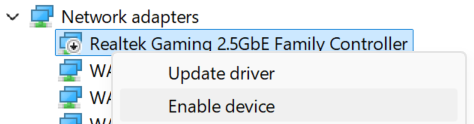
You can just unplug the Ethernet cable, turn off WIFI or disable your network adapter directly in Device Manager.
In that case, if your PC case is pushed against the wall or placed under a desk, disabling the network adapter is usually the quickest option. Just right-click the network card in Device Manager and disable it.
Right-click “Start” icon and select Device Manager.
Expand Network adapters
Then right-click your network adapter and select Disable device.
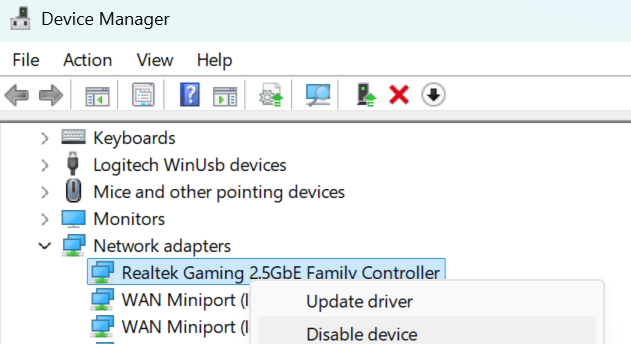
Disabling the network adapter in Device Manager is the most convenient and fastest method.
You can also, after launching DDU in normal Windows mode, go into the DDU settings and enable “Prevent downloads of drivers from Windows Update when Windows searches for a driver for a device”
While still in the settings, also enable “Enable Safe Mode dialog”
// Also, as I mentioned above, make sure to check that Safe Mode is actually working on your system before proceeding.

Under General Options and Specific Options, you can select the same settings that I have enabled here
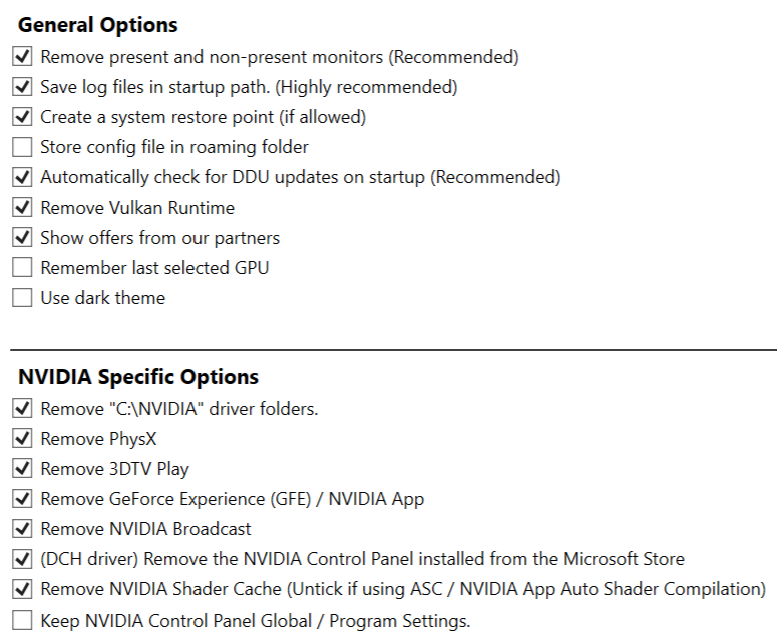
Be careful with “Remove present and non-present monitors” - this setting removes monitors and their drivers. After a restart, they will still work, but Windows will not have proper drivers installed for them, so you may need to reinstall the monitor drivers.
Also note that after removing monitors and restarting the PC, Windows may change the refresh rate settings. Go to Windows Settings > System > Display > Advanced display. Check if “Choose a refresh rate” is set to the maximum Hz of your monitor - if not, change it to the max or set it to your preferred value (for example 120Hz instead of 240Hz).
I once forgot about this and Windows set my monitor to 60Hz instead of 165Hz. As a result, I had stuttering in MSFS 2020/2024 and couldn’t figure out why. It turned out the cause was exactly the refresh rate.
So now you already have DDU configured and know a bit more - it’s time to prepare for reinstalling the driver. Before switching to Safe Mode, download the NVIDIA driver you want to install. After downloading it, you can launch DDU and under “Launch option” click Normal and select "Safe mode (recommended).
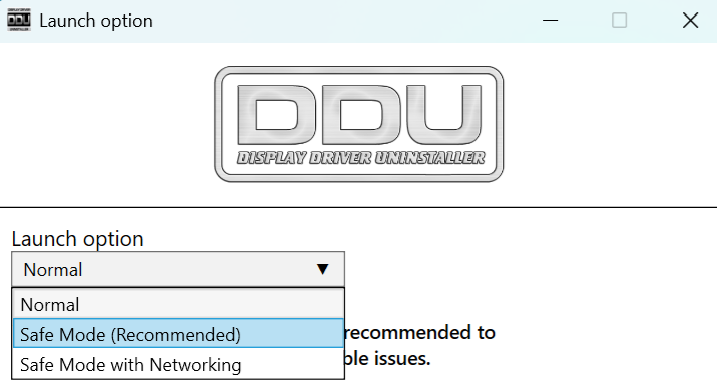
After the system switches to Safe Mode and DDU is launched, select the GPU you want to uninstall, in this case NVIDIA.
Then click “Clean and restart”.
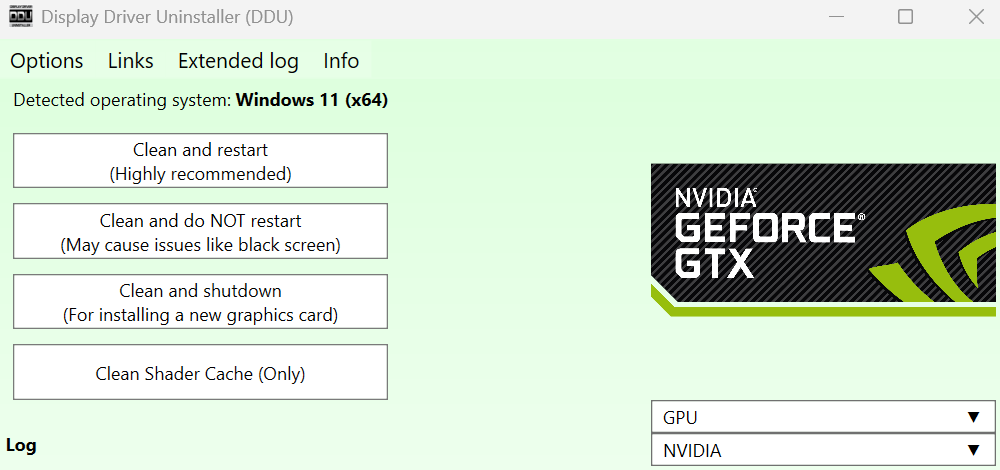
After the restart, you can install NVIDIA driver. I recommend installing the minimal version, meaning only the driver and PhysX - this way you can make sure everything works properly without NVIDIA app.
So run the previously downloaded installer, select “NVIDIA Graphics Driver”, then click “Agree and Continue”.
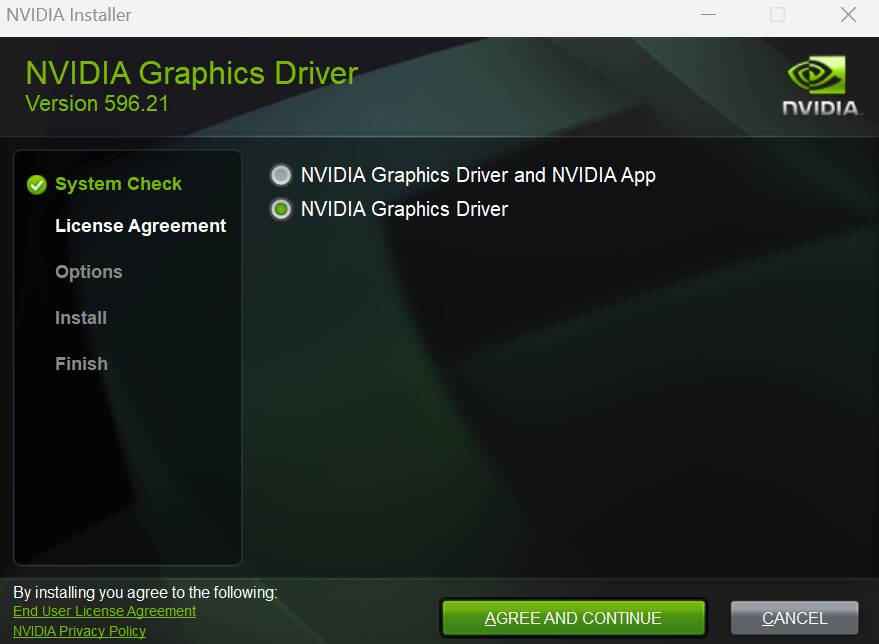
On the next screen of the installer, select “Custom (Advanced)” and click “Next”.
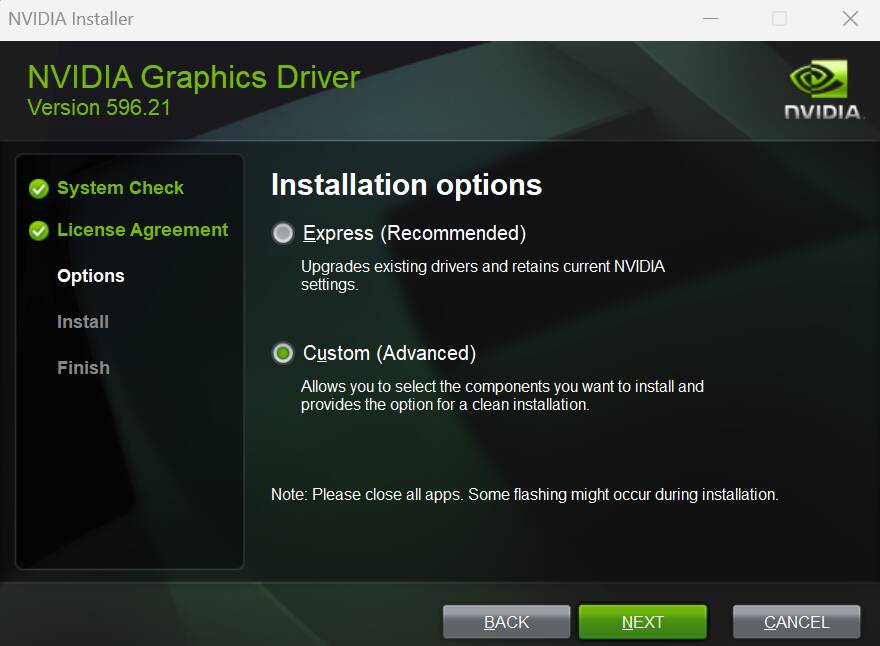
On the next screen of the installer, uncheck “HD Audio Driver” and make sure “PhysX” and “Perform a clean installation” are selected, then click “Next”.
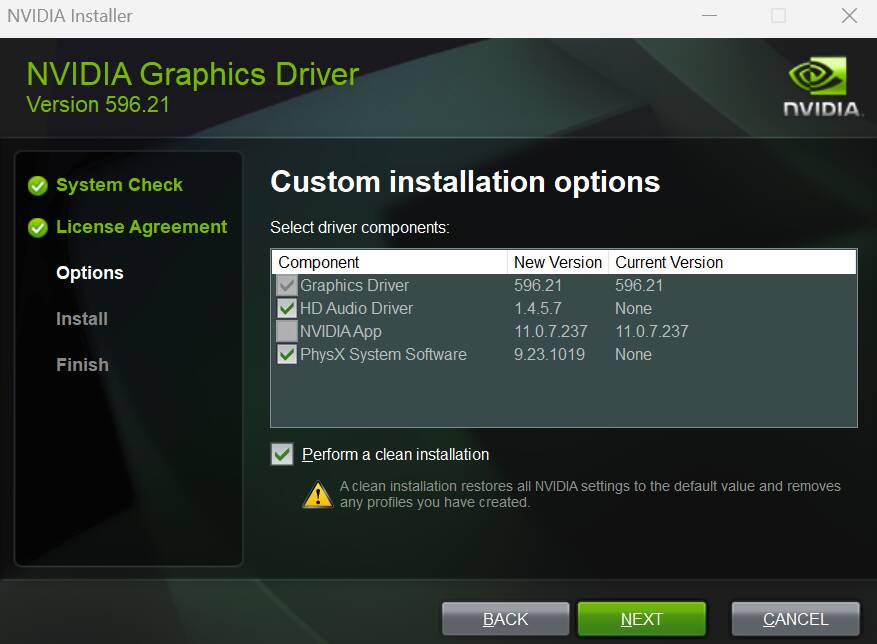
After NVIDIA driver installation, restart PC. After reboot, I remind you to install the monitor drivers if needed and check the monitor refresh rate (Hz) in Windows settings, as mentioned above.
If you have checked in DDU

and want Windows to install other drivers again, launch DDU in normal mode and under “select device type” click
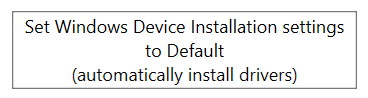
Now you can enable your network adapter in Device Manager. Open Device Manager, right-click the network adapter you disabled, and select “Enable device”.
Restart PC.
Now you can open the NVIDIA Control Panel and set a profile for MSFS according to your preference. The only important thing is not to change settings in the global profile unless you really need to.
After setting up the MSFS profile, check how the game performs. If everything is fine and you need the NVIDIA app instead of the NVIDIA Control Panel, you can download and install it.
Fly safe.
I think the OP’s particular issue might be trying to maintain 100-120 FPS. Even with FG this may not be achievable. But there is a lot of variability in performance that is based on aircraft and location too.
Just my own testing but without Frame Generation, with the default Ultra settings (no traffic) on 1 screen at 2K or 4K I would get roughly 57 FPS (A330 at KJFK). Of course this number dips when you move around an airport, objects and even parked aircraft enter the LOD sphere of your aircraft, etc.
I would get about 80 to 90 in the same scenario with no cap + FG (which has its own overhead) - then you need to ensure VSync and/or VRR is configured to avoid both tearing and stutters if using 120 Hz. Is it possible it’s as simple as VSync being misconfigured?
So just for my own set up, I choose to target 60 FPS instead, and use the Max Frames of 30 + Frame Gen x2 and VSync Half so each frame has more time, and that seems to absorb all of those dips when at busy airports and solved it for my particular PC.
I think the v595 ‘generation’ of the NVIDIA drivers (for lack of a better word) was problematic for sure, but the current 596 seems ok for me, and I haven’t noticed less performance if there is any (I do update DLSS via Swapper, which makes a difference for me).
Informal results of testing combinations of settings on 1 screen
Full results and settings here.
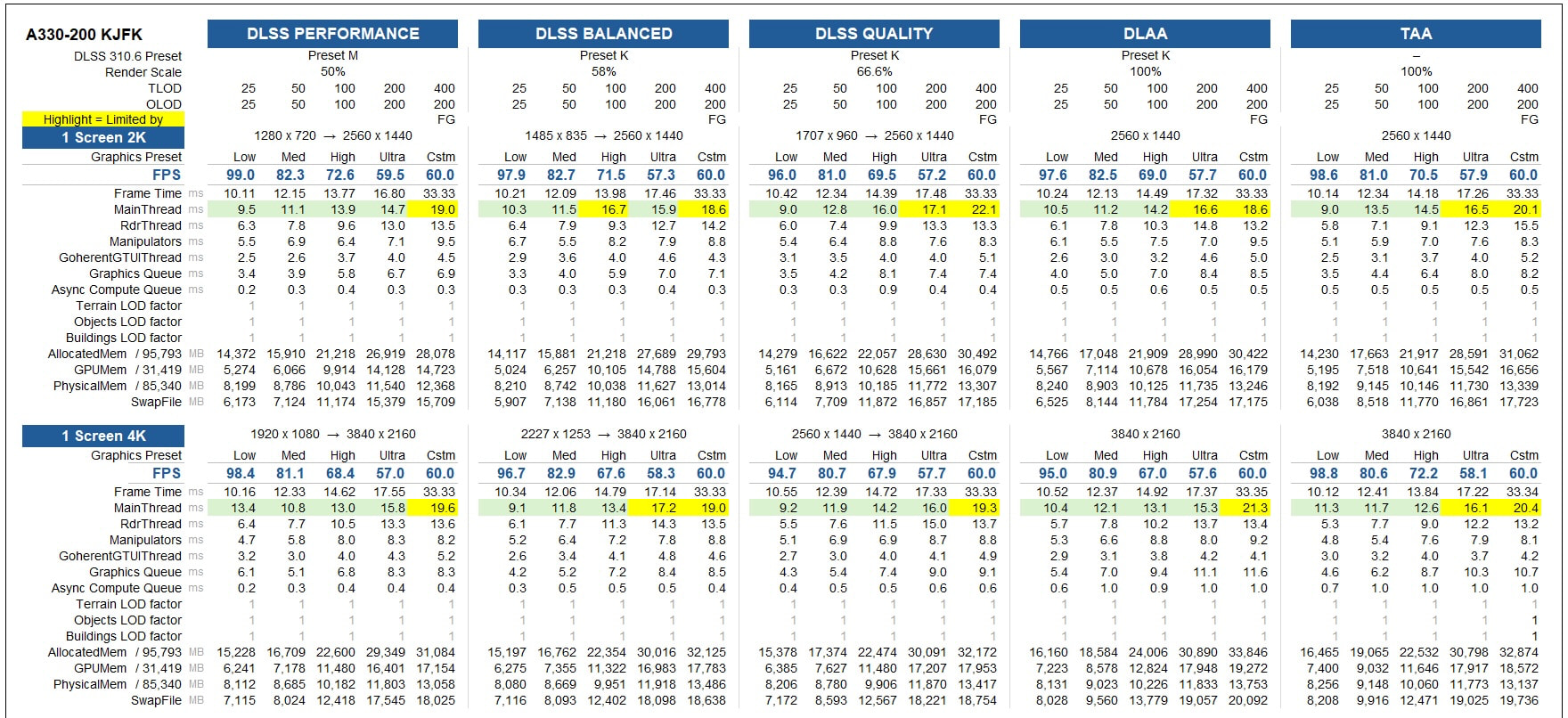
(The “custom” setting is Frame Cap 30 + Frame Gen x2, on 9800X3D and 5090. I used FSR FG because I was comparing with triple screens, but if I was using 1 screen I’d use DLSS FG.)
Thank you everyone for your time and comments it’s much appreciated! For reference I get around 58-64 native frames at inibuilds Gatwick in the fenix a320.
I will do a clean install of gpu drivers today. Ill the get some screen shots of my nvidia settings etc.
as mentioned the stutters happen on takeoff roll and around v1/vr. They appear heavily when decelerating on the runway upon landing especially when slowing to below 80knots.
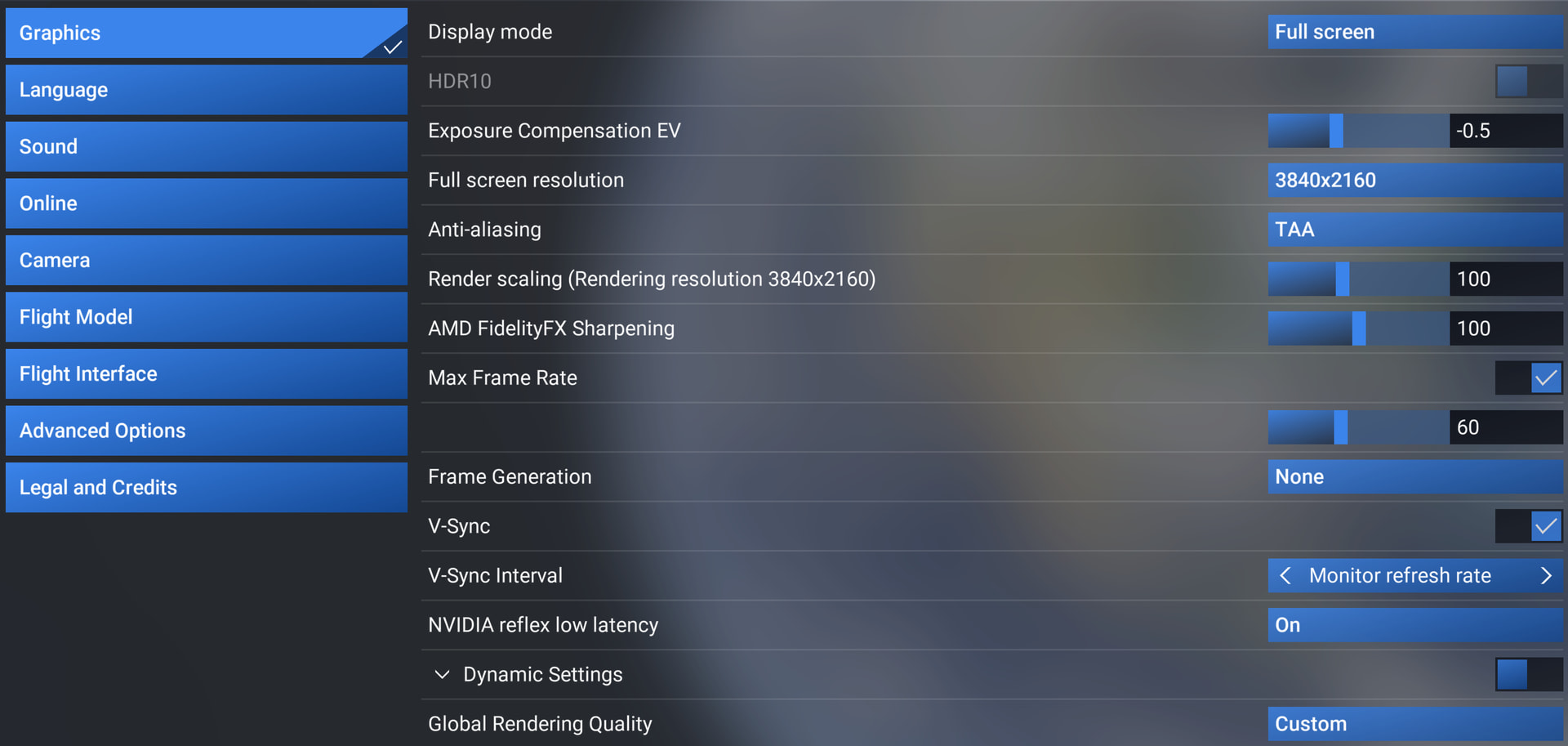
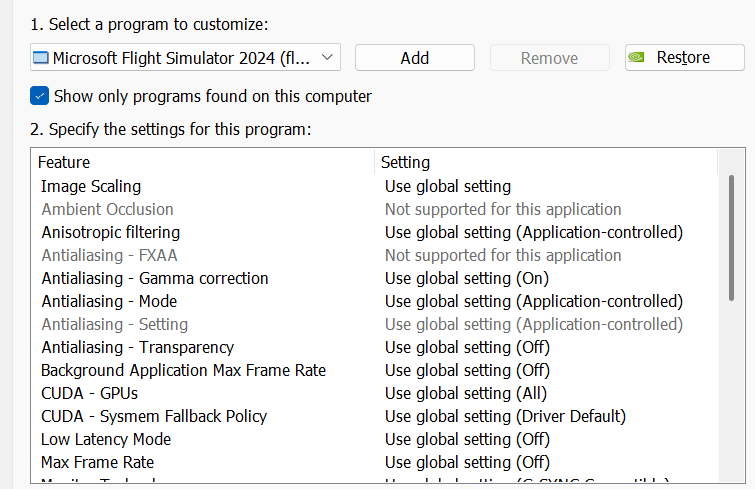
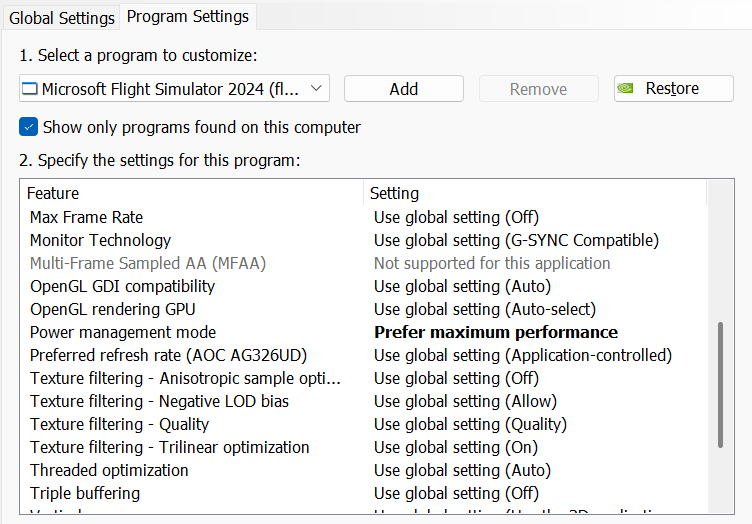
Below are my MSFS settings in 4K resolution and NVIDIA driver settings - overall I don’t experience stuttering.



Gaming Rig
- PC Case Be Quiet Light Base 900 FX
- MSI MPG X870E Carbon WIFI - BIOS 1A8
- Virtualization - disabled
- Re-size bar - enabled
- PSU ASRock Phantom Gaming 1600W
- Ryzen 7 9850X3D
- AIO Arctic Liquid Freezer III 420
- 64GB Ram CL26 DDR5 6000 2x32GB G.Skill
- AOC Agon Pro AG326UD
- MSI MAG 271QPX E2
- ASUS ROG Astral RTX 5090 OC / 577.00
- USB HUB
- Logitech X56 H.O.T.A.S
- VKB Gladiator NXT Evo Space Combat Edition
- Honeycomb Alpha Flight Controls XPC Yoke
- Logitech Flight Rudder Pedals
- Airbus EFIS Winwing
- Airbus FCU Winwing
- Airbus MCDU Winwing
- Boeing 737 MCP Core Flight
- Boeing 737 EFIS Panel Core Flight
- Boeing FMC/PFP 3N Winwing
- Thrustmaster T300 RS racing wheel
- Sound Blaster X5
- Sound Blaster Katana v2
- 4xNVMe // 4TB for MSFS2022/2024
- 1xSSD
- 1xHDD
- Windows 11 PRO 25H2
Thank you I’ll take a look and see if I catch match the performance
Very unpopular opinion, but I think a lot of the problems people have with stutters are too high of settings. Not all, but some/a lot. Yes, yes, I get it, you have a 4k$ 5090 and that means it should run anything. I disagree. Sorry.
I can make my PCL/14700k/5080 run perfectly smooth 98%-99% of the time. I just use settings much lower than any one of you dare think about. How many times do I see 200/200 on the ground?
I am at 60/150 on the ground, and above FL100 I am now set to 250.
DLSS Preset M Performance, medium texture resolution, low particles, high clouds, medium buildings and trees, medium glass refresh, medium pre-cache, and off, low, medium for most of the other settings. Also PCL resolution @ 80 which is equivalent to the G2.
I understand some of the stutters should probably not be there, but I still firmly believe that a lot of users have settings too high. Wanting that to not be true does not change the fact that it can in fact be true. msfs24 is a hugely demanding simulation. Then throw in complex, 3rd party airliners, complex 3rd party airports, BATC, GSX, multiple add-ons.
Feel free to ignore me, but my settings are far below what most here would use, and I am getting great results.
I just flew from kelm to kmsn yesterday in the Honda Jet w/BATC. Awesome flight. Big thunderstorms coming into kmsn, clouds looked great, lightening all over, rain. It was awesome!
Good luck to everyone!
Let me disagree. The RTX 5090 is currently the undisputed king of consumer gaming GPUs. If MSFS 2024 doesn’t run smoothly on it at 4K, then what exactly is the upper hardware target the developers are aiming for?
Because the logical conclusion seems to be that if you want stutter-free flying, we all need to step up to a RTX Pro 6000 Blackwell for the bargain price of $7,999.99 (or more).
Just because the 5090 is currently the best, does not mean it has unlimited power.
That is not the logical conclusion, as I get stutter free flying from a 5080.
There have been games that when released struggled, even with the best hardware, because they were simply ahead of their time with graphics/complexity. Crysis and Cyberpunk 2077 immediately come to mind.
The base sim is already demanding, then people expect to be able to set high tlod/olod, use complex 3rd party airliners, complex 3rd party airports, BATC, GSX, multiple 3rd party scenery add-ons, and not see so much as a stutter. Oh, and then after wanting to use all that, stutter free of course, they also expect to not have to use FG, and use TAA at 100. IMHO that is completely unrealistic.
Crysis and Cyberpunk were both infamous for poor optimization at launch, so they’re not the best comparison here. Expecting flagship hardware from 2025/2026 (like a 5080 or 5090) to run the base sim smoothly at 4K with reasonable settings isn’t unreasonable at all. Yet many of us are still getting random stutters even on a completely vanilla MSFS 2024 with no add-ons (I experience them myself on a 5080), and it’s fair to question whether the optimization are where they should be.
Fair points.
But, I will say, flying the Honda Jet in “6k” VR with a 5080, BATC, some 3rd party airports, a few 3rd party sceneries, and a few add-ons is practically stutter free.
I just had a beautiful flight yesterday from kelm to kmsn, complete with intense t-storms, and I think I had 2 extremely minor stutters in the entire 1.5 - 2 hour flight, from cold and dark to shutdown.
I do believe there are some stutters that should not be happening, and that msfs24 could be better optimized (imo), but I also believe some, to a lot of the stutters people are dealing with, are settings being simply too high.
FPS can also be very misleading. I can be rocking out 55 FPS at altitude, and if I decide to push my settings, wham, 55 FPS to stutters, because I ran out of vram. I can also have a situation where I am not out of vram, but my 5080 is being pushed so hard I am at 25-30 FPS, but stutter free.
The OP said “I have a mixture of high and ultra with Terrain LOD at 200 and object LOD at 150-200”. Maybe try a mixture of low/medium/high, 75-100/150 tlod/olod to start, and if that works, then start tweaking up until stutters start and then back off a bit for some overhead.
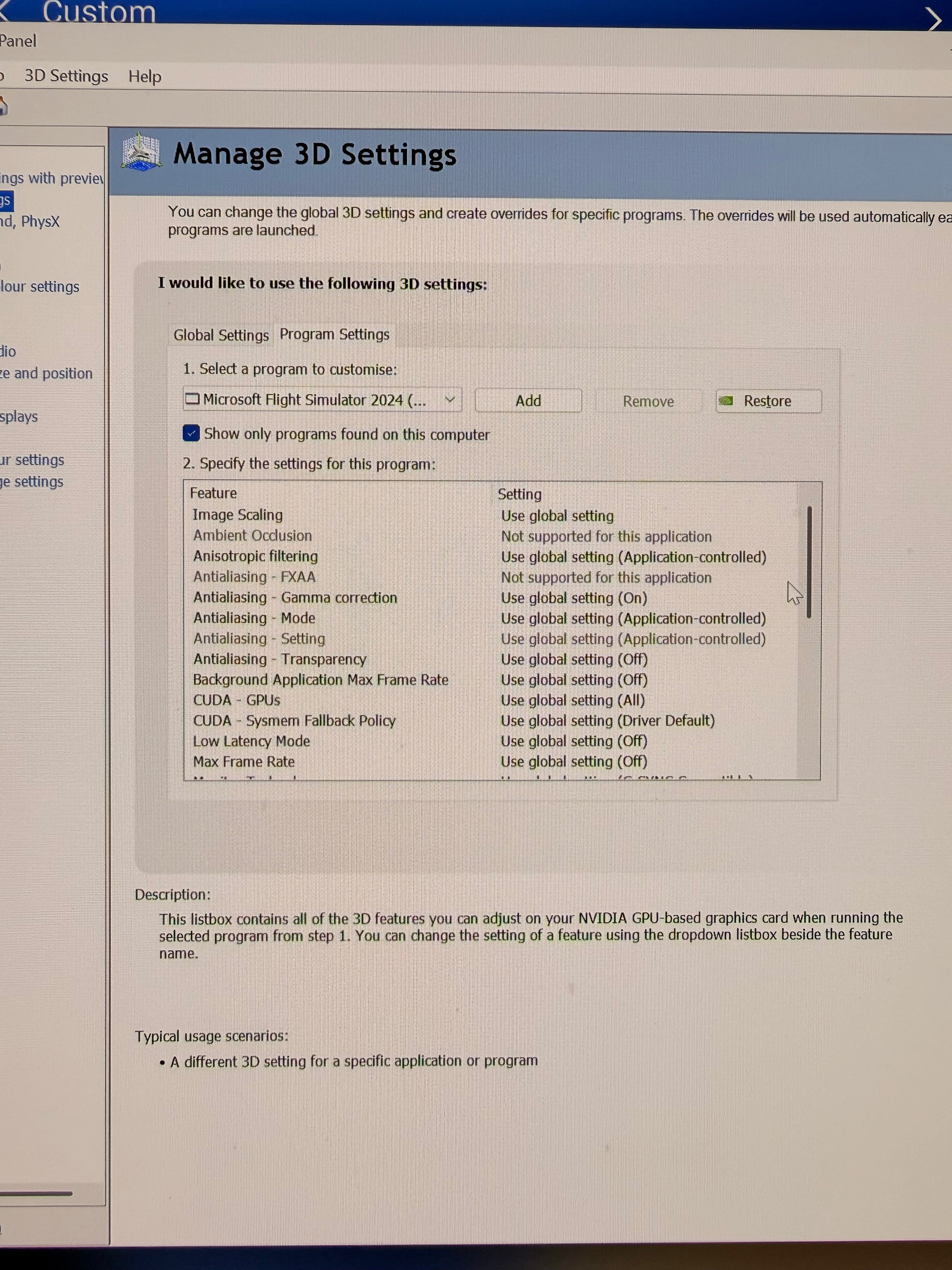
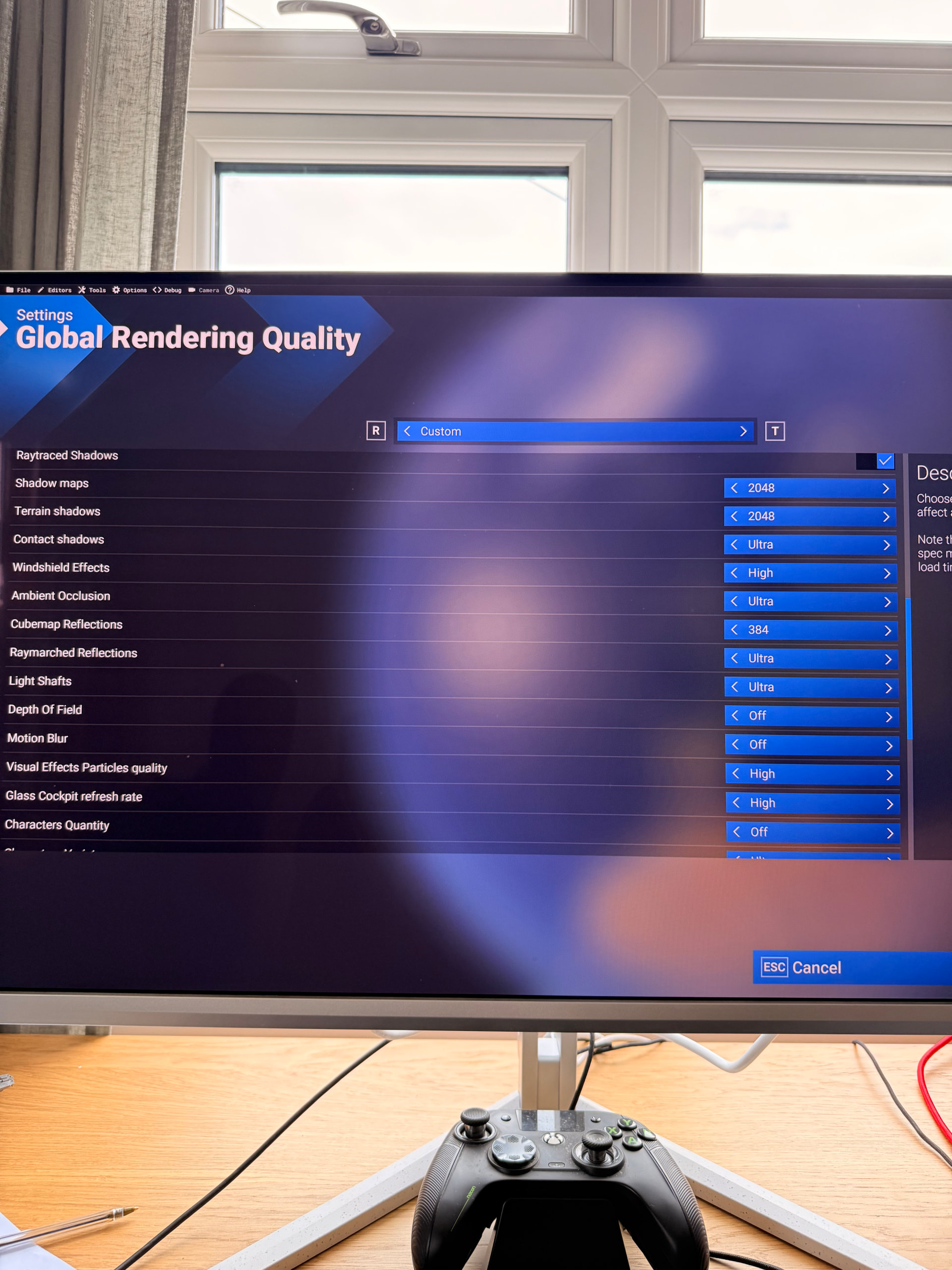
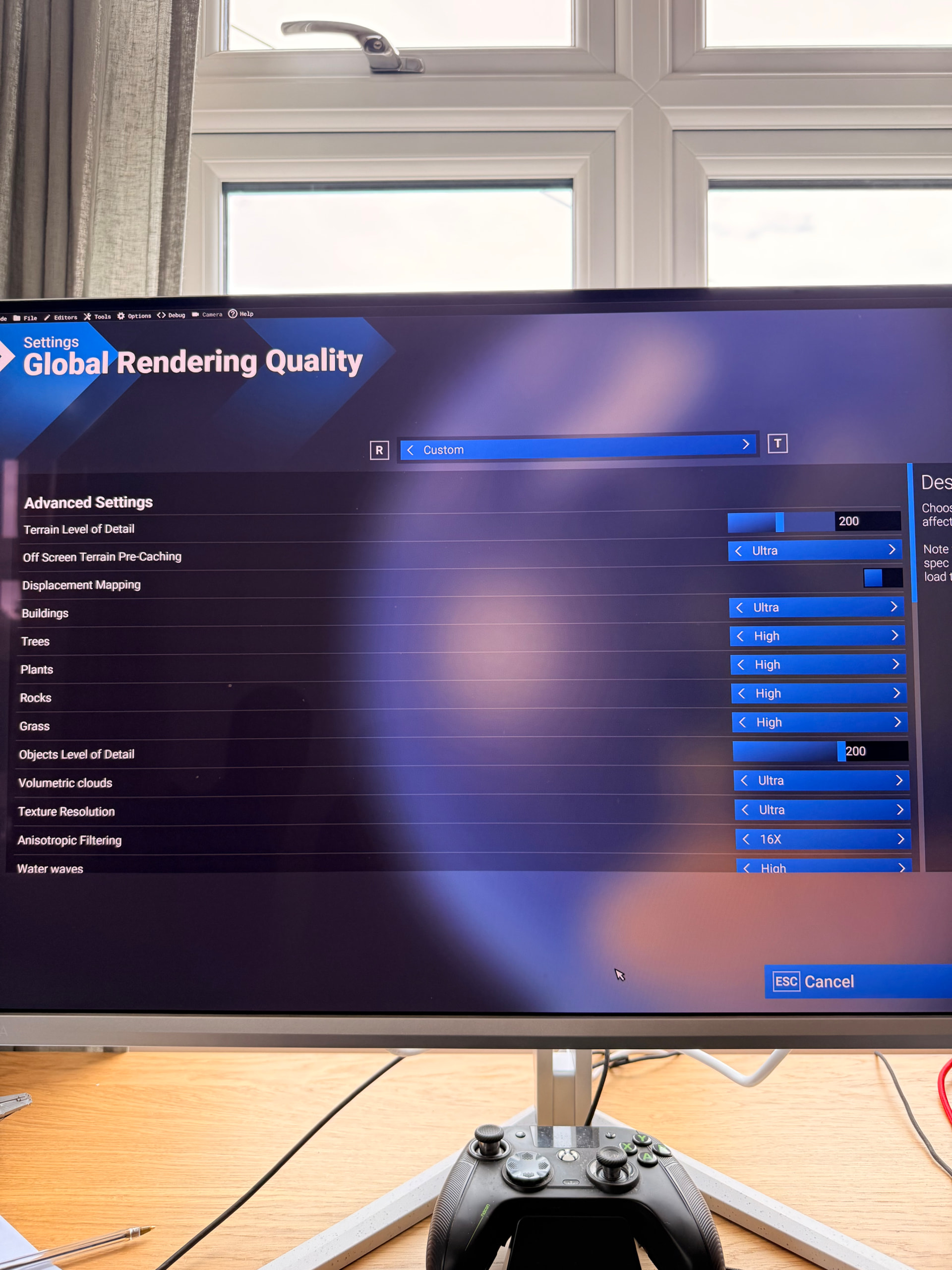
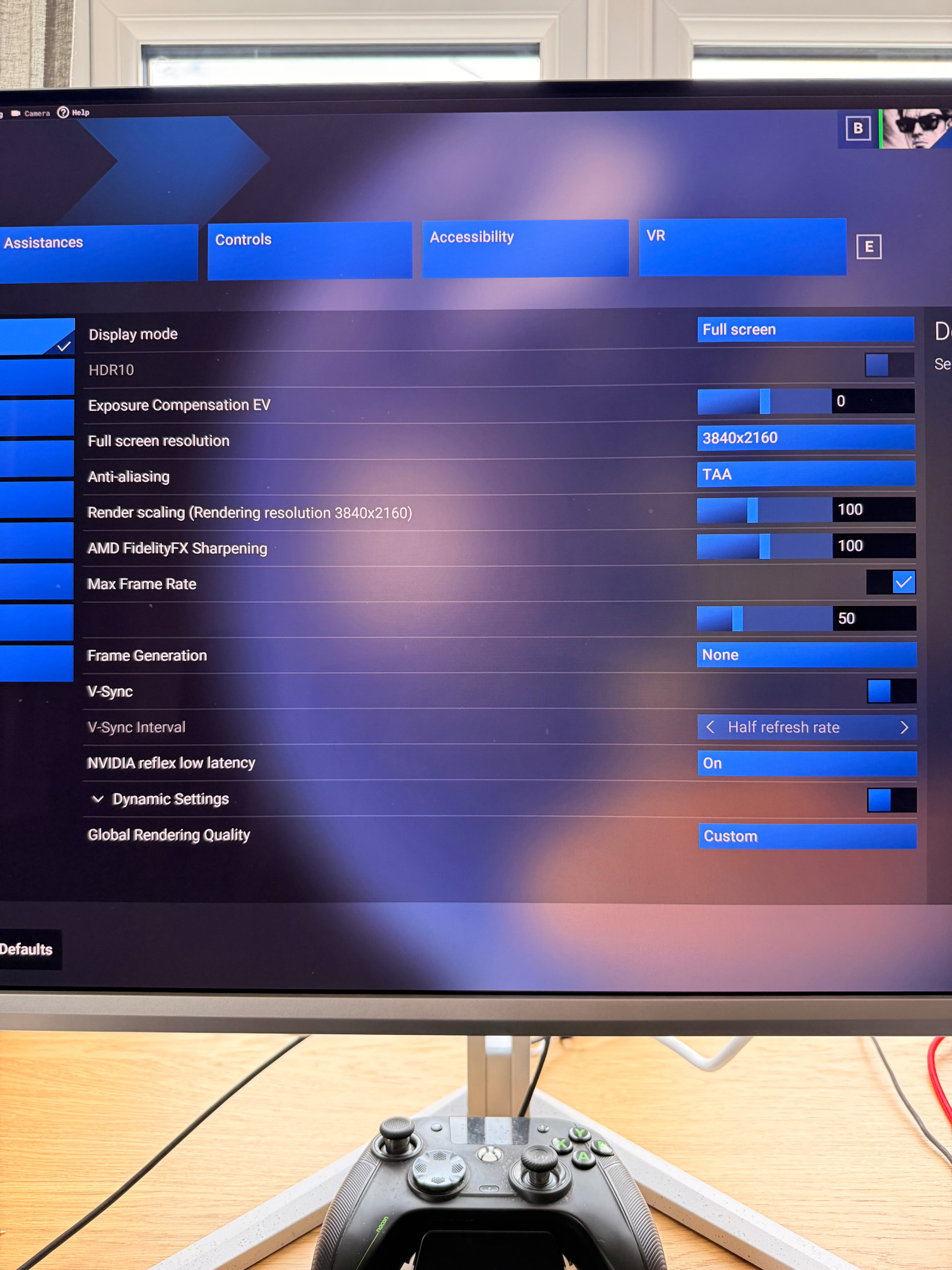
Appreciate everyone’s opinions on the current state of the sim and yes people will pass judgement at that fact that I have a 5090 and still get stutters, however I’m not here for opinions I’m here for help and solutions if that means lowering settings then so be it. Moving on - I’ve just run some questionable take offs and landings at Gatwick with both the fenix and sim A330. The stutters are still there especially upon landing once touchdown and reverse thrust set the stutters are terrible. I’ve also included some screen shots of my settings. Thanks.