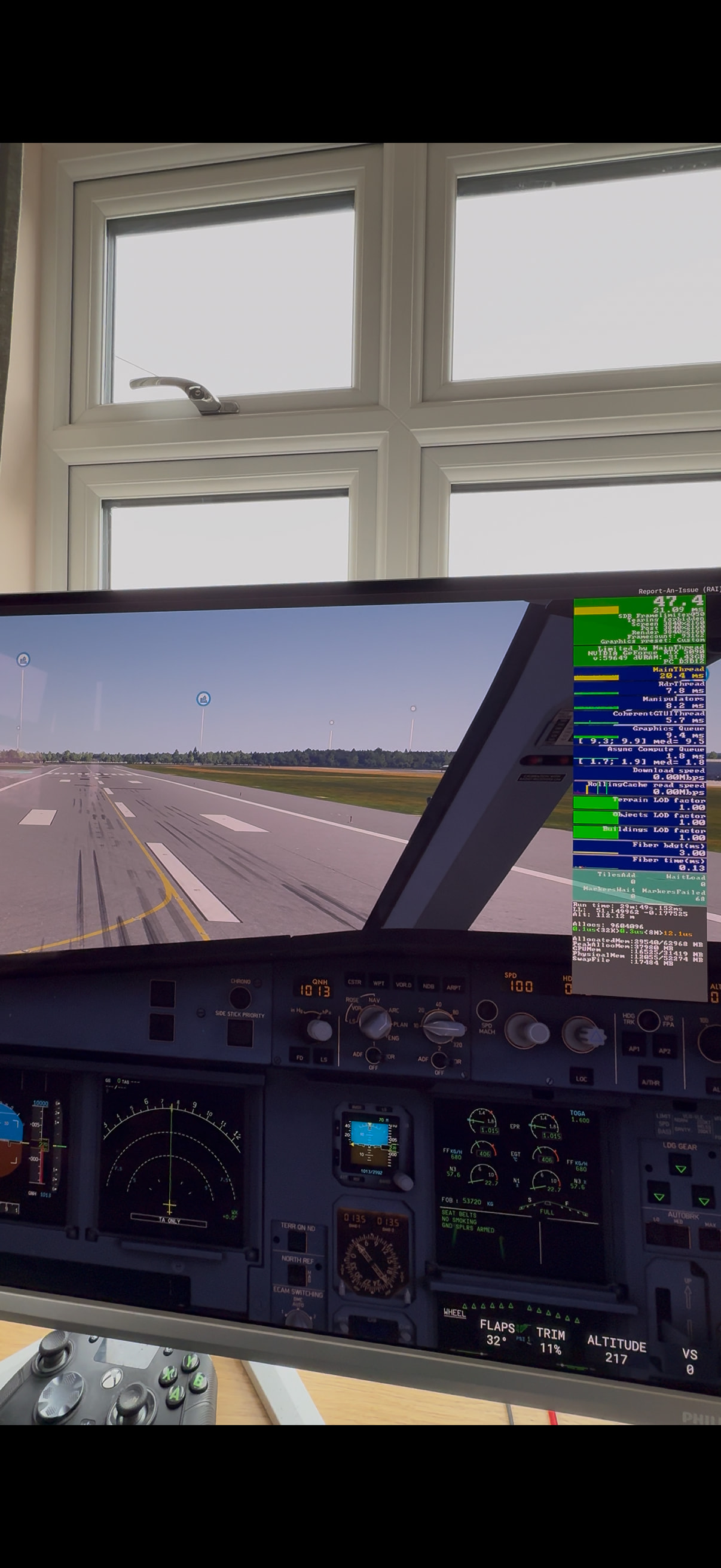
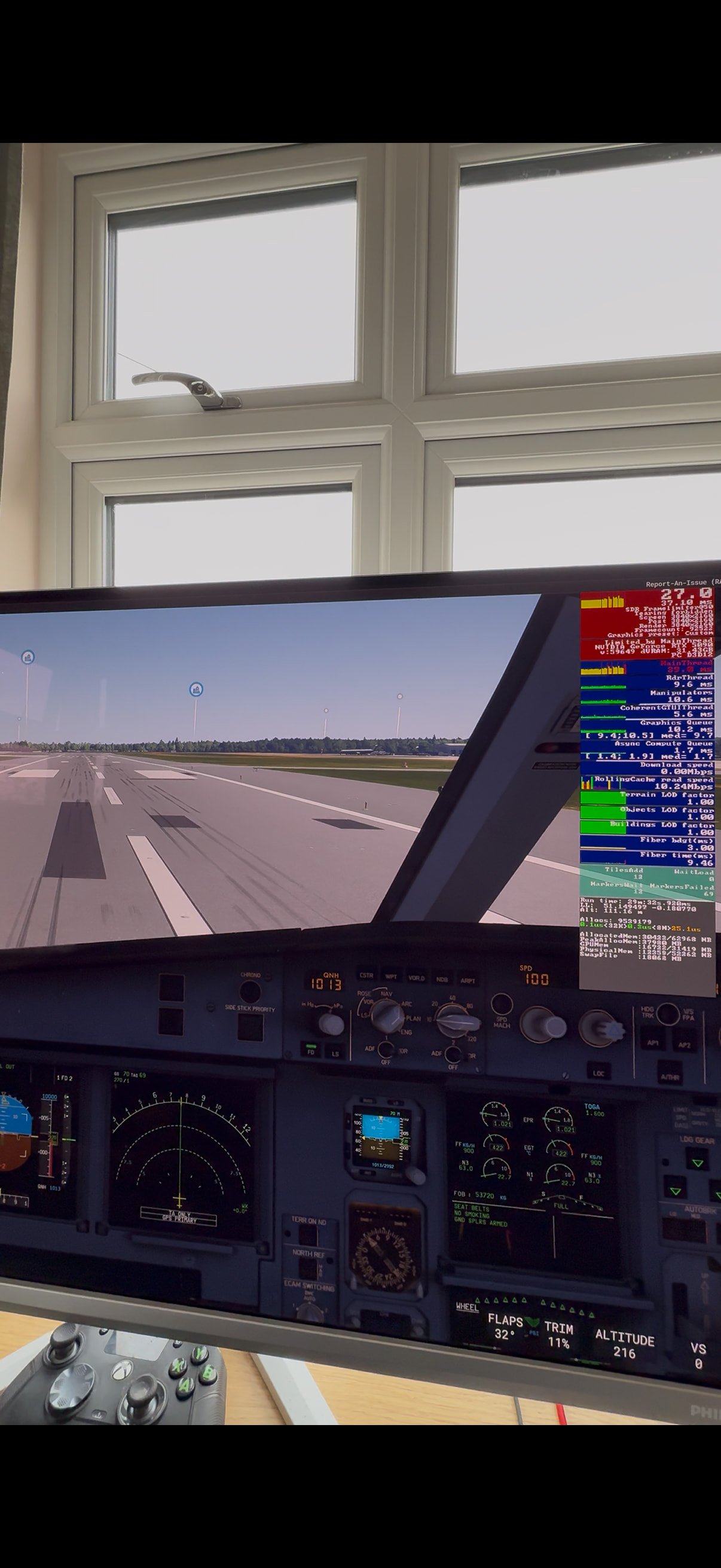
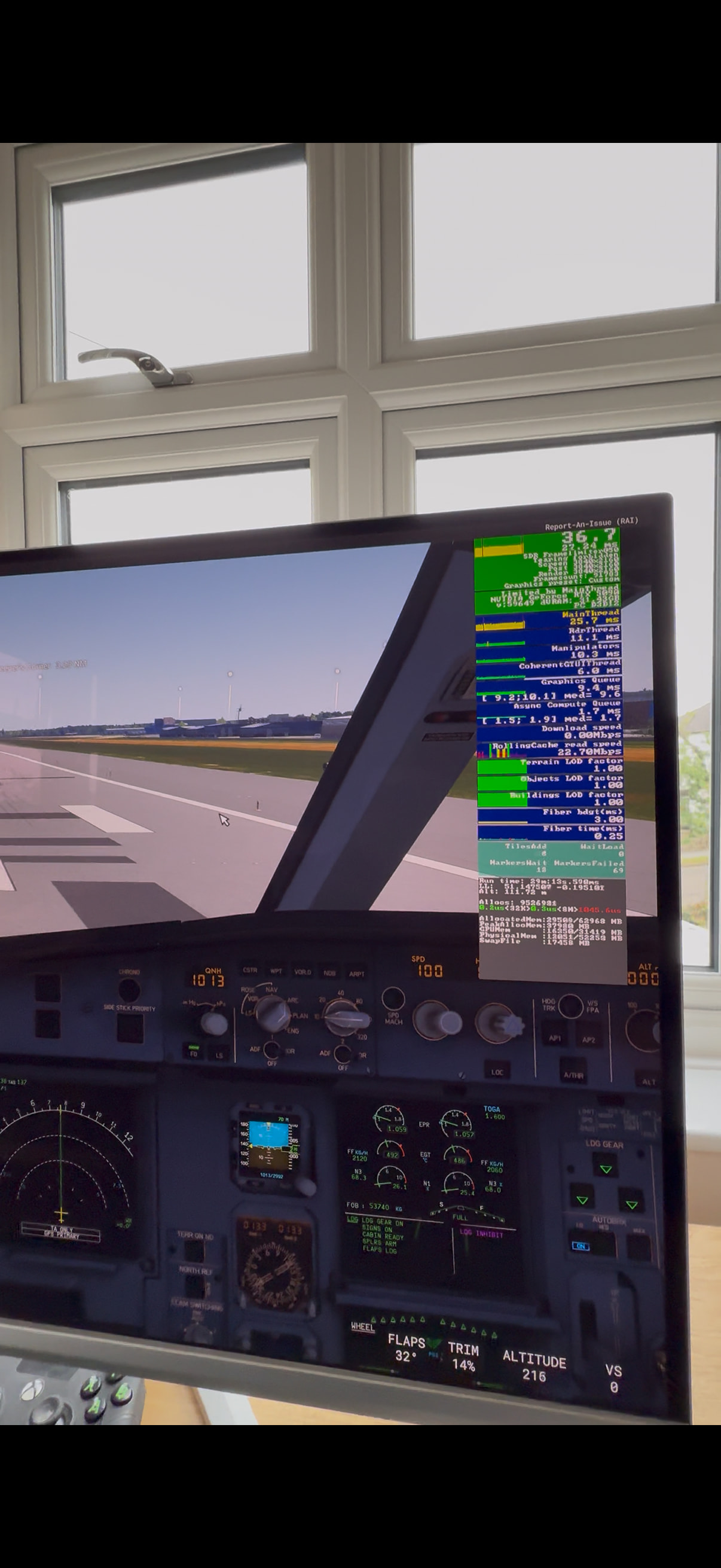
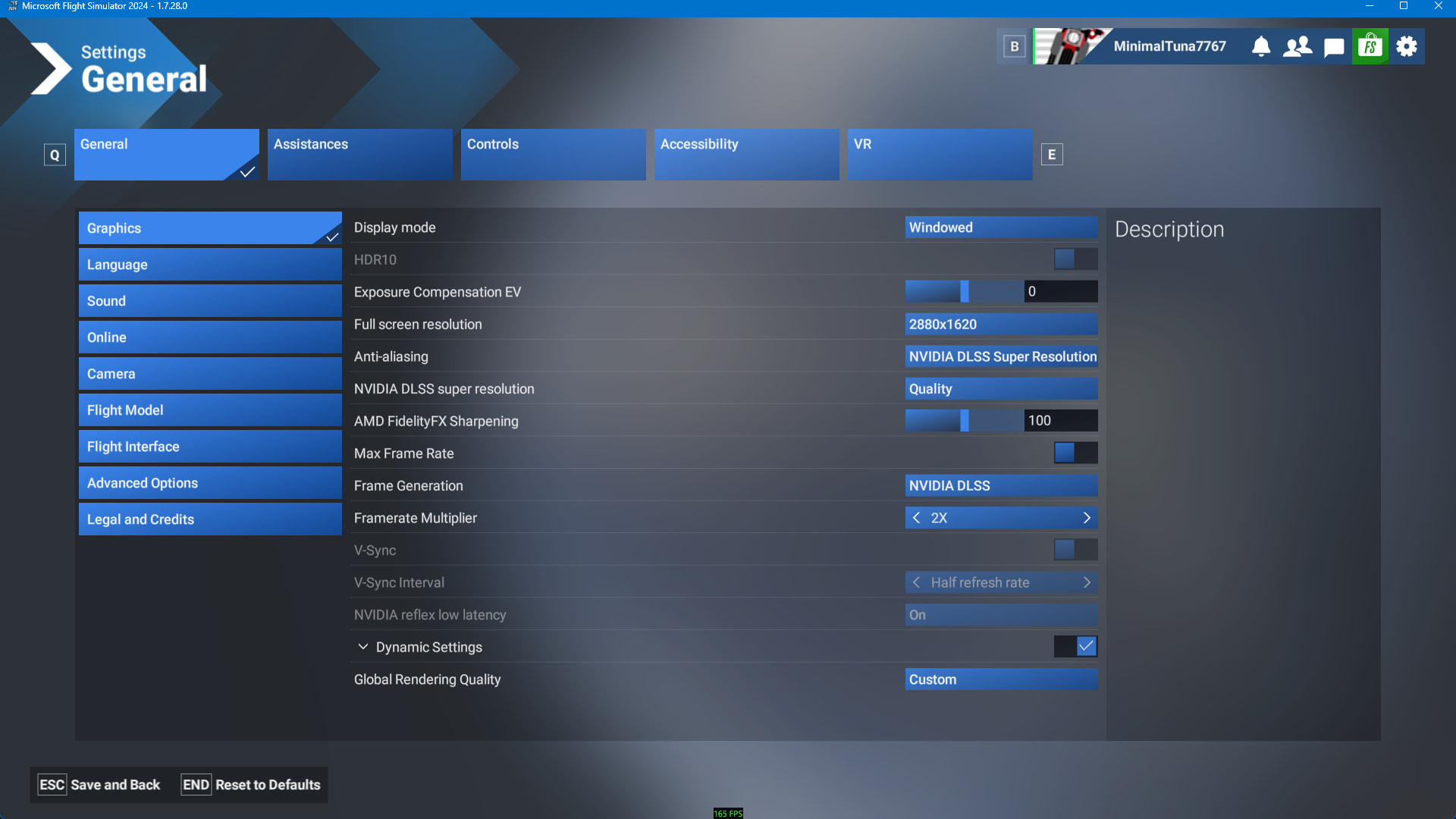
Turn off Fauna and possibly Ray Traced Shadows, unless you must have those on.
Try some flights out of different airports and in different aircraft models, just for quick checks.
Turn off Fauna and possibly Ray Traced Shadows, unless you must have those on.
Try some flights out of different airports and in different aircraft models, just for quick checks.
Turn off Fauna!! Turn off Ray tracing.
For testing, I would change every ultra setting to high, and every high setting to medium.
100/100 tlod/olod.
All these are just for testing. You can always raise them. The object is to get settings that give you as close to stutter free results as possible and then build on that.
You could also use x2 FG as an initial starting point.
Here is one thread on Fauna if you are interested. Not just for VR. 2D also.
Is that with the current settings or lowered settings?
I personally always start with very low settings and start tweaking the settings that are the most important to me and work my way up until I start having problems and then back off the least important to me to get some overhead. I also do not lock my framerate. I will take as many FPS as my system will give me.
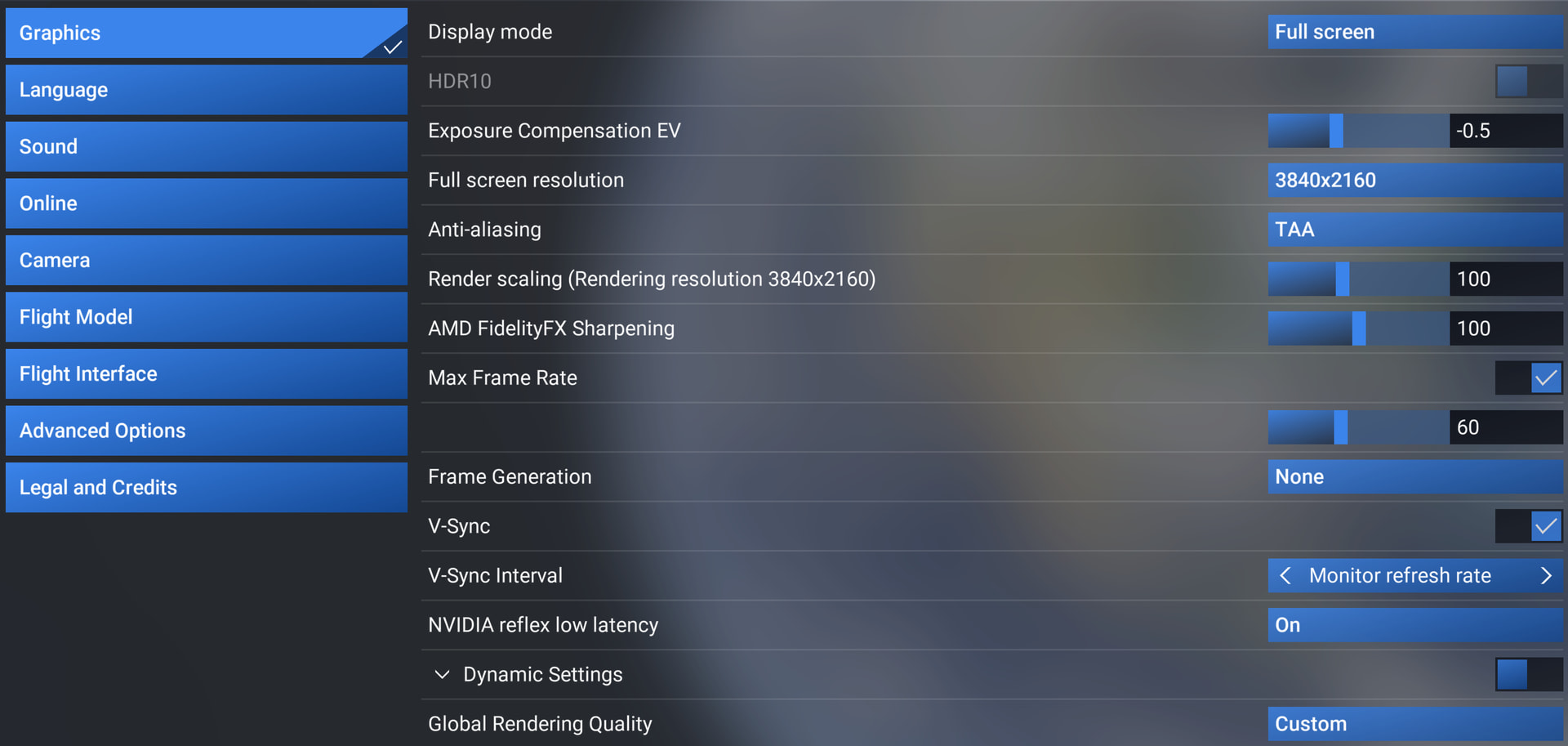
Hi thanks for the reply. That’s with the settings I popped up before hand.
You are welcome!
You might be very surprised when you start to compare ultra to high/medium settings that there is almost no difference in visuals with some settings, but you can gain quite a bit of FPS.
I see a few things which might be causes, for example:
In your shoes, I would be doing the following to test:
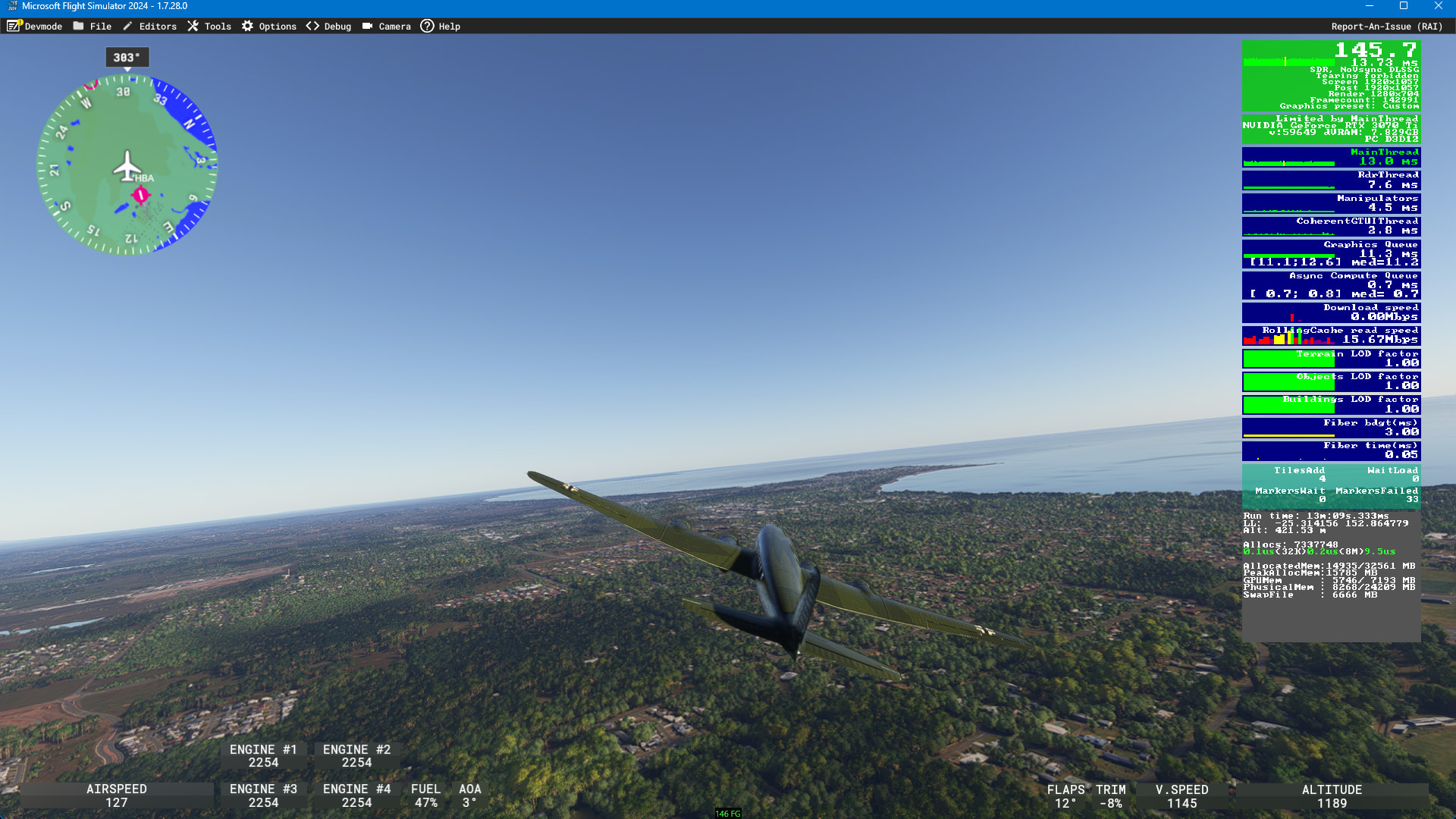
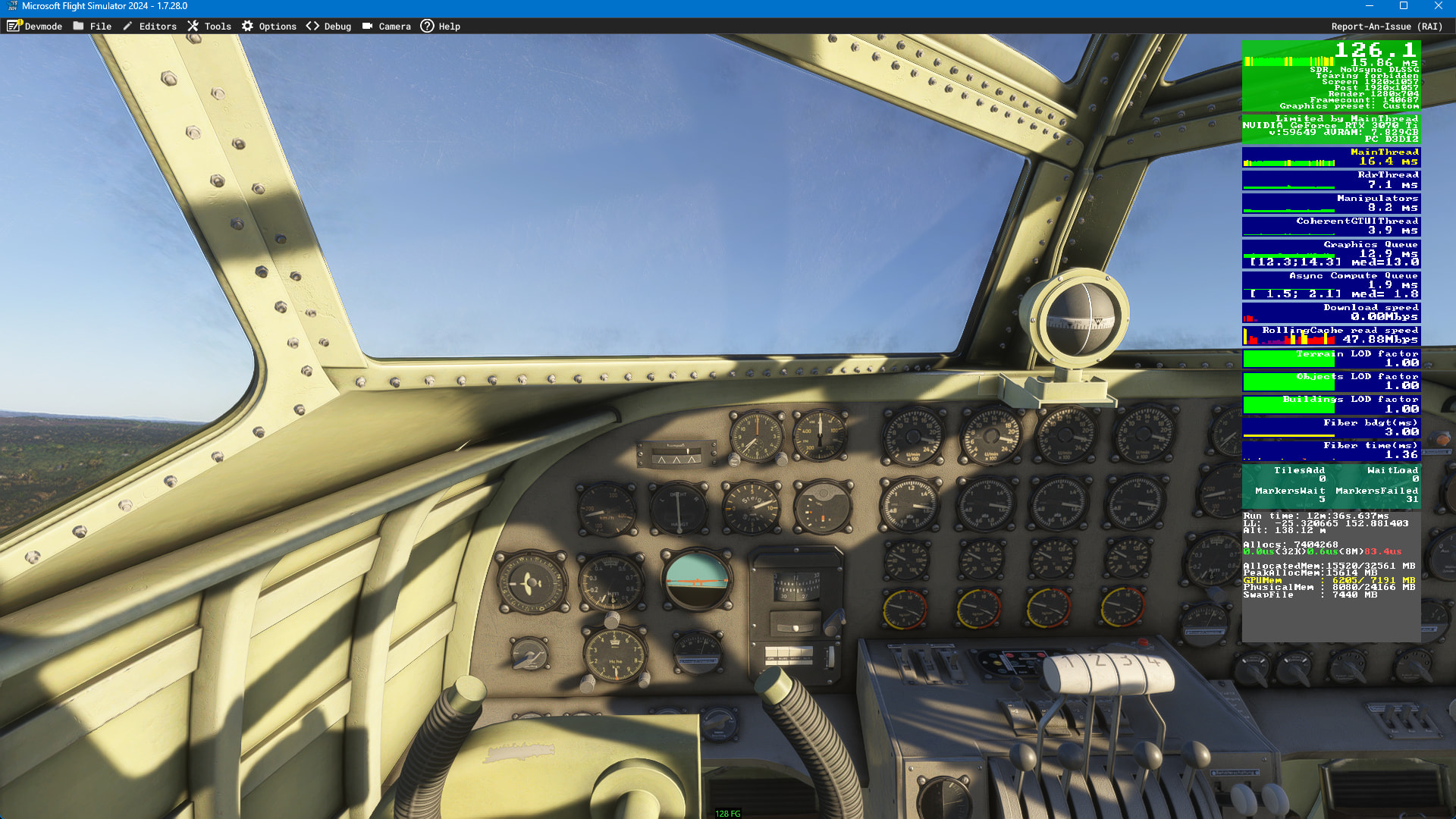
I would make those changes, reboot the PC, then just load in at the gate and take a screenshot of the FPS overlay. The above lets you see the native frame rate with a set of defaults. And again, I suggest not seeking 120 FPS, but 60 is achievable, and smooth when it lines up with refresh and vsync.
I’ll state again that when I started with my 5090 last fall, I was disappointed and that led me to start understanding how BIOS, Memory Timings, and DLSS versions all dramatically improve performance (mostly on the CPU side) - and that has made the difference for me.
Great suggestions by Gimbal!
The whole idea is to get to a smooth baseline.
From there you can tweak settings to your liking.
I already posted my MSFS 2024 settings - the exact ones I’m using without stutters and I honestly don’t understand why you haven’t tried them yet. Please follow the suggestions properly before judging the sim’s performance.
Also, stop testing MSFS over and over at Gatwick. That airport could simply be bugged right now.
So please, use my MSFS settings first. I’m posting them again below:
Windows Settings
System > Display > Graphics
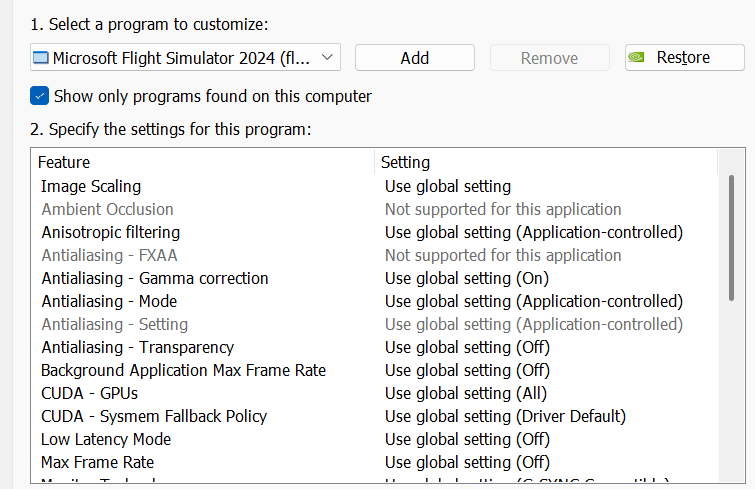
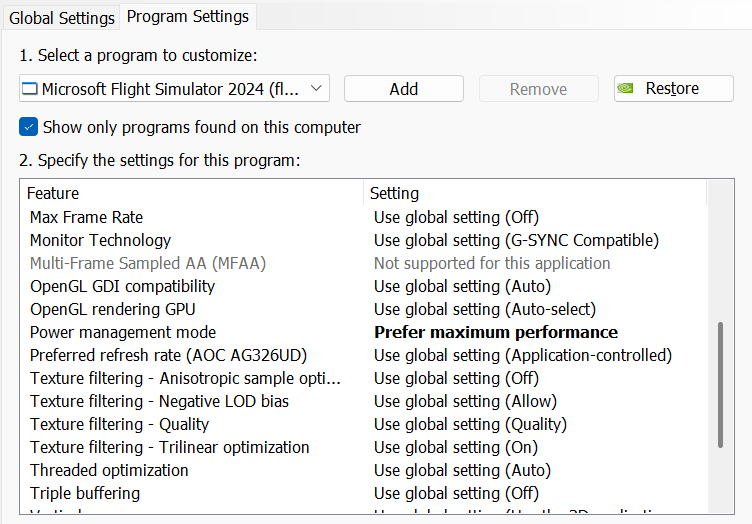
Under “custom settings for application” click Add Microsoft Store App - scroll down and select Microsoft Flight Simulator 2024.
Click MSFS 2024
You should disable hibernation, but before doing that, you need to turn off Fast Startup - Fast Startup can only be disabled while hibernation is enabled.
Fast Startup negatively affects drivers, which in turn can impact games as well.
Open the Control Panel and change the view from Category to Small Icons. Then click Power Options > Choose what the power buttons do > Change settings that are currently unavailable. Uncheck Turn on Fast Startup and save the changes. After that, select the High Performance power plan.
Turn off Hibernation via CMD.
To turn off hibernation via CMD, open Command Prompt as administrator and run:
powercfg /h off
This will disable hibernation and also remove the hiberfil.sys file from your system. Restart PC.
Also, make sure to set your windows power plan to maximum performance.
You should stop testing Gatwick and instead test MSFS performance by flying, for example, from EDDP to LIMC.
Here are my setting Im using at the moment. I have a
Processor 12th Gen Intel(R) Core™ i7-12700KF (3.60 GHz). RTX3070Ti video cards gig ram.
Installed RAM 32.0 GB (31.8 GB usable)
System type 64-bit operating system, x64-based processor Window 11 canary latest . Using the frame gen mod and its working very nicely at the moment. I’m on the new beta as well. There are times that the sim sucks but I think its the server and not the game. I steam every thing. But I do live in Australia so not sure if the servers are not as busy here.
I appreciate you sending over your settings and all the advice. I actually have tried your settings that you posted earlier in the day and it made no change. But I will try the extra steps you mentioned.
A lot of my stutters went away when I did a full re-install
I have maxed out the settings in MSFS (all Ultra/High, all LOD sliders on the right side, DLAA, FGx2) and don’t have stutters and runs perfectly smooth >100FPS, so yes a 5090 is perfectly capable of running MSFS 2024 on max settings.
Have you try the Low-End settings?
Start with that, if it works ok, try Medium, and go your way up until it doesn’t. When you reach one level that has the issues, change to the level below it and then increase each setting until you find the sweet spot.
Maybe you have one or 2 settings making things worse. Those are the ones you need to disable/lower to an acceptable level.
That’s awesome! But then why do I see so many 5090 users with stutters?
Are you using 3rd party airports and sceneries, and add-ons, and BATC/traffic injection, High resolution VR (some people), and airliners?
I am not trying to prove you wrong, I am just curious if you fly in vanilla sim with GA aircraft or with the above options. Almost all/all the people I see having issues are using all those features I listed, and some don’t even use FG.
I don’t believe the 5090 is the bottleneck causing stutters - usually MainThread or RdrThread, which would mean CPU / RAM / Disk bottleneck, and the GPU is just waiting.
But I can get smooth flights in “6k” VR with my 14700k/5080, with 3rd party airports, 3rd party sceneries, BATC, and PG.
If you are correct, and I believe you are, then that would mean people simply have their settings to high. No?
Given the number of people complaining about stuttering with the latest versions of MSFS 2024 (and not just 5090 owners), it seems obvious to me that Asobo has a problem to fix…
Don’t break your entire beautiful setup thinking the problem is on your end…
Or memory timings, or monitor refresh settings, disk I/O bottleneck, or, or, or… hard to know without specifics, as there are many steps in the render pipeline and any of them can be an issue.
My general sense (which is just my intuition, I’m not a developer) is most stutters are related to objects loading, and while everyone talks about TLOD (Terrain), I think stutters at airports are more likely OLOD (objects) and traffic, and so my first test would be to reduce OLOD to zero, test, then raise it and test again. But from what I saw in my own tests when I really push the TLOD / OLOD settings, it’s CPU limited.