First a few questions:
- Do you know the model of RAM, or at least the Make and the speeds (eg 6000 CL28)?
- Is your RAM on your motherboard’s QVL List… linked here
- Is your Motherboard BIOS relatively up to date?
Before changing anything...
t’s a good practice to take a few measurements so you have a baseline to measure what changes.
- Download Cinebench
- Cinebench > File Menu > Advanced Benchmark
- Minimum Test Duration > Off (this keeps it short)
- Run the Cinebench Multiple Threads test, and Single Core test and note down or screen shot the scores for each.
- In MSFS > Settings > Advanced > enable Dev Mode
- From the Tools Menu, display the FPS
- Free Flight > Pick an Aircraft
- Flight Conditions > No traffic, and Weather Preset “Few Clouds”
- Load in to any gate at any airport
- Take a screen shot of the FPS from the cockpit view
- Take a screen shot of the external view
BIOS tuning: Reboot and press the Delete Key to boot in to BIOS
I highly recommend resetting BIOS to defaults first
There are 2 concepts, both work together:
EXPO, memory tuning
These settings rely on your RAM specs, and require testing to ensure stability:
-
Click on Advanced > Tweaker > and Click on the XMP / EXPO Profile
-
I believe the choice will be limited to what your RAM offers
-
When you enable it the specs will display, make sure they match your RAM
-
After you have saved and tested the above you can come back to this page and try enabling “XMP / EXPO High Bandwidth Support” - this tightens the memory subtiming for substantial improvement in MSFS, but requires testing for stability.
-
Depening on your exact RAM speeds, generally you want UCLK DIV1 Mode to be UCLK = MEMCLK

Undervolt aka Curve Optimizer
We enable the PBO (AMD’s Precision Boost Overdrive) algorithm so the CPU is free to use its boost clock, while staying within its own safety limits of power, current, and temperature. We slightly lower the voltage, which means the CPU uses a bit less power, runs a bit cooler, and provides headroom for it to boost when it wants to:
- Click Advanced > Tweaker > Advanced CPU Settings > Precision Boost Overdrive
- … Precision Boost Overdrive > Advanced
- … Curve Optimizer > All Cores
- … CCD Curve Optimizer Sign = Negative
- … CCD Curve Optimizer Magnitude = start with 10, or 12 at most
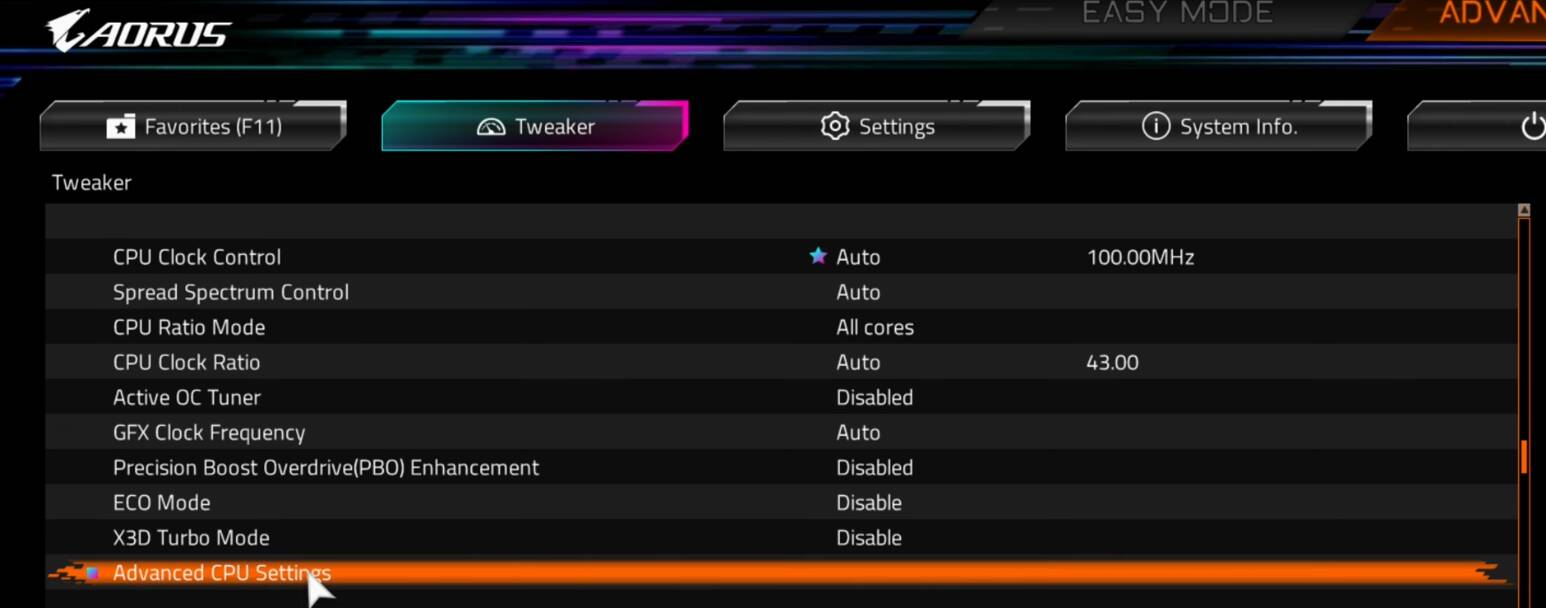
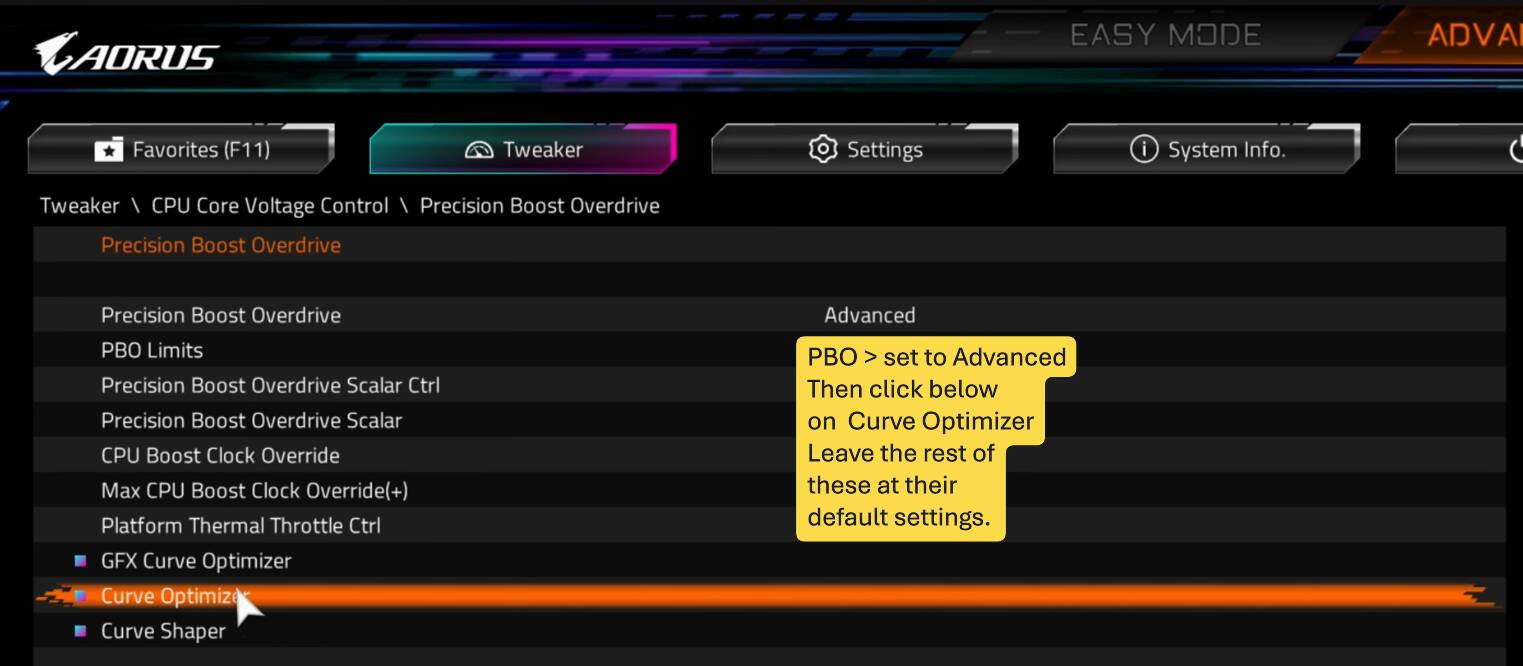

Reboot, which will take a while because the motherboard will have to “Train” the memory. Then test again with Cinebench and the exact same MSFS scenario, to compare.
Finally, if all is stable, you can go back in to the PBO section, and try adding 100 MHz to the boost clock.
Additional considerations:
If you use either DLSS or FSR, I highly recommend
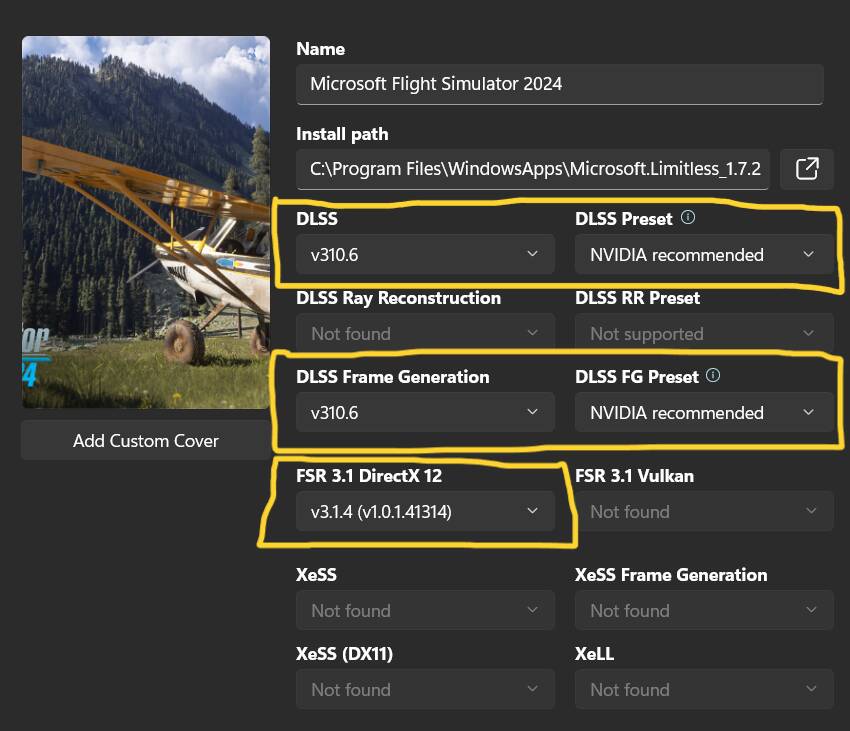
The version of DLSS and FSR installed with MSFS is quite old, and there is significant benefit to updating the versions using DLSS Swapper - only ever install this from Github, the websites that offer it are not by the author, and should not be trusted…
MSFS should not be running, and, if you have used NVIDIA App to “override” DLSS, you should set the NVIDIA app back to defaults. (Also don’t let NVIDIA App optimize).
Here is what DLSS Swapper looks like:
Windows settings, AMD Chipset Driver
These things can also be factors in stability and performance:
- Have you installed the latest AMD Chipset (from AMD)?
- Process Lasso not needed with recent Chipset Drivers
- Windows
- … disable Hibernation
- … maybe disable OneDrive, App Resume, Offers, Search indexing, etc
- … add exception to Defender for the MSFS Limitless folder …
- … Settings > Privacy & Security > Virus & threat protection > Manage Settings >
- … scroll down, Add Exclusions > Select Folder …
- C:\Users[Your Username]\AppData\Local\Packages\Microsoft.Limitless_8wekyb3d8bbwe
There is an active thread discussing strategies for tuning BIOS, here are my results
I hope some of that helps!