Its about finding sweet spot, especially with the lower end GPU’s?
1 Like
Okay after a few observations and testing and tweaking I have found that there have been some very good progressions and also some slight issues (will need work around) to the new quest 2.
Sim can be started anytime.
- Start oculus
- Start OTT make sure settings are correct
- Start debug tool and make sure settings match
- When sim started a much smoother experience in sim is had if the 2D window is open fully.
The sim for me works very well with FOV set to .7 and .7 in each eye.
Other settings I use are from the sharp and smooooth settings on the forum.
A few stutters are coming from the sound. Crackles seem to cause stutters - I’m not sure if that’s a Nvidea issue or a sound issue? To test.
Other than that it’s a wonderful experience.
UPDATED THE BELOW TO REMOVE SETTINGS AS FOUND BETTER ONES FURTHER DOWN.
After a bit more tweaking and frustration at times, I have found the settings below seem to be the best on my system, 9700k with 2080ti. Crisp and smooth in moving the head around and tested in London area.
If you struggle on these try turning down the render resolution on the headset, could also go to 18Hz on ASW mode too.
1 Like
air link or by usb cable ?
Usb cable with Oculus link, when it works it’s decent.
Just seems to be a bit hit and miss depending on the order you start things still working it out.
Have to start mirror before launching msfs ATM or it can throw a wobbly getting into link.
My two cents here, first thanks for all settings published by others here, i started based on them, and then tried to extrapolate.
Here its my current settings giving a really smooth flight over countryside and in my last trial over Paris, less than 500 feets, in the Junker 52/3m, i got some small stutters.
As an indicator, the OTT Performance display in the headset gives between 19 and 25 for the frame rate.
My config : AMD Ryzen 5 5600X, RTX 3070 Foundation, 32 Gb RAM, 1Tb dedicated Nvme, Quest 2 & Oculus at V33, last NVIDIA 472.12, Windows 11 Beta
When flying high level or over countryside i can push Render Scaling MSFS to 95, when over a large city i stay at 80 as in these screen shots.
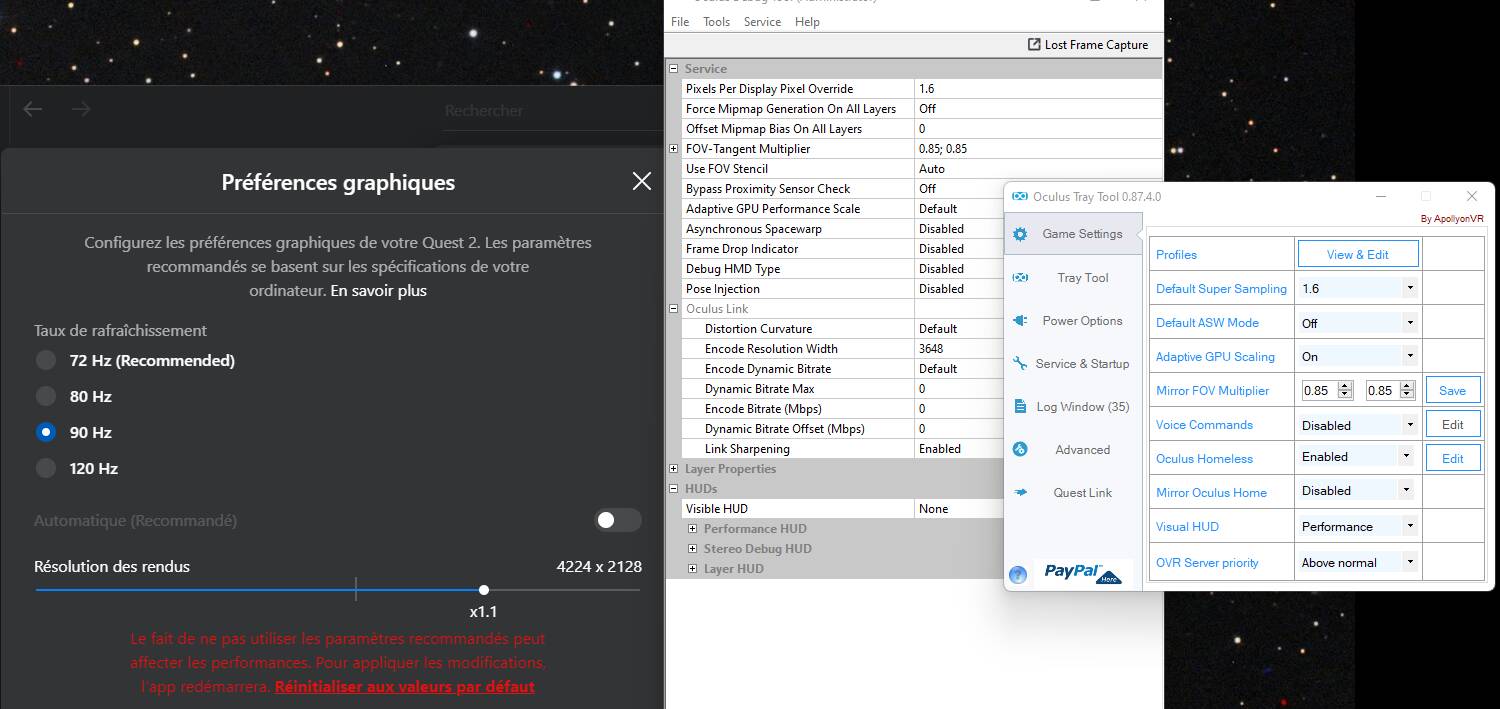
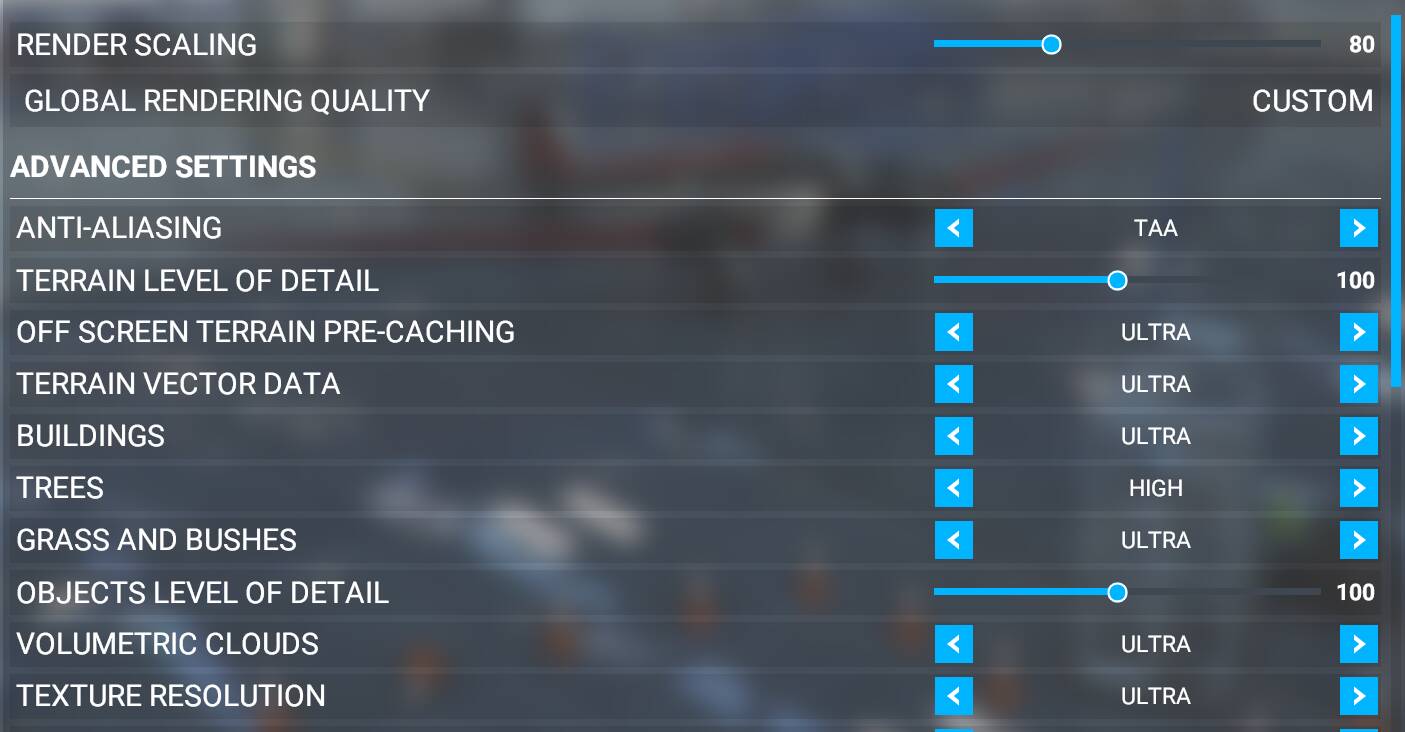


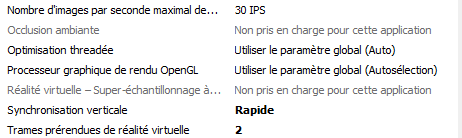
1 Like
Thanks for your info Mike.
I think there is no silver bullet with this there are just far to many variables I have found with mine after further tweaking it tends to run best on the below.
I can adjust the SS to 0.8 for denser areas and increase to about 1.2-1.4 for sparse areas to give better quality eye candy.
Funny thing is maximum refresh at 120hz and maximum render on my 2080ti seems to work okay. I have also found it works best setting the oculus through the debug tool, the OTT seems to give weird results and sometimes extreme laggyness.
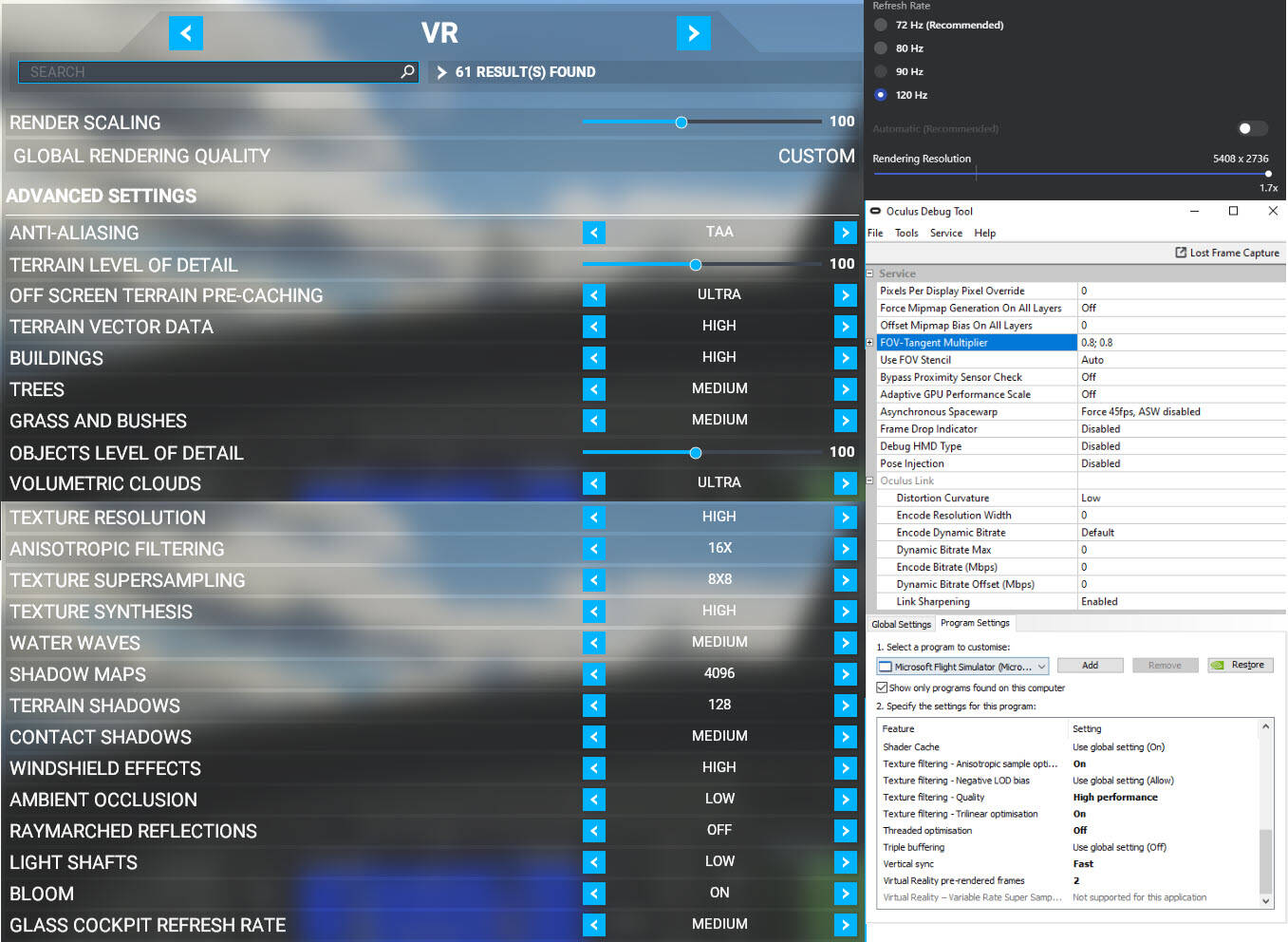
thanks, and agreed, no silver bullet at all  and i will give a try to your settings and see how and if
i can upscale maybe a little bit
yes definitely we can manage so many variables…
restarting based on your settings i found this upscale
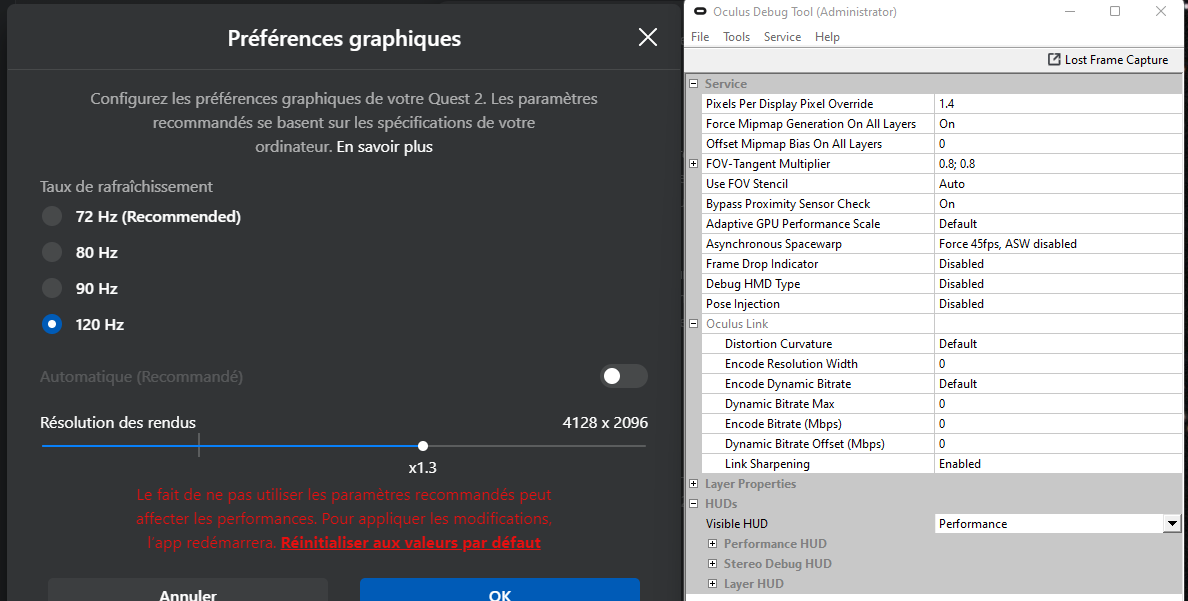
plus Render Scaling in MSFS set at 130 and the two other details cursors set at 150.
and still 35 FPS and everything very clear and smooth.
i think that the RTX3070 and even the proc helps here, but i don’t understand clearly which setting has the lead in perf, mainly between upscaling in Oculus, or in ODT or in MSFS… very unclear for me and hazardous process…
with same spec as you (and in french too;), i can’t set scaling at 130 ! (rtx3070) but my cpu is 10850k, perhaps yours is better (ss1.3 0.7/0.70). but i set render resolution at max at 80hz
that’s very strange and difficult to understand, for sure…
sometimes also i get very bad results with same settings as the day before… and i don’t know why, but if i restart everything, then its again ok…
and also i am on Windows 11, i am still convinced that W11 has a role in better performances, even if nobody here has confirmed up to now…
1 Like
I have found through testing that it is advisable to use the Oculus Debug Tool for the main settings, and then to turn off ASW you will need to start the Oculus Tray Tool up and disable it from that programme. Have no idea why it works that way, but it seems to work for me. The settings with the ODT are much more effective, especially with the sharpening tool.
A recent trick I highly recommend is to limit the frame rate to the game as a whole. You need to first decide what HZ mode you want to run the quest in then find a divisible frame rate to match what your computer can run for the most part reach. This creates a super smooth and consistent experience.
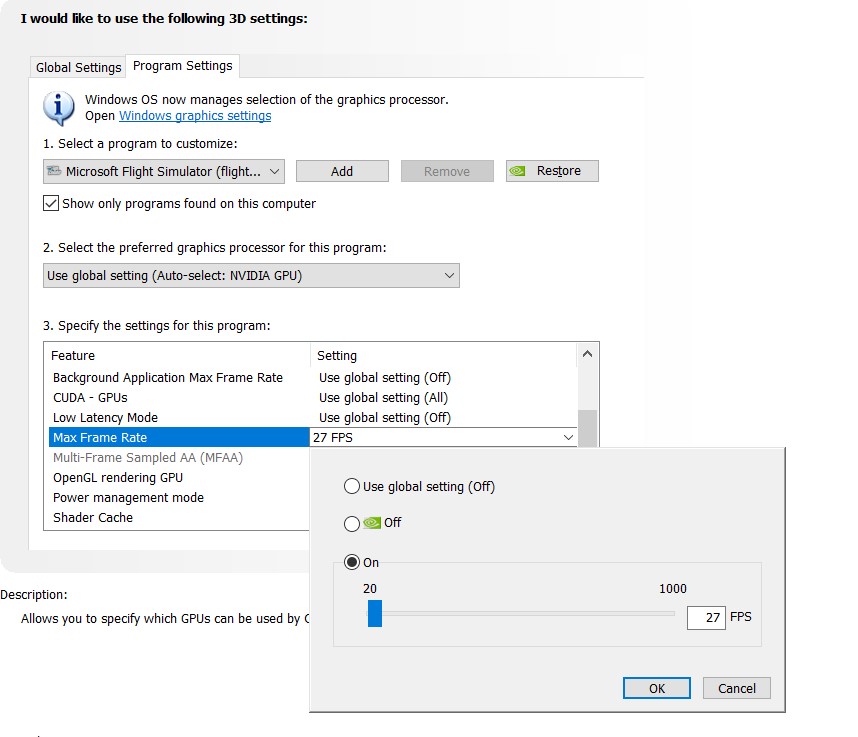
Heres the frame rate chart (screenshot from an older forum post)
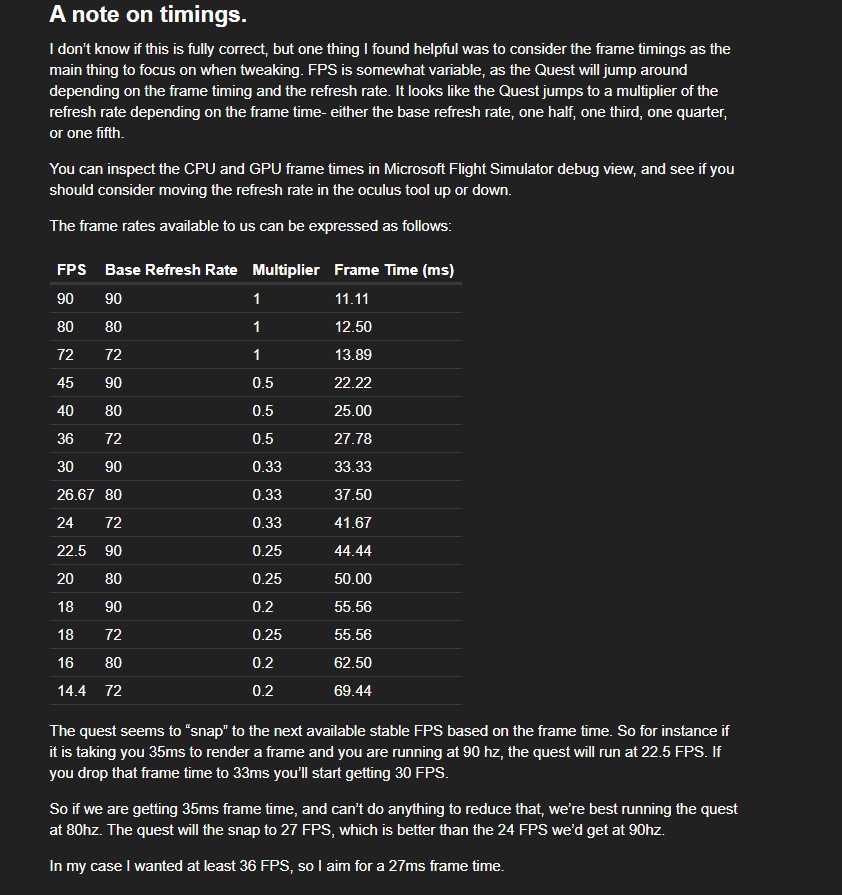
I personally set my quest to 80HZ and for the max frame rate of the game to 27fps. When using the oculus debug tool performance graph the system locks to 26.67fps when using quest. Of course depending on your performance you may want to play around a bit! This created a much smoother experience overall and reduced overall system stress levels and temperatures as when my system has that extra head room above 26.67 fps my gpu doesnt stay pegged at 100% utilization.
Only caveat is when using the game on your monitor its a jarring experience as my computer monitor refresh rate does not divide into 27fps.
Quest 2 / Razer Blade 15 (2020) / RTX2060 (+125mhz core / +40mhz memory overclocks) / i7 10750H / Unlocked BIOS (CPU runs constant 4.3GHZ)
5 Likes
Hi everyone, i think i spent more time on trying set this %!@@  up than to play…
Is there someone with similar pc spec:
I7 10700K, RTX 3080, 32GB 3200 mhz, msfs installed on SSD cpu and gpu a bit overclocked.
If there is someone with thoose spec, who gets smooth settings with good clarity please send screens with all settings, THANKS! 
Confirming this may well be the starting point for the holy grail. @TonyTazer1504 you are my hero. I’ve been chasing this level of nirvana for the better part of 2021.
System:
- RTX 3080
- 32GB RAM
- Ryzen 7 5800X
- Asus RT-AX86u w/ dedicated 5ghz SSID w/ 80mhz bonding
Relevant Oculus + Airlink Settings:
- Oculus app graphics: 90Hz, 3936x1984 (1.1)
- OTT: 1.8 SS (doesn’t stay set, need to exit VR mode, set, then ctrl-tab again)
- OTT: ASW 45 Hz Forced (doesn’t stay set, need to toggle, but can toggle in-game)
- ODT: Encode Bitrate: 200Mbps (can this go higher w/ WiFi 6 + Airlink?)
- ODT: FOV Tangent Multiplier: 0.9,0.9 (I have a cushy foam faceplate to give my glasses room–no visible edge)
Relevant In-game Settings:
- Render scaling: 100
- Terrain Detail: 200
- Object Detail: 200
- Clouds: Ultra (life isn’t worth living without this)
- Most other settings at ultra or high except ambient occlusion at Low (I have no idea wtf this does, please advise)
I stupidly forgot to turn on my FPS counter to benchmark but will later. I got very sporadic microstutters (like, barely a blip). Other than that, glass smooth. Smoothest it has ever been for me after ages of monkeying around. If I had to guess, I’d say a near solid 30 FPS. Consistently gets back to this smoothness despite popping in and out of VR mode to tinker w/ settings. Also, for context, I mostly fly around the Bay Area. SF retained this smoothness flying between buildings near the Embarcadero, as did my patterns around KSQL w/ multiplayer and live traffic on at KSFO.
I mostly fly GA G1000 aircraft and the little “Direct To” icon is now mostly legible, including the inside of the “D” in the icon. Not perfect–I have room to tweak further and push it a bit more I think. If this holds up tomorrow when I play, and during the week when neighbors wifi congestion might hit this band, I will do a happy dance. That’s been my biggest beef–it feels like the performance swings wildly with the same settings based on what might as well be the phases of the moon given how random and temperamental it is.
I may have more hours logged tinkering with settings than I do flying at this point.
Questions for those wiser than me:
-
What does Ambient Occlusion do, and why should I care about it?
-
When Windows-key or alt-tabbing out to another desktop window, playing spotify, or using the browser, I periodically crash my machine, and it reboots. Anyone else get this? Any idea how to troubleshoot? I cannot reliably use my browser like I could with Virtual Desktop for fear of rebooting. This is a well-built Maingear beast of a gaming rig w/ AIO cooling.
-
Related to #2, when I start beefing up the Oculus app graphics settings resolution to a step or two higher than I have it, I get more regular reboots after a little. It does improve visuals a bit. Is it possible I’m overtaxing my system? How would I monitor/log that so that I can review logs after it reboots to hunt down the issue?
-
What areas should I begin testing tweaks with next to push it further?
-
I periodically get an in-game hangup and hourglass when moving my mouse. What might cause this?
-
My propeller is not as gray/blurred/transparent as I think it should be. Is there a fix?
1 Like
Fully agree with you. Also with my test I found blocking fps from Nvidia tool give better performance in VR and less stress to CPU.
I play at 72 Hz in VR so I blocked in Nvidia tool to 24 fps (1/3). and I found using ASW at 30 in ODT for my side is a must.
Thought I’d add another point of view on Nvidia, Oculus Desktop device graphics, ODT, and OTT settings. I’m not saying that these are best and that other’s are silly. Just what currently seems to work best for me with my Q2/rtx3090 using v33 and either Link or Air Link. Not including sim settings since these will be pretty standard for most, depending on your PC.
Nvidia 3D settings = all defaults except power = prefer max performance. I have never seen any significant improvements in VR by playing around with other control panel settings.
Oculus Desktop device graphics = 80Hz refresh, res slider full right (= native res). OculusXR enabled.
ODT; All defaults or 0’s except Link Sharpening = Enabled
OTT; SS = 0, ASW = off, GPU scaling = on. Rest = defaults. I also use OTT to turn on/off Oculus runtime services (on when I start up OTT, off when I exit OTT). So, I start up OTT prior to the Oculus Desktop app. I sometimes call up ODT just to check its settings, esp. if I’ve made any changes.
I’ve found these fairly simple settings are currently giving me the best results with all my PCVR games and sims. After that, I tweak game/sim setting. For SteamVR I set all visuals to 100% and disable adv. SS filtering and motion smoothing.
The main point I’m trying to make here is that I think you are best optimise your base Q2 graphic clarity and performance first before jumping into other things that often just have you chasing your tail all the time.
I also think that chasing a FPS holy grail is not very useful. Your Goal is to get smooth, stable results with as good as possible visuals that your PC specs can deliver imho.
Anyway, just my $0.02 worth.
3 Likes
Can you elaborate on your OTT runtime services settings? Is there a reason you boot this up before the Oculus desktop app? I’ve never understood those settings.
The option in OTT to turn on Oculus runtime services when you start OTT and then stop the services is handy if you are using multiple VR headsets on the same PC (Vive Pro in my case). Also it frees up a few resources after you shut it down. If you do this you need to start OTT before Oculus desktop app or it will not start up properly. Probably not something you NEED to do if you are only using one VR headset.
If you download/install OTT there is a manual included which you should read over.
I have been tweaking and testing over the last week or so and found these the best in terms of performance for my machine. I have a 9700k@5.1ghz, 2080ti and 32gb 4000mhz ram, I also have a dedicated m.2 drive for msfs. I have also heavily reduced windows 10 background processes and tweaked a few other settings such as increasing page file to match my ram size (32gb). I used the link below to do this (but didn’t Disable Indexing or Firewall…)
I have tested this in heavier loaded scenery too and it works well although sometimes I need to turn the default super sampling down in OTT to 0.8. You may also need to wind back the level of details to 100 but I manage to max this out.
From my earlier post I am now using OTT rather than the debug tool as it does save the settings without having to load in each time, you may need to flick ASW to one and back to 18hz from time to time. I’ve not found any reason to enter figures in the link encode resolution or bitrate, let me know if I should be changing this though, I am using the link cable.
Order of start up does matter when doing this so start oculus link before you start loading into MSFS.
Obviously no doubt this will change as of next week when they release the new update !

2 Likes