I currently have the sim install directory on my D: drive and now it’s saying I ran out of space for this new update. What is the best way to update this secondary drive. Obviously it’s not my OS so I’m hoping it will be easy. Is there a particular folder I need to copy first or can i just throw a new clean drive in and go from there?
There are already files for the sim on the drive now. So do I need to save/copy any of those files that are on the drive now and add them to new drive before updating the sim to the new bigger size drive?
Nice. Any advice for a good SSD?
It won’t let me copy those microdot folders because they have that stupid copy protection on them. What do I do?
Pack (.rar or .zip) move and unpack.
Packing them now. I thought if you used an alternate drive other than the OS C: drive to install the files for the sim it wouldn’t lock the files like this. But is there a way to stop this stupid thing from putting locks on these files anymore?
Install Launcher on C and do not move!
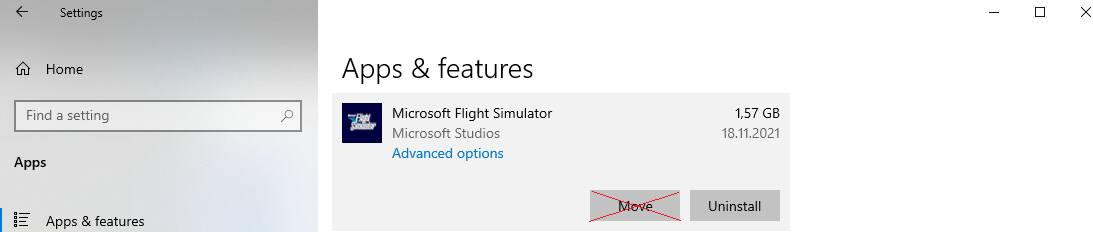
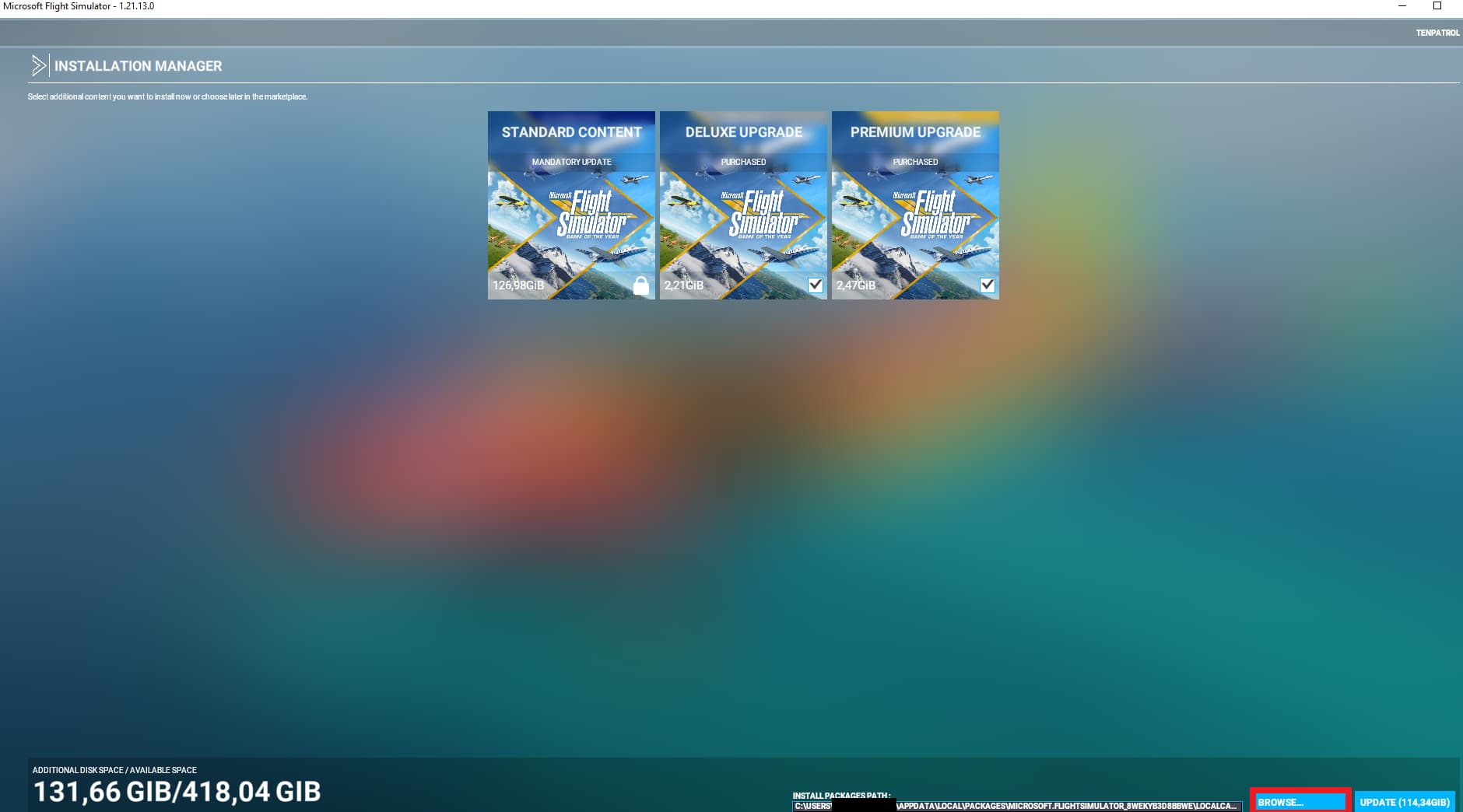
Install packages on D disk or E,F,G,H …
Click browse and choose the destination folder.
I appreciate all your help man. Are we on the same page here? I already have a D: drive that’s only 250GB and I am updating to a 1TB. The files were already setup on the 250GB D: drive. If you look at the photo you will see that everything after the Microsoft.FlightSimulator folder all folders are a shortcut to the 250GB D: drive.
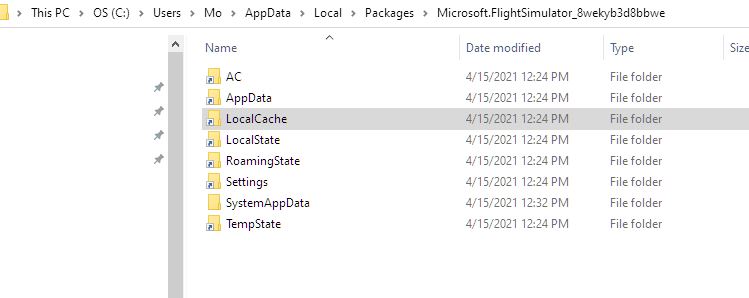
So for instance in the link you gave me to follow step 3 would be in error because I would be editing the drive that will be replaced. Does that make sense?
Yep > wpsystem/…
Pack packages> move to new disk and unpack
After that delete folder named official from
wpsystem......\LocalCache\Packages
Go to system settings > apps
Move launcher to disk C
Ok I think that makes more sense. I’ll try to get it done in a couple hours after work. Thanks I’ll let you know how it goes.
Feel free to send me a PM.
This topic was automatically closed 30 days after the last reply. New replies are no longer allowed.