I have been reading about setting the sensitivity on CH products to -50% so I tried it on my CH Yoke, pedals, and quadrant. After a flight I am guessing that maybe it wasn’t a good idea to do so on the quadrant. I got all kinds of strange throttle behavior in the 152 on one of the Training Missions. Has anybody else done this with the quadrant?
would only use - 50% sensifity on ailerons, elevator and rudders. u want a linear line on throttle.
I´ve got the same setup for RC-planes. there u call it expo and this result in better stearing around ur neutral areas
1 Like
Absolutly ! Only for the steering surfaces, but not for any other axis (Throttle, Prop, Mix)
1 Like
Thanks for the answer on this. That’s what I thought.
For those members that are using CH pedals here is a link that will transform your hardware to a very good performance. I was ready to trash them, then I found this rework, it works very good and the pedals perform much better, follow the instructions as posted.

I also had the Saitek Pedals but the small board controller failed, I tried to replace it with an Arduino type board but the performance was never the same, so I went back to the CH pedals and now with the fix.
I too have CH flight yoke. I find I have to un assign the yoke then re assign it (a crude way of calibrating) before every flight. It works but not butter smooth.
Inputs from my controllers (CH Products Flight Sim Yoke and Pedals) are interpreted incorrectly. Planes cant be controlled. Example: the throttle control acts like it is a switch - either fully off, or fully on. Other flight controls like elevators do not respond or are jerking around. The yoke shown in a Cessna does not track movements made on my controller.
This does NOT happen in Flight Simulator X.
I have tried MANY things to debug this, with no success, including buying another yoke - which behaved the same.
I tried minimizing the services and background apps and processes and removing all unnecessary USB connections.
Further information:
I now see the problem as a BUG in the sim. Here’s why:
- Windows recognizes my two controllers and it provides a calibration tool:
the throttle calibrates as a smooth, linear Z-axis from 0 to 100%
It works properly in FSX.
In FS2020 you require two axis assignments to control the throttle.
This doesn’t make any sense.
There are no planes that have separate levers to increase and decrease thrust.
If I only assign one axis in the sim (using the “Joystick L-Axis Z-”), I can increase the throttle, but I can not decrease it.
Again, doesn’t make any sense.
And, the throttle indicator, shown in the external view of a plane on the runway, in the ENGINE graphic, jumps from zero to full-on, with no lower setting possible on the way up.
The reverse jump happens when I assign the axis as the positive axis to decrease the throttle. No intermediate positions are possible. THIS IS A BUG.
And now, let’s talk about the controls settings window:
The behaviors shown in SENSITIVITY window do not make sense for the “JOYSTICK L-AXIS Z”.
There is a white ‘progress’ style horizontal bar under the name of the axis.
It shows the white bar smoothly proceeding from zero on the left to 100% on the right and back again to zero as I slide the throttle lever through its range and back on my controller. That is exactly what is required of that controller.
But, you also show a graph above the axis’s name, which behaves in a nonsensical way.
I set the SENSITIVITY to zero% so there is a smooth line displayed in the graph. And, I set no dead zone.
As I slowly increase the slider on my yoke from what I am defining as zero (closest to me), to its max position, the graph displays a small white dod that starts on the top right and proceeds down to the lower left. It gets to the bottom when I have moved the lever HALF WAY through its range. It then proceeds BACK up until it reaches the top right again as I hit the max position of the slider. Again, this does not make sense.
I have the CH Flight Sim Yoke and the throttle/mixture/prop controls all work perfectly. I’m sure you’ve worked through all the steps below, but I thought I would double check …
- What MSFS command do you actually have bound to your throttle input? It should be the “Throttle AXIS” command and not the separate Throttle Up/Down commands. Here is my throttle binding:

-
Make sure there are not any other commands accidentally bound to the throttle input.
-
Are you running the external CH Manager software application. I have never used it and haven’t had any issues with my yoke. You might want to see if it was installed in the past and maybe try with and without it.
Let me know if none of these apply to your setup. I’ve followed all the CH Yoke threads since back in alpha testing and a lot of folks have gotten their controls up and running in the sim. Rick
WOW! I’m elated. After switching to the single-axis choices for the various controls, problem solved! First time - a perfectly controlled flight from Newark to JFK - with a smooth centerline landing.
I do have some keyboard assignments. That was OK in FSX - having the keyboard mapped to the throttle, flaps, gear and more. Is that not OK in 2020?
I tried the CH Controller program a few weeks ago and then uninstalled it.
I am so grateful for your post. SO many hours lost trying to solve the problem.
Now on to get a handle on the cameras and some other things. THANK YOU.
Awesome! I’m really glad you’ve been able to get up flying 
Sorry if I created any confusion. You can absolutely map the same command to different input devices - Yoke + Keyboard. That doesn’t really create any conflict because you are activating the command from separate sources. Where things get messed up is when you have the same input (like the throttle on the yoke) bound to multiple commands like Throttle Axis and at the same time Throttle Up/Down. Not as big of a problem with the CH Yoke since it comes “blank” without a default Profile. But I’ve messed around trying things before and accidentally ended up with different commands linked to the same button or control axis.
For camera controls, I highly recommend these
- Camera System Guide: https://flightsimulator.zendesk.com/hc/en-us/articles/360016003159-Camera-Overview
- Squirrel: https://www.youtube-nocookie.com/embed/wTUFA33wIEM
The important things is that you can set up the Cockpit Camera, Instrument Camera, and External Camera separately and map them to the same input (like the hat switch on the yoke) since they operate independently. Also make sure to use the “Look” version of the Camera commands if you want smooth panning in all directions and don’t use the “Quickview” commands which snap back to center.
Enjoy yourself and welcome to the MSFS community! I know it’s a bit of a learning curve but it’s well worth it. I’ve been really fortunate to have had a really amazing experience since back in January. Rick
Sorry that i’m just seeing this reply. I don’t think there are any ‘settings’ in the CH Manager to adjust. I think I just did a “Test & Calibrate” and that was it. It is working fine for me in MSFS 2020 but just fired up X-Plane for the first time in a long time and now X-Plane is not recognizing my controllers by name. I may have to uninstall CH Manager again and try another strategy to get the controllers to behave correctly in both programs.
I know this is old hardware but it shouldn’t be this difficult to get it working correctly in MSFS 2020.
Feel your pain, CH flight yoke is trash. Hours on end trying to get it to work. Mapped but all planes except the 172 are almost impossible to control.
Also make sure your set to “Modern” not “Legacy” in your settings. Legacy is ONLY for fsx import ac.
Using an older ch yoke also. Working well and definitely need flat exponential settings as said above.
1 Like
I have the CH Flight Yoke and Pro Pedals and have been using them with FSX for years. It appears that they are recognized in the sim by name, however when I click on their profile, I can’t assign any button assignments or use them in the sim. They’re plug and play, so no drivers. Any advice is appreciated.
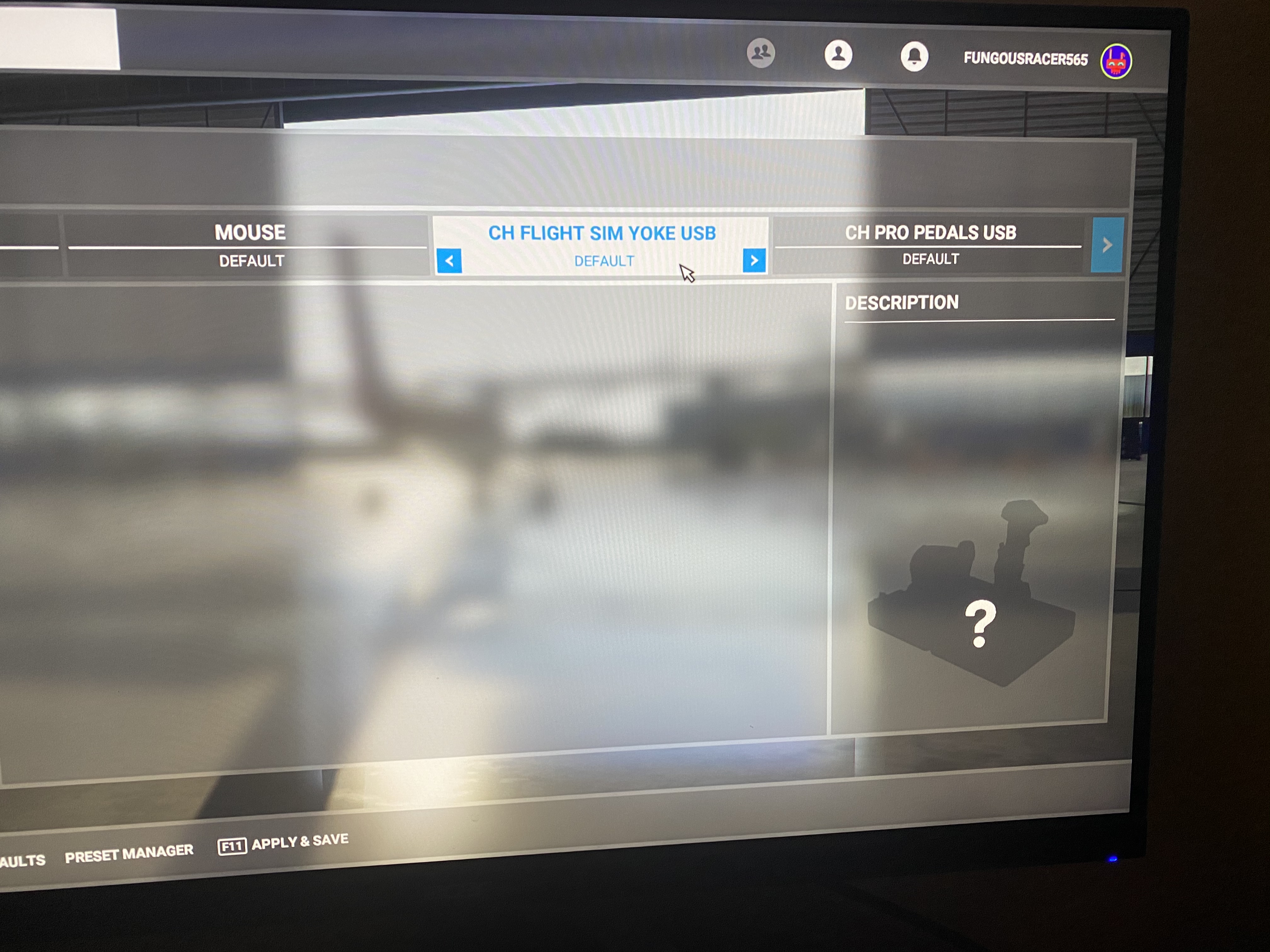
There is a filter on the left side. Default value is “Assigned”. Change it to “All”
Unfortunately you are correct! Those of us using the CH products have to manually build our bindings from scratch. There are a number of threads on this now including one where I show a sample profile for the Yoke. It is a bit of a learning curve, but once you get them set up, your custom Profiles are saved to the cloud. Learning to use the Controls setup system is also really powerful so you can customize your controls the way you want.
You will want to check out this very detailed video from Squirrel on YT that walks through the whole Controls setup screen in detail. It seems pretty overwhelming but the process is pretty logical once you understand it.
A couple of quick tips to help …
- You are going to be using the “Axis” commands for all inputs that are linear (proportional) like control surfaces, engine controls.
- You will be creating new separate custom Profiles for your Yoke and Pedals. Work on one at a time. You can actually modify these while live in the sim which is a great way to fine tune things and fix things that don’t work the way you want.
- You are going to be using the “Axis” commands for all inputs that are linear (proportional) like control surfaces, engine controls. Don’t use the “standard” non-axis commands or the controls will be “all on / all off”.
- You might prefer to use the “Cockpit Look” commands for your Hat button rather than the “Cockpit Quickview” commands I showed on my example. The “Look” commands provide smooth panning vs snap back views.
- Consider adding an Xbox Game Controller once you get a little flight time under your belt. It is a very easy, slick way to control Slew and the Drone Cam!
Let me know if I can help with any other questions. Rick
1 Like
Thank you everyone!! I’ll have to look into it later on tonight.
these squirrel videos are just so valuable. i was trying to do this last night and was thwarted by that one filter setting that only showed the bound controls. i knew there had to be a way to map arbitrary things and this video showed me the one tiny thing i was missing!
I have the CH yoke and pedals. Right now I am only using the pedals. I have calibrated the yoke in CH manager and I have also mapped the yoke in FS 2020. I know it is there because the hat works to move around the cockpit, but I can’t seem to get the throttle levers to make the engines go. Also as posted by someone else I get a big? when I try to see if the controller is there. What am I missing?
CH yoke and pedals issues and customized configurations are described all over the place here. To locate these put “ch yoke” in search icon in the upper right hand corner. Lotsa details worth considering in there, but it will take a while to go through.
Agree with Destructo-O’s comments. Originally I’d installed the CH configurator and have since deleted it without issue.