Amazing work Dean  waiting also for your F14 and Concorde
1 Like
I had this issue too. It seems linked to the pilot only clearing in the position assigned to pilot camera rather than if camera is just within space of cockpit. I’d hope this gets fixed as is really annoying and sticks out and takes away from the other amazing work on this aircraft.
Overall this update is much better in my opinion but the pilot helmet issue is really annoying. I’m hoping it will be fixed quickly as I remember there was this issue with default aircraft at launch and that’s since fixed.
Is the issue in the E model or all models?
Anyway i have detected a discrepance in cameras.cfg between E and I. A quick fix for this is copy/paste cameras.cfg from DCDesigns_F15I folder to DCDesigns_F15E folder:
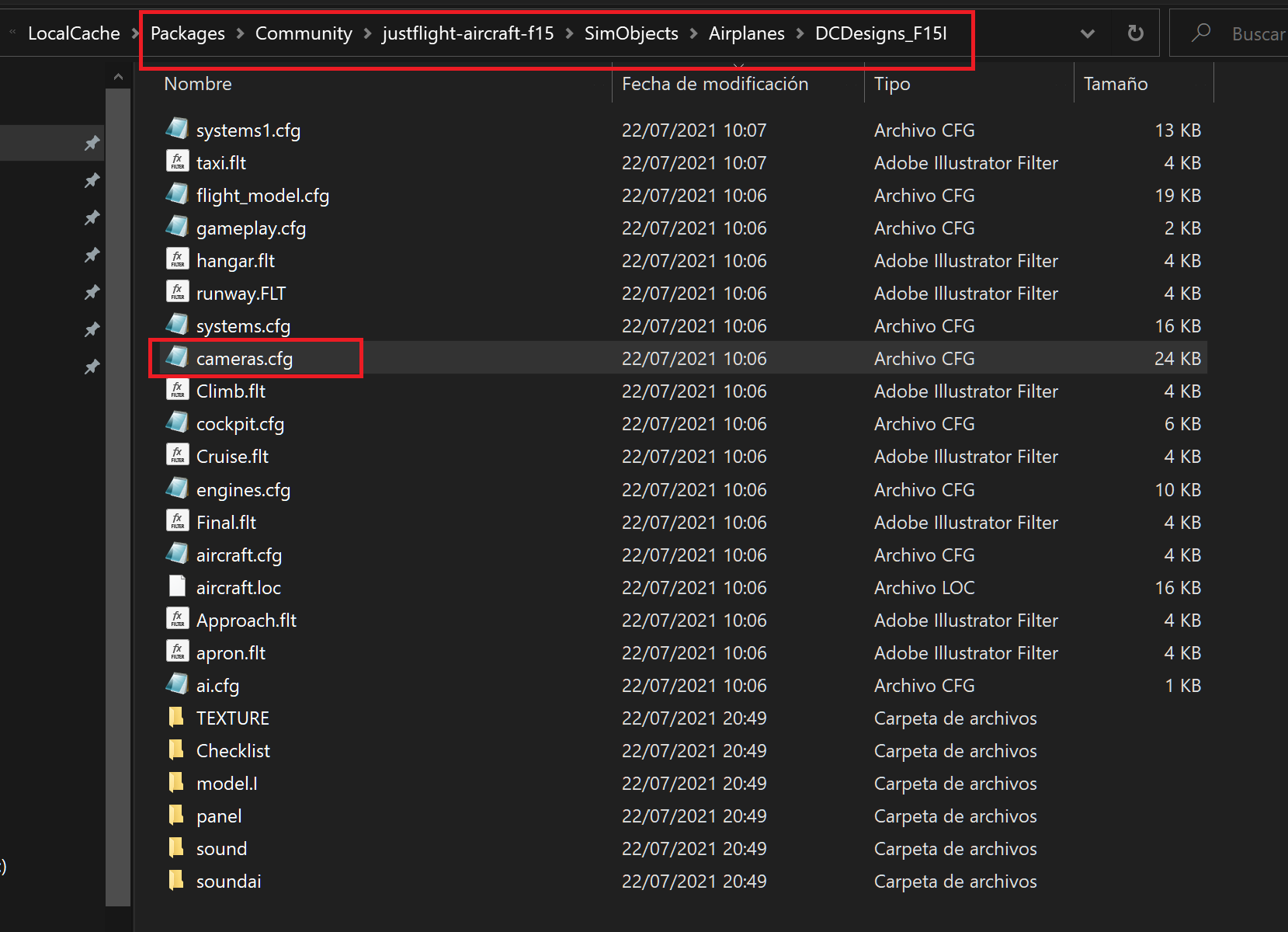
In my case this solves the issue on E model.
1 Like
Once again you’re the man, Jack, although I still have the problem on one of my view presets but it’s something I can work around. It was only in the F15E that I had the problem. Many thanks.
Now, let me try and work out navigation with this latest update … 
1 Like
Yep, Jack’s right, I’d missed some camera settings in the E model - already fixed and will make it into the next update in a few weeks’ time. Apologies, the rush-job to get the aircraft’s gauges updated caused me to miss that one.
2 Likes
I have the same issue with the F15-I too… just checked and even though set my quick camera to the position default was just slightly zoomed out and have the mask and helmet animation in way. 
Also, is the extend fuel probe supposed to work currently like pictures in the F14 screenshots shared or not as I tried the switch and got the fuel boost from it but no animation.
Well, it shouldn’t be happening with the default cameras, but what you mean is… are you defining custom quick cameras or are you using the cameras included in the package? Because i’m switching between ours and i don’t see that problem in the I.
Using the alt+1 key to set pilot a bit further back by zooming out slightly. This doesn’t effect me in other aircraft that have pilots so thought would be able to use custom cameras without having the pilot block view.
let me test on my end
Btw any of you guys who using this plane use the most difficult maneuvers which is the “Cobra Maneuver”
Can it overstress the plane?
i’m testing all the cameras and i’m unable to make the pilot body appear:
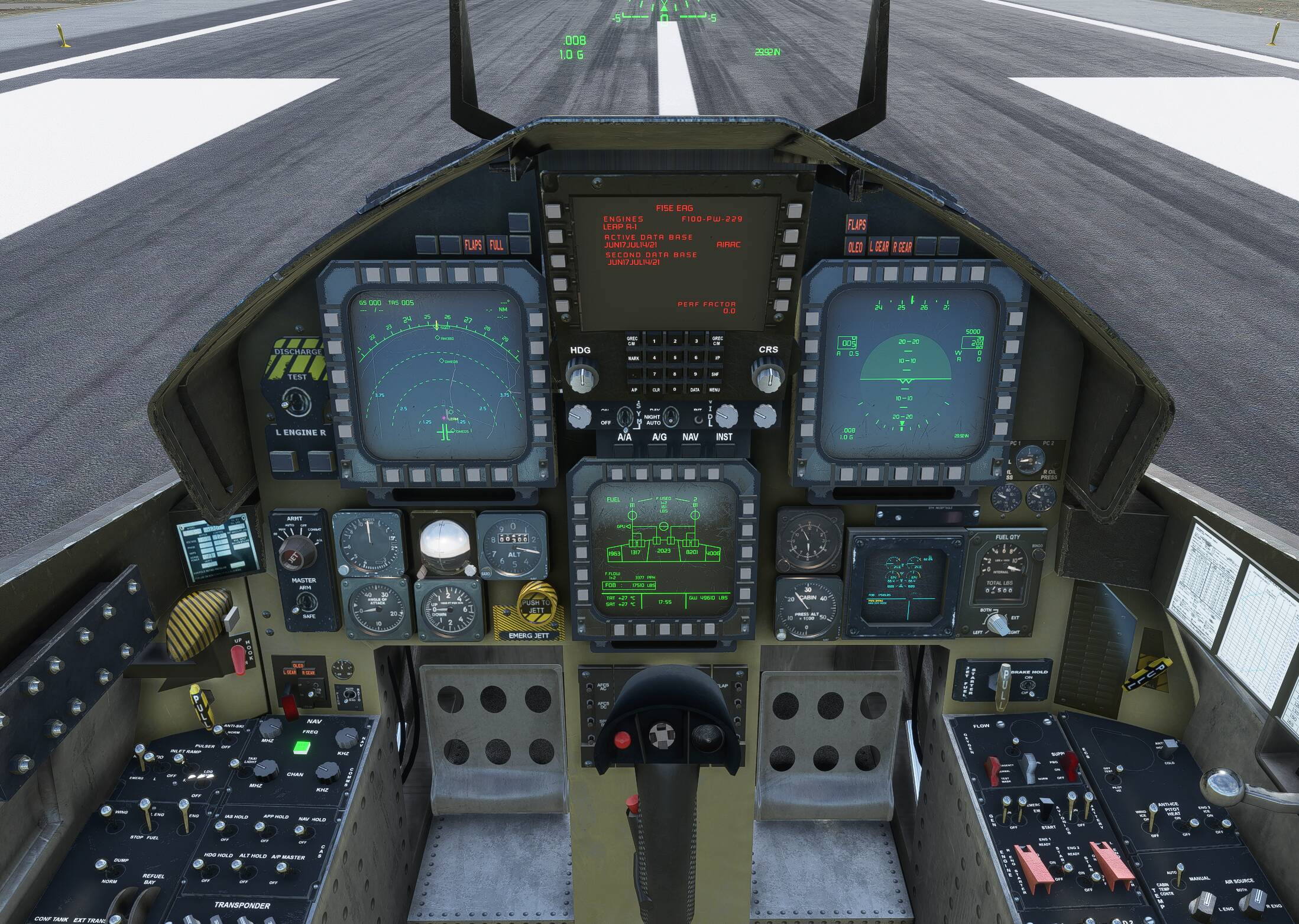
I know the question will seem ridiculous, but have you copied cameras.cfg from model I to E as I mentioned before or the other way around? Because it’s the only thing I can think of that might be happening.
Anyway, what you have to verify in cameras.cfg is that in each cameradefinition, in the “nodes to hide section” appears this:
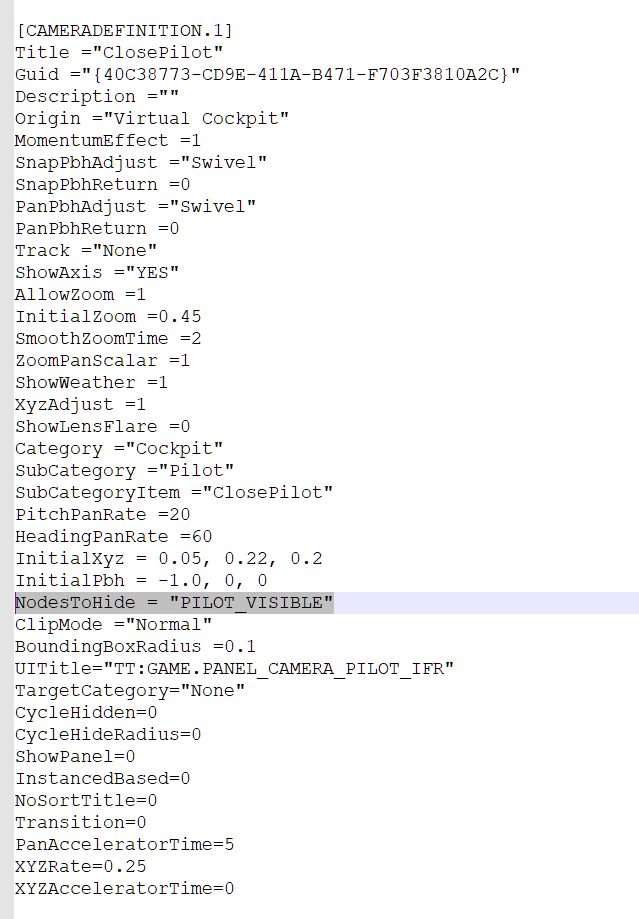
in all models except the E this was corrected while in E it marked " NodesToHide = “WSO_Visibility” ". And due to that, the pilot wasn’t hiding.
That’s really odd. Just loaded PC up this morning to check the files after doing what you suggested first last night even though issue was present in both versions tried (E and I, the latter being the one use most).
My code is exactly the same all throughout the part show in the picture you sent I believe. There is a few parts with no code at all in the nodes to hide section on camera def 20, 18, 17, 16, 15
14 it says about xmlvar_yoke hidden so unless one of these is issue I’m stumped but none have anything like WSO visibility next to it .
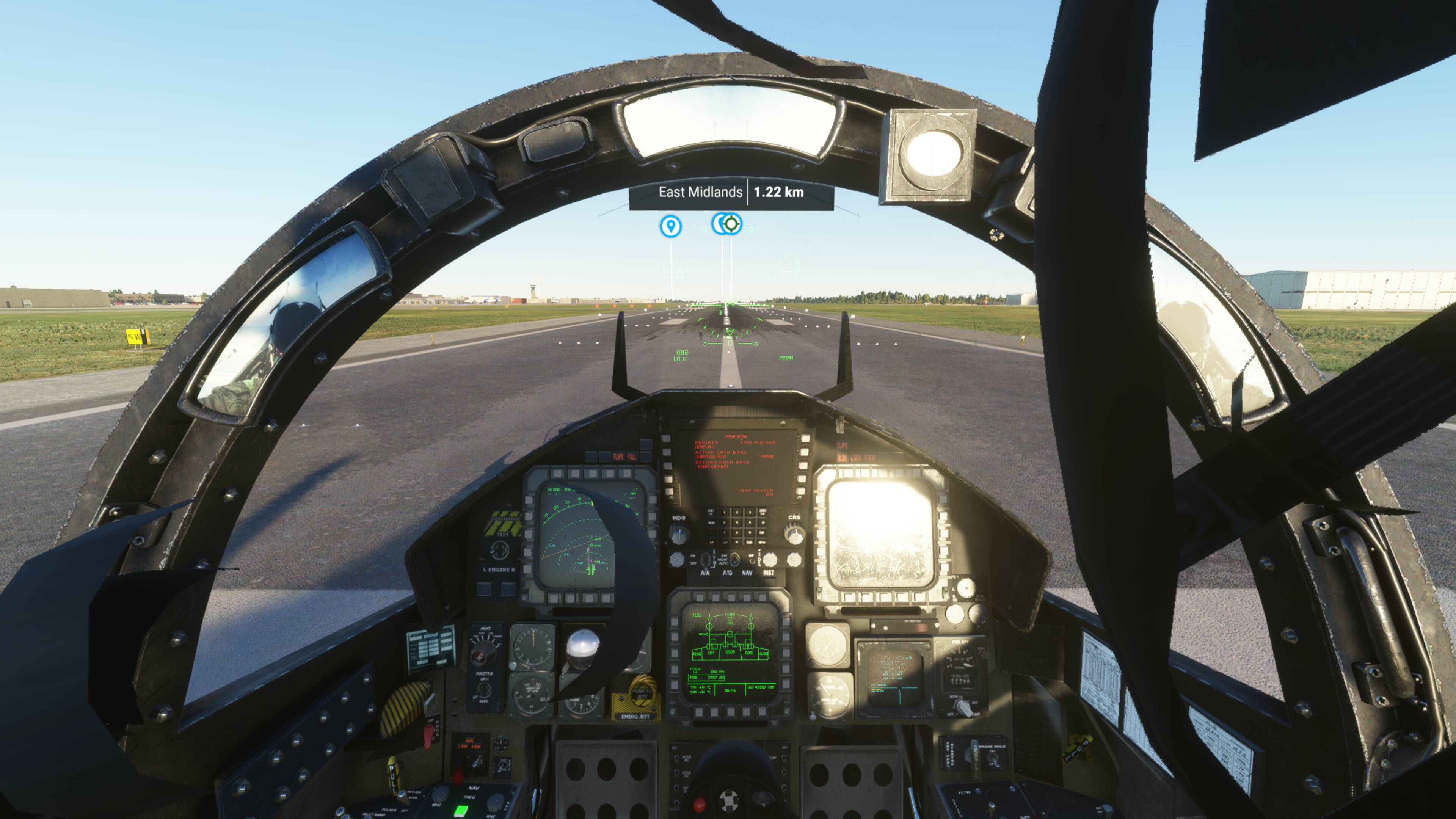
You used default pilot, zoomed out slightly, saved that and set view to something else then used the hot key to return right? Just as the picture sent’s view is no where near what mine ends up at given its closer and down not further out and level. Because doing as I described just puts the pilot right in my vision every time.
Where as your image looks as if is much further forward/zoomed in not back/out.
My only thought is that is it possible my download corrupted or something as I have no mods that alter it and downloaded new version as soon as was released yet seems the code isn’t issue unless there’s more code issues.
Either way, thank you for trying to help
This is interesting but ultimately very hard to diagnose as it does seem there is something different about your camera setting. The “Nodestohide” is set up correctly in the default Pilot camera, so the pilot should never appear when you’ve selected that option. It’s only been missed in some of the other positions such as “Close Pilot” and some of the “Instrument” views. Let us know if you figure out what’s happening, I’ll also check things out here.
Regarding the refuel probe - the Eagle doesn’t have a probe, but a small hatch that opens on the port upper wing glove. I don’t think it’s even visible from the cockpit, but will be from outside.
@UnbentOhio43748 The cobra-manoeuvre is something that would only over-stress the aircraft if you were to attempt it at too high an airspeed. It’s really just a pitch-pulse - hard pull up into the vertical and then a push as the airspeed comes down. The F-14 could also do it, believe it or not. The “I’ll hit the brakes and he’ll fly right by” sequence in the movie Top Gun was not hitting the brakes, ironically, but in fact a pitch-pulse. They did it because it looked spectacular, whereas hitting the brakes was far less exciting to look at.
Hmm okay. It’s only this aircraft that’s got this problem, I use defalt settings, no mods that engage with the F-15 and system is very much typical mid tier so really not sure what would be the issue with my camera settings.
It’s the custom cameras I the keybind is called using the alt+1 key so not the pre set cameras as the code says so it seems like there’s just no support for custom cameras. Would it not be possible disable the pilot if the camera position is within a set a boundary around each cockpit possibly so if the camera is in that space the pilot won’t get in way but if leave the area the pilot comes back?
I haven’t coded properly since GCSE and that was HTML so not the code used currently so don’t know if that’s really doable or not.
If just can’t use custom cameras/ they aren’t supported then that’s ok but definitely needs making clear.
I did wonder if the fuel probe was below but couldn’t see it despite looking for a good 5 minuets on all sides. So to refuel the F-15 in real life the pilot would put the plane above the fuel supplier and they would move the connector into place below then hold altitude and heading until disconnected. That’s really cool.
Thanks for the reply
That could be it then, there might need to be something else done to support custom camera positions.
No other third-party aircraft makes use of this feature in this way as far as I’m aware, so I’m pushing things a bit in terms of what’s possible with MSFS. Normally, the nodes-to-hide feature is used to remove yokes and things for visual purposes. It might be that I need to include a second condition for the interior crew, such as weight parameter, so that they can be removed that way as well to avoid things like this. I will have a think about it.
A simple fix for now would be to slightly edit your custom camera position to be forward of the pilot’s body, that way you won’t have your view blocked.
1 Like
If you could work that in that would be great as yes you can move camera forward as said so a custom instrument view for example works great, but I can’t zoom out or move back even slightly and save that view without having the pilot get in way.
Maybe other’s don’t use the same method or the disappearing pilot but a good handful of other aircraft I fly have animated (co)pilots. Though I don’t think any have a working RIO cockpit and I believe that is where the custom camera issue came from was in the ability to switch between happened, so it’s inevitable will be a few issues.
Either way, keep up the great work and I look forward to trying out the F-14 when is ready for release 
3 Likes
Here’s some images showing the new button mappings in the cockpit. Hope it’s useful.
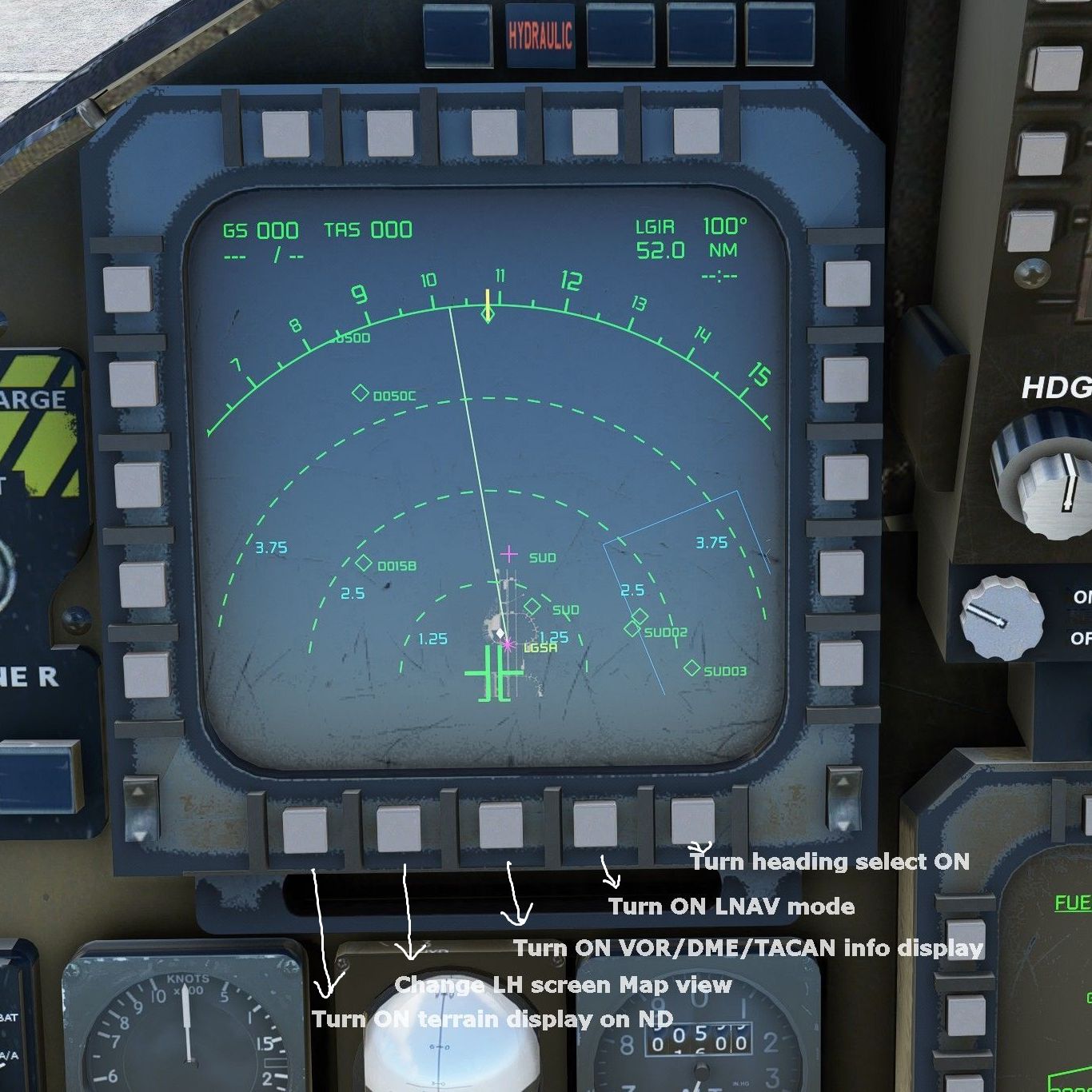
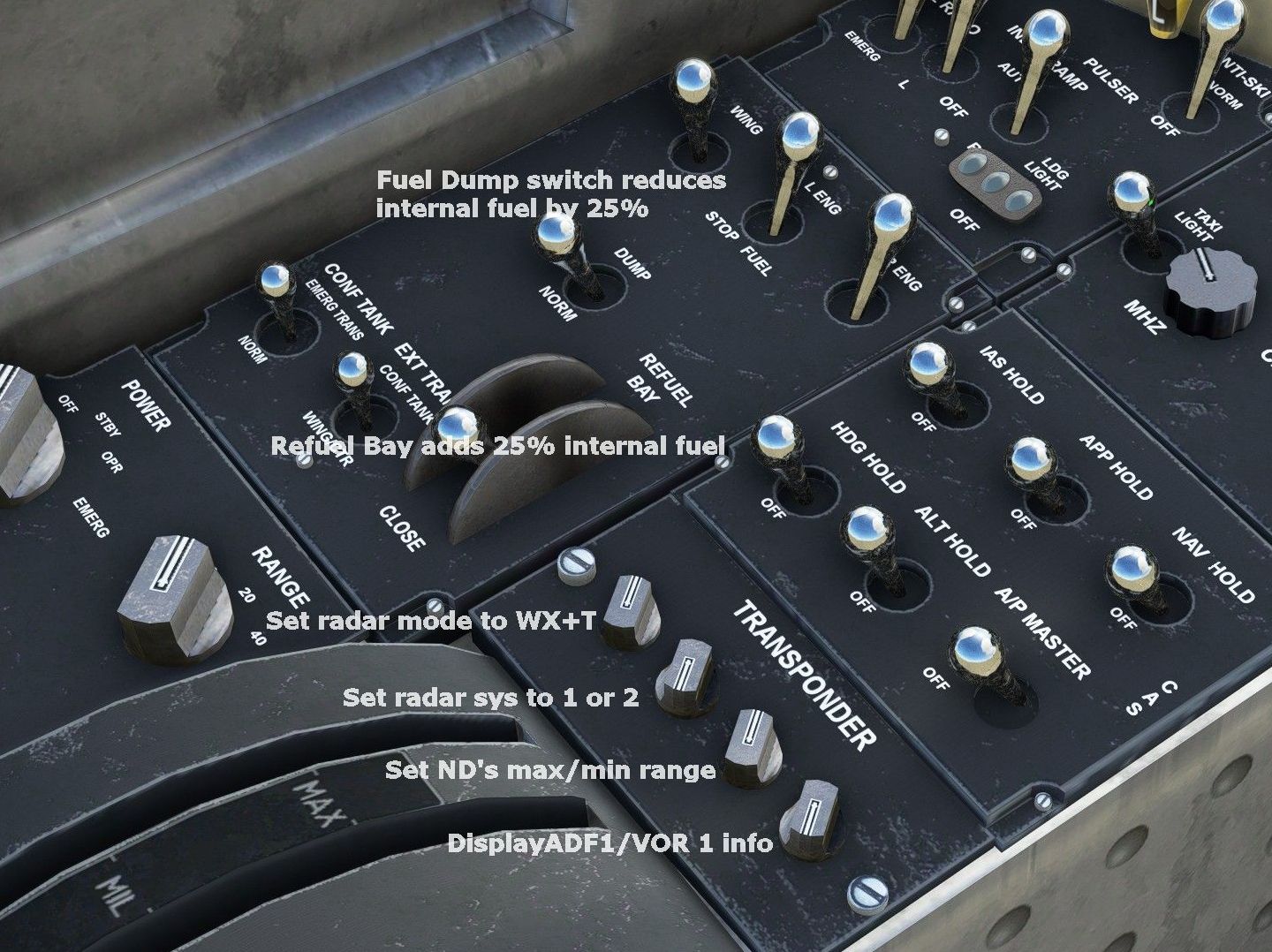
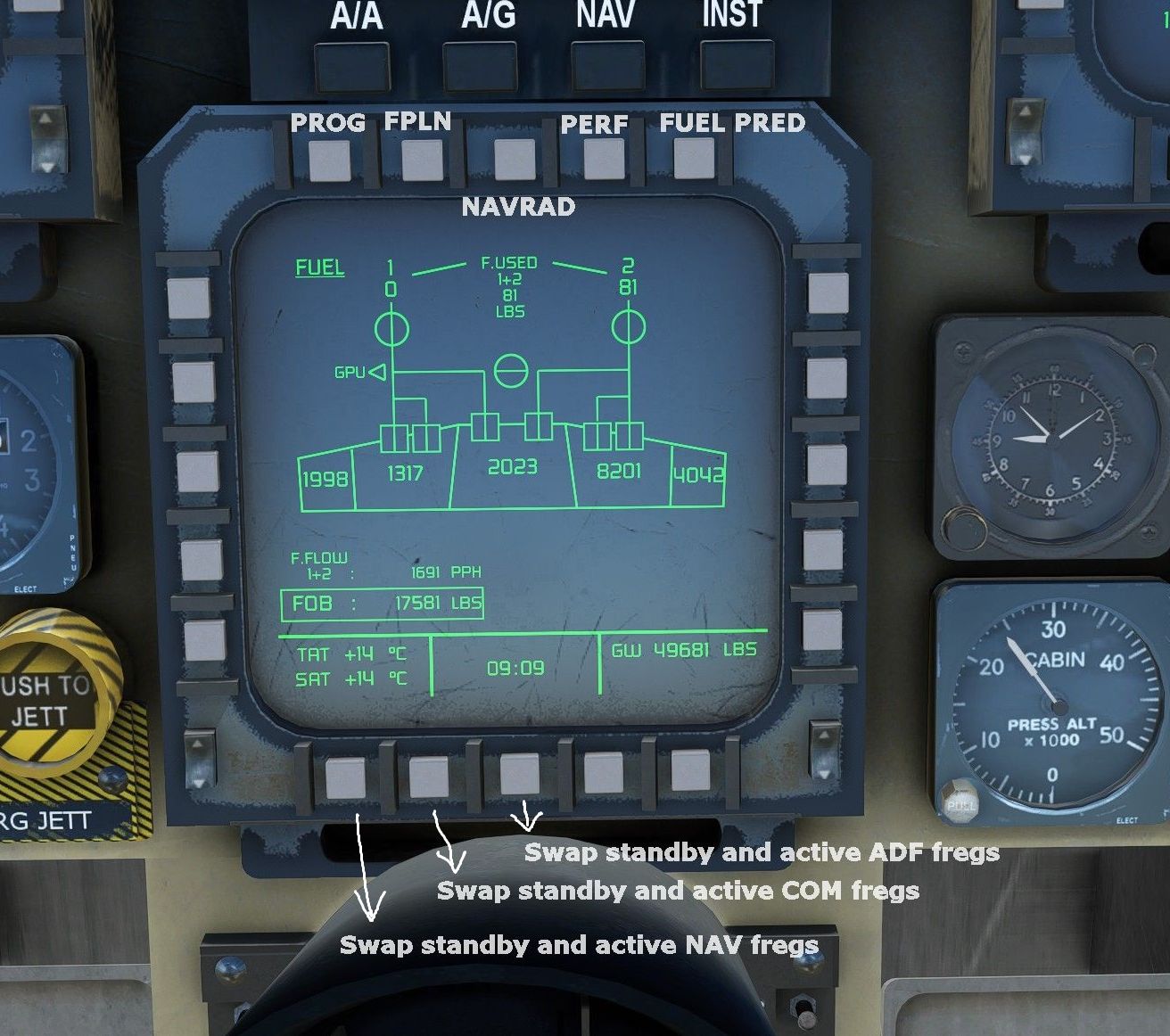
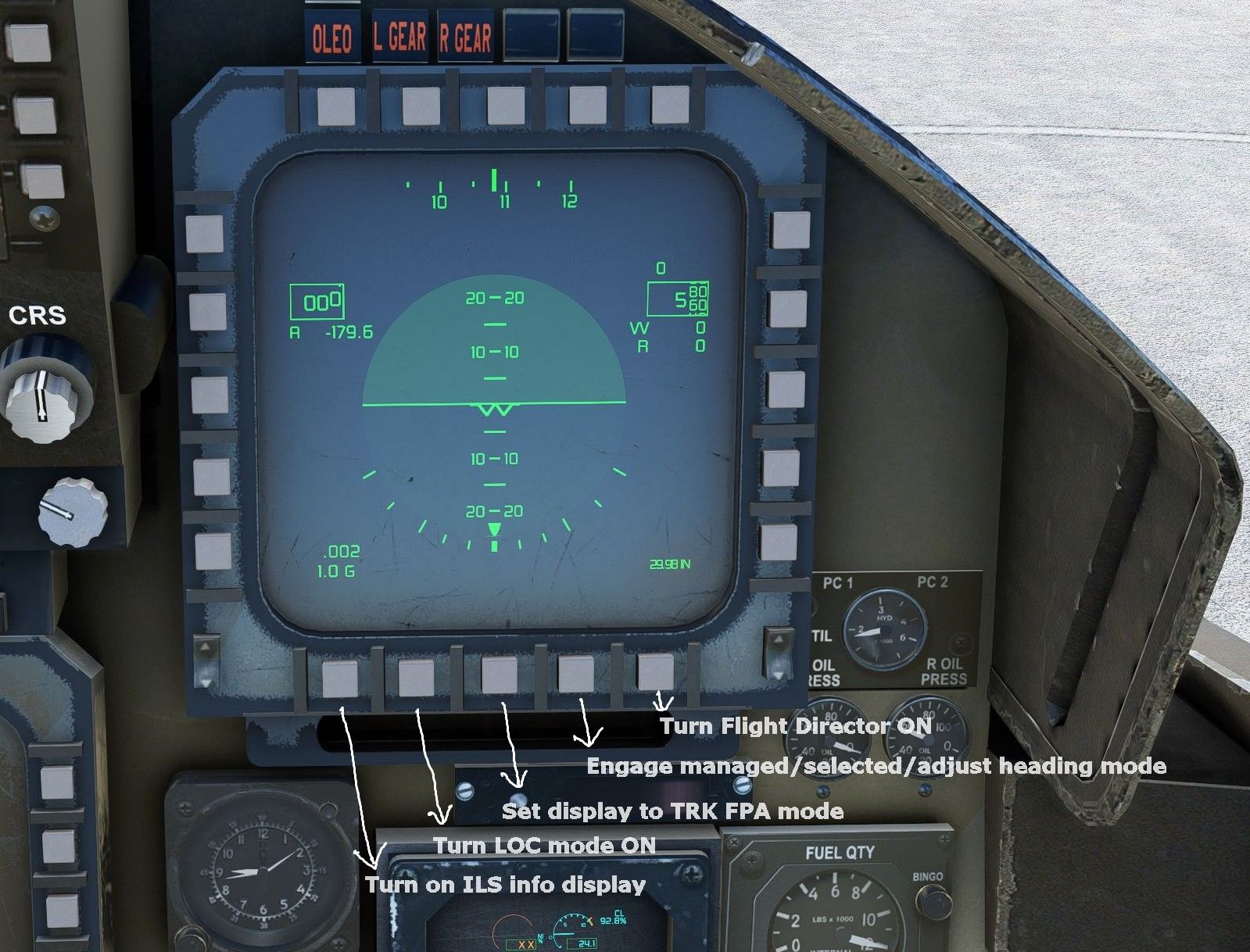
The Heading button:
Centre press to synchronise to current heading
Turn to adjust heading when in AP mode
CRS button:
Centre press to recentre CDI
Turn to adjust course setting
In version 1.03 I had great fun navigating using VOR or ADF but I haven’t found out how to do it in version 1.05. If anyone has any tips I will be very grateful. Spent 2 hours this morning sitting at the ramp with the engines running trying to work out how to set up navigation with this new setup with very little to show for it.
4 Likes
Hey! Is there a quick way to disable this feature? as in delete a line of code somewhere where we could get rid of the models interely? Thanks!"
1 Like
Thanks for posting this, really helpful!
I’m hoping @CodenameJack447 will be able to clarify VOR nav options but I believe that switching from GPS to NAV mode using the illuminated square button on the forward left-hand side panel should allow VOR navigation.
Not right now, but I’m thinking that an extra viz code for the internal crew based on station payload weight ( one each for pilot and WSO ) will do the trick nicely for the next update.