So based on the posts in this thread, the “Share GPU Memory” shown in the Task Manager is causing a lot of consternation. I noticed it myself last night - after repeatedly spawning into complex sceneries with lots of traffic one after another to stress my system, I noticed shared GPU memory had climbed to around 7.9GB despite my card’s actual VRAM being around 10 - 11GB used out of 16GB. In fact, with time, my card’s VRAM dropped to 9GB or less, while shared GPU memory stayed about the same.
Some internet research (yeah, I know - oxymoronic at best), I gather that some graphics API implementations allow for storing things like compiled shaders or cached textures in this block of “shared GPU memory” in order to keep overall VRAM usage under control and not overload the card.
Interestingly, when I flew one of my same test routes last night in FS2020, also using DX12, my VRAM usage was similar but shared GPU memory never went above about 0.5GB, while in FS2024 it was 3-4GB by the end of the trip.
So I wonder if whatever changes Asobo made to their DX12 implementation in FS2024 is sometimes losing track of which assets are in which memory segment (VRAM vs “shared GPU memory”) and over-allocating or failing to clear VRAM back to “shared GPU memory.” But if so, I do have to wonder why it’s only occurring for some users and not others? While I’ve seen my card usage push 15+ GB during an intentional test, it has never overloaded and I’ve never seen the resulting FPS drops.
What would be useful, perhaps, is for Asobo to create a series of test scenarios they could share for people to run using a variety of hardware, with the same sceneries, traffic and weather settings, etc.
System:
Ryzen 9 5900X
32GB DDR4 at 3200MHz
RTX 4080 (slightly undervolted)
Display Resolution: 1600x3840 (almost 3/4 of 4k)
Resizable Bar is On
HDR is off
Nvidia Driver: 566.14
Community Folder is Empty
Running on Windows 11
Internet Speed: Consistently more than 100 Mbit/s
GSync is enabled, VSync disabled
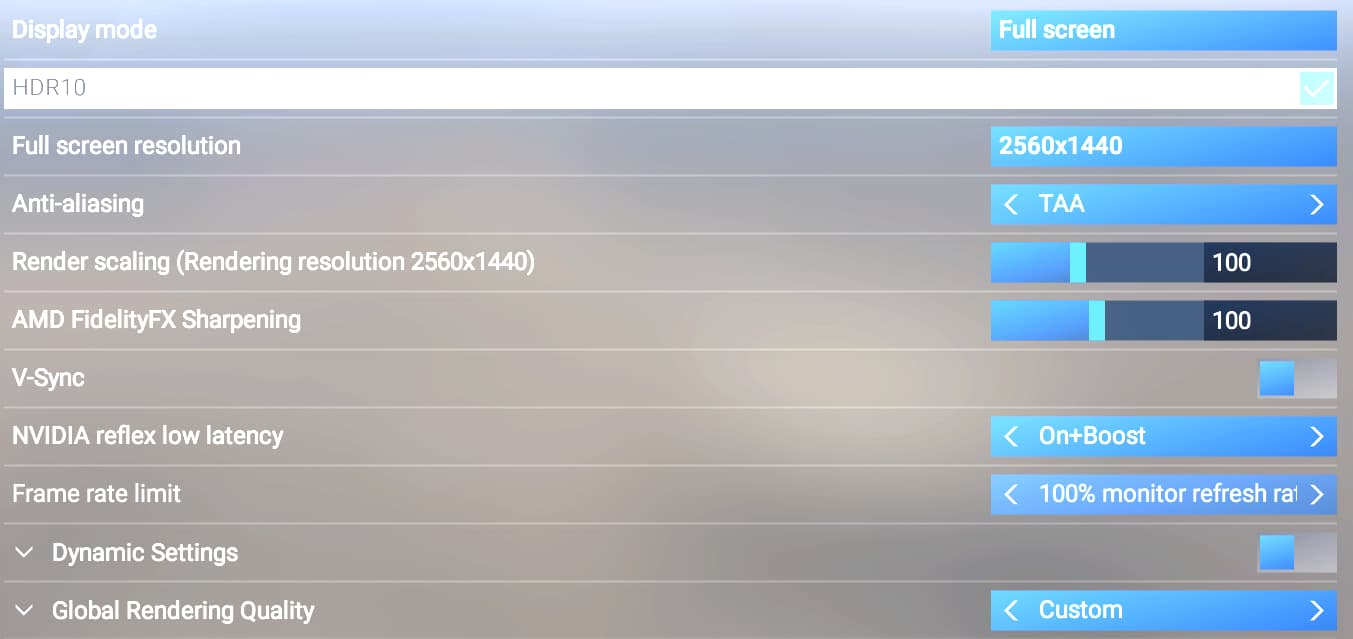
I am running on native resolution with TAA.
I did not change the DLL version.
Compared to the System Requirements this is better than recommended and not far from ideal.
Do you have the same issue if you follow the OP’s steps to reproduce it?
Usually I use Ultra settings and in rural areas or in the wild these work fine (at least for the most part), but large (and especially handcrafted) airports result in such poor performance that it makes the simulator unplayable in large airports.
While VRAM and RAM are definitely limiting factors on Ultra, I also run into lower than 30 fps in situations where not RAM or VRAM but the Mainthread is the limiting factor.
I do not consistently get more than 30 fps (i.e. including panning the camera around) on anything other than the “Low” preset which I think is pretty bad considering my system.
Consequently I usually avoid these large airports in FS2024 and use FS2020 in these scenarios for the time being as it is a little better in the old sim (at least with traffic turned down by quite a bit).
To put some empirical evidence to the above, I found some fun in testing the performance today.
Provide extra information to complete the original description of the issue:
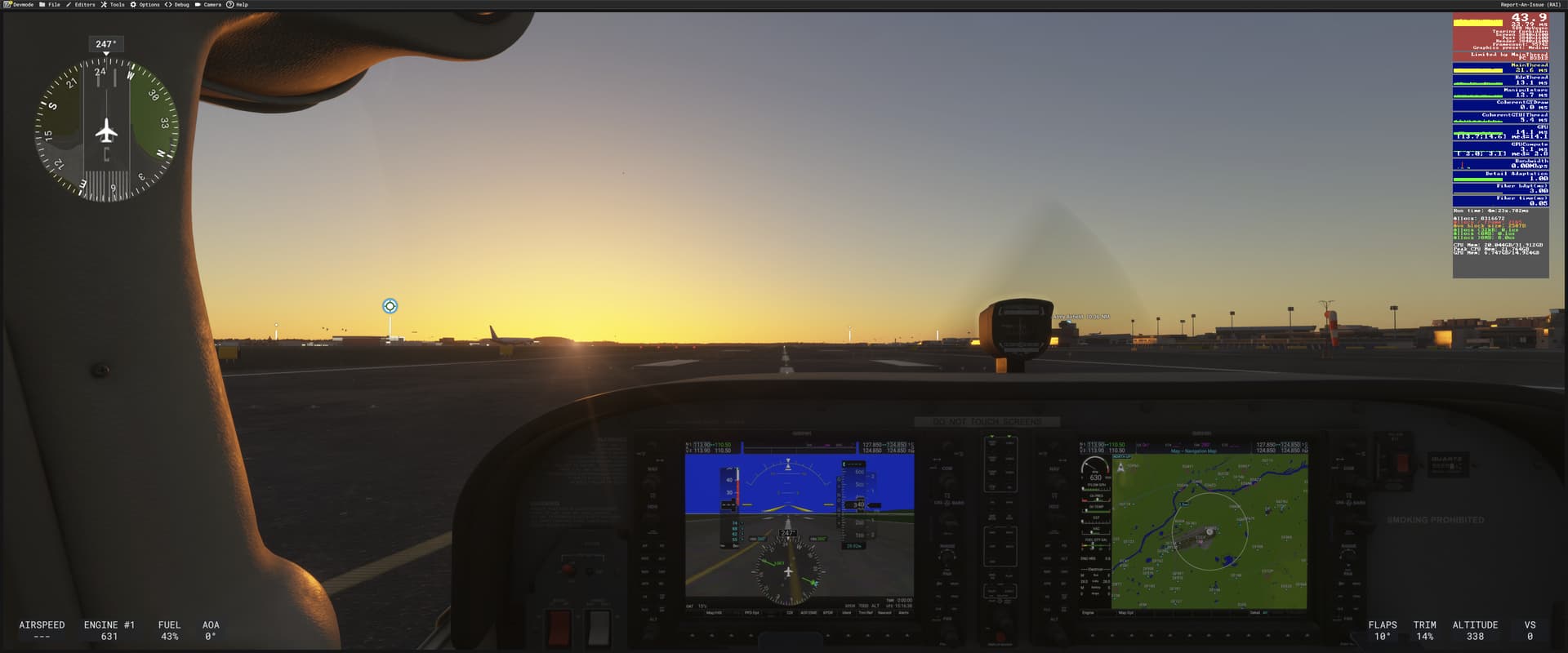
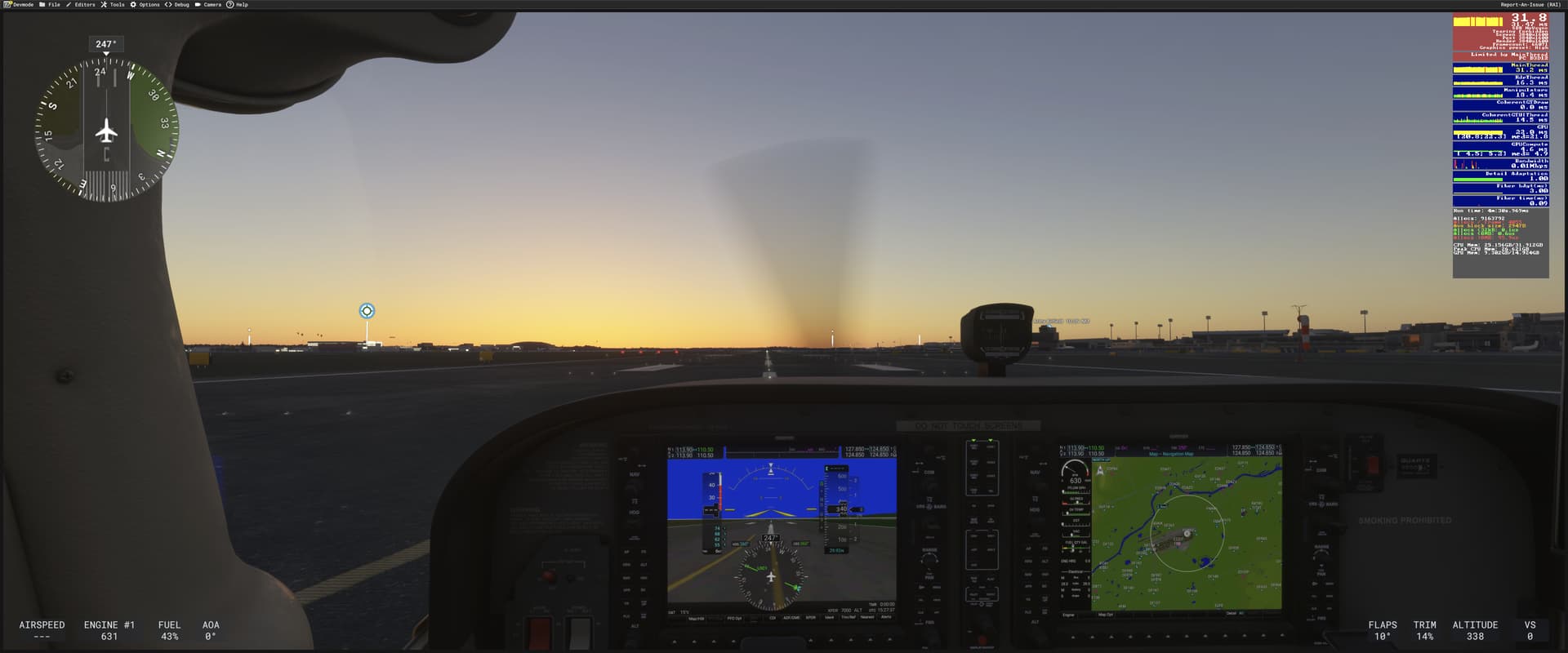
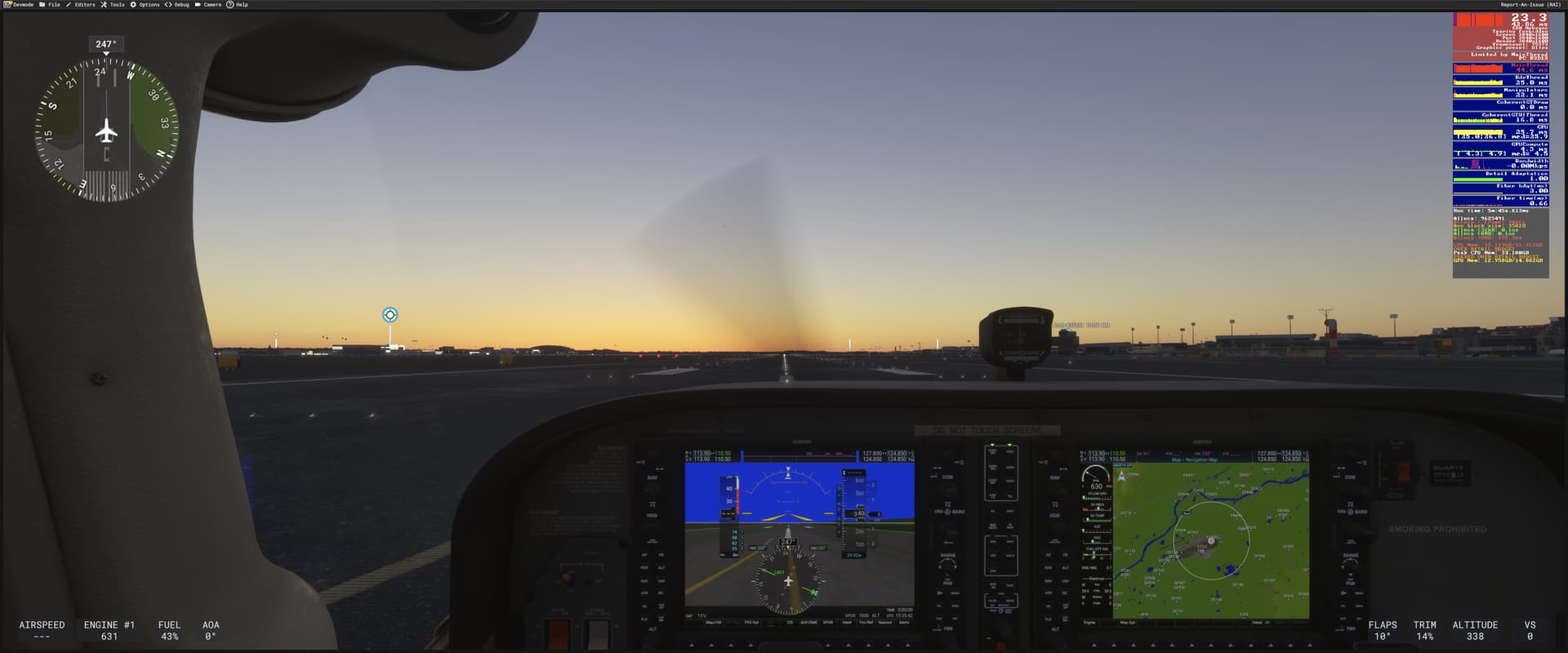
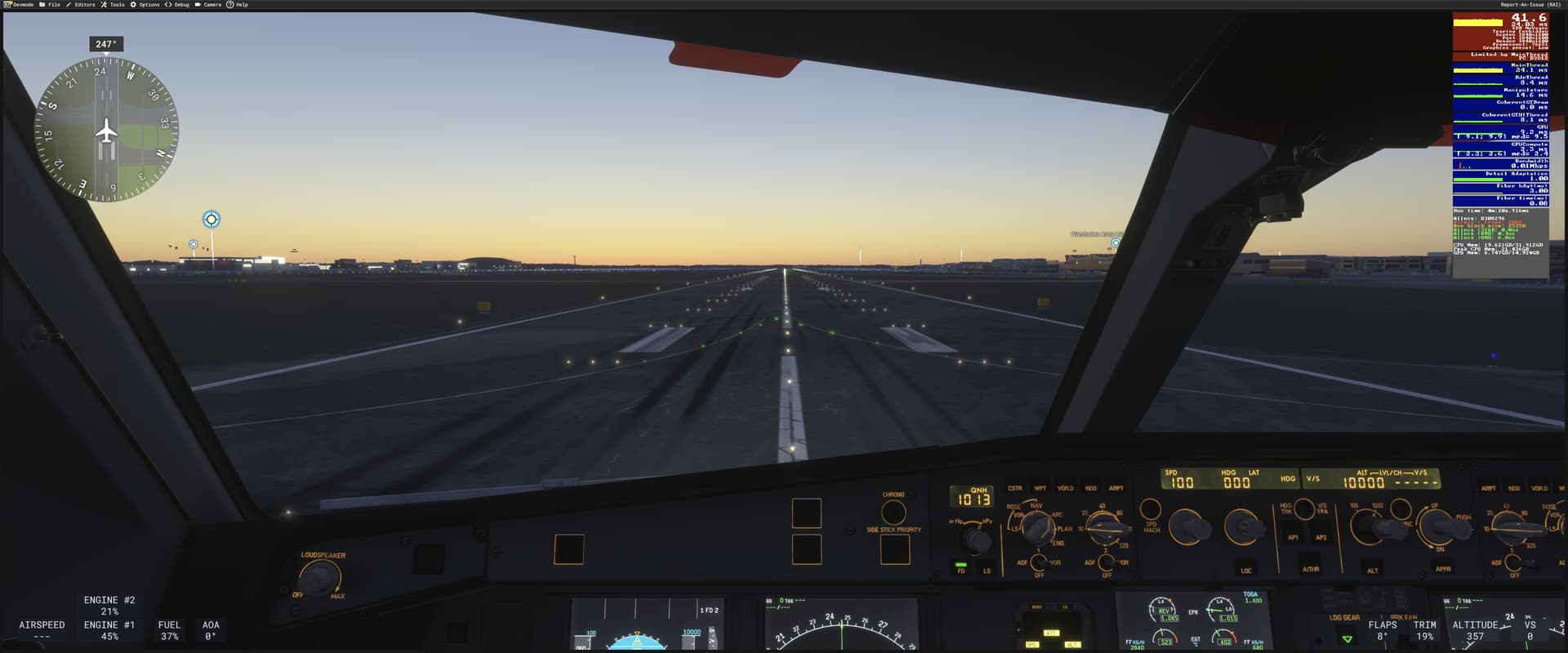
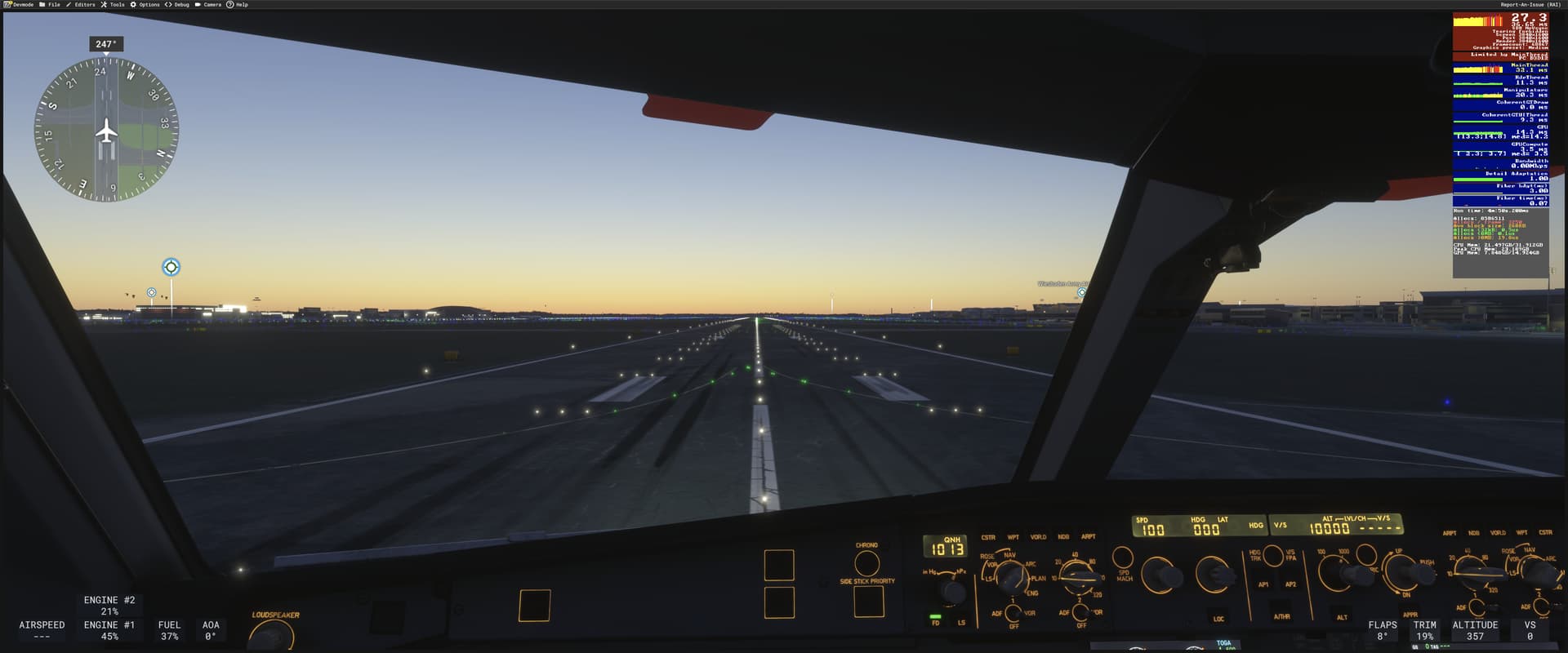
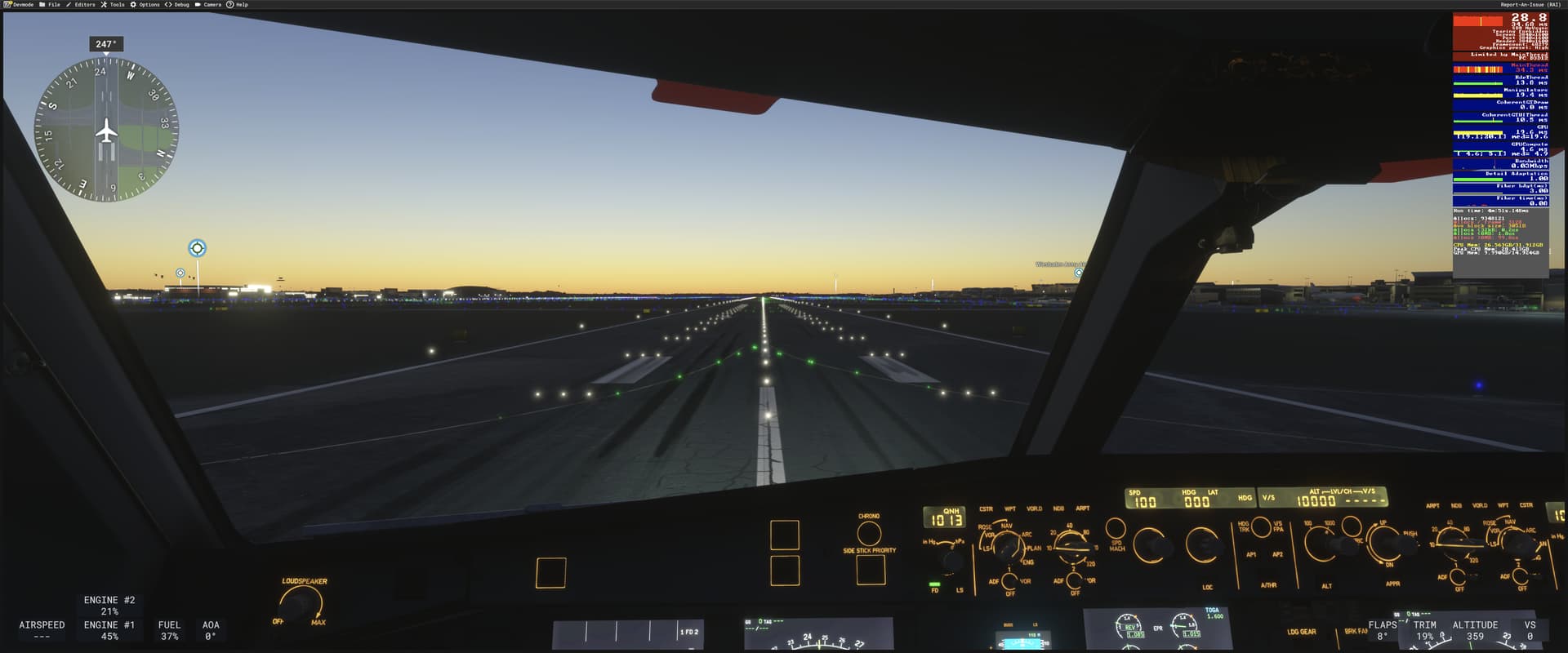
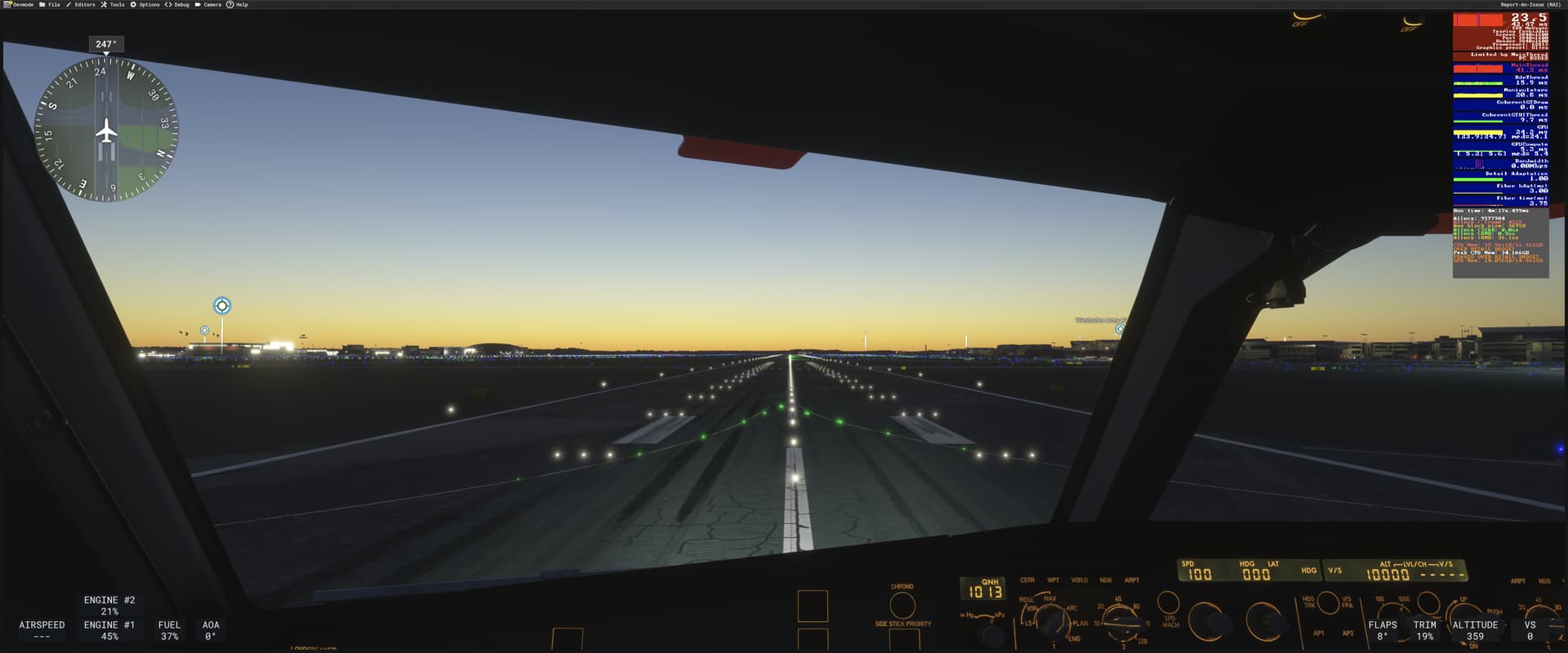
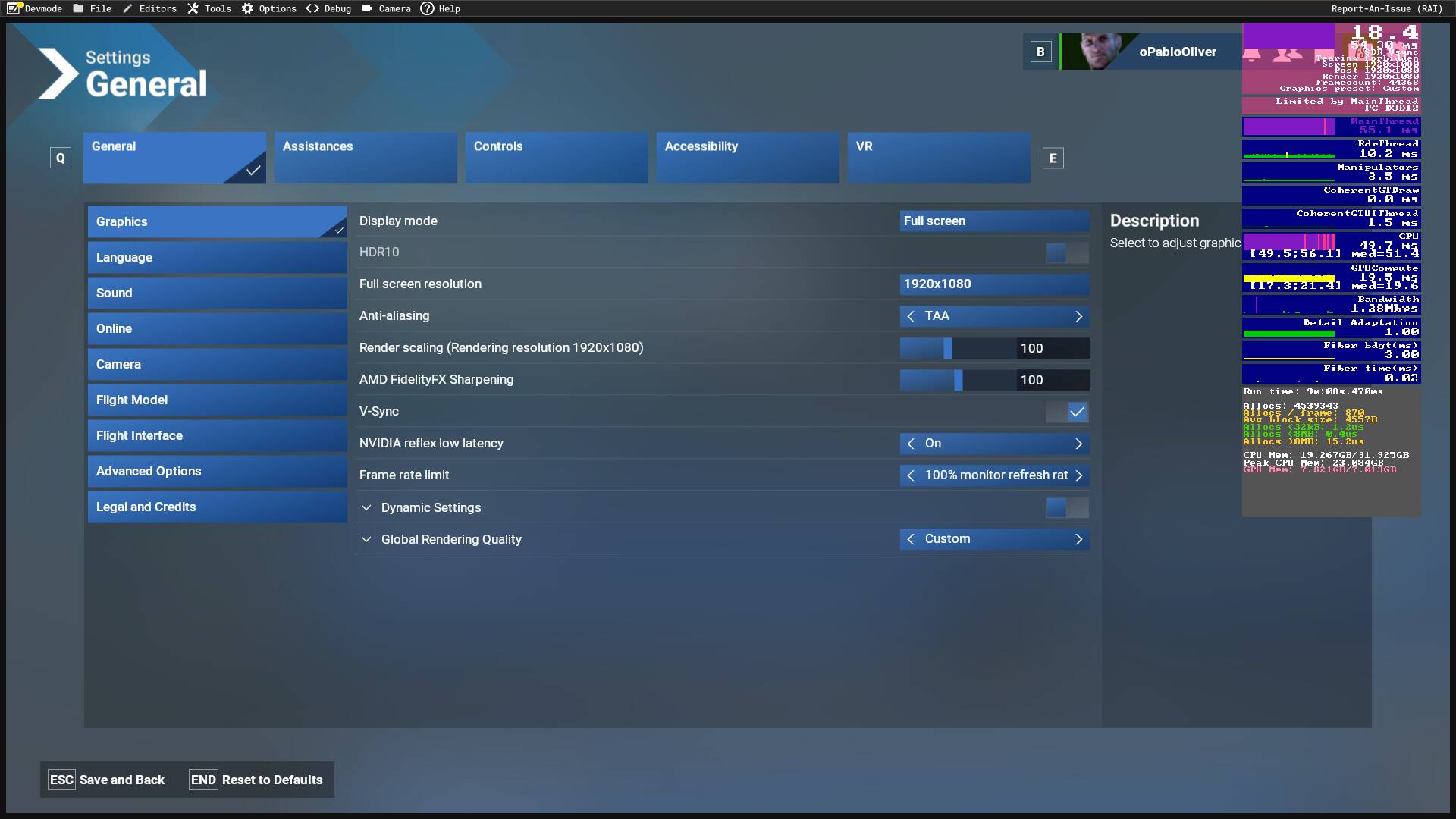
In the following I will refer to stationary FPS (i.e. camera not moving) simply as FPS and to panning FPS as PFPS (i.e. moving the camera with the mouse around - but taking a value after doing so for a few seconds; initial hiccups often occur and the performance is even worse). I tested both the standard Cessna 172 and the inibuilds A330-200RR standing on runway 25C of Gayas EDDF. Note that I have restarted the sim between each test and disabled DLSS Frame Generation as well as Dynamic LODs. With weather set to clear skies and using the cockpit view exclusively, I got the following performance out of each graphics preset:
I made a screenshot of the stationary performance (FPS) each time.
As one can see, with my system I cannot get consistently more than 30 fps on a big airport like EDDF in anything other than the “Low” preset. Also bear in mind that I would like to use Frame Generation, but this seems to use additional VRAM which I do not want to sacrifice there at the moment as I am contrained there anyway.
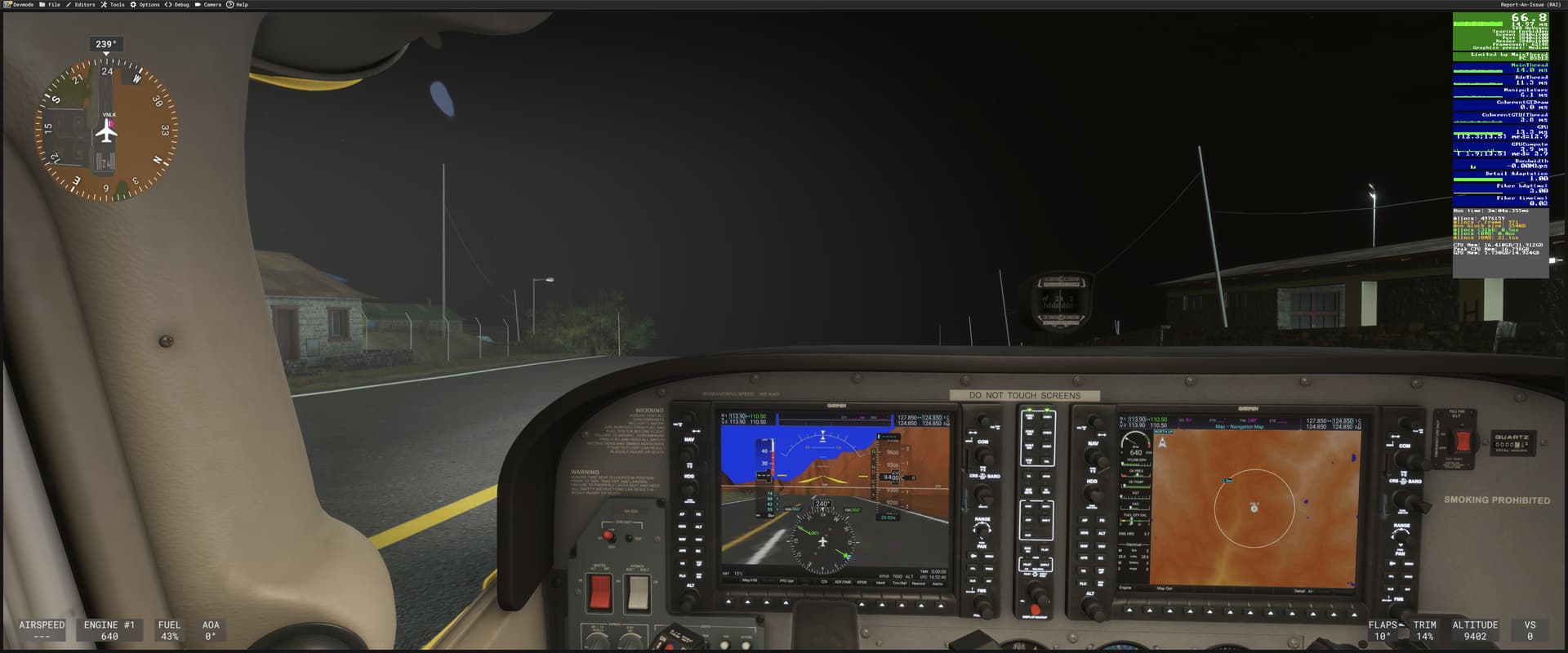
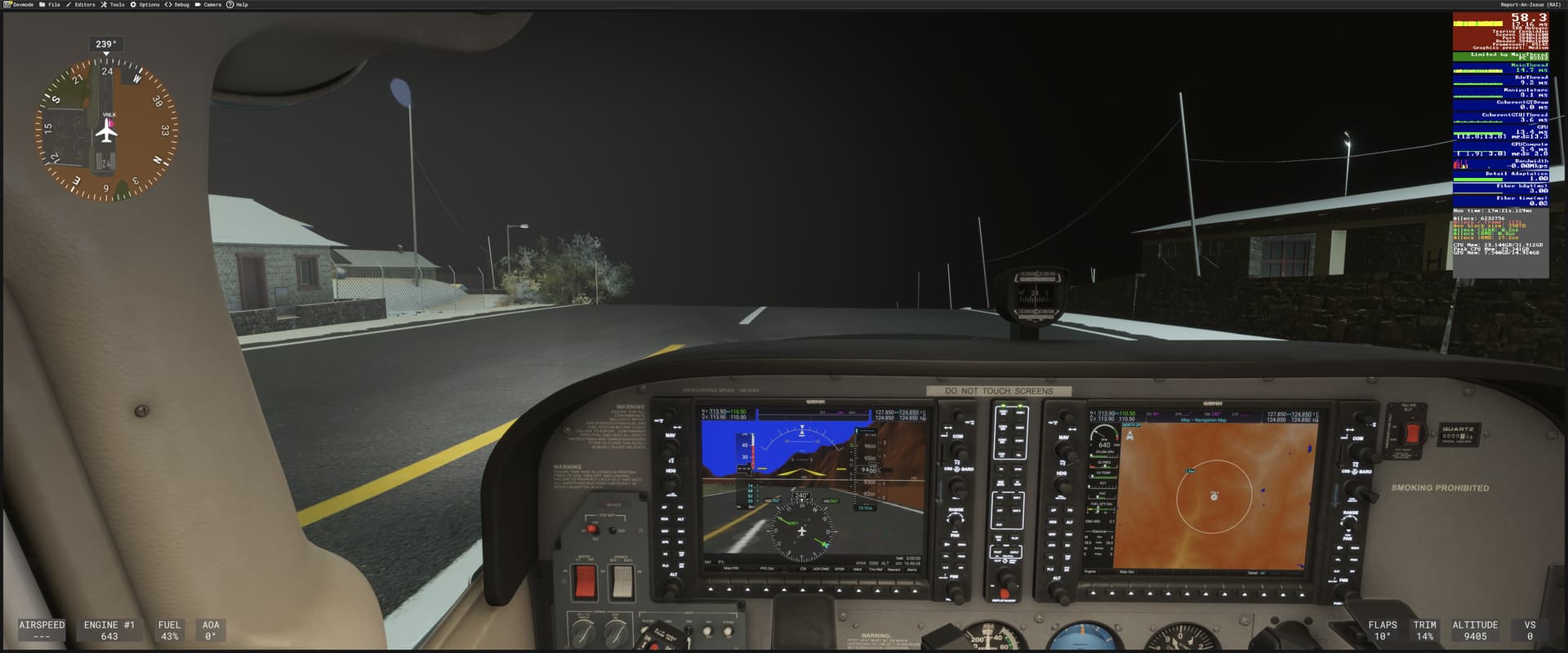
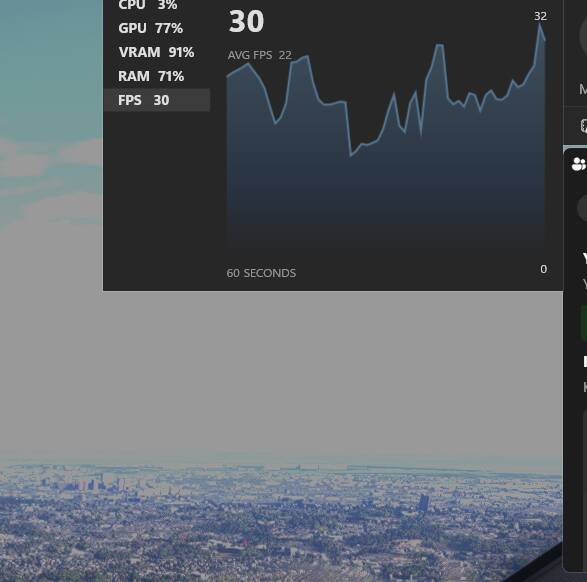
Furthermore I wanted to see whether loading into a few different locations prior to a flight will increase the RAM and/or VRAM usage (Memory Leak?). I did this test in Lukla as the effect might be more exaggerated there. This time I left the graphics preset at “Medium” and used the C172 throughout both tests. First I restarted the sim and went straight to Lukla. The second time I restarted the sim, went to a few demanding airports first (KLAX or Laguardia for example) and then to Lukla. See the screenshots for the results. In short, a lot more RAM and VRAM is allocated if I went somewhere else first (it almost seems to stay at around the highest level reached). I do want to add though that my RAM and VRAM were not fully utilized in both instances at Lukla, indicating that there may be a Memory Leak but maybe it is getting cleared up if the memory reaches its maximum. I did a similar test on Ultra (but without a screenshot this time around) that may confirm this idea. The sim seems to clear up just enough memory to not go over the limit.
Hopefully all this helps to some extend in improving the performance of the sim, especially around big airports.
If relevant, provide additional screenshots/video:
Do you have the same issue if you follow the OP’s steps to reproduce it?
• Yes, happens unexpectedly, doesn’t really depend on texture quality settings.
Provide extra information to complete the original description of the issue:
• Can happen even if resource monitors show well below than 100% GPU VRAM usage - usually kicks in when shared GPU RAM is over 3,5Gbytes (RAM also still has free headroom, not fully utilized)
More likely to happen near photogrammetry areas (though it can happen almost anywhere)
Small GA planes, like default C172 are also affected
If relevant, provide additional screenshots/video:
•
I’m also keen on having some detailed sample configs Asobo has used to determine system specs. If they really haven’t met this issue before (and reacted first as HW limitation) I’m really curious to know their configs, their GPUs (with display resolution, etc) and their settings they haven’t had this issue with. Especially for 4K resolution.
Yikes, that’s just crazy, it’s definitely not usable. I hope they are able to fix it since I don’t accept them just calling it a “hardware limitation”. They managed to get it under control in MSFS 2020, so maybe they can do the same with 2024.
So I’ve fixed my issue on my end. I did a complete uninstall of the Nvidia drivers using DDU Uninstaller. Complete fresh install of my GPU drivers and that was the magic key. VRAM usage is back to normal, no micro stutters and the graphics are the best they have been using DLAA and now the frame gen mod on my 3080 and a steady 105 FPS in the Fenix.
If anyone is having graphic issues then definitely give this a go. Pain in the backside as its a bit of faff but it fixed my micro stutter issues and sudden drop in FPS upon landing.
Newest Nvidia driver installed (566.36) December 5th 2024 release. All other drivers are up to date on my rig including mobo, windows 11 and cpu drivers.
Might be worth a go if your having performance issues.
Hope this helps some out, i know it wont fix everyone’s issues as it still has its bugs but this just might help a few.
Here’s a link to the display driver uninstaller software.
I did this a week ago. DId not give me the same result.
On a side note. I did completely delete the LOCALAPPDATA folder for MSFS2024. Forced a reinstall of those default settings. This way, any streamed package was also forced to be deleted.
I verified that all my settings returned to default as if it were launch day. I spawned at KJFK, which is the same as last night. This time, however, is in the default C172. The result was the same. I did nothing but click on a preflight check item, and the simulator began stuttering with VRAM usage up to 15GB.
It stabilized at 13GB of ram minutes later if I did nothing. However, the streaming had also finished for all assets in my immediate vicinity. Something tells me that these VRAM issues are caused by how the simulator streams packages and then has to render them.
I am unsure if this is the case. I am, however, going to attempt to duplicate it and record it as I use the drone camera going into NYC.
Just thought id pop it her in case it did help some. Obviously everyone’s set ups are different so it may work for some and not for others. Sorry it didn’t help you. There clearly is a bug, just affecting some in different ways.
Do you have the same issue if you follow the OP’s steps to reproduce it?
•YES
Provide extra information to complete the original description of the issue:
• WE NEED SERVERS!!!
600Gb of bandwidth and it doesn’t load the maps! My cache is in 200Gb, and i still having frame drops to 6 FPS even in low quality and 1080p.
I have a decent pc:
R5 5600x
Rtx 3070
32GB Ram
SSD 1Tb only for MSFS…
If relevant, provide additional screenshots/video:
•
I did try DLSS Quality, it’s readable but gives me less sharpness in the world. Quality setting is good (for me) when flying into big airports like Zurich, about 35-37 FPS, but DLAA is overall fine and everything is sharper, tested it in Innsbruck and Bern. Also TLOD is now 70.
I fly helicopters, this testing I did with the H125.
Tom’s Hardware has an in depth Review of performance and really they ignore my poor old 8GB card… their take IMHO is this game is really for high end cards.
Because my frames dropped at ridiculous times that didn’t make sense I did the following:
Checked the integrity of game files in Steam; Result was 3 faulty files; they were redownloaded.
In NVidia control panel, set 3d settings to: Let the application decide
GSYNC compatible ON
Restarted PC
Turned VSYNC OFF in MSFS2024
I’ve tested for almost an hour now and everything has been smooth.
I’m flying over Tokyo with TLOD: 200 and most settings at ULTRA on a 8GB RTX3070 and still averaging above 20 fps
In what aircraft? I did the same. Loaded in the Cessna 172. Had a better management over NYC. The moment u switched to the INI A321, it went back to maxing out the VRAM. It makes me curious, is ia leak in the avuinics.
I’m curious. Would some of you be open to loading into fate A8 at KJFK in the Inibuilds A321, and post your results here?
What is so sad is that the tech alpha did not have any of this problems. I even remember moving over some 2020 planes and everything was work as it should. VRAM was just as good as 2020. Now in the release software, same default airport and same aircraft vram is out if this world high. I’m so upset that I haven’t been able to use the sim because of this issue. I also cannot understand how Microsoft lists a GTX970 with 4GB as minimum and an RTX2080 with 8GB as recommended. Those cards cannot run this game as things are right now. My card is a 30 series and higher than recommended and I’m having huge problems with vram management even if I turn all the settings down. It looks worse than 2020 and uses more vram. So disappointing and especially when we are told it is a hardware limitation. So does that mean that the minimum spec is a 4090 and that the recommended and ideal card doesn’t even exists yet? This issue needs to be the top priority at Asobo.
On the September Developer stream Q&A they said the recommended spec RTX2080 for 1440p grapics setting to high end can achieve 30fps but all of recommend gpu can’t even run the sim properly, on December 4th stream they said is hardware limitation or go change gpu, this is the worst answer to all the people have this problem.
I remember the question on September is on 19:08