Also, make sure your USB cable is a true data cable and not just a charging cable. Those don’t have the data lines in them.
2 Likes
Tex, when you bring up the tablet settings, ignore the ‘no touch’ indicator. click on Setup and you should see a msg to touch the screen with one finger if it is the touch monitor. Continue as instructed. You may have to initiate this process a couple of times until it catches.
@Toddimus831 This is definitely something I’m sure I’m doing wrong… Pretty sure the USB I grabbed out of the bucket is just a charging cable. Going to see if I can track one of those down today. I know I’m good with power, which is coming from the wall… but, the touch cable… thats questionable.
@FlyingGunny When the tablet settings are open, every button is grayed out. I can only back out.
@FlyerOneZero As you can see in this pic of my sim, you can see where I have the 7" screen mounted… this has been my plan, I really don’y have much space to conveniently put anything bigger without some rearranging.
Is this acceptable?
https://www.bestbuy.com/site/best-buy-essentials-5-usb-a-to-micro-usb-charge-and-sync-cable-black/6456438.p?skuId=6456438
If not, could you please refer me to a specific cable?
Yeah, that looks like it should work. Saw your post above and I’d say with near certainty the cable is at least part of the problem. No data lines = no touchy touchy 
1 Like
Sweet. My s/o is picking it up after work, so I’ll be able to test that out tonight. God I hope that is the culprit! 
Hey all… I have a general touchscreen question. Since I haven’t had the chance to experience it yet, just curious about how I can expect to see it work.
With the GTN 580 popped into my touch screen… “should” the touch functionality allow me to switch from PFD/MFD/Coms sections of the menu? Or would I need another knob or button to switch between them? OR, another screen.
This is a great tool. Thanks a lot.
I’m having problems with the JPL C152 though. When trying to set the green ring focus on the GTN750, the camera jumps to the front of the wibdscreen do I can’t see the GTN anymore. Any ideas?
I was having tons of problems, but have it down now.
What works best for me, is set your camera eye level and looking straight on the the instrument. I would then press ‘Ctrl-Alt-0’ to save that custom view, so when I clicked the pop panels button, it remembers that view. Took me a few tries to find the sweet spot. The circle seems to be fairly picky, so be sure it’s almost directly centered on the GTN. Then pop the panel.
Hope that works for you.
1 Like
Thanks. Sounds good 
 Will try that tomorrow!
No. In the real unit you have to do that using the physical buttons on the bezel, not the touchscreen. MSFS doesn’t pop out the bezel, only the screen part. To get a bezel which you can touch you would need Air Manager and the generic GTN bezel from Simstrumentation.
This is heading very off-topic for the thread, so I think we should probably move it elsewhere, but if you search the forum for ‘Air Manager’ you will find lots of good info. Also, if you join the Simstrumentation Discord you will find a very supportive community, including me.
It’s totally possible to do, you just need to bring all the components together, and the AM community can help you with that.
1 Like
Roger that, yeah, sorry for leading the topic astray, I can’t thank you all enough for the assistance. I’ll be seeing my way into the Simstrumation discord. Thanks for the tip on that.

Yep it is essentially the same thing in W11 but to find this is a little different in W11. It doesn’t seem to find it by searching for Calibration or Tablet like W10 you have to navigate to Control Panel and Tablet settings. Easy once you know where it is. That setup step with white screens is essential and sometimes even needs doing again, usually if the setup is disturbed somehow.
Absolutely. I’ve had to resort to it many times to recover touch. Simply reseating a cable will screw it up.
1 Like
Yeah, that is what I am seeing. Except the setup button is grayed out and cannot be clicked. Nothing can be clicked.
The button will be greyed out if Windows doesn’t see any touch devices connected.
The calibration control panel is a red herring at this point. Your problem is absolutely 100% because Windows doesn’t see a functioning touch device, and that’s most likely down to either your USB cable or the device just not working.
Once Windows sees a touch device, then the calibration panel becomes necessary to make sure it’s properly calibrated and set up.
1 Like
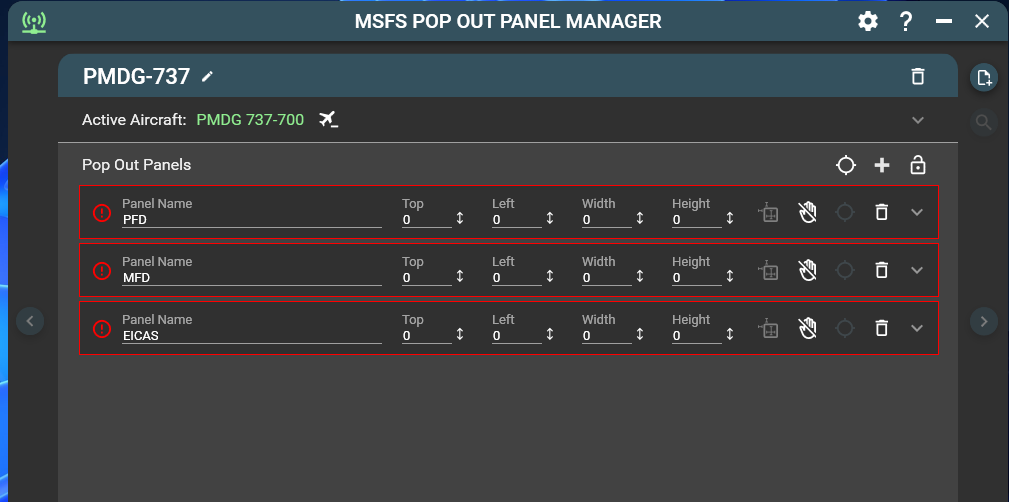
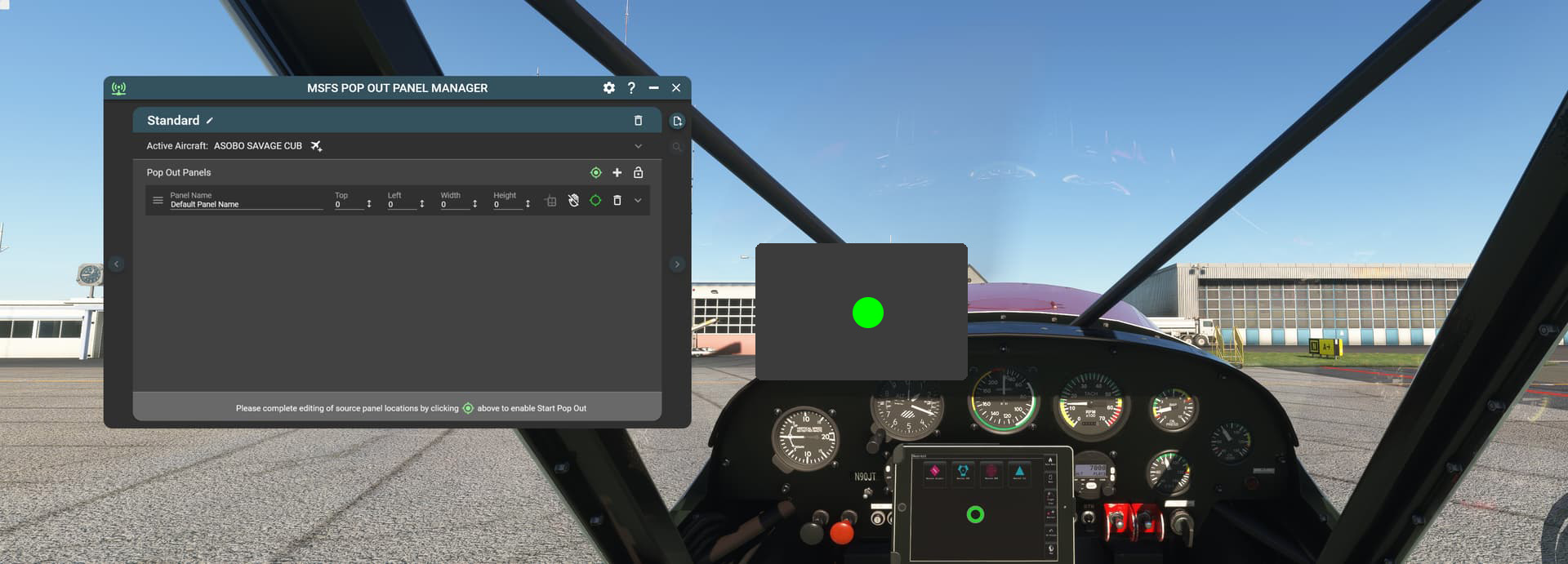
Must be doing something wrong. Set the Popout Camera View to Alt-0 and saved a new CTRL-Alt-0 Camera view
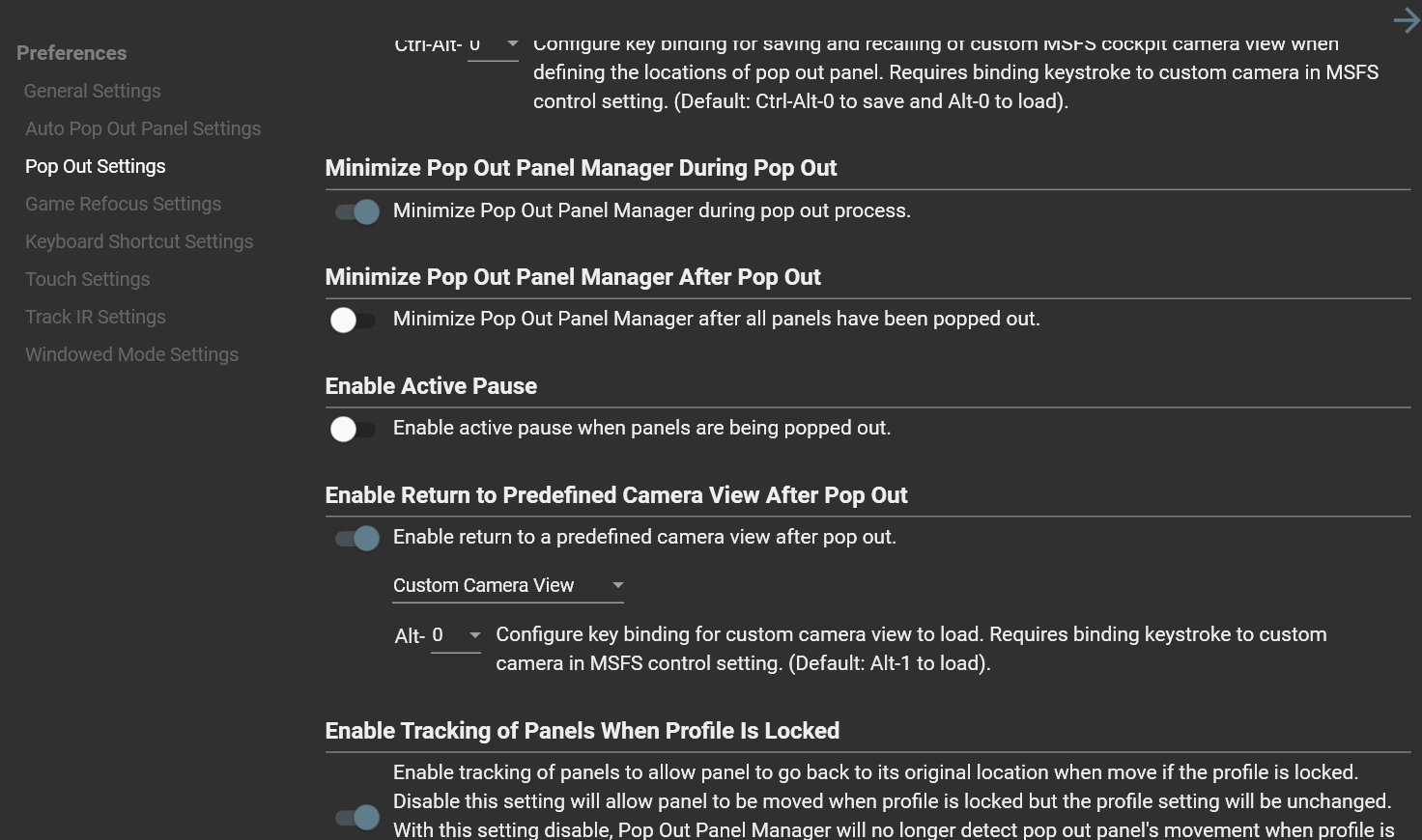
then set the circle:
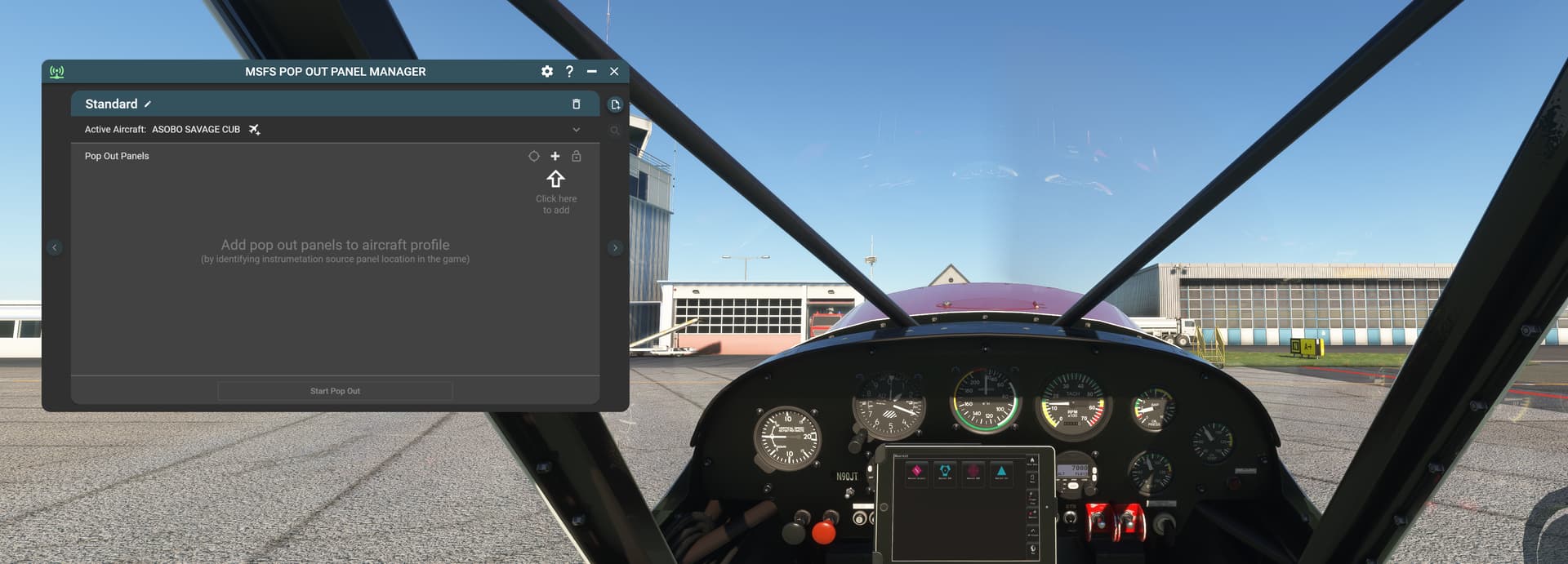

But when I pop it out still this happens:
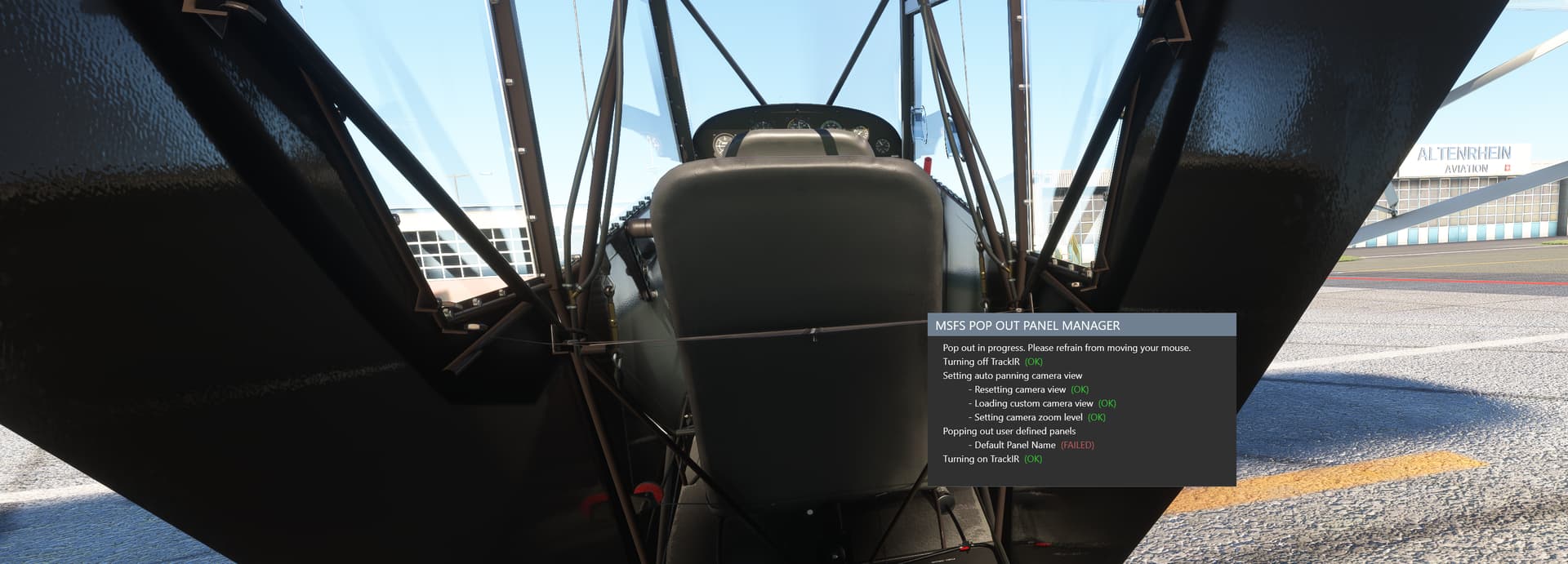
EDIT:
Ok forget it: seems I got it working with the CTRL-ALT-1 setting for some reason

1 Like
Looking at your photo with the Green Circle, I think your camera is set too high. I saved your screenshot and drew a box where you should position your camera to where your GPS is positioned right in the middle of your screen. Once it’s positioned there, do the Ctrl-Alt-0 (or 1). Also, ensure the green dot is a centered as possible.
If you still have problems, I can take a screenshot of mine for reference.

1 Like