I don’t totaly agree with you. I am in 3440x1440 with a 5060 ti and the best result for me is preset M and Quality mode in Nvidia App, in FS24 FPS locked to 30 and frame generation x2.
Hi guys, wondering if any of you experience this with the latest driver. It is baffling to me as to why this happened.
Since the last DLSS4.5 driver update, the framegen (x2 and x3) has been causing the mainthread to saturate to 50ms all the time. I had to roll back to 577 driver for it to work normal again (see pic below. 577 with framegen x3 shows a normal ~17ms, while all the drivers from 58x and above cause the mainthread to jump to 50ms). This happenned just recently with the DLSS 4.5 release, so i was wondering if Nvidia did something retroactively with the framegen that affected all the 58x.xx drivers and up?
How to reproduce:
-
Update to latest nvidia drivers (or any 58x.xx drivers)
-
Turn on framegen override (x3) from Nvidia
-
go to game and turn on dev mode, Display fps , then exit dev mode so the fps shows the frame gen fps
-
Mainthread will saturate at 50ms and cause stutter
577.00 Driver - Normal ms (~17ms) with frame gen x3 forced on from Nvidia app
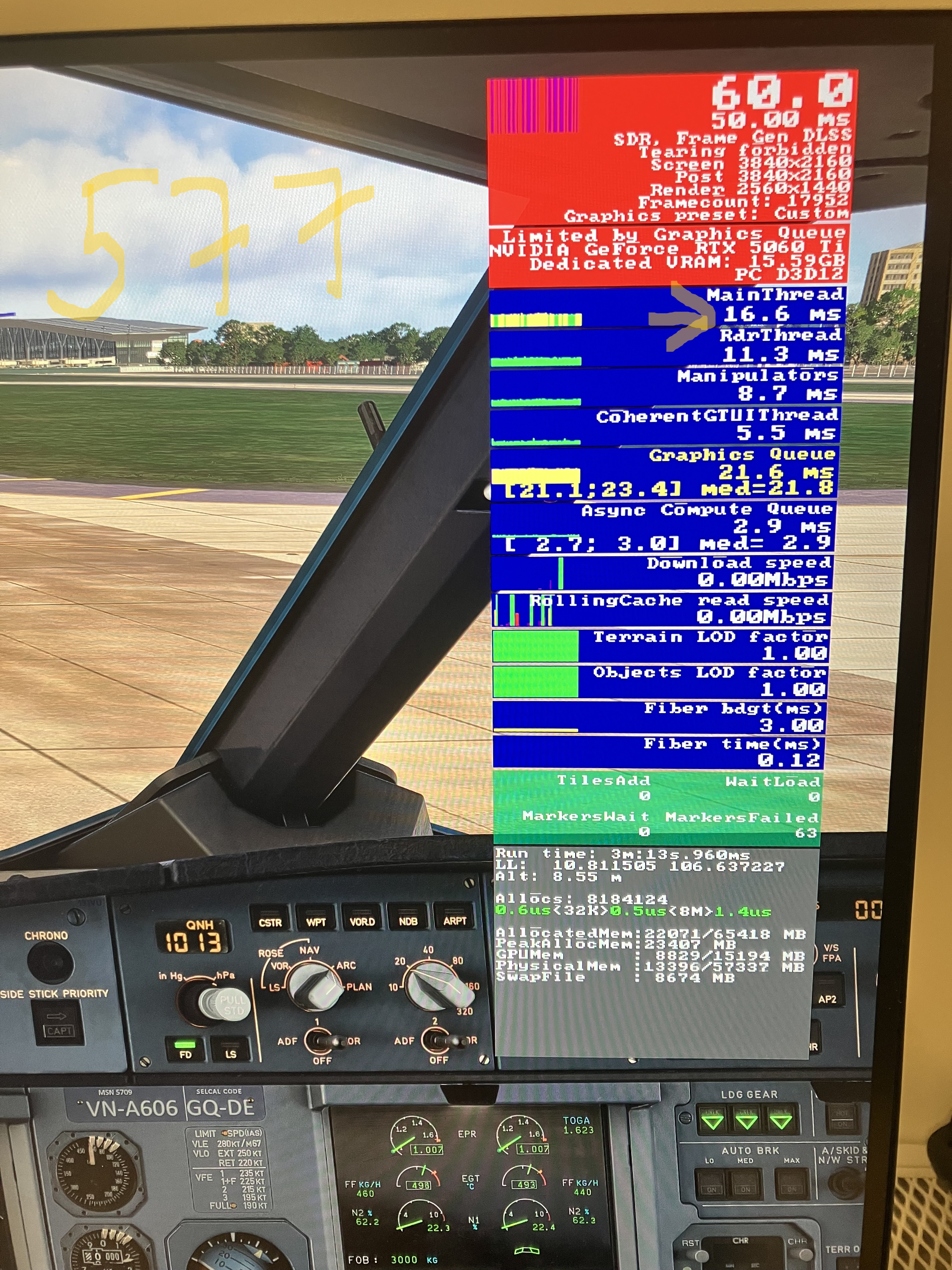
58x.xx up to the latest DLSS4.5 driver. Mainthread is saturated at 50ms with frame gen x3 forced from nvidia app. This just happened recently since DLSS 4.5 update. I was on the 581.57 driver before and it did not happen until the DLSS 4.5 release. Seems like Nvidia has retroactively applied some changes to the framegen to all the 58x.xx drivers as well.

the frame gen has gotten better with the latest drivers?
I am happy for you to disagree with me.
The issue was originally about using DLSS 4.5 and DLSS 4.5 is only in use when you select Performance or Ultra Performance mode. If you select another other mode (Balanced, Quality or DLAA) then you are using 4.0.
This is the key point, selecting preset L or preset M does not mean that you are selecting 4.5. What you are using is using 4.0 in Quality mode and selecting preset M. Now whether that gives you a better look or feel or not is completely up to you and your system. On my system Quality and M has a performance hit more than Quality and K.
The whole reason for 310.5.2, that I have read so far, was to introduce the dynamic preset so that people wouldn’t be using the non-optimised preset for their mode.
I am not going to tell you, or anybody else, what to do with your system.
There was a series of posts quite a few months ago about limiting your fps to half your required framerate and using 2xFG, or more, to bring it up to the fps you want, and this would save processing power.
It does.
Watch the video and see if that helps with your issue.
2 Likes
You’re running 3440×1440, which is 2K ultrawide, not 4K. At this resolution the GPU load is much lower than at 4K, so preset M with DLSS Quality can give you better results.
On a 4K monitor the GPU load is significantly higher, which is why NVIDIA recommends using preset K and DLSS Quality at that resolution or DLSS Performance and M.
2 Likes
Sorry but I understood DLSS 4.5 add two preset L and M but I don’t understand that changing preset or mode can modify DLSS version (4.5 to 4.0).
I totally get that. It is confusing. This is why I kept searching for a definitive simplified post.
The answer, it appears, is that the Transformer 2 DLSS 4.5 modes are only for presets L and M. Preset L is for Ultra Performance mode and preset M is for Performance mode.
To a certain extent this is confirmed by you selecting the Recommended* option for the DLSS Override - Model presets in the Nvidia App. Then with the DLSS Indicator registry entry enabled see what happens when you alter the DLSS mode in game. The preset changes according to mode selected.
Now I get that it is hard to grasp as it is different to what we have known up til now about DLSS. This is why I spent a couple of days reading various articles/reports.
Does this mean that when a Transformer 2 DLSS model is available for Balanced or Quality is available that we will get DLSS 4.6 and presets N and O? I have no idea. I am not in the know nor am I technical in this area.
I am just reporting what I have read and what I can see for myself using the DLSS Indicator. Feel free to take my word for it, investigate for yourself or file it under rubbish as you see fit.
2 Likes
There is a thread that is parallel to this one on Ghosting with this driver that GimbalAxis has included a nice Table with the modes etc a frame scaling that I find helpful:
Might be a good idea to consolidate the discussions probably here under the driver.
Thanks for the clarification.
I don’t have any MSFS addons running, using vanilla MSFS 2024 - so I thinkk this is not the reason why I don’t see the status in the overlay.
Yes I am aware about this possibility. But changing the registry for me is always the last resort, therefore I tried the other option bevorhand. But it seems i have to go the regedit way…
I was already aware of the possibility to display it correct with the regedit. But before altering the registry I’d like to try it to get it to work “conventually”. But it seems I am out of luck and need to go the way over the registry.
yeah i tried capping fps too. Didn’t work. Also did all the DDU clean install, etc. It just happned right after the DLSS4.5 release.
I’m getting the exact opposite result in image quality in VR than everyone else it seems. Installed 591.74 and while using DLSS 4.5 balanced or performance, preset M, I’m getting tons of black spec artifacts all over the screen, objects all across the airport, like taxi lights, are sparkling black when the camera moves, and there are cartoony black blurry outlines around my aircraft and AI aircraft. I have a 4090 / 7800x3d / Pimax Crystal Light. This only happens while using Foveated Rendering, but I imagine most people are using that. The exact same settings with the previous nVidia driver 581.80 was way cleaner of an image.
This might be a dumb and useless question, but I made this mistake many months ago chasing these presets and options that everyone posts about. Do you have the most current version of the NVIDIA App? (not the driver) I still have not found a reliable way of getting it updated automatically, I just look for people posting here.

I will admit that I have FOV Rendering off and always have done since they put it in as it was an fps killer for me. I have a 4080 Super.
If you are getting worse visuals and/or worse performance by having FOV rendering on then I would switch it off.
1 Like
Ah that is not a dumb question at all, since one need to explicitly opt in for beta releases of the app an need to redownload the app to get latest version.
Unfortunately it did all this, the app updated and now it states it is on its latest version: 11.0.6.379
1 Like
I now managed to see the preset (although only L) in the nvidia app overlay.
The only thing I changed was: I started MSFS via the nvidia app and not via steam (although the nvidia app started steam and triggered it to load MSFS).
Anyway, I got my inforamtion and the conclusion was: it is still a blury mess on glass cockpits - especially in VR 
I assume that you have 591.74 installed. I assume that you have DLSS Override - Model Presets set to Recommended, in which case you have got DLSS mode Ultra Performance set in game. It is the only way that you can get preset L. Set it to Performance and you will get M.
Now, the ghosting is probably nothing to do with DLSS, as everybody else says that its better under 4.5, so my guess is that you settings are not optimum. Check this video https://www.youtube-nocookie.com/embed/8lfTRGfOwXc
1 Like
Yes, all is set correct. The preset on the other hand seems to only rely from the settings in the NVIDIA app. The game settings do not change the preset - at least for me. And this was anyway always my impression that it works that way: the app overrides the settings regardless what is selected in MSFS.
Anyway, I assumed L is the more demanding preset, so corresponds to performance and M is the lesser demanding one?!? I am confused.
I didn‘t say nothing changed. It was indeed a little sharper - I would say that L was as sharp as the quality preset for 4.0. For 2D this is a nice performance bump without losing sharpness, but for VR, DLSS is still unusable. Fortunately I can render VR without the need for DLSS, but I try from time to time, if I can take the performance with DLSS, over to VR.
The bluryness depends on the input resolution: you can get VR with reasonably sharp images when also using DLSS, but you need to render such high resolution’s that a 5090 will melt instantly  - I tried
I came back from a trip and updated my driver to the latest plus SU4… and now I have CTDs with memory leaks… I have done a clean reinstall of msfs24 and attempting my first flight since doing that, but now I have microstutters. This is so frustrating. I have the same rig as you.