I was updating the content. It’s now visible again: https://forums.flightsimulator.com/t/smooth-performance-concept-for-high-end-hardware-fixed-fps-with-dlss-frame-generation
Try Performace M ……. You might be surprised….
2 Likes
Things have been very quiet on my system running 4K with a 5080. I am running at 36 FPS FG x2 to 72 as my monitor is only 60 Hz (BENQ) and i do not benefit from 4X. It did not seem to run slower at 4X or was there a VRAM penalty. Some sort of AI magic I guess… I wonder if they are using the CUDA Cores. I should check for curiosity.
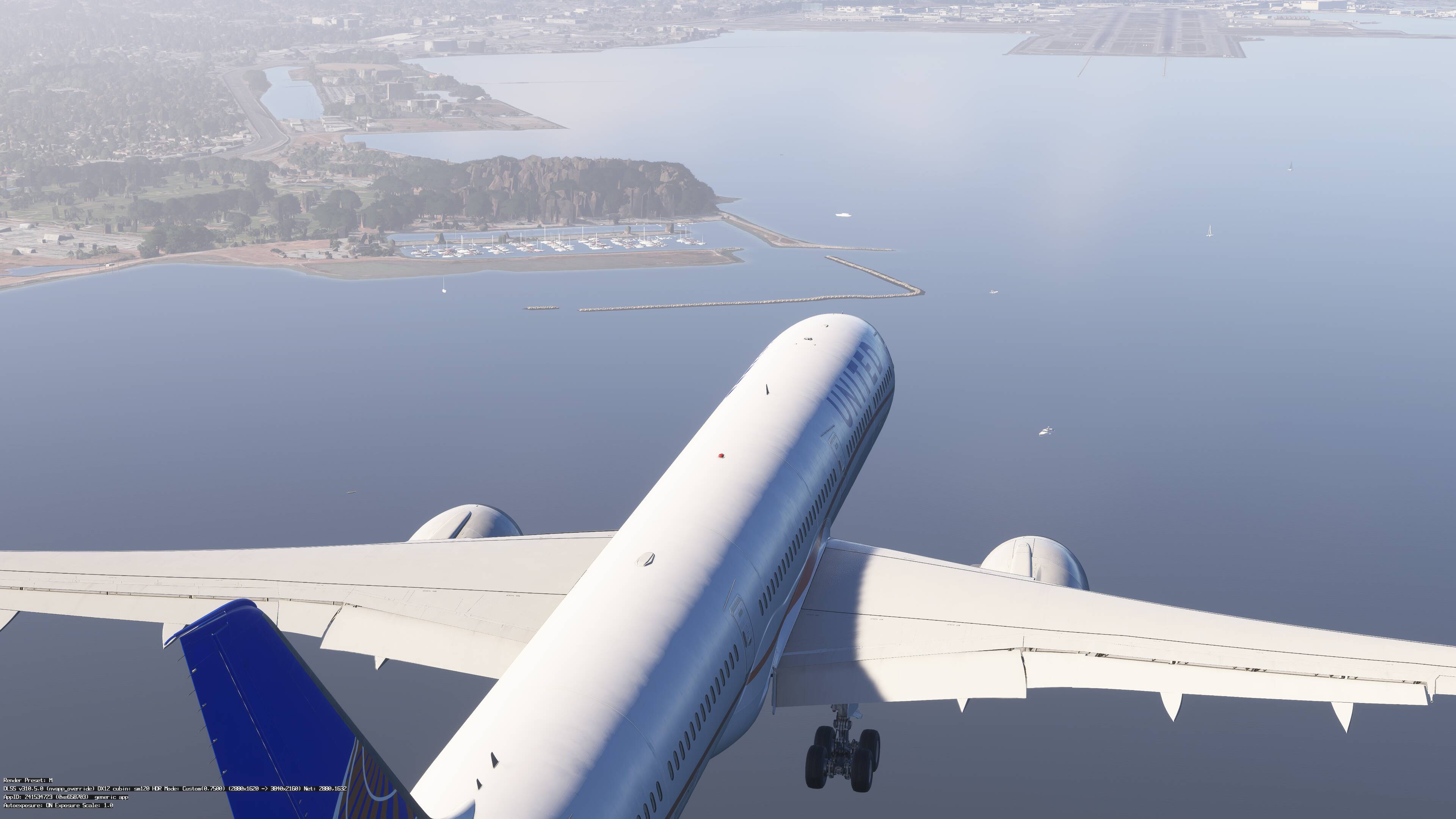
In 2D I generally run into SFO and have added a new add on for marinas/boats with no ill effects. This is with a custom airport. (see below)
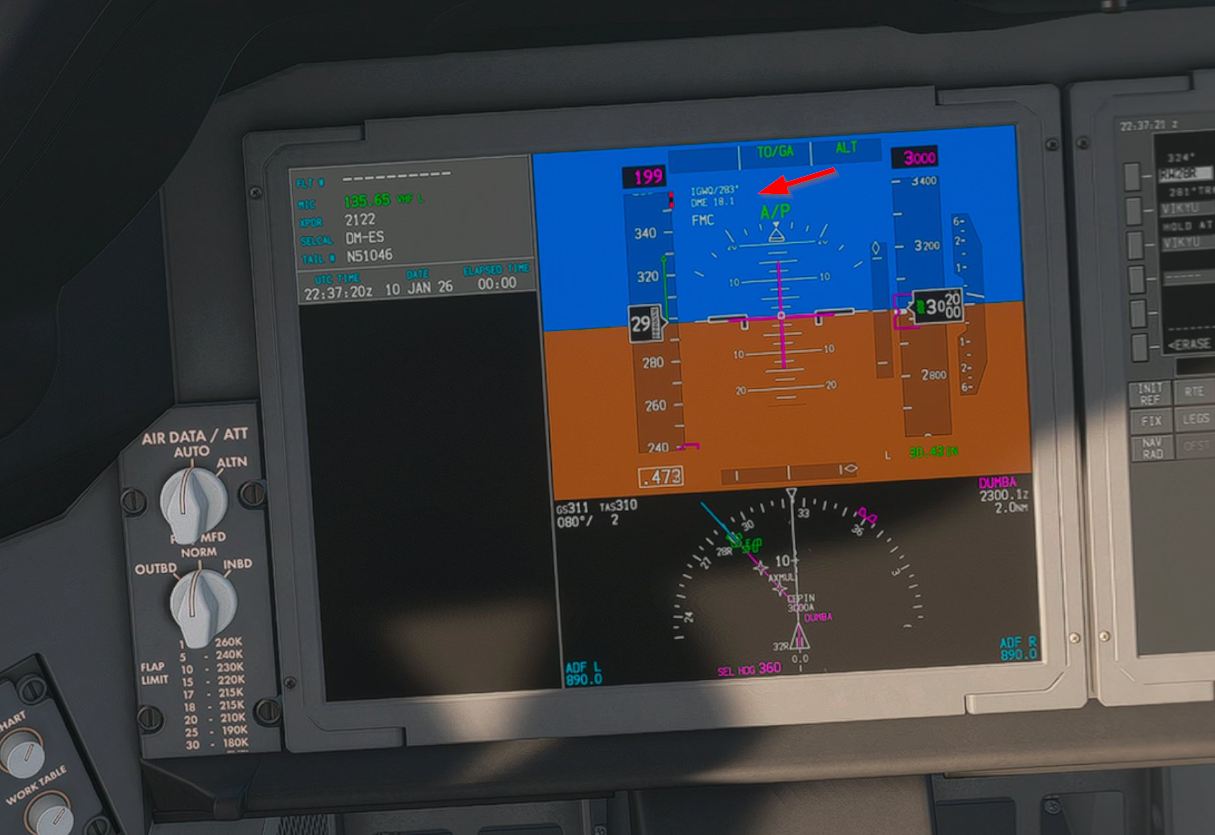
One thing i have noted in VR is that the colors seem a bit washed out/unsaturated. But it runs fast enough and the hard to see details of the 787 instruments are clear as a bell with the new DLSS 4.5… for this alone the drive change is worth it. The image below is not the washout just SFO fog.
2 Likes
Thanks, but I keep coming back to TAA. The cockpit instrument text is crisper, but without the performance cost of the new DLSS 4.5 Preset M at the high resolutions and very high TLOD / LOD settings. Luckily I’ve found a pretty good compromise by having side monitors at 2K, and everything is crisp and stable. Only a few minor flickers in the thick of a busy airport, but otherwise good.
I have a feeling MSFS SU5 will continue to improve optimizations (at least I hope so) so maybe we all get a bit more breathing room on graphics settings and driver versions.
5 Likes
That, of course, is completely your choice.
I did try TAA under 4.5 but I simply can’t put up with the flickering of objects in the distance, i.e. across the airfield. You don’t get that with DLSS under 4.5.
I would not hold your breath for major performance benefits from SU5. I understood that SU4 was concentrating on performance whereas SU5 will be on features. This doesn’t of course mean that there will be no positive benefits but SU5 is not continuing the work of SU4.
I have no inside knowledge of this, just from the odd post that has been made. I am sure that if I am wrong that somebody will post to correct me, and I would be grateful of that.
1 Like
What my test so far have found is that using the latest driver the best performance in VR is to use preset K. With a system locked at 72 fps and using SSW under Virtual Desktop, with clear skies at a test airfield I get 72fps in Ultra Quality DLSS.
In the same airfield in the same weather using preset M I get 60 fps, even if I go down to Performance mode. Obviously this means that I get 30fps native and 30fps from SSW.
In 2D I do get 144fps, my monitor refresh rate, but my settings are not as high as I do not use 2D so i have most things down low. This is with 2x FG.
yeah bat sadly the M is the best looking preset for now .
2 Likes
There is a nice discussion over here:
This is pretty confusing but some tables of settings have been put up here. You might want to check them out and see if they make sense for you. I am not sure running at M in VR makes sense but the issue is under deep discussion…
1 Like
Hi All. Can some one help me to figure this out. I’d like to try the DLSS 4.5 Model presets, but the nvidia app does not show me them. I am on Driver 591.74.
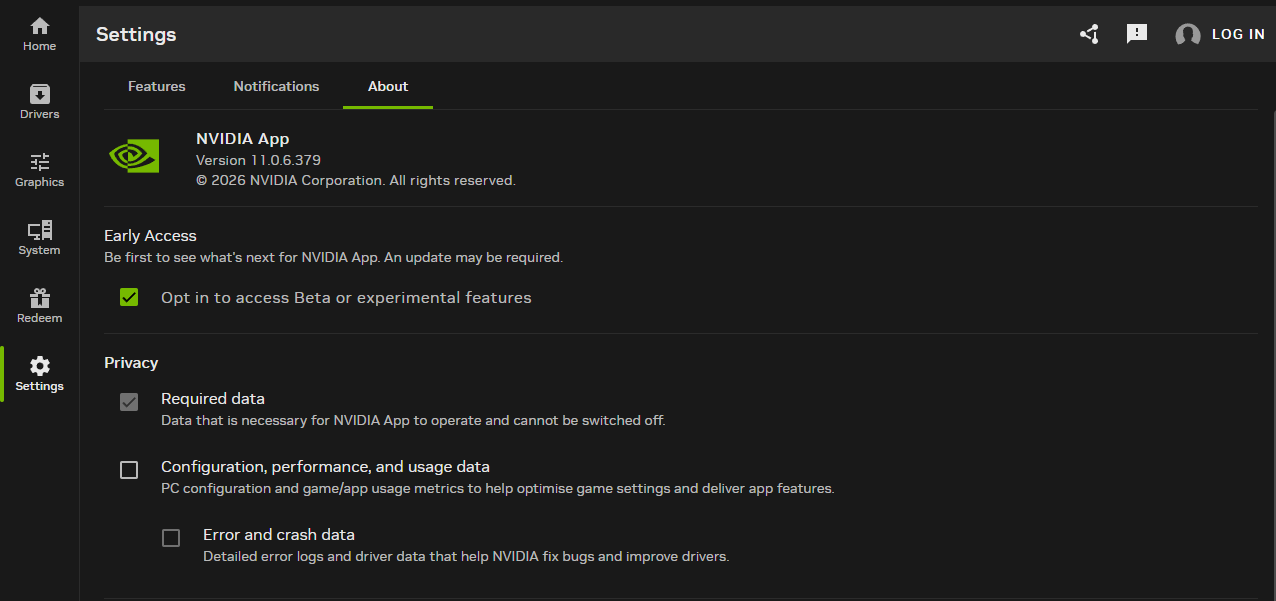
I have opted in for beta releases as needed:
After a re download of the driver and a restart of the PC, I see following when I try to chnage the settings for MSFS 2024:
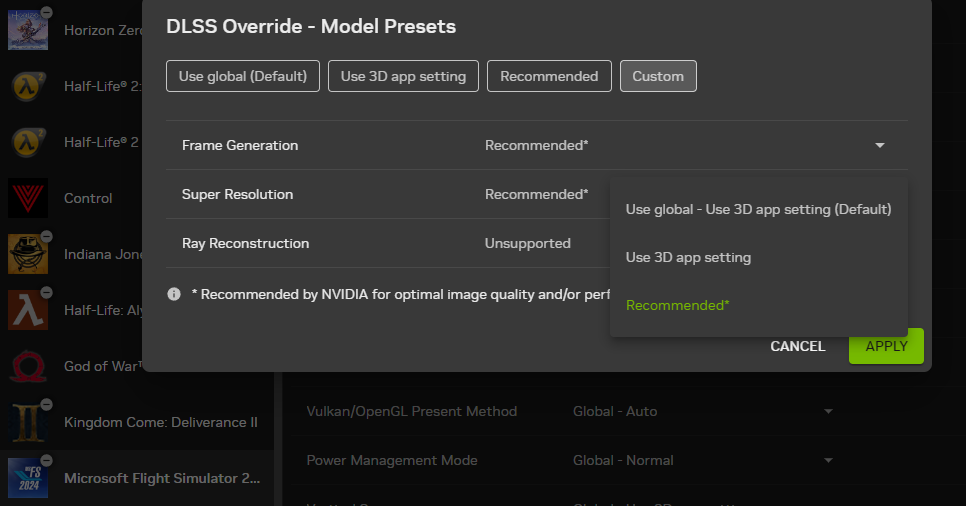
As ypu can see, the drop down menue only consits of these thre options.
What am I dowing wrong here?
Edit:
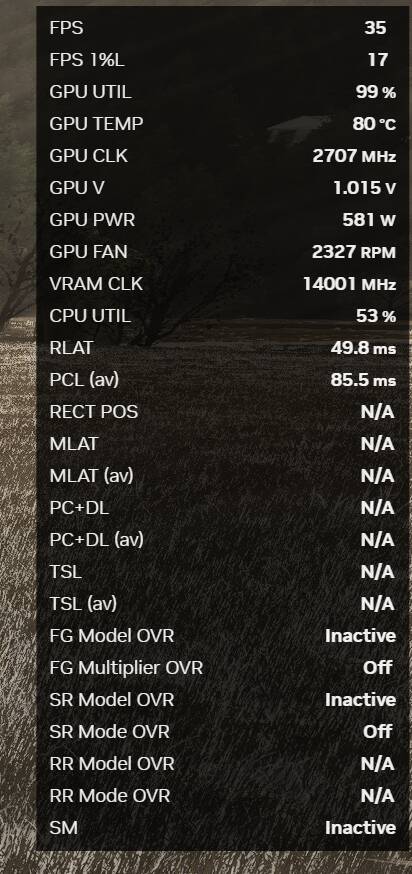
In game the status reported by the nvidia app overly (alt+r) looks like this → it seems that there is no override happening:
It is quite easy really, but it is a change from what used to be the case.
First off the DLSS mode of the game decides whether you are using 4.5 or not. The recommended option is new and gives you dynamic presets in a game.
If you set Performance mode in a game or Ultra Performance then you are using 4.5. if you are using Balanced, Quality or DLAA then you are using 4.0.
What the Recommended option does is automatically switch presets according to which mode you are using. Performance will use preset M, Ultra Performance will use preset L and every else will use preset K (which again should be remembered is 4.0.
The preset can be easily checked using either the DLSS indicator registry mode or the DLSS on-screen indicator option. Once you change a mode in game it will automatically change the preset. You do not have to shutdown, alter and restart the game. Try it and you will see.
The 310.5.2 dlss lib is about the dynamic preset change.
1 Like
Ah Thanks for the clarification.
To be 100% sure: I still have to set the “Recommended” option in the Nvidia App, and then set DLSS Performace in Game?
I was on TAA and DLSS Quality during my tests because I thought the nvidia app overrides the setting in any way.
Where can I enable that - is this part of the overlay I used in the post above or is it another overlay?
Where can I check which DLSS lib version I am using?
If you have DLSS Swapper installed the easiest thing is to go to settings, scroll down to DLSS Developer Options and set the Show on-screen indicator to ‘Enabled for all DLSS DLLs’.
If you do not use Swapper then I suggest you watch this https://www.youtube-nocookie.com/embed/FdvqkoxjAR8 which shows you all 3 ways of adding it.
If you are uncomfortable manipulating the registry then I would strongly urge you to download and install DLSS Swapper and use the switch in there.
The info is not in the Nvidia overlay. I never use that. The answer to your second question is that the DLSS Indicator entry will show you which DLSS version you are using.
The recommended option enables the dynamic presets. If you don’t use that you have to manually set it, and do it correctly, to get the correct performance.
3 Likes
A couple days ago when I enabled the new Beta version of Nvidia App to get DLSS 4.5, I recall an option in the App to enable the onscreen display of the DLSS version being used as well as the preset currently active. It was the easiest way I found to enable onscreen settings in the lower left corner of the display. I just looked in the Nvidia App and am unable to find the onscreen display option now. Maybe it was an option when getting the newest driver.
NVIDIA App > Settings > NVIDIA Overlay > On
Then you can do 2 things:
ALT + R will display the Statistics Overlay
ALT+ Z will display the NVIDIA Overlay, and at the bottom of that are the settings to configure the Statistics Overlay to show what you want (eg, DLSS info)
1 Like
I believe that he was using the nvidia overlay and it wasn’t showing him what he wanted.
So if you know how it can show the preset he is currently using plus the version of dlss that he is using then could you tell him how to set it up.
Various overlays like NVIDIA, Steam, or Discord can affect MSFS and sometimes even cause CTD.
If you want to see the DLSS version and “render preset” during gameplay you’ll need to make changes in the system registry.
You need to manually add an entry to the system registry. Copy the code below
Windows Registry Editor Version 5.00

[HKEY_LOCAL_MACHINE\SOFTWARE\NVIDIA Corporation\Global\NGXCore]
“ShowDlssIndicator”=dword:00000400
paste it into Notepad and save the file as DLSS_Indicator.reg (not as a text file, this is very important). Then run the file and agree to make changes to the system registry.

Click ok and restart PC.

If you no longer want the DLSS version to be displayed, you can edit the registry.
Open registry editor (regedit)
Navigate to
HKEY_LOCAL_MACHINE\SOFTWARE\NVIDIA Corporation\Global\NGXCore
Double click ShowDlssIndicator
under “Value data” set the value to 0

Click ok and restart PC.
If you prefer using the NVIDIA overlay, press ALT + Z at the same time. Then, at the bottom, click Statistics. After that, change Statistics View from Basic to DLSS or you can press ALT + SHIFT + R at the same time to switch modes.

You can also choose Custom and check or uncheck the checkboxes next to the options you want to show or hide in the overlay.
To enable or disable the DLSS model display, click View All.
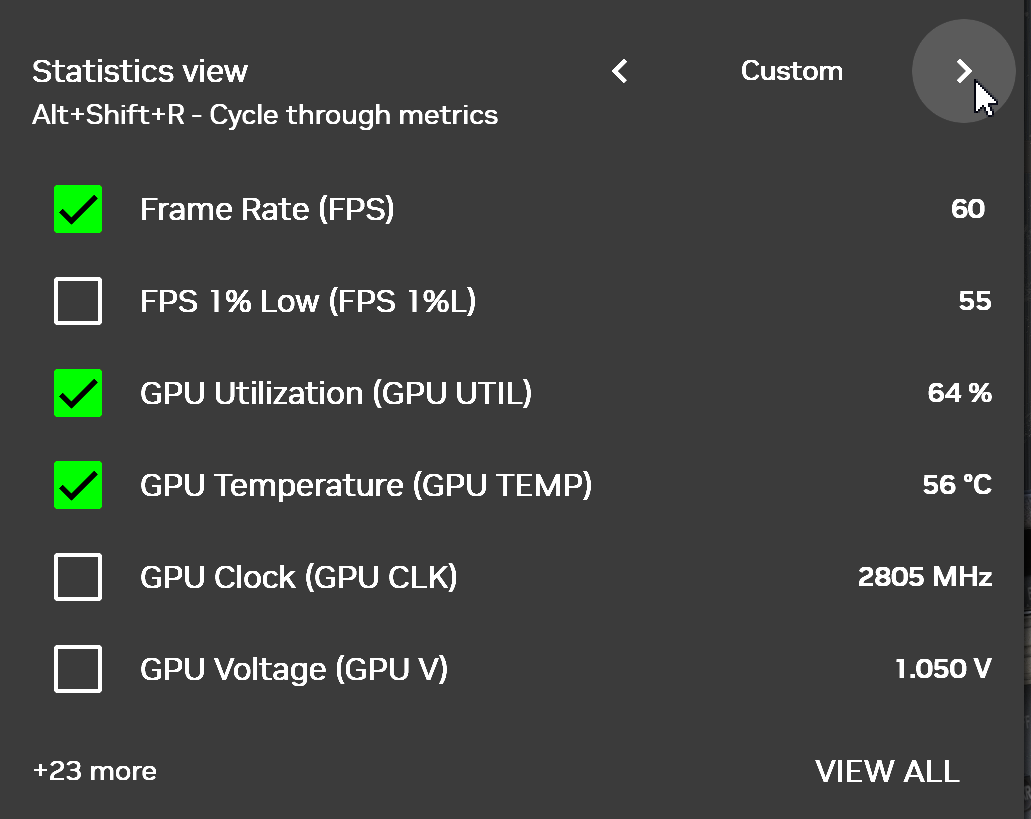
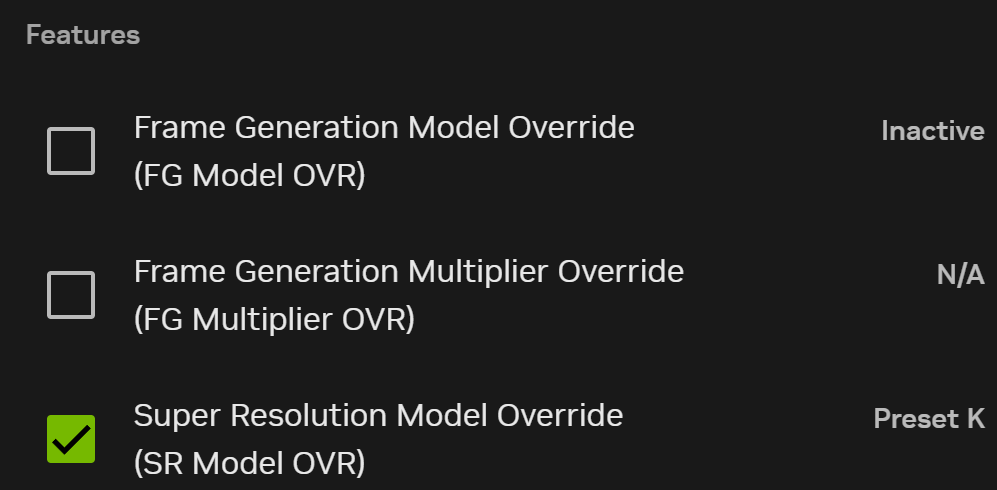
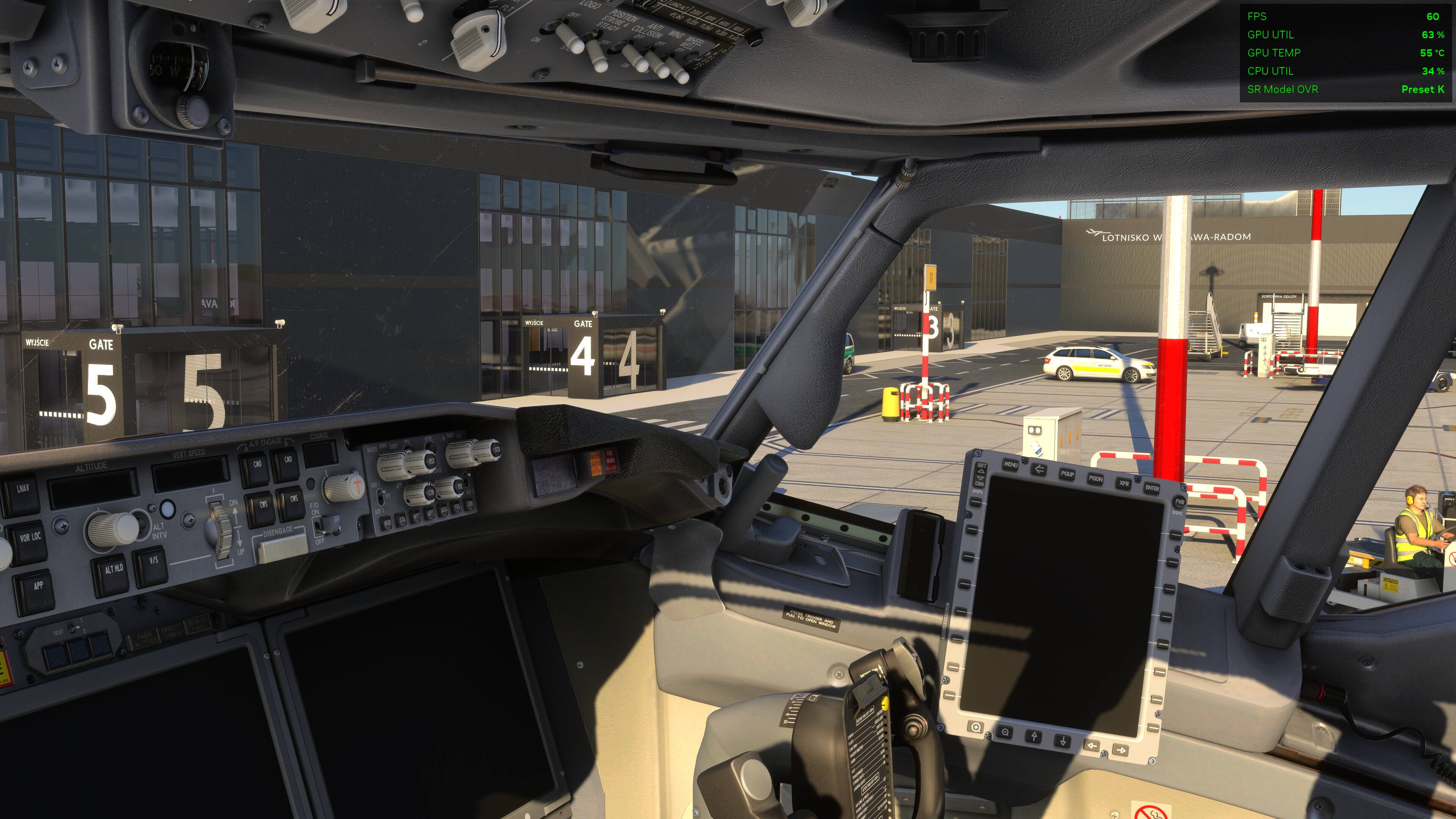
Then, scroll down and check Super Resolution Model Override.
3 Likes
Hi @TenPatrol,
thanks for the explanations in this thread.
For viewing the settings, I used the way, or at least tried to, to do it over the nvidia overlay from the nvidia app. But when in MSFS it shows following for SR Model OVR: Off/Off (see the picture below),
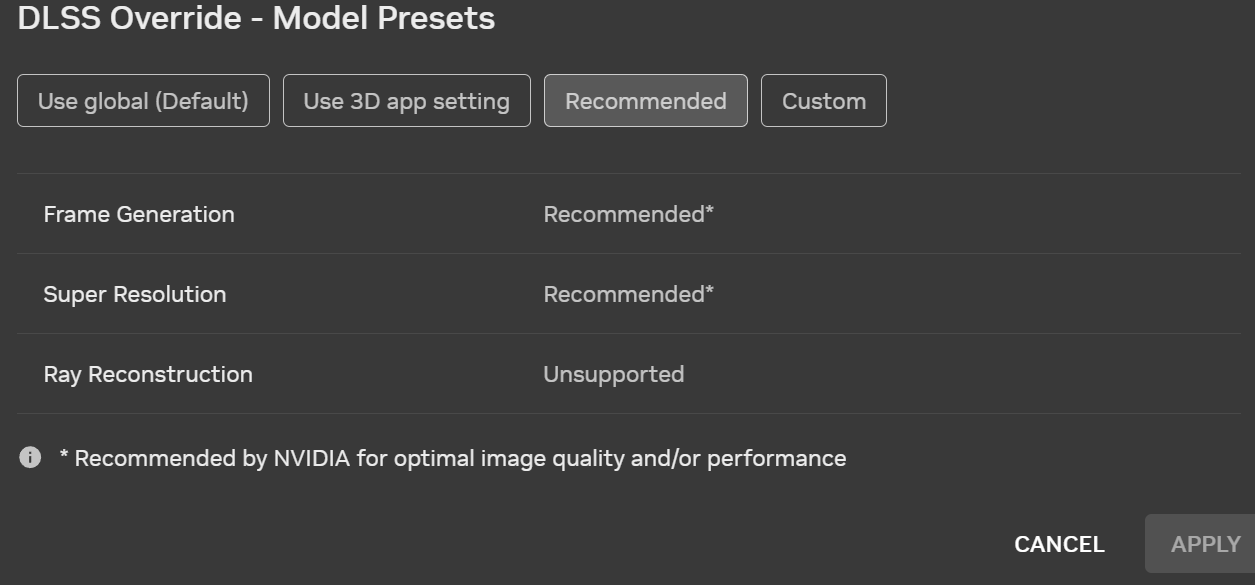
I don’t know why selecting other presets didn’t work yesterday, but today I was able to select the preset M (I assume this is the correct one for DLSS 4.5 improved upscaling) for DLSS Override - Model Presets / Super Resolution.
For DLSS Override - Model Presets / Frame Generation (as can be seen in the picture below) there is still only the “Recommended” option. Maybe this is ok fopr this setting? 
But we can also see, that the overlay seems to be completly unimpressed from the setting, so that I am not sure if the Preset was indeed selected and activated.
You can also see that I am, as @FirebirdFGR2 suggested, on the DLSS setting Performace (=Leistung in german).
So am I missing something else here?
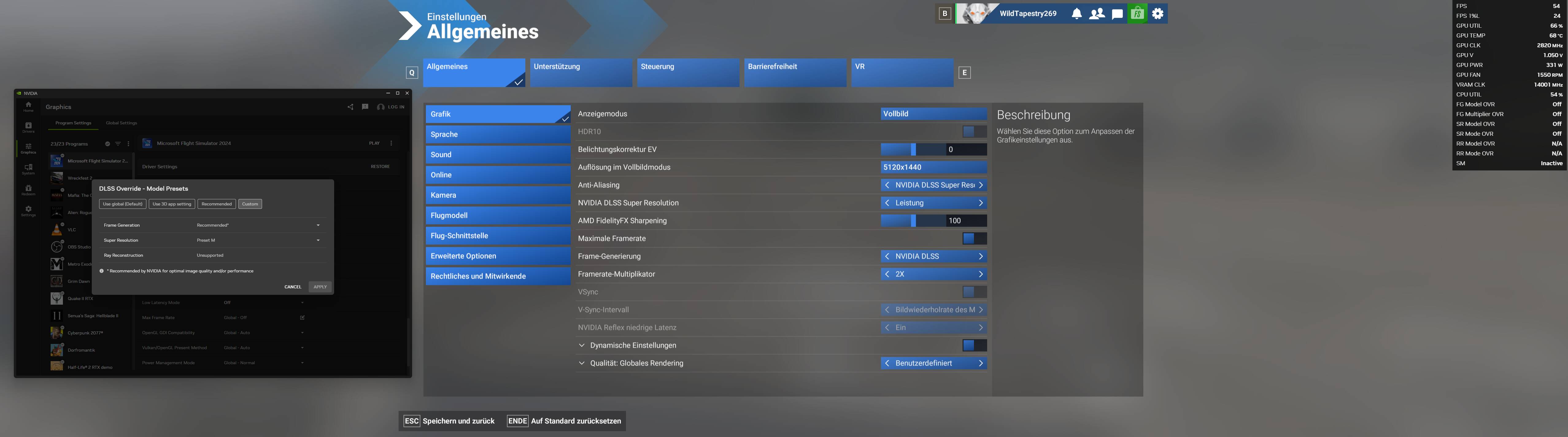
For what I understand, the settings seems to be correct (nvidia app and MSFS) - is this assumption correct?
Thanks for any help in this regard!
The way that you currently have it is correct, however by deliberately selecting Preset M if you alter the DLSS mode to anything over than Performance then you be out of step and will only have a negative impact.
The Super Resolution option should be set to Recommended* so that you will dynamically corrected IF you alter the DLSS mode to something other than Performance.
Now what @TenPatrol was talking about with the registry override is exactly what I mentioned. He even gives you the registry code so that you can create and run a reg file from your desktop.
I call mine DLSS Indicator ON and double clicking on it adds it to the registry. I have another one called DLSS Indicator OFF with the following code:-
[HKEY_LOCAL_MACHINE\SOFTWARE\NVIDIA Corporation\Global\NGXCore]
“ShowDlssIndicator”=-
This removes it.
The display will appear in the bottom left hand corner of your MSFS 2024 window when you get into the main menu. This shows both the DLL lib being used as well as the preset being used. This will change if you alter the DLSS mode. You will see it instantly.
1 Like
Some applications like BATC can interfere with the NVIDIA overlay. In such cases, the SR model in the overlay may show N/A or Inactive, even though you have selected DLSS Override in the NVIDIA App.
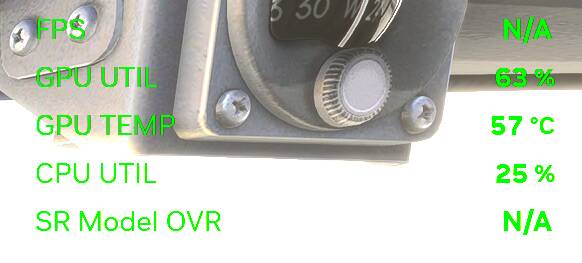
That’s exactly why I mentioned in my earlier post how to edit the Windows registry so the DLSS model actually shows up correctly in the overlay.
I’ll repeat it below and explain step by step how to do it.
If you want to see the DLSS version and “render preset” during gameplay you’ll need to make changes in the system registry.
You need to manually add an entry to the system registry. Copy the code below
Windows Registry Editor Version 5.00
[HKEY_LOCAL_MACHINE\SOFTWARE\NVIDIA Corporation\Global\NGXCore]
“ShowDlssIndicator”=dword:00000400
paste it into Notepad and save the file as DLSS_Indicator.reg (not as a text file, this is very important). Then run the file and agree to make changes to the system registry.
Click ok and restart PC.
If you no longer want the DLSS version to be displayed, you can edit the registry.
Open registry editor (regedit)
Navigate to
HKEY_LOCAL_MACHINE\SOFTWARE\NVIDIA Corporation\Global\NGXCore
Double click ShowDlssIndicator
under “Value data” set the value to 0
Click ok and restart PC.