His standard flight test used to be with a very lightweight vfr aircraft, which isnt stressing the system at all. That doesnt say much at all. Has that now changed?
No he currently uses the Blackbox BN-2.
The thing is unless he flies the aircraft you would choose on the route you would choose then it is not going to be, on your system, a 100% ideal comparison but it is good enough to give you a trend as to whether the new driver results in a worse, better or comparable performance.
If you think that it would be of absolutely no use to you then feel free not to watch it.
What’s everyone’s experience with the new 610.47 NVIDIA drivers?
Nice, thanks for posting that.
I just tested this new driver, and wow. This is the best one I have tried. ZERO stutters with TAA, ReBar ON, HAGS ON.
Ryzen 7950 X3D, 64 GB RAM, RTX 5090, SU5, and VR (Quest 3 with VD).
May I ask a question here: I’m on Win 10 and I still use a RTX 3080TI with driver 581.15 and it works nicely.
Is there any reason for me to update? And if yes would 610.47 be the one to use?
If everything works fine for you, then honestly there’s no real need to update right away. But if you care about system security, it’s still a good idea to keep your driver updated, because newer driver versions often include fixes for security vulnerabilities that could potentially be exploited by hackers.
I would say that if you want to benefit from the latest DLSS then yes. I used to use Quality on previous settings but I am happy to use Performance on the 4.5 DLLs.
I also believe that there were 14 vulnerability holes patched in 596.36.
From a driver point of view the general consensus, so far, is that it is a very good driver.
As always, it is your choice. If you do decide to update then there are two things to note. Firstly, that with 610 the Nvidia Control Panel has been removed. You can still download it from the MS Store but it is not going to be updated any further which means that you will have to use the Nvidia App in the future.
This is relevant because DLSS4.5 is a different system and therefore to get the best results you need to use DDU to completely wipe your current driver.
Would I be able to easily go back to 581.15 once I installed 610.47?
If you have the original driver package then yes. You use DDU to clear out 610 and then reinstall 581.
Ok, so only with the help of DDU.
I think GPUs up to 30xx have some restrictions using DLSS, don’t they? Would the 3080TI benefit?
Yes mate.
How to Roll Back to a Previous NVIDIA Driver
First things first: a proper clean installation of a GPU driver does not delete your games, apps, or wipe your C drive. It simply removes driver files, registry leftovers and related components so the new driver installs on a clean base.
First, download the NVIDIA driver version you want to roll back to, along with the DDU.
NVIDIA drivers
Download The Official NVIDIA Drivers | NVIDIA
Select which graphics card and operating system you want the driver for, then click “Find”. After being redirected to the new page, expand “View More versions” and choose the driver you want to download.

DDU
Display Driver Uninstaller (DDU) V18.1.5.2 Released. - Wagnardsoft Forum
NVIDIA driver removal is best done in Windows Safe Mode - I’ve been saying this for a long time and I’m not changing that opinion. The only exception is when Safe Mode doesn’t work properly on someone’s system.
So before proceeding with any further steps, make sure that Windows Safe Mode is working correctly.
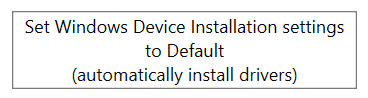
Also, there’s no real need to disconnect from the internet or disable your internet connection during driver uninstall or installation. What actually matters is Windows behavior - just set it so it doesn’t automatically install devices or pull drivers on its own. That alone is enough to prevent conflicts during the process, without having to unplug anything or go offline.
If you’re not an advanced user, don’t feel confident digging deep into Windows settings or simply don’t want to bother, there are easier alternatives.
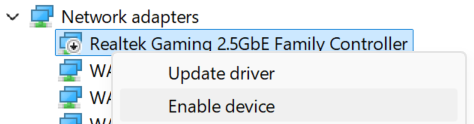
You can just unplug the Ethernet cable, turn off WIFI or disable your network adapter directly in Device Manager.
In that case, if your PC case is pushed against the wall or placed under a desk, disabling the network adapter is usually the quickest option. Just right-click the network card in Device Manager and disable it.
Right-click “Start” icon and select Device Manager.
Expand Network adapters
Then right-click your network adapter and select Disable device.
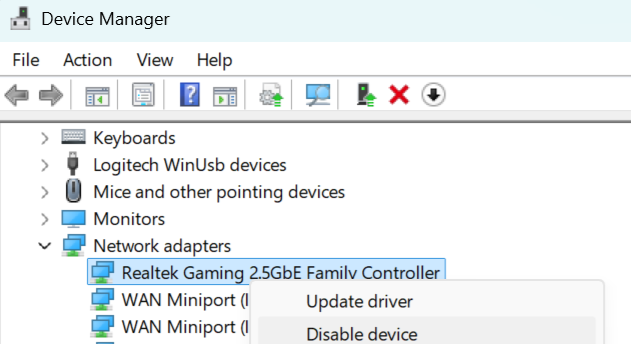
Disabling the network adapter in Device Manager is the most convenient and fastest method.
You can also, after launching DDU in normal Windows mode, go into the DDU settings and enable “Prevent downloads of drivers from Windows Update when Windows searches for a driver for a device”
While still in the settings, also enable “Enable Safe Mode dialog”
// Also, as I mentioned above, make sure to check that Safe Mode is actually working on your system before proceeding.

Under General Options and Specific Options, you can select the same settings that I have enabled here
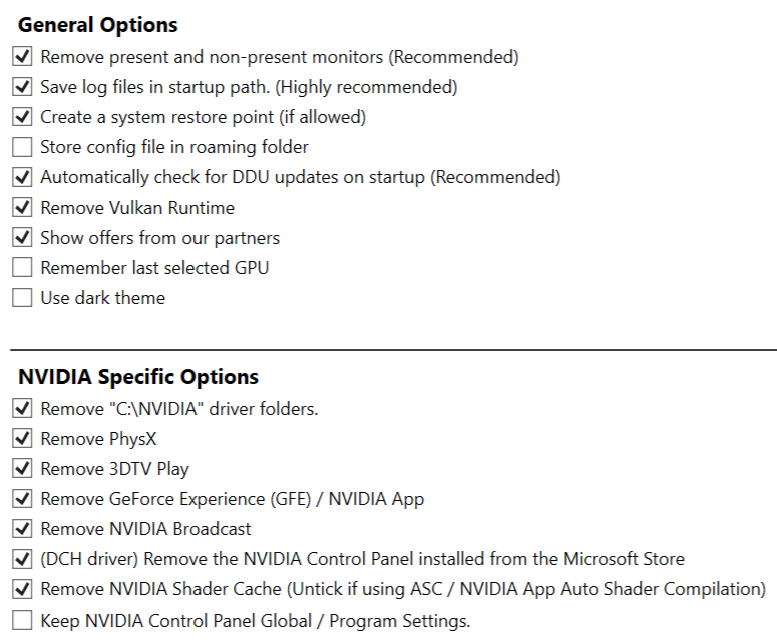
Be careful with “Remove present and non-present monitors” - this setting removes monitors and their drivers. After a restart, they will still work, but Windows will not have proper drivers installed for them, so you may need to reinstall the monitor drivers.
Also note that after removing monitors and restarting the PC, Windows may change the refresh rate settings. Go to Windows Settings > System > Display > Advanced display. Check if “Choose a refresh rate” is set to the maximum Hz of your monitor - if not, change it to the max or set it to your preferred value (for example 120Hz instead of 240Hz).
I once forgot about this and Windows set my monitor to 60Hz instead of 165Hz. As a result, I had stuttering in MSFS 2020/2024 and couldn’t figure out why. It turned out the cause was exactly the refresh rate.
So now you already have DDU configured and know a bit more - it’s time to prepare for reinstalling the driver. Before switching to Safe Mode, download the NVIDIA driver you want to install. After downloading it, you can launch DDU and under “Launch option” click Normal and select "Safe mode (recommended).
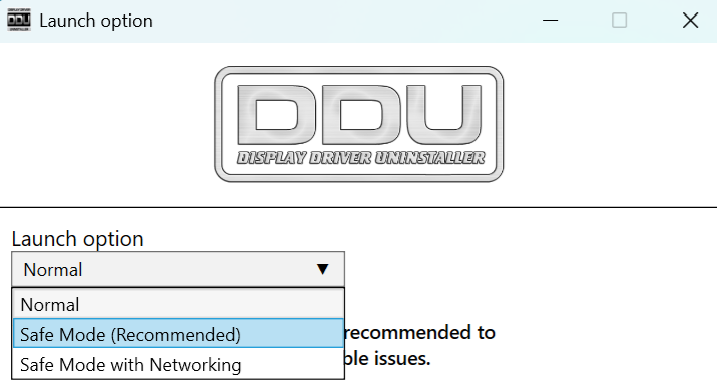
After the system switches to Safe Mode and DDU is launched, select the GPU you want to uninstall, in this case NVIDIA.
Then click “Clean and restart”.
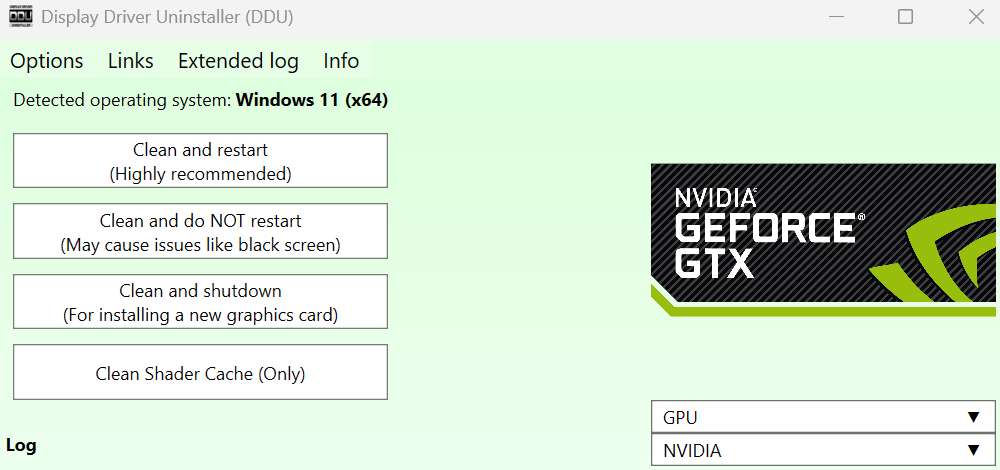
After the restart, you can install NVIDIA driver. I recommend installing the minimal version, meaning only the driver and PhysX - this way you can make sure everything works properly without NVIDIA app.
So run the previously downloaded installer, select “NVIDIA Graphics Driver”, then click “Agree and Continue”.
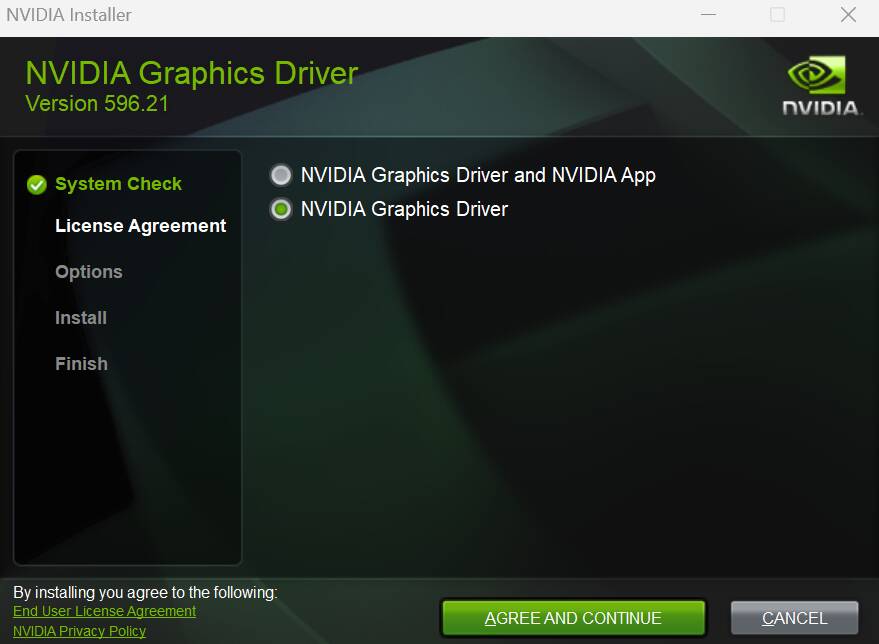
On the next screen of the installer, select “Custom (Advanced)” and click “Next”.
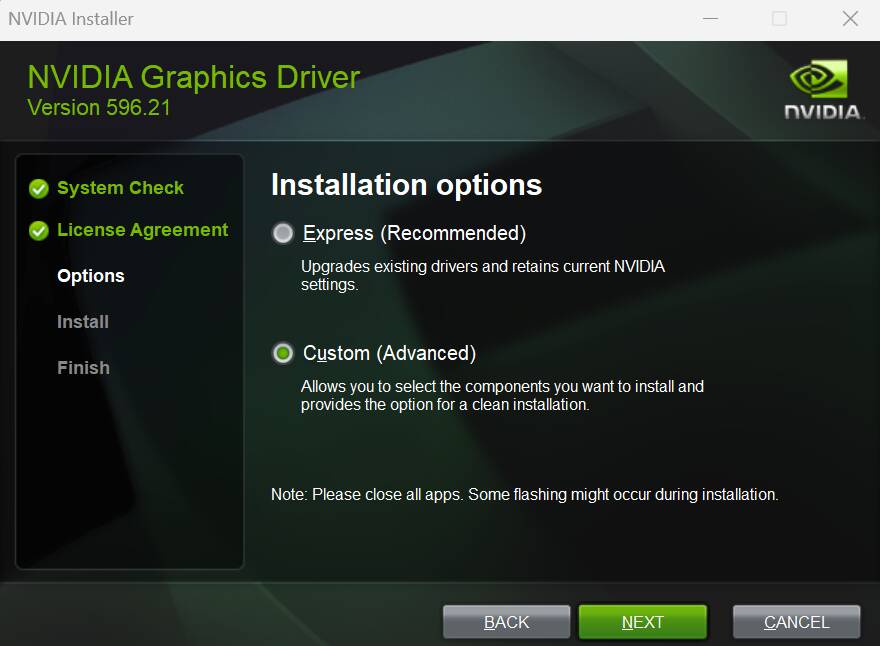
On the next screen of the installer, uncheck “HD Audio Driver” and make sure “PhysX” and “Perform a clean installation” are selected, then click “Next”.
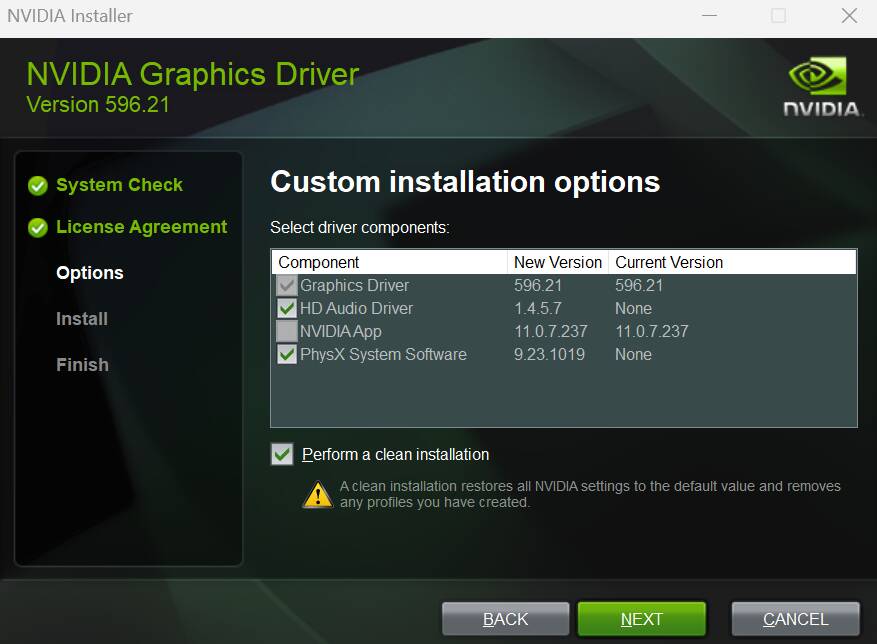
After NVIDIA driver installation, restart PC. After reboot, I remind you to install the monitor drivers if needed and check the monitor refresh rate (Hz) in Windows settings, as mentioned above.
If you have checked in DDU

and want Windows to install other drivers again, launch DDU in normal mode and under “select device type” click
Now you can enable your network adapter in Device Manager. Open Device Manager, right-click the network adapter you disabled, and select “Enable device”.
Restart PC.
Now you can open the NVIDIA Control Panel and set a profile for MSFS according to your preference. The only important thing is not to change settings in the global profile unless you really need to.
After setting up the MSFS profile, check how the game performs. If everything is fine and you need the NVIDIA app instead of the NVIDIA Control Panel, you can download and install it.
Fly safe.
I used to have an RTX3080Ti and the only restriction that I was aware of was that it is not capable of Frame Generation using it’s own hardware.

Always funny to see different results, lol! I bought into the YT vid that said this was the smoothest driver ever and ended up going back to 596.49. Thank goodness for DDU.
I only fly msfs2020/2024 in VR with a QPro/9800x3d/rtx5090/64Gb 6000ram using a Link Cable. Now that VD has eye-tracked dynamic foveated streaming I also often use VD. For me. 596.49 gives me better/smoother performance with both Link and VD using the latest dlss4.5 overrides, dlss/perfomance/preset M. I’m slowly trying to wean myself off 2020, in favor with 2024.
It may benefit from newer driver features, but not DLSS 4.5.
- The Super Resolution (FP8) Penalty
The Cause: DLSS 4.5’s upgraded Transformer 2.0 model uses 8-bit floating point (FP8) precision, which is natively hardware-accelerated on RTX 40 and 50 series.
The Effect: Because the RTX 3090 Ti’s Tensor cores lack FP8 hardware support, they are forced to use FP16 precision. This makes processing roughly 5x more computationally intensive for the card, resulting in an average 10% to 25% performance penalty when upscaling in modern games compared to older DLSS 4.0 presets.
- VRAM and Thermal Load penalty on 30xx-series GPU’s:
Pushing the updated AI model demands an additional 200MB to 600MB of VRAM, depending on your resolution. Furthermore, because the 30xx-series has to work harder to do the heavy math without FP8, power draw and thermal output increase significantly.
You can still use newer drivers that support DLSS 4.5, but you are better off forcing the card to use DLSS 4, Preset K.
Workaround > https://forums.flightsimulator.com/t/windows-11-25h2-24h2-and-msfs-observations-insights-issues-and-tips/657704/376
Guys @kaha300d @BegottenPoet228
Friendly reminder: if you want to discuss DLSS, please use the thread linked below.
DLSS Main Thread - Latest Version 310.6.0, Feedback and Tips - discussion - User Support Hub / Install, Performance & Graphics - Microsoft Flight Simulator Forums
And if you want to talk about forcing Frame Generation x6 on RTX 20xx, 30xx, or 40xx series graphics cards, please use the dedicated thread linked below as well.
https://forums.flightsimulator.com/t/dlss-enabler-multi-frame-generation-for-all-gpus-game-changer
This isn’t a requirement or any kind of rule enforcement. I just know that with thousands of topics on the forum it’s easy to get a bit lost, so this is simply a reminder that these dedicated discussions already exist and can help keep things organized.
You mentioned issues with DLSS 4.5 frame generation on 30xx-series GPU’s.
I thought it appropriate to expand that info into FP8 hardware limitations as it relates to the new driver.
People get excited about the latest and greatest, often without realizing that the latest is not necessarily the greatest for their older GPU’s.
You don’t need DDU, but a lot of folks use it. I’ve been bouncing back and forth over the last month trying to solve an issue. If you have the 581 installer, just rerun it choose Custom, and Clean install.
I know. In that thread the last post was a question asked 27 days ago. No answer. Thread seems dead?