I absolutely advise everyone to try to set all resolution settings everywhere at 100% (oxr, upscaling, ingame) and ONLY lower or raise the OVERRIDE resolution setting in the toolkit. This has to be tested by others but at least for me, this is at the moment a set and forget thing which i never imagined would be the case. Having all other resolution settings set at 100% will get rid of a multitude of potential problems and glitches so i strongly advise everyone to do this. It might also make life easier for mbuccia and other toolkit friends since there won’t be problems with glitches occuring (like ffr lines).
Just for clarification. I have historically used the following settings.
Until the toolkit i used 150-200 OXR resolution and ingame TAA anywhere between 50-80.
After the FFR was introduced in the tookit i started using 130% oxr, 100% TAA, 100% FSR
Now with override resolution i’m using 100% oxr, 100% taa, 100% upscaling, and just setting the override resolution at a level where i find i have constant and sufficient framerates.
Mostly it looks like the Matrix glitching really bad. Between all the glitches I can see super sharp and smooth video. It’s like a perfect image with arora like waves moving through it.
Steam VR and Virtual Desktop are doing way better at filling in frames. But the FPS gains from OpenXR negate the need to an extent.
Agree. Before SU9 I had OXR at 150, in game at 100 and FSR at between 70 and 80 at a pinch, plus 80 sharpening value. Yesterday I ran 100 OXR, in game 100 and FSR at 100 and had a steady, beautifully sharp and stutter free 30fps, locked with Radeon Chill, no MR, in rural areas. Today was not quite a smooth for whatever reason, so just took a note of the default resolution and dropped it in override resolution until framerate was consistently OK. Really didn’t notice any visual degradation and it was so easy to do.
Well, i dunno about virtual desktop, but as far as steamvr goes, you have to understand it’s doing reprojection at 1/2 ratio (45 fps). If you set your oxr to do reprojection at 1/2 you’ll notice far less glitches too. It’s understandable that at the highest possible reprojection ratio (1/4 - 22.5 fps) there’s bound to be problems since the poor thing has to “guess” 3 out of 4 frames. I think it’s pretty ridiculous and pure magic that this thing even works. I still wish however it could somehow do a better job in terms of image stability. For me, the cockpit is sorta jumpy and stuff like that. I do understand that it’s pretty hard to expect no visual distortions at these ratios, but i do wish there was something that could be done that’s why i asked @mbucchia. Did not expect miracle solutions though.
Also, I suggest jotting down your default resolution, so when you change it you don’t get lost. If not, restoring default settings will bring you back to where you started.
Mipmap bias will either blur or sharpen textures depending on whether it’s positive or negative respectively. It’s simply using a lower or higher resolution texture from the source image than it normally would.
The downside to negative bias is there will be a small performance hit (due to the higher res) and textures may appear noticeably noiser. As with many things it comes down to personal preference. Also, using it with NIS/FSR obviously sharpens the final image to some extent which confuses things.
I don’t want to rain on your parade, but isn’t changing the override resolution effectively changing the OXR resolution that MSFS uses, just with finer graduations? eg. If you set OXR to 100% as you say, then set the OpenXR toolkit override resolution to 85% of the full resolution, isn’t MSFS just telling OpenXR to override the 100% setting you made externally and use a setting of 85% instead? ie. is this indistinguishable from just setting OpenXR to 85% in the first place and use no override resolution? Perhaps a question @mbucchia can answer.
I don’t know if this helps, but I’ve been fooling around with comparing OXR and TAA settings with the toolkit disabled, compared to with it on. The framerates I was getting over Birmingham, England, were much the same, i.e. with OXR at 100% and TAA at 100%, compared to OXR100%, TAA100% and FSR at 100% with the toolkit enabled.
However with the toolkit sharpening set at 80% the visual clarity was night and day compared to no toolkit. I mean, it was so much better it made flying without it a blurry mess by comparison. Plus the colour corrections and especially the sunglasses made it a must, it’s just way better.
Sorry, but you fail to see the point. First of all, oxr settings won’t alow such fine tuning since you can only go up or down by 5%, which may or may not seem important at first glance, but 5% of your absolute resolution is not a small margin. You definitelly want every % of the resolution you can achieve however you put it. I doubt there’s many users around that can effectively achieve a resolution high enough where raising it above that point becomes indistinguishable. At least for me personally, resolution is the single most important element visually speaking. I can currently maintin around 2500x2500 per eye, and i very very much can notice if i lower it to let’s say 2450x2450. But a 5% decrease from that is actually 125x125. Apart from that, why on earth would you want to use an outside app to change something when you can effectively change this (with the extra precision we mentioned too) basically ingame, that is via toolkit’s override? It doesn’t make much sense. The toolkit at this point feels like an extra organ inside MSFS, not even something that is actually outside of it. Not to mention the constant guessing we had wether going over 100% oxr brings extra clarity, or doesn’t. Or go below 100% for that matter. Some of us were advocating 200% oxr for a while, then we agreed 150-180% is the most optimal ground. Then i personally decided 130% is best ratio between losing pixel information and performance. Now suddenly all of it is moot point. One setting. The parade is very much real lel. The only way this could actually be any better (besides Asobo …you know…optimising its product so no 3rd party software would actually even be needed…good luck with that i suppose) is if you could somehow change resolution realtime, without having to re-initialize the vr renderer. Which i very much doubt is technically possible.
Just a reminder. The above numbers are speficic for my mediocre hardware. I need extreme supersampling to have what i perceive as good clarity. My headset’s native resolution is 1440x1440 per eye lol. But it doesn’t really change anything. Like i said, whether you need to lower or raise the final rendering resolution, it’s the same principle.
So to summarise: you get finer graduations and the ability to change OXR render resolution in game, even though you still have to restart VR to lock in a change. No worries, I was just curious how it differed to setting OXR resolution through the developer tool. Thanks for explaining.
Loving the Toolkits cpu/gpu load counters, my 5 year old i7 7700k is doing just fine, i thought so but this confirms it. Msfs at 35ppd is gpu bound. This has stopped me upgrading cpu/mobo for the time being, saving me some serious cash. I will be upgrading my 3080ti when next gen gpu’s arrive later this year.
 I’m mostly C# and Typescript these days.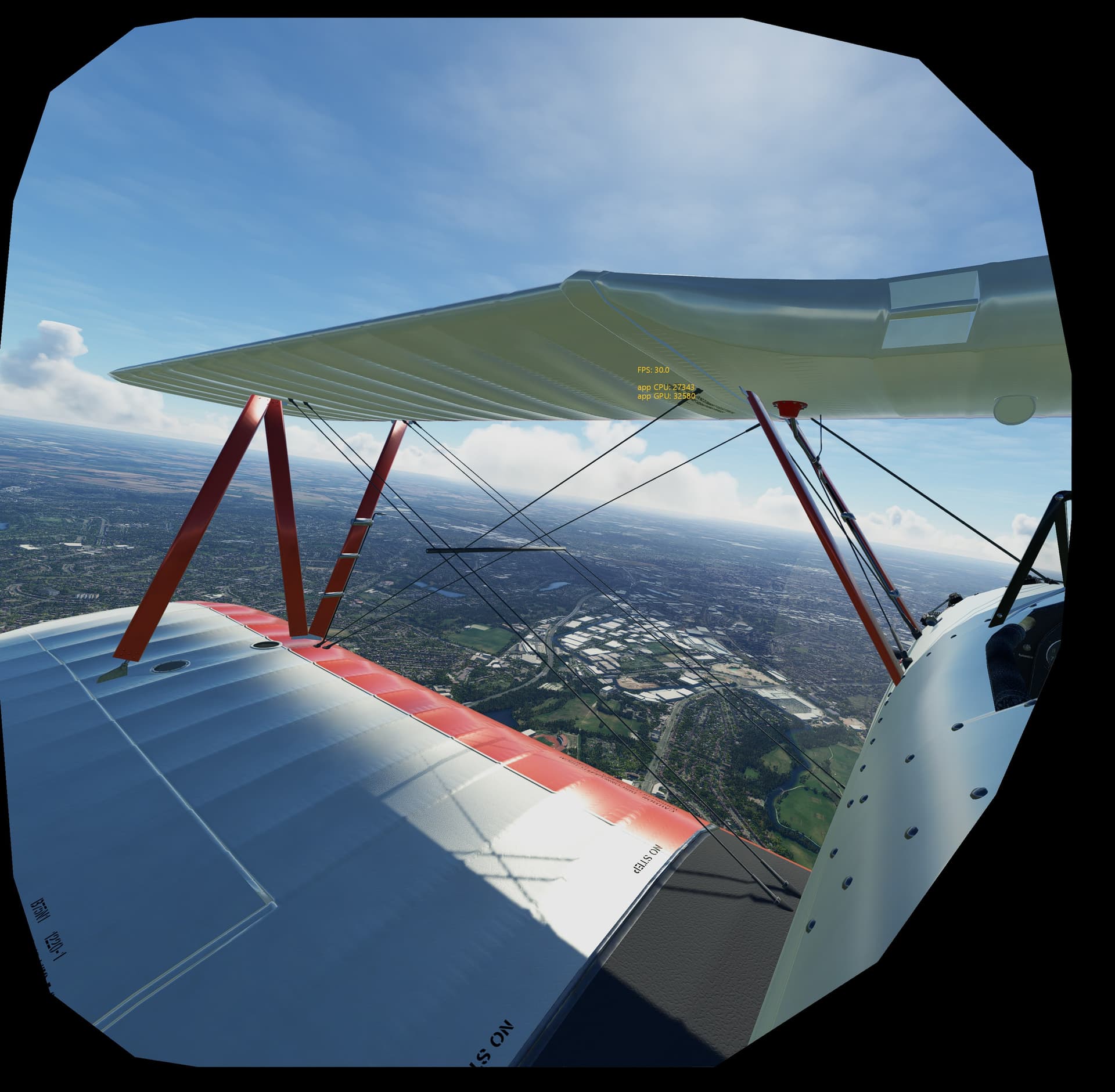
 The parade is very much real lel. The only way this could actually be any better (besides Asobo …you know…optimising its product so no 3rd party software would actually even be needed…good luck with that i suppose) is if you could somehow change resolution realtime, without having to re-initialize the vr renderer. Which i very much doubt is technically possible.