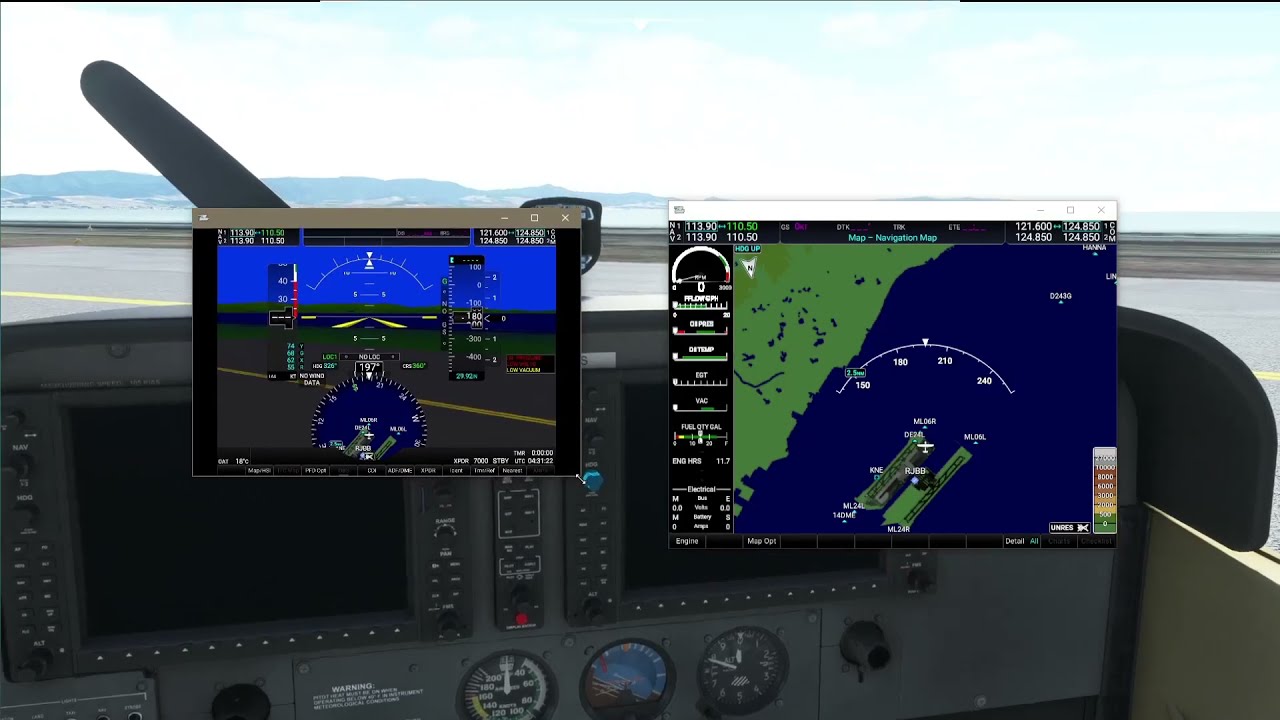
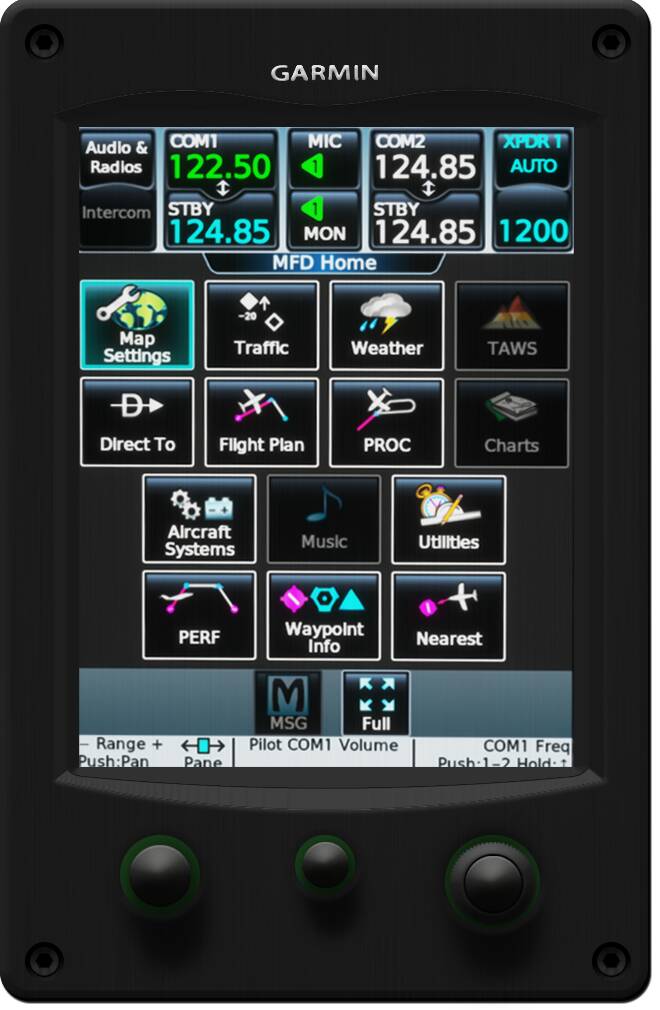
These are not in the community store in AM. You have to download them from the link I provided. Those are for the XP Vision Jet.
And yes, they’re EXCLUSIVELY MSFS compatible, custom made for the FlightFX Vision Jet. Some like flaps and landing gear may work with other planes, but the others are custom-coded for the FlightFX plane.
Once you get them downloaded and imported into AM, search flight FlightFX for instruments, and all the specific Vision stuff will come up.
The G3000, GTC580 and GFC500 are all under “generic”.
Thank you very much. I am unable to download the autopilot one. It gives me an error. Also, the G5000 doesn’t seem to be clickable through to adjust and size the PDF under it. All the rest works fine for me. Thanks again, so much progress thanks to enthusiast developers like you.
NEW RELEASE:
FlightFX SF50 Vision Jet Environmental Control System
Right click this link and select “Save link as” to download.
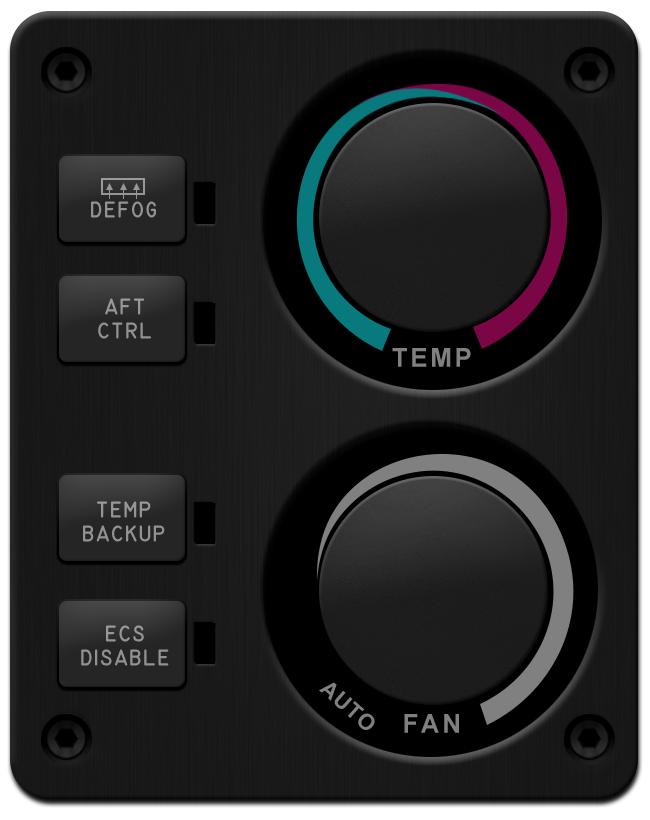
Auto throttle panel will be coming soon.
2 Likes
NEW RELEASE:
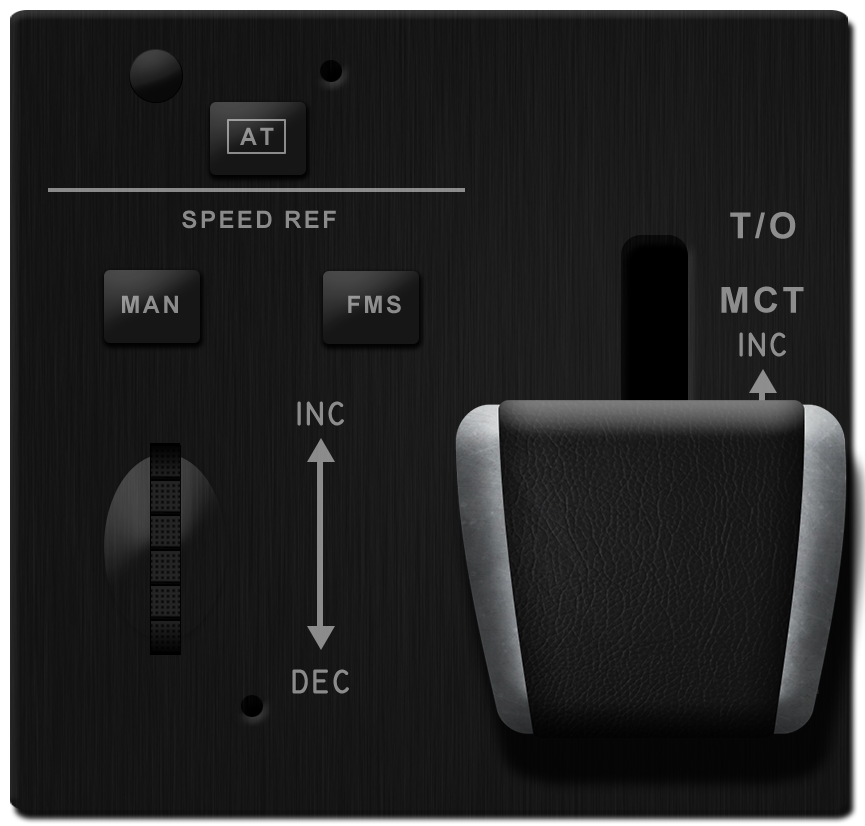
FlightFX SF50 Vision Jet Auto Throttle
This is the final piece to the SF50 cockpit. Everything that can be intereacted with in the virtual cockpit can be accessed with the Simstrumentation panels.
This throttle is actually even functional in that you can control it from the touch screen. And of course, it moves following the throttle in the virtual cockpit when auto throttle is enabled.
The thumbwheel for speed can be interacted with either through normal touch / drag, or made to operate with a Knobster for easier control (my personal selection).
Right click this link and select “Save link as” to download.
NOTES
Contains user-selectable properties for:
- Sounds
- using Knobster for the speed thumb wheel
- show / hide label for TOGA
- Hidden TOGA button was added to the nub to the left of the AT button for those who don’t have a button available on their throttle quadrant. By default the label is shown. If you wish to hide it since it isn’t in the real aircraft, select this option
4 Likes
@Crunchmeister71, quick overall question for you regarding Air Manager (and Spacedesk, perhaps):
I just purchased AM Desktop. I have a Microsoft Surface Pro which I would like to use as the panel display for a G1000 NXi. Is this possible wirelessly, so that the actual bezel knobs and buttons (Hdg, VS,AP, etc) are touch clickable on the Surface Pro?
I can figure out the construction of the panel on my own, but I don’t want to go through the process if I can only view, and not interact, with the panel on my Surface.
Thanks,
Bill
Yes, 100% possible. That’s exactly what people are doing with it. Once you have Spacedesk set up, it sees your tablet as a touch screen on your computer. It doesn’t care that it’s via Spacedesk, on a tablet, etc. It acts exactly as an extra monitor on your computer. You can move anything to it.
Run Air Manager on your main sim PC, use SpaceDesk on the PC and tablet, and you’re golden.
Thanks, Crunch!
Now I have to find a tutorial on how to marry the G1000 NXi with the Simstrumentations overlay!
Best regards,
Bill
1 Like
The in and outs of using popouts with Air Manager.
2 Likes
UPDATE: FlightFX Vision Jet instrument collection!
A refresh of the entire suite of Vision Jet instruments has been updated. This includes the generic GFC500 Autopilot, which isn’t a VJ-specific instrument, but is used by that plane.
CHANGE LOG
-
Instruments that were originally ported from Russ Balow’s X-Plane versions have gotten a graphical redesign to bring them in line with the same look and feel as the instruments that were created from the ground up.
-
Backlighting was added! All instruments will light up when the plane is powered on following the instruments in the virtual cockpit
-
Backlight intensity can be adjusted using the INSTRUMENT PANEL pot on the main switch panel
-
NOTE: Since the G3000, GTC580 and GFC500 are Generic instruments and don’t belong to the Vision Jet specifically. As a result, I wasn’t able to get adjustable backlighting working on those (yet) without causing them to break when used in other planes, since the Vision Jet uses a custom Lvar to control panel lighting. I may be able to work around this in the future, but for the time being, these 3 instruments will only have on / off backlighting that can’t be adjusted.
You can get this new set over at the Vision Jet Github page here:Air-Manager/Instruments/VisionJet at main · Simstrumentation/Air-Manager · GitHub
2 Likes
UPDATE:
I’ve got some updates (both V1.11) to the Vision Jet Auto Throttle and the Garmin GFC 500.
Due to using a custom lvar, the new VNV function in the GFC was not working using the standard H: event it had previously been set up to work with.
While adding global light dimming with the Auto Throttle, I accidentally overwrote a variable required for proper operation of the annunciators on the AT panel. This has also been remedied.
You can download both of these updated instruments from the Vision Jet page on the Simstrumentation GitHub.
2 Likes
Hello, is it possible to share all panel? It would be great 
hello, I have that when I turn on the show for the panel, only the background and fps are turned on, the instruments do not appear at all. Only black panel background. Do you know what it might be?
Without some more information, it’s hard to say what the issue may be.
What information do you need?
Are you using the demo verison of AM?
Yes for now. I want to find out if it’s worth to buy for me
The only panel.you.can use with the demo is the included demo panel with the gauges. You have to buy it to use other panels and custom instruments.
1 Like
NEW RELEASE:
Garmin GTC 570 touch panel!
Compatibility has been included for both the AAU I (currently beta) Cessna Citation Longitude and the FlightFX HJet. Airframe and unit position number must be selected in the user properties for the appropriate airframe and position in the cockpit. Three units are supported for the Longitude, two for the HJet.
A framework has been put in place so that as the G5000 finds its way into more aircraft, if the devs of those planes choose to use custom events on the GTC, I’ll be able to quickly add these planes to the GTC for compatibility.
NOTE: This instrument will currently only work with the Longitude from AAU I Beta. It won’t work on the “old” public branch version of the Longitude.
Right click this link and select “Save link as” to download.
4 Likes