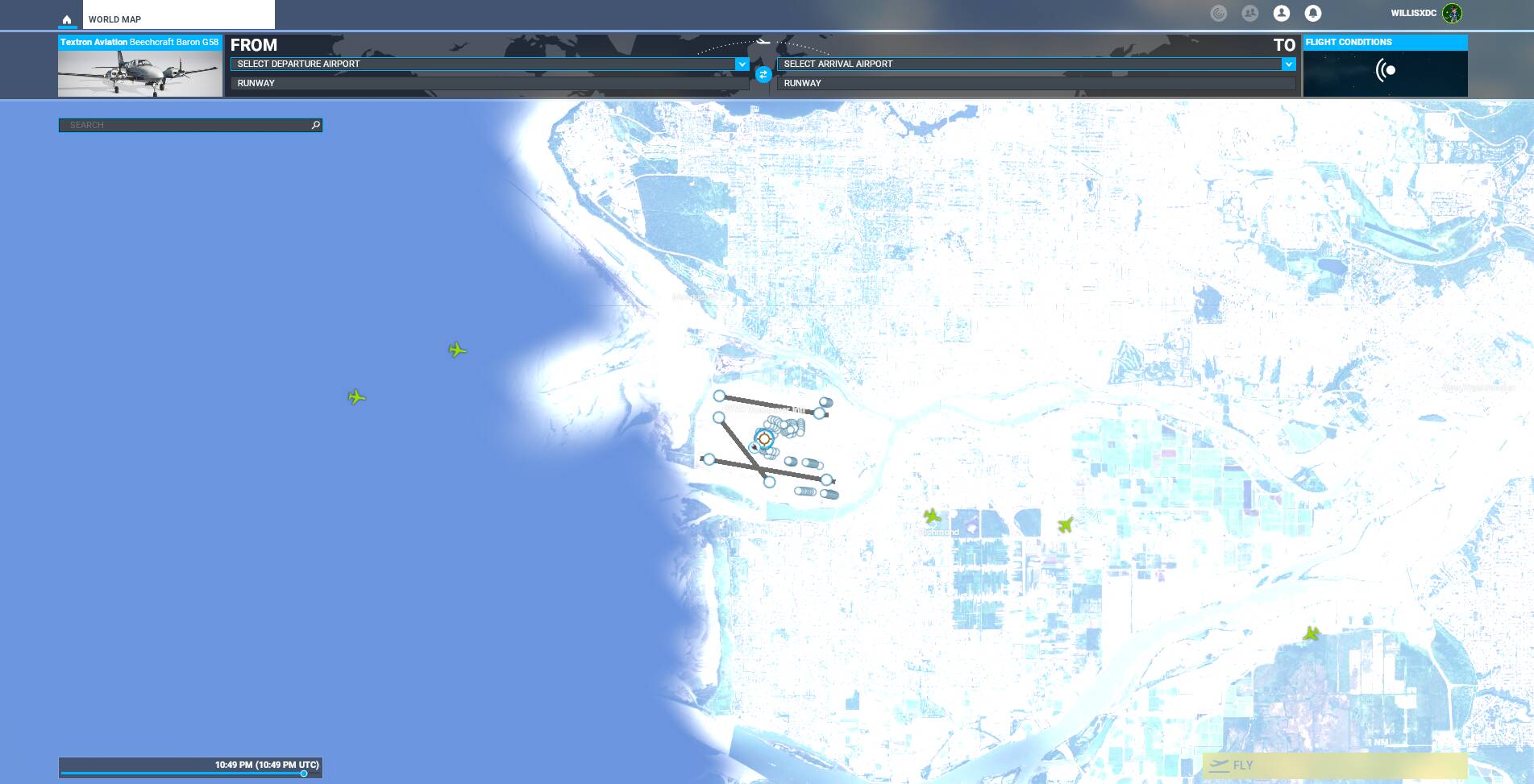
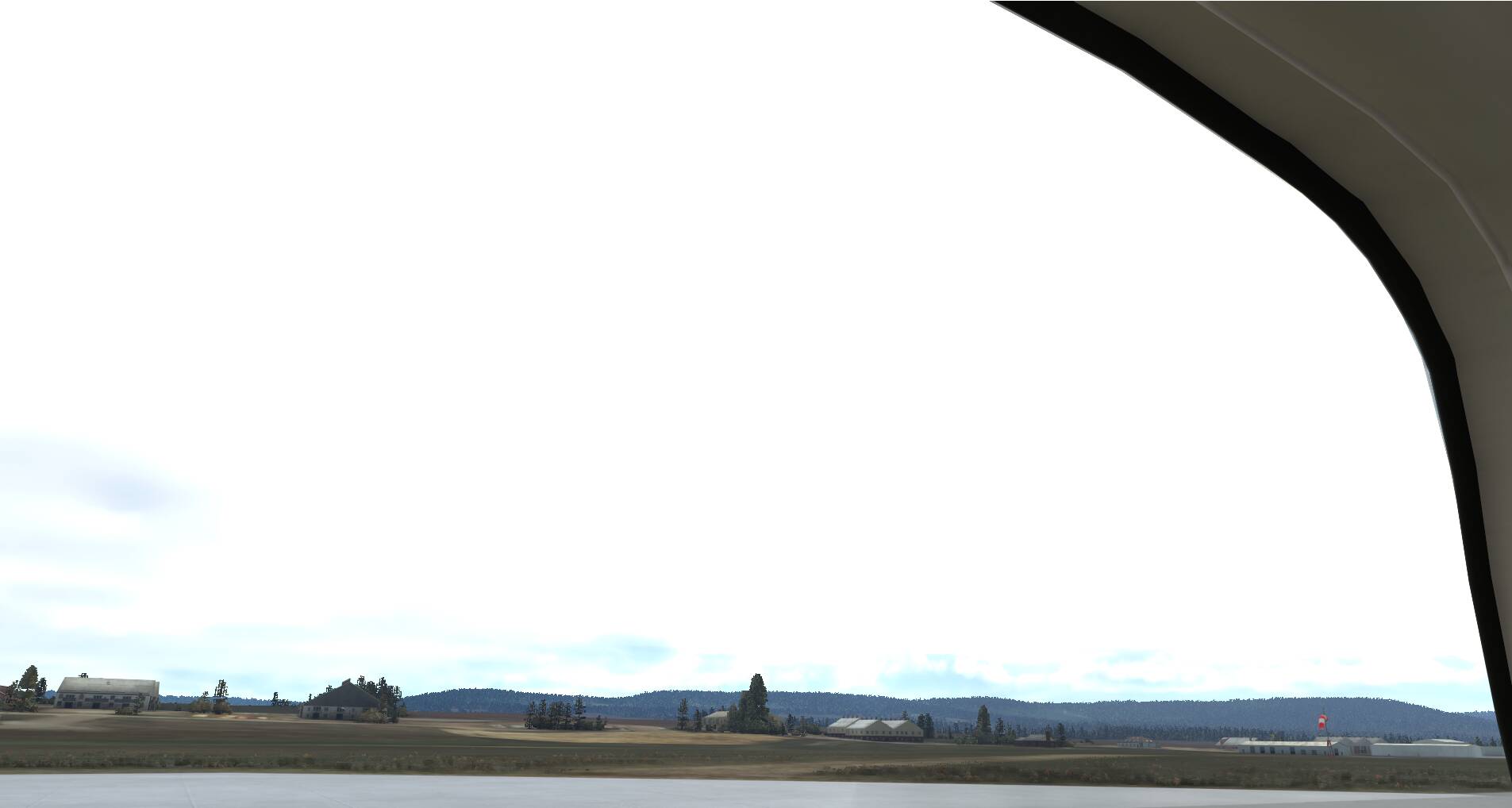
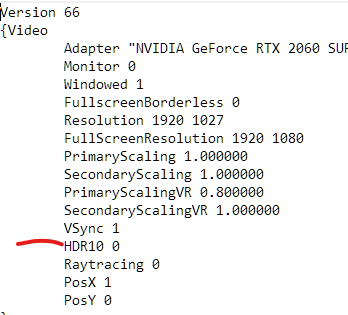
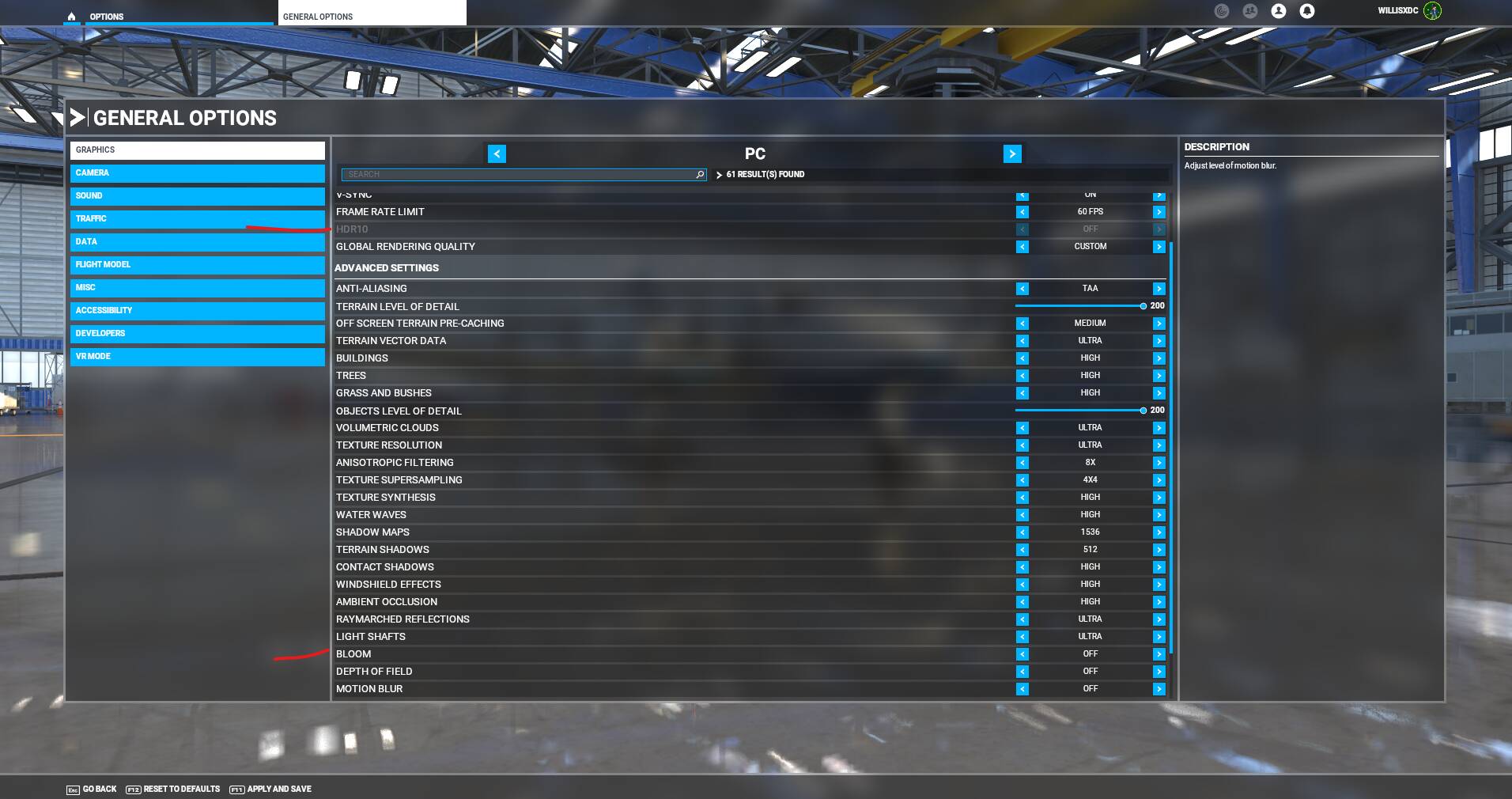
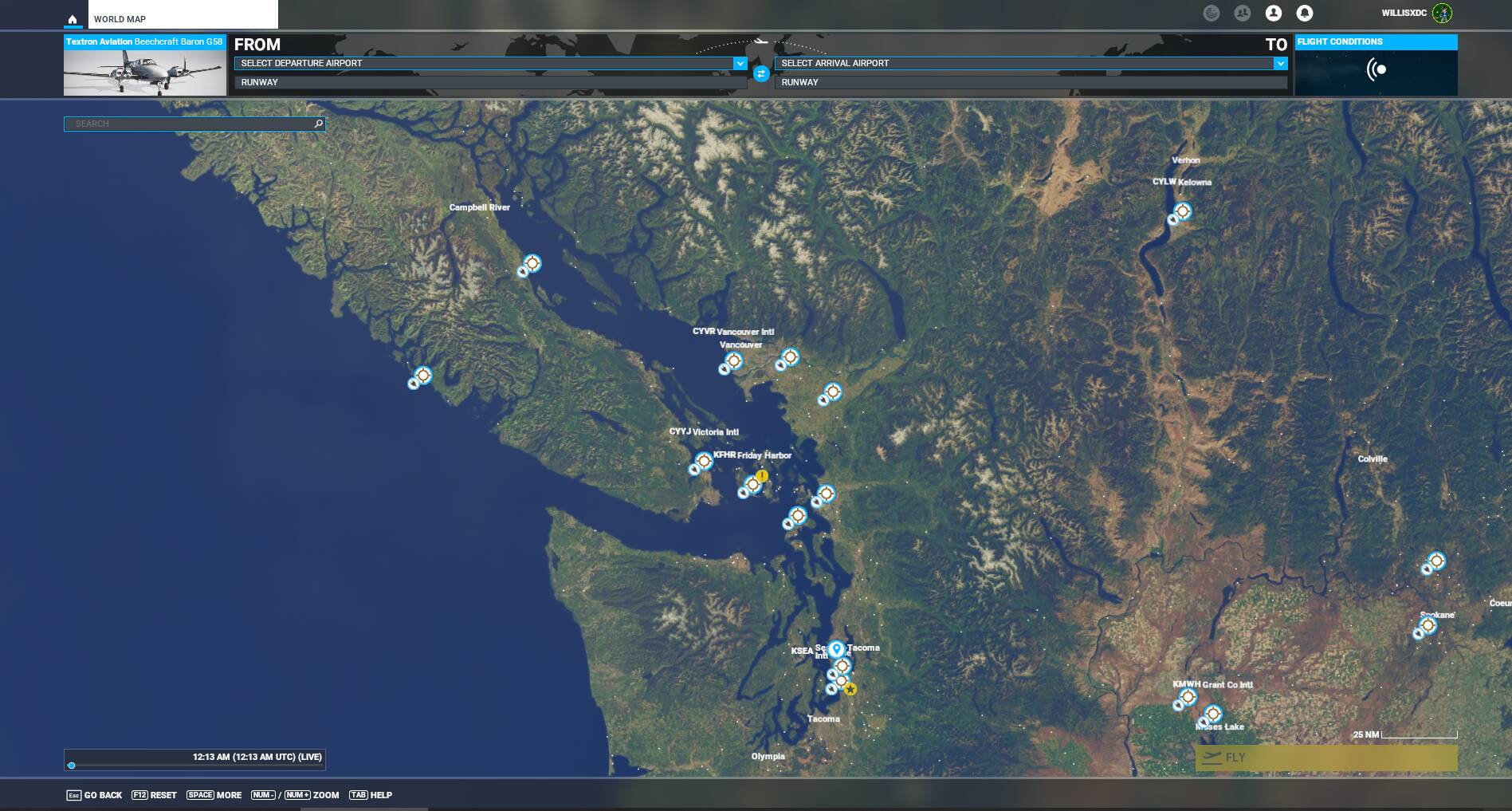
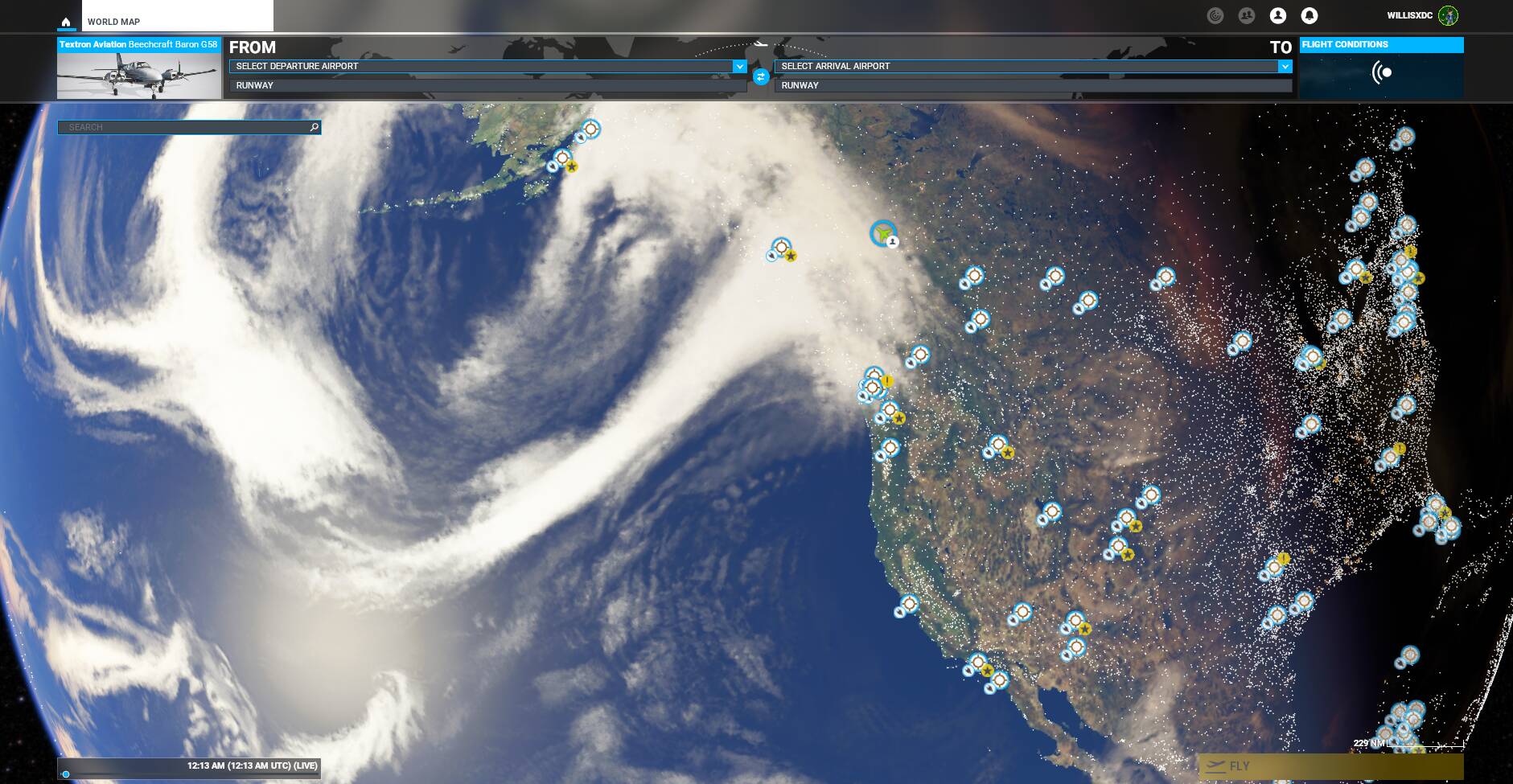
I am having a bit of a brightness issue. I feel like my map and sky are both far to bright. I have tried calibrating my display and am not having any luck dialing it back. It is as if, on a scale of 0-255, 200 is bright white and everything above that is unseen. Our current weather is mostly thin overcast with about 60 cumulus embedded. The sim is just a white sky. If I look close and rotate my view in the right direction, I can make out some faint patches of blue, I think…
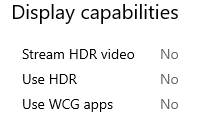
Every panel is different. Samsung 49" wide here w/a Strix 3090. I also have Hue lighting in my office that constantly adjusts. With that said, I’m at 77% brightness, 75% contrast, .77 gamma(bright for most people that have seen it in person here), and 58% vibrance. Full range of color channels are on w/HDR, yadda yadda yadda… No clue if those numbers will work for you, but I’m pretty sure they won’t be that bright. Wow…
I’d reset everything to the default. That should give you a decent looking pic to start with. It will likely be a bit dark. Depending on the capabilities of your panel, adjust the refresh rate along with the other settings. I’d start a flight, active pause it, then tweak. Everyone sees things a bit differently, so I’m sure we all have our own set of settings, but there’s no reason why you should be seeing that. The sim isn’t doing that.
This to me looks like Bloom shading which they overkill in order to either mask bad graphics or add lighting to the world. I run Dolby Vision on my tv and even that can’t settle things down. Regular HDR usually highlights a little too much even though the effect can be quite pretty and still oddly realistic. I’ve noticed the lens flare effect in the external camera which tells me they’ve definately using post processing filters and effects. I wished I could turn off all these as you often get a better picture and even pick up some extra fps.
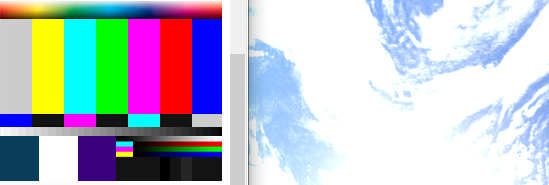
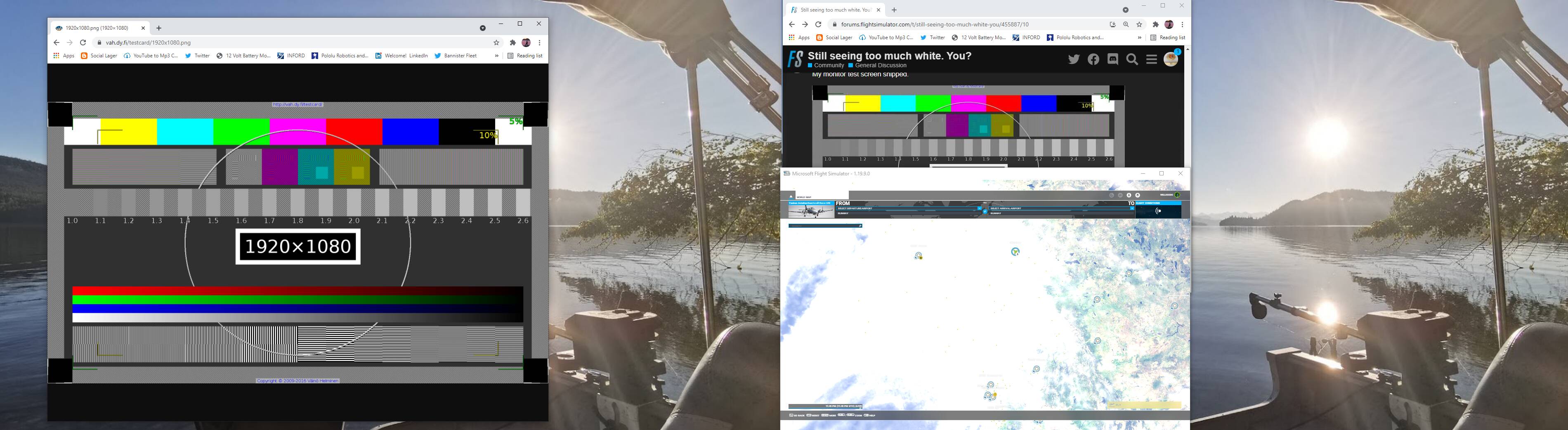
All default settings. Screen Snipped across two monitors.
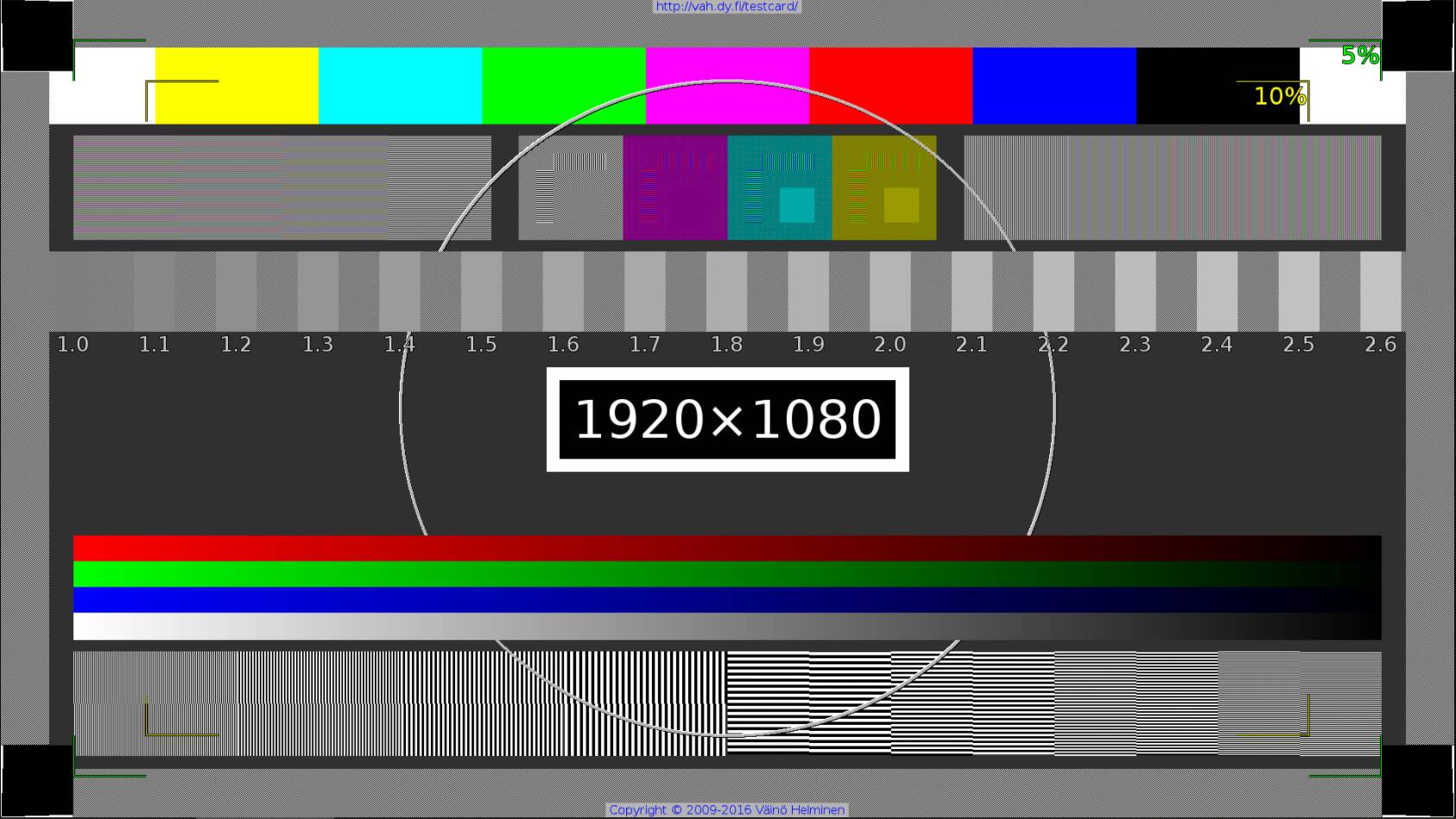
Calibration visible on both monitors, simultaneously.
Obviously a setting in MSFS because the monitors are good.
The Desktop image is duplicated across the two displays and is exactly as it looks on my phone that took the picture.
I cannot seem to find any setting that makes any difference in MFSF even though it is the only thing affected. Although you can see that my menu is fine. Only when trying to render the map or the sky.
Yup. All ready ruled that out. Added those screenshots just so I didn’t have a bunch of posts about my monitor crapping out or my GPU being garbage or my monitor settings are off and need calibration. You know, pre-emptive.
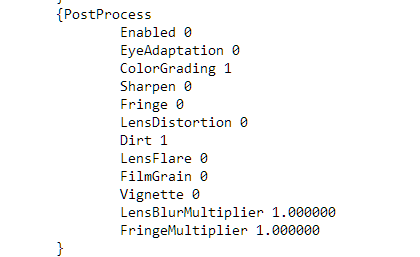
Hadn’t thought of the eye adaptation. Will try that now.
Edit: Eye Adaptation was the ticket. Well done @NottheTagiwant .