Okay sorry for the delay.
So first of all, I need to say that I actually did not get these settings to work quite properly until after I turned off VSYNC in both the simulator and the NVIDIA panel and loaded a flight and then exited it before setting the VSYNC settings as per below. I’m not sure why that worked…or did anything of value at all…but it did.  So I would start with that.
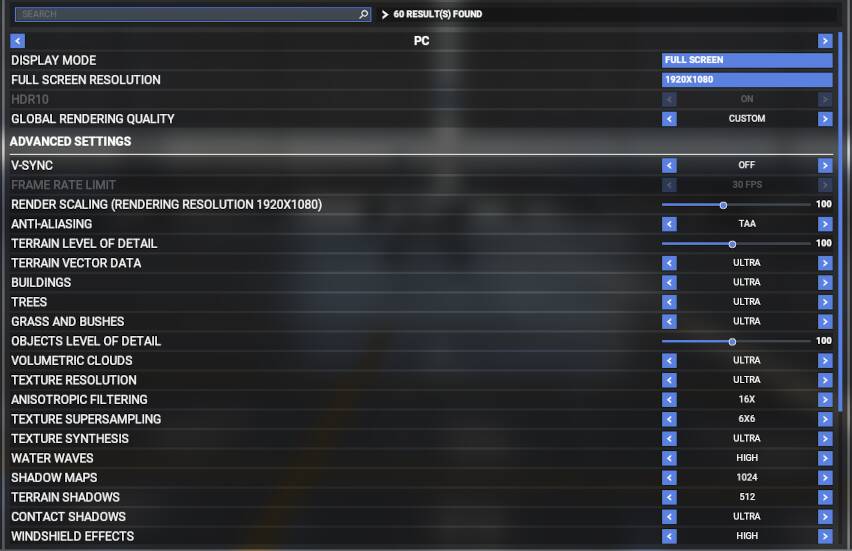
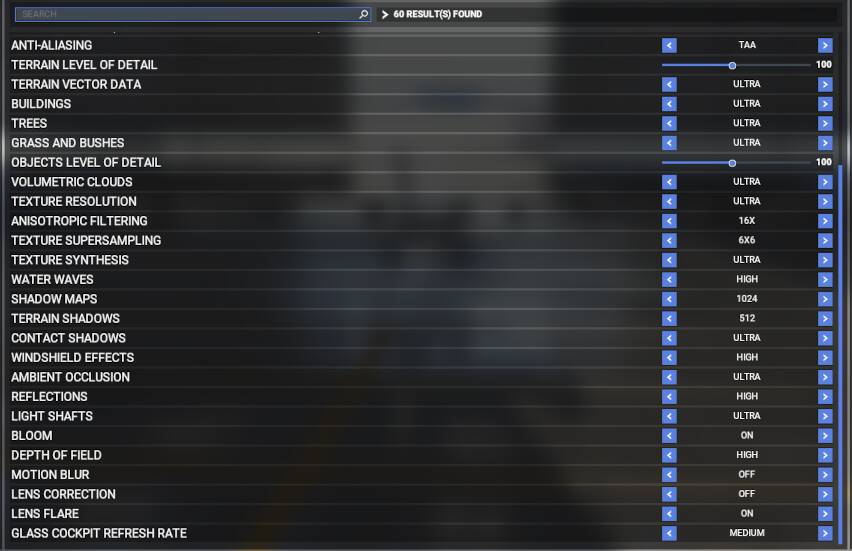
These are the settings I have in MSFS. None of the lower settings seem to make much difference in visual quality. It looks beautiful except for when there is sun glare on the instrument panel, which seems to be a bit grainy but is still livable.
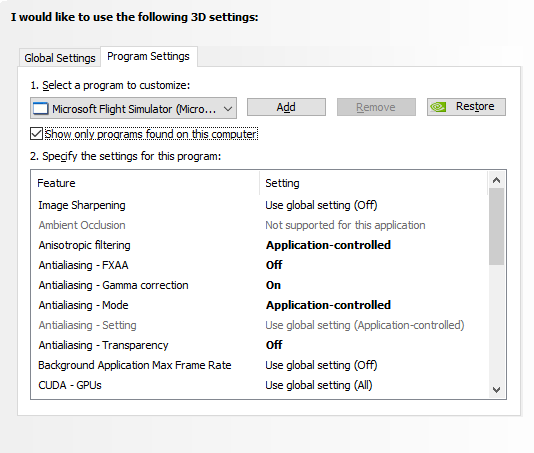
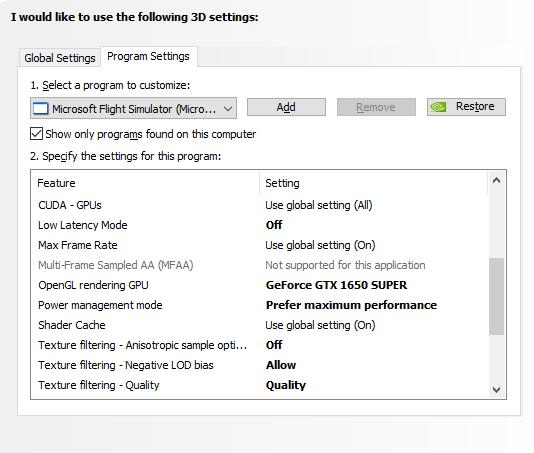
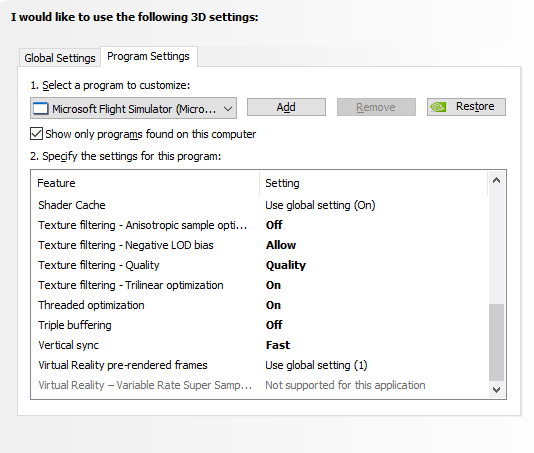
The settings in the NVidia panel are pretty straight forward. Earlier I sad that I had set the MAX FPS in here to 60 but after I looked at it to get the screen shot I realized that I thought it would be better to allow RivaTuner to cap it instead. It made no improvement for me when I set it to 60 in the NVidia panel.
The main thing that ended the stuttering for me was setting VSync to Fast. There are occasional stutters that I think are attributed to the fact that I’m running this on a HDD instead of SSD. Because of having a HDD I turned the Rolling Cache off, which made a huge improvement on its own.
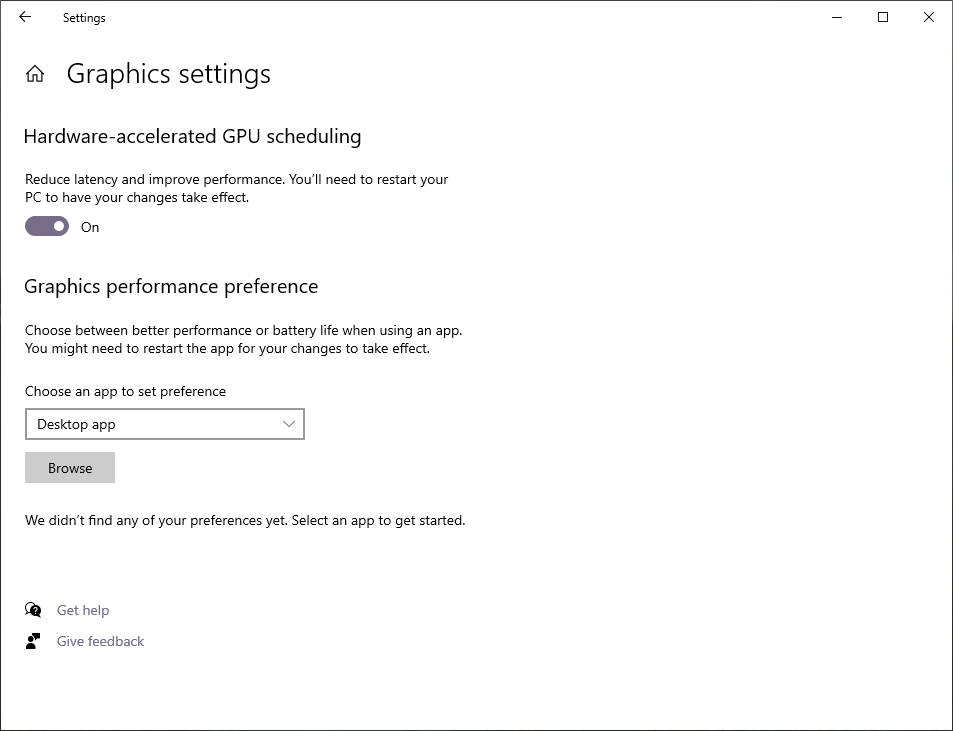
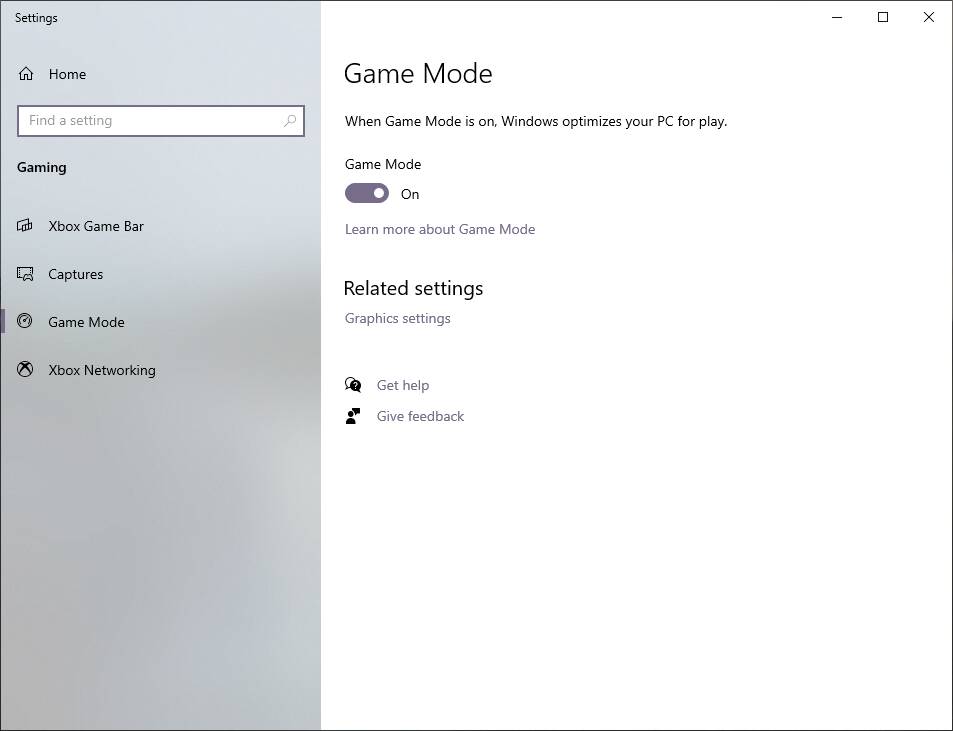
The next thing was to make sure that the Game Mode and Hardware-accelerated GPU Scheduling are turned on. By now I think most people are aware of where to find this but for anyone who doesn’t, it is easily accessed by going into the Start menu and typing “Game Mode” to get to the Gaming Mode settings.
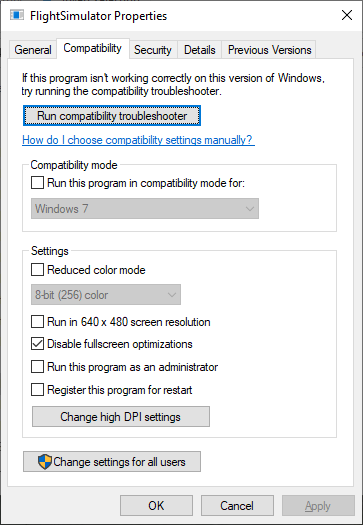
Now with the Flight Simulator Executable (for those that don’t know), you must make sure that Hidden Files and Folders are set to Show in the Windows Folder Options before it can be accessed, and it may actually require editing the security options for the Windows Apps folder under drive://Program Files/Windows Apps, as well as the Microsoft Flight Simulator folder in the Windows Apps folder. For liability reasons, I will refer people to consult other sources (Microsoft Knowledge Base) for information on how to do that. Once that’s done, you can right click the FlightSimulator.exe file in the Microsoft Flight Simulator folder under Windows Apps and select Properties. Then set as follows:
Check “Disable fullscreen optimizations”.
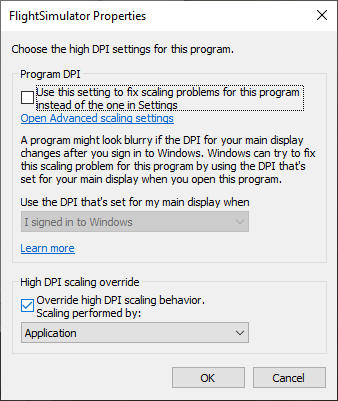
Then click the “Change high DPI settings” button, and then check “Override high DPI scaling behavior” and leave it set to “Application”.
Click OK, then Apply.
Once that’s all set, you can start the sim. Once you’re in the Main Menu, start MSI Afterburner and then RivaTuner. Locate the Flight Simulator in the RivaTuner window and select it, and then set your desired FPS there. Now my GTX 1650 Super OC was factory overclocked, so I just left MSI Afterburner on its default settings.
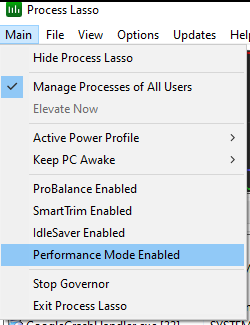
The last thing I do before I go to load a flight is start Process Lasso and there are a couple things to make sure are set in there. Process Lasso is free with only a 10 second nag window that goes away. The settings are as follows:
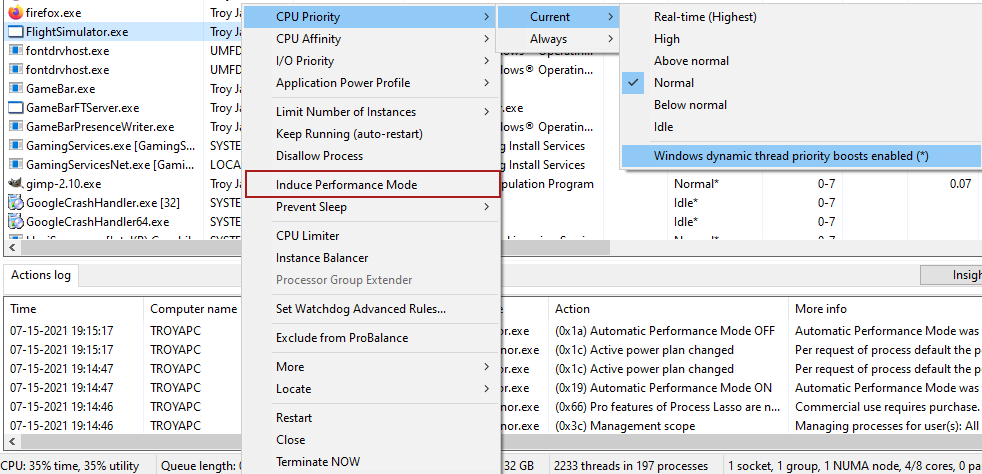
If you are unable to turn off Performance Mode in the main Process Lasso window (it might tell you that you have to close Flight Sim if this is the case, but don’t close it), ensure that “Induce Performance Mode” is unchecked in the context menu of the FlightSimulator.exe listing in Process Lasso (outlined in red in the above image).
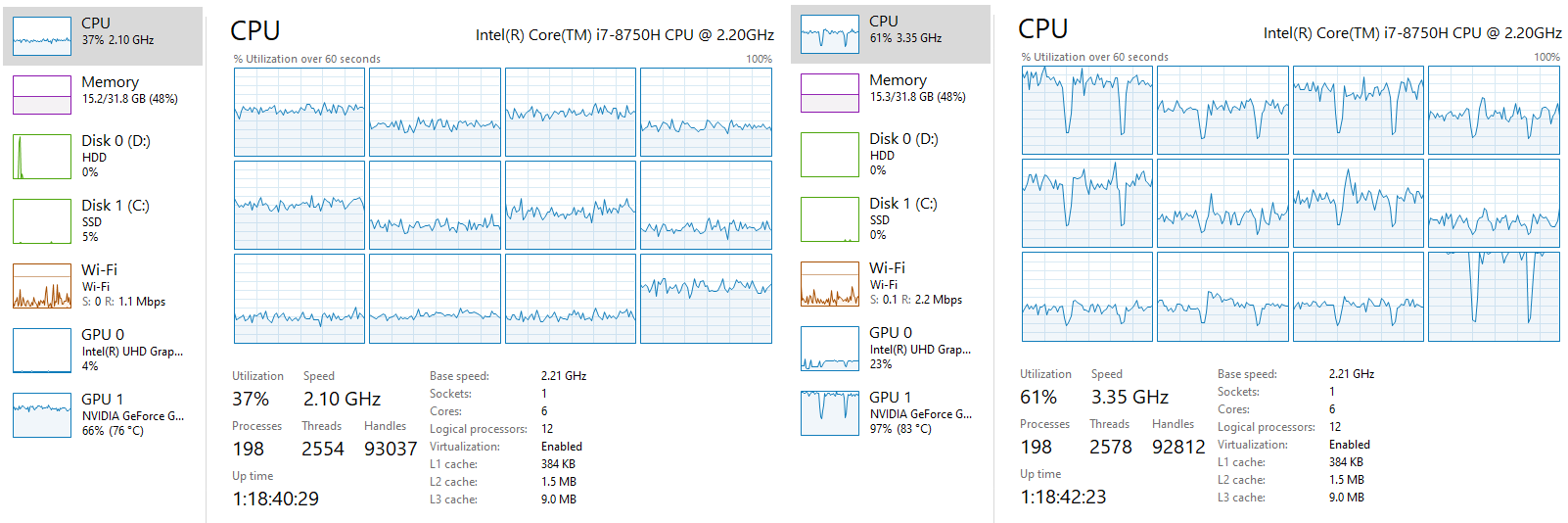
With these settings, I am able to average 35fps in city (Seattle for instance) with the Icon a5, and average 30fps with the Citation CJ4 (Working Title). The only thing I haven’t been able to figure out is how to get better frame rates with the amazing Aerosoft CRJ (Love this airplane). In large city areas I can’t seem to get more than 20fps with the CRJ but once I’m in air it’s solid at 40+, and nicely at 28-30fps in smaller cities. With the CRJ the bottleneck is all in the Mainthread, and it’s the only aircraft I have that gets limited by Mainthread. I think performance will increase with lower graphics settings in the MSFS settings, but I can’t bring myself to lower the settings because it’s just so beautiful and even with the CRJ and 20fps, it’s smooth and still feels fluid, even when landing and taxiing at larger airports like SeaTac and DIA. Utilization of CPU and GPU is pretty balanced at an average of 60-70% each, with some spikes on GPU to 90% from time to time.
As someone who worked for years in IT as a technical writer, I know I can do a better write-up but it would come off as too technical and wordy, so don’t judge me on this post LOL.
I hope that this at least helps to some degree. Once I got it running without all the stuttering I fell in love with the simulator all over again and can now enjoy me some flying. I really love the Icon A5 and flying low around cities and landing on water and such, but my flights in airliners are much more fun and immersive now.
Let’s all hope SU5 brings even better performance for those of us without the means to buy the big fancy systems.