Yes, most effective (and not destructive) is using ‘Group Policies’ … there is one to delay Windows Updates (those like xxH1, xxH2) up to 365 Days …. it works super fine
Some of those policies for MSFS would be a great idea in case of being afraid of an upcoming “Sim Update”… had this Before SU2 … so afraid, same like i will delay 2024H2 as long as i could … the only way to prevent a SimUpdate is never quit the running Sim Session while its getting released… not really an option
Please add the msfs-2020 or msfs-2024 tag to your post, depending on which sim your post is about.
In our tests, Windows Latest observed that Windows 11 August 2025 Update includes the highly anticipated fixes for Windows 11 24H2 stability issues. For those unaware, after the May 2025 updates, some users started to have performance issues. In some cases, FPS (frame rate) had dropped when playing games like Fortnite.
Wonder if this update will have any benefit for MSFS users in Windows 11?
PSA, latest Windows 11 24H2 KB5063878 may corrupt data and even disappear your drive. If you have one of the affected drives (or even if you don’t), you might want to roll back the update.
August 29, 2025—KB5064081 (OS Build 26100.5074) Preview
Just incase someones need this in the near future - June 2026
Not a single SSD issue on our local community and known forums so far. Also on 25+ test benches with those bad actor SSDs. Over 600 active members. Time to relax with SSD issue…
This is just an incase info, you don’t have to do it + Don’t feel like you have to buy a new hardware, be patient, No Need to Panic.
Also for upcoming “Windows Secure Bootcertificate expirationand CA updates”
How to manually check Windows UEFI CA 2023 is present on your system - use Terminal with admin rights > [System.Text.Encoding]::ASCII.GetString((Get-SecureBootUEFI db).bytes) -match ‘Windows UEFI CA 2023’
If the result is “True”, you are good to go. If it says “False” you need to manually update. MS will update them for your system when the time comes?your Mainboard manufacturer? Nvidia/AMD/Intel vs will help? Hopefully MS will update everything for everyone.
ps: Github bat file method worked for me, it was showing “False” initially, bat file makes pc restart 2 times and at the end gives an Success msg at the end.
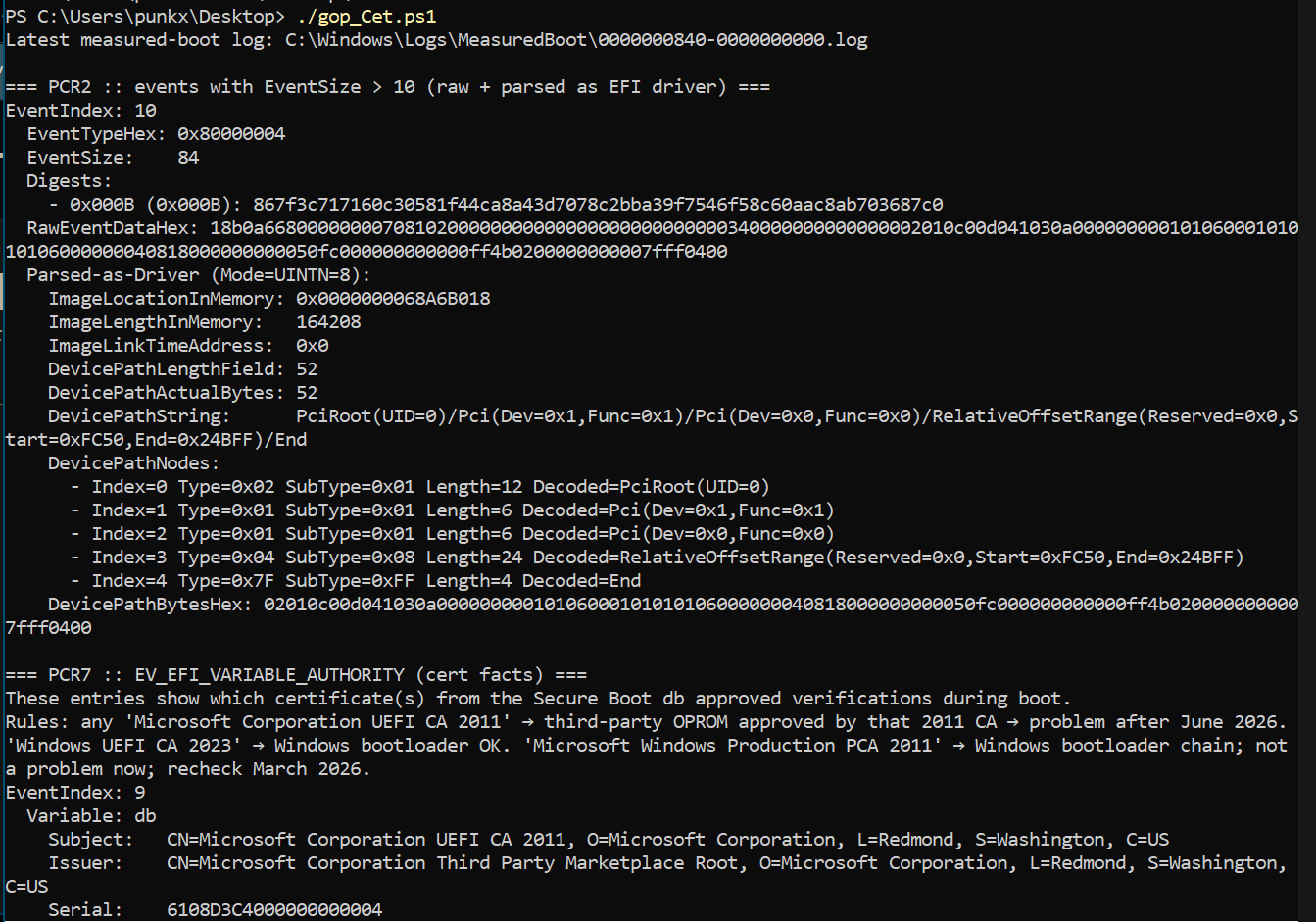
=== PCR7 :: EV_EFI_VARIABLE_AUTHORITY (cert facts) === These entries show which certificate(s) from the Secure Boot db approved verifications during boot. Rules: any ‘Microsoft Corporation UEFI CA 2011’ → third-party OPROM approved by that 2011 CA → problem after June 2026. ‘Windows UEFI CA 2023’ → Windows bootloader OK. ‘Microsoft Windows Production PCA 2011’ → Windows bootloader chain; not a problem now; recheck March 2026.
EventIndex: 9
Variable: db
Subject: CN=Microsoft Corporation UEFI CA 2011, O=Microsoft Corporation, L=Redmond, S=Washington, C=US
Issuer: CN=Microsoft Corporation Third Party Marketplace Root, O=Microsoft Corporation, L=Redmond, S=Washington, C=US
Serial: 6108D3C4000000000004
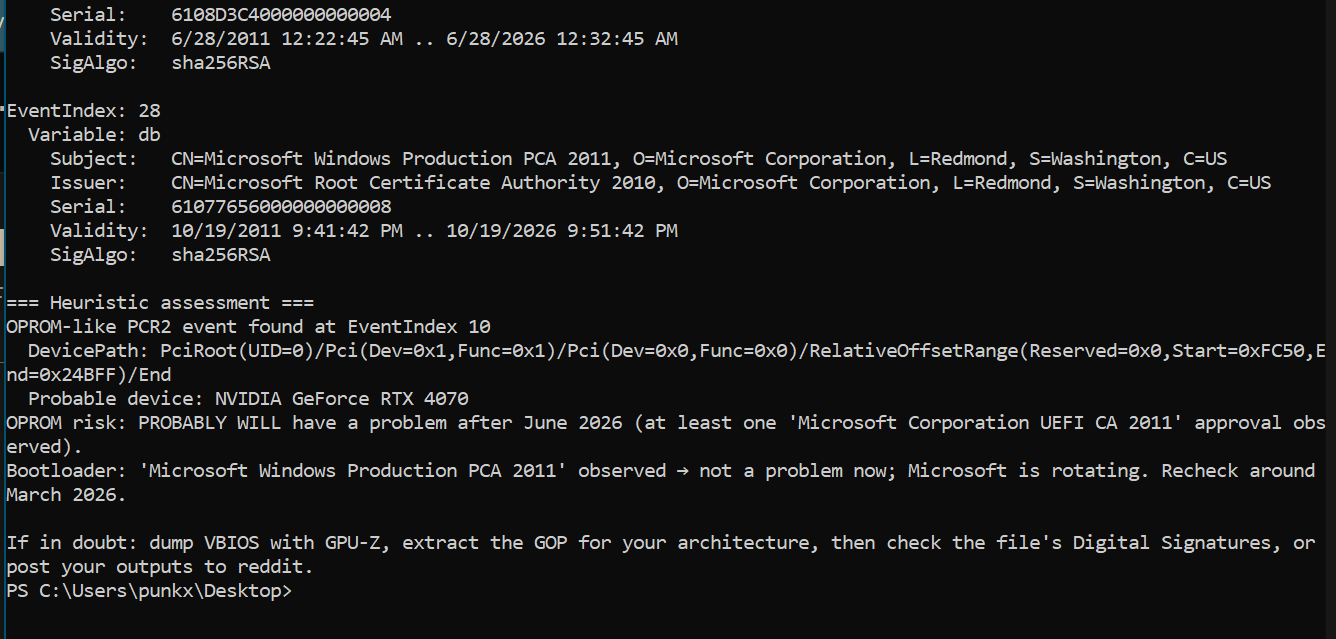
Validity: 6/28/2011 12:22:45 AM .. 6/28/2026 12:32:45 AM
SigAlgo: sha256RSA
=== Heuristic assessment ===
OPROM-like PCR2 event found at EventIndex 10
DevicePath: PciRoot(UID=0)/Pci(Dev=0x1,Func=0x1)/Pci(Dev=0x0,Func=0x0)/RelativeOffsetRange(Reserved=0x0,Start=0xFC50,End=0x24BFF)/End Probable device: NVIDIA GeForce RTX 4070 OPROM risk: PROBABLY WILL have a problem after June 2026 (at least one ‘Microsoft Corporation UEFI CA 2011’ approval observed). Bootloader: ‘Microsoft Windows Production PCA 2011’ observed → not a problem now; Microsoft is rotating. Recheck around March 2026.
If in doubt: dump VBIOS with GPU-Z, extract the GOP for your architecture, then check the file’s Digital Signatures, or post your outputs to reddit.
Overall, most of us don’t have much to worry about.
Microsoft is working closely with hardware manufacturers on system boot, including GPU vendors. In the future, we can expect system updates as well as BIOS updates for motherboards and graphics cards, because I can’t imagine manufacturers leaving us exposed to issues like this. Of course, Secure Boot can always be disabled - but that’s not really a solution.
My advice: don’t panic.
If you’ve had Secure Boot disabled in your BIOS for a long time, it’s a good idea to enable it from time to time so everything updates properly.
I’ll describe my struggle with the Windows 11 installer, maybe it will help someone in the future. In July, I installed Windows 11 24H2 to give 24H2 another chance. Since then, I’ve already reinstalled it twice. I also came to the conclusion that it’s still not suitable for real gaming and the kind of work I do on my PC. So I decided to go back to version 23H2 and I was shocked, almost had a heart attack, after formatting the partition where I wanted to install the system.
I got this error while trying to install Windows: “Setup was unable to use the existing partition because the system volume does not contain the required space”. This really surprised me because the partition where I wanted to install the system had about 615GB of free space.
Out of curiosity, I checked Google - many people online had similar issues, and for a lot of them the solution was to disconnect all other drives and leave only the one where Windows should be installed
Then I looked at my PC case and realized I had 8 drives connected. That meant I’d also have to remove my GPU, because right under it I’ve got a big heatsink and below that there are 3 M.2 drives - and Windows was supposed to be installed on one of them. I thought to myself that I really didn’t feel like disconnecting everything, so I started thinking … how can I get around this?
So … I have 8 drives connected to my PC, and after a few attempts I noticed that on one of the other drives there was a “System” partition. It was about 100MB in size but had only around 10MB free. I decided to format that partition and then pointed the installer to the partition where I wanted to install Windows and it worked, without having to disconnect any of the other drives from the PC
EDIT
I suspect that if I disconnected the drive with that 100MB “System” partition in the future, Windows probably wouldn’t even boot - BUT… I decided to leave it as it is for now, because I’ll be changing my PC case soon anyway, which means I’ll have to unplug and move everything. Only then will I properly reorganize the partitions so that the “System” partition is on the same drive as Windows - until then, it’ll stay as it is.
I decided to add this so you know what could happen in the future - although, of course, it doesn’t have to happen.
If it’s already past the 10-day rollback period, unfortunately the only way to go back to Windows 11 23H2 is to do a clean install. That means you’ll lose all your apps, settings, and installed programs.
Before reinstalling, I recommend backing up the important settings and profiles of your apps for example Spad.neXt. If you’re using Spad.neXt, make sure to deactivate your license before formatting so you can reactivate it later without issues.
“However, the Home and Pro editions of Windows 11, version 23H2 are nearing their end of support, with updates ceasing after November 11, 2025. Users will need to update to a later version of Windows 11 to continue receiving security updates and support”
Good point - that completely slipped my mind, thanks for the reminder. Until then we can keep using 23H2 without any issues, which is exactly what I’m doing right now.
Sorry to come to this rather late, but just a thought. That message might have related to the recovery partition rather than the main ‘C:’ drive you were trying to install to. I had an absolute nightmare a while back fixing a windows update failure because it was trying to re-write the recovery partition and had decided it was too small. There was a very complicated procedure to sort it out.
I don’t get it. It says it’s been “in testing for months”, but that it adds nothing new - the only thing is it extends official support for 24 months. Is it by Asobo?






 !!
!!