I read “no user data is scoped out” as meaning, all user data is scoped in.
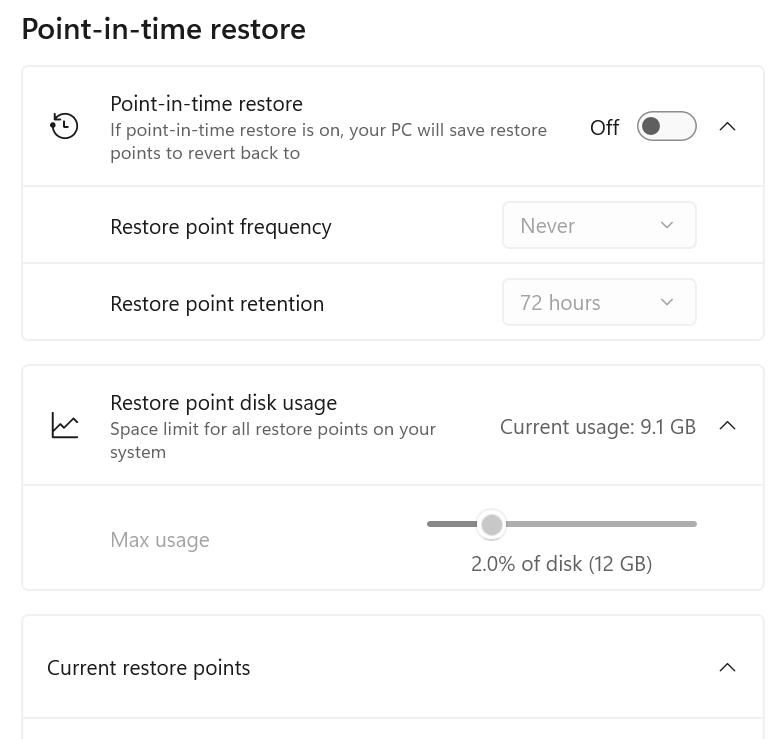
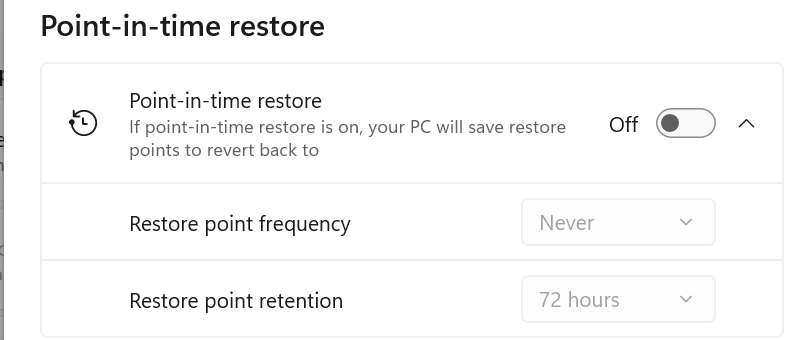
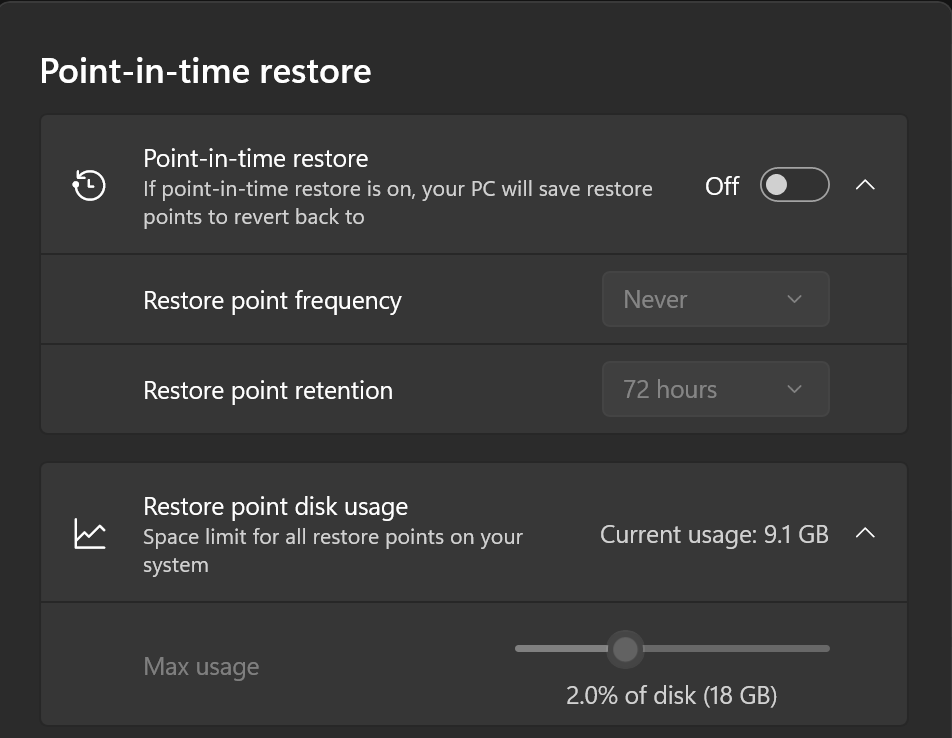
I believe the intent is a full restore - all or nothing - to the point in time. It’s essentially an image. I’m certain a lot of people will review it on IT news and YT channels. I’ve installed the update, and PITR is there in Settings > System > Recovery > Point-in-time restore, and ON by default, so I turned it off right away because I don’t want / need restore points.
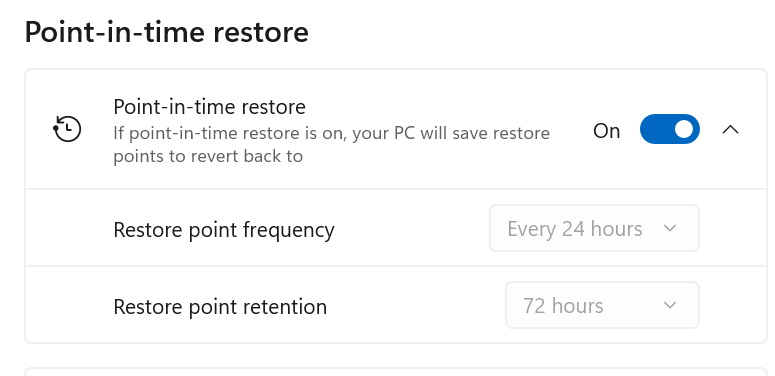
and it is not the same as a standard system image backup. It’s a different feature altogether and works differently from the old, familiar System Restore. Restore point frequency and Restore point retention can be configured only on Windows Enterprise editions. On Windows Home and Pro editions, these settings are grayed out and cannot be modified.
Below is a table from Microsoft’s documentation that explains the differences.
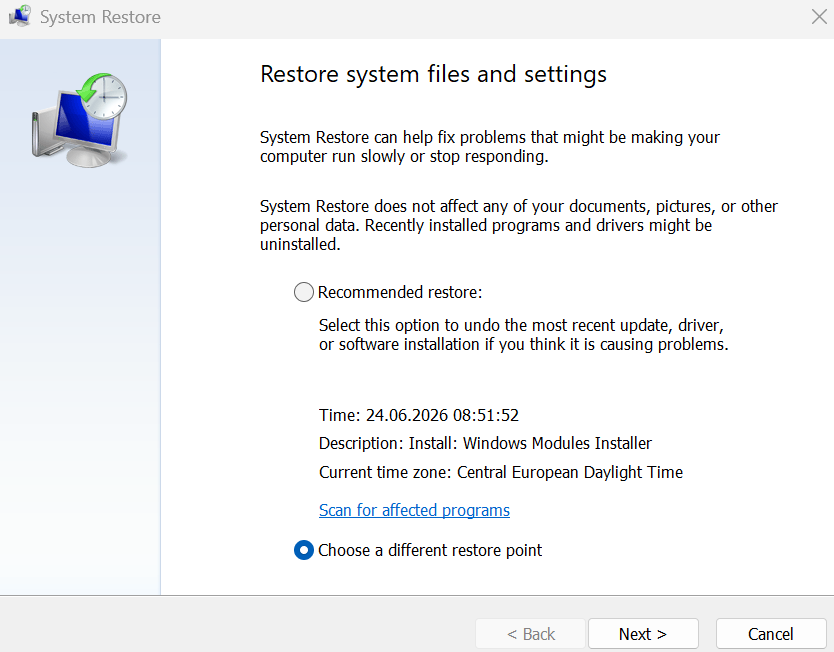
Difference with System Restore
Both point-in-time restore and System Restore use Volume Shadow Copy Service (VSS) to revert a device to a previous state. However, point-in-time restore introduces a newer approach and focuses on reliability and a broad range of issues. Compare the following capabilities.
Capability
Point-in-time restore
System Restore
Configuration method
System Settings
Control Panel
Restore point trigger
Scheduled frequency (automatic only)
Event-triggered or manual
Retention
Maximum 72 hours per restore point
Indefinite (subject to disk space usage and cleanup)
Target scope
Full system state
System files and settings (app and user data coverage varies)
System storage impact
Mitigated storage impact due to reserved storage (lower)
I see what you’re saying however to include all user data though could amount to a LOT of data. And does the restore point include just the boot drive or all drives? Does it make sense to back up user data on the boot drive but not on other drives that are present?
I believe the intent is a full restore point for the boot drive (volume) and not a backup of other drives / volumes (which would be 2 steps too far). But I’m making assumptions after skimming the article.
Btw - I just installed KB5095093 on my secondary sim PC that has Win 11 Home and I have the Restore Point frequency & retention options which I can set. They are grayed out only if you turn off the PITR feature.
Not to beat this into the ground but I checked my Macrium Reflect back up files and my C: drive with just the OS and my data (no games) compresses down to 129GB. When I turned off the PITR service I noticed it had allocated 2% of my disk or 18GB of storage. Not sure how it arrived at that figure but it is woefully low.
The service was on by default and I would have had no idea of this so thx for posting above!
Finally got it now… I can turn the PITR on/off but I can’t change the frequency and retention parameters on Win 11 Home as they are fixed . I think the hot Texas summer heat is starting to get to me - thx for your patience!
Is anyone already running the latest Windows 11 25H2 Preview Update (KB5095093 / Build 26200.8737)?
If so, have you noticed any improvements regarding audio crackling or stuttering in Microsoft Flight Simulator 2024?
I’m asking because I’ve been experiencing the well-known audio crackling issues under Windows 11 25H2 for quite some time now. So far, I’ve only been able to reproduce the problem while MSFS 2024 is running.
The crackling becomes especially noticeable when I’m doing something else alongside the simulator, for example:
zooming in and out of a map in a web browser with the mouse wheel,
interacting with other applications,
or even unplugging my second monitor while MSFS is running.
LatencyMon consistently reports nvlddmkm.sys (NVIDIA) as the driver with the highest DPC execution time.
I’ve already updated my BIOS, chipset drivers, audio drivers, tested multiple NVIDIA driver versions, and tried many other troubleshooting steps without success.
Has anyone with similar symptoms already installed KB5095093? Did it make any difference, or is the issue still present?
I installed KB5095093 and I haven’t experienced any audio crackling or stuttering since installing it.
If you’re specifically having audio stuttering issues, I think you’d get better answers by asking in the thread that’s dedicated to the audio crackling/stuttering issue, since more people there are likely dealing with the same problem.
I’m asking because I’m wondering whether the new Windows Preview update might fix this audio issue. However, I only experience these sound crackles while MSFS is running. I also ran CPU and GPU stress tests, but I couldn’t reproduce the problem there. The crackling only seems to occur in connection with MSFS.
Fair enough, I see what you mean. I was just saying that this thread is about the Windows settings, tweaks, updates rather than the audio stuttering issue. You might get more relevant feedback by asking in the dedicated audio stuttering thread, since that’s where people are discussing that specific problem.
EDIT
@Dustoff2002
I forgot to ask - did the audio stuttering start after installing KB5095093 or were you already experiencing it before?
I also have the current Windows 11 25H2 Preview Update KB5095093 / Build 26200.8737, but no audio issues.
I intentionally avoid installing my motherboard (MSI X870E Carbon) audio drivers. I think NVIDIA installs HD audio (needed because sound comes via HDMI to my TV from my NVIDIA GPU card), and I think Windows installs default audio drivers for my mother board.
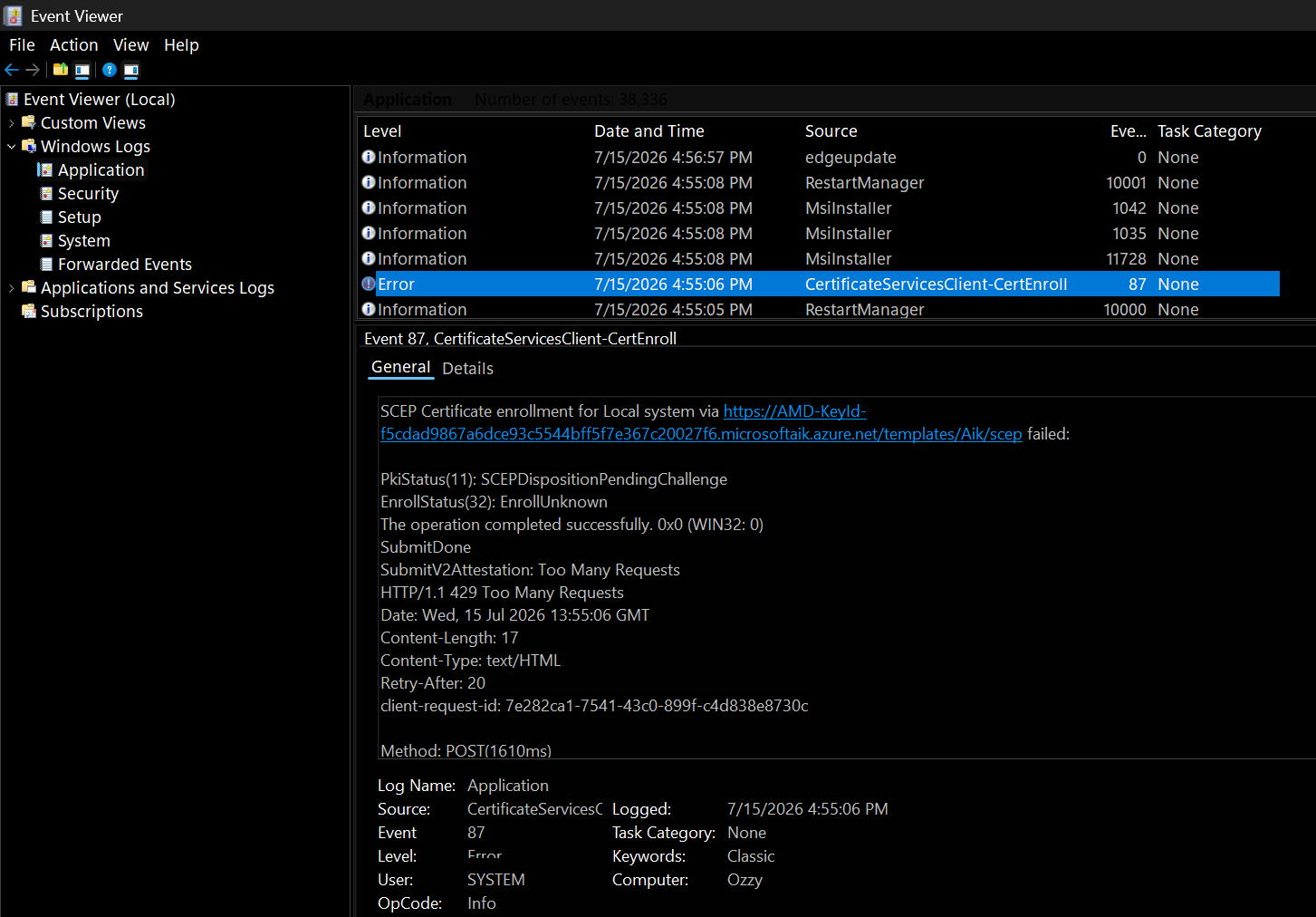
A couple of interesting tips from Chris Titus on youtube, prompted by the recent news that LG was secretly / silently force-installing software on PCs, via a process that happens when you connect a peripheral, a call is made to see if there is any helpful software from the manufacturer, icons, etc…
2 Registry entries that stop it and anything like it. DO research / google what the regsitry entries do before blindly following the advice… I also recommend keeping a list of customizations like this so you can remember / reverse changes
The monitor itself isn’t installing any software. Windows is the one that installs it after detecting an LG monitor, so the main responsibility falls on Microsoft. I wouldn’t be surprised if LG is paying them for that …
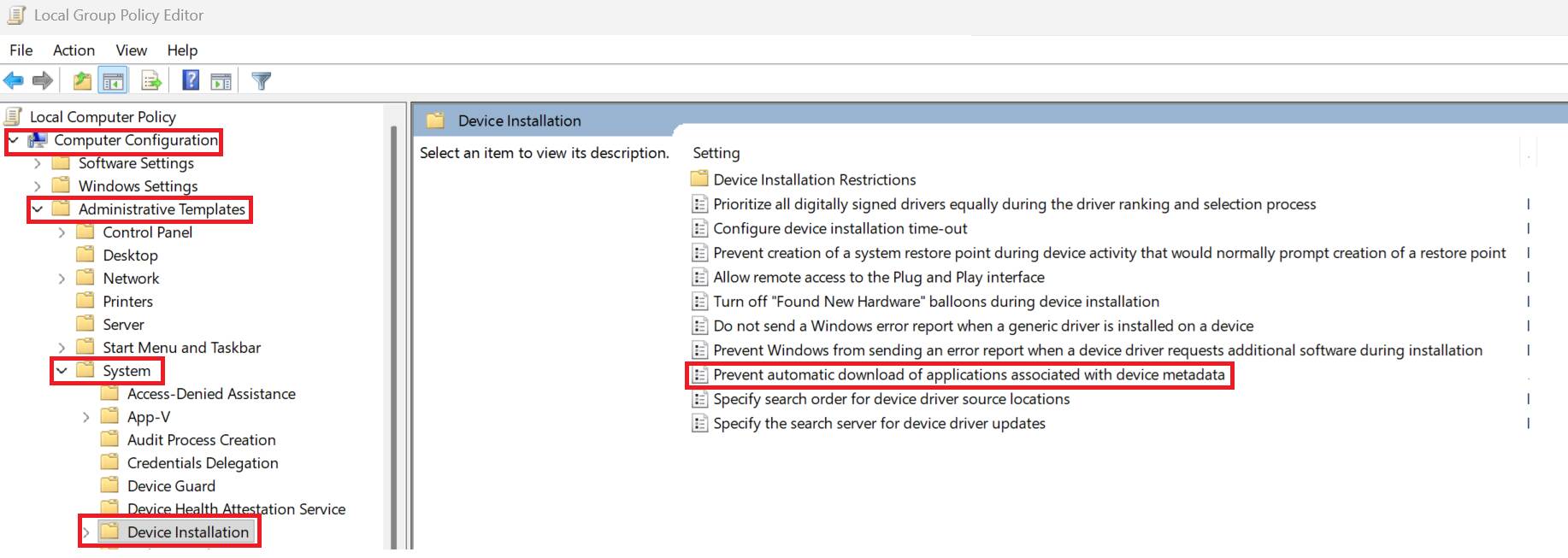
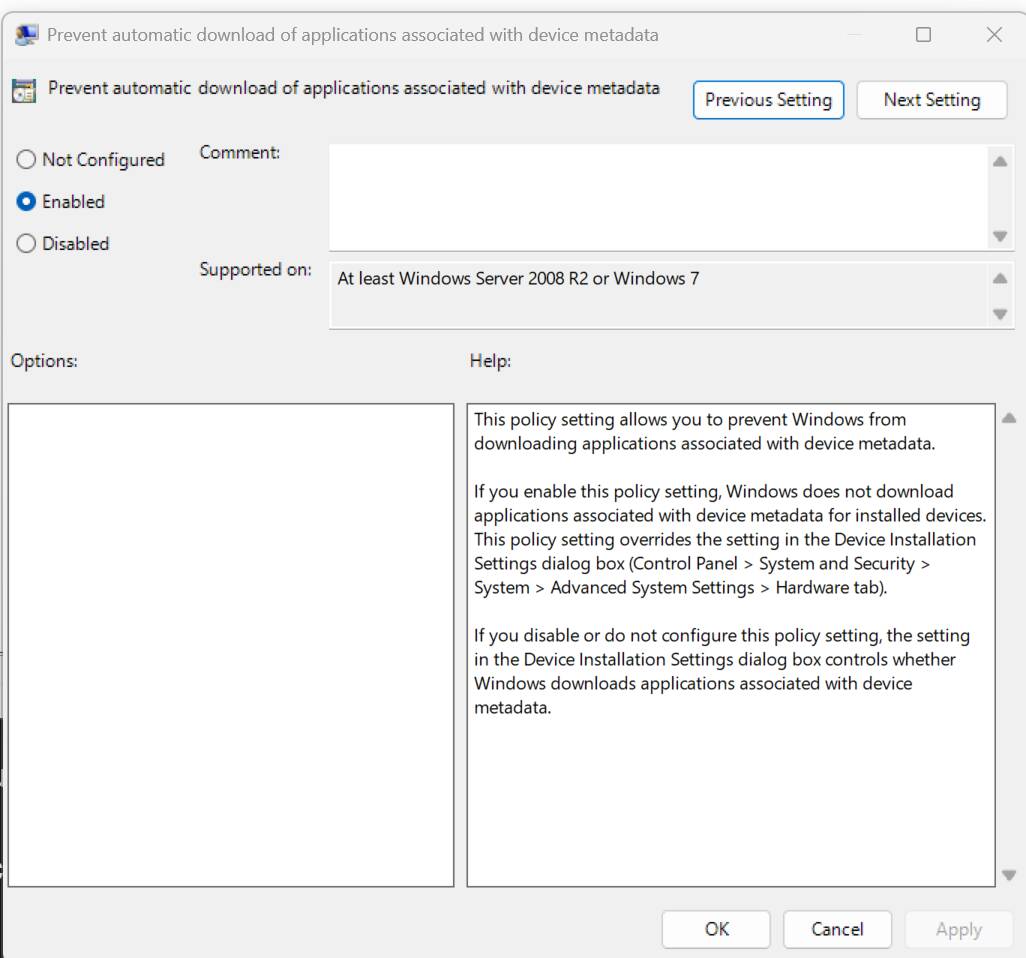
In any case, I blocked it through the Local Group Policy Editor.
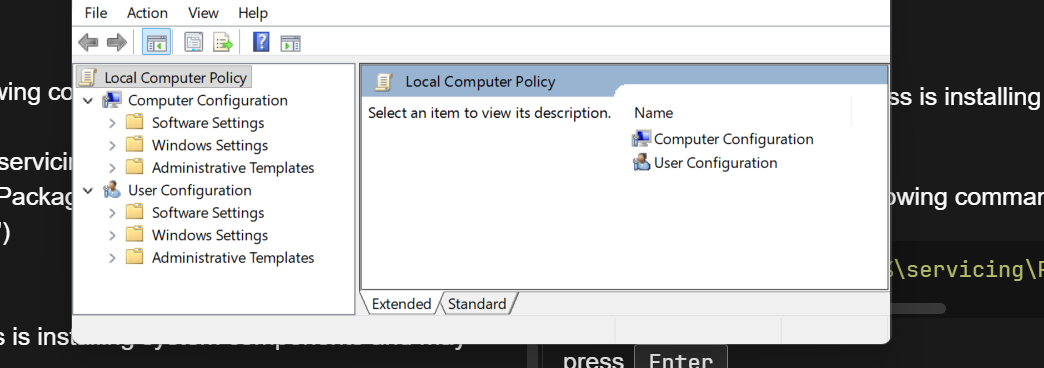
I have Windows 11 Home on one of my laptops, so I’ll describe how I added Group Policy Editor to Windows 11 Home.
I did it via DISM from an elevated Command Prompt.
So, run CMD as administrator. Copy and paste the following command into CMD (right-click in CMD to paste):
FOR %F IN ("%SystemRoot%\servicing\Packages\Microsoft-Windows-GroupPolicy-ClientTools-Package~*.mum") DO (DISM /Online /NoRestart /Add-Package:"%F")
Wait for it to finish - the process is installing system components and may take some time.
After it finishes, paste the following command.
FOR %F IN ("%SystemRoot%\servicing\Packages\Microsoft-Windows-GroupPolicy-ClientExtensions-Package~*.mum") DO (DISM /Online /NoRestart /Add-Package:"%F")
press Enter
Wait for it to finish - the process is installing system components and may take some time.
If you ran the commands correctly, Local Group Policy Editor should now be available in Windows 11 Home.
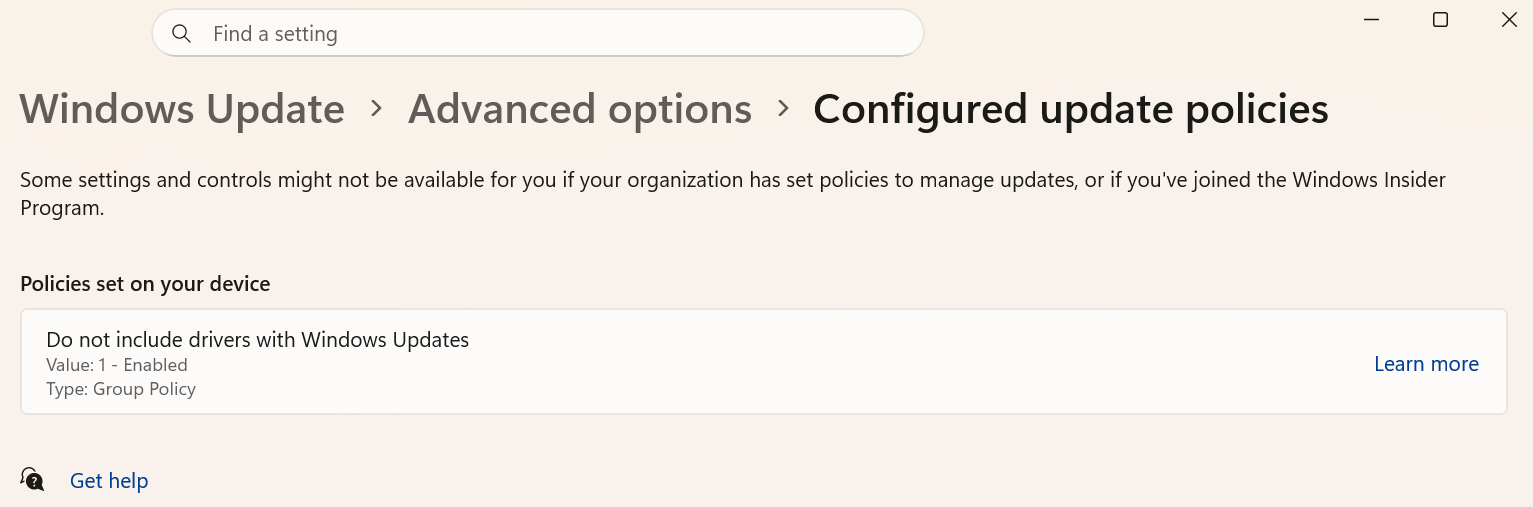
I noticed in one of the threads that Windows Update is downloading and trying to install an NVIDIA driver, overwriting the one that’s already installed.
I thought it would be a good idea to remind everyone how to block Windows Update from downloading and installing drivers.
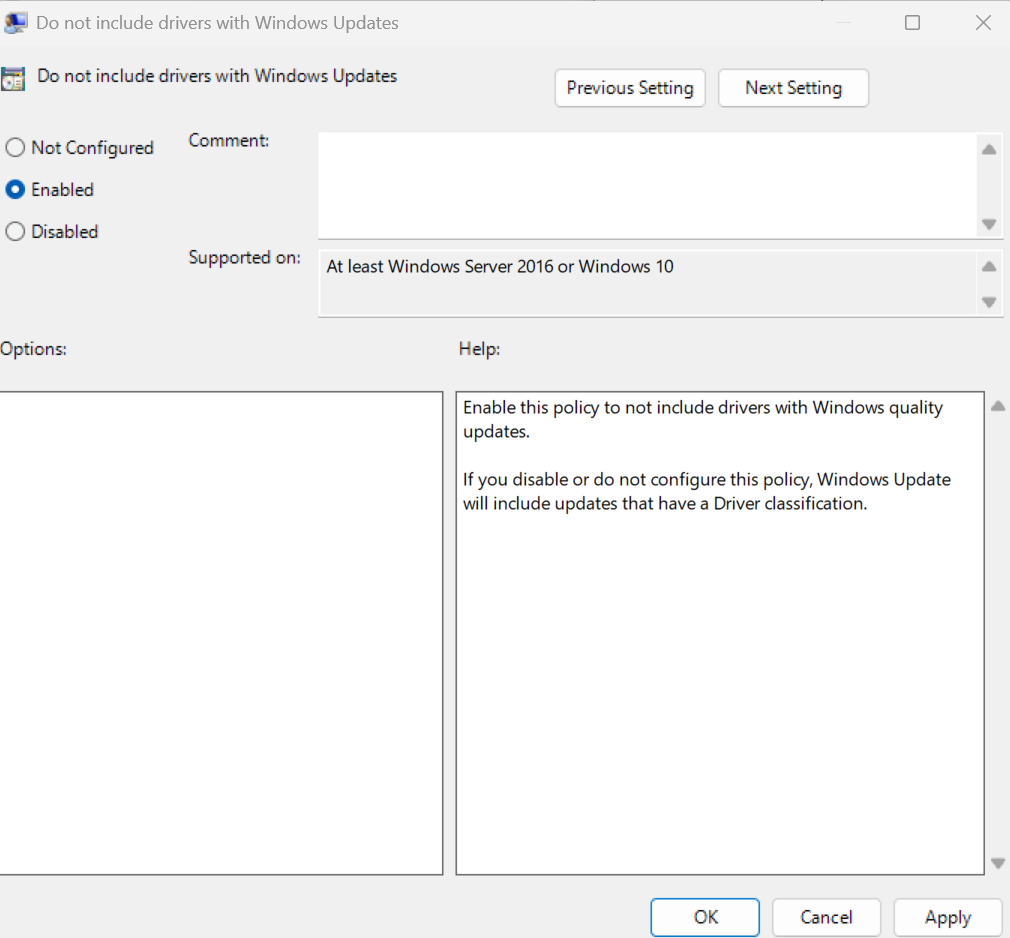
One of the recent Windows updates broke driver downloads and installations, even if you blocked them in the DDU settings. Since I prefer to have full control over my system, as soon as I discovered this bug, I also blocked driver downloads through the Local Group Policy Editor.
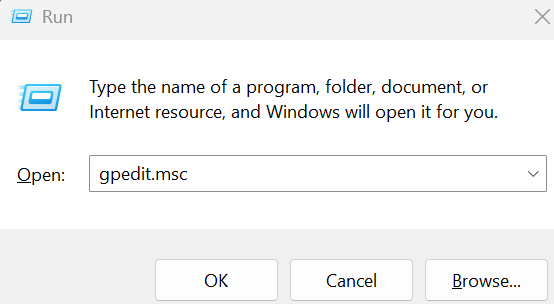
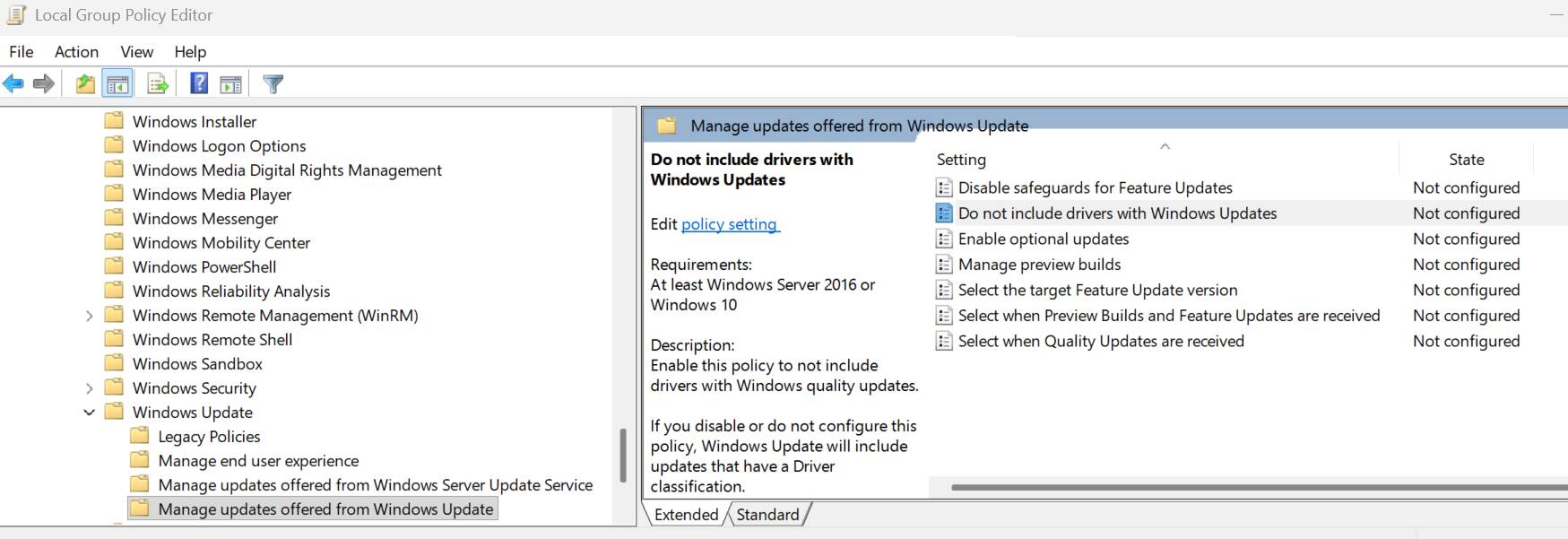
In the Local Group Policy Editor, I navigated to: Computer Configuration > Administrative Templates > Windows Components > Windows Update > Manage Updates Offered From Windows Update.
In the right pane, I double-clicked “Do not include drivers with Windows Updates”.
How to Add the Local Group Policy Editor to Windows 11 Home
I have Windows 11 Home on one of my laptops, so I’ll describe how I added Group Policy Editor to Windows 11 Home.
I did it via DISM from an elevated Command Prompt.
So, run CMD as administrator. Copy and paste the following command into CMD (right-click in CMD to paste):
FOR %F IN ("%SystemRoot%\servicing\Packages\Microsoft-Windows-GroupPolicy-ClientTools-Package~*.mum") DO (DISM /Online /NoRestart /Add-Package:"%F")
Wait for it to finish - the process is installing system components and may take some time.
After it finishes, paste the following command.
FOR %F IN ("%SystemRoot%\servicing\Packages\Microsoft-Windows-GroupPolicy-ClientExtensions-Package~*.mum") DO (DISM /Online /NoRestart /Add-Package:"%F")
press Enter
Wait for it to finish - the process is installing system components and may take some time.
If you ran the commands correctly, Local Group Policy Editor should now be available in Windows 11 Home.
If you care about system security, it’s still a good idea to keep your driver updated, because newer driver versions often include fixes for security vulnerabilities that could potentially be exploited by hackers.
 . I think the hot Texas summer heat is starting to get to me - thx for your patience!