MSFS 2024: Severe MainThread stutters in cruise flight caused by Terrain Pre-Caching High/Ultra, especially near dense terrain/photogrammetry areas

ISSUE DESCRIPTION

Bug Report

MSFS 2024 – Severe MainThread Stutters in Cruise Flight Related to Terrain Pre-Caching (High/Ultra)

Hello everyone,

I would like to report a reproducible stuttering issue in MSFS 2024 that appears to be related to Terrain Pre-Caching and terrain data management, rather than hardware performance.

After extensive testing over the last weeks, I have been unable to identify any fault with my hardware, Windows installation or simulator installation. The issue appears to be reproducible and seems closely linked to Terrain Pre-Caching, terrain-heavy regions, and camera behaviour.


System Specifications

  • CPU: AMD Ryzen 7 9800X3D (stock settings)

  • CPU Clock in MSFS: ~5225 MHz

  • GPU: NVIDIA RTX 5080 16 GB

  • RAM: 64 GB DDR5 (2×32 GB) 6000 MHz CL30

  • Storage: 2 TB NVMe SSD

  • Operating System: Windows 11 (clean installation)

No overclocking, no undervolting, no Curve Optimizer, no PBO.


Main Symptom

The simulator generally performs very well with stable FPS.

However, during cruise flight I experience sudden MainThread frame-time spikes, resulting in visible micro-stutters despite FPS remaining relatively stable.

The issue occurs mainly in areas with a large amount of terrain data, for example:

  • London

  • Boston

  • Washington

  • Ireland during Atlantic crossings

  • Other terrain-heavy regions

It occurs with every aircraft I have tested, including default aircraft and third-party aircraft.


Very Important Observation

One observation stands out:

When I keep the cockpit camera completely stationary for a longer period of time during cruise, the MainThread stutters become significantly more frequent.

As soon as I start moving the camera again, even slightly, the stuttering immediately becomes less frequent or temporarily disappears.

This behaviour is fully reproducible.

It almost seems as if moving the camera forces the simulator to refresh or reorganize terrain cache data, while leaving the camera stationary allows some terrain/background management process to accumulate until a periodic MainThread stall occurs.


Terrain Pre-Caching Behaviour

After many hours of testing, I found the following:

  • Terrain Pre-Caching Ultra → severe cruise stutters

  • Terrain Pre-Caching High → exactly the same behaviour

  • Terrain Pre-Caching Medium → cruise stutters are mostly gone

Unfortunately, Medium introduces another problem:

Camera changes and panning become noticeably less smooth because terrain outside the current view has to be loaded again.

Therefore Medium is only a workaround, not a solution.

The fact that High and Ultra behave identically, while Medium almost eliminates the cruise stutters, strongly suggests an issue within Terrain Pre-Caching itself rather than a hardware limitation.


Developer Mode Performance Overlay

During normal flight:

  • FPS around 60

  • Graphics Queue approximately 14–15 ms

  • MainThread typically around 13–15 ms

During the stutters:

  • MainThread suddenly jumps to around 30–35 ms

  • Graphics Queue remains relatively stable

  • GPU is not overloaded

  • VRAM usage is well below the 16 GB limit

  • System RAM usage is normal

  • “MarkersFailed” sometimes increases significantly

From the performance overlay it appears that the GPU is not the limiting factor during these stutters.

Instead, the MainThread seems to be periodically waiting for another subsystem.


Everything I Have Already Tested

The issue remains exactly the same after testing all of the following:

Simulator

  • Complete MSFS 2024 reinstall

  • Community folder empty (except testing some airport addons)

  • Happens with every aircraft

  • Happens regardless of departure airport

  • Happens even away from addon airports

  • Cabin and no-cabin versions tested

Windows

  • Clean Windows 11 installation

  • No background applications

  • Background applications running

  • Balanced power plan

  • High Performance power plan

No difference.

Online Features

  • Bing Data ON/OFF

  • Photogrammetry ON/OFF

  • Online Services OFF

  • Live Weather OFF

  • Live Traffic OFF

  • Multiplayer OFF

No difference.

Graphics

  • Frame Generation ON

  • Frame Generation OFF

  • TAA

  • DLSS

  • High and low Terrain LOD

  • High and low Object LOD

  • Terrain Vector Data Medium

  • Different graphics presets

  • Different FPS caps

  • RTSS FPS limiter

  • NVIDIA FPS limiter

  • VSync combinations

No difference.

NVIDIA Driver

  • Latest Game Ready driver

  • Older Game Ready drivers

  • G-Sync ON

  • G-Sync OFF

  • Fixed Refresh

  • HDMI instead of DisplayPort

  • NVIDIA Low Latency Mode OFF

No difference.

Hardware / BIOS

  • ReBAR ON/OFF

  • HAGS ON/OFF

  • Rolling Cache ON/OFF

  • Rolling Cache deleted

  • CPU running completely stock

  • BIOS defaults

No difference.

The only remaining test I have not yet performed is disabling SMT.


Why I Believe This Is Not A Hardware Issue

The hardware should easily be capable of running MSFS 2024 smoothly:

  • Ryzen 9800X3D

  • RTX 5080

  • 64 GB DDR5 6000 CL30

  • Fast NVMe SSD

The issue also persists after:

  • Clean Windows installation

  • Clean simulator installation

  • Multiple NVIDIA drivers

  • Online services disabled

  • Frame Generation disabled

  • Different FPS limiters

  • Different monitor configurations

Because the problem is specifically linked to Terrain Pre-Caching and terrain-heavy areas, I do not believe this is a conventional CPU or GPU bottleneck.


Similar Reports / Related Threads

While investigating this issue, I found several reports that appear to describe the same or a very similar problem. Although not every report matches my symptoms exactly, there is a recurring pattern involving MainThread spikes, Terrain Pre-Caching, terrain-heavy areas, and camera-related stutters.

1. Off Screen Terrain Pre-Caching causes intermittent spikes and horrible stutters (MainThread)

This is by far the closest report to my issue. Users describe intermittent MainThread spikes directly linked to Off Screen Terrain Pre-Caching, even on high-end hardware.

https://forums.flightsimulator.com/t/off-screen-terrain-pre-caching-causes-intermittent-spikes-and-horrible-stutters-mainthread/757189


2. Stuttering / Micro-freezes even with high FPS

Several users report severe micro-stutters despite high FPS, with MainThread spikes occurring mainly during flight rather than because of GPU limitations.

https://forums.flightsimulator.com/t/stuttering-micro-freezes-even-with-high-fps-need-help/708216


3. Persistent stutters and flight interruptions on high-end PCs

This discussion contains multiple reports of periodic MainThread spikes and frame-time issues that remain even after disabling Frame Generation.

https://forums.flightsimulator.com/t/persistent-stutters-and-flight-interruptions-since-su5-on-high-end-pc/765121


4. Camera panning stutters related to Terrain Pre-Caching

Several users describe stutters that change depending on camera movement. While my issue is the opposite (stutters increase when the camera remains still and decrease when moving it), it still suggests that Terrain Pre-Caching and camera behaviour are closely related.

https://forums.flightsimulator.com/t/stutter-when-panning-camera-in-external-view-in-su-5-1/765935


5. Off Screen Terrain Pre-Caching discussion (MSFS 2020)

Although this thread is from MSFS 2020, it already discusses MainThread stutters caused by Off Screen Terrain Pre-Caching.

https://forums.flightsimulator.com/t/off-screen-terrain-pre-caching-stutter/493670


6. LOSS – Lexicon of Sim Stutters

This community investigation classifies different kinds of simulator stutters. The section regarding Photogrammetry Mapping Stutter resembles what happens in terrain-heavy regions.

https://forums.flightsimulator.com/t/loss-the-lexicon-of-sim-stutters/654029


7. Micro stutters and performance degradation during flights

Users report that the simulator becomes less smooth during longer flights despite GPU usage remaining normal.

https://forums.flightsimulator.com/t/micro-stutters-and-performance-degradation-on-flights/680659


8. Rolling Cache causing periodic stutters

Some users observed periodic stutters related to terrain cache management. Rolling Cache ON or OFF makes no difference in my case, but the discussion may still point towards a broader terrain management issue.

https://forums.flightsimulator.com/t/stutters-when-rolling-cache-file-is-full-and-starts-to-get-rolled-with-new-data/682594


Common Pattern

Across these reports, several recurring observations appear:

  • MainThread spikes despite high FPS

  • GPU is not fully utilized during the stutters

  • Most noticeable in terrain-heavy or photogrammetry-heavy regions

  • Closely related to Terrain Pre-Caching or terrain streaming

  • High-end hardware does not prevent the issue

  • Camera movement appears to influence stutter frequency

  • Lowering Terrain Pre-Caching often reduces cruise stutters but increases view-change stutters

Taken together, these reports suggest that the issue may originate from the simulator’s terrain cache management, off-screen terrain pre-caching, terrain worker synchronization, or terrain residency system, rather than insufficient hardware performance.


Possible Cause

Based on all testing, my current suspicion is that the issue is related to one of the following engine systems:

  • Off-screen Terrain Pre-Caching

  • Terrain tile residency management

  • Terrain worker thread synchronization

  • Terrain cache eviction

  • CPU-side terrain decompression

  • Terrain object submission

  • Background terrain management periodically blocking the MainThread

The camera behaviour is particularly interesting.

Normally, one would expect fewer updates while the camera remains stationary.

Instead, the opposite happens:

The longer the cockpit camera remains completely still, the more frequent the MainThread stutters become.

Moving the camera again immediately reduces the stuttering.

Combined with the High/Ultra Terrain Pre-Caching behaviour, this strongly suggests an issue within the simulator’s terrain cache management or terrain worker synchronization rather than a conventional CPU or GPU performance bottleneck.


Current Workaround

The only workaround I have found is:

Terrain Pre-Caching = Medium

This almost eliminates the cruise stutters.

Unfortunately, it also causes noticeably more terrain loading and stuttering whenever changing camera views or panning around the cockpit.

Therefore this is only a compromise rather than a real solution.


Request

Could Asobo please investigate the Terrain Pre-Caching system, especially the behaviour of the High and Ultra settings during cruise flight?

The issue appears to be reproducible on high-end hardware and seems strongly connected to terrain-heavy regions, camera behaviour and Terrain Pre-Caching, rather than traditional CPU or GPU limitations.

If any developers or other users are able to reproduce these findings, I would be happy to provide additional performance overlay screenshots, recordings, or perform further testing if required.


Testflight i use as a benchmark

Below a link with an Autosave File for the INIBuilds A350 I use as a Benchmark because this addon is very performance heavy.

The flight goes from France LFPG over UK NW over Ireland to the Atlantic Ocean.

This is the route where the stutters are most pronounced.

Put it into :

C:\Users\Username\AppData\Local\Packages\Microsoft.Limitless_8wekyb3d8bbwe\LocalState\WASM\MSFS2024\inibuilds-aircraft-a350\work\autosaves

Load the file via the Autosave feature of the plane in the EFB

Its the same with any other plane if you try the route i described above.

Excellent summary, thank you!

Someone at Asobo really needs to address this. It perfectly highlights the exact issues I’m seeing.

Since I fly exclusively in VR, these mainthread spikes are completely unbearable.

Excellent reporting, but since their process is to try to reproduce, can you also post what aircraft, parking/gate, flight plan you used for testing?

I have similar hardware but do not experience this even with Terrain Pre-caching on Ultra and leaving the view alone for extended time. But I do have my system optimized (EXPO, PBO, DLSS ‘swapped’, etc).

In order to further rule things out (thinking out loud…) There is something about leaving the view alone for an extended time that suggests the possibility that there might be a background process running that thinks the system is idle… just something to rule out…

I’ve learned the hard way to never overlook / underestimate

  • background tasks in Windows
  • Defender (or other antivirus)
  • additional software like motherboard LED lighting
  • things like Armoury Crate, etc, etc.
  • even a rogue USB device
  • Turn off Wifi and Bluetooth if not being used

So have you tried (just to rule out…)

  • Windows
  • … Check MS Store > Downloads and Check for Updates (there are always updates, I check it every day so it doesn’t run while I’m flying)
  • … disable Hibernation
  • … disable App Resume
  • … disable OneDrive
  • … disable Search
  • … disable all Suggestions, Offers, Notifications
  • … Edge, disable auto startup, keep running after closing, etc.
  • … if Windows is up to date, disable the new Point in Time Restore (Settings > System > Restore)
  • … Add an exclusion for the User AppData Local Packages MSFS Limitless folder to Defender
  • NVIDIA APP … increase size of Shader Cache
  • MSFS … delete then increase size of Rolling Cache

Great reporting will try to reproduce if you can specify aircraft, location, flight plan, etc.

Could you please attach screenshots of your current MSFS 2024 graphics and online settings, as well as your NVIDIA Control Panel/NVIDIA app settings for the MSFS 2024 profile and global profile?

Also, I hope you’ve already tested with an empty Community folder. Could you confirm that?

Also, at what ALT please did you notice the worst stuttering?

Thank you for your answer.

Hibernate is something i did not try yet.

As said in the report ive testet without background programms. This means everything is closed, not only stuff for the MSFS.

Windows is completely updated and all Windows Defender exceptions are in place for ever folder of the sim.

My system is completely optimized with Winutil from Chris Titus, and more cleared from any AI and advertisement with this tool aswell.

I like my windows as clean as possible .

Right now i have a test setup with the INI A350 (Because if this one is running smooth, everything else is also) comming from France to the UK over the London area flying NW to reach Ireland and the Atlantic Ocean. FL280 and climbing to FL360. I am using this benchmark for testing everything.

Just create a flight from CDG to DUB , thats the route with the most stutters I described.

But not the only area, its just for my testing if anything changes changing a setting or whatever.

Flying with a cleared Community folder is for shure the first thing i testest to rule some addons out.

Best regards

No, it isn’t. The OP only partially described what has been tried and did not provide screenshots of the current MSFS 2024 settings or the NVIDIA Control Panel/NVIDIA app MSFS 2024 profile. Those screenshots are important to verify that the settings are configured correctly.

Let’s wait for the OP @FelaFe to provide the requested screenshots so the issue can be troubleshooted properly.

I have attached the shots of the settings in MSFS 2024 to the original post now. Nvidia settings will follow later.

Thanks, I see them now.
I can see there’s room for improvement.

Before we go further, could you also share the model of your motherboard?

Once you’ve added the NVIDIA driver settings screenshots and the motherboard model, I’ll start helping. Right now it’s a bit too early to troubleshoot effectively without that information, and having the full picture avoids guessing and going in the wrong direction.

EDIT

EGLL - EGLC

Just reading, a few more thoughts about troubleshooting, you have quite a few customizations in your screen shots, so it might be worth starting back with defaults.

You have TAA with a render scale of 120, try 100 just to rule it out.

You have Fidelity FX Sharpening at 200, try 100 just to rule it out.

However, in spite of testing with defaults, I do get significant improvement from updating the DLSS version used in MSFS from the default 310.1 to the current 310.7, by 1 of 2 ways (only use 1 method, not both together) :

  1. NVIDIA App > Graphics > DLSS Override - Model Preset > Recommended
  2. OR instead, DLSS Swapper (only download from github) and “swap” DLSS, DLSS FG, and FSR for MSFS 2024

Finally to compare results and test properly, you might consider using one of the Global Presets (eg, Medium, High) so that we can compare Apples to Apples.

I just uploaded screenshots of my Nvidia settings into the original post.

My Motherboard is a

  • MPG X870E CARBON WIFI

Thanks for uploading the NVIDIA screenshots.
I actually have the same motherboard, which is helpful.

Give me about a dozen minutes and I’ll put together a full set of test BIOS settings, Windows settings, NVIDIA driver settings and MSFS 2024 settings. Please use them for testing so we can check whether the stuttering issue is still present with a known-good baseline configuration.

And check current BIOS version!

Yes, all drivers, BIOS and so on are up to date.

make sure your system is fully up to date - check Windows Update and install all available updates until there is nothing left to install.

Then follow the instructions below in exactly the same order they are listed.

1 Disable fast startup

2 Disable Hibernation.

Restart PC

1 Enable the ultimate performance powerplan.

2 Select ultimate performace powerplan and click change plan settings > change advanced power settings.
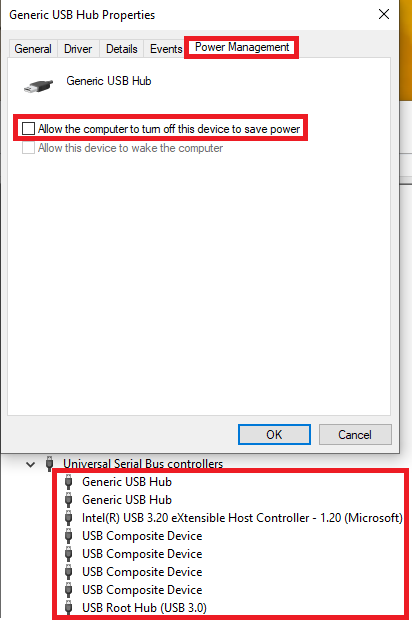
3 Expand USB settings > USB selective suspend settings > disabled > apply > ok

Uncheck Allow the computer to turn off this device to save power for USB
4 Right-click “start” > device manager
5 Expand Universal Serial Bus controllers
6 Right-click generic usb hub > properties > power management tab
7 Uncheck Allow the computer to turn off this device to save power > ok

Repeat if there are multiple USB Hub.

Restart PC.


  • Go to Windows Settings > System > Display > Advanced display.
    Next to “Choose a refresh rate” set it to the highest Hz your monitor supports.

  • Go to Windows Settings > System > Display > Graphics. Click “Add Microsoft Store app” then select Microsoft Flight Simulator from the list. Click on Microsoft Flight Simulator 2024 to open it and expand the options, then set GPU preference to High performance (NVIDIA RTX 5080).


A properly working PC isn’t just about BIOS settings, which is why I started with system-level tweaks first and we still haven’t finished that part. Settings shouldn’t be changed all at once; it needs to be done step by step.

FYI, I’ve noticed that the two latest BIOS versions (1AA3 and 1AA0) can introduce minor performance issues on PC. Because of that, I rolled back to a stable and well-tested version 1A8 from 2026-01-27, which you can download here: MPG X870E CARBON WIFI | Gaming Motherboards|Best Motherboard for AI PC|MSI I recommend installing this version and testing it on your side as well.

Below I’ve prepared a BIOS configuration for you. Just copy these settings exactly, then SAVE and after the restart save the BIOS profile.

I personally use different BIOS settings on my own system, but the ones below are specifically prepared for you.

BIOS settings

Enter the BIOS and set everything exactly as shown in the screenshots below.


On the screenshot below, I disabled WiFi and Bluetooth - you can enable them if you use them. I also disabled the HD Audio Controller - you can set it to Enabled if you don’t have a dedicated sound card and need onboard audio.

On the screenshot below, the integrated graphics are disabled.


On the screenshot below, I selected Mode 3 (flat line). It’s important that the line stays flat, not higher or lower. A flat line helps stabilize the CPU a bit by preventing voltage drops under load. In the future, if you want to overclock the CPU, you can switch to Mode 2 for example. This setting helps avoid CPU voltage drops under load, which is important in games like MSFS and other demanding titles. So again - choose the flat line setting.


Change Precision Boost Overdrive from Auto to Advanced.


On the screenshots below, SVM and IOMMU (virtualization) are disabled. You can enable them if you use virtual machines or if you prefer system security over performance, because disabling virtualization also disables Core Isolation / Memory Integrity in Windows settings, making it unavailable there. That said, the PC won’t break or “explode” if you disable virtualization - it will generally run better - with less stuttering or even no stuttering in games.


The BIOS settings I suggested are almost complete and ready for gaming.


I’ll send you screenshots of my recommended MSFS 2024 settings for you to test shortly. In the meantime, please flash your BIOS to version 1A8 first, and only after that apply the system and BIOS changes I mentioned.

There is a video on YouTube about Wi-Fi stuttering games.

I use a LAN Cable on my PC and disabled WIFI in the BIOS.

You can go ahead and follow my suggestions.

Please don’t change anything on your own outside of what I’m suggesting, otherwise the troubleshooting won’t make sense anymore. Let me know once everything is done, and I’ll write what to do next.

I will install the bios version you suggested now, everything is set in the BIOS and i saved the config to a USB stick.

BIOS is now ready, trying to install some windows 11 updates still wich are failing all the time. If they keep failing i need to to a inplace update.

Besides the BIOS, keeping Windows up to date is just as important. If some updates keep failing to install, it’s usually a good idea to try a Windows reset. You can find the Reset this PC option under Settings > System > Recovery.