Yes I suspect it should be good to go!
1 Like
So my msfs2020 installation is inherently unstable. And even though I have uninstalled the geforce app, the 190_E658703 files still keep appearing. So they keep being reinstalled in the background by some process other than from the geforce app. Any solutions? I need to delete these files or else my sim wont boot.
Workaround MSFS 2020 CTD during loading with or without NVIDIA app installed (DX11) - #12 by TenPatrol
Hello everyone,
I wanted to share my solution for those experiencing crashes or freezes when launching MSFS 2020, related to NVIDIA NGX files. After testing a lot, I discovered that the problem comes from the folder C:\ProgramData\NVIDIA\NGX\Models.
Here’s what I found:
-
If NGX files are present before launching the game, MSFS crashes.
-
If I delete all files in this folder manually before each launch, the game starts perfectly.
-
Once in the game, the
Modelsfolder is automatically regenerated, but this does not cause any crash. -
Even running the game as administrator does not fix the crash if the files are already there.
So, for now, the simplest solution is:
-
Close MSFS.
-
Go to
C:\ProgramData\NVIDIA\NGX\Modelsand delete all files manually. -
Launch MSFS → the files are recreated properly during startup and the game runs normally.
1 Like
First of all - welcome to the world of Microsoft Flight Simulator - probably the best community on the planet! 
We usually solve problems faster than the official support of most games and apps … and we’re a pretty understanding bunch too.
Now, back to the topic - we actually figured this one out quite a while ago. In one of the threads, I clearly pointed out which file is responsible for the CTD (though it’s not the main cause of the problem).
There’s no need to delete anything. You just need to switch from DX11 to DX12 in the UserCfg.opt file.
I’ve explained how to do this multiple times already, but it won’t hurt to go over it once more.
To do this, you need to edit UserCfg.opt file and modify the line
PreferD3D12 0

Change the number 0 to 1

and save the changes.
@Tomoka327
I do appreciate that you shared your suggestion about deleting the folder - though it’s worth noting that this folder will come back after reinstalling NVIDIA driver anyway. That’s why I think it’s simply better to switch to DX12 and forget about deleting any folders or files.
That being said, switching from DX11 to DX12 isn’t a perfect solution either - DX12 can cause other issues on some hardware configurations, such as stuttering or performance drops in MSFS 2020. So, until a proper fix arrives, we just have to live with it.
The good news is that this particular CTD has been bug-logged, meaning the developers have acknowledged it and are forcing the CTD on their end - which is actually a positive sign, because it means they’re actively working on it.
I encourage you to participate in the linked thread below to stay updated and add your input.
https://forums.flightsimulator.com/t/msfs-2020-ctd-during-loading-with-or-without-nvidia-app-installed-dx11/732584
1 Like
Maybe someone will try this. I dont wanna switch to DX12.
Make a batch file that automatically delete the NGX Folder before every start.
ChatGPT says following.

Hello - I’m new in here. Your Instruction changing to DX-12 (prefer D3D12=1) was very helpful to install another nvidia graphics-card. The old one was a 3060 TX, the new is a 5060 ti. Now I have another Problem: I want to transfer the complete Sim to another drive - from HDD to SSD. The last line of user opt. is this: “C:\Users\Username\AppData\Local\Packages\Microsoft.FlightSimulator_8wekyb3d8bbwe\LocalCache\Packages”
That’s enough to insert from C:\ to H:\ - and then copy the whole file to H:\ ?
Reason is: Drive C: is nearly full - there is only 140 GB space for installing new updates.
Thank you very much in advance …. .
You can also locate the sim in Windows Settings/Apps/Installed Apps, then click on the “…” and select “Move”. It will ask where you want to move it to, and will then install the packages to the drive you select. Pretty simple and bulletproof.
It’s not recommended to move or install the MSFS launcher to a drive other than C. Doing so can cause file and folder permission issues in the future. I’ve helped many users resolve problems like this multiple times.
A better solution is to move Official and Community folders to another drive/partition instead.
I believe the process I described only moves the essential package, not the installer.
I also mentioned that using the “Move” option is not recommended, as it can still lead to file and folder permission issues in the future.
…”phew”. Another Question: After every time starting the device, X-Box creates a new Folder to H:\
named “XboxGames”. Can I safely ignore it or not, while creating a new MSFS 2020-folder to copy the community/offical folders to H:/ ?
Edit: Huge thanks for the instructions. It works.
After two hours of 
Happy to help. Fly safe.
HEllo , For me with the crash issue :Nom de l’application défaillante : FlightSimulator.exe, version : 1.39.9.0, horodatage : 0x00000000
Nom du module défaillant : 190_E658703.dll_unloaded, version : 2.8.12.0, horodatage : 0x689e388b
Exception code: 0xc0000005
Fault offset: 0x00000000000376a0
Identifiant du processus défaillant : 0x10AC
Heure de début de l’application défaillante : 0x1DC4B16A22D1E24
Chemin de l’application défaillante : C:\Program Files\WindowsApps\Microsoft.FlightSimulator_1.39.9.0_x64__8wekyb3d8bbwe\FlightSimulator.exe
Chemin du module défaillant : 190_E658703.dll
ID du rapport : d5984c9a-90b2-4eaf-89a3-2a9cd69dbd6b
Nom complet du package défaillant : Microsoft.FlightSimulator_1.39.9.0_x64__8wekyb3d8bbwe
Package défaillant – ID d’application relatif : App
I follewed your advices with :”To enable DX12 without launching MSFS 2020, you need to edit the usercfg.opt file. Find the line that says PreferD3D12 0 and change 0 to 1.
Isuue Solved
So thank you
You’re very welcome.
Do you have the same issue if you follow the OP’s steps to reproduce it?
•
Provide extra information to complete the original description of the issue:
•
If relevant, provide additional screenshots/video:
•I had the issue and fixed
I had this issus when MSFS stopped loading at “NEW ACTIVITIES” window.
-
Looked at Event viewer. See screen shot below:
-
Shoes that there is an issue with 190_E658703.dll
-
I searched for that file in Windows explorer and renamed every instanced with adding prefix “OLD-” instead of deleting (I prefer to rename rather then delete. This way if it doesn’t fix then you can revert) See screen shot:
-
Restart the MSFS and it worked.

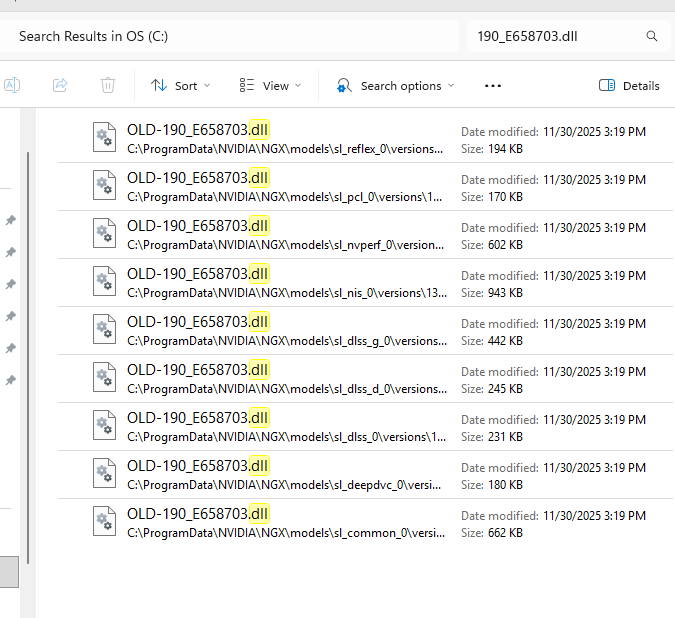
I hope this helps the readers.
Good luck.
3 posts were merged into an existing topic: MSFS 2020 Will Not Start - Error Code 0xc0000005
3 posts were split to a new topic: MSFS 2020 Crash on Startup